How to Use AI Space for Smart Learning
Index
PDFelement V13 introduces AI Space, a centralized study workspace where you can organize materials from multiple sources. Add files, YouTube video captions, copied text, or documents from PDFelement Cloud, then turn your content into flashcards, quizzes, podcasts, mind maps, and reports for more efficient learning and review.
Create an AI Space
Step 1. Open PDFelement and select Space from the navigation menu. Click Create a New Space to set up your study workspace.
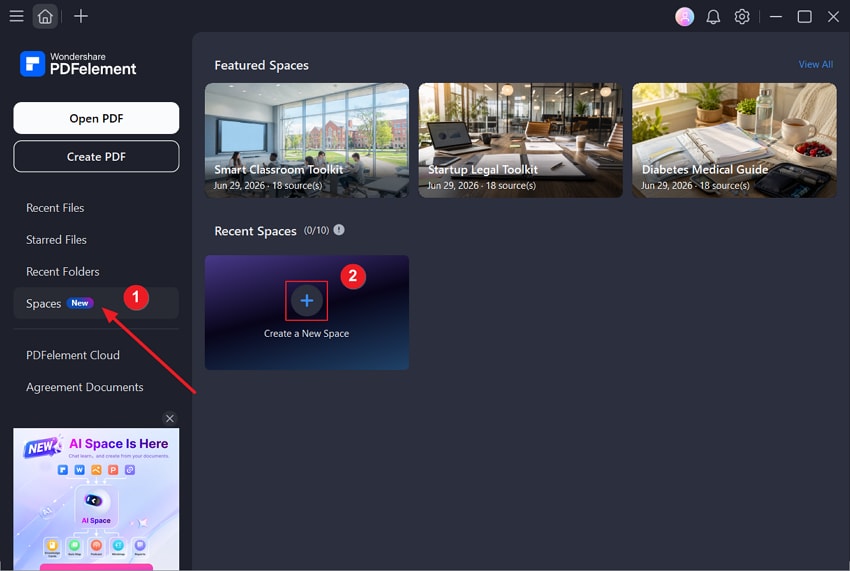
Step 2. After creating the space, add the materials you want to study. You can upload files from your computer, add a YouTube video, paste copied text, or import files from PDFelement Cloud.
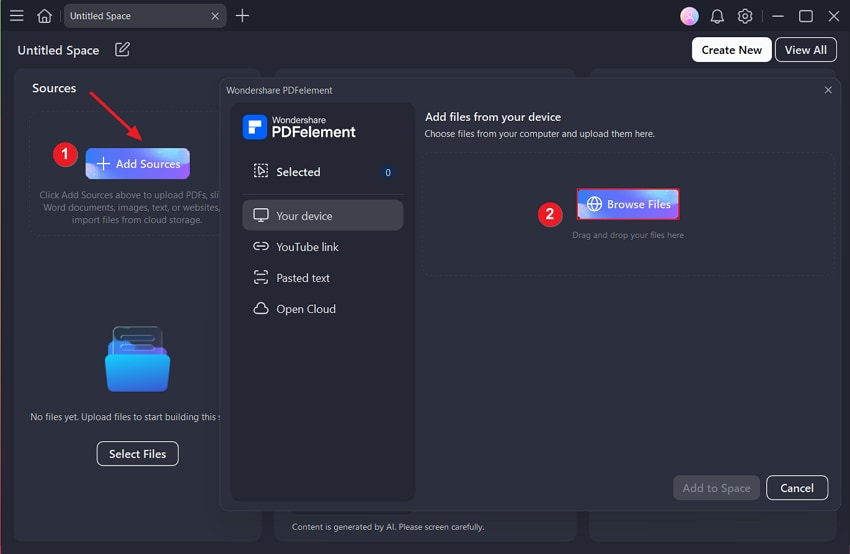
Choose one of the following options:
Upload Files: Select Browse Files, choose the study materials stored on your computer, and add them to the space.
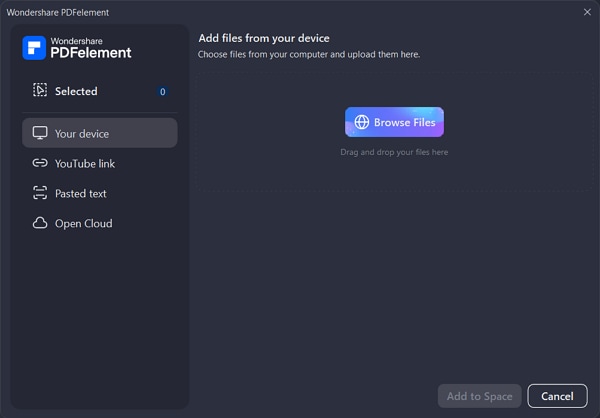
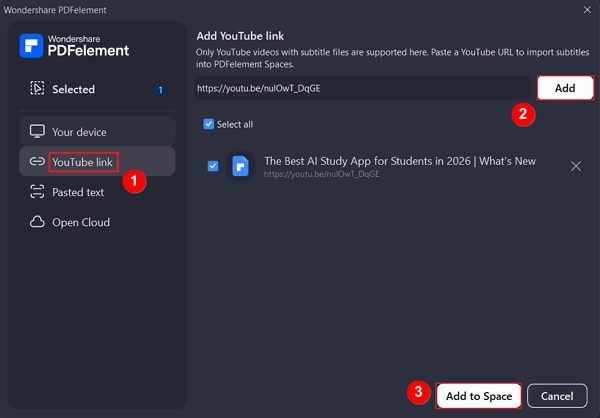
Add YouTube Videos: Copy the URL of the YouTube video you want to study and paste it into the input field. Click Add. PDFelement will detect the video's available captions and add the caption text to your space as study material.
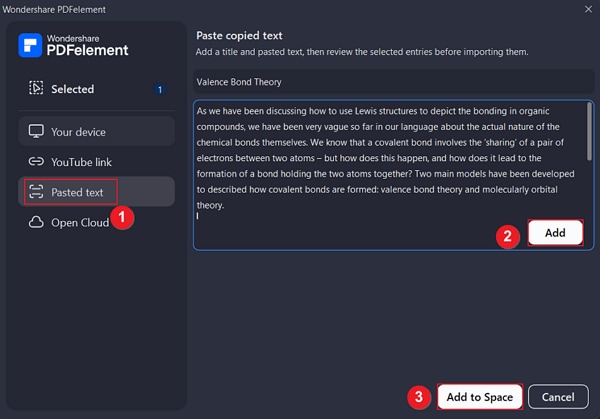
Paste copied text: Copy the text you want to use, then paste it into the text box. Enter a clear name for the material so you can easily identify it later, and click Add to save it to your space.
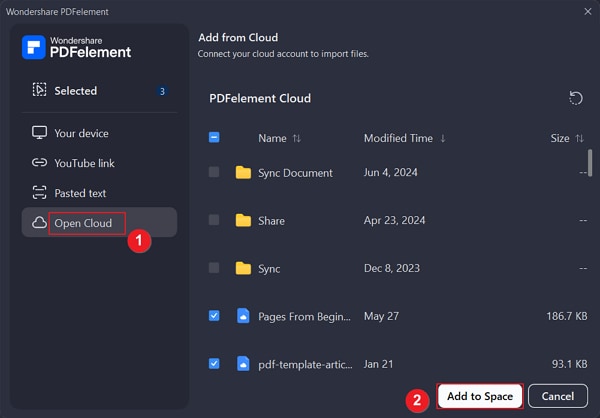
Add files from cloud: Select PDFelement Cloud, choose the files you want to use, and add them to your space. This lets you access existing cloud documents without downloading and uploading them again.
Once your materials have been added, you can use AI Space to create flashcards, quizzes, podcasts, mind maps, and reports based on the content in your workspace.
Create Flashcards from Files
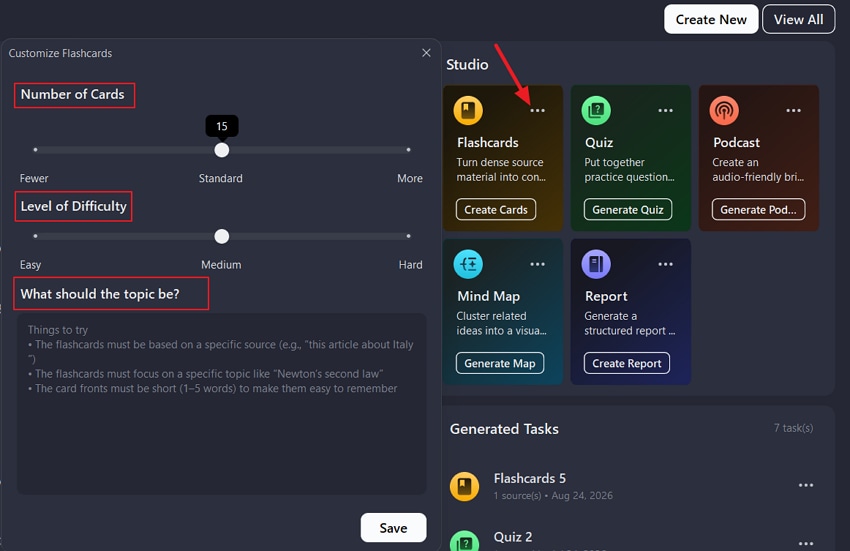
Step 1. Navigate to the Flashcard in the Studio. Click the three-dot icon to customize your settings. You can customize the number of flashcards, difficulty, and use a prompt to define the topic and specific details.
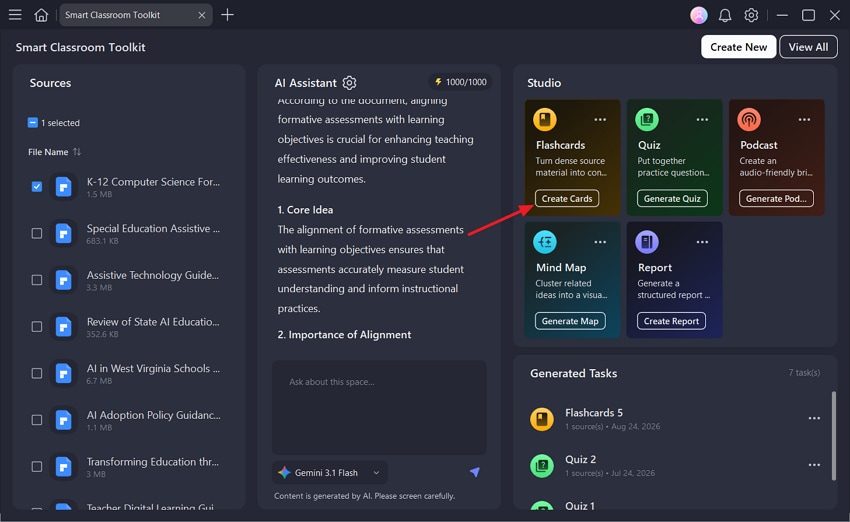
Step 2. Select the content and click Create Cards. PDFelement will generate flashcards according to your settings.
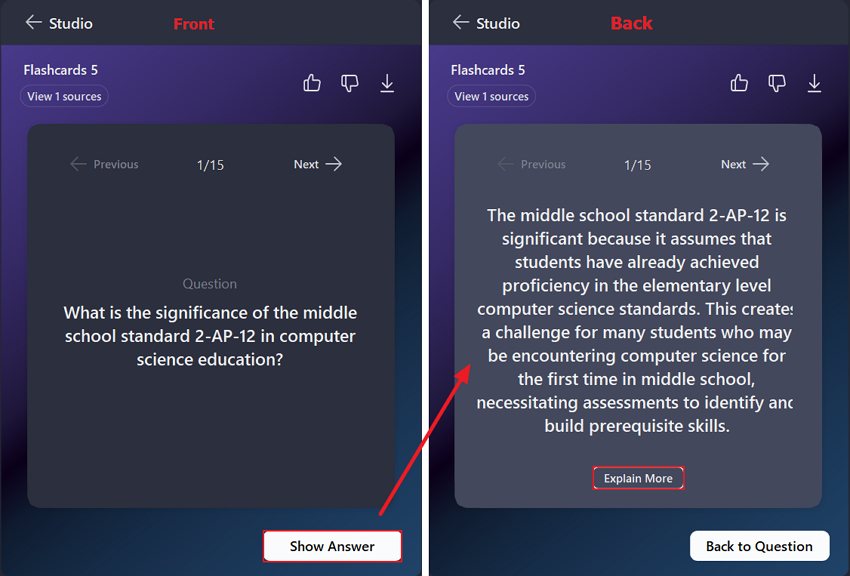
Step 3. Select the generated flashcard. You can view the question on the front side. Then click Show Answer to view the back side of the card. If you have doubts. Click Explain More to get more explanation under the answer.
Create Quizzes from Files
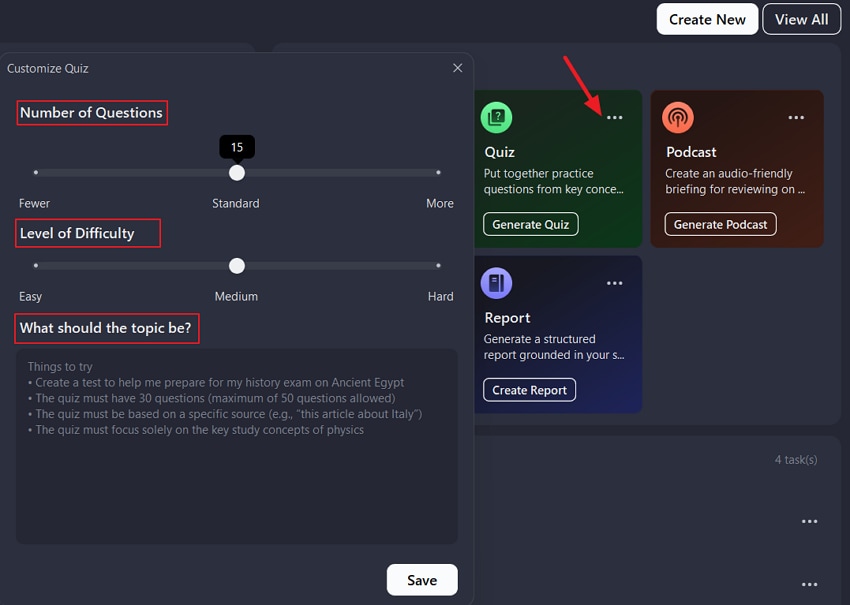
Step 1. In your AI Space, go to Studio and select Quizzes. Click the three-dot icon to open the quiz settings.
Choose the number of questions and the difficulty level. You can also enter a custom prompt to specify the topic, concepts, or details you want the quiz to cover.
Step 2. Select the files or other source materials you want PDFelement to use, then click Generate Quiz. PDFelement will create a quiz based on your selected content and customized settings.
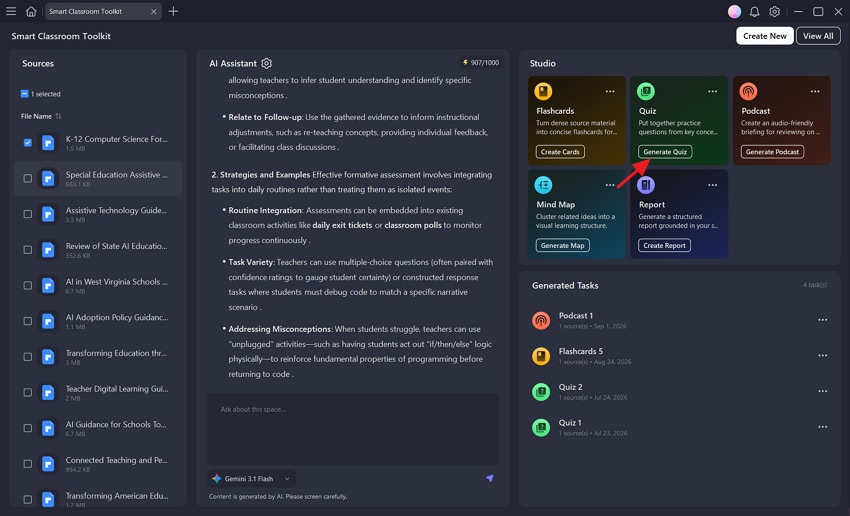
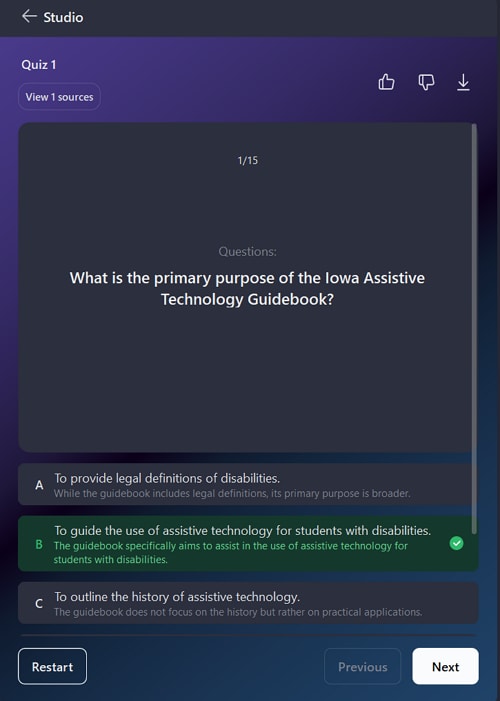
Step 3. Select the generated quiz and work through each question. Choose your answer, then check the result to see whether it is correct.
Generate Podcasts from Files
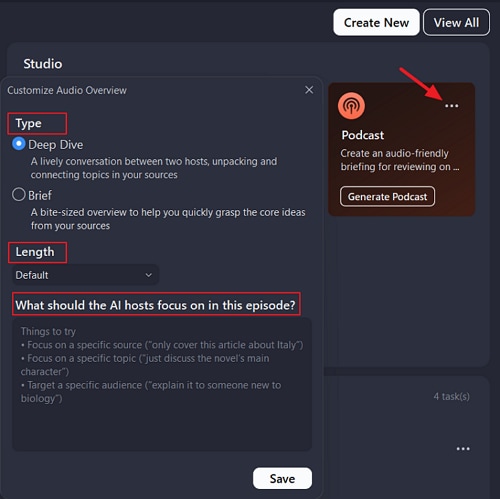
Step 1. In your AI Space, go to Studio > Podcasts. Click the three-dot icon to open the podcast settings.
Choose the podcast format that best fits your needs:
- Deep Dive: Creates a detailed, conversational discussion of your source materials.
- Brief: Creates a shorter audio summary focused on the key points.
You can also enter a custom prompt to define the podcast’s topic, intended audience, or specific points you want it to cover.
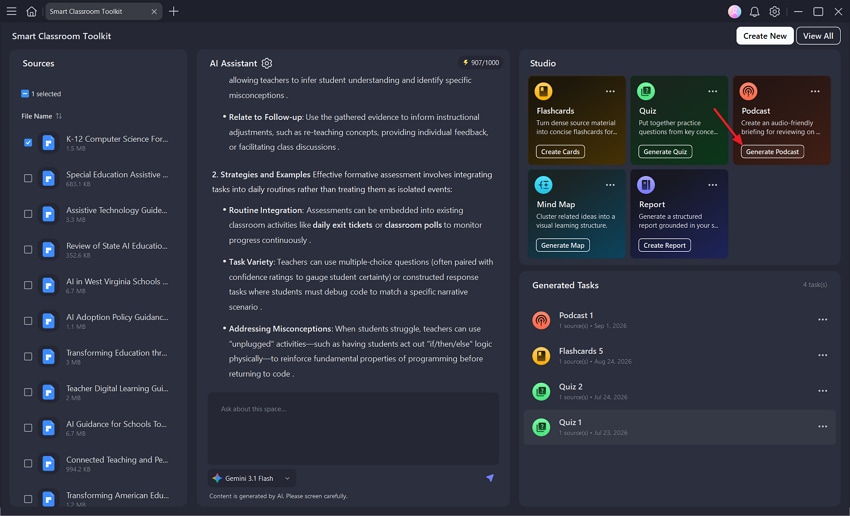
Step 2. Select the files or other source materials you want PDFelement to use, then click Generate Podcast. PDFelement will create a podcast based on your selected materials, format, and custom instructions.
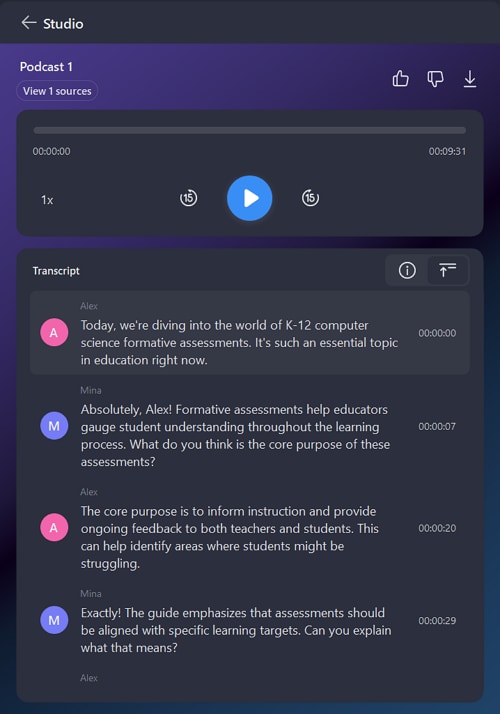
Step 3. Select the generated podcast to begin listening. A synchronized transcript is displayed during playback, making it easier to follow along or review specific information.
You can also export the podcast as an MP3 file and listen to it later on your computer, phone, or another audio device.
Generate Mindmap from Files
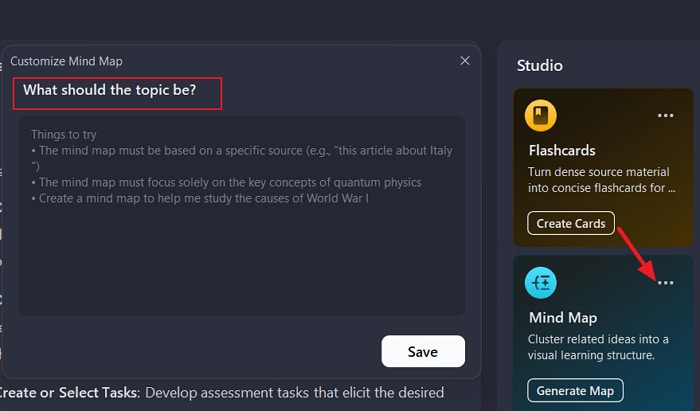
Step 1. In your AI Space, go to Studio > Mindmap. Click the three-dot icon to open the mind map settings. Enter a custom prompt to specify the main topic, key concepts, or areas you want the mind map to focus on.
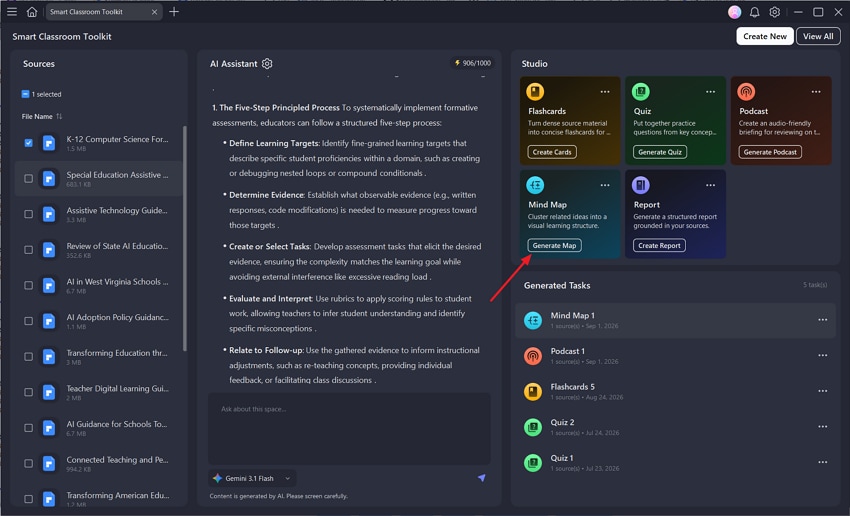
Step 2. Select the files or other source materials you want PDFelement to use, then click Generate Map. PDFelement will analyze the selected materials and create a mind map based on their key ideas and your custom instructions.
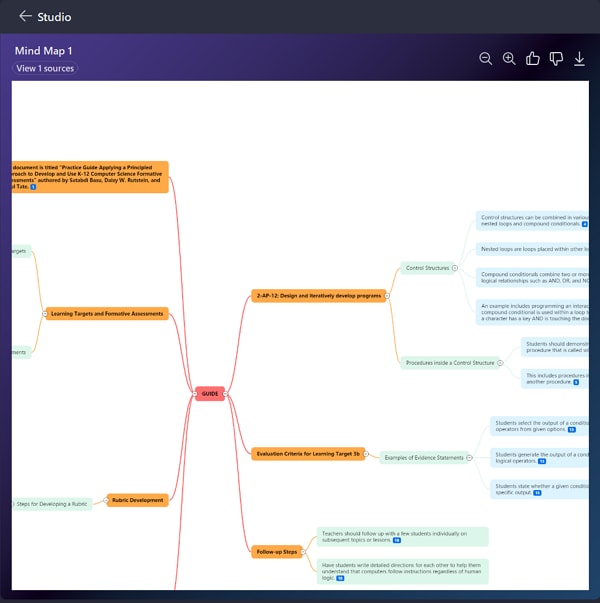
Step 3. Open the generated mind map to explore its topics, subtopics, and supporting details. You can also export the mind map as a PNG image for easy sharing, presentation, or storage.
Generate Reports from Files
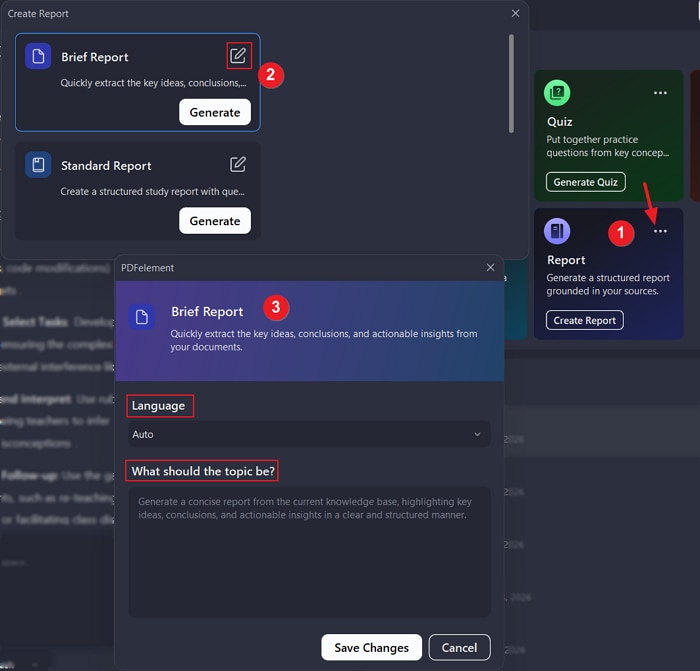
Step 1. In your AI Space, go to Studio > Report. Click the three-dot icon to open the report settings, then choose one of the following options:
- Brief Report: Provides a concise overview of the most important information (key ideas, conclusion, insight).
- Standard Report: Provides a more detailed analysis of your source materials and generates reports with questions, answers, and key concepts.
- In-depth Report: Provides an in-depth analysis of your source materials and includes problems, arguments, supported evidence, common misunderstandings, and more of the materials.
- Custom Report: Lets you define the purpose, audiences, and focuses of the report.
Each mode allows you to customize the language and make customizations with prompts.
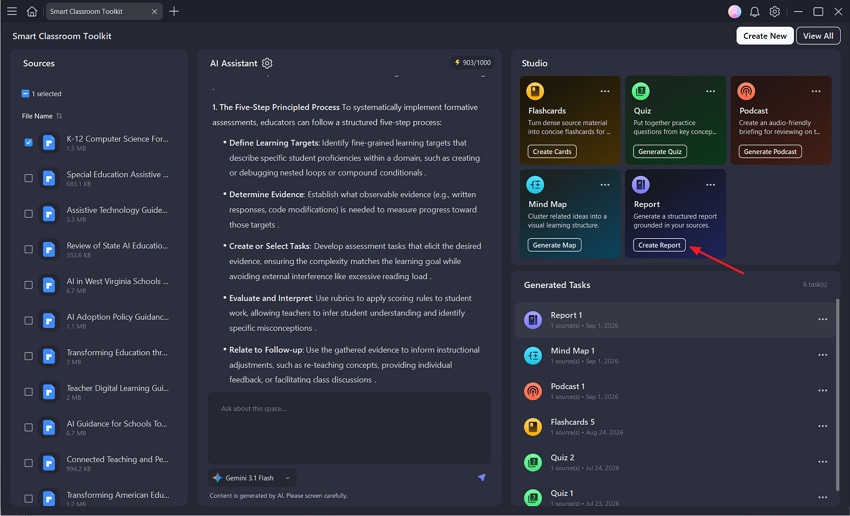
Step 2. Select the files or other source materials you want to analyze from the left panel, then click Create Report. PDFelement will analyze the selected content and organize the results into a structured report depending on the source materials and selected report type.
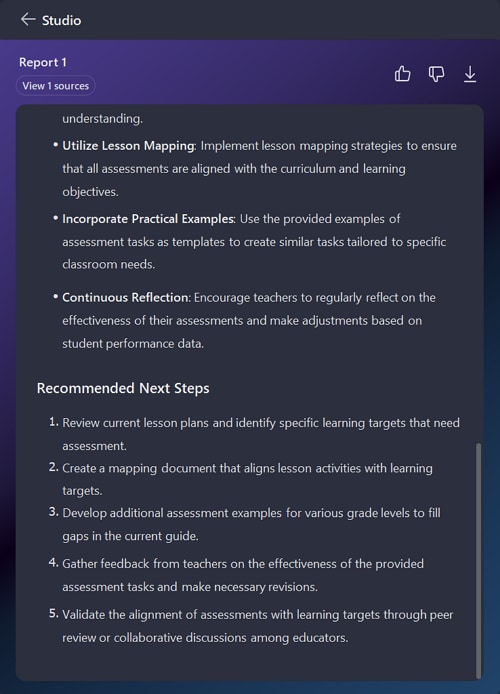
Step 3. Open the generated report to review its findings and key takeaways. When you are finished, export the report to save a copy for future reference or sharing.
Ask about Space
PDFelement Space includes a built-in AI assistant that lets you ask questions about the materials in your space. After you create a space, the AI assistant will automatically generate an overview of the materials in the space. You can also use the AI chatbot to clarify difficult concepts, summarize information, compare ideas across files, or locate specific details.
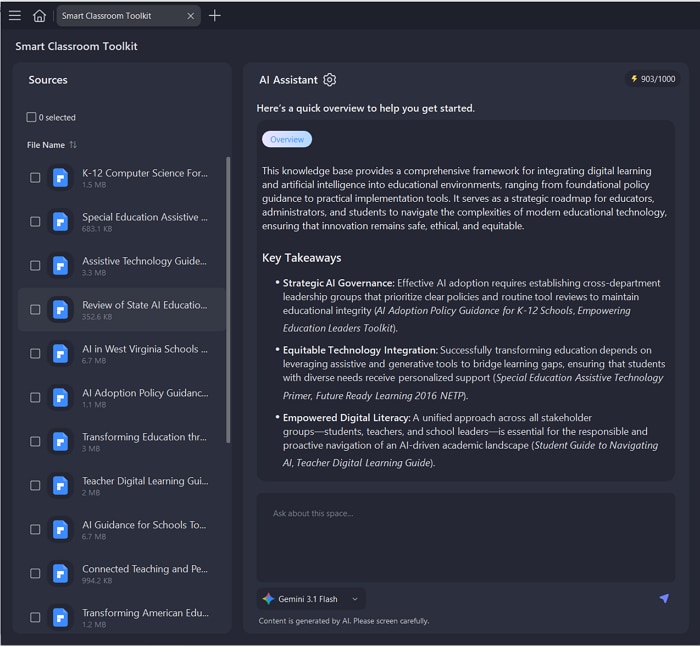
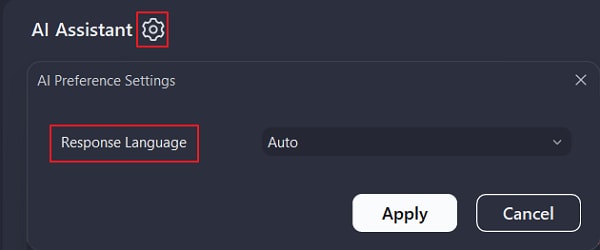
Configure response language: Click the gear icon, then select the language you want the AI assistant to use for its responses. PDFelement supports multiple languages, allowing you to study and ask questions in the language you are most comfortable with.
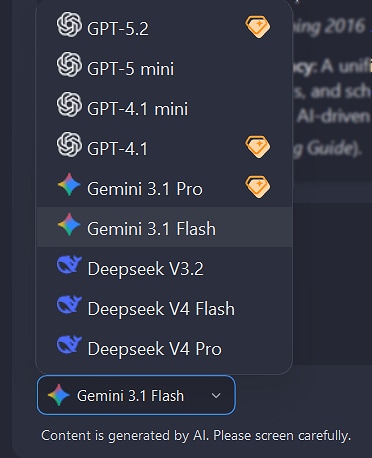
Select AI models: PDFelement provides access to multiple AI models, including ChatGPT, Gemini, and DeepSeek. Click the current model name to open the model list, then select the model you want to use for your conversation.