Home > Online PDF Tools > PDF to Word

PDF to Word – Convert PDF to DOC/DOCX Online for Free

Convert PDF to Word online for free and turn PDF files into editable DOC/DOCX documents — even scanned PDFs.
Use OCR when needed while keeping text, tables, images, and document layout easier to edit in Microsoft Word.

convert PDF to Word online Convert PDF to Editable Word Online
scanned PDF to Word with OCR Scanned PDF to DOCX With OCR
file security and privacy Batch Convert Multiple PDFs to Word Online

icon PDF vs Word: Why Convert PDF to Editable Word?

PDF and Word serve different purposes: PDF is designed to preserve a document's appearance, while Word is built for editing. Converting PDF to Word gives you an editable DOCX file so you can revise text, tables, images, and other content without rebuilding the document from scratch.

Convert PDF to Word Online vs. Offline

How to Convert PDF to Word Online for Free?

1
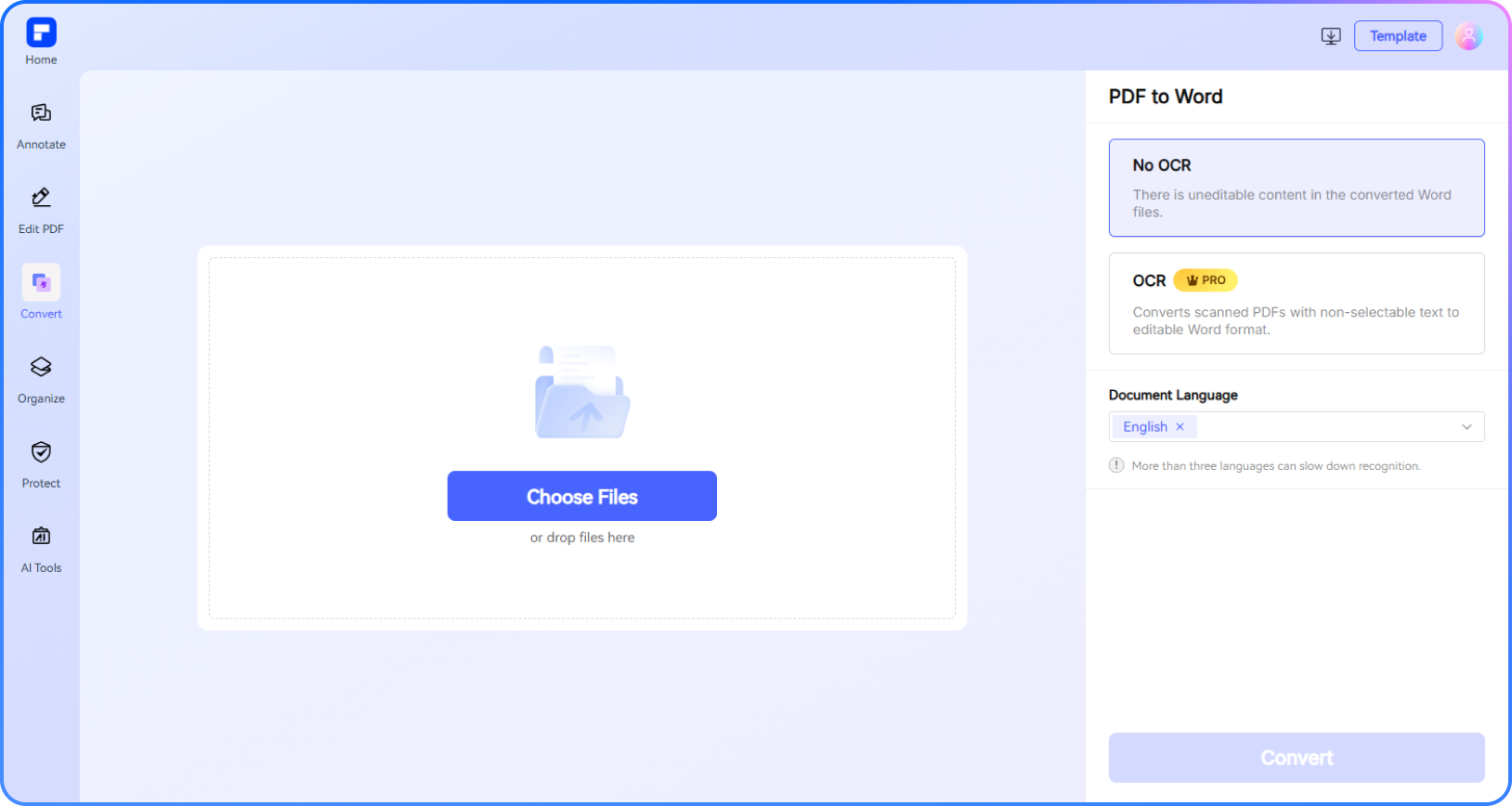
Upload your PDF to the PDFelement online PDF to Word converter, or drag and drop the file into the upload area. You can also add multiple PDFs for batch conversion.
2
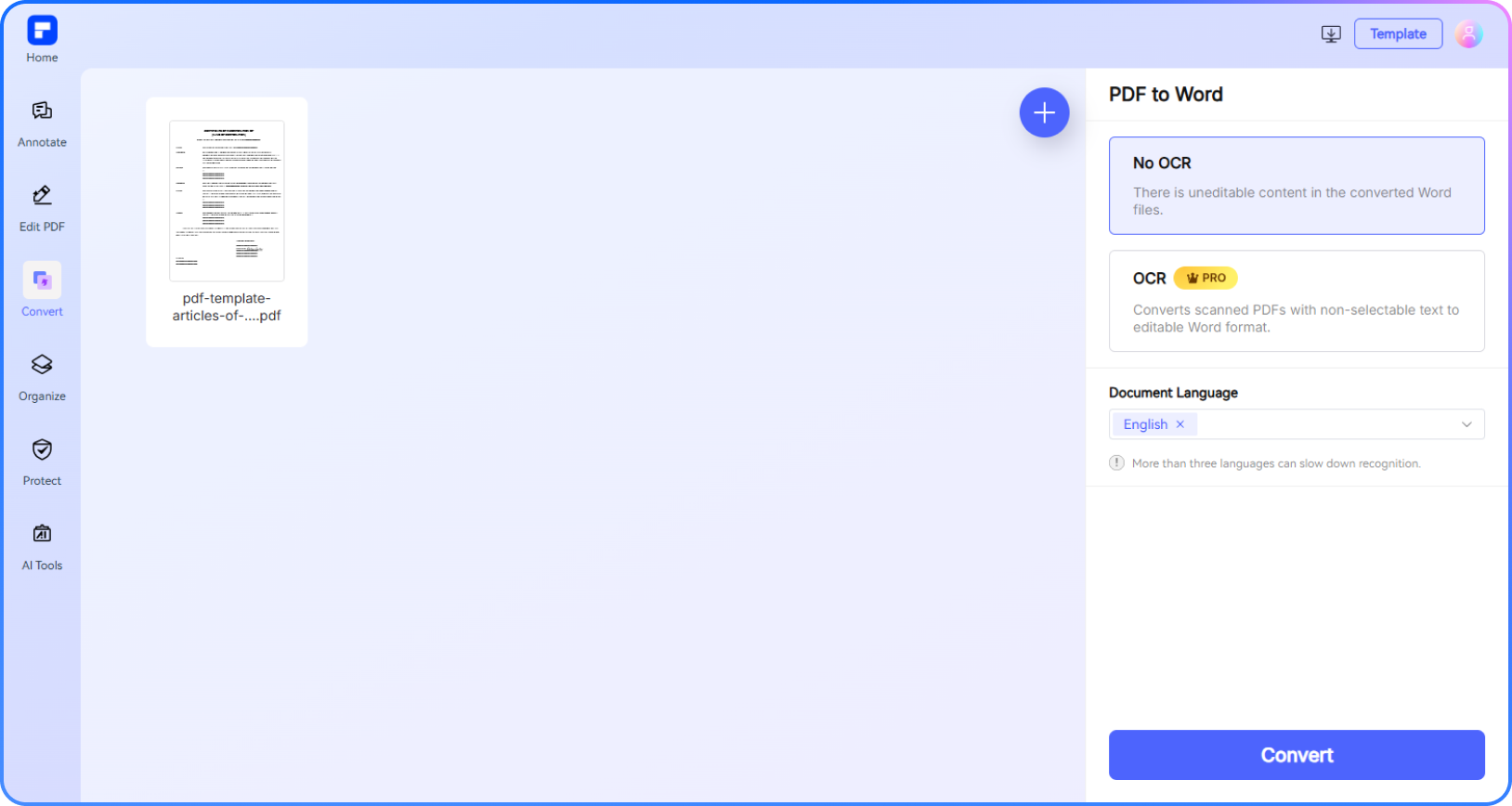
Click Convert to turn the PDF into an editable Word file. For a scanned PDF, enable OCR and select the correct document language for more accurate text recognition.
3
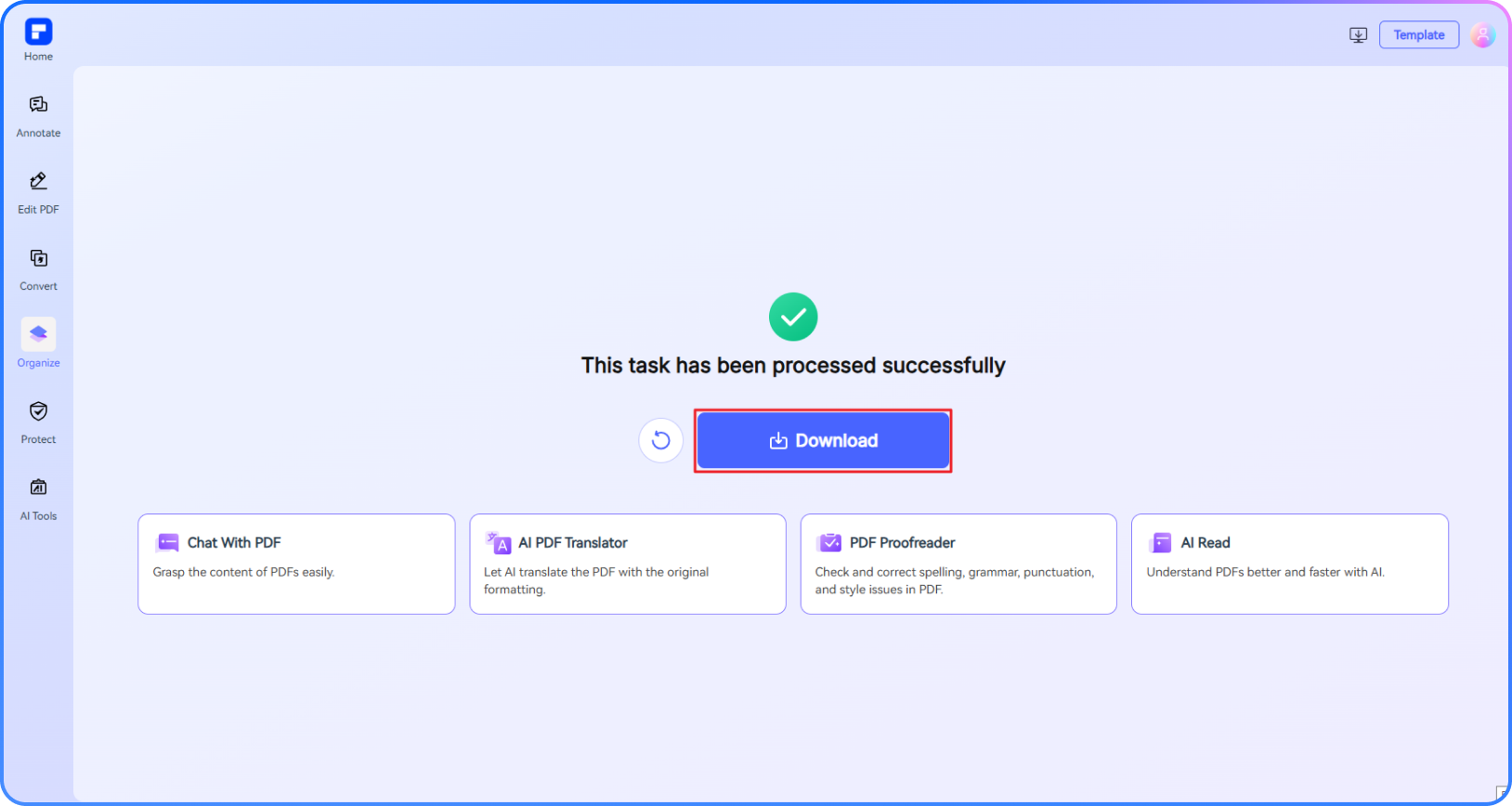
When the conversion finishes, download the editable Word DOCX file to your device and continue editing it in Microsoft Word or another compatible editor.
pdf to word step 1
pdf to word step 2
pdf to word step 3

Why Use Our Free PDF to Word Converter?

Turn PDF Files into Editable Word Documents Online

Instantly transform PDFs into fully editable Word documents online — no installation needed.

Convert PDF to DOCX Online for Free

Convert PDF to DOCX online for free in a few clicks. Upload your PDF, start the conversion, and download an editable Word document without installing software.

Convert PDF to Word Without Losing Formatting

Convert PDFs to editable Microsoft Word (DOCX) files while preserving text, images, tables, and common layout elements, so less cleanup is needed after conversion.

Scanned PDF to DOCX With OCR

Use OCR to convert scanned PDFs into editable Word DOCX files directly in your browser. Select the document language to improve text recognition before downloading the result.

Batch Convert Multiple PDFs to Word Online

Convert multiple PDF files to Word in one workflow when you have reports, contracts, research papers, or other documents that need editing in DOCX format.

Use the PDF to Word Converter on Any Device

Use the online PDF to Word converter in a modern browser on Windows, Mac, iOS, Android, or tablet. No desktop installation is required for the online conversion.

Use the PDF to Word Converter for Work, Study, and More

Academic Research & Editing
Legal Document Processing
Business Report Localization
Convert research PDFs to editable Word documents.

Researchers can convert PDF papers to editable Word files instead of retyping text manually. For scanned papers, OCR helps recognize the text so notes, quotations, and sections can be revised more efficiently.

Converting scanned PDFs to Word saves me from retyping research material, and the OCR output gives me editable text I can work with for my thesis.

- Emily C. | PhD Candidate

Turn PDF contracts into editable Word files for revisions.

When a contract or agreement needs revisions, convert the PDF to Word so clauses, dates, and other text can be edited without recreating the document from the beginning.

Converting contract PDFs to Word makes revisions much faster because we can edit clauses directly instead of rebuilding the document.

- Rachel K. | Legal Assistant

Convert PDF reports to Word for translation and updates.

Convert PDF reports to editable Word documents before translating or updating them. This makes it easier to revise text while keeping the original document structure available for reference.

It is much easier to prepare localized versions when the PDF is first converted to an editable Word document that our team can revise.

- Isabelle T. | Localization Project Manager

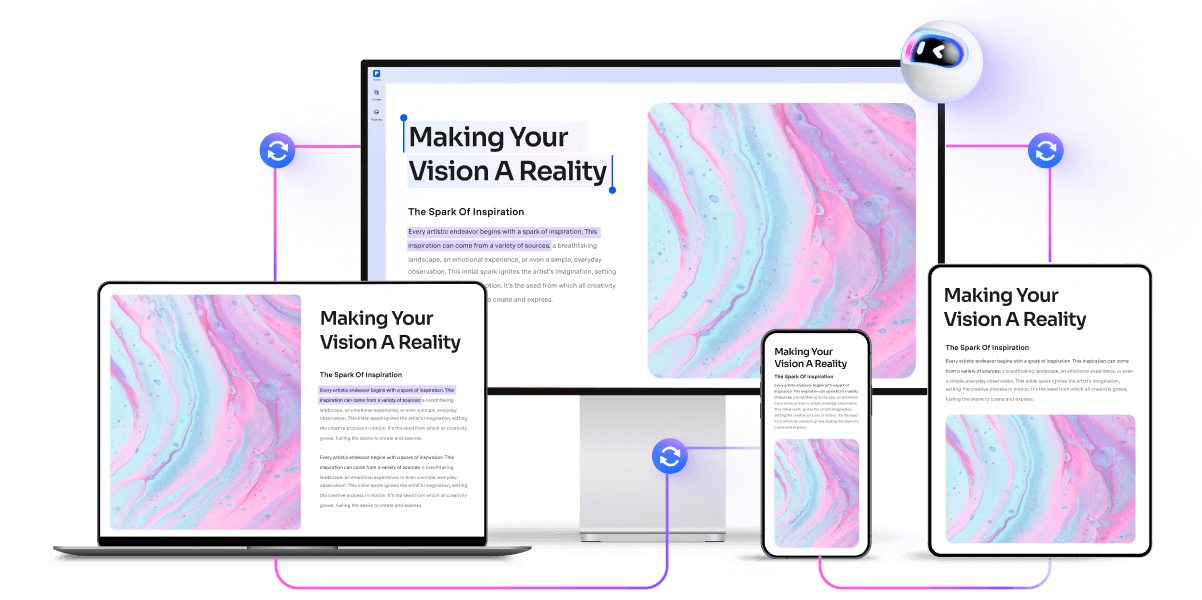
Get your documents done anywhere.

Manage your PDFs and keep them running on all your screens: desktop, mobile, or web. Steady. Smooth. Simple.

pdfelement online pdf editor

Secure, Compliant, and Professional PDF Software - Award - Winning.

PDFelement shines in G2 Winter 2026 as a Leader, Momentum Leader, and High Performer for Enterprise - adding to its 2024 G2 Best Software Award - Top 50 Office Products, ISO 27001 - Information Security Management certification, and PDF Association membership.


Convert PDF to Word pdf to word button Free Download pdf to word button Free Download pdf to word button Free Download pdf to word button Free Download

FAQs about PDF to Word.

  • Maintaining the original layout, fonts, and design when converting PDF to Word can be easy if you use the right tool. Here's how to do it effectively:

    Step-by-Step Guide:

    1. Use a Reliable Converter

    Choose a tool that prioritizes formatting accuracy. PDFelement Online PDF to Word Converter is a trusted option that ensures high-quality, layout-preserving conversions directly in your browser.

    2. Upload Your PDF File

    Go to the PDFelement converter, upload your PDF, and make sure it’s not corrupted or overly compressed.

    3. Enable OCR for Scanned PDFs

    If your PDF is scanned, enable the OCR (Optical Character Recognition) feature to accurately recognize and convert text, including formatting.

    4. Select the Document Language

    Choose the right language for your file to ensure better accuracy.

    5. Download and Review

    Once converted, download your Word file and check that all formatting—tables, fonts, images, and spacing—is intact.

  • Yes, you can convert PDFs to Word for free using several online tools. Many services offer basic PDF to Word conversion at no cost, including:

    PDFelement Online PDF to Word Converter

    A reliable, free tool that lets you convert PDFs (including scanned files with OCR) to editable Word documents without needing to install software.

    Microsoft Word

    You can open simple PDFs directly in Word (desktop version) and save them as DOCX files, although complex layouts may not convert perfectly.

    Google Docs

    Upload your PDF to Google Drive, open it with Google Docs, then download it as a Word document. Formatting might be limited.

  • Yes, you can convert PDFs to several Microsoft Office formats — not just Word. Many PDF converters, including PDFelement Online PDF to Word Converter, support a range of output options for seamless document editing and reuse.

    Common Microsoft Office Formats You Can Convert To:

    • Word (DOCX): Easily edit text, formatting, and layout in Microsoft Word.
    • Excel (XLSX): Extract tables and data from PDFs into Excel for calculations, analysis, or reporting.
    • PowerPoint (PPTX): Turn PDF presentations or slides into editable PowerPoint files.

    How to Convert PDFs to Office Formats (Using PDFelement Online):

    1. Upload your PDF to the converter.
    2. Select your target format — DOCX, XLSX, or PPTX.
    3. Click Convert and download the output file.
    4. Edit in Microsoft Office as needed.

    Tip: If your PDF includes scanned content, enable OCR for accurate text recognition in all formats.

    PDFelement Online PDF Converter makes it fast and easy to convert PDFs to various Office formats — all for free and without installing software.

  • Yes, you can convert a scanned PDF to an editable Word (DOCX) file using a tool that supports OCR (Optical Character Recognition).

    What You Need: OCR Support

    Scanned PDFs are essentially images. To turn them into editable text, your PDF to Word converter must include OCR. One great option is the PDFelement Online PDF to Word Converter — it offers free OCR support directly in your browser.

    How to Convert a Scanned PDF to DOCX:

    1. Upload your scanned PDF to an OCR-enabled converter like PDFelement Online.
    2. Enable OCR, and select the correct language for accurate recognition.
    3. Click Convert, then download your editable Word document.
  • You can insert a PDF into a Word file in a few different ways, depending on whether you want it to appear as an icon, image, or editable text.

    Method 1: Insert as an Object (Icon or Embedded Page)

    Best for: Displaying the PDF as a clickable icon or embedding the first page.

    1. Open your Word document.
    2. Go to Insert > Object > Create from File.
    3. Click Browse, select your PDF, and choose:
    • Display as icon to show a clickable PDF icon, or
    • Leave unchecked to show the first page of the PDF.

    Method 2: Insert as Image (Snapshot of PDF)

    Best for: Non-editable visual reference.

    1. Open your PDF in a viewer (like PDFelement or Adobe Reader).
    2. Take a screenshot or use a snapshot tool.
    3. Paste it into your Word document (Ctrl + V or Insert > Pictures).

    Method 3: Convert PDF to Word and Merge

    Best for: Editing PDF content within Word.

    1. Use a PDF to Word converter like PDFelement Online PDF to Word Converter.
    2. Convert the PDF to DOCX format.
    3. Open both files and copy-paste or merge content as needed.
  • You can convert PDF files to Word documents on a Mac using online tools. Here's a clear step-by-step guide:

    Use PDFelement Online PDF to Word Converter (Free & Easy)

    Best for: Accurate formatting, scanned PDFs, and no software installation.

    1. Go to PDFelement Online PDF to Word Converter.
    2. Upload your PDF file.
    3. (Optional) Enable OCR if it’s a scanned document.
    4. Click Convert.
    5. Download your editable Word (DOCX) file.

    Why choose PDFelement Online?

    • 100% Free & No installation required
    • Preserves layout, fonts, and images
    • Works on Safari, Chrome, or any browser on macOS
  • You don’t need Adobe Acrobat to convert a PDF to Word. There are several easy and reliable alternatives — many of them free. Here are the best methods:

    1. Use PDFelement Online PDF to Word Converter (Free & No Adobe Needed)

    A fast, browser-based tool that converts PDFs to editable Word documents (DOCX) while preserving formatting.

    Steps:

    1. Go to PDFelement Online PDF to Word Converter
    2. Upload your PDF file.
    3. Enable OCR if it’s a scanned PDF.
    4. Click Convert, then download your Word file.

    2. Use Microsoft Word (Built-In Feature)

    For simple PDFs, Word can open and convert them directly.

    Steps:

    1. Open Microsoft Word.
    2. Click File > Open and select the PDF.
    3. Word will auto-convert it to an editable DOCX file.

    Note: Formatting may be inconsistent for complex layouts.

    3. Use Google Docs (Free with Google Account)

    Steps:

    1. Upload your PDF to Google Drive.
    2. Right-click > Open with > Google Docs.
    3. It opens as editable text.
    4. Go to File > Download > Microsoft Word (.docx).

    Note: Formatting may vary, especially with images or tables.

  • Yes, there are certain limitations for free users:

    Daily Usage Limits:

    · Most editing and conversion tools allow 1 free use per day (e.g., Edit PDF, Merge, Split, Compress, Convert, Protect).

    AI PDF Tool Limits:

    · Chat with PDF, AI Read, AI Proofreader:

    ①Limited to 10 uses

    ②Supports PDFs up to 100MB and 260 pages

    AI Translator & AI Detector:

    · Limited to 10 uses (every 10 pages = 1 use; under 10 pages still counts as 1 use)

    · Max file size: 100MB (AI Translator), 10MB (AI Detector)

    Note:

    · To enjoy unlimited usage, you can upgrade to premium access.

    Page/File Size Restrictions:

    · PDF files must be under 100MB (except for AI Detector)

    · Max file size for OCR: 50MB

    · Max 260 pages for AI tools

Rate PDFelement Online PDF tools:

star

4.8

(188,357 Votes)

You have to upload and download at least 1 file to rate! We've already perfectly processed 307,292,373 files with a total size of 10,124 TB

pdfelement
Smart PDF Solution,
Simplified by AI.

Fast, easy, and affordable PDF editor. Convert, edit, sign PDFs, and more.