

How to Customize the PDFelement Toolbar on Windows
PDFelement allows users to customize specific toolbar functions, enabling a more efficient workflow. You can prioritize and sort the tools, ensuring that core functions are displayed prominently for quick access. The toolbar can be set to auto-expand or collapse for a clean workspace. Learn how to customize the toolbar of your PDF tool by following the steps mentioned below:
Step 1: Launch PDFelement and Access Customize Toolbar
- To initiate the process, launch PDFelement and add your document. Head to the bottom left corner of the interface and press the “Three Dots” icon to click on the “Customize Toolbar” option.
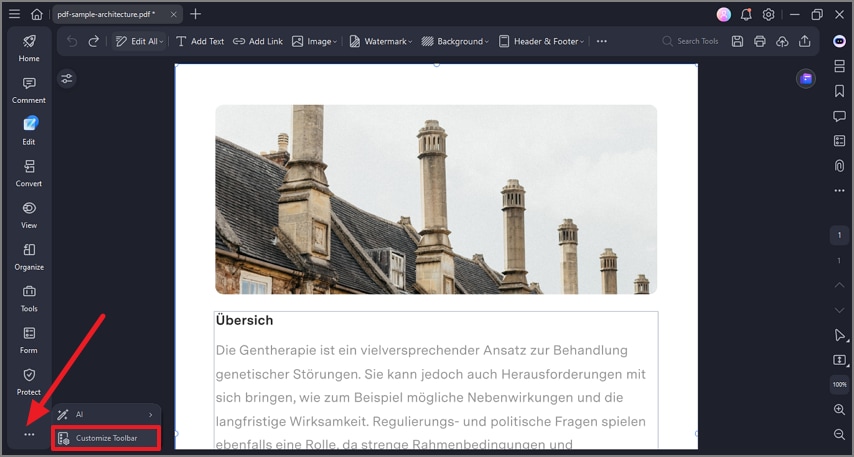
Click Customize Toolbar
Step 2: Choose Tools to Add and Apply
- Choose the tools to be added to the bar by checking the tick box next to each feature. Save the changes by clicking on the “Apply” button available at the bottom.
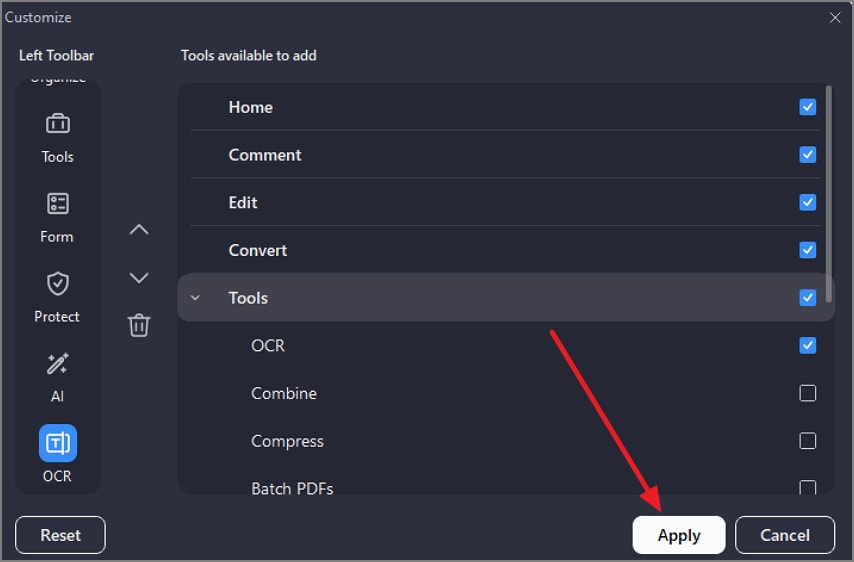
Add Tools