Home > Online PDF Tools > Word to PDF

Convert Word to PDF Online for Free

Convert Word to PDF online for free with PDFelement. Turn DOC or DOCX files into PDF while keeping the original layout, fonts, images, tables, and page breaks.
No installation or watermark—just upload, convert, and download in your browser.

free Word to PDF converter Convert Word to PDF for Free
batch Word to PDF conversion Batch Convert Word Files to PDF Online
Word to PDF converter for multiple devices Word to PDF Converter Online on Mac, Windows, iOS, Android

icon Why Convert Word to PDF?

Converting Word documents to PDF helps preserve the original layout, fonts, images, tables, and formatting across devices. A PDF is also easier to share, print, archive, and submit without requiring the recipient to have Microsoft Word. Use the online converter for DOC and DOCX files when you need a quick, consistent PDF for resumes, reports, assignments, or contracts.

Convert Word to PDF Online vs. Offline

How to Convert Word to PDF Online for Free?

1
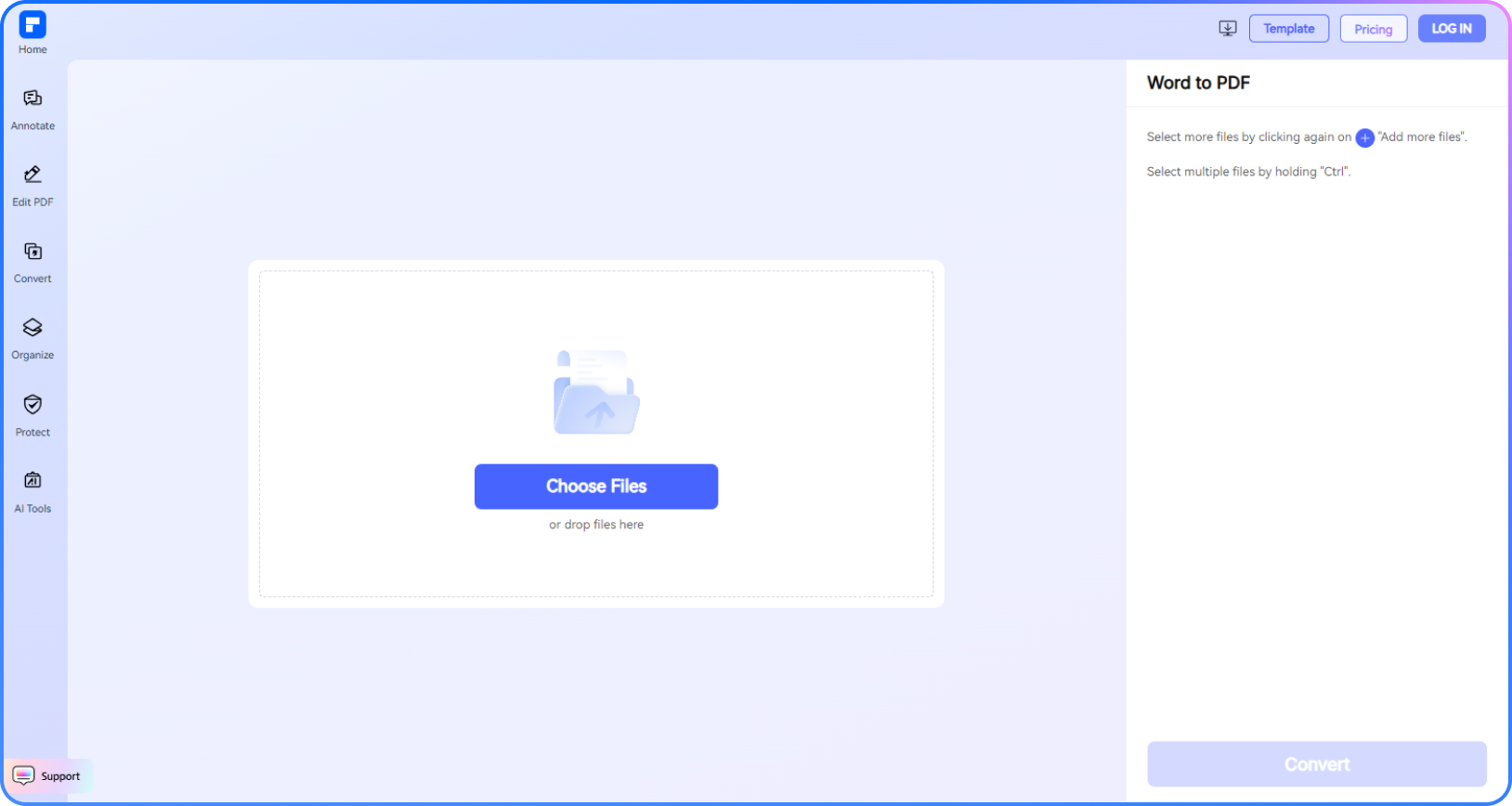
Drag & drop your Word document (.doc or .docx) into the converter, or click to browse your files.
2
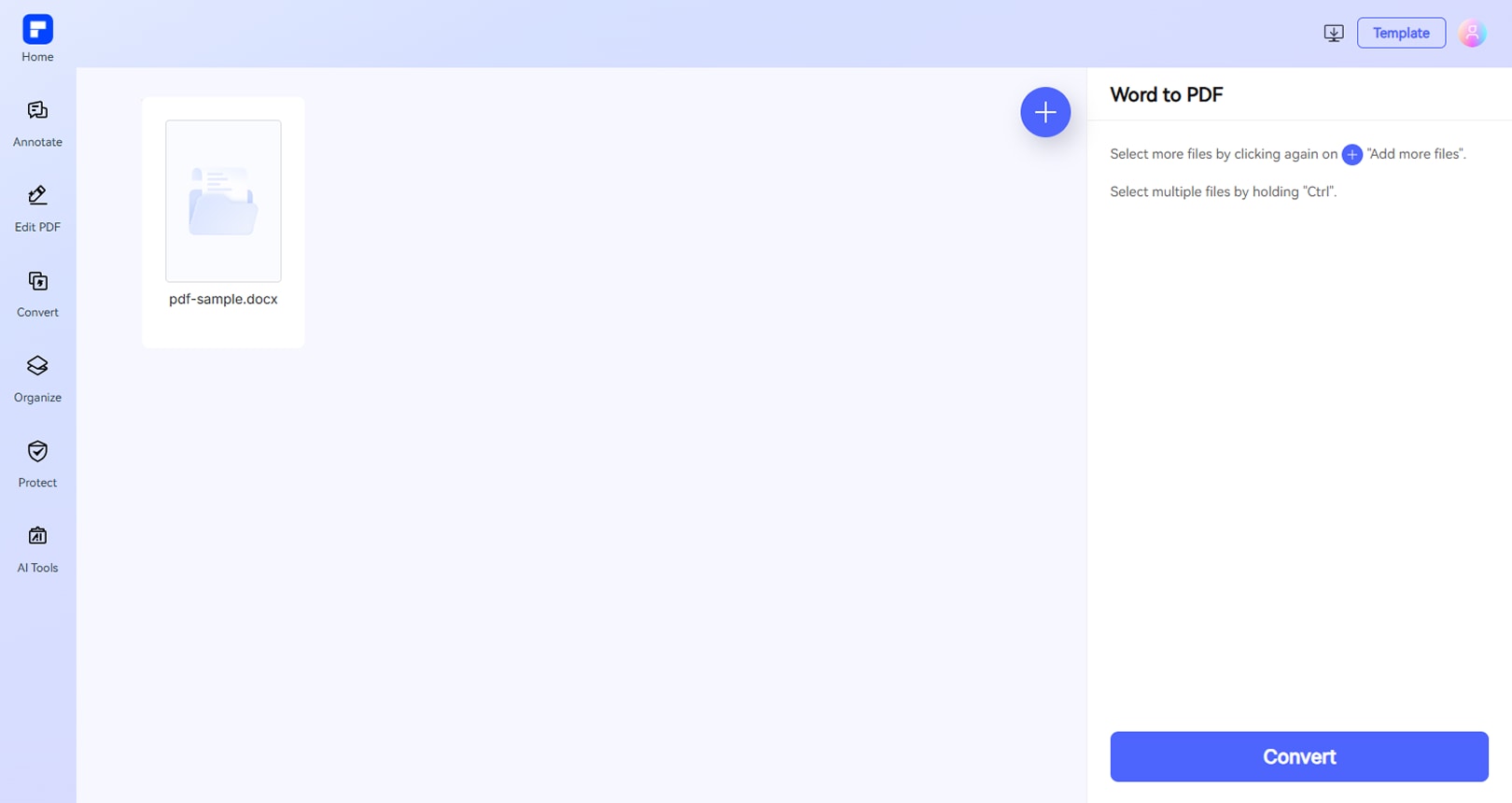
Click Convert. The Word to PDF converter processes your DOC or DOCX file and creates a PDF in seconds while keeping the document structure intact.
3
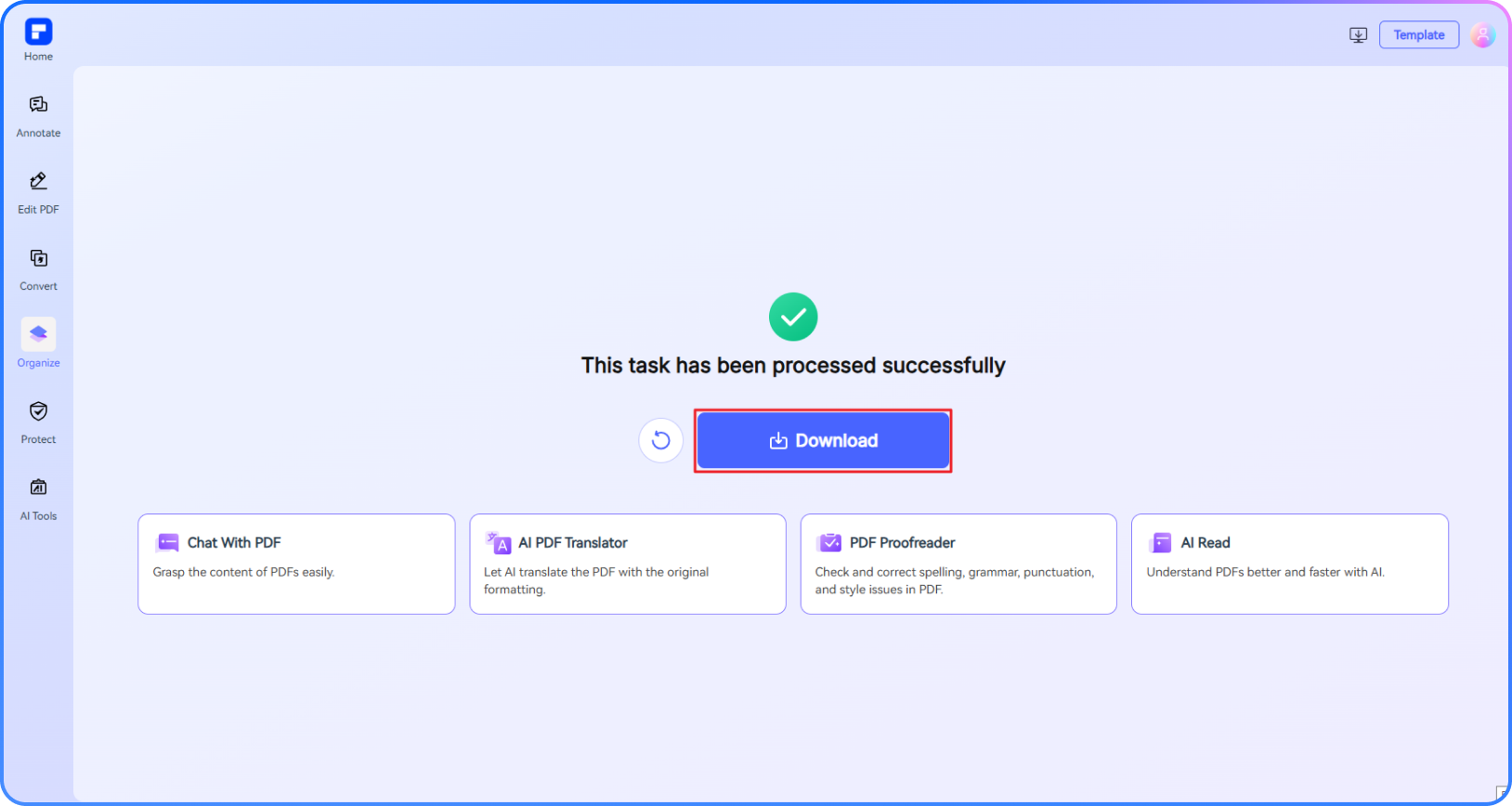
Once the conversion is complete, download the PDF to your device. Your converted file is ready to share, print, or archive.
Word to PDF conversion step 1
Word to PDF conversion step 2
Word to PDF conversion step 3

Why Use Our Free Word to PDF Converter?

Free Word to PDF Converter Online

Convert DOC to PDF or DOCX to PDF online for free. No software installation is required, and the output is ready to download and share.

Quickly Convert Multiple Word Files to PDF

Batch convert multiple Word documents online instead of processing files one by one. Upload your DOC or DOCX files, convert them, and download the resulting PDFs.

Convert Word to PDF Without Losing Formatting

Convert Word to PDF without losing formatting. Keep the original layout, fonts, images, tables, headings, and page structure consistent across desktop, tablet, and mobile.

Turn Word Forms into Fillable PDFs

Easily convert interactive Word forms into fillable PDFs for typing or digital signing.

Convert DOC to PDF and DOCX to PDF Online

Convert DOC and DOCX files to PDF directly in your browser. For additional Word formats such as RTF, DOCM, DOT, DOTX, DOTM, and ODT, use PDFelement Desktop.

Transfer Word to PDF With Password Protection

Easily convert your Word file to PDF and add a password to control who can view or edit the document. Always keep your content secure.

Convert Word to PDF Online for Work, School, and More

Assignment
Worksheet
Resume
Convert Word to PDF Online on iPhone for Easy Class Submission.

Students can convert Word to PDF online from an iPhone without installing desktop software. It is a quick way to submit assignments as clean, consistently formatted PDF files.

This tool saved me during finals week. I converted my Word doc to PDF on my phone and submitted it in minutes—no laptop needed.

- Lena M. | College Student

Convert Word to PDF Online and Share Class Notes from Any Phone.

Educators can convert Word documents to PDF from a phone or tablet with no additional software required, making notes and handouts easier to share in a consistent format.

I often share lecture notes from my phone. Converting Word to PDF on the go makes it easy to send clean, readable files to my students.

- Marcus L. | High School Teacher

Batch Convert Word Resumes to PDF for Faster Review.

Use the Word to PDF converter online to turn multiple Word resumes into consistent PDF files, making it easier for hiring teams to review, share, and compare candidates.

Converting batches of resumes to PDF saved our hiring team so much time. Reviewing candidates is now faster and more organized than ever.

- Emily C. | HR Coordinator

Get your documents done anywhere.

Manage your PDFs and keep them running on all your screens: desktop, mobile, or web. Steady. Smooth. Simple.

pdfelement online pdf editor

Secure, Compliant, and Professional PDF Software - Award - Winning.

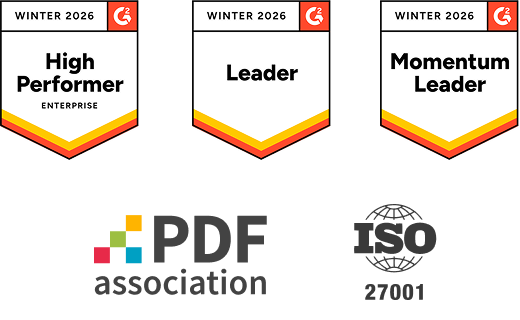
PDFelement shines in G2 Winter 2026 as a Leader, Momentum Leader, and High Performer for Enterprise - adding to its 2024 G2 Best Software Award - Top 50 Office Products, ISO 27001 - Information Security Management certification, and PDF Association membership.


Convert Word to PDF Online pdf to word button Free Download pdf to word button Free Download pdf to word button Free Download pdf to word button Free Download

FAQs about Word to PDF Free Conversion.

  • Converting a Word document to PDF on a Mac is simple and can be done using built-in tools or free online converters like PDFelement. Here are the best methods:

    Method 1: Using Microsoft Word (Built-in & Recommended)

    1. Open your Word document in Microsoft Word.
    2. Click File → Save As (or Export in newer versions).
    3. Choose PDF from the file format dropdown.
    4. Select a save location and click Save.

    Method 2: Using Preview (For Any Document)

    1. Right-click the Word file → Open With → Preview.
    2. Click File → Export as PDF.
    3. Choose a save location and click Save.

    Method 3: Using Mac’s Print Menu

    1. Open the Word file and press ⌘ + P (or go to File → Print).
    2. Click PDF at the bottom-left → Save as PDF.
    3. Choose a location and save.

    Method 4: Online Converter (PDFelement Free Online Tool)

    If you prefer a quick, no-install solution, try PDFelement’s free online Word to PDF converter:

    1. Go to PDFelement’s Word to PDF tool.
    2. Upload your Word file.
    3. Wait for the conversion, then download the PDF.
  • Yes. Here’s a breakdown of the best option to convert Word to PDF completely free:

    Built-in Methods (100% Free & No Third-Party Tools)

    Microsoft Word (Mac/Windows)

    • Open your Word file → Click File → Save As → Choose PDF format → Save.
    • Preserves formatting perfectly and requires no extra software.
  • Yes! You can easily convert Google Docs or Apple Pages files to PDF for free. Here are the simplest methods:

    For Google Docs:

    1. Open your document → Click "File" → "Download" → Select "PDF (.pdf)"
    2. Alternative: Use ⌘+P (Mac) or Ctrl+P (Windows) → Choose "Save as PDF"

    For Apple Pages:

    1. Open file → "File" → "Export To" → Choose PDF format
    2. Quick method: ⌘+P → Click PDF dropdown → "Save as PDF"

    Need to convert other file types? The free PDFelement Online Word to PDF converter handles:

    • Word (.docx) to PDF
    • Preserves all formatting
    • No watermarks
    • Works directly in your browser
  • Yes! You can convert multiple Word files to PDFs first, then merge them into a single PDF—all for free—using PDFelement Online.

    Step 1: Convert Word Files to PDF

    1. Go to PDFelement Word to PDF Converter.
    2. Upload your Word files (DOC/DOCX) or drag & drop them. It supports batch conversion (multiple files at once).
    3. Click "Convert" → Download each file as a separate PDF.

    Step 2: Merge the PDFs into One File

    1. Go to PDFelement PDF Merger.
    2. Upload your converted PDFs (or drag & drop).
    3. Click "Merge" → Download your final, combined PDF.

    For a simpler and more straightforward method, you can choose PDFelement for desktop. Simply click Tools > Combine, upload all your Word files, and click Apply to create a single combined PDF.

  • Yes! You don’t need Adobe Acrobat to convert Word to PDF—here are 100% free alternatives that work just as well (or better):

    1. Built-in Methods (No Software Needed)

    Microsoft Word (Windows/Mac)

    • Open your DOCX file → File → Save As → PDF.
    • Best for: Perfect formatting, no extra tools.

    Mac Preview

    • Right-click Word file → Open With → Preview → File → Export as PDF.

    Google Docs

    • Upload Word file to Google Drive → Open with Docs → File → Download → PDF.

    2. Free Online Converters (No Installation): PDFelement Online Word to PDF Converter

    • Batch convert multiple Word files at once.
    • Simple interface, supports OCR (text recognition).
  • Yes! You can batch convert multiple Word documents to PDF. Here is the best way to do it:

    Use PDFelement Online PDF Converter.

    1. Go to PDFelement Online Converter.
    2. Upload Files: Drag & drop multiple Word documents (DOC/DOCX) at once. It also supports batch processing (no file limits for basic conversions).
    3. Click "Convert" → All files process simultaneously.
    4. Download and get a ZIP folder with all converted files.

    Note: If you wish to batch convert other formats to PDF, you can visit PDFelement Online and choose the feature you need.

  • You can convert an ODT (OpenDocument Text) file to a PDF using several methods, such as software like PDFelement, OpenOffice, LibreOffice, or Microsoft Word, or by utilizing online converters.

    Using PDFelement for Desktop (Simplest method):

    1. Open the ODT file in PDFelement, and it will automatically open in PDF format.
    2. Click Save and choose a location to save the PDF.

    Using OpenOffice or LibreOffice:

    1. Open the ODT file in OpenOffice or LibreOffice Writer.
    2. Go to File > Export as PDF.
    3. You may be able to adjust settings like DPI, compression, etc. (OpenOffice).
    4. Click Export and choose a location to save the PDF.

    Using Microsoft Word:

    1. Open the ODT file in Word.
    2. Go to File > Save As.
    3. Choose PDF as the file type.
    4. Click Save.

    Using an Online Converter:

    1. Visit a website like PDF24 Tools.
    2. Upload the ODT file.
    3. Select PDF as the output format.
    4. Click Convert and download the PDF.

Rate PDFelement Online PDF tools:

star

4.8

(188,357 Votes)

You have to upload and download at least 1 file to rate! We've already perfectly processed 307,292,373 files with a total size of 10,124 TB

pdfelement
Smart PDF Solution,
Simplified by AI.

Fast, easy, and affordable PDF editor. Convert, edit, sign PDFs, and more.