How To Use Comment Summary on Windows
Comment Summary automatically collects all annotations in a PDF, such as comments, highlights, and markups. It then generates a properly structured summary for easy review. This feature aggregates feedback and notes across the document, providing a clear overview without manually searching through pages. It streamlines collaboration and helps users efficiently manage and analyze all comments in one place within PDFelement. Here is how you can generate a summary for your PDF files across Windows:
Step 1
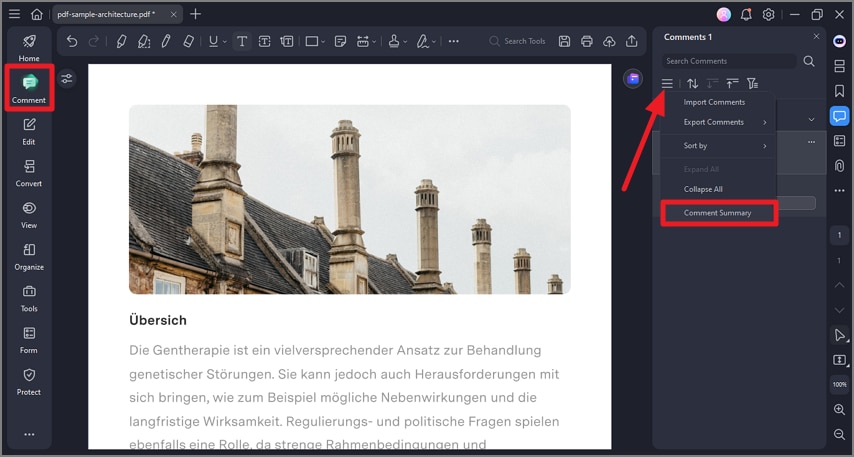
After importing your PDF that has various comments, enable the "Comments" panel from the left. Press the "Three bar" icon and click on the "Comment Summary" option located on the options list.
Step 2
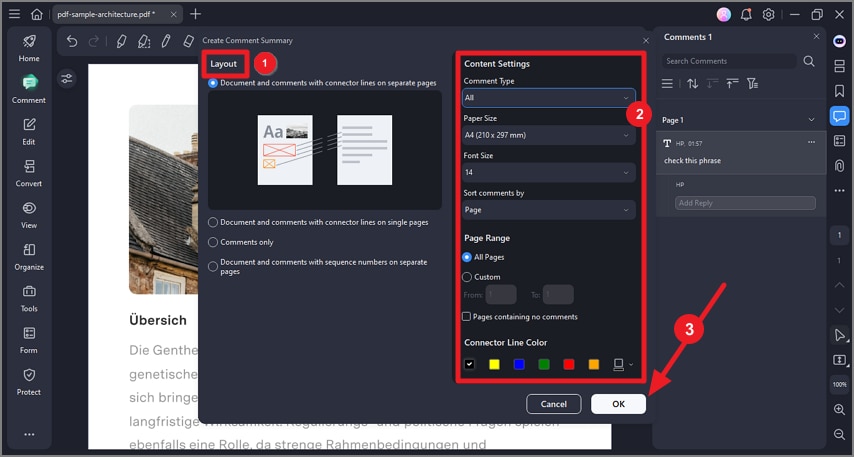
In the following small window, select the "Layout" for the summary from the options provided. Next, access the right side to configure different settings, such as "Page Range" and "Connector Line Colors." Once done, hit the "OK" button to start the comment summary generation process.