

How to Use PDFelement in OpenClaw.
PDFelement can be integrated into OpenClaw by installing the PDFelement Skill. After the skill is deployed, OpenClaw can call PDFelement to handle a wide range of PDF batch tasks more efficiently.
Supported batch features include Convert, OCR, Create, Compress, Print, Watermark, Background, Header & Footer, Bates Number, Security, Extract Data, Translate PDF, Delete Blank Pages, Sign Document, Split PDF, and Crop.
This workflow helps users trigger PDFelement directly from OpenClaw. If the latest version of PDFelement is already installed on the device, OpenClaw can automatically launch the desktop application and carry out the requested task. If PDFelement is not installed, or the installed version is outdated, the user will be prompted to download or update the software before continuing.
1. Download OpenClaw and the PDFelement Skill
Before sending commands from OpenClaw, make sure the environment is ready. First, download and install OpenClaw on your computer. Then download the PDFelement Skill from the ClawHub official community or from this repository link.
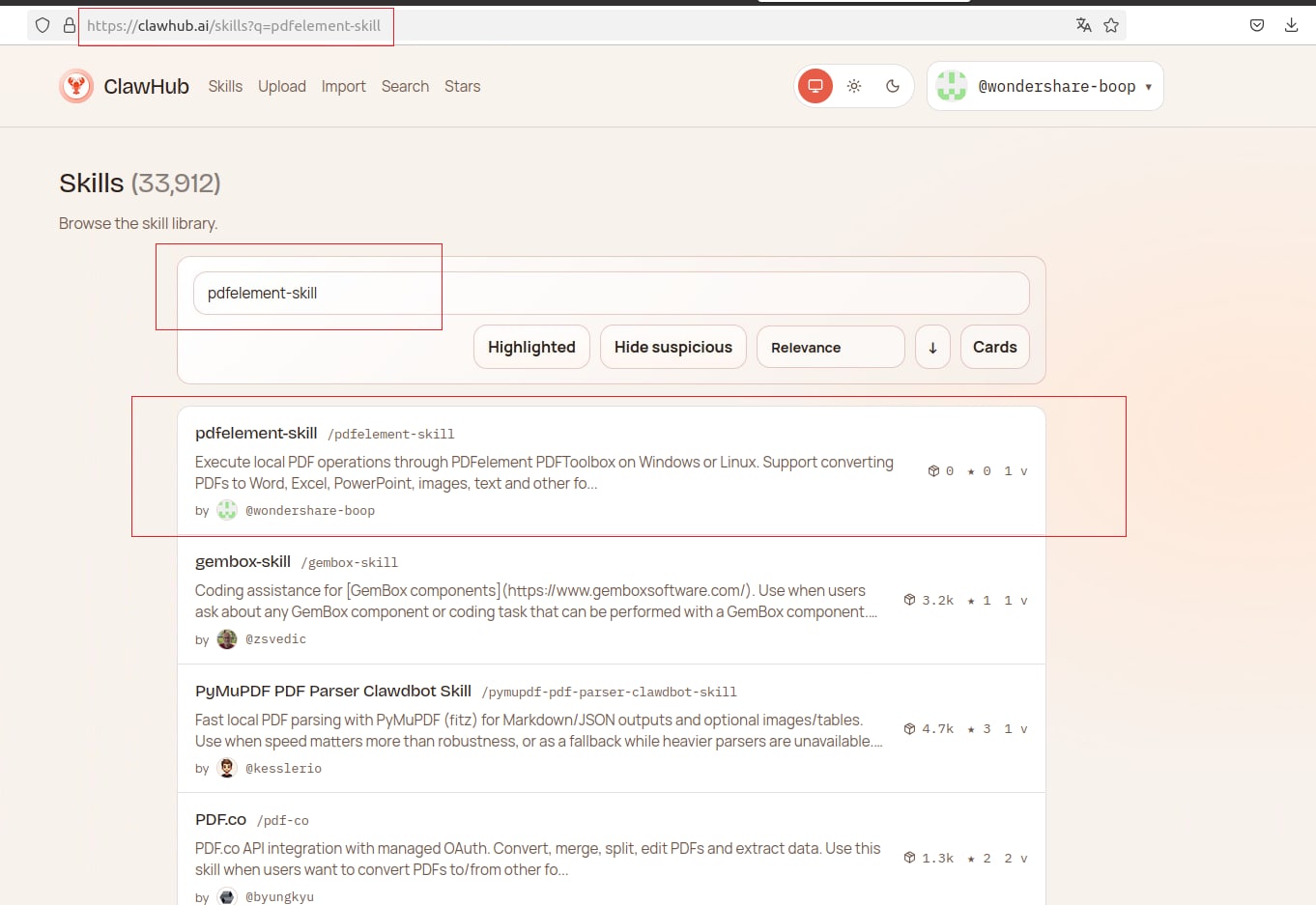
After the skill package is prepared, add it to OpenClaw so the system can recognize PDFelement-related commands and route them to the desktop application correctly.
Note:
To ensure smooth execution, install the latest version of PDFelement before running any command in OpenClaw.2. Launch PDFelement from OpenClaw
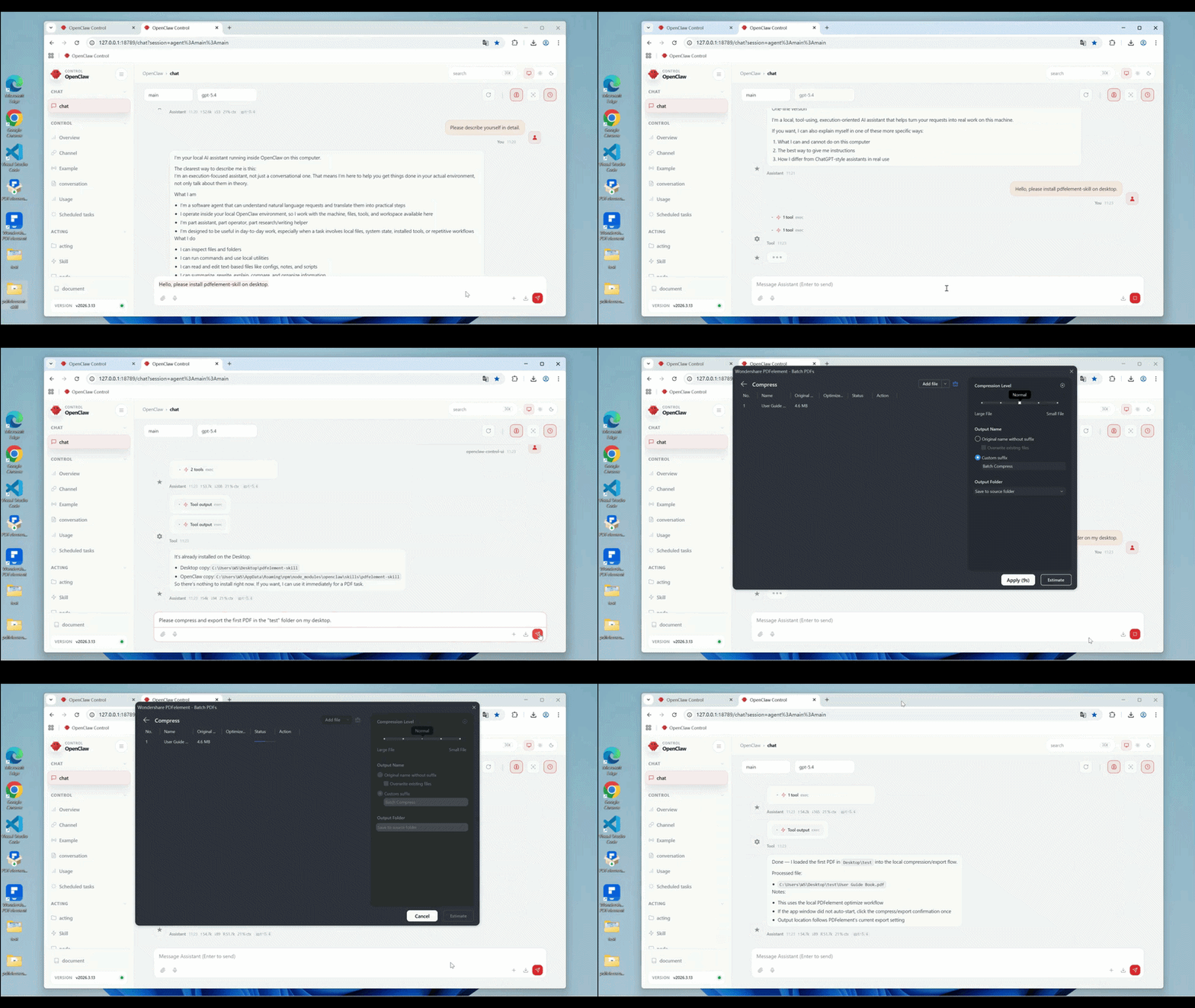
Once the PDFelement Skill has been installed, you can enter a command in OpenClaw to call a supported PDFelement feature. OpenClaw will detect whether the latest desktop version of PDFelement is available on the device.
- If the latest PDFelement desktop app is already installed, OpenClaw will automatically launch PDFelement and continue the task flow.
- If PDFelement is missing or outdated, OpenClaw will display a prompt asking the user to download or update the software first.
This makes OpenClaw a convenient entry point for users who want to complete PDF tasks without manually opening the desktop app first.
3. Supported PDFelement Features in OpenClaw
After the PDFelement Skill is deployed successfully, OpenClaw can call the following PDF tools:
- Convert
- OCR
- Create
- Compress
- Watermark
- Background
- Header & Footer
- Bates Number
- Security
- Extract Data
- Translate PDF
- Delete Blank Pages
- Sign Document
- Split PDF
- Crop
4. Features That Start Automatically After File Import
Some commands can begin automatically after the file is imported into the task window. For these functions, a 10-second countdown appears and the task is executed automatically as long as the default option remains unchanged.
- Convert
- OCR
- Create
- Compress
- Translate PDF
- Delete Blank Pages
- Split PDF
If the user manually changes any option after the file is imported, the countdown disappears. In that case, the user must click the Apply button to start the process manually.
5. Features That Require Manual Setup Before Applying
Other commands cannot run automatically after the file is imported because they require user-defined settings first. For these features, users must complete the necessary configuration and then click Apply to execute the task.
- Watermark
- Background
- Header & Footer
- Security
- Extract Data
- Sign Document
- Crop
This manual flow is useful for tools that involve visual layout, security preferences, signing details, extraction rules, or custom page areas.
6. Running Multiple Commands After Installing the Skill
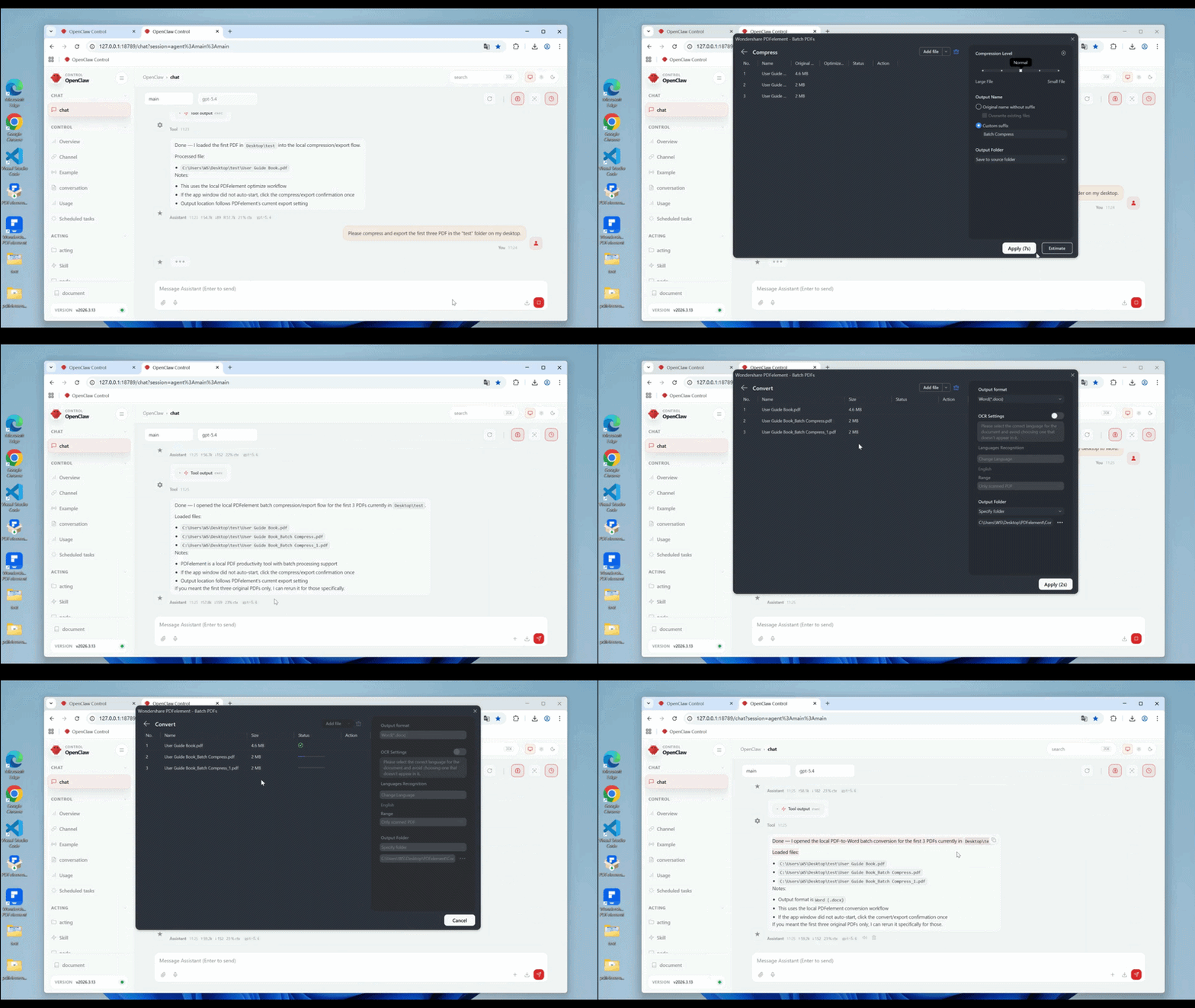
After the PDFelement Skill is installed in OpenClaw, users can continue sending different commands based on their document-processing needs. For example, one workflow may begin with file compression, followed by OCR, translation, or splitting, depending on the task requirements and the document type.
This makes OpenClaw a flexible command interface for repeatedly calling PDFelement functions without leaving the workflow environment.
7. What Happens If the Latest PDFelement Desktop Version Is Not Installed?
If OpenClaw detects that PDFelement is not installed, or the installed desktop version is not the latest one, the requested command cannot continue normally. In this case, OpenClaw will prompt the user to download or update PDFelement first.
After installing the latest desktop version, the user can return to OpenClaw, resend the command, and let the system launch PDFelement automatically to continue the task.
Note:
Keeping PDFelement updated is recommended because the skill relies on the latest compatible desktop version for stable execution.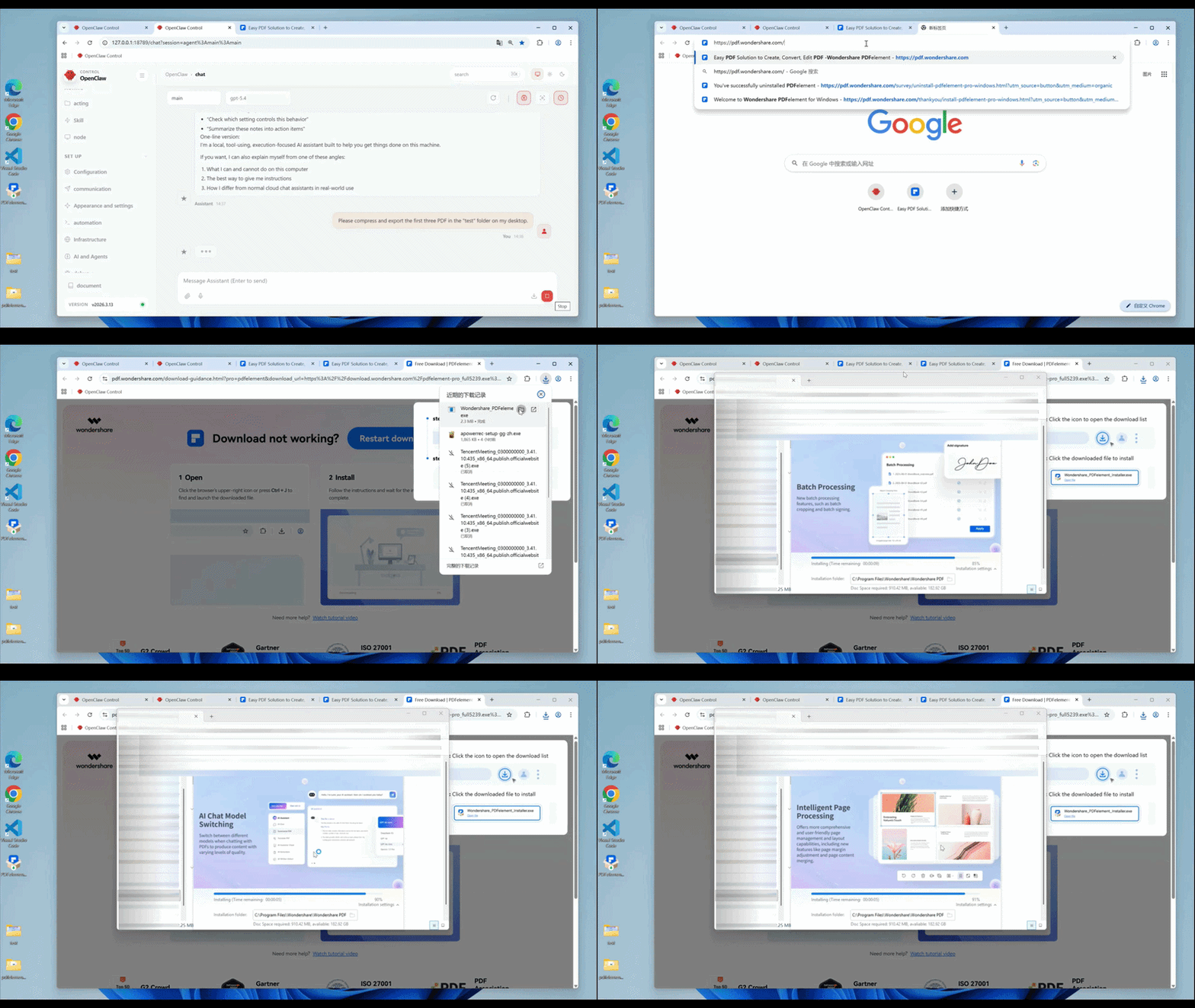
8. Typical Workflow in OpenClaw
A standard OpenClaw workflow with PDFelement usually follows these steps:
- Download and install OpenClaw.
- Download and deploy the PDFelement Skill.
- Enter a command in OpenClaw to call a PDFelement feature.
- Let OpenClaw launch PDFelement automatically if the latest desktop app is installed.
- Import the file to be processed.
- Wait for the 10-second countdown for supported auto-run tasks, or manually configure options and click Apply for tasks that require user input.
This process allows users to combine OpenClaw command input with PDFelement’s document-processing engine in one connected workflow.
9. Troubleshooting Common Issues
If the task does not start as expected, check the following points:
- PDFelement does not launch: Confirm that PDFelement is installed on the device.
- An update prompt appears: The installed version may not be the latest version required by the skill.
- No automatic execution happens after import: The selected feature may require manual setup, or the default setting may have been changed, which removes the countdown.
Once the desktop app is updated and the correct execution flow is followed, OpenClaw should be able to trigger PDFelement tasks successfully.