Free PDF Editor – Edit PDF Online Free
Edit PDF content directly in your browser. Change, remove, copy, paste, or replace text.
Insert images, shapes, or text—all at no cost.
 Edit PDF Online for Free
Edit PDFs on Windows, Mac,
Edit PDF Online for Free
Edit PDFs on Windows, Mac,
and Mobile
File Security and Privacy are Guaranteed
 Free Download
AI Edit PDF Online vs Offline
How to edit PDF file online for free?
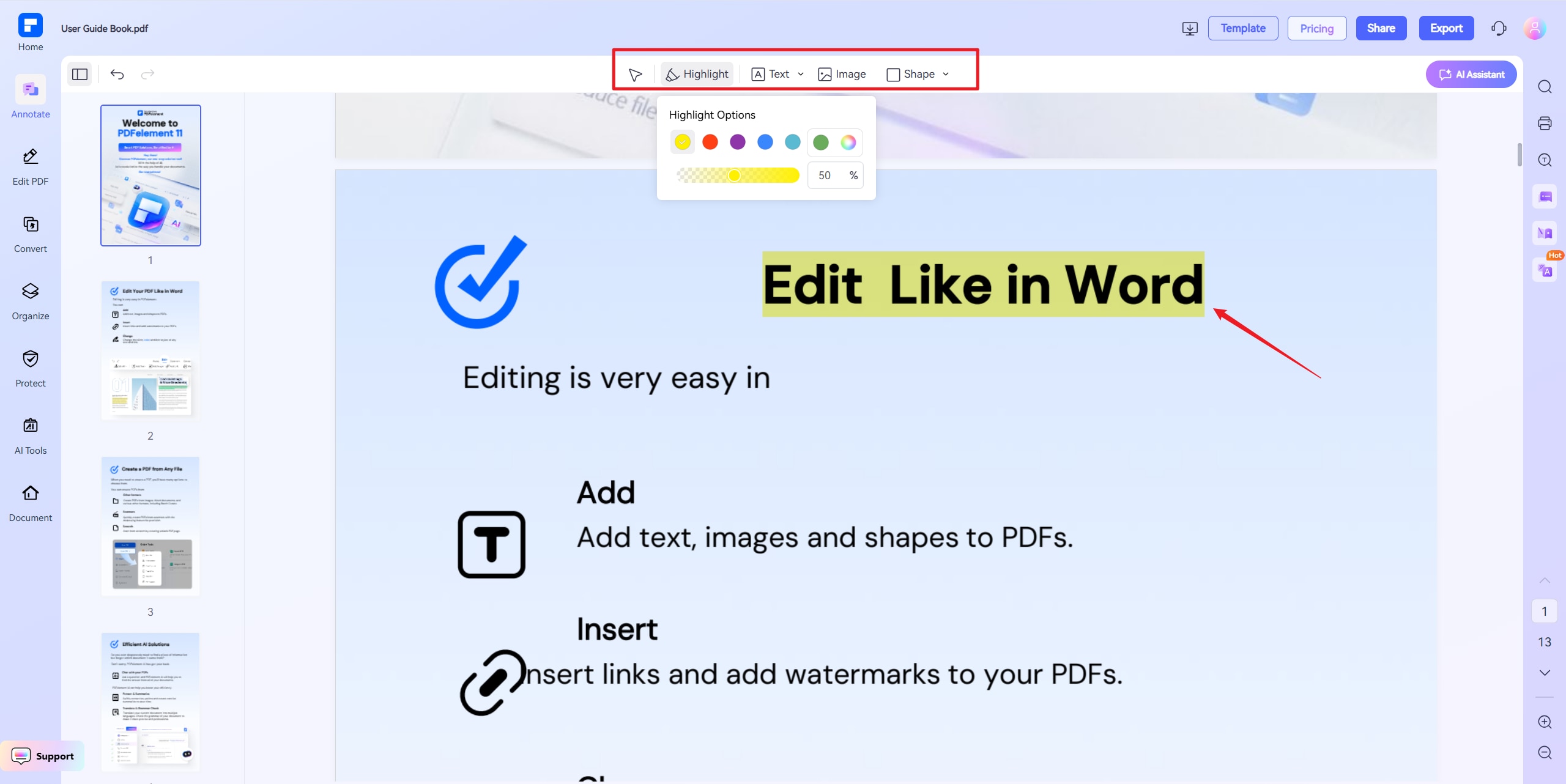
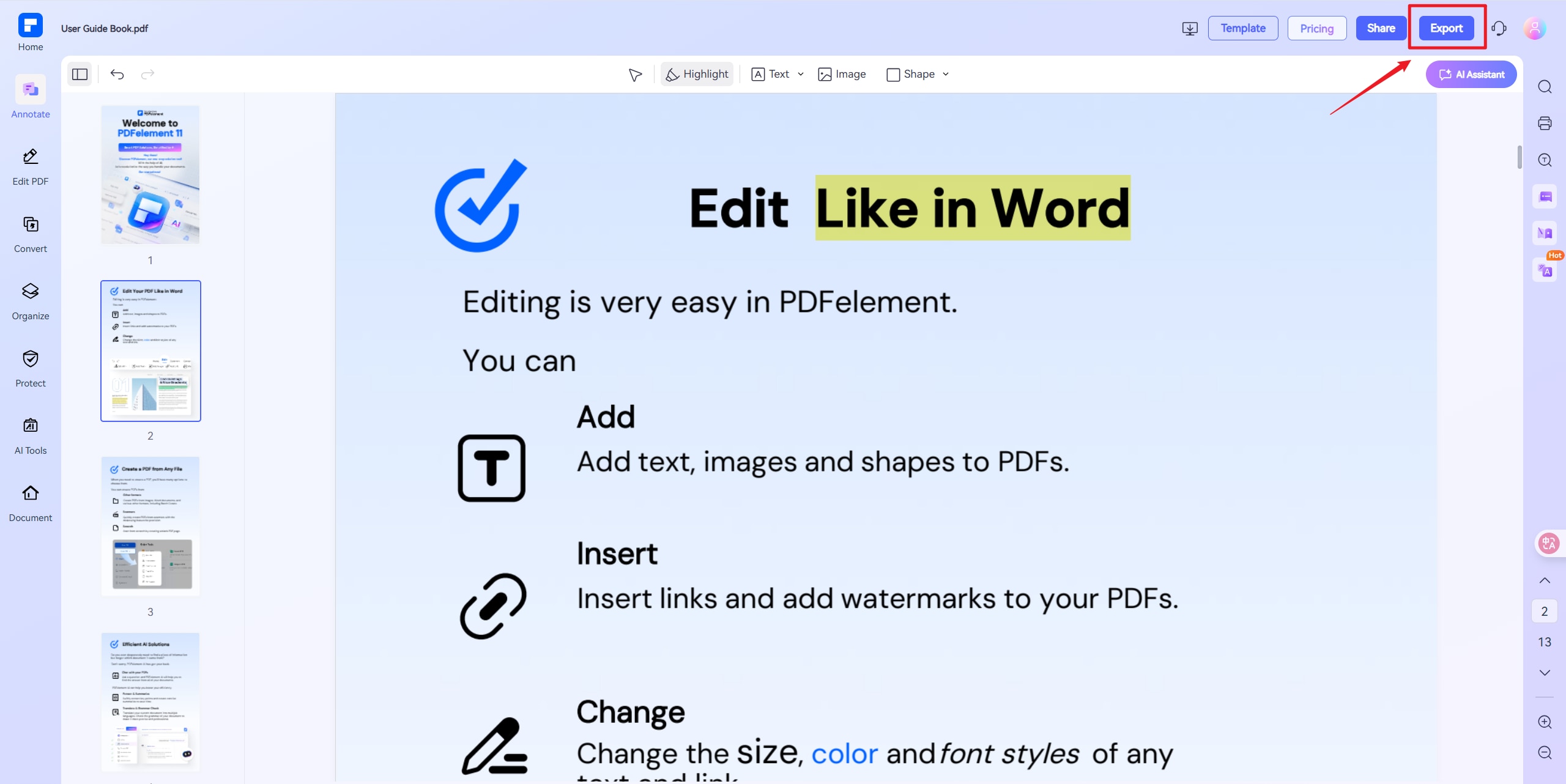
Experience the difference with PDFelement online free PDF editor.
Online PDF Editor – Completely Free
Enjoy free PDF editing online. Simply upload your files and start editing and annotating instantly.
Change PDF Text Easily
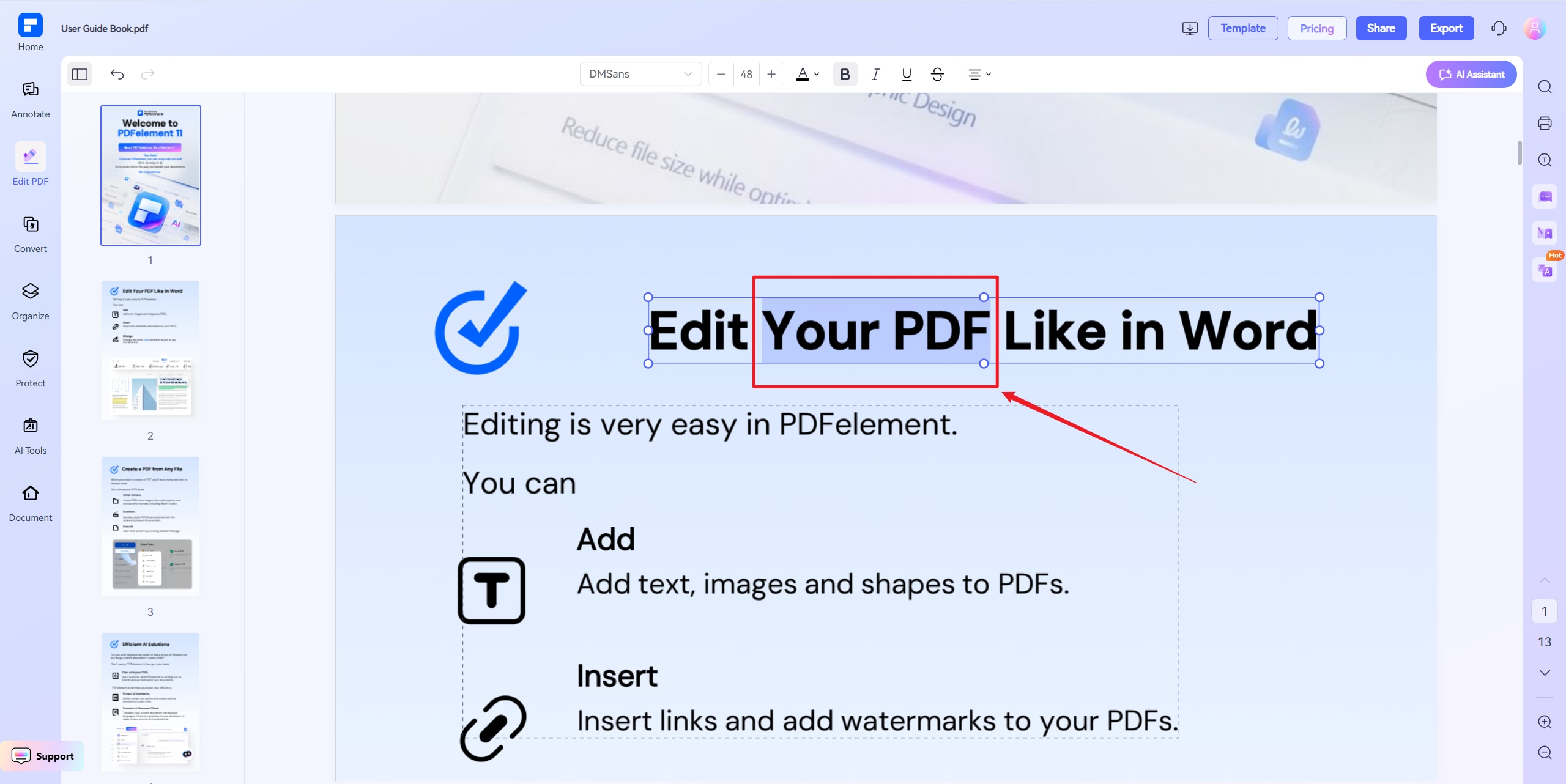
Edit PDF font, font size, font color, and font style.
Annotate PDF Pages
Highlight PDF text, add, copy, delete PDF text. And add image, shapes to PDF documents.
Search and Replace Text in PDF
Easily find and identify text in your PDF using the built-in search tool for quick and precise results. Then, replace everything with the updated version.
Edit PDFs on Windows, Mac,
and Mobile
Fully web-based – no software installation. Mobile-friendly for conversions on smartphones/tablets.
30+ Essential Tools for All
Your PDF Needs
Handle all PDF tasks effortlessly-convert, compress, merge, sign or protect files with our 100% free, online toolkit. No installation needed.
Free Online PDF Editor for wider use.
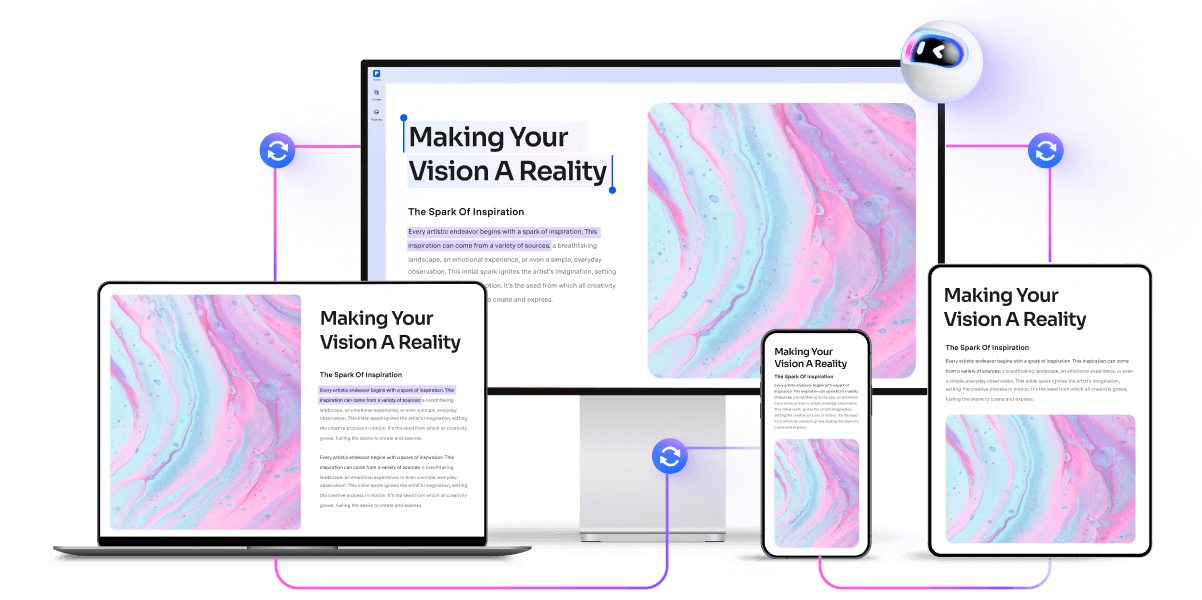
Secure, Compliant, and Professional PDF Software - Award - Winning.
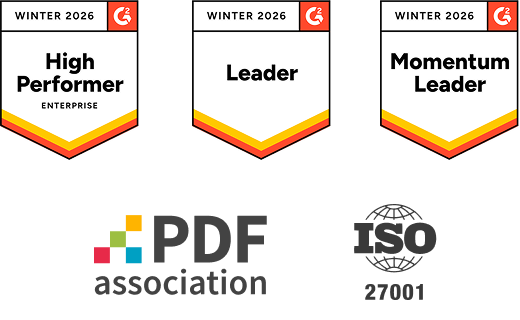
PDFelement shines in G2 Winter 2026 as a Leader, Momentum Leader, and High Performer for Enterprise - adding to its 2024 G2 Best Software Award - Top 50 Office Products, ISO 27001 - Information Security Management certification, and PDF Association membership.


FAQs about PDF editor online for free.
-
Is there a 100% free PDF editor?
Yes, there are 100% free PDF editors available. Here's a clear breakdown:
-
Free PDF Editors You Can Use
- PDFelement Online PDF Editor
- Edit text directly in your browser
- Add images, highlights, and shapes
- No watermarks
- LibreOffice (Desktop)
- Free open-source software
- Opens and edits PDFs using LibreOffice Draw
- Best for offline, moderate editing
-
Things to Keep in Mind
- Completely free editors may have limits on file size, daily usage, or editing features.
- For advanced tools, desktop software (like PDFelement for Desktop) may offer more power.
- PDFelement Online PDF Editor
-
Does Adobe Acrobat have a free online PDF editor?
- Adobe Acrobat Online Free PDF Editor
- Key Features (Free Version):
- Annotate & Comment: Add text, sticky notes, highlights, and drawings.
- Fill & Sign: Complete PDF forms and add digital signatures for free.
- Basic PDF Tools: Merge, compress, and convert PDFs (with some restrictions).
- Limitations:
- No direct text/image editing (requires Adobe Acrobat Pro subscription).
- Watermarks on edited files in some free conversions.
- OCR (text recognition) & advanced editing are paid features.
- Key Features (Free Version):
- Best Free Alternatives for Full Editing:If you need full text/image editing for free, consider:
- PDFelement Online PDF Editor ( free use daily, AI limits, no watermarks).
- Adobe Acrobat Online Free PDF Editor
-
How to remove text from PDF online free?
Here's a simple, step-by-step guide to remove text from a PDF online for free:
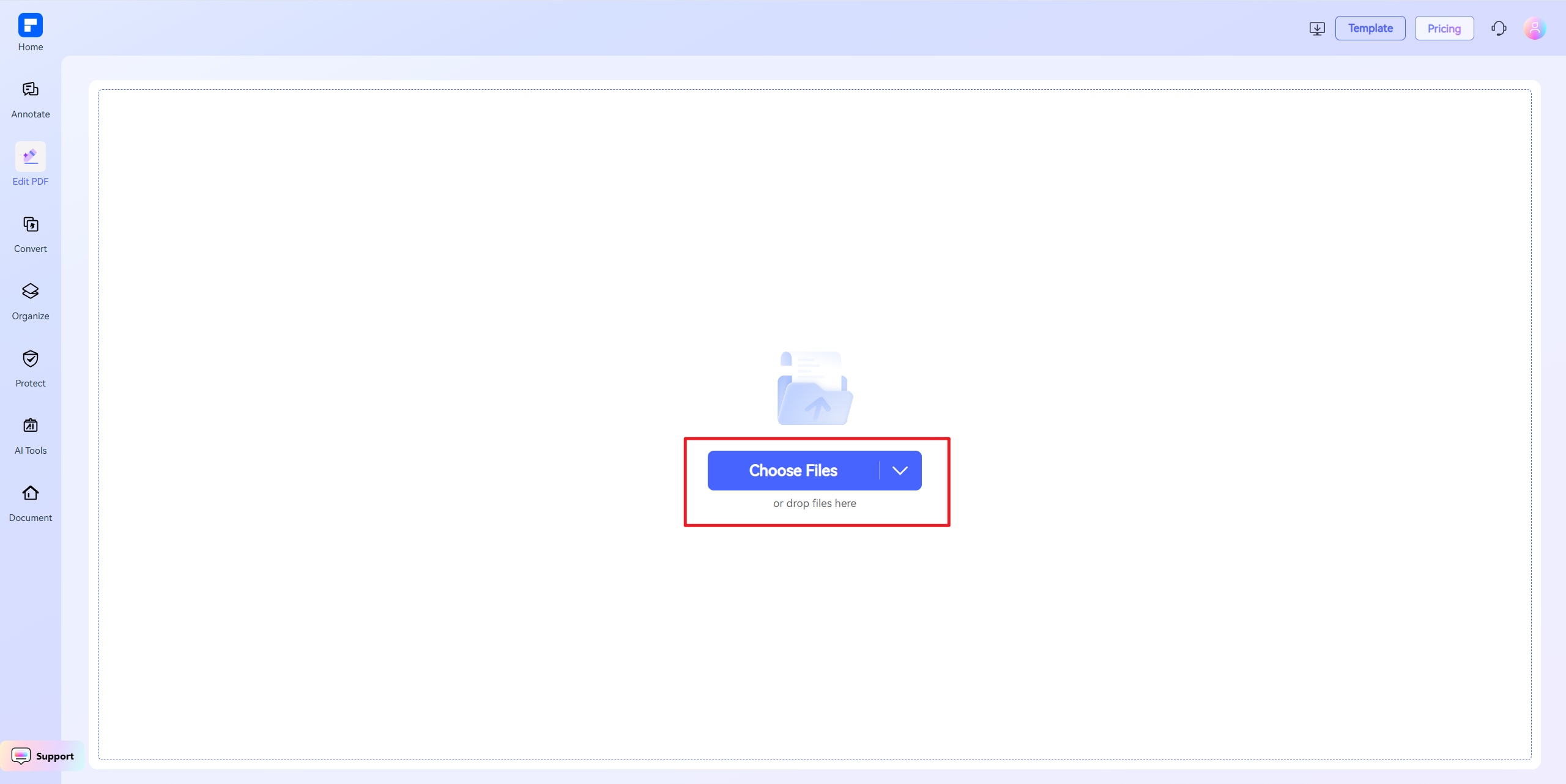
- Go to a Free PDF Editor Website
Use tools like PDFelement Online PDF Editor, Sejda, or PDFescape. - Upload Your PDF
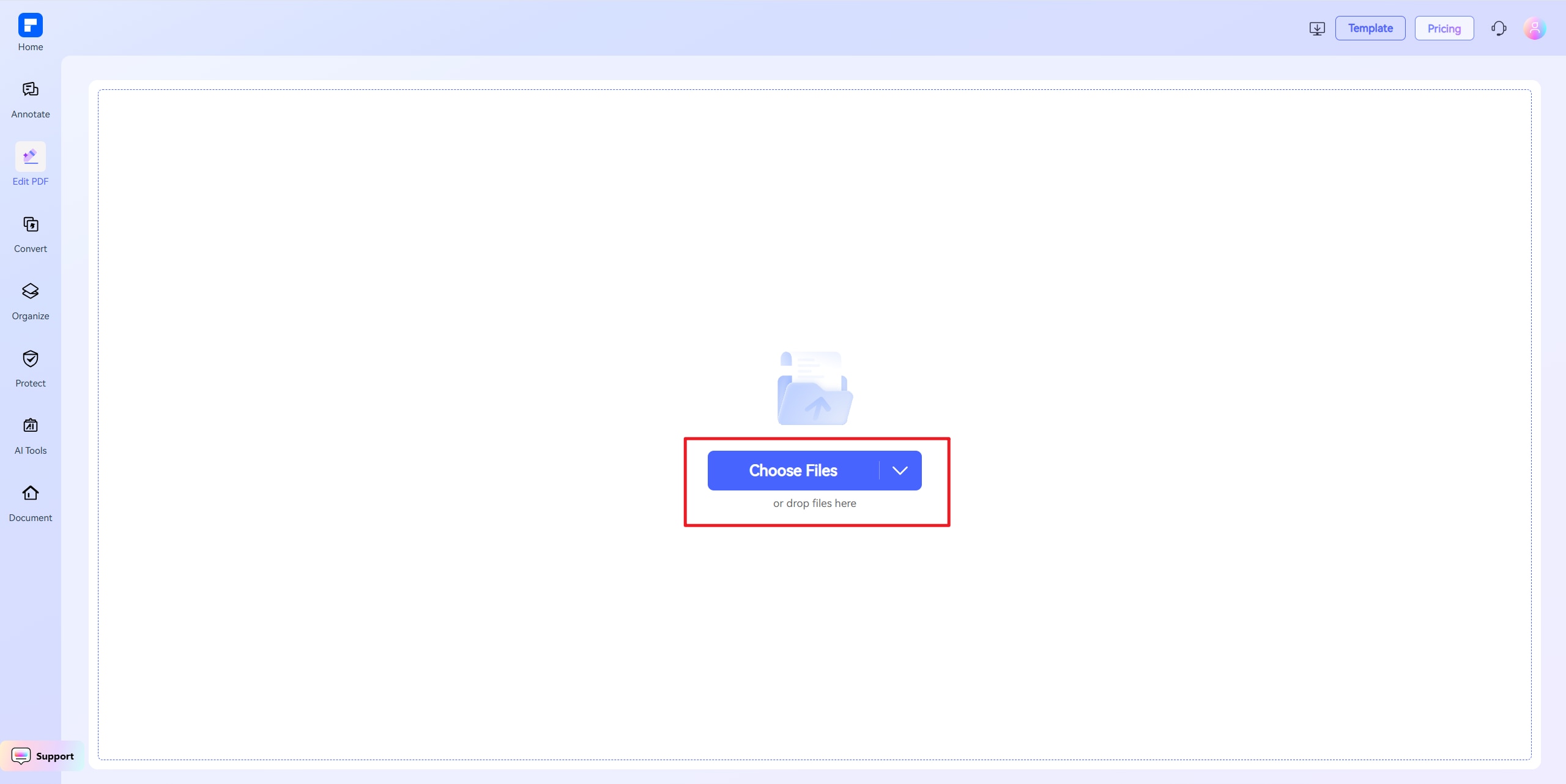
Click “Choose Files” and select the PDF file you want to edit. - Select the Text to Delete
Click on the text in the PDF. Highlight or select the unwanted text, and then press the Delete key on the keyboard. - Make Additional Edits (Optional)
You can also edit other content, like images or fonts, if needed. - Export and Download Your File
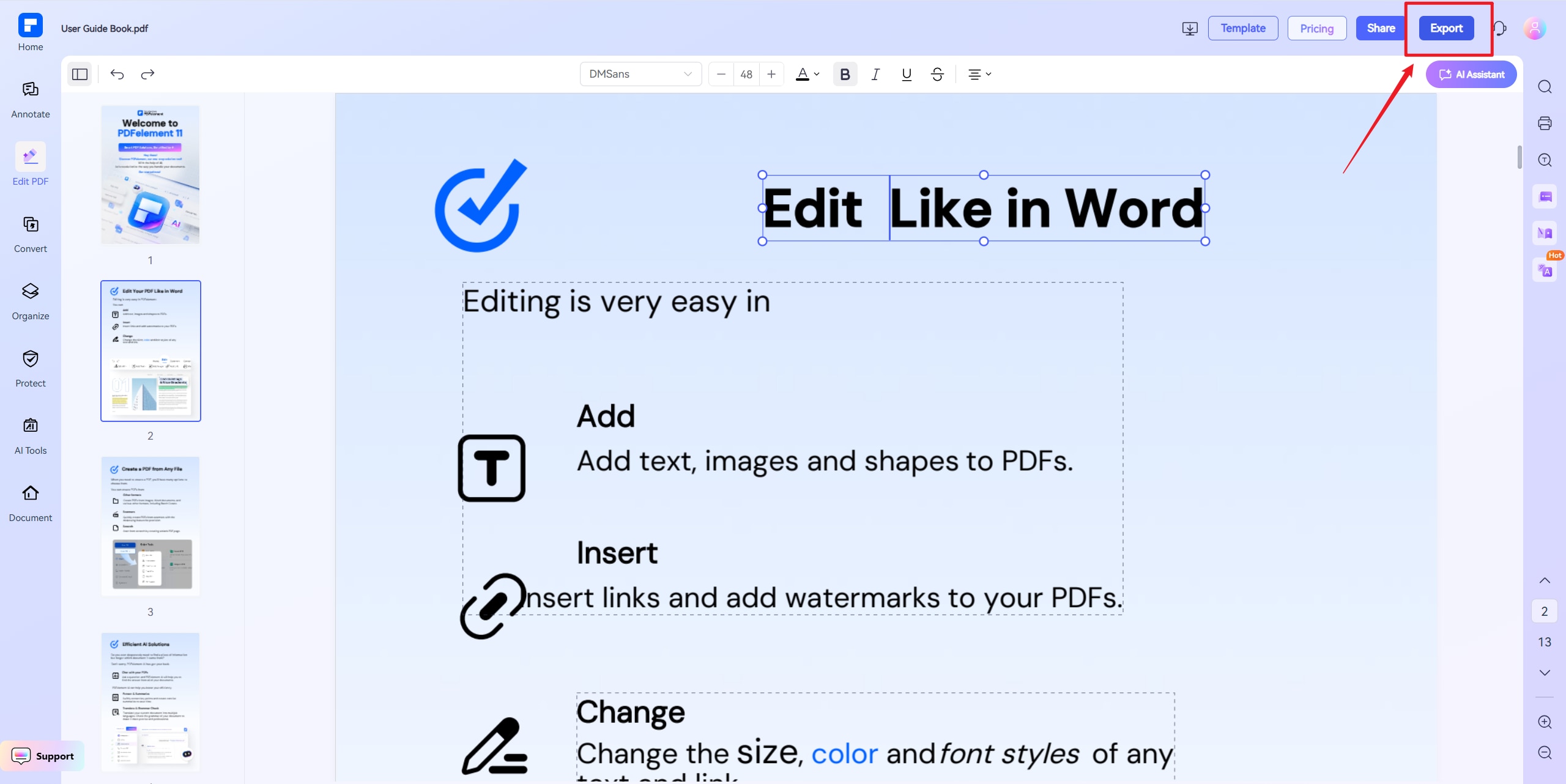
Click Export to save the updated PDF to your device.
- Go to a Free PDF Editor Website
-
How can I edit text in a PDF with the same font for free?
Here's how you can edit text in a PDF with the same font for free using an online PDF editor:
- Step-by-Step: Edit Text in a PDF with Matching Font
- Open a Free Online PDF Editor
Use a tool like PDFelement Online PDF Editor or Sejda PDF Editor. - Upload Your PDF File
Click “Choose Files” and choose the PDF you want to edit. - Select the Text to Edit
Click on the text you want to change. The editor will automatically detect and match the font style, size, and color in most cases. - Type Your Edits
Enter new text directly in place of the original. - Adjust Font if Needed
If the font doesn't match exactly, you can manually select a similar font from the font options to keep the look consistent. - Download the Edited PDF
Click Export to save the updated file to your device.
- Open a Free Online PDF Editor
-
How can I add text to a PDF document?
Here's a clear and simple guide on how to add text to a PDF document:
- Option 1: Use a Free Online PDF Editor
- Go to a free tool like PDFelement Online PDF Editor.
- Upload your PDF file.
- Click the “Add Text” tool.
- Click anywhere on the page where you want to insert text.
- Type your text and adjust the font, size, and color as needed.
- Download the updated PDF to your device.
- Option 2: Use a Free Desktop App (Offline)
- Tools like:
- LibreOffice Draw (Open-source, supports adding text to PDFs)
- Wondershare PDFelement (Desktop version with free trial)
-
Can I edit a PDF in Google Docs?
Yes, you can edit a PDF in Google Docs, but with some limitations. Here's how it works:
- Upload the PDF to Google Drive
- Go to Google Drive
- Click New > File Upload
- Select your PDF file
- Open the PDF with Google Docs
- Right-click the uploaded PDF
- Choose Open with > Google Docs
- Google Docs will convert the PDF into an editable document
- Edit the Text
- You can now edit the text like a regular document
- Some formatting (fonts, layout, images) may not be preserved
- Download as PDF (Optional)
- When done, go to File > Download > PDF Document (.pdf) to save your edited version as a new PDF
- Limitations
- Complex layouts and graphics may be lost or misaligned
- Form fields and scanned text (non-editable images) will not convert accurately
- No PDF-specific tools (e.g., annotations, highlighting, signing)
For more advanced PDF editing (e.g., keeping layout, editing images, or deleting text), try a dedicated tool like PDFelement Online.
- Upload the PDF to Google Drive
-
How to increase font size in PDF online free?
Here's a simple guide to increase font size in a PDF online for free:
- Go to the Online Editor
Visit PDFelement Online PDF Editor - Upload Your PDF
Click Choose Files and choose the PDF file you want to edit. - Click on the Text You Want to Resize
Select the text area. The editor displays formatting options in the upper toolbar. - Adjust the Font Size
Use the font size menu to increase the text size as needed. - Apply and Export
After making changes, click Export to save the updated PDF.
- Go to the Online Editor
-
Is there a way to edit a PDF without Acrobat?
Yes, you can edit a PDF without Adobe Acrobat using several free and easy alternatives. Here's how:
- Use an Online PDF Editor
Great for quick, browser-based editing.- Popular Tools:
- PDFelement Online PDF Editor
Edit text, images, and add annotations—no installation required. - Sejda PDF Editor
Edit text and add shapes or links (limited daily use).
- PDFelement Online PDF Editor
- Steps
- Upload your PDF to the online editor.
- Click on the text or area you want to edit.
- Save and download the updated file
- Popular Tools:
- Use Free Desktop Software
Better for offline editing and handling large files.- Examples:
- LibreOffice Draw(Open-source)
Open and edit PDFs like a drawing file. - PDFelement (Free version)
Edit PDFs offline, with more control over formatting.
- LibreOffice Draw(Open-source)
- Use Google Docs (for text-based PDFs)
- Upload PDF to Google Drive
- Right-click > Open with Google Docs
- Edit the converted document
- Download it as a PDF again
- Use an Online PDF Editor
Tips and tricks for editing PDF.
Rate PDFelement Online PDF tools:

4.8
(188,357 Votes)You have to upload and download at least 1 file to rate! We've already perfectly processed 307,292,373 files with a total size of 10,124 TB
Try more PDFelement online PDF tools.



Simplified by AI.
Fast, easy, and affordable PDF editor. Convert, edit, sign PDFs, and more.


