How to Add Stickers in a Document on Windows
The Sticker Library in PDFelement offers a powerful and extensive collection of stamps and stickers to enhance your PDFs. Users can select from a wide variety of ready-made stickers to add flair and emphasis to documents. The library supports customization, allowing you to create and save your own stickers as stamps for repeated use. Provided below is the guide on how to make your document more compelling with the stickers on PDFelement Windows:
Step 1
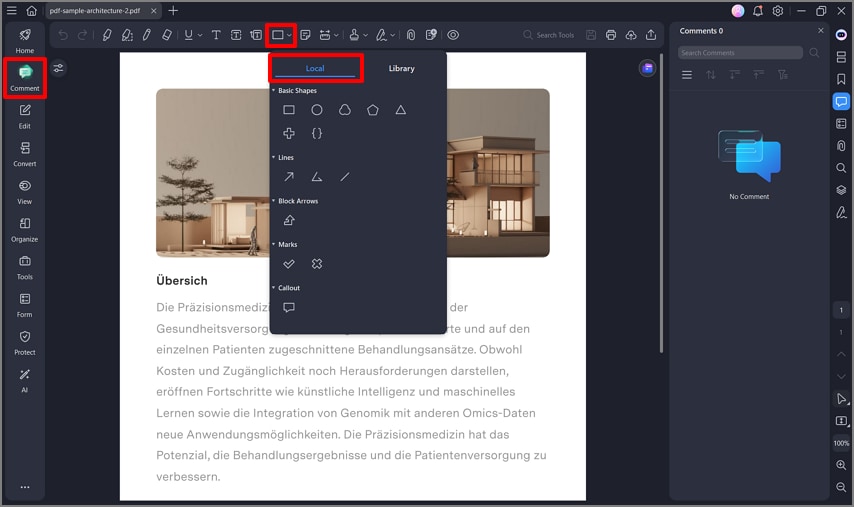
Start by opening the document within the PDFelement interface and accessing the "Comment" option from the sidebar on the left. Go to the toolbar at the top and locate the "Sticker" icon. Select the "Local Sticker" option and choose the sticker of your choice.
Step 2
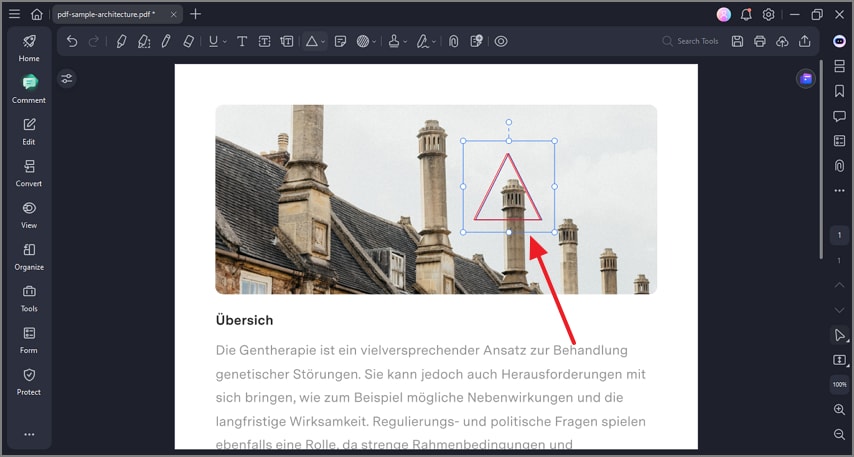
Draw the sticker on the PDF’s page by dragging the cursor according to your preferences. Now customize the appearance of the applied sticker by acquiring the panel on the left.
Step 3
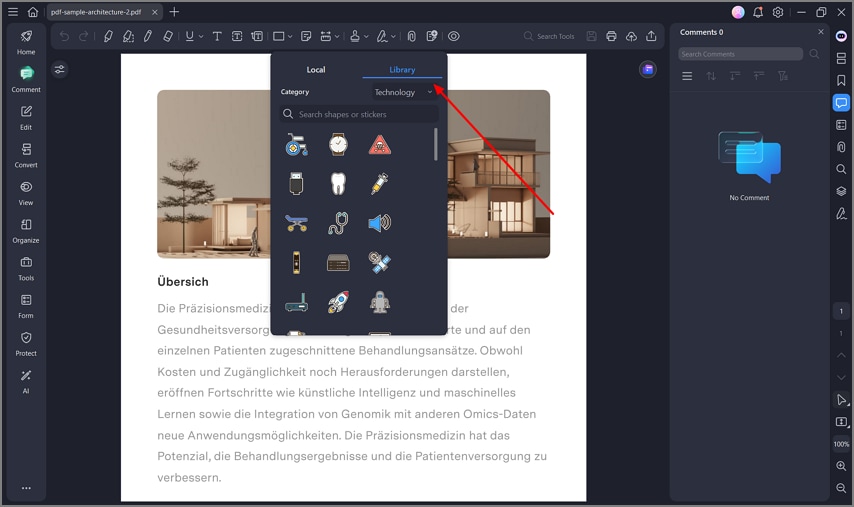
To add more enhanced stickers, access the "Library Stickers" option and set up the "Category" from the expanded menu. You can search for a specific sticker by accessing the search bar. Now, select the sticker of your choice and click on the area on the page where you want to apply it. Adjust its appearance from the panel on the left and save the results.