How to Use Smart Redact on Mac
Using AI technology, PDFelement Smart Redact automatically detects and masks sensitive information within documents, such as names, ID numbers, and bank card details. It efficiently safeguards confidential data while ensuring compliance with different international privacy standards like GDPR. Moreover, you can specify the country for a more personalized redaction utility. To learn how to automatically redact a file, read the steps mentioned below:
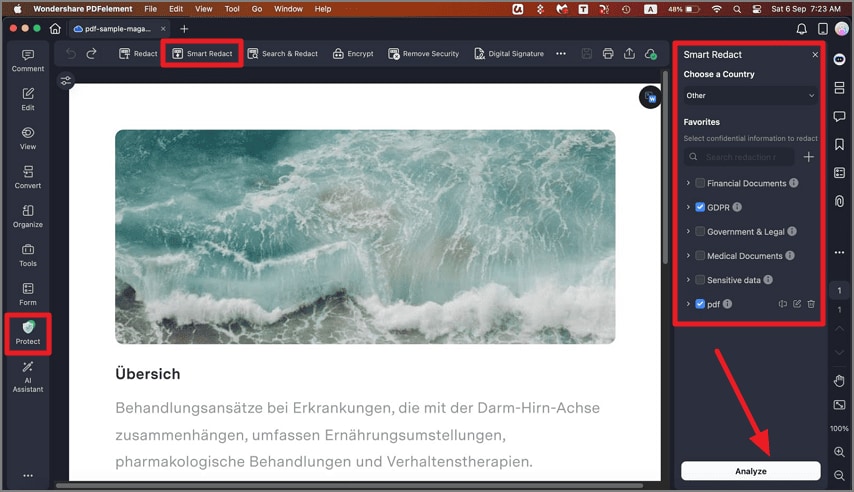
Step 1. After opening your PDF in PDFelement, go to the left sidebar and click the "Protect" option. Then select "Smart Redact" from the list. In the right panel, expand the drop-down menu to choose your country, select the applicable privacy standard, and click the "Analyze" button at the bottom.
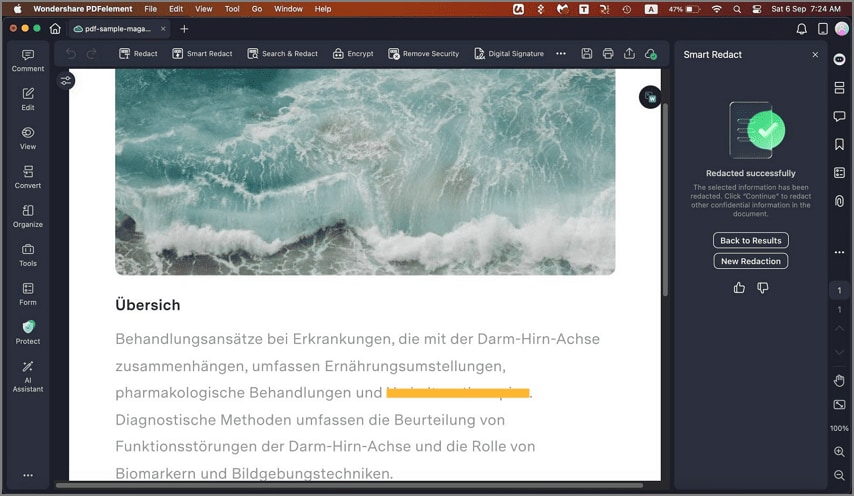
Step 2. The system will automatically redact the document, and a success message will appear on the right side of the interface.