How to Use AI Space for Smart Learning
Index
PDFelement V13 introduces AI Space, a dedicated learning workspace that brings study materials from different sources together in one place. You can add local files, YouTube video captions, copied text, or documents stored in PDFelement Cloud. These materials can then be transformed into flashcards, quizzes, podcasts, mind maps, and reports to make studying and reviewing more effective.
Create an AI Space
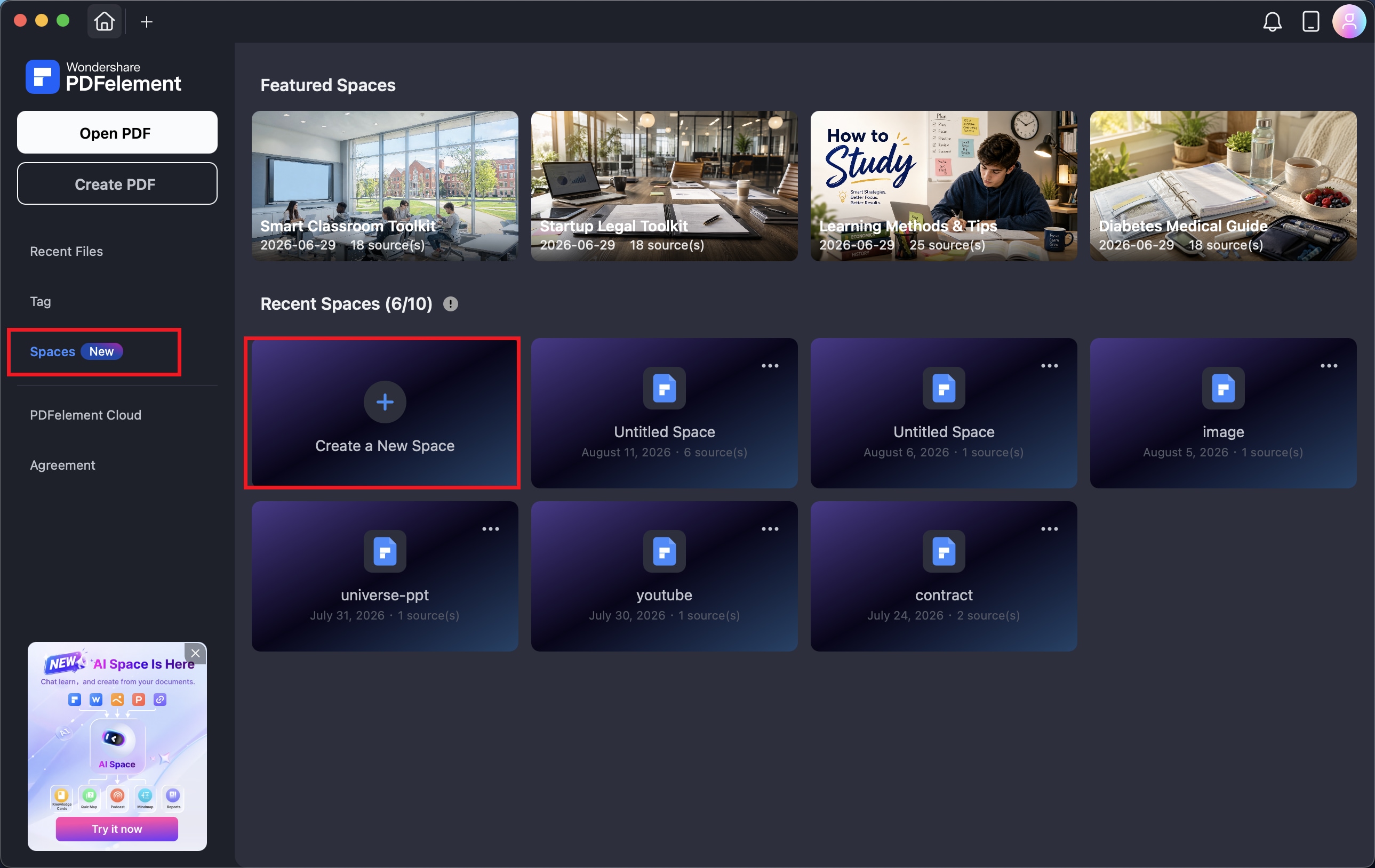
Step 1. Start PDFelement and find Spaces in the navigation menu. Select Create a New Space to create a new workspace for the materials you want to study.
Step 2. With your new space ready, you can start importing study materials. PDFelement allows you to bring content into the space from several sources, including your computer, YouTube, copied text, and PDFelement Cloud.
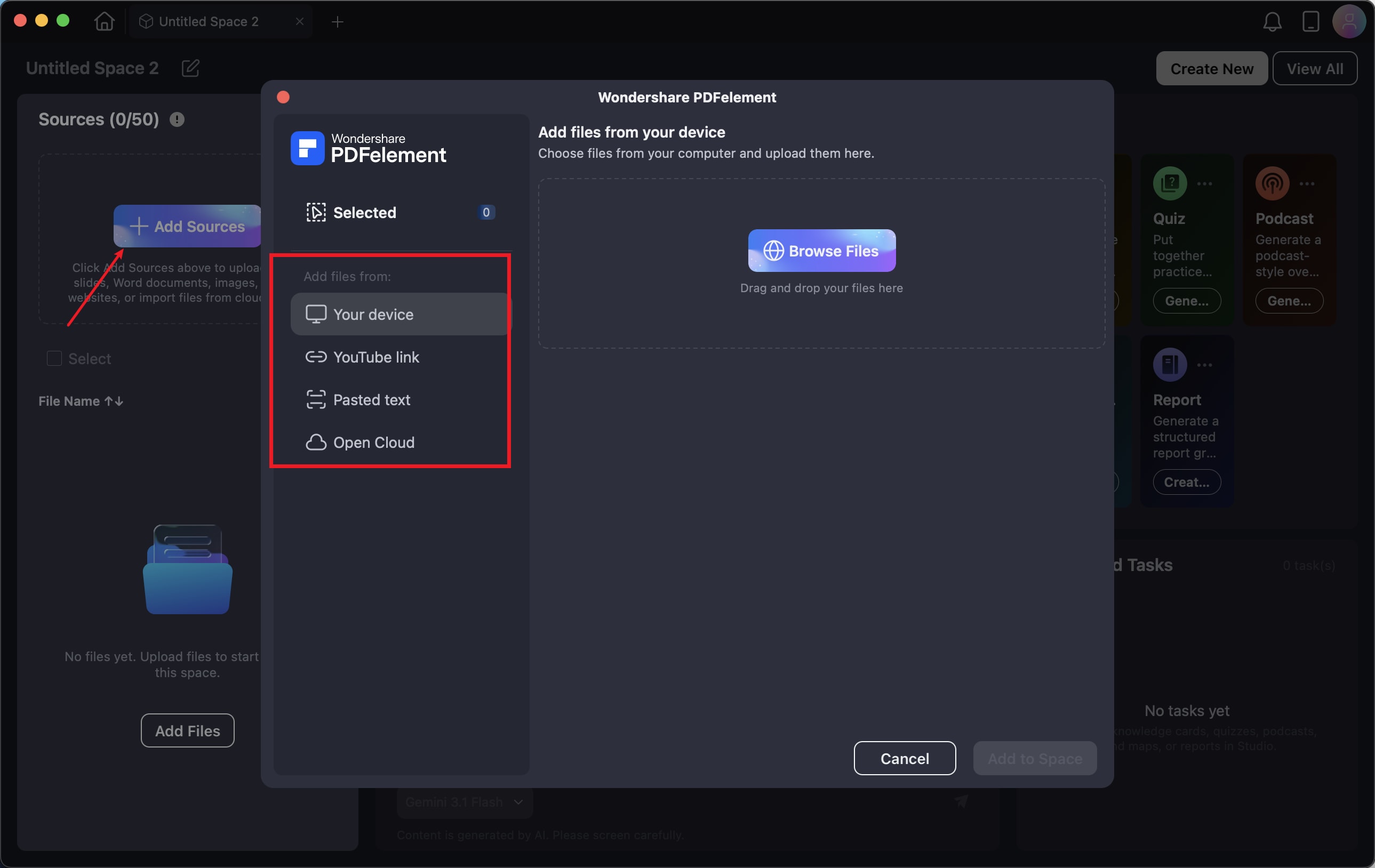
You can add content using any of the following methods:
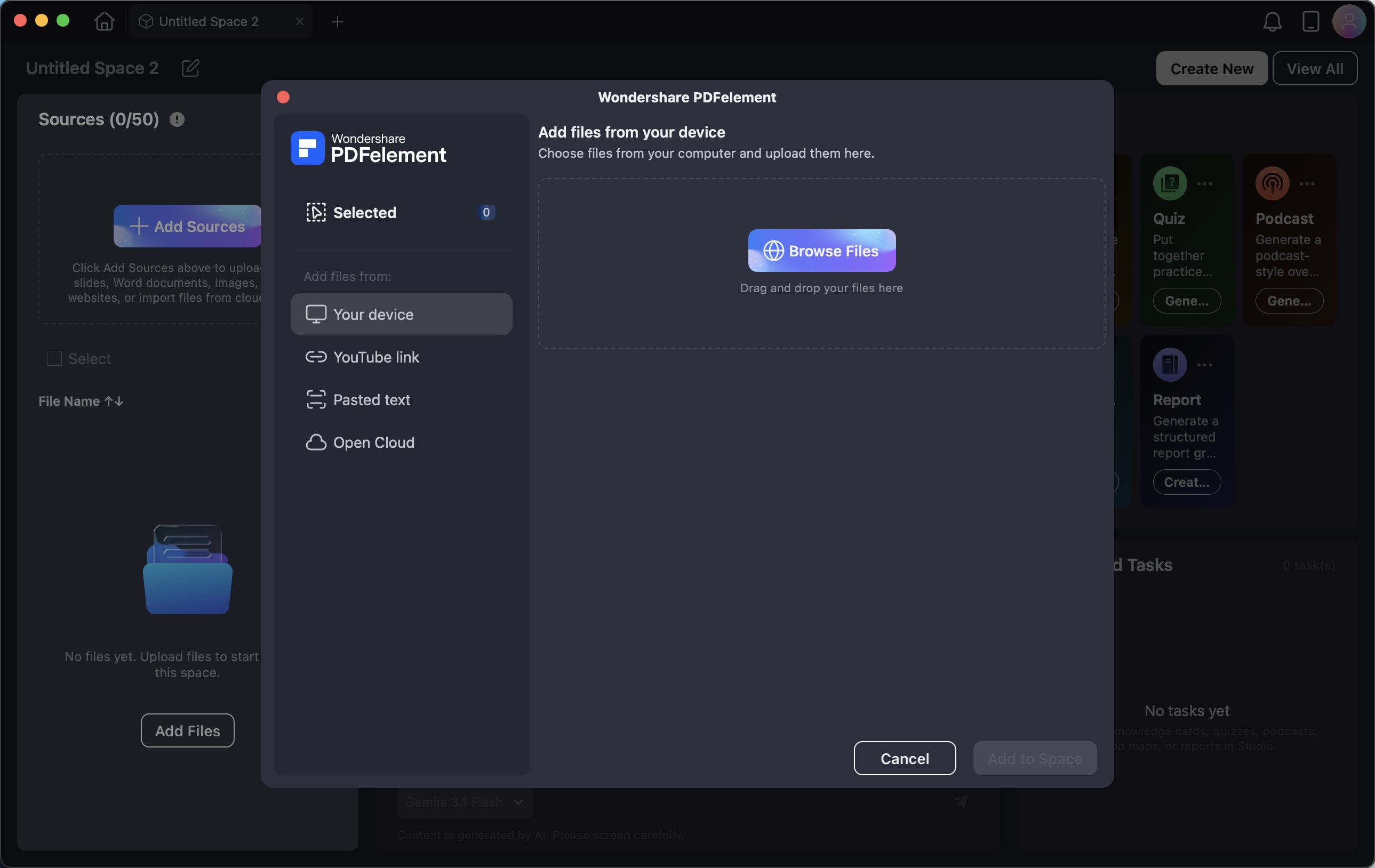
Upload Files: Click Browse Files and browse your computer for the documents you want to add. Select the required study materials and import them into the current space.
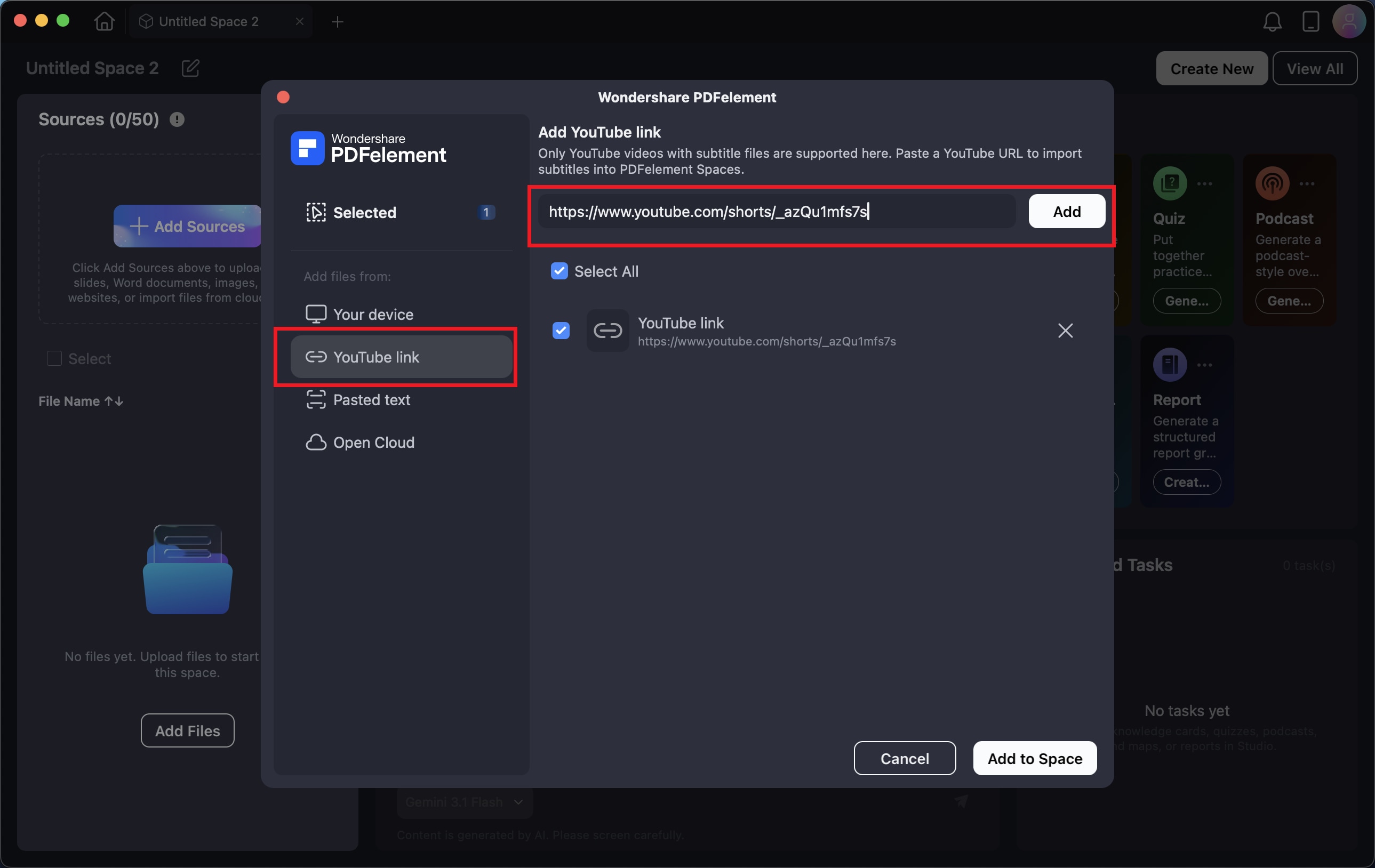
Add YouTube Videos: Find the YouTube video you want to learn from and copy its URL. Paste the link into the provided input field and click Add. If the video has available captions, PDFelement will recognize them and add the caption text to your space.
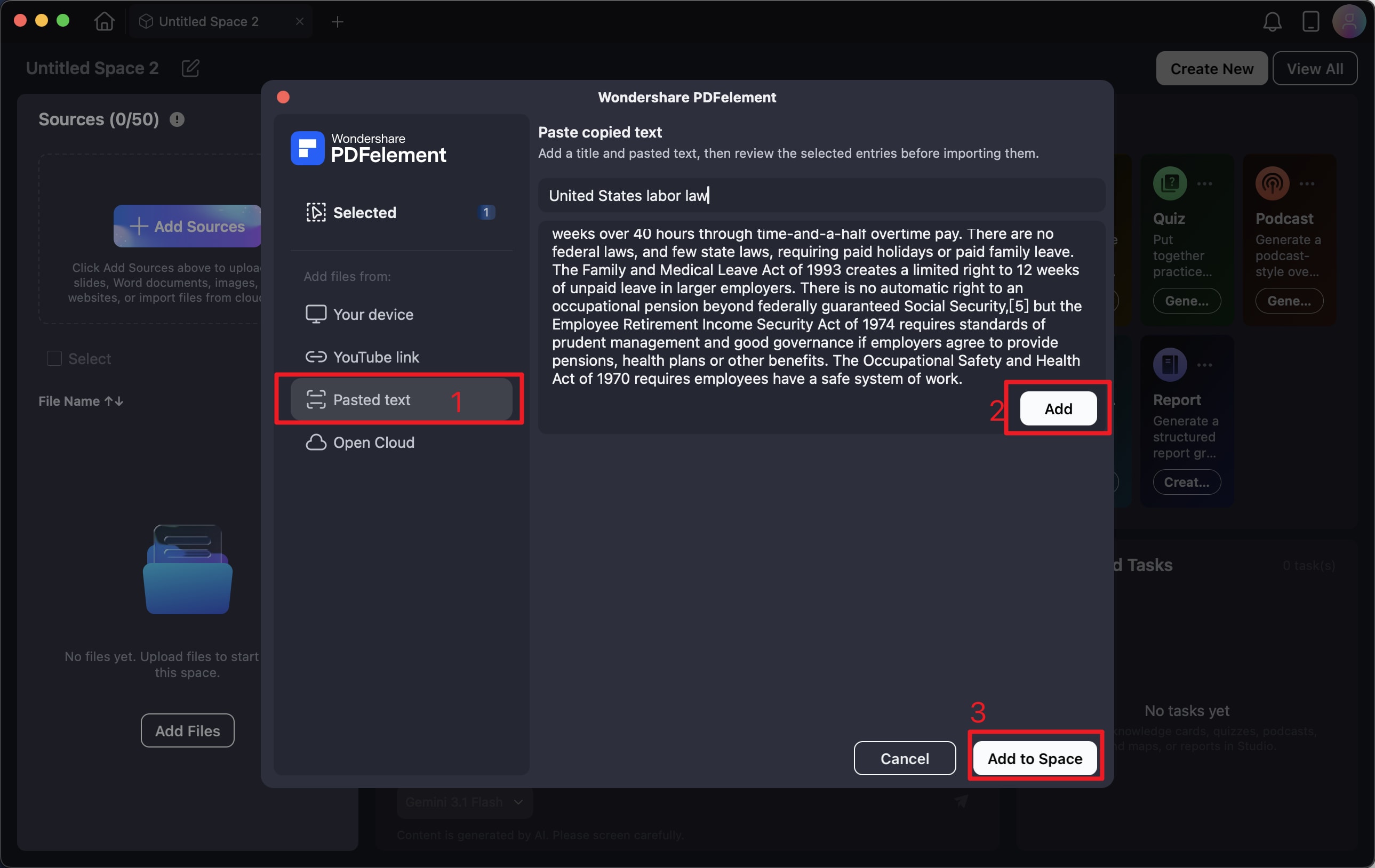
Paste copied text: First copy the text you want to include in your study materials. Paste it into the text box, provide a name for the material, and click Add. The text will then be saved to your space for further use.
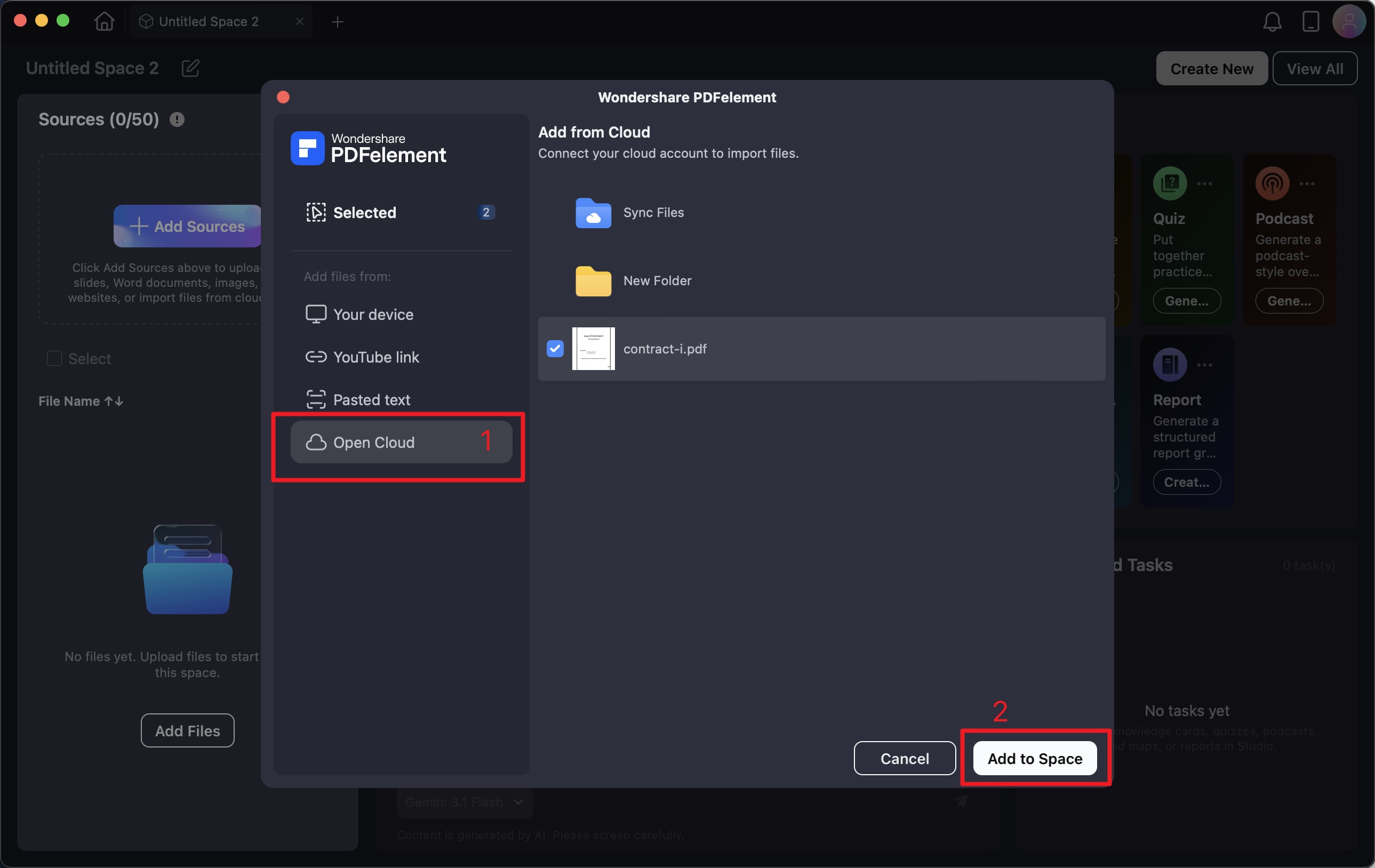
Add files from cloud: Select PDFelement Cloud and browse the files available in your cloud storage. Choose the documents you need and add them directly to your space, without having to download them to your computer first.
After all the necessary materials have been imported, your AI Space is ready to use. You can select the content in the workspace and use it to generate flashcards, quizzes, podcasts, mind maps, or reports.
Create Flashcards from Files
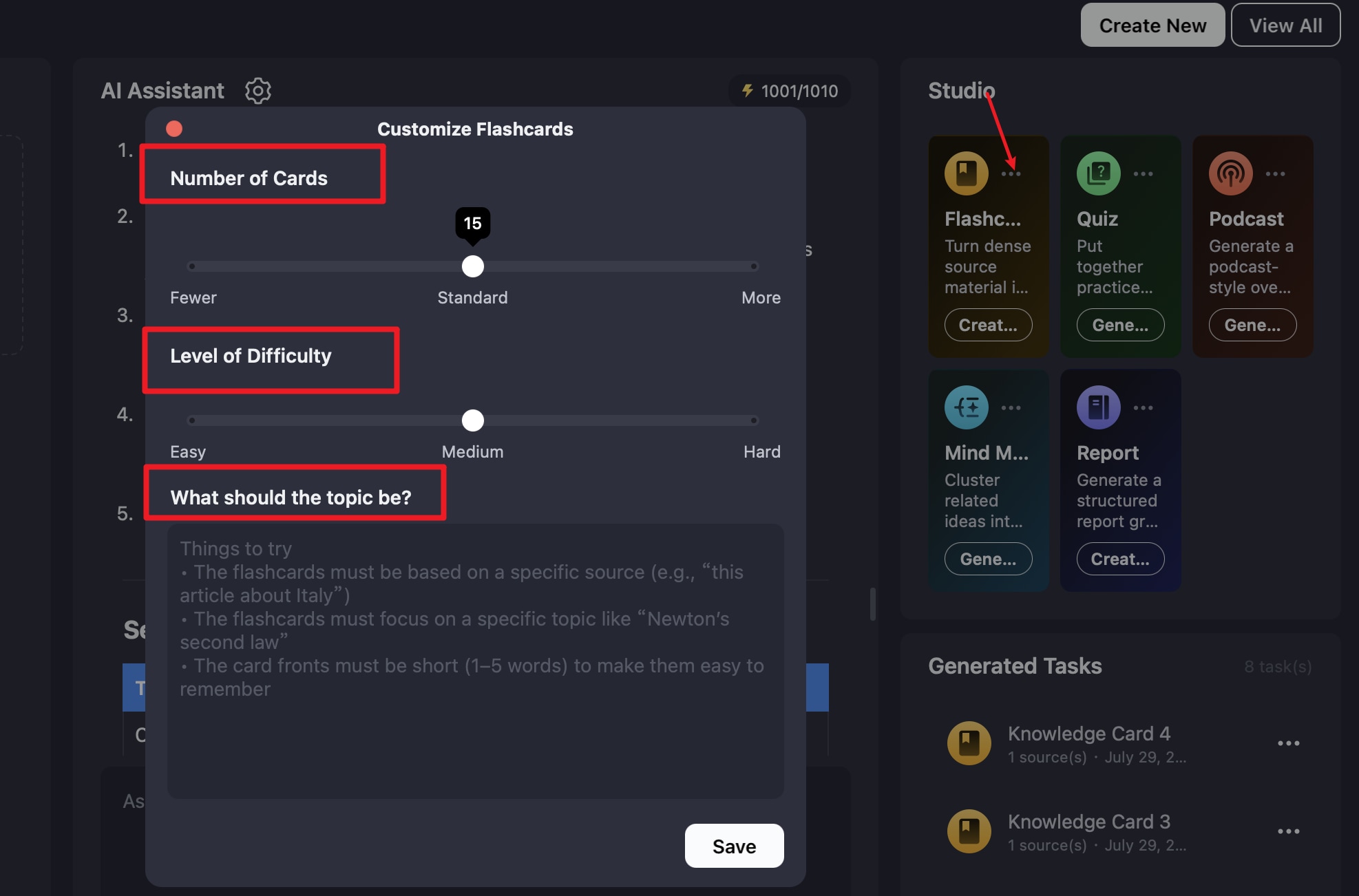
Step 1. Open Studio and select Flashcard. Before generating the cards, click the three-dot icon to access the available settings. Adjust the number and difficulty of the flashcards according to your needs. You can also enter a prompt to tell PDFelement what topic or specific information the cards should emphasize.
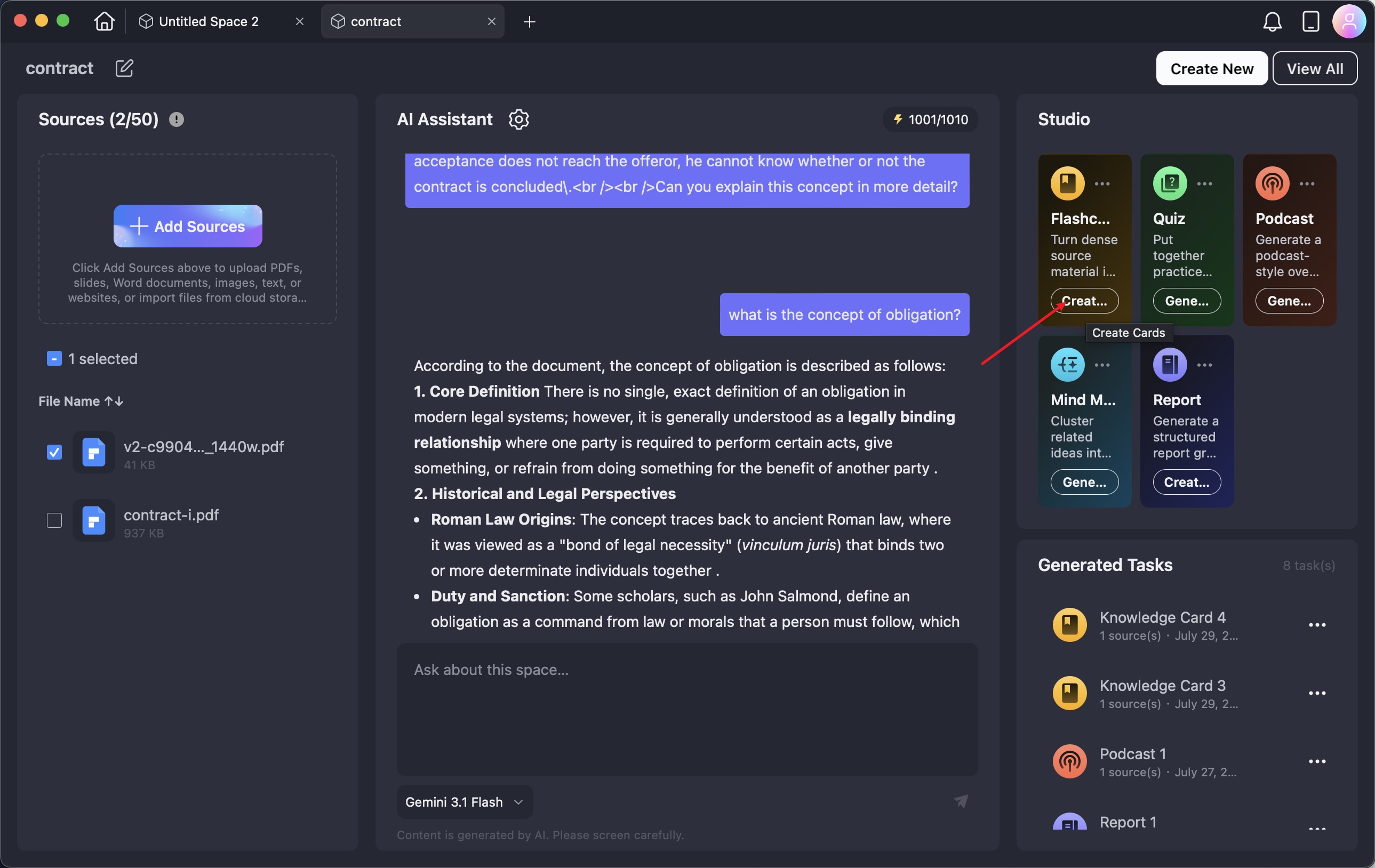
Step 2. Once the settings are configured, choose the source content you want to learn from and click Create Cards. PDFelement will process the selected material and automatically generate a set of flashcards based on your preferences.
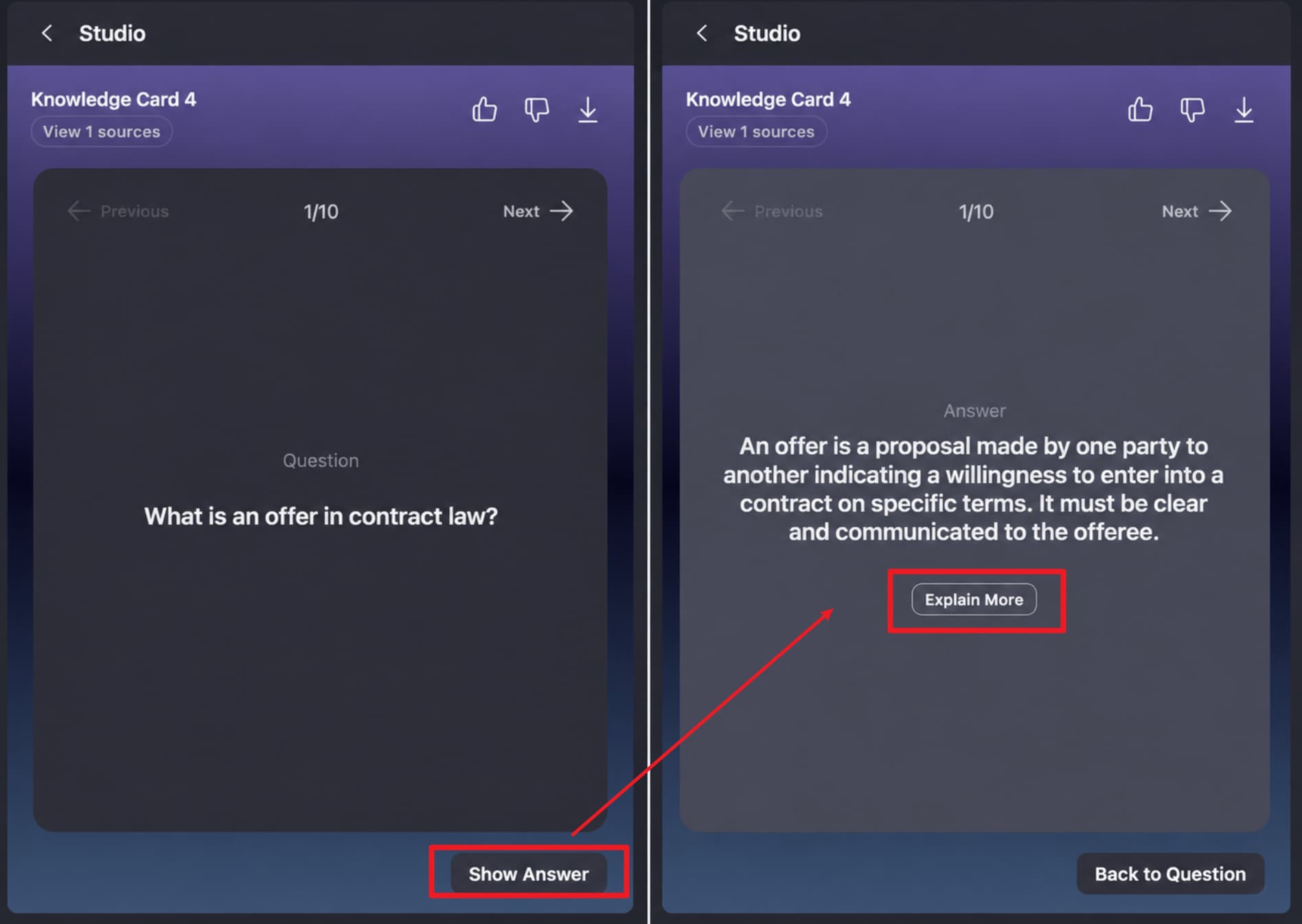
Step 3. Click any generated flashcard to begin reviewing. The question is shown on the front of the card. When you are ready to check the answer, click Show Answer to reveal the back. If the answer requires further explanation, select Explain More to get additional information.
Create Quizzes from Files
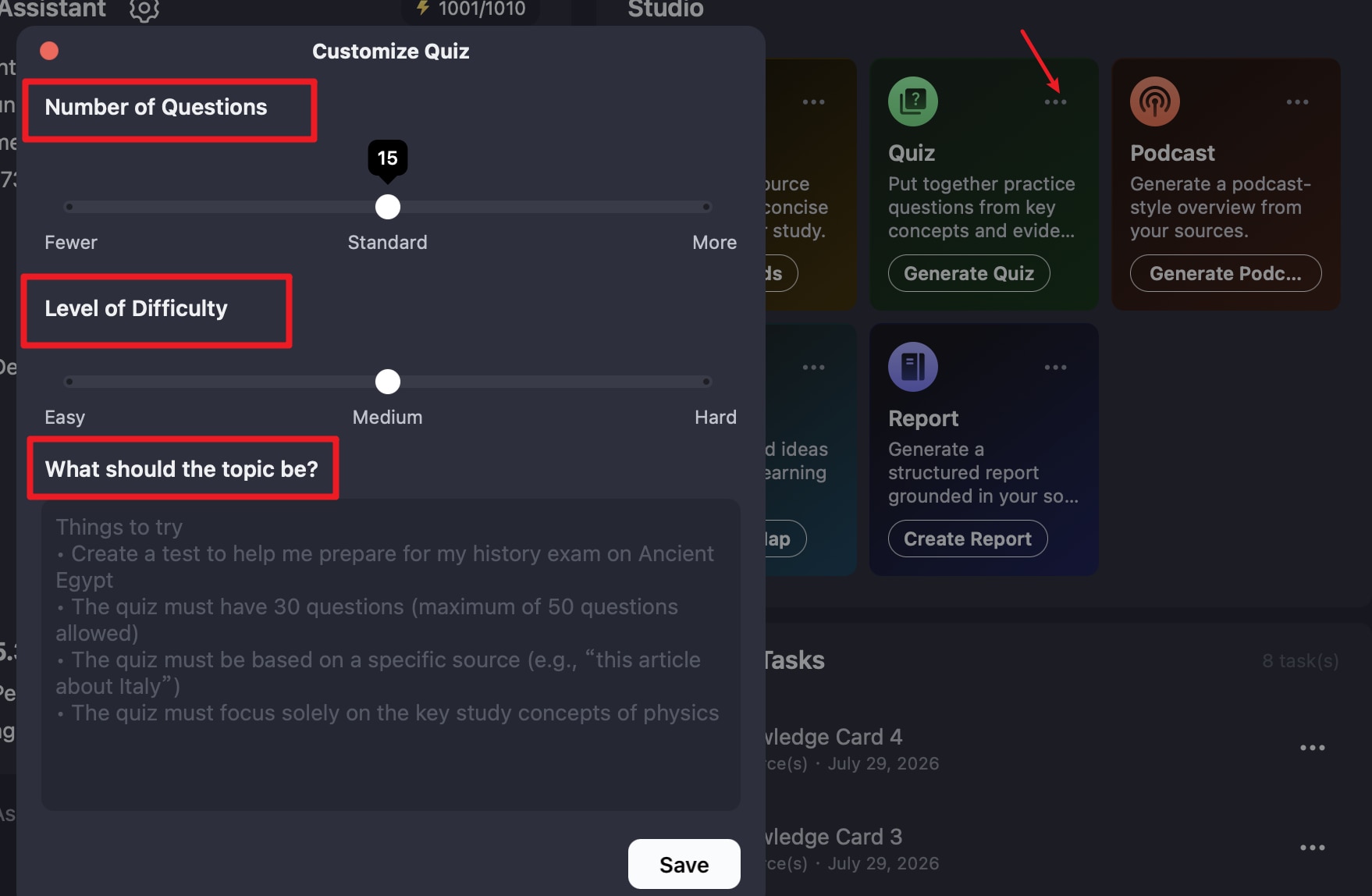
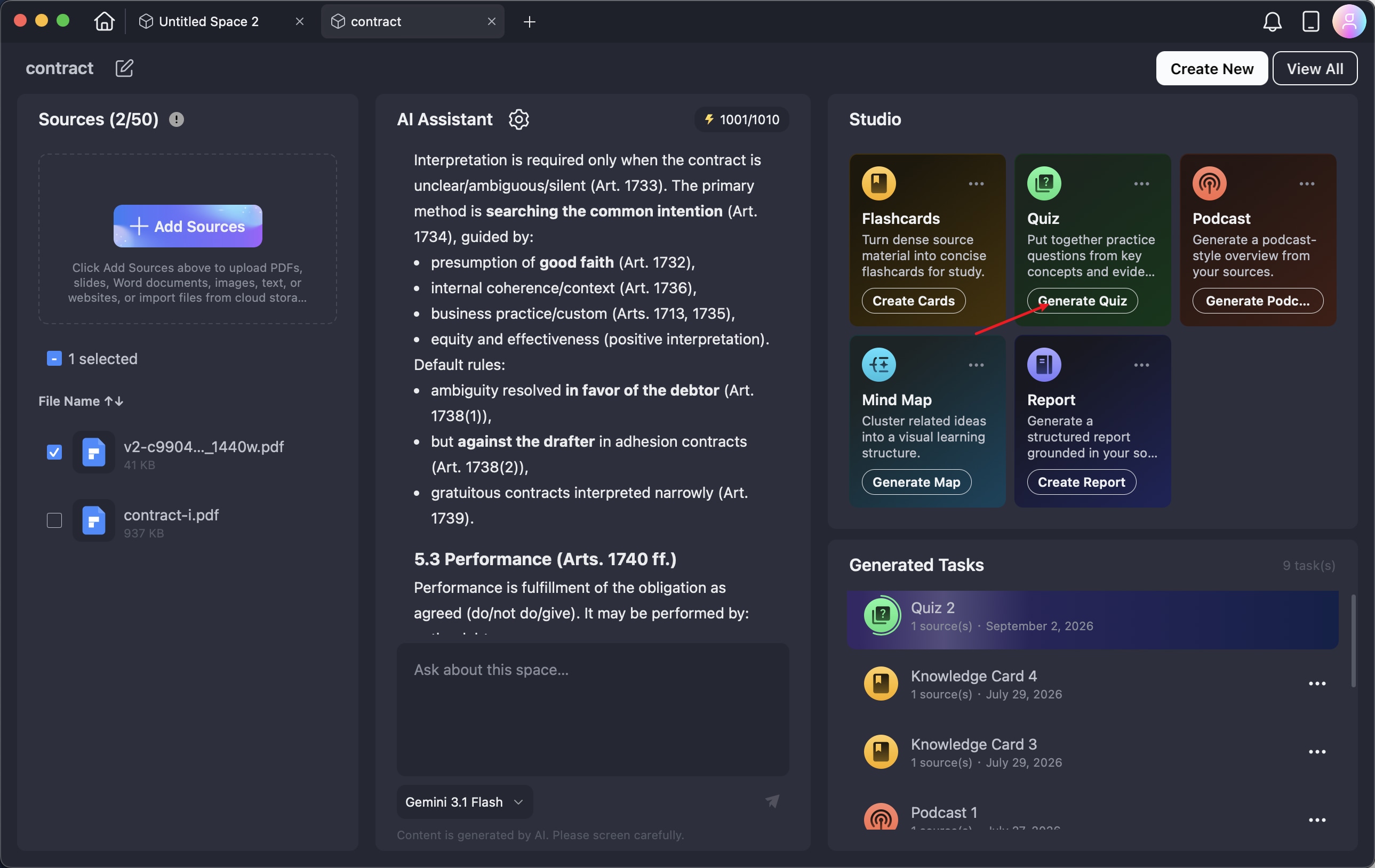
Step 1. From your AI Space, open Studio and select Quiz. Click the three-dot icon to bring up the quiz customization settings.
Step 2. Choose the files or other materials you want to use as the source. After making your selection, click Generate Quiz. PDFelement will create the quiz according to the selected materials, format, and instructions.
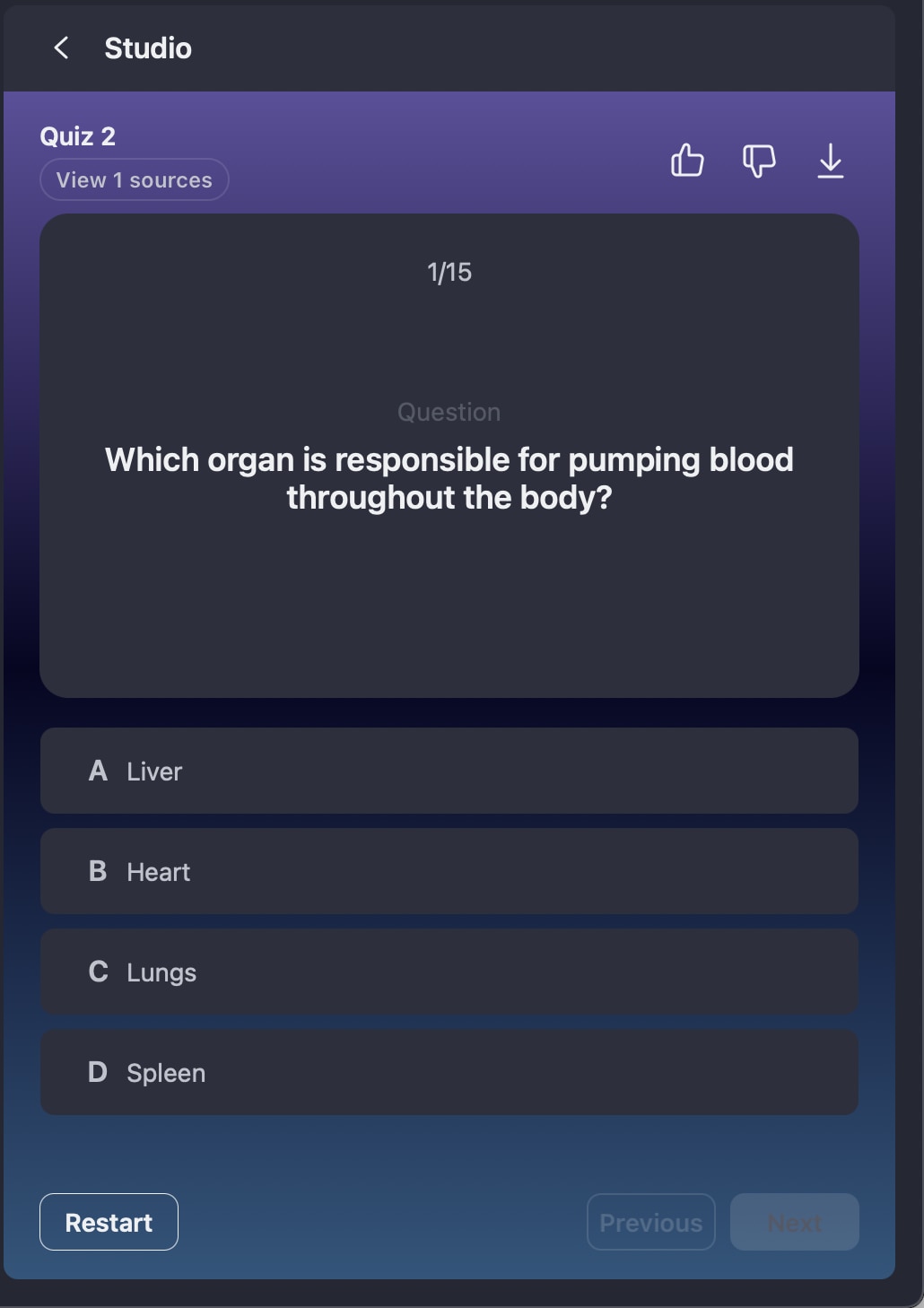
Step 3. Select the generated quiz to start testing your knowledge. Read each question and choose the correct answer from the available options. Use Next to move to the next question or Previous to review your previous answer. You can also click Restart to retake the quiz from the beginning.
Generate Podcasts from Files
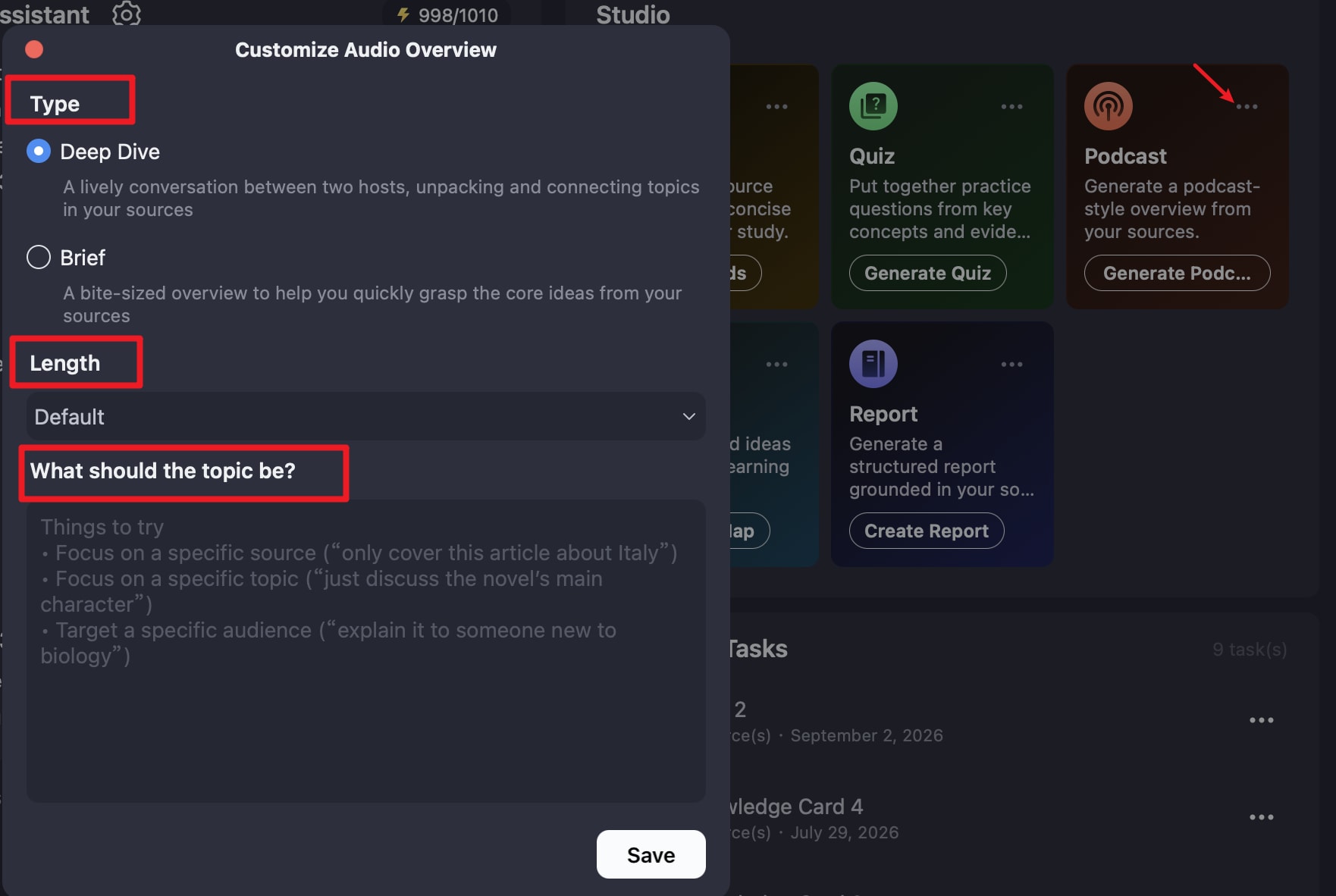
Step 1. Enter your AI Space and navigate to Studio > Podcasts. Click the three-dot icon to open the Podcast settings.
Select the Podcast format you want to use: Deep Dive or Breif. Deep Dive provides a longer and more detailed conversational discussion of the source files, while Brief focuses on delivering a shorter summary of the material. You can further guide the generated content by using prompts to specify the topic or intended audience.
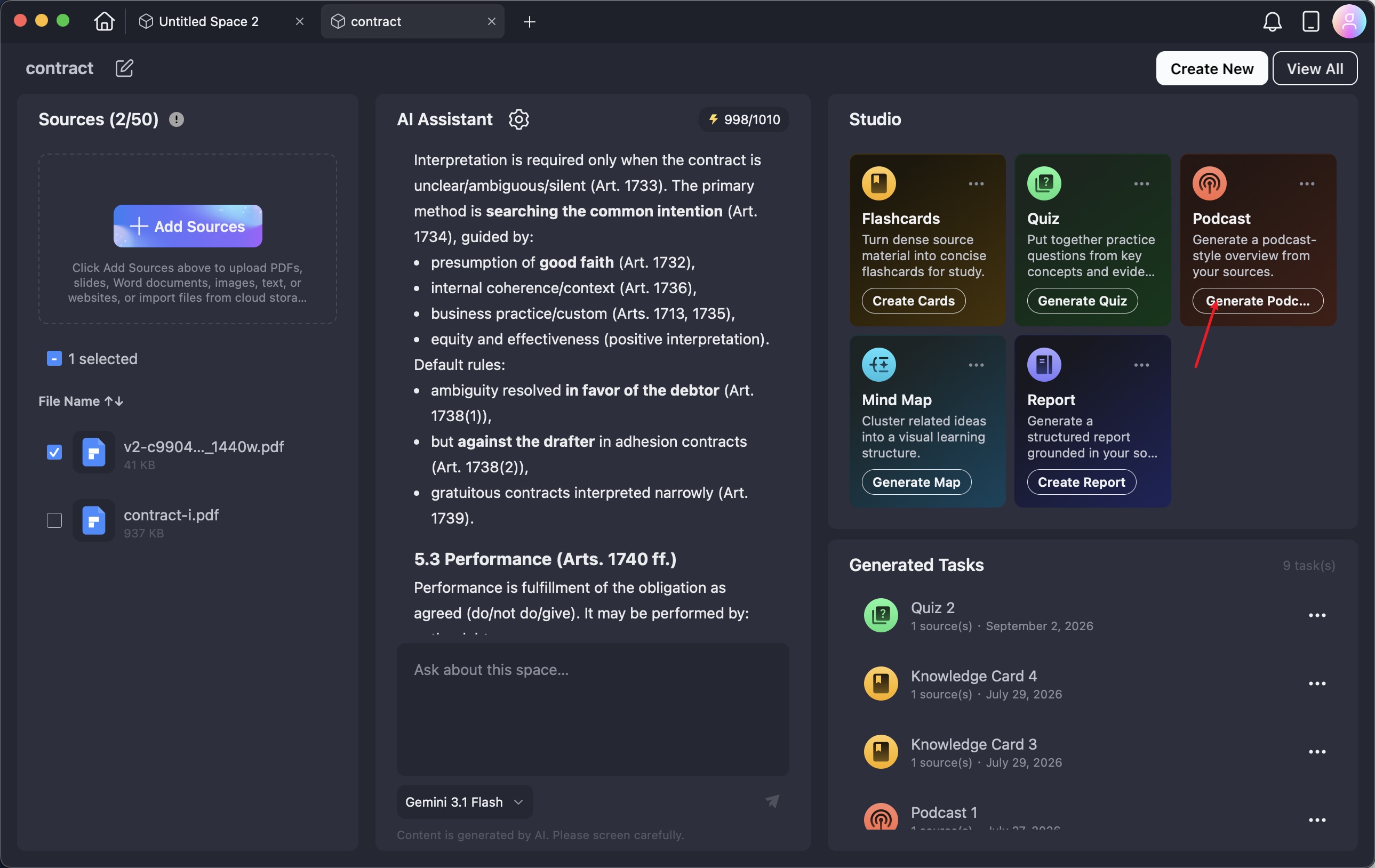
Step 2. From the available materials, select the files or other sources you want to include in the podcast. Once you have made your selection, click Generate Podcast. PDFelement will create the podcast using the chosen content and settings.
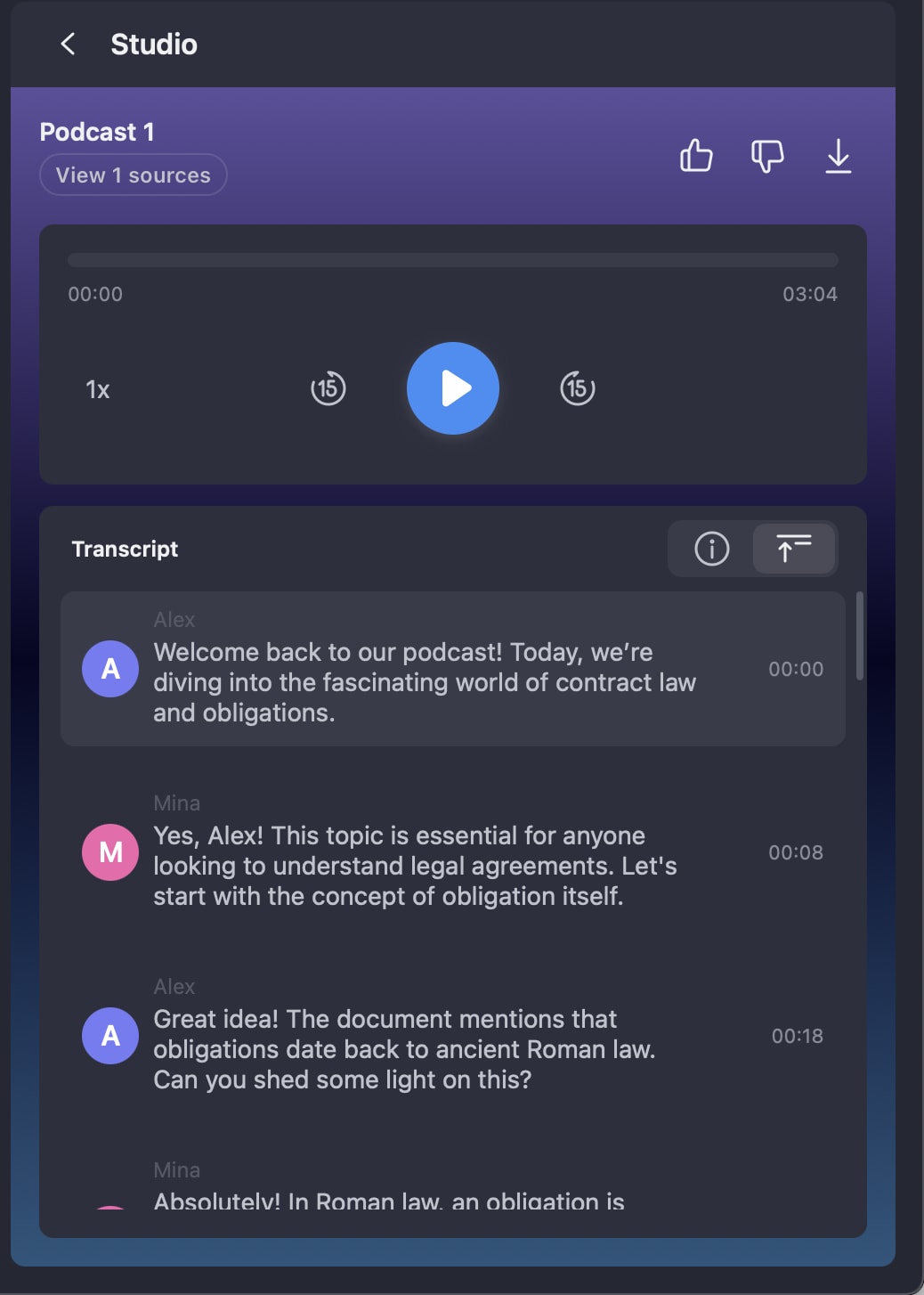
Step 3. When the podcast is ready, select it to start playback. A transcript appears alongside the audio, allowing you to follow the discussion while listening. If you want to keep the audio for later use, export it as a MP3 file and listen to it whenever and wherever you need.
Generate Mindmap from Files
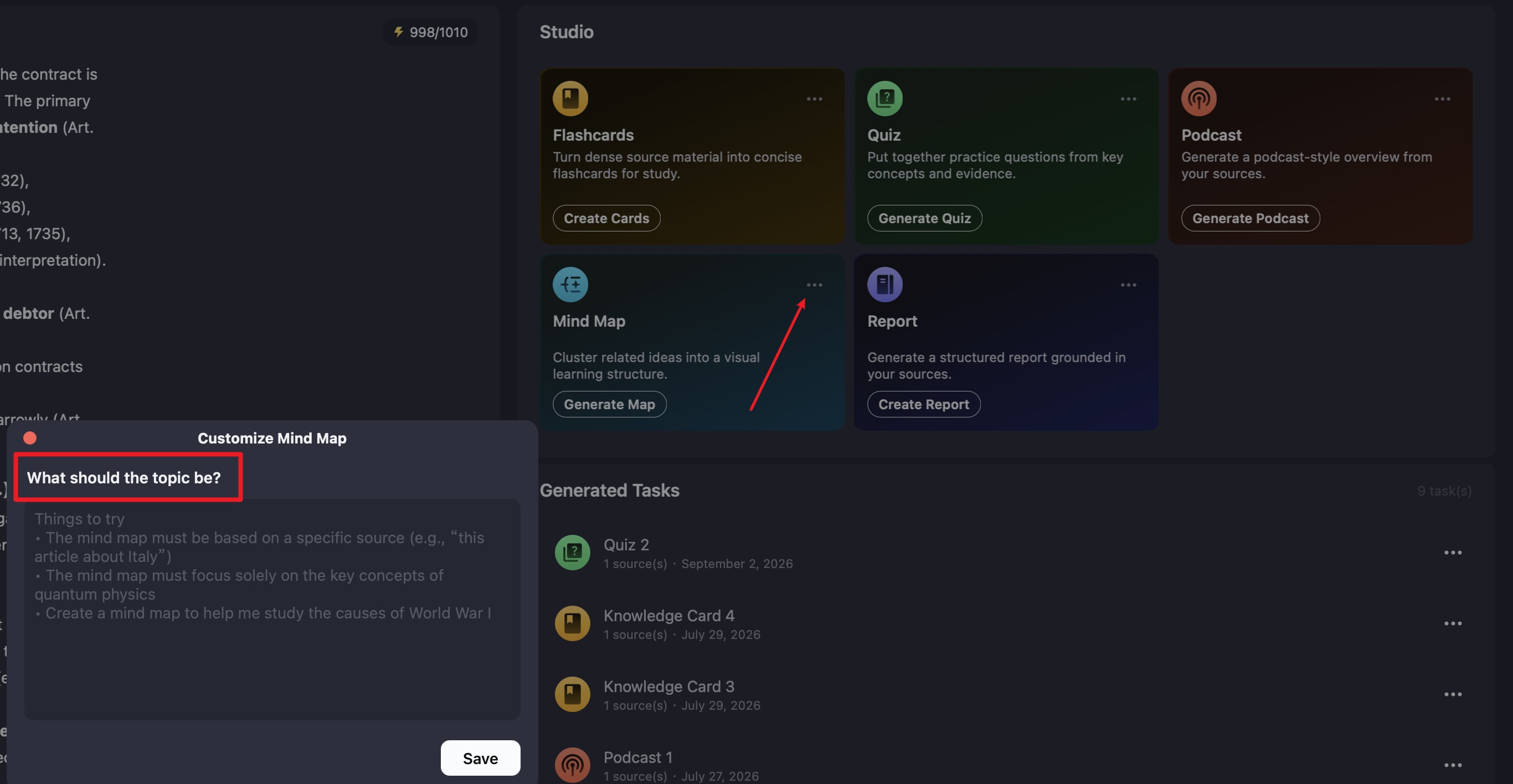
Step 1. In AI Space, open Studio and choose Mindmap. Click the three-dot icon to view the mind map settings. You can then enter a custom prompt describing the central topic, important concepts, or specific areas that should be covered.
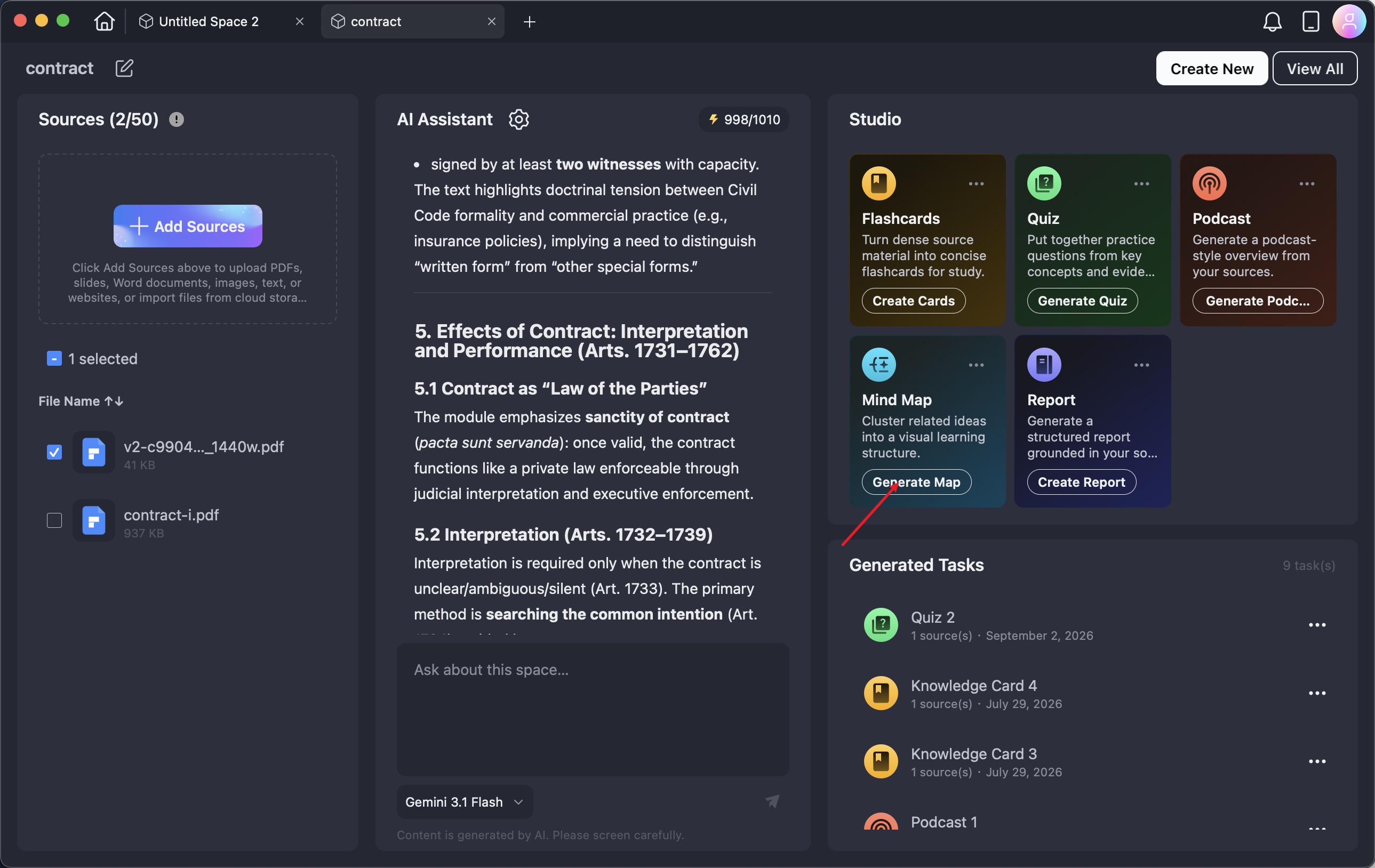
Step 2. Select the source files or other materials you want to include in the mind map. Click Generate Map after making your selection. PDFelement will analyze the content and organize its major ideas into a mind map based on your instructions.
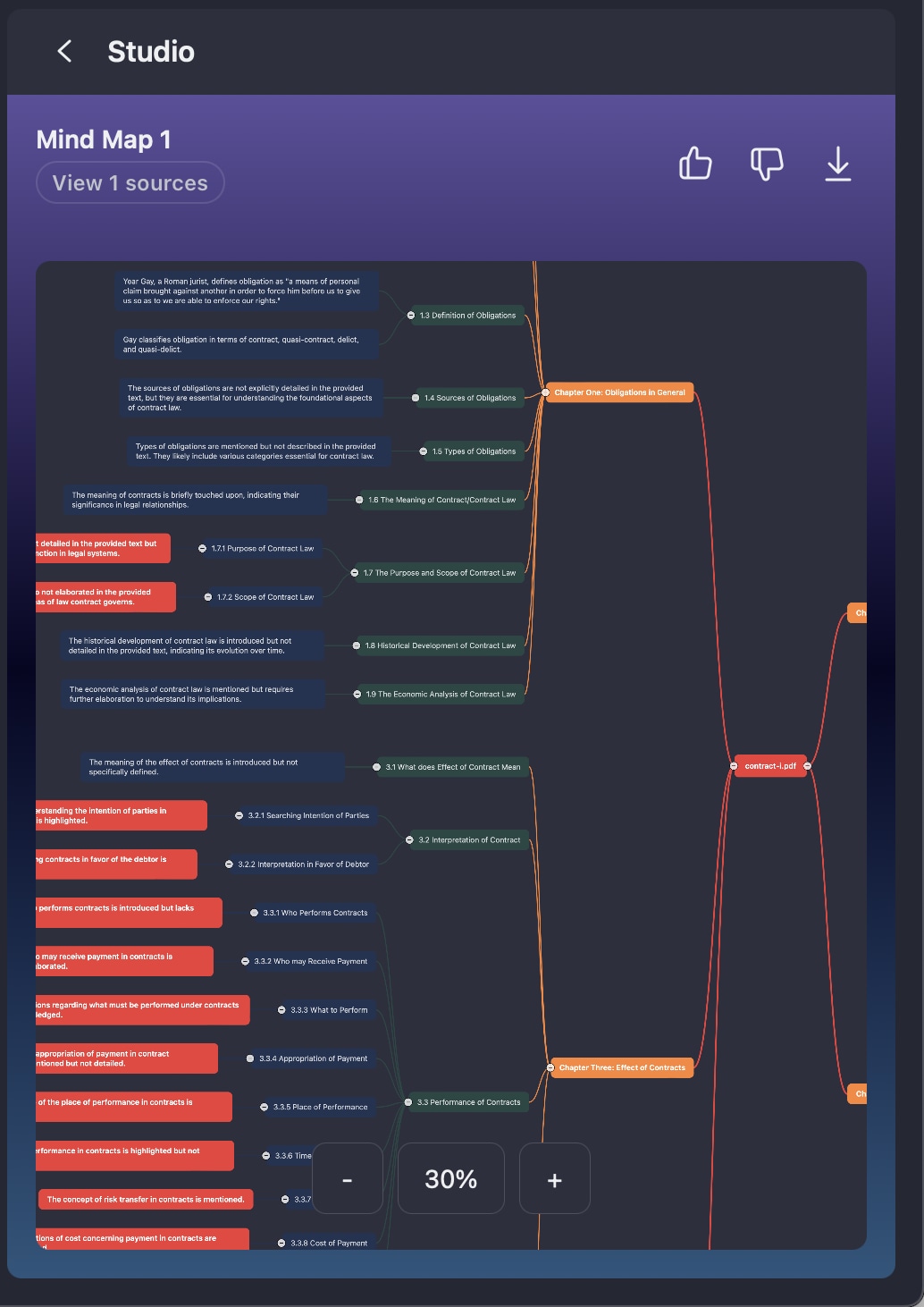
Step 3. Open the generated mind map to examine the main topics, subtopics, and related information. If you need to use or share the result outside PDFelement, you can export the mind map as a PNG image.
Generate Reports from Files
Step 1. Go to Studio > Report within your AI Space and click the three-dot icon to open the report settings. Choose the report format that best matches your purpose:
- Brief Report: Delivers a short overview of the essential information, such as key ideas, conclusions, and insights.
- Standard Report: Provides a more comprehensive review of the source material, including questions, answers, and important concepts.
- In-depth Report: Examines the source content in greater detail, covering issues, arguments, supporting evidence, common misunderstandings, and other relevant information.
- Custom Report: Allows you to specify the report's purpose, intended audience, and areas of focus.
You can also select the language for the report and use prompts to further customize the generated content.
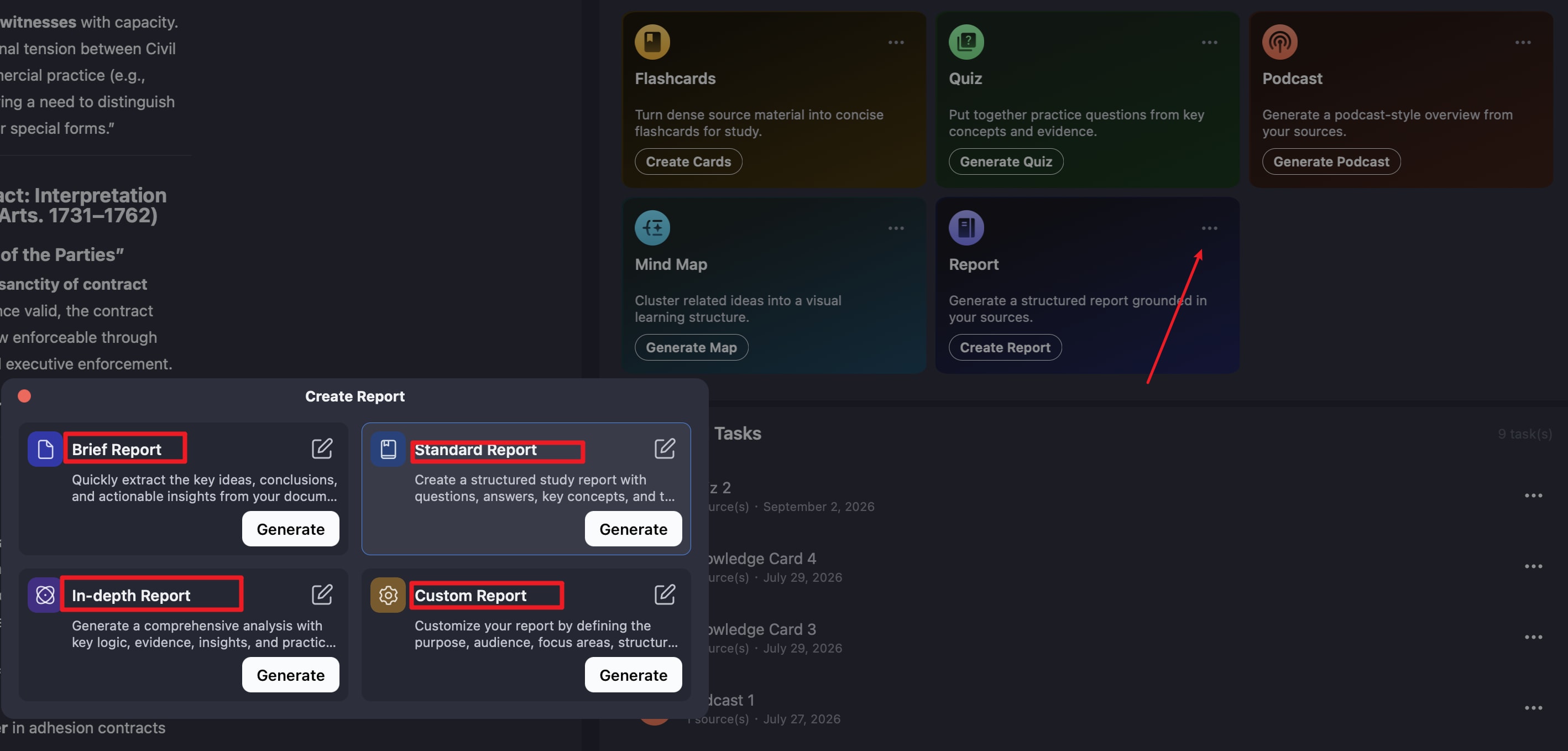
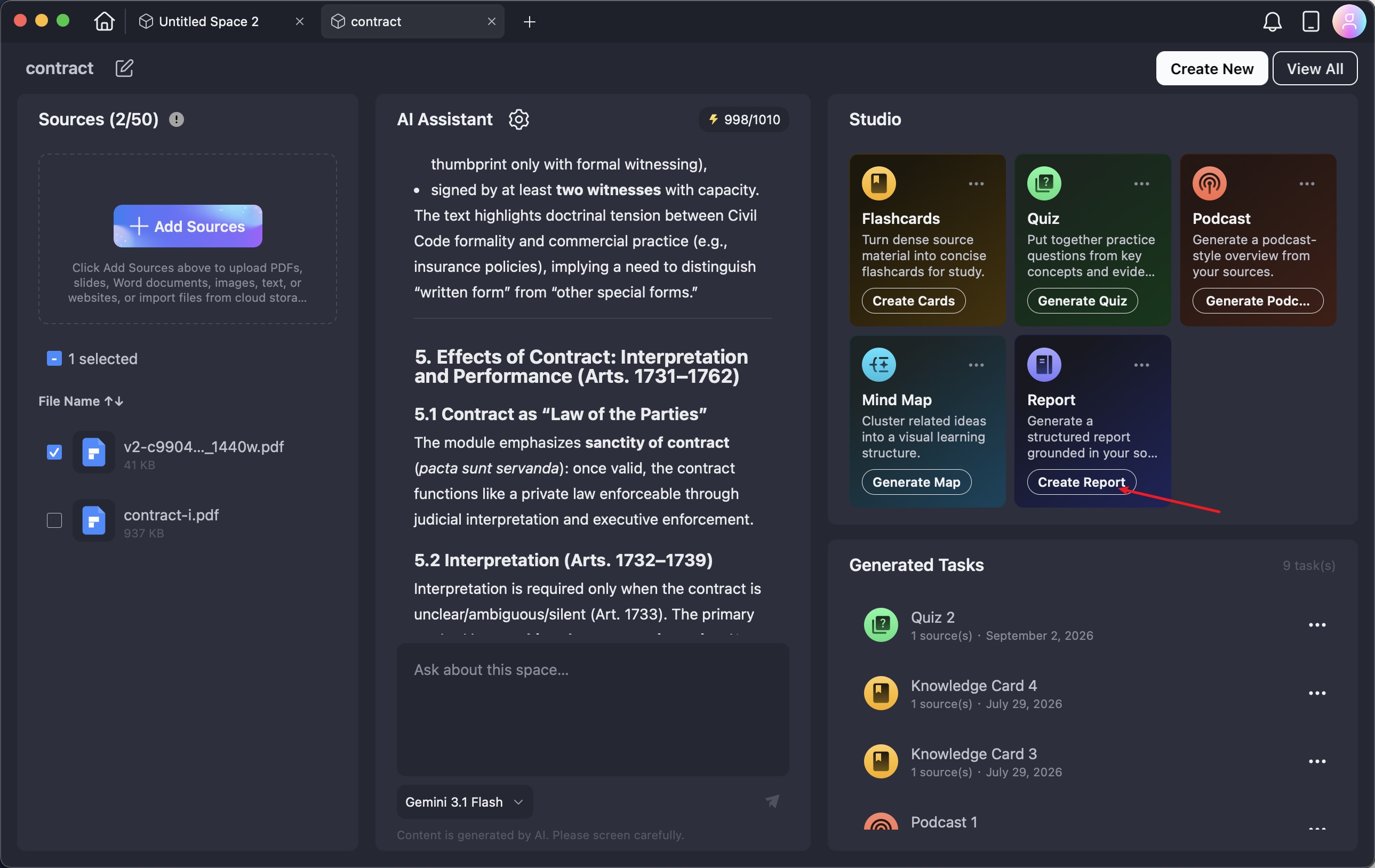
Step 2. Review the available materials in the left panel and select the files you want to analyze. Then click Create Report. PDFelement will process the selected content and arrange the results into a structured report based on your chosen report type.
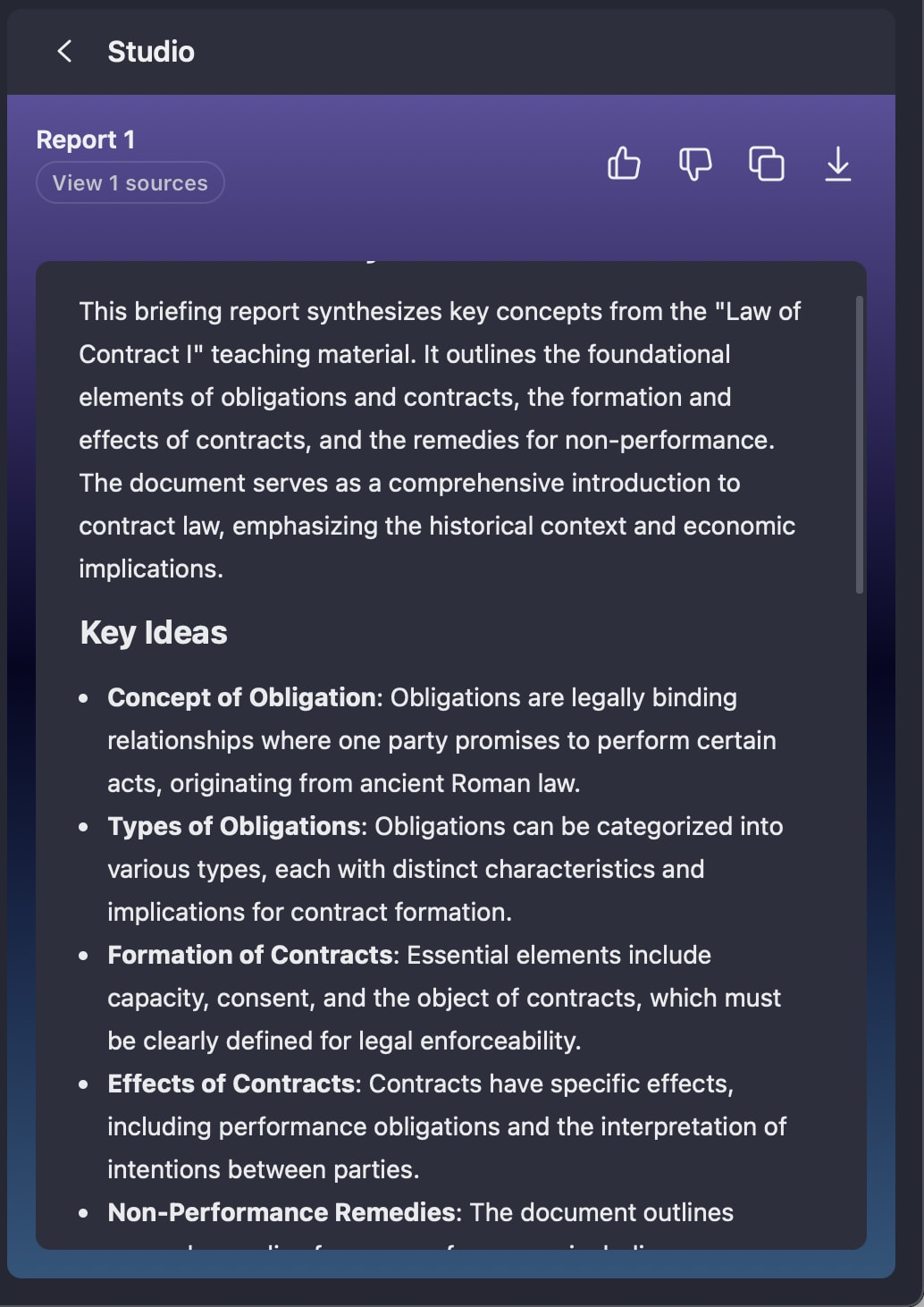
Step 3. Once the report has been generated, open it to review the analysis, findings, and key takeaways. After checking the content, you can export the report to keep a copy for future reference or share it with others.
Ask about Space
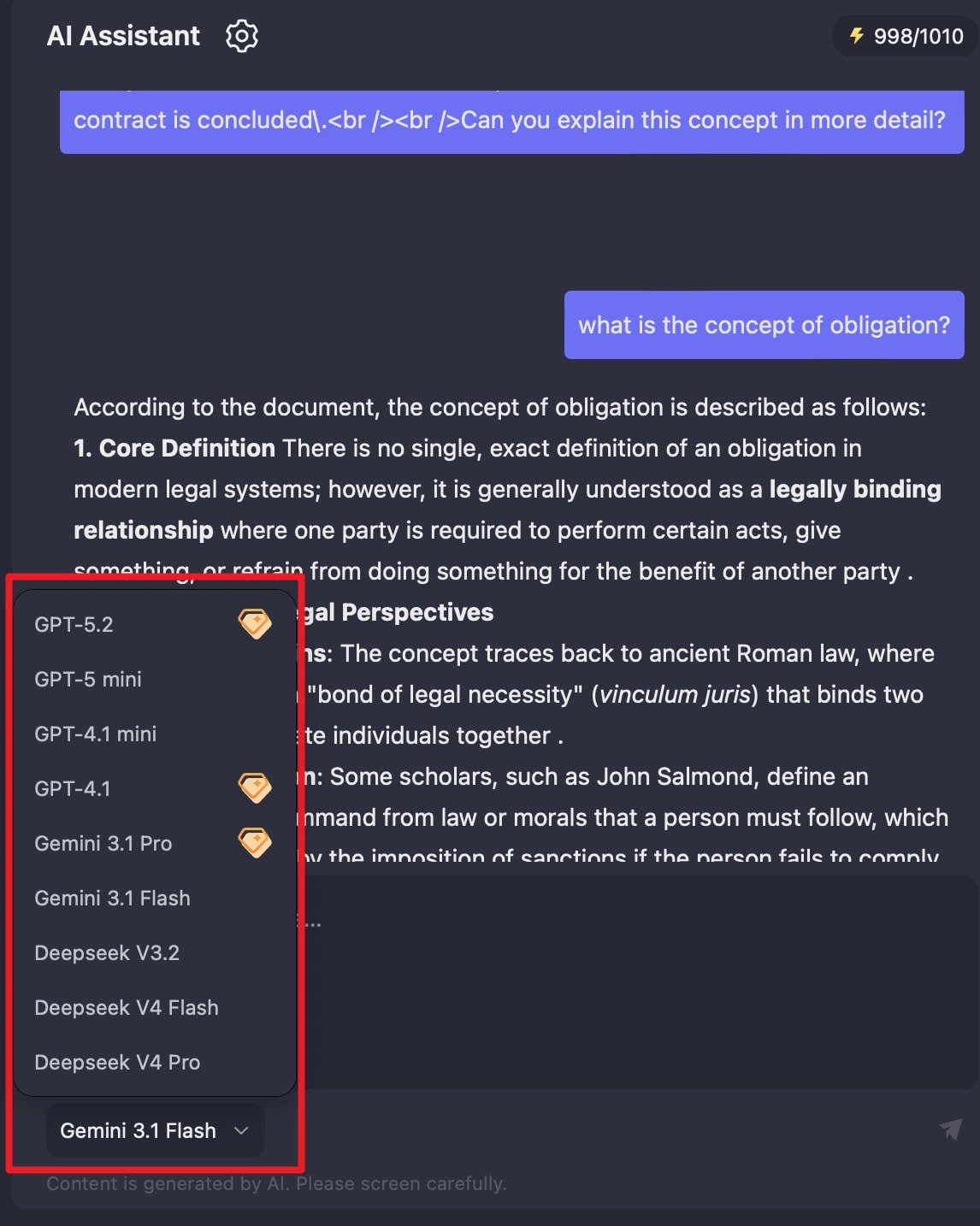
AI Space also provides an integrated AI assistant for interacting directly with the materials you have added. After a space is created, the assistant automatically prepares an overview of its contents. You can then ask questions about the materials, request summaries, clarify complex concepts, compare information from different files, or search for specific details.
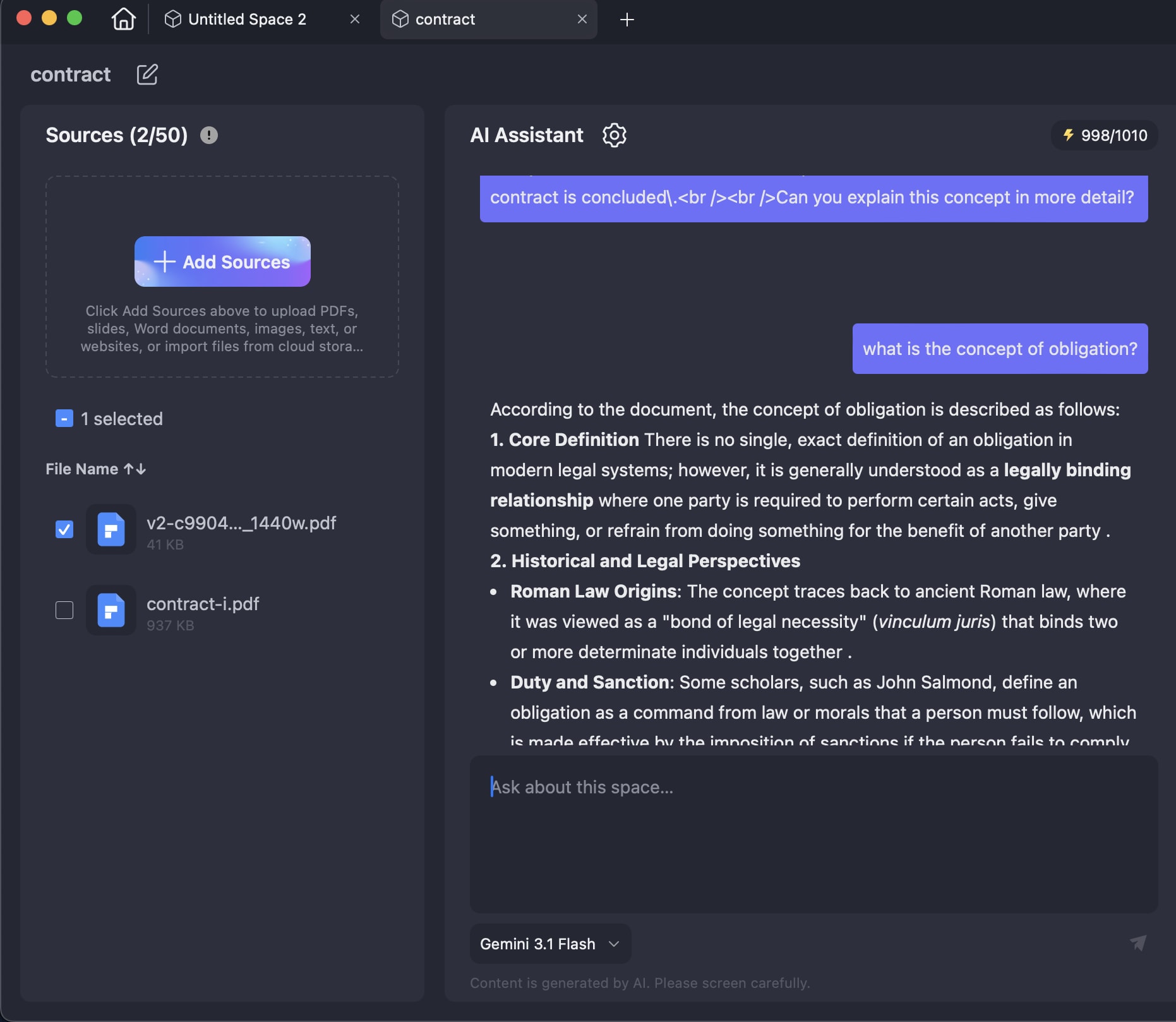
Configure response language: To change the language used by the AI assistant, click the gear icon and choose your preferred response language. With support for multiple languages, PDFelement lets you interact with the assistant in the language that works best for you.
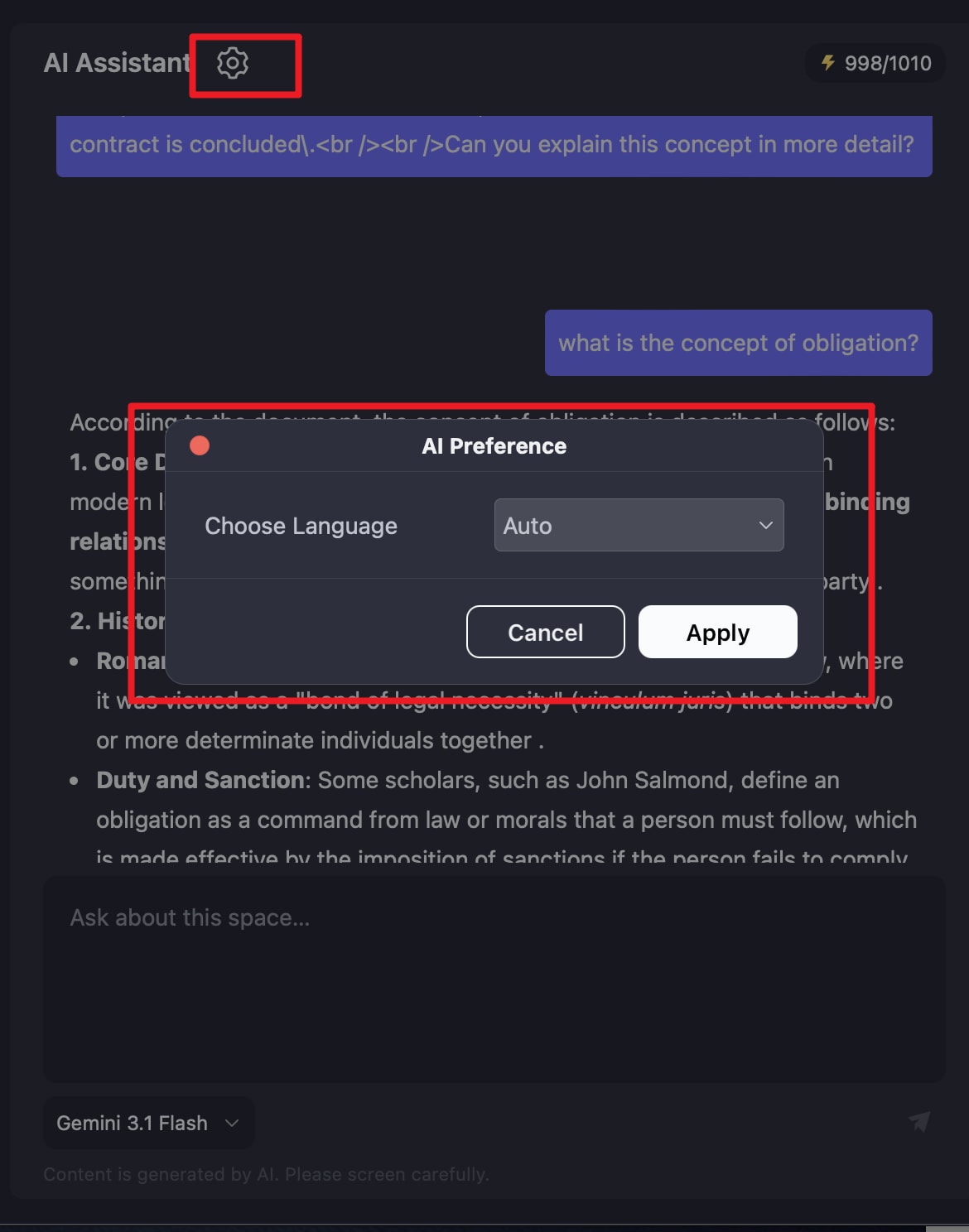
Select AI models: ou can choose from several AI models available in PDFelement, including ChatGPT, Gemini, and DeepSeek. Click the name of the currently selected model to open the model list, then select the model you want to use for your conversation.