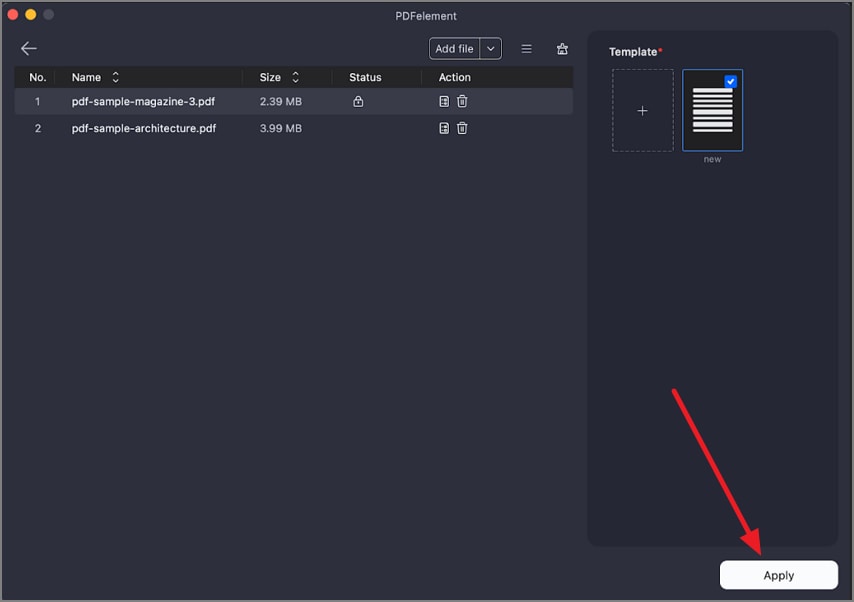
How to Batch Crop PDF on Mac
With Batch Crop in PDFelement, you can streamline editing by cropping page ranges or margins from multiple PDF files in one batch operation. This saves time and keeps your documents consistent, especially when handling large batches. You can save specific crop settings as presets and use them instantly later. Follow the steps mentioned below to learn how to remove the extra area in pages simultaneously on this tool:
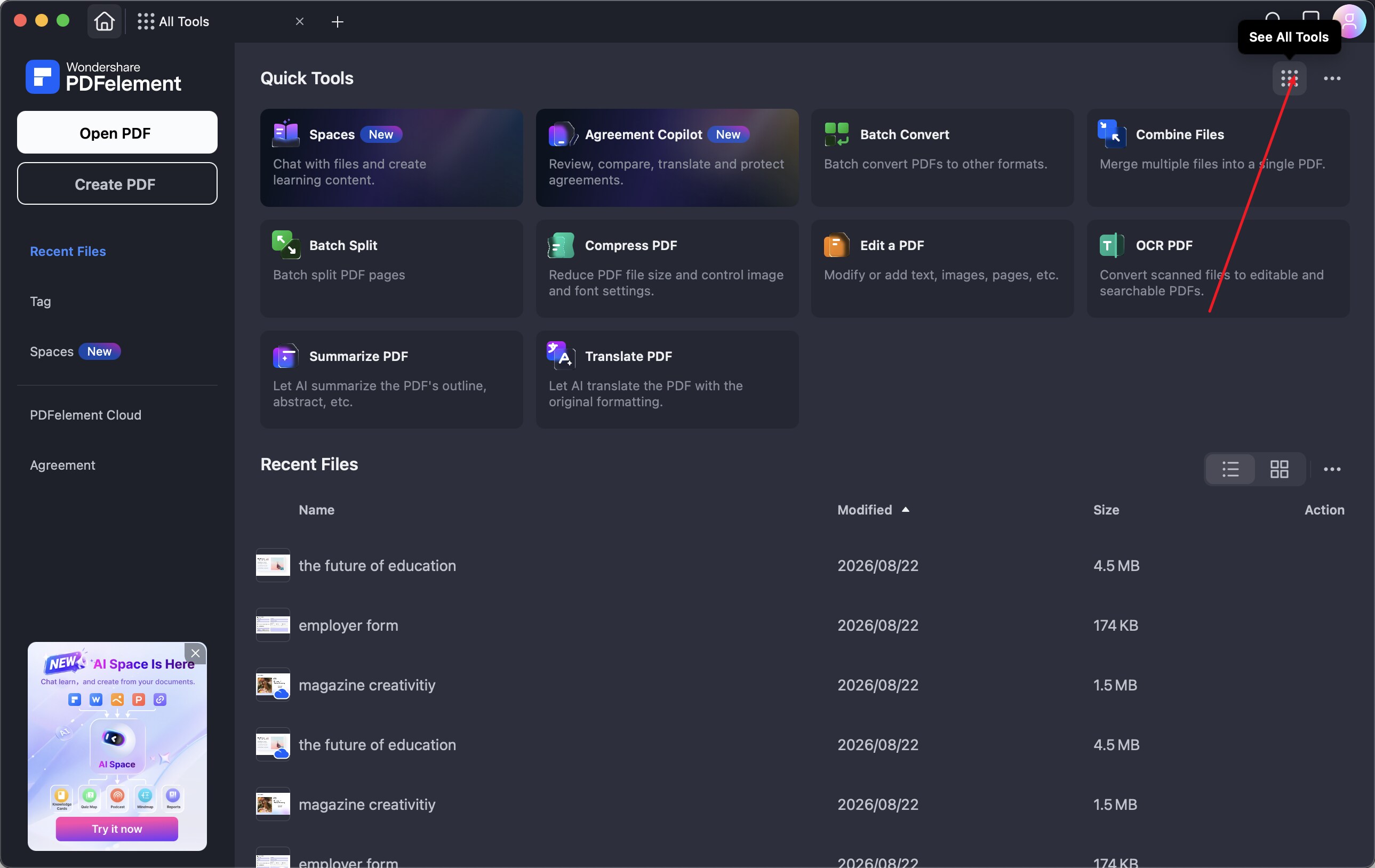
Step 1. Begin by launching the tool on your Mac and pressing the "See All Tools" option located on the homepage.
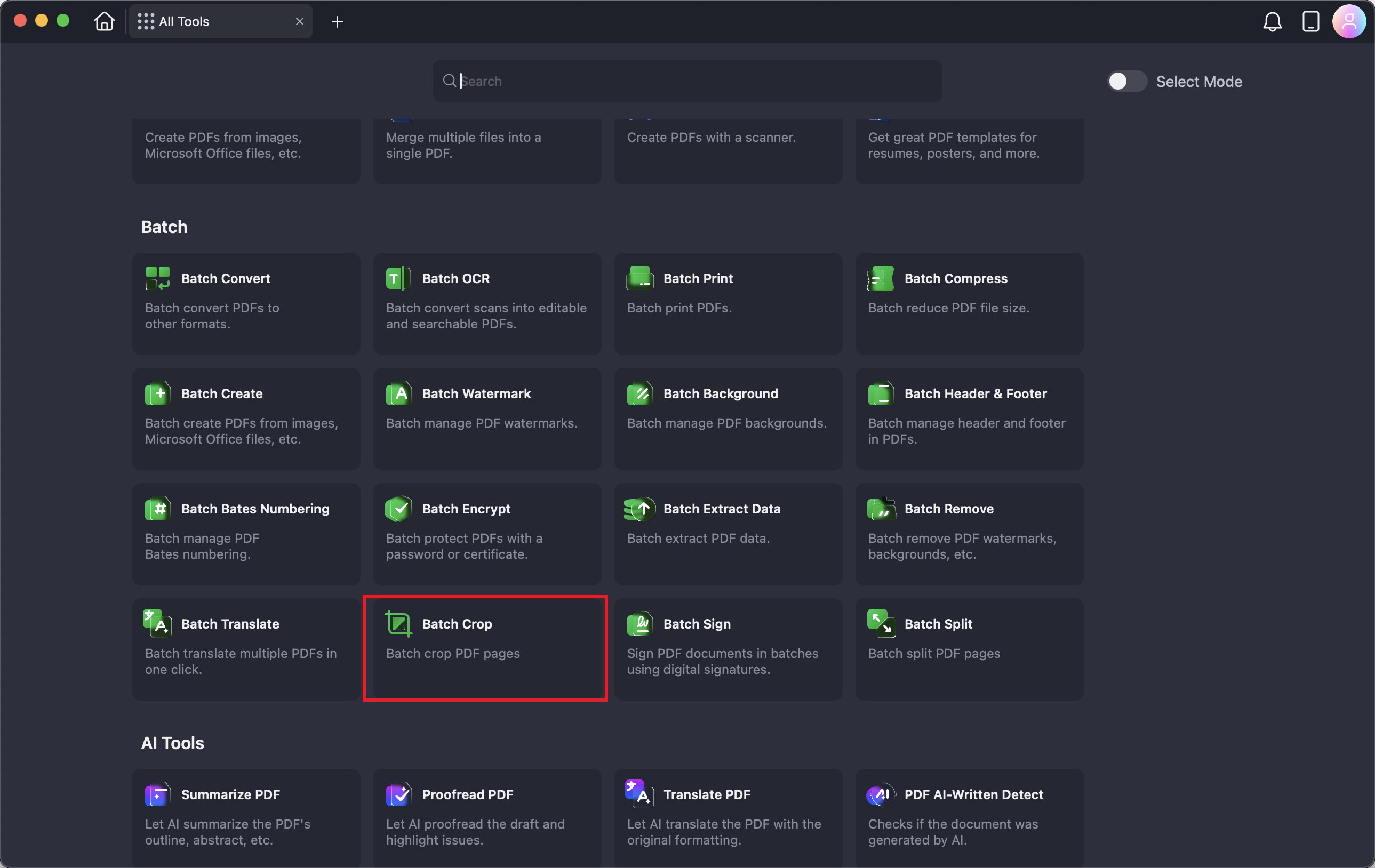
Step 2. Now, press the "Batch Crop" option in the following interface to start the process.
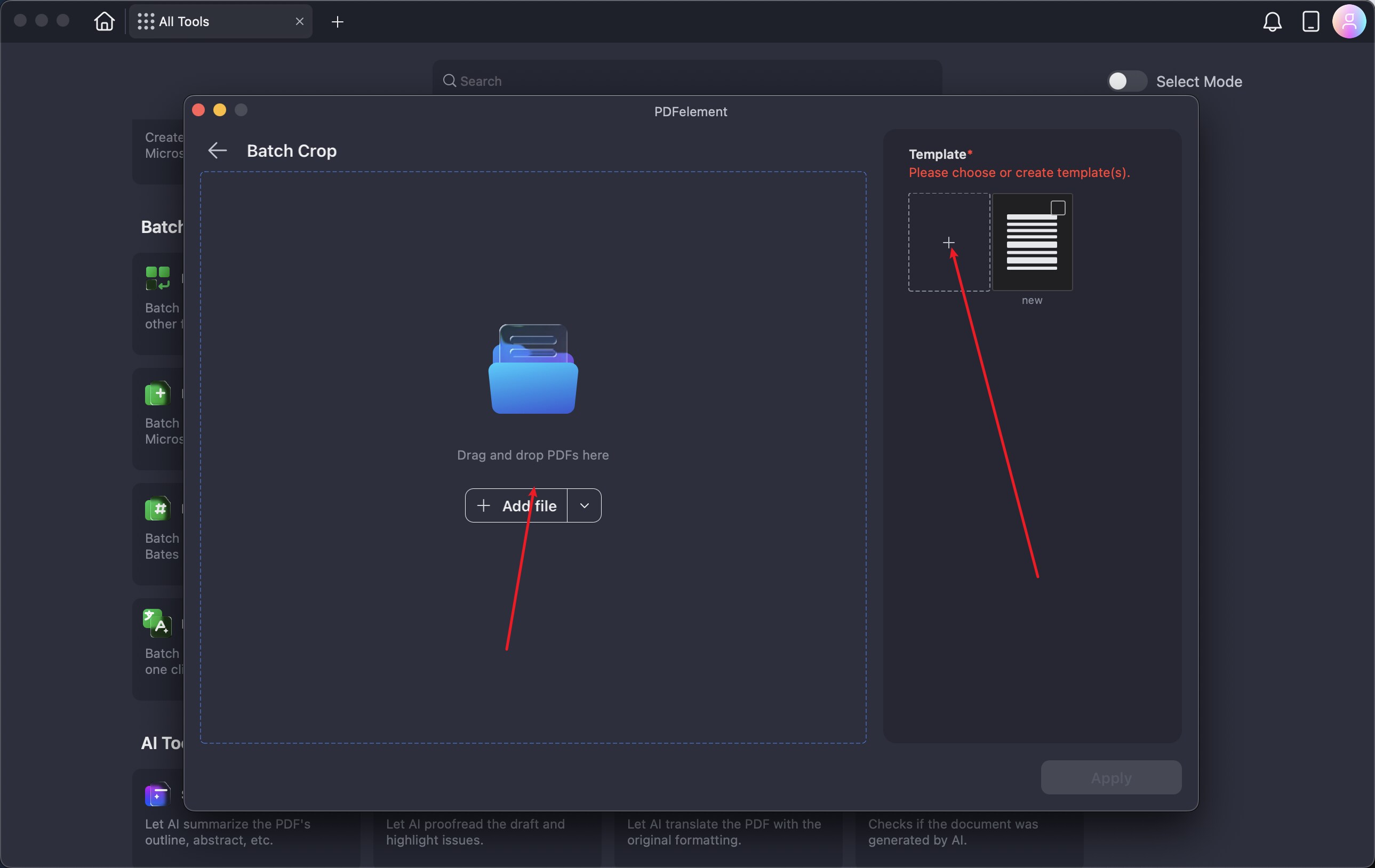
Step 3. Here, add your PDF files to the tool’s interface using the "Add File" option or simply by dragging and dropping. After the files are imported, head to the "Template" option and press the "+" icon.
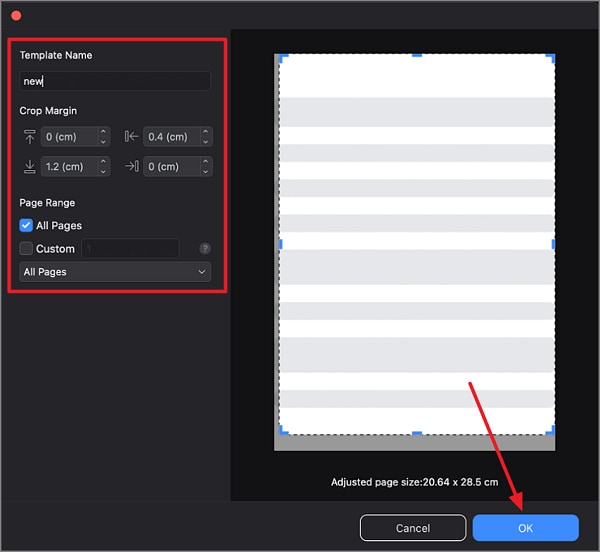
Step 4. Next, specify the crop ratio in the designated fields or drag the corners of the page within the preview. Press the "OK" button once all the settings are done.
Step 5. Specify the name for the file and its designation using the options provided, and press the "Apply" button to let the tool crop. Once the documents are successfully cropped, they will be automatically saved in the specified folder.