How to Customize the Toolbar on Mac
PDFelement offers a customizable toolbar that helps users create a more efficient and personalized workflow. By prioritizing and arranging the tools you use most, the toolbar displays core functions prominently for quick and easy access. Customizing the toolbar ensures a smooth, user-friendly editing experience. Read the steps mentioned below to learn how to personalize the tool settings on PDFelement in Mac:
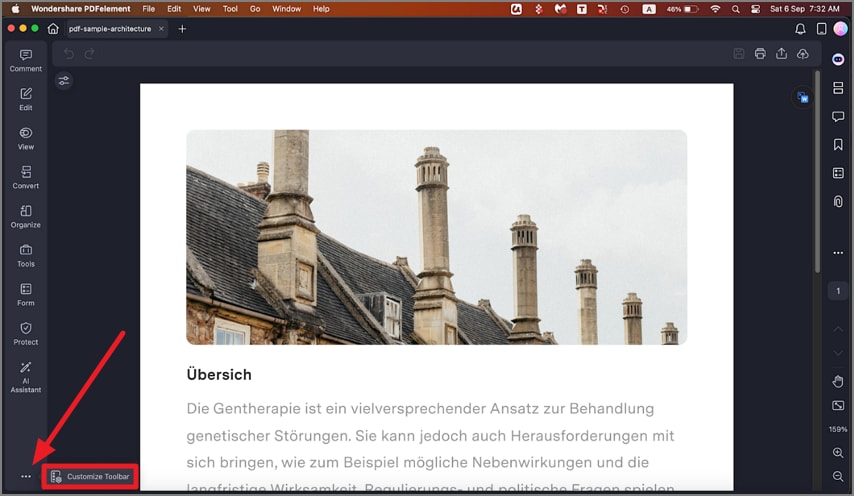
Step 1. Launch PDFelement and open your document. Then, at the bottom left corner of the interface, click the "Three Dots" icon and select "Customize Toolbar" from the menu.
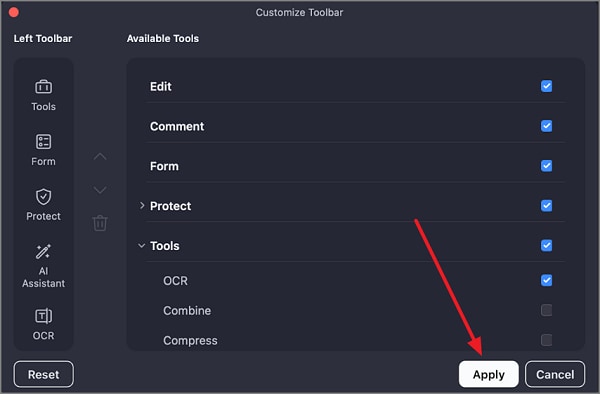
Step 2. From the list, check the boxes beside the tools you want to add to the toolbar. After selecting your desired features, click the "Apply" button at the bottom to save your changes.