How to Batch Sign PDF on Mac
Batch Sign in PDFelement lets you apply digital or handwritten signatures to multiple PDFs at once. You get the ability to create a signature with a new ID and save it for later use. Moreover, the tool also automatically scans the digital ID and extracts the signature from there.
You can sign multiple documents at once using this coherent feature and save the time and effort of processing each file separately. To learn how to sign multiple documents at once on your Mac, read the steps mentioned below:
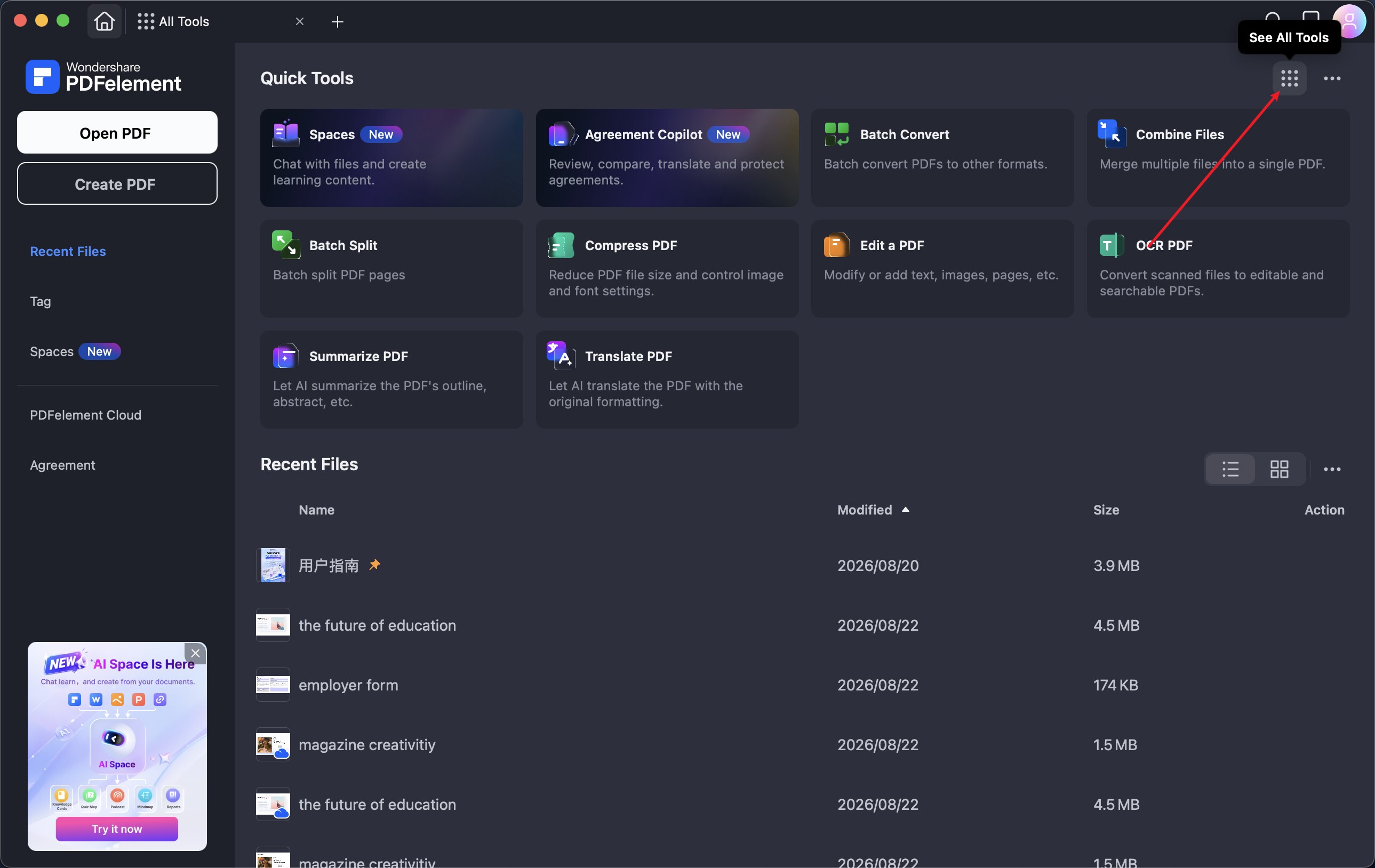
Step 1. After opening the tool on your device, head to the homepage and click on the "See All Tools" option.
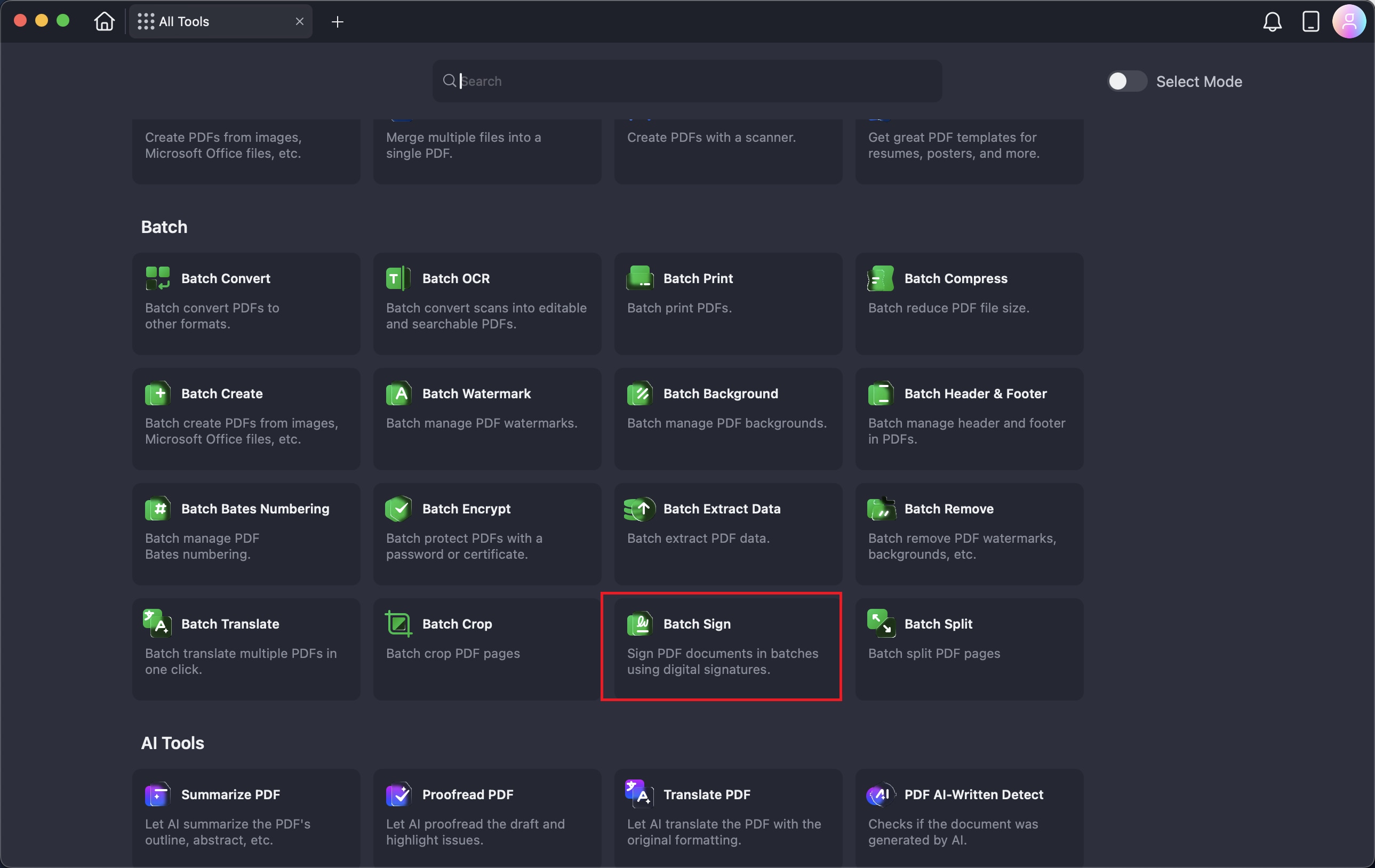
Step 2In the following small window, locate and click on the "Batch Sign" option to begin the process.
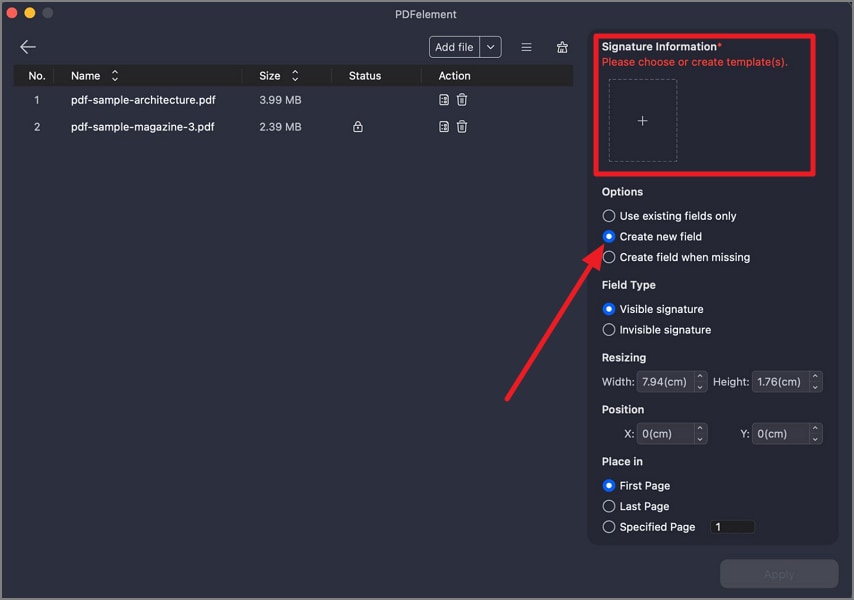
Step 3. Import your PDF files using the designated option and go to the right side of the interface to press "Create New Field." Press the "+" icon to add a signature under the "Signature Information" section.
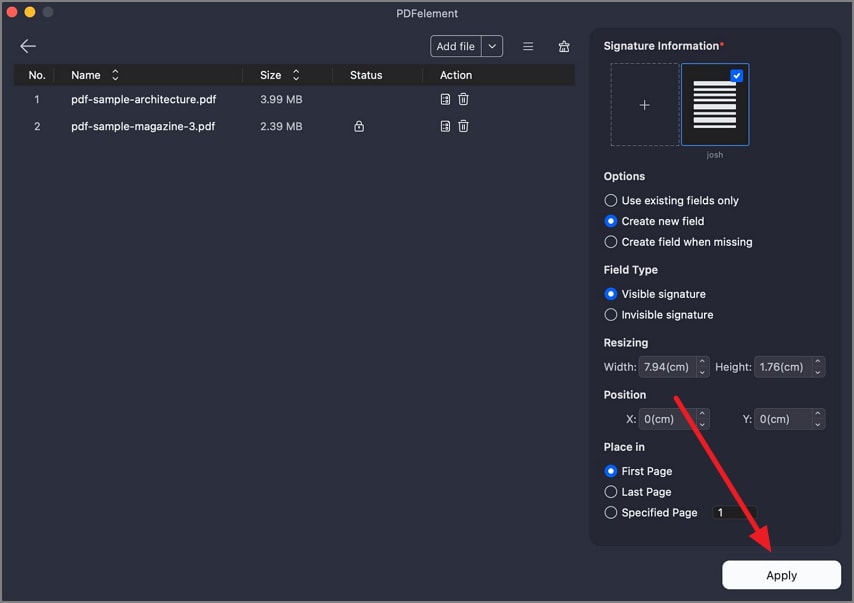
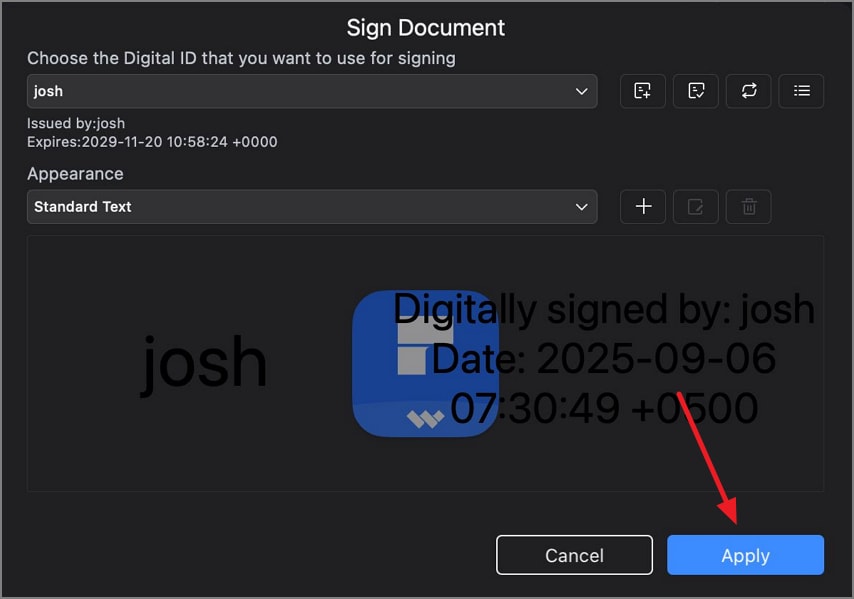
Step 4. Add the new ID within the next interface, select the appearance style, and press the "Apply" button.
Step 5. Moving forward, adjust the size and position of the signature according to your preferences using the desired option. Finally, press the "Apply" button to apply the sign to the pages you selected.