How to Set Page Margin on Mac
PDFelement's Page Margin feature allows users to effortlessly set or adjust page margins individually or for the entire PDF document. This helps create a clean, organized layout that enhances the document's appearance and prepares it for professional printing or sharing. Users can specify exact margin values for any page or apply uniform margins across all pages. Follow the steps provided in the following section to set the margins of pages in your PDF document:
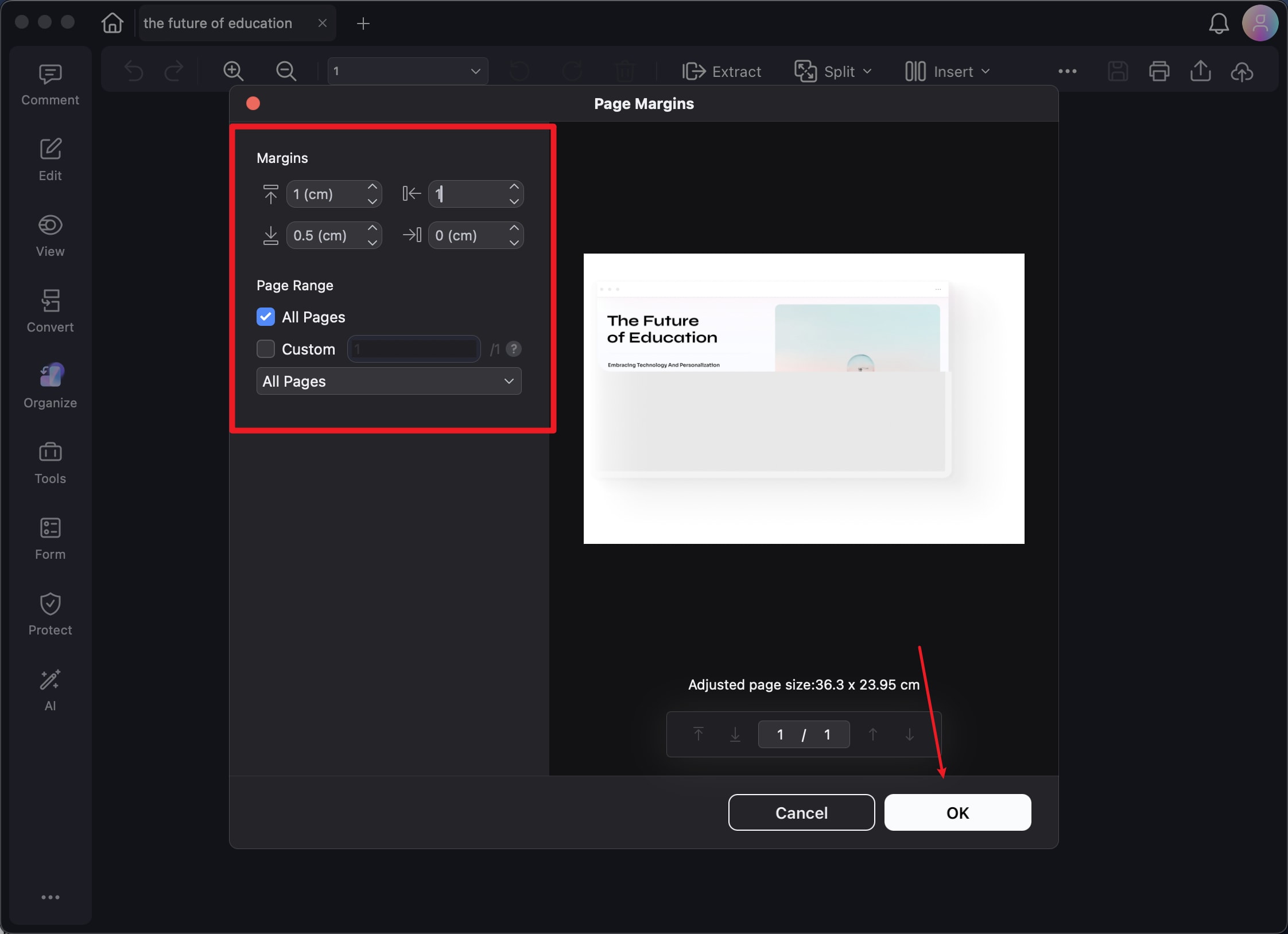
Step 1. Begin by launching the tool and importing your PDFs within the tool's interface. Now, access the sidebar from the left and click on the "Organize" option. Head to the top toolbar and press the "Three Dots" icon. Select the "Page Margins" option from the expanded list by clicking on it.
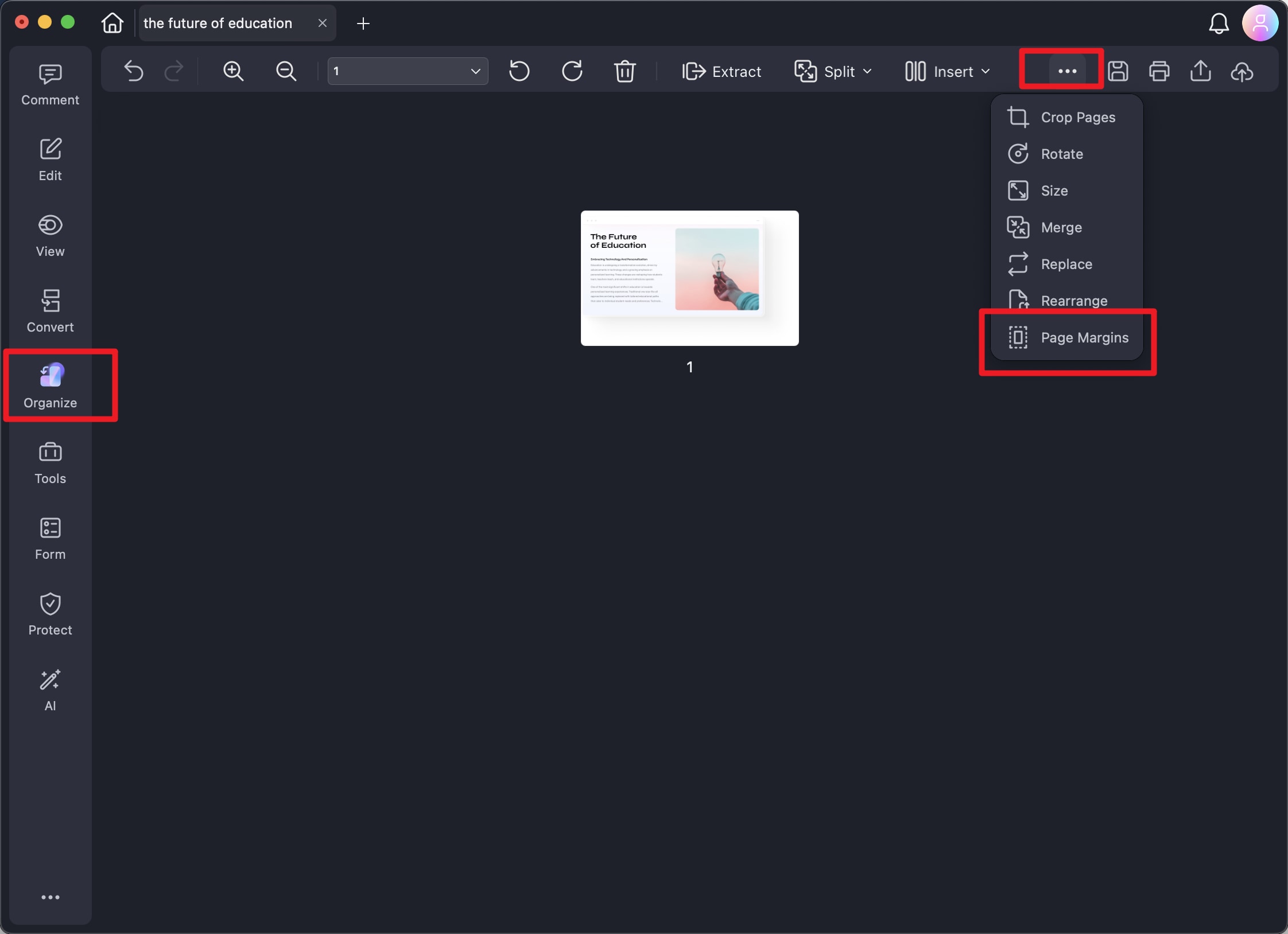
Step 2. Access the left section of the following window and adjust the ratios of margin according to your preferences. Specify the "Page Range" for which you want to adjust the margin and preview the changes in real time. Finally, save the changes you made to the PDF's margin by pressing the "OK" button.