
8 Best PDF Editors for Mac in 2026: Free Tools & Paid Options
Compare 8 of the best PDF editors for Mac in 2026, including Apple Preview, PDFelement, Acrobat, PDF Expert and online tools. See true text editing, OCR, AI, free limits and best-use cases.
 100% Secure |
 Powered by AI
 Home > PDF Software for macOS > 8 Best PDF Editors for Mac in 2026: Free Tools & Paid Options
Looking for a PDF editor for Mac can be confusing because “free PDF editor” means very different things from one app to another. Some tools let you annotate, sign, or add a text box for free, while editing the existing text and images in a PDF usually requires a dedicated editor or paid plan.
This guide compares eight popular Mac PDF editors by the tasks that matter most in 2026: true text and image editing, OCR for scanned PDFs, conversion, forms and eSign, batch processing, AI-assisted document work, online access, and Apple-device workflows. The recommendations have also been refreshed for macOS Tahoe 26, the current major macOS release as of August 2026.
Quick Answer:
If you only need to annotate, sign, fill forms, combine pages, or add a text box, Apple Preview is the best truly free option because it is already built into macOS. If you need to edit existing PDF text or images, run OCR on scans, convert PDFs to Office files, batch-process documents, or use AI tools, choose a full editor such as PDFelement, Adobe Acrobat, or PDF Expert. For occasional browser-based edits without installing software, HiPDF, Soda PDF Online, and PDFescape can cover lighter tasks.




- Quick Comparison: Best PDF Editors for Mac
- How We Compared Mac PDF Editors
- Part 1: Best PDF Editor Apps for Mac
- 1. PDFelement
- 2. Preview
- 3. Adobe Acrobat
- 4. PDF Expert
- 5. Highlights
- Part 2: Free Online PDF Editors for Mac
- 6. HiPDF
- 7. Soda PDF Online
- 8. PDFescape
- How to Choose the Right PDF Editor for Your Mac
- FAQs About PDF Editors for Mac
The best Mac PDF editor depends on what you mean by “edit.” Apple Preview is already excellent for viewing, markup, signatures, forms, and basic page work, but it is not a full replacement for an editor that can reliably change existing PDF text or run document OCR. If you need OCR, redaction, batch processing, or direct text/image editing, compare dedicated editors rather than assuming every free annotation app offers the same capabilities.
Quick Comparison of the Best PDF Editors for Mac
The best choice depends on what you mean by “edit.” Preview is excellent for free markup and signing, but Apple states that it cannot directly change the existing text in a PDF. Full editors such as PDFelement, Acrobat, and PDF Expert are better suited to correcting text, replacing images, OCR, conversion, and more complex document workflows.
| PDF Editor | Best For | Edit Existing Text | OCR | AI Tools | Batch Tools | Free Option |
| PDFelement | All-in-one editing, OCR, AI, batch and business workflows | Yes | Yes | Yes | Yes | Free trial / limited free use |
| Apple Preview | Free markup, signing, forms and page organization | No | Text recognition only | No | No | Free with macOS |
| Adobe Acrobat | Advanced professional and enterprise PDF workflows | Yes | Yes | Yes | Yes | Reader free; Pro trial |
| PDF Expert | Polished Apple-first PDF editing | Yes | Yes | Yes | Limited | Trial |
| Highlights | Research reading, annotation and citation notes | No | Yes | No generative assistant | No | Free reader/annotation tier |
| HiPDF | Browser editing, conversion and AI PDF tasks | Browser-based | Yes | Yes | Available for selected tools | Free tier |
| Soda PDF Online | Online editing, conversion, forms and signing | Yes on supported plans | Plan-dependent | Not a core differentiator | Plan-dependent | Limited online access |
| PDFescape | Free browser forms, annotations and simple additions | No in free Mac browser version | No | No | No | Free online tier |
Feature availability and pricing can change. This comparison was reviewed in August 2026 using current product information. “Edit existing text” means changing text already embedded in the PDF, not simply placing a new text box over the page.
How We Compared Mac PDF Editors
We separate true content editing from annotation. A tool gets credit for editing only when it can change existing PDF text or objects, not merely place a new text box on top. We also consider OCR for scans, form/signature support, offline processing, free-tier restrictions, and whether the app fits an Apple-first or cross-platform workflow.
A useful Mac PDF editor should be judged by what it can actually do with a real document, not by the number of tools listed on a product page. We focused on eight decision factors:
- True PDF editing: Can it change existing text, images, links, and page content?
- Scanned PDF support: Can it run OCR and turn image-based PDFs into searchable or editable files?
- Document conversion: Can it convert between PDF, Word, Excel, PowerPoint, and image formats while preserving layout?
- Forms and signing: Can it fill forms, create form fields, sign documents, or send signature requests?
- Batch workflows: Can it process multiple PDFs at once for conversion, OCR, compression, protection, or other repetitive tasks?
- AI-assisted work: Can it summarize, translate, explain, compare, or help users work across long documents?
- Mac experience: Does it support current macOS versions, Apple silicon, and practical cross-device workflows?
- Free-use boundary: What can a user actually do without paying, and where do trial, watermark, page, or feature limits begin?
This distinction matters because a free PDF viewer with annotation tools may be perfect for signing one form, but it is not a replacement for a full PDF editor when you need to correct a contract, OCR a scan, or convert a folder of PDFs.
Part 1: Best PDF Editor Apps for Mac
1. PDFelement — Best All-in-One PDF Editor for Mac
PDFelement for Mac is the strongest fit in this list for users who want full PDF editing, OCR, conversion, forms, eSign, batch processing, and AI-assisted document work in one desktop app. It supports current Mac hardware, including Apple silicon, and is designed for workflows that go beyond the markup and signing tools built into Preview.
For everyday editing, you can change existing text, images, links, page content, headers, footers, watermarks, and other PDF elements without first converting the file to Word. That makes it useful for correcting reports, updating proposals, revising contracts, or fixing layout issues in documents that need to stay in PDF format.
PDFelement also includes OCR for scanned PDFs. Instead of treating a scan as a flat image, OCR creates a searchable text layer so the content can be copied, searched, edited, translated, or converted. Batch tools extend the same workflow to multiple documents, which is especially useful for teams handling invoices, reports, forms, or archives.
Its AI tools are increasingly integrated with the document workflow rather than operating as a separate chatbot. Current capabilities include PDF chat, summarization, translation, rewriting, explaining, and knowledge cards. Wondershare has also announced PDFelement V13 for September 2026. The V13 preview introduces AI Space for bringing PDFs, Word, PowerPoint, Excel, images, text, and YouTube content into one workspace, with study outputs such as quizzes, flashcards, mind maps, and podcasts. It also adds Agreement Copilot for contract risk review and version comparison, plus upgraded OCR designed to preserve fonts, spacing, formatting, and page layout more accurately.
Choose PDFelement if:
You regularly need to edit existing PDF content, OCR scanned documents, convert or batch-process files, eSign PDFs, or move from document reading into AI-assisted analysis without switching between multiple apps.
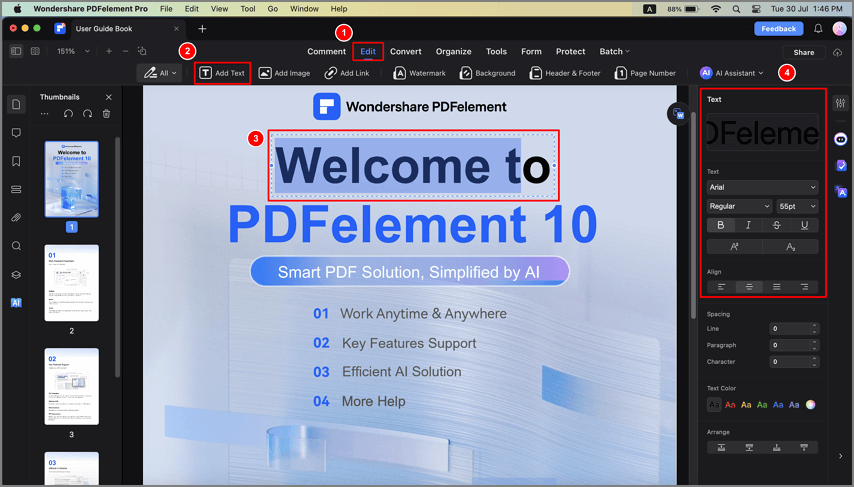
Edit existing PDF text with PDFelement for Mac.
Pros:
- Full PDF editing: Edit existing text, images, links, pages, backgrounds, watermarks, headers, and footers.
- OCR and scanned documents: Turn scans into searchable and editable PDFs before further editing or AI analysis.
- AI document tools: Summarize, translate, explain, rewrite, and chat with PDF content; V13 expands multi-document learning and contract workflows.
- Batch processing: Process multiple files for conversion, OCR, compression, protection, printing, and other repetitive tasks.
- Business-ready tools: Create and fill forms, redact sensitive information, protect PDFs, and support e-signature workflows.
- Cross-device workflow: Available across Mac, Windows, iOS, Android, and web services depending on plan.
Cons:
- The free/trial experience has feature and output limits; full editing requires a paid license.
- Some AI features use separate usage allowances, so frequent AI users should check the current plan limits.
Best for: Professionals, students, researchers, legal and finance teams, and users who need one Mac app for both traditional PDF work and AI-assisted document workflows.
Supported systems: macOS, Windows, iOS, Android, and web services depending on plan.
Current-product note: PDFelement 12 remains the current desktop release as of August 31, 2026; PDFelement V13 is scheduled for September 2026.
2. Apple Preview — Best Truly Free PDF Editor for Basic Mac Tasks
If you only need to annotate, sign, fill out a form, rearrange pages, or combine PDFs, Preview is the best place to start because it is already included with macOS. There is no additional download, account, or subscription.
Preview's Markup toolbar lets you highlight, underline, strike through, add notes, draw, insert shapes, add text boxes, and place a saved signature. You can also use the thumbnail sidebar to reorder, delete, extract, or combine PDF pages. These tools are enough for many everyday school, home, and office tasks.
The important limitation is existing-text editing. Apple explicitly notes that Preview cannot directly edit the text already stored in a PDF. The Text tool adds a new text box; it does not turn the original paragraph into editable content. This is the main reason Preview should not be compared as a full replacement for PDFelement, Acrobat, or PDF Expert.
Preview can also recognize and select text in supported image-based content through macOS text-recognition features, but this should not be confused with a full OCR editing workflow. If your goal is to correct text inside a scanned PDF and preserve the page layout, use a dedicated OCR editor.
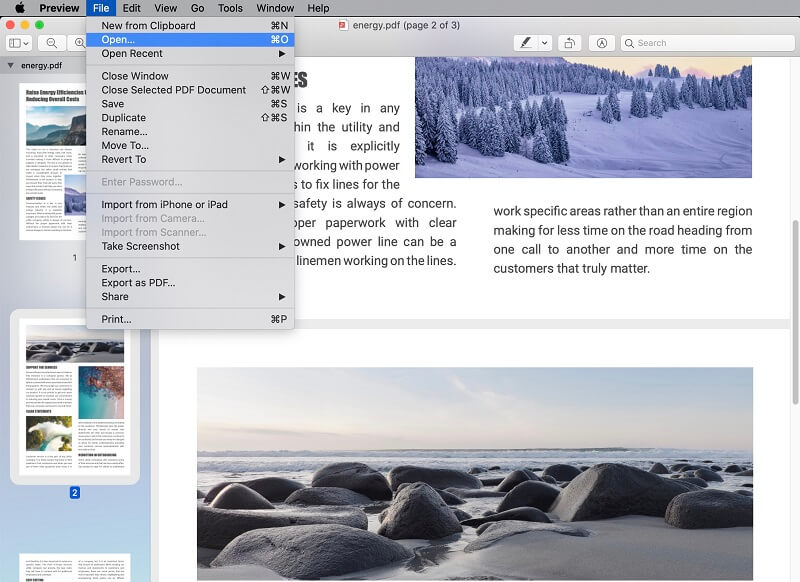
Apple Preview is best for free PDF markup, signing, forms, and page organization.
Pros:
- Free and pre-installed on Mac.
- Fast markup, notes, highlights, shapes, and signatures.
- Useful page reordering, deleting, extracting, and combining tools.
- Good for filling and signing common PDF forms.
Cons:
- Cannot directly edit existing PDF text.
- No full professional OCR editing workflow.
- No Office-format conversion, advanced form creation, batch processing, or document AI.
Best for: Mac users who want a completely free tool for basic PDF markup, signing, forms, and page organization.
Supported systems: macOS.
Learn more about PDFelement vs. Preview.
3. Adobe Acrobat — Best for Advanced Professional and Enterprise Workflows
Adobe Acrobat remains one of the most complete PDF platforms for professional editing, OCR, conversion, redaction, forms, e-signatures, document comparison, and enterprise workflows. If PDF is a core business format and cost is less important than breadth of capability, Acrobat is still a benchmark option.
Acrobat Pro can edit existing text and images, convert files to and from PDF, turn scans into editable documents, create forms, compare versions, redact sensitive information, and manage signature workflows. Adobe has also expanded generative AI through Acrobat AI Assistant and Acrobat Studio, adding document summaries, Q&A, and PDF Spaces alongside traditional PDF tools.
The main trade-offs are price and complexity. Adobe currently lists Acrobat Pro at a substantially higher annual price than many Mac-focused alternatives, and the feature-rich interface can feel excessive if your normal task is simply correcting a few lines, signing a form, or converting a document.
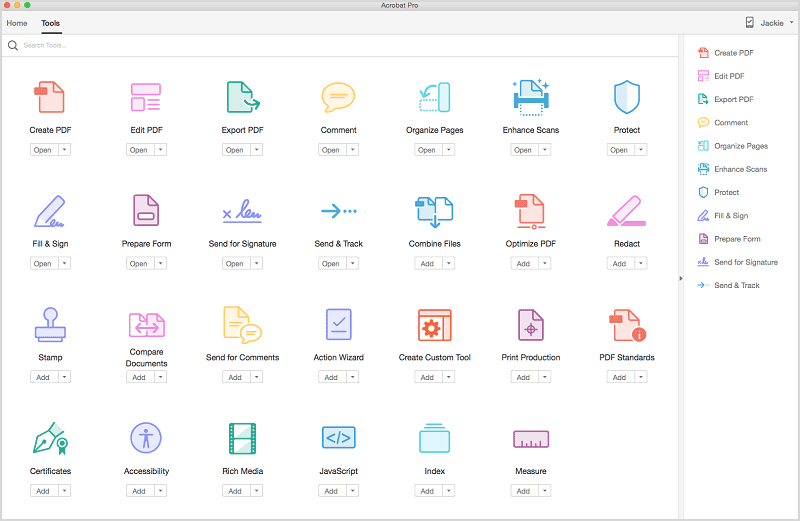
Adobe Acrobat provides advanced PDF editing, OCR, forms, redaction, and e-signature tools on Mac.
Pros:
- Comprehensive text, image, page, form, OCR, redaction, and conversion tools.
- Strong document comparison and enterprise workflows.
- Established cross-platform PDF and e-signature ecosystem.
- AI Assistant is integrated with document summaries and Q&A.
Cons:
- Higher subscription cost than many alternatives.
- Large feature set can be more complex than necessary for occasional editing.
- Generative AI access can depend on the selected Adobe plan or AI add-on.
Best for: Power users, regulated teams, enterprises, and organizations already standardized on Adobe tools.
Supported systems: macOS, Windows, iOS, Android, and web.
4. PDF Expert — Best Apple-First PDF Editing Experience
PDF Expert is a strong choice for users who prioritize a clean Mac experience and move frequently between Mac, iPhone, and iPad. It combines direct PDF text and image editing with OCR, annotation, signatures, conversion, and a polished interface that feels at home on Apple devices.
PDF Expert can edit existing text, images, and links, recognize text with OCR, convert PDFs to Word, Excel, and PowerPoint, sign documents, and synchronize work across Apple devices. Its current plans also include PDF Copilot, an AI-powered assistant for interacting with PDFs, plus PDF translation.
This changes an important part of older comparisons: PDF Expert is no longer accurately described as having “no AI tools” or “no OCR.” Its current product offering includes both. The remaining limitation is that users who need extensive batch processing, advanced form creation, broad cross-platform support, or heavier business automation may still prefer PDFelement or Acrobat.
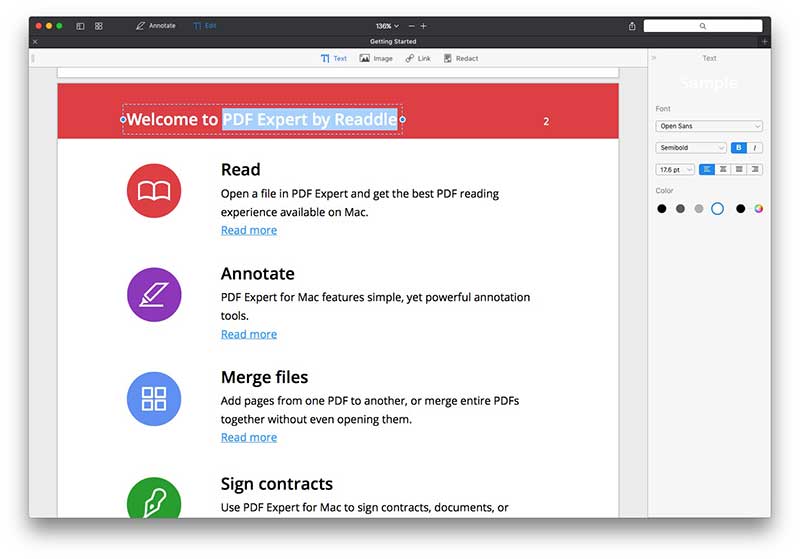
PDF Expert combines native-feeling Mac PDF editing with OCR and AI-assisted PDF work.
Pros:
- Clean, Mac-focused interface.
- Direct text, image, and link editing.
- OCR and PDF-to-Office conversion.
- Strong synchronization across Mac, iPhone, and iPad.
- PDF Copilot and translation are now available in current plans.
Cons:
- Best suited to the Apple ecosystem rather than mixed Windows/Mac environments.
- Less focused on heavy batch or enterprise document-processing workflows.
Best for: Mac, iPhone, and iPad users who want a polished Apple-first PDF editor with modern OCR and AI features.
Supported systems: macOS, iOS, and iPadOS.
5. Highlights — Best PDF Tool for Researchers and Annotation-Heavy Reading
Highlights is better described as a research-focused PDF reader and annotation workspace than as a full PDF editor. Its strength is turning highlights, comments, citations, text recognition, and table extraction into structured research notes.
As you annotate a paper, Highlights can extract marked passages and image selections into a notes pane. It can also recognize text and tables, copy tables as CSV, copy citations as BibTeX, fetch citation metadata, and export notes to formats and apps used by researchers. The app works across Mac, iPhone, and iPad and supports common file-storage services.
For research reading, this specialization is valuable. For document production, it is a limitation. Highlights does not replace a full editor when you need to rewrite existing PDF text, replace images, create forms, reorganize complex documents, or run broad business workflows.
Replace the previous PDFpenPro screenshot here. It does not represent Highlights. Use a current official Highlights screenshot before publishing.
Pros:
- Excellent for academic reading, annotation, and note extraction.
- Multilingual OCR and text recognition.
- Table recognition and Smart Copy.
- Citation lookup and BibTeX-friendly research workflows.
- Free tier for standard reading and annotation.
Cons:
- Not a full editor for existing text, images, forms, or page-level production tasks.
- Advanced research and export features require Highlights Pro.
Best for: Students, academics, researchers, and heavy PDF readers who care more about extracting knowledge than redesigning documents.
Supported systems: macOS, iOS, iPadOS, and visionOS.
Part 2: Free Online PDF Editors for Mac
Online PDF editors are useful when you cannot install software or only need a quick one-off edit. Their main advantage is convenience: open the browser, upload the file, make the change, and download the result. Their trade-offs are equally important: free tiers often limit file size, advanced editing, OCR, batch work, or AI usage, and sensitive documents may be better handled in a desktop workflow where the file does not need to be uploaded to a third-party web service.
For that reason, the sections below focus on what each online tool is best for and where the free limit begins, rather than repeating the same “upload a file” steps three times.
6. HiPDF — Best Browser Option for PDF Tools Plus AI
HiPDF is the most capable browser-based option in this list when you want more than basic annotations. Its current web tools cover PDF editing, conversion, compression, merging, OCR, and selected batch workflows, while HiPDF AI adds PDF chat, summarization, explanation, rewriting, translation, and other AI-assisted reading tasks.
Because it runs in the browser, HiPDF is useful on a Mac when installing a desktop app is not possible. However, the exact free limits vary by tool and account status. For large scans, repeated document processing, advanced editing, or sensitive offline work, a desktop editor remains the stronger choice.
Best for: Quick browser-based PDF editing, conversions, and AI-assisted reading without installing software.
Key limitation: Free limits and web-upload requirements make it less suitable for heavy or confidential document workflows.
7. Soda PDF Online — Best for Browser Editing, Forms, and Conversion
Soda PDF Online offers browser-based tools for editing, creating, converting, reviewing, annotating, securing, and signing PDFs. Its online plans are accessible from Mac because the work happens in the browser rather than through a Mac-native desktop application.
Soda PDF is useful when you need a conventional editor interface online and want to move beyond basic markup. OCR, custom forms, security, e-sign, and other advanced functions can depend on the selected plan, so check the current plan matrix before choosing it specifically for one of those features.
Best for: Mac users who want a broad browser-based PDF toolkit with editing, conversion, forms, and signing.
Key limitation: The strongest features are plan-dependent, and browser workflows require uploading documents.
8. PDFescape — Best for Free Online Forms and Simple PDF Markup
PDFescape remains useful as a free online PDF editor and form filler. On a Mac, its browser version can annotate PDFs, fill and save forms, create basic forms, add text or images, and perform other lightweight edits without installing software.
The key limitation is easy to miss: PDFescape's more powerful desktop editing features are designed for Windows. On Mac, the free browser experience does not provide the same level of existing-text and image editing as its paid desktop product. It also lacks the OCR, AI, and batch-processing capabilities found in more modern full PDF editors.
Best for: Free browser-based form filling, annotations, and simple additions to a PDF.
Key limitation: Not a full Mac replacement for direct text/image editing, OCR, or batch document work.
How to Choose the Right PDF Editor for Your Mac
Instead of choosing by the longest feature list, start with the task you perform most often:
| If you mainly need to... | Start with... | Why |
| Highlight, sign, fill forms, or reorder pages for free | Apple Preview | Already built into macOS and sufficient for basic PDF work. |
| Edit existing text and images, OCR scans, convert files, and batch-process PDFs | PDFelement | Combines full editing, OCR, conversion, batch tools, eSign, security, and AI in one Mac workflow. |
| Run advanced enterprise PDF, redaction, form, and e-signature workflows | Adobe Acrobat | Broad professional feature set and established enterprise ecosystem. |
| Work mostly across Mac, iPhone, and iPad | PDF Expert | Apple-first interface, cross-device workflow, OCR, conversion, and AI Copilot. |
| Read research papers and turn annotations into structured notes | Highlights | Specialized research annotation, OCR, table extraction, and citation workflows. |
| Edit or convert a PDF once without installing software | HiPDF or Soda PDF Online | Browser access is convenient for quick, non-sensitive tasks. |
| Fill forms or add simple annotations in a browser for free | PDFescape | Useful free online tier, but limited for advanced Mac editing. |
Native Mac App vs. Online PDF Editor: Which Is Better?
Choose a native Mac PDF editor if you regularly handle large files, scanned PDFs, confidential documents, batch jobs, advanced forms, or complex editing. Desktop apps generally offer deeper control and reduce reliance on repeated file uploads.
Choose an online PDF editor if the task is occasional, the file is not sensitive, and installing software is inconvenient. Browser tools are especially useful on shared or managed Macs where you do not have administrator privileges.
FAQs About PDF Editors for Mac
1. What is the best free PDF editor for Mac?
Apple Preview is the best truly free PDF editor for most basic Mac tasks. It can annotate PDFs, add text boxes and shapes, fill forms, add signatures, combine pages, delete pages, and rearrange documents without a subscription. However, it cannot directly edit the existing text in a PDF.
2. Can I edit existing PDF text in Preview on Mac?
No. Preview can add a new text box on top of a PDF, but Apple states that it cannot directly edit the text already stored in the PDF. To correct existing text while keeping the document in PDF format, use a full editor such as PDFelement, Acrobat, or PDF Expert.
3. Which PDF editors for Mac can OCR scanned documents?
PDFelement, Adobe Acrobat, PDF Expert, and Highlights all provide OCR or text-recognition capabilities, although their workflows differ. PDFelement and Acrobat are better suited when you need to turn a scanned PDF into an editable business document, while Highlights is optimized for extracting and working with research text.
4. What is the best PDF editor for MacBook users who work across Apple devices?
PDF Expert is a strong Apple-first choice because it is built around Mac, iPhone, and iPad workflows. PDFelement is a better fit if you also need Windows, Android, web access, heavier batch processing, advanced OCR, or broader document-management features.
5. Which Mac PDF editor has AI features?
PDFelement, Adobe Acrobat, PDF Expert, and HiPDF now include AI-assisted PDF features. Common capabilities include document summaries, questions and answers, translation, and content explanation. The details and usage limits vary by product and plan. PDFelement's announced V13 also expands AI into multi-source study workflows, quizzes, flashcards, mind maps, podcasts, and contract review.
6. Is it safe to use an online PDF editor on a Mac?
It depends on the document and the service. Online editors are convenient, but they normally require the PDF to be uploaded for processing. For contracts, financial records, personal information, or other sensitive files, check the provider's privacy and retention policies first. A desktop editor is usually the better choice when you want to keep the working file local.
7. Do these PDF editors work with macOS Tahoe 26?
Current versions of the major Mac PDF editors are designed for modern macOS releases, but minimum system requirements differ. For example, PDFelement's current Mac page lists support from macOS 10.15 onward and Apple silicon, PDF Expert requires macOS Monterey or later, and Highlights requires macOS 12 or later. Always check the latest system requirements before installing on an older Mac.
8. What is the difference between a PDF reader and a PDF editor on Mac?
A PDF reader focuses on opening, viewing, searching, annotating, and sometimes signing documents. A full PDF editor can modify the underlying text and images, change page content, run OCR, convert formats, create forms, redact information, and perform other document-production tasks. Preview is an excellent reader and markup tool; PDFelement, Acrobat, and PDF Expert are full editors.
Conclusion
There is no single Mac PDF editor that is best for every user. Preview is the right first choice when your needs are basic and you want a completely free tool. PDF Expert is especially attractive for an Apple-first workflow, while Highlights is purpose-built for research reading and annotations. Adobe Acrobat remains a powerful option for advanced professional and enterprise requirements.
For users who need to move beyond markup into existing-text editing, OCR, conversion, batch processing, forms, eSign, security, and AI-assisted document work, PDFelement offers the broadest all-in-one workflow in this comparison. The key is to match the editor to the task you actually perform instead of paying for features you will never use.
Free Download or Buy PDFelement right now!
Free Download or Buy PDFelement right now!
Buy PDFelement right now!
Buy PDFelement right now!

Audrey Goodwin
chief Editor
0 Comment(s)