

In this article
In today's globalized digital workspace, the ability to quickly digitize, edit, and translate physical documents is essential. However, when you are dealing with foreign languages, standard text extraction tools often fall short. If you have ever tried to extract text from a scanned Cyrillic document using a basic text reader, you likely ended up with a screen full of garbled symbols and formatting errors. This is where specialized Russian OCR (Optical Character Recognition) technology becomes an absolute necessity.
Whether you are a student digitizing historical literature, a business professional processing international contracts, or simply trying to convert image to text Russian for a quick translation, choosing the right tool is critical. In this comprehensive guide, we will explore why Russia OCR requires specialized software, introduce you to the most accurate tools on the market, and provide a step-by-step guide on how to flawlessly digitize your Russian documents.


 G2 Rating: 4.5/5 |
 100% Secure
Why You Need Specialized Russian OCR Software
Optical Character Recognition works by analyzing the light and dark patterns of an image to identify the shapes of letters and numbers. While most modern OCR engines are exceptionally good at reading the Latin alphabet (used in English, Spanish, French, etc.), the Russian language presents a distinct set of technical challenges.
The Russian language relies on the Cyrillic alphabet, which consists of 33 letters. While a few characters look identical to Latin letters (like A, O, and M), many are entirely unique to the script (such as Ж, Щ, Ы, and Ю). Furthermore, certain Cyrillic letters feature intricate visual details—like the brief tail on the letter 'Щ' (Shcha) versus 'Ш' (Sha)—that standard OCR engines easily misinterpret, especially if the original scan is of low quality or features complex typography.
When you use dedicated Russian OCR software, you are utilizing an engine that has been specifically trained on thousands of Cyrillic font variations, handwriting styles, and Russian dictionaries. This specialized training ensures:
- High Accuracy: Precise differentiation between visually similar Cyrillic characters.
- Contextual Understanding: The software uses built-in Russian dictionaries to auto-correct recognized words based on context.
- Format Retention: The ability to accurately map out paragraphs, tables, and columns without breaking the document's layout.
The Best Russian OCR Software: Wondershare PDFelement
When it comes to handling complex document layouts and delivering pinpoint Cyrillic recognition, Wondershare PDFelement stands out as the ultimate Russian OCR software for both Windows and Mac users.
Unlike basic extraction tools that simply pull raw text from an image, PDFelement is a comprehensive PDF editing suite backed by a highly advanced, AI-enhanced OCR engine. It is designed to take your scanned documents from static images to fully editable, searchable, and translatable files in a matter of seconds.
Here is why PDFelement is widely regarded as the best solution for ocr russian pdf tasks:
- Unmatched Cyrillic Accuracy: PDFelement's OCR technology is specifically tuned to recognize the nuances of the Russian alphabet. Even if your source material is a slightly faded scan or a smartphone photo, the software generates incredibly accurate results.
- Multilingual Support: Documents in the real world rarely exist in a vacuum. If you have a document containing both Russian and English text, PDFelement can recognize multiple languages simultaneously, ensuring no data is lost.
- AI-Powered Translation: One of the most sought-after features is the ability to translate OCR Russian to English. PDFelement features a powerful integrated AI assistant (Lumi) that can instantly translate your newly recognized Russian text into English, summarize long Russian reports, or explain complex Cyrillic terminology without requiring you to switch to an external browser.
- Flawless PDF to Word OCR Russian: Need the final document in a different format? PDFelement boasts a powerful converter that allows you to transform your scanned Russian PDFs into Microsoft Word, Excel, PowerPoint, or TXT formats while perfectly preserving the original document's layout, fonts, and images.
- Batch Processing Efficiency: For corporate users dealing with massive archives, PDFelement allows you to perform PDF OCR Russian on dozens of files simultaneously. Simply load your batch, set the language to Russian, and let the software do the heavy lifting.
G2 Rating: 4.5/5 |100% Secure
How to Use Russian OCR with PDFelement
Using PDFelement to perform Russian OCR is incredibly intuitive, even for users who have no prior experience with document editing software. Follow these simple steps to convert image to text Russian with absolute perfection.
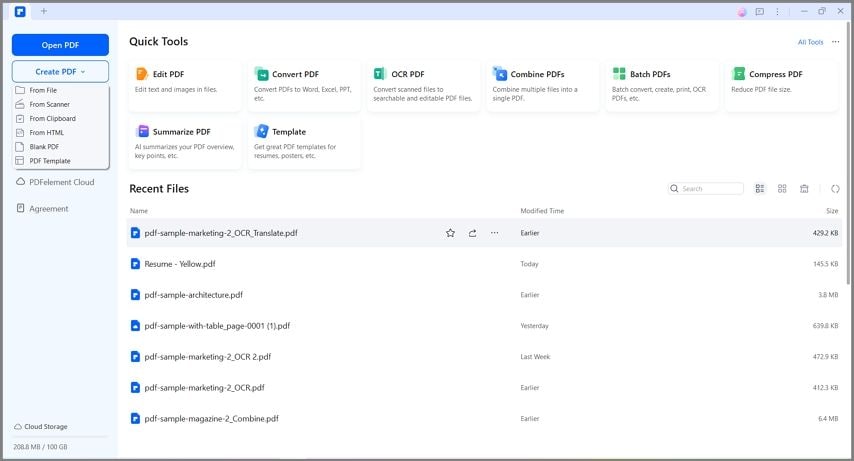
Step 1Load a Scanned PDF or Image
First, launch Wondershare PDFelement on your computer. You can drag and drop your scanned Russian PDF or image file directly onto the program's home interface to open it. Alternatively, you can click the "Open File" button to browse your computer's local storage and select your document.
Step 2Enable Russian OCR
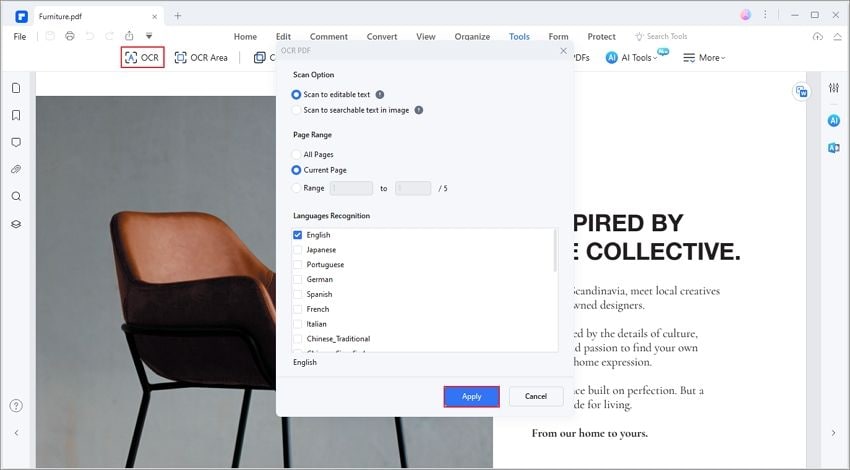
Once your document is open, the program will automatically detect that it is a scanned file and prompt you to perform OCR. To initiate the process manually, navigate to the top menu and click the "Convert" tab, then select the "OCR" button. In the new pop-up settings window, ensure you choose the "Editable Text" mode so that you can interact with the text later. Next, click the "Change Language" button. Scroll through the comprehensive language list and check the box next to Russian. Click "Apply" to let the software work its magic.
Step 3Edit, Translate, or Convert the PDF (Optional)
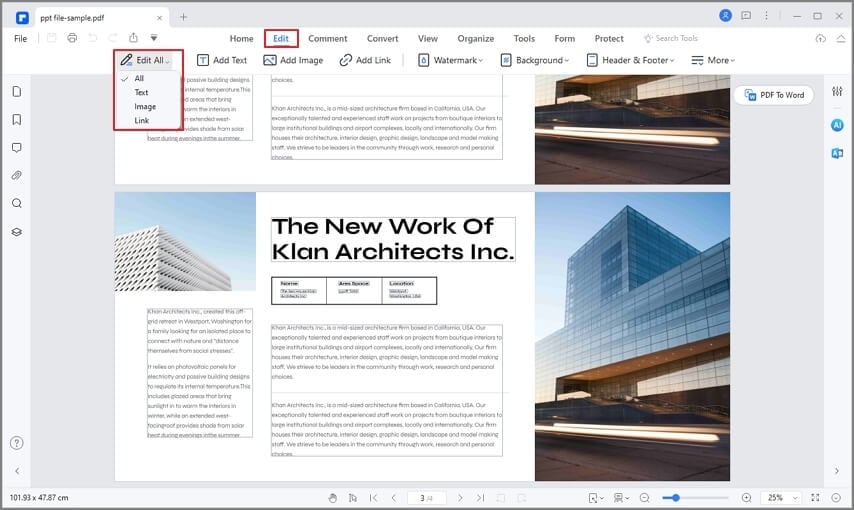
Once the OCR process is complete, your previously static document is now fully interactive. Click the "Edit" button in the top menu. You can now click anywhere on the Russian text to add new words, fix any typos, change the font size, or rewrite sections entirely. If you need to share the file with colleagues who do not use PDF software, you can easily use the "Convert" tab to perform a PDF to Word OCR Russian export. Learn more about how to edit PDFs with ease.
Top 5 Alternative Russian OCR Tools (Software & Online)
While PDFelement provides the most comprehensive offline experience, there are several other notable tools available. Depending on your specific needs—such as whether you require enterprise-level legacy software or a quick Russian OCR online web app—here are the top 5 alternatives to consider.
1. ABBYY FineReader
Given that ABBYY was originally founded in Russia, it is no surprise that FineReader has a long-standing reputation as a powerhouse for Cyrillic text recognition. It is an enterprise-grade desktop software that excels at handling highly complex document layouts, historical archives, and low-quality scans.

2. i2OCR (Best Free Online Tool)
If you do not want to download software and are simply looking for a free OCR Russian tool, i2OCR is widely considered the best web-based option. It is a dedicated online OCR service that allows you to upload images and instantly extract the text directly within your web browser.
3. Convertio
Convertio is a massively popular online file conversion platform that features a surprisingly robust pdf ocr online russian tool. It is perfect for users who have a scanned Russian document and simply want to convert it directly into a Word document or Excel spreadsheet without manually copying and pasting text.
4. 2OCR
2OCR is a no-frills, straightforward web application dedicated solely to optical character recognition. If you have a photograph of a Russian street sign, a menu, or a single page of a book, 2OCR provides a rapid convert image to text Russian service.
5. OCR.Space
OCR.Space is a powerful online OCR engine that is highly favored by developers, researchers, and tech-savvy users. It offers a dedicated "Russian" language toggle and provides an API for users who want to integrate Russian OCR into their own custom applications.
How to Choose the Right Russian OCR Solution
Selecting the right tool depends entirely on your workflow. If you only need to extract a few sentences from a photograph once in a blue moon, a Russian OCR online tool like i2OCR or Convertio will serve you perfectly well. However, if you are dealing with multi-page contracts, confidential business data, or academic papers, relying on free web tools is risky due to privacy concerns and formatting limitations. For consistent, secure, and professional results—especially if you need to edit the document or translate OCR Russian to English—a dedicated desktop software like Wondershare PDFelement is undeniably the smartest investment.
G2 Rating: 4.5/5 |100% Secure
People Also Ask
-
How do I convert a Russian image to text?
To convert an image containing Russian text into editable words, you must use an OCR (Optical Character Recognition) tool that supports the Cyrillic alphabet. Simply open a program like Wondershare PDFelement, load your image (JPG, PNG, etc.), navigate to the OCR feature, and set the recognition language to "Russian." The software will scan the image and provide you with text that you can copy, edit, or save as a Word document. -
Is there a free Russian OCR tool?
Yes, there are several free online tools available, such as i2OCR, 2OCR, and OCR.Space. These web-based platforms allow you to upload images or small PDFs and extract the text for free. However, keep in mind that free online tools often have file size limits, require an internet connection, and do not offer the secure, advanced editing features found in premium desktop software. -
Can I translate OCR Russian to English automatically?
Yes! Modern PDF editors equipped with AI technology make this incredibly easy. Using a tool like Wondershare PDFelement, you can first perform OCR on your scanned Russian document to make the text selectable. Then, using the built-in AI assistant, you can highlight the Russian text and command the AI to instantly translate it into English, allowing you to read and understand foreign documents without ever leaving the application. -
What is the best tool for PDF to Word OCR Russian conversions?
While online converters like Convertio can handle basic files, Wondershare PDFelement is the best tool for converting scanned Russian PDFs into Microsoft Word documents. It not only accurately recognizes the Cyrillic text but also preserves the original document's exact formatting, ensuring that your final Word document looks identical to the original PDF.

