

In this article
The ability to quickly and accurately extract text from a scanned document or photograph is a game-changer for productivity. However, if you have ever tried to use standard Optical Character Recognition (OCR) software on an Arabic document, you likely ended up with a page full of disconnected, unreadable symbols.
Finding reliable ocr for arabic is notoriously difficult. Because of the unique typographic nature of the language, many mainstream OCR engines struggle to process Arabic characters correctly. Whether you are trying to find an arabic ocr online tool, trying to convert ocr arabic pdf to word, or simply need an image to text arabic solution, you need tools equipped for complex scripts.
In this comprehensive guide, we will explore the best tools available for extracting Arabic text from images and PDFs, starting with a powerful desktop solution, followed by online alternatives.


 G2 Rating: 4.5/5 |
 100% Secure
Why is Arabic OCR So Challenging?
Before diving into the tools, it helps to understand why a standard arabic language scanner often fails. Arabic is distinct from Latin-based languages in several ways that complicate OCR technology:
- Right-to-Left (RTL) Direction: Arabic is read and written from right to left. Many basic OCR tools try to force the text into a Left-to-Right (LTR) format, resulting in reversed sentences.
- Cursive Script: Unlike English, where letters are mostly printed separately, Arabic letters are almost always connected, even in typed fonts. OCR software must figure out where one letter ends and the next begins.
- Contextual Shapes: An Arabic letter changes its shape depending on its position in a word (beginning, middle, end, or isolated).
- Diacritics and Dots: Many Arabic letters look identical except for the placement of dots. Small specks of dust on a scanned arabic text image can easily be misread as dots, changing the entire meaning of a word.
Because of these factors, achieving high-accuracy arabic pic to text conversion requires specialized OCR capabilities.
Top Desktop Software for Arabic OCR: Wondershare PDFelement
When dealing with professional documents, multi-page scanned files, or sensitive information, desktop software provides the most robust solution. Wondershare PDFelement stands out as an exceptional PDF editor equipped with a powerful OCR feature that makes managing, extracting, and editing text incredibly efficient.
G2 Rating: 4.5/5 |100% Secure
PDFelement allows you to turn scanned images and PDFs into fully searchable and editable documents, bridging the gap between an ocr pdf arabic task and final document layout.
Step-by-Step: How to Perform OCR with PDFelement
Using PDFelement to extract and edit text from your scanned documents is straightforward. Here is how to use its OCR feature:
Step 1Open Your Scanned PDF or Image
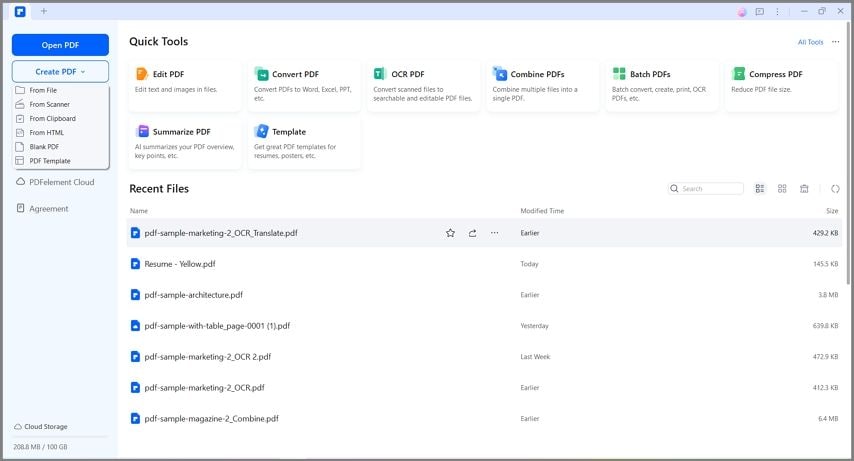
Launch Wondershare PDFelement. Click the "+" button or "Open PDF" to load your scanned document or arabic text image into the workspace. If you open an image, PDFelement will automatically create a PDF from it.
Step 2Activate the OCR Tool
When you open a scanned document, PDFelement will detect it and display a notification bar at the top recommending you to "Perform OCR." You can click this button, or manually navigate to the "Tools" tab and select "OCR".
Step 3Configure OCR Settings
A settings dialog box will appear. Here, you have two primary options:
- Scan to Searchable Text in Image: This keeps the original image intact but overlays invisible, selectable text. It is perfect if you just need to search or copy the extract arabic text from pdf.
- Scan to Editable Text: This converts the image directly into text that you can edit, delete, or modify right on the page.
Make sure to click on "Change Language" and select the appropriate languages for your document to ensure maximum accuracy.
Step 4Execute OCR and Edit
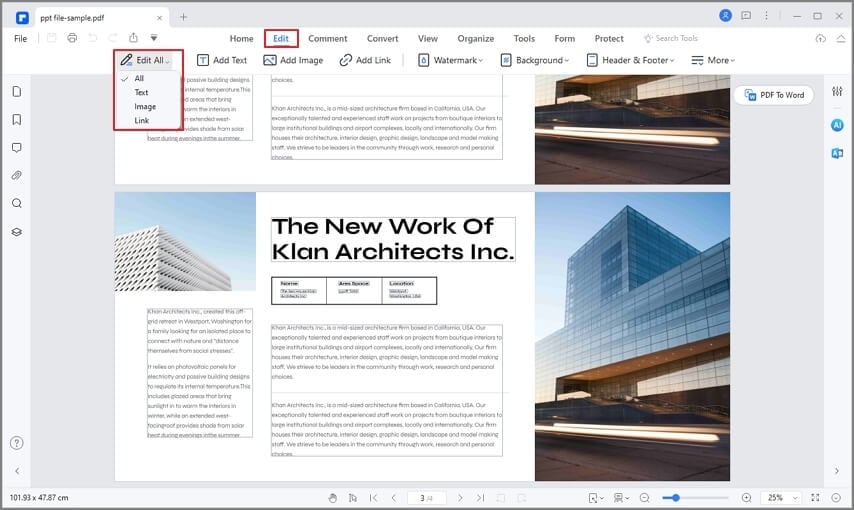
Click "Apply" to start the process. Once the OCR is complete, the document will become editable. You can now go to the "Edit" tab to modify the text, change fonts, adjust the layout, or correct any misread characters.
Step 5Convert and Export
If you need an arabic ocr pdf to word conversion, simply navigate to the "Convert" tab after performing OCR, and select "To Word" to export your perfectly formatted text.
G2 Rating: 4.5/5 |100% Secure
Best Free Online Tools for Arabic OCR
If you need a quick convert image to text arabic solution without downloading software, several online platforms specialize in Arabic text extraction.
1. i2OCR Arabic
When it comes to arabic ocr free online tools, i2OCR Arabic is a top contender. It is a free online OCR service specifically built to handle complex scripts.
2. OnlineOCR.net
OnlineOCR.net is a versatile tool for converting an ocr pdf arabic file or jpg to text arabic.
3. Google Drive / Google Docs (The Best Hidden Secret)
Many users do not realize they have access to one of the most powerful OCR engines in the world for free: Google Drive. Google's advanced machine learning makes it an incredibly accurate photo to text arabic converter.
Step 1Upload
Go to Google Drive and upload your scanned PDF or image.
Step 2Open with Docs
Right-click the uploaded file, hover over "Open with," and select "Google Docs."
Step 3Process
Google Drive will process the arabic image to text conversion.
Step 4Review
The original image will appear at the top, followed by the fully editable, extracted text below. You can now copy this or download it as a Word file (pdf to word ocr arabic).
Other Desktop Alternatives
Readiris and Adobe Acrobat Pro
If you are looking for alternative premium desktop software, Readiris and Adobe Acrobat Pro both offer strong multilingual OCR support, including Arabic. Readiris is excellent for batch-processing ocr arabic pdf to word tasks with high accuracy, while Adobe Acrobat Pro seamlessly integrates OCR into its broader suite of PDF editing tools, though both require substantial paid subscriptions.
People Also Ask
-
What is the best free Arabic OCR tool?
For most users, Google Drive (opening an image or PDF with Google Docs) provides the highest accuracy for free Arabic OCR. It uses advanced machine learning to recognize cursive Arabic text and correctly formats it from right to left. i2OCR is also an excellent browser-based alternative. -
Can I convert an Arabic PDF to Word?
Yes. You can use desktop software like Wondershare PDFelement to perform OCR and then convert the document to Word. Alternatively, online tools like OnlineOCR.net or Google Drive can handle an ocr arabic pdf to word conversion. -
Why does my extracted Arabic text look backwards or disconnected?
This happens when you use an OCR engine that does not properly support Right-to-Left (RTL) languages or cursive scripts. The software attempts to read the Arabic characters from left to right like English, resulting in reversed and disconnected letters. Always ensure you select "Arabic" in your chosen OCR tool settings. -
Can I extract Arabic text from a photo on my phone?
Yes, you can use photo to text arabic features built into modern smartphones. On iOS, Apple's Live Text supports Arabic in recent updates, allowing you to copy text directly from a photo. Alternatively, you can use the Google Keep or Google Lens app on both Android and iOS to scan and extract Arabic text from pictures.

