
Adobe PDF Translator: How to Translate a PDF with Acrobat
Learn how to translate a PDF with Adobe Acrobat AI Assistant or Adobe Express, handle scanned PDFs, and compare PDFelement V13 for full-document translation.
 100% Secure |
 Powered by AI
 Home
HomeAdobe Acrobat can translate PDF content in 2026, and you no longer have to rely only on the old PDF-to-Word workaround. Depending on your Acrobat plan and platform, you can use AI Assistant to translate a document with a prompt, or open Translate this PDF through Adobe Express for page-level translation. For scanned PDFs, OCR should come first so the text can be recognized accurately.
This guide explains how to use Adobe PDF Translator features, which Adobe method fits each task, and when a dedicated PDF translation workflow such as PDFelement V13 is more practical for scanned files, batch translation, professional terminology, and ongoing PDF editing.
Quick Answer:
To translate a PDF with Adobe Acrobat, open the file, launch AI Assistant, and ask it to translate the document or the passage you need. You can also use Convert > Translate this PDF to continue in Adobe Express. If the PDF is scanned, run OCR first. For multiple PDFs or repeat translation work, PDFelement V13 adds OCR, 50+ languages, Fast and Professional translation modes, and a dedicated Batch Translate workflow.
- Translate directly in Adobe Acrobat: Open AI Assistant and prompt it to translate the PDF or selected content into your target language.
- Translate pages with Adobe Express: In Acrobat, choose Convert > Translate this PDF, then translate all pages or selected pages in Adobe Express.
- Translate scanned or multiple PDFs: Use OCR before translation; for repeat or batch workflows, PDFelement V13 can OCR, translate, and export multiple PDFs in one PDF-centered workflow.
Can Adobe Acrobat Translate a PDF in 2026?
Yes. Adobe Acrobat can now translate PDF content with AI-powered tools. Adobe's current workflow is different from older versions of Acrobat, where users commonly exported a PDF to Word and translated the converted document separately. Today, Acrobat AI Assistant can accept translation prompts directly, while Adobe Express provides a dedicated page-translation workflow from Acrobat.
There is not a separate desktop app called "Adobe PDF Translator." Instead, translation is built into Adobe's wider Acrobat and Adobe Express ecosystem. Availability can vary by plan, platform, region, and supported language, so the exact options shown in your Acrobat interface may differ.
For a normal text-based PDF, start with AI Assistant. For a document where you want to translate full pages and review the result visually, Adobe Express is another practical route. If the PDF is a scan or image-only file, run OCR before translation so the text becomes machine-readable.
How to Translate a PDF with Adobe Acrobat AI Assistant
The fastest Adobe Acrobat translation workflow is to open the PDF, launch AI Assistant, and tell it what language you want. This works well when you want a translation plus the ability to ask questions, clarify terminology, or review specific passages in the same conversation.
Step 1: Open the PDF in Adobe Acrobat
Open the document you want to translate in Acrobat. If the file is scanned and the text cannot be selected, run Acrobat OCR first before relying on the translation result.
Step 2: Open AI Assistant
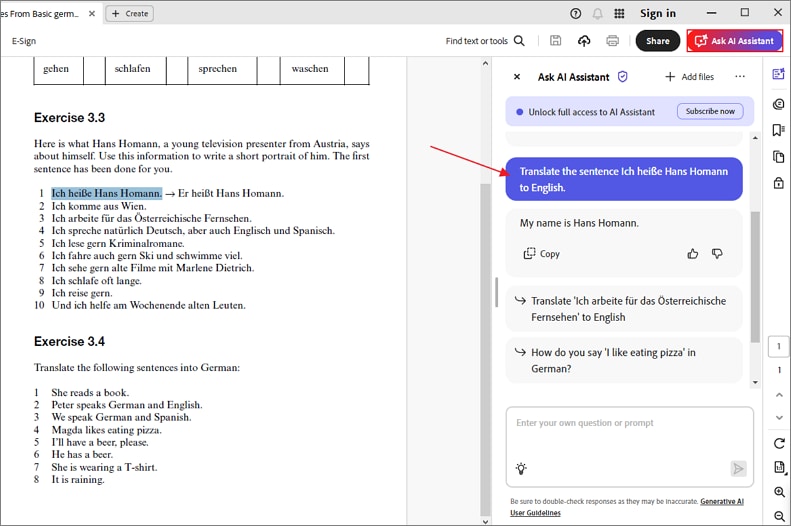
Select AI Assistant from the Acrobat toolbar to open the AI panel.
Step 3: Give Adobe a Clear Translation Prompt
Ask for the target language and, when necessary, define the scope. Useful prompts include:
- Whole document: "Translate this PDF from English to German and preserve the meaning of technical terms."
- Selected passage: "Translate this section into French and keep product names unchanged."
- Professional review: "Translate this contract into Spanish. Keep clause numbering and flag terms that may need human review."
Step 4: Review the Translation Against the Source
Check names, numbers, dates, defined terms, tables, and any wording that affects a legal, academic, financial, or business decision. AI translation is useful for speed, but high-stakes documents should still be reviewed by a qualified human translator or subject-matter expert.
Fallback: Export the PDF to Word if Translation Is Not Available
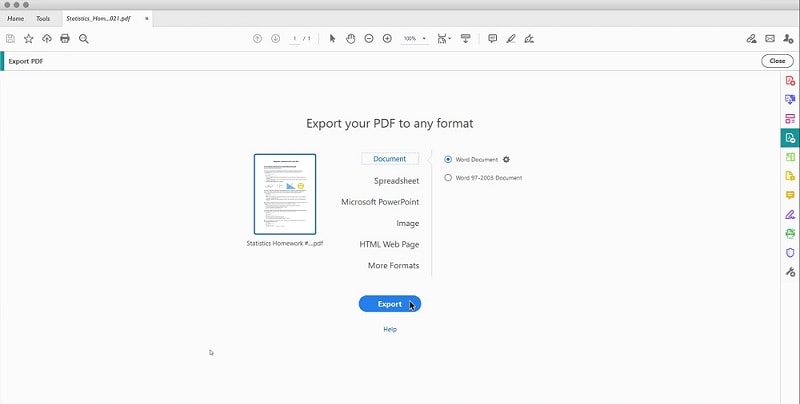
If your Acrobat plan or interface does not show the translation option you need, the older export workflow is still a valid fallback: export the PDF to Word, translate the document in Microsoft Word, then save it back to PDF. This adds conversion steps and may require formatting cleanup, so it is better treated as a backup method rather than the default Adobe workflow.
How to Translate a PDF with Adobe Express
Adobe Express provides a second Adobe PDF translation route when you want to translate full pages and review the document visually. Acrobat can hand the PDF off to Adobe Express through the Convert tools.
Step 1 Open the PDF in Adobe Acrobat and choose Convert.
Step 2 Select Translate this PDF. The document opens in Adobe Express.
Step 3 Choose the target language. Adobe Express can detect the source language automatically in supported workflows.
Step 4 Choose whether to translate all pages or only the page you need. If available, set the tone to match the purpose of the document.
Step 5 Run the translation, review the result, then download the translated document as a PDF.
This method is useful for brochures, presentations, reports, and other layout-sensitive documents where you want to review the translated pages rather than only receiving translated text inside an AI chat response.
Which Adobe PDF Translation Method Should You Use?
The best Adobe translation method depends on whether you need quick understanding, a translated page layout, OCR, or a repeatable document workflow. Use the task rather than the file length alone to choose the method.
| Translation task | Best-fit workflow | Why |
|---|---|---|
| Translate or explain a PDF in a chat | Adobe Acrobat AI Assistant | Good for direct prompts, selected passages, follow-up questions, and source review. |
| Translate full pages and review the layout | Adobe Express | Lets you translate all or selected pages and continue with the visual document. |
| Translate a scanned PDF | OCR first, then translate | OCR converts image-based text into machine-readable content before translation. |
| Translate several PDFs in one run | PDFelement V13 Batch Translate | Designed for repeated multi-file translation instead of opening each PDF separately. |
| Translate terminology-heavy professional documents | PDFelement V13 Professional Translation or human review | Professional mode is designed for more context-sensitive terminology; high-stakes output still needs review. |
How to Translate PDFs with PDFelement V13
PDFelement V13 is a better fit when PDF translation is part of a larger document workflow rather than a one-time language lookup. Its AI PDF Translator supports 50+ languages, preserves PDF formatting, and provides both Fast Translation and Professional Translation modes.
It is especially useful for three translation scenarios that create extra work in a basic chat workflow:
- Scanned PDFs: run OCR first, then translate recognized text while staying in the same PDF workspace.
- Multiple documents: use Batch Translate to process several PDFs in one run instead of translating them individually.
- Translation review: export translated-only content or keep the original and translated content together for easier comparison, depending on the selected workflow.
For projects that continue beyond translation, PDFelement V13 also keeps editing, annotation, conversion, and AI document work in the same environment. When several related source files need to be reviewed together, its AI Knowledge Space can support cross-document questions after the translation step instead of treating each PDF as an isolated file.


 G2 Rating: 4.5/5 |
 100% Secure
Step 1: Open the PDF and Choose AI Translate
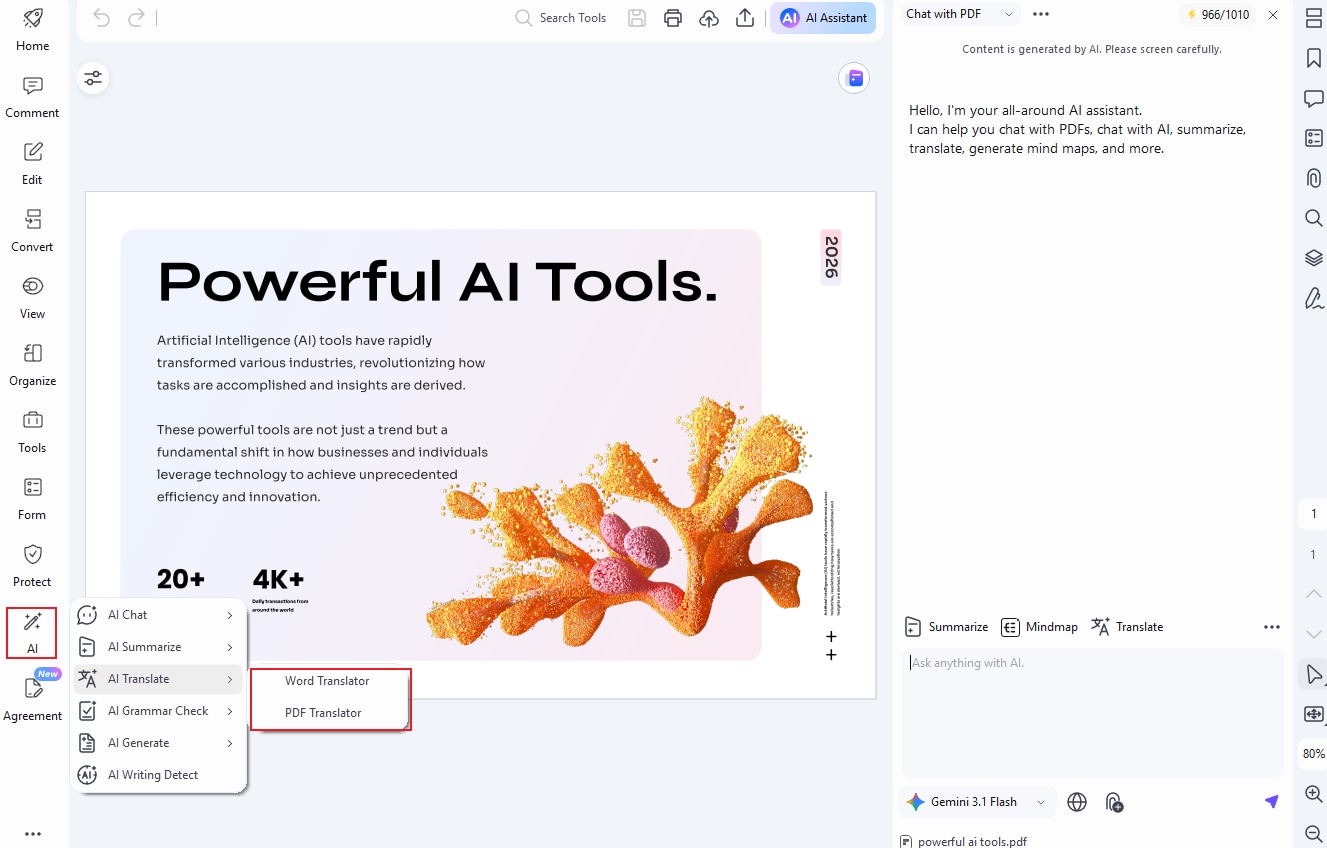
Open your PDF in PDFelement. From the AI tools, choose AI Translate. Use Word Translator when you only need a selected passage, or choose PDF Translator for a full-document workflow.
Step 2: Choose the Language and Translation Mode
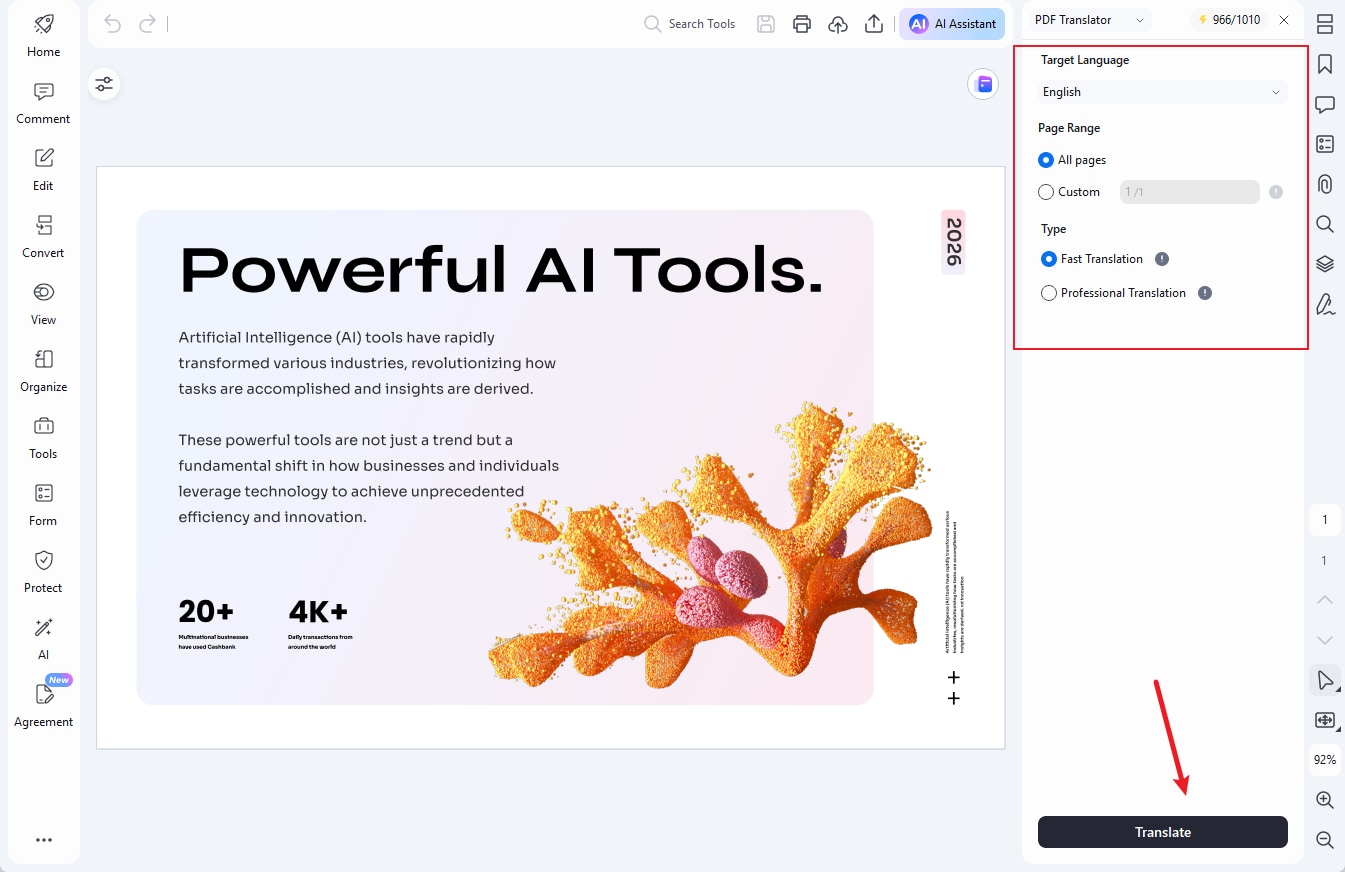
Select the target language and page range. Choose Fast Translation when speed matters, or Professional Translation when the document contains specialized terminology and needs more context-sensitive output.
For scanned PDFs: use OCR before translation so the text can be recognized. If you need to translate several documents, open Batch Translate rather than repeating the same workflow file by file.
Step 3: Translate and Review the New PDF
Click Translate to create the translated PDF. Review important terms, figures, tables, and names against the source document before sharing the result. You can then continue editing, annotating, or converting the translated PDF without leaving the same PDF workflow.
G2 Rating: 4.5/5 |100% Secure
If your main problem is a scan rather than a standard PDF, see the dedicated guide to translating scanned documents with OCR. For repeated multi-file work, the Batch PDF workflow explains how to process multiple PDFs together.
FAQs About Adobe PDF Translator
Does Adobe Acrobat Have a Built-In PDF Translator?
Yes. Adobe now provides PDF translation through Acrobat AI Assistant and Adobe Express workflows. It is not a separate app called Adobe PDF Translator, and the exact translation options available can depend on your Acrobat plan, platform, region, and supported language.
Can Adobe Acrobat Translate a Whole PDF?
Yes. Adobe's current AI Assistant workflow can translate a PDF directly with a prompt, and Acrobat can also send a PDF to Adobe Express through Translate this PDF. Review the result before sharing it, especially when the document contains legal, financial, medical, or technical terminology.
Can Adobe Translate a Scanned PDF?
Yes, but OCR should come first. A scanned PDF is usually made of page images rather than selectable text, so OCR converts the visible text into machine-readable content that can then be translated. Translation accuracy will still depend on scan quality and OCR accuracy.
Is There a Free Online Adobe PDF Translator?
Adobe offers online AI PDF features and Adobe Express translation tools, but free access, sign-in requirements, limits, and advanced features can vary by account and region. Check the current Adobe plan shown in your browser before relying on it for frequent or large-document translation.
Does Adobe Preserve PDF Formatting After Translation?
Adobe's current translation workflows are designed to keep the document usable and can preserve formatting and layout in supported workflows. Complex fonts, tables, graphics, right-to-left text, and scanned pages should still be checked manually after translation because layout quality can vary by document.
Conclusion: Should You Use Adobe PDF Translator or an Alternative?
Use Adobe Acrobat when you already work in the Adobe ecosystem and need direct AI translation, PDF Q&A, or page translation through Adobe Express. The old export-to-Word workflow is now a fallback rather than the main way to translate a PDF with Adobe.
If your work involves scanned PDFs, multiple files, 50+ target languages, terminology-sensitive translation, or ongoing PDF editing after translation, PDFelement V13 provides a more dedicated translation workflow with OCR, Fast and Professional modes, Batch Translate, and PDF-native review tools. Whichever method you choose, verify critical names, numbers, terminology, and legal or technical meaning against the original before using the translated document for important decisions.
Free Download or Buy PDFelement right now!
Free Download or Buy PDFelement right now!
Try for Free right now!
Try for Free right now!

Audrey Goodwin
chief Editor