

Table of Contents
A signature template sounds simple until you need one for the wrong place. An email footer, a Word signature line, a PDF signing field, and a company signature block all serve different purposes. Use the same design everywhere and you may end up with an email signature that breaks on mobile, a contract signature area that looks informal, or a PDF that is hard for clients to sign.
The better approach is to treat a signature template as a reusable format for a specific task. For email, it helps people contact you and recognize your brand. For Word and PDF documents, it shows where a person should sign and what details are required. For company use, it creates consistency across teams. For e-signature workflows, it reduces repetitive formatting before a document is sent for approval or signing.
This guide explains the main types of signature templates, where each one fits, and how to create practical versions for Word, Google, Office, and PDF documents.


 G2 Rating: 4.5/5 |
 100% Secure
What Is a Signature Template?
A signature template is a reusable layout that contains the details, spacing, and design needed for a signature. The exact format depends on where it will appear. In an email, it may include a name, job title, logo, phone number, website, and social links. In a business document, it may include a signature line, printed name, title, date, company name, and sometimes a witness or approval field.
The word “signature” can also mean different things. A typed email signature is not the same as a digital signature. A signature block template at the end of a contract is not the same as a Gmail signature. Before choosing a template, it helps to identify what you actually need.
Email signature template
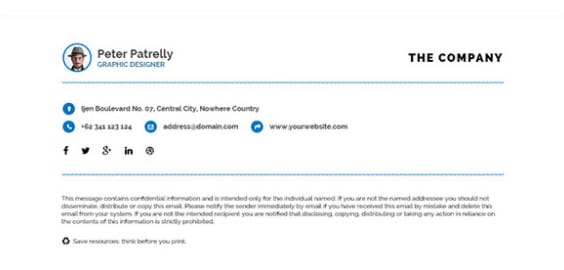
An email signature template appears automatically at the bottom of outgoing emails. It is mainly used for identification, branding, and contact details. A good email signature should be readable, lightweight, and not overly dependent on images. If the recipient’s email client blocks images, they should still see your name, role, and contact information.
Signature line template
A signature line template is used in documents that someone will sign. You might see it in a Word agreement, approval form, offer letter, invoice authorization, or internal memo. It usually includes a line for the signature and nearby labels for the signer’s name, title, and date.
A simple version looks like this:
Signature: ___________________________
Name: _______________________________
Title: ________________________________
Date: ________________________________
This format is plain, but it works well because nobody has to guess where to sign.
Signature block template
A signature block template is a more complete closing section, often used in contracts, proposals, letters, board resolutions, and approval documents. It may include company names, authorized representative details, date fields, and multiple signer sections.
For example, a contract may have one signature block for the vendor and another for the client. Each block needs consistent spacing so the document looks balanced and legally polished.
Digital signature template and e-signature template
A digital signature template or e signature template is usually part of a document signing workflow. It may include fields for electronic signatures, initials, dates, names, checkboxes, and approval stamps. The key difference is that the template is designed to help people sign a document electronically.
An electronic signature can be as simple as drawing or typing a signature in a PDF. A digital signature is often more technical and may use certificate-based validation. If compliance matters, review the signing requirements for your region or industry.
A signature template is only useful when it matches the job. An email signature is a contact-and-branding block; a Word signature line is a document placeholder; a PDF e-signature template defines reusable signing fields and roles. Do not reuse one format everywhere—the technical and legal behavior is different even when the visual design looks similar.
Best Signature Template Types and When to Use Them
There is no single best signature template for every situation. The right choice depends on whether you need a polished email footer, a formal document closing, or a reusable signing area in a PDF. The examples below show common template styles and where they fit best.
1. Professional company signature template
A company signature template is best for teams that need a consistent look across emails, proposals, letters, and customer-facing documents. It should use approved brand colors, a clear hierarchy, and standard contact details.

For email, a company signature should usually include:
- Full name and job title
- Company name and website
- Direct phone number or main office number
- Company logo or small brand mark
- Optional legal disclaimer or confidentiality notice
Keep the design restrained. A signature is not a flyer. If the logo is too large, the social icons are oversized, or the signature contains multiple promotional banners, it can distract from the actual message. Many companies also create different versions for sales, support, HR, and executive teams.
2. Creative signature template
A creative signature template can work well for designers, consultants, agencies, photographers, event planners, and freelancers. It gives more room for personality through color, typography, or layout. The risk is going too far.

Use a creative design when the signature needs to support a personal brand. For example, a freelance designer may use a compact photo, portfolio link, and short tagline. A creative agency may use a bright accent color and a campaign link. Still, the core details should remain easy to read. If the recipient cannot quickly find your phone number, the design has failed its main job.
Creative templates are often built in HTML for email or as image-assisted layouts. Avoid making the entire signature one large image. It may not load, it cannot be searched, and it may cause accessibility problems.
3. HTML signature block template
Email HTML needs more conservative markup than a normal webpage. For broad Outlook/Gmail/mobile compatibility, prefer table-based layout, inline styles, explicit image dimensions, and a simple hierarchy instead of modern web techniques such as grid or flexbox that may render inconsistently in mail clients.
An HTML signature block template is useful when you need a structured email signature with columns, icons, logos, and links. It is common in company email systems because it allows a controlled layout that works across different users.

HTML signatures are more flexible than plain text, but they also break more easily. Outlook, Gmail, Apple Mail, and mobile email apps may render spacing and images differently. If you use an HTML template, keep the structure simple. Tables are still common for email signatures because many email clients handle them more predictably than modern CSS layouts.
Before rolling out an HTML signature to a team, test it by sending emails to Gmail, Outlook, Apple Mail, and a mobile inbox. Check image loading, link behavior, line spacing, and dark mode appearance.
4. Office signature template
An office signature template usually means a professional email signature for Microsoft Outlook or a document signature format for Microsoft Word. In Outlook, the template helps standardize outbound email. In Word, it can provide a reusable signature line or closing block.

For Outlook email, use a compact layout. Outlook can be strict about HTML formatting, so avoid complex CSS, background images, and oversized graphics. For Word documents, focus on spacing and labels. A Word signature line should leave enough room for handwritten or electronic signing after conversion to PDF.
Microsoft provides its own guidance for adding signatures in Outlook and Word. If you are setting up a template across a workplace, the official Microsoft support documentation is worth checking because the exact steps vary by version and account type.
5. E-signature template for reusable documents
An e-signature template is best for documents that need repeated signing, such as agreements, consent forms, onboarding documents, approval forms, and purchase authorizations. Instead of rebuilding the signature area every time, you keep a clean master file and reuse it.
The most useful e-signature templates are not heavily decorated. They make the signing process obvious. A client should know exactly where to sign, initial, enter the date, and fill in missing details. If a document has several signers, label each signature block clearly: “Client,” “Contractor,” “Manager Approval,” or “Authorized Representative.”
For PDF workflows, it is also helpful to leave enough white space around signature fields. Crowded signature blocks can become hard to fill on small laptop screens or tablets.
How to Create a Signature Template in Word, Google, and Office
The easiest way to create a signature template is to start with the platform where you will use it most. A Word signature line template is different from a Gmail signature, and both are different from a PDF e-signature setup. Build for the final destination first.
Create a signature template in Word
A signature template Word users can reuse should be clean, printable, and easy to convert to PDF. You can create a simple signature line manually with underscores, but Word’s table tools often give better alignment.
Start by placing the signature section near the end of the document. Use a two-column table if there are two parties signing. Hide the table borders if you want a cleaner contract-style look. Add clear labels under each line, such as “Signature,” “Printed Name,” “Title,” and “Date.”
A basic Word signature block might look like this:
For Company A
Signature: ______________________________
Name: __________________________________
Title: ___________________________________
Date: ___________________________________
For Company B
Signature: ______________________________
Name: __________________________________
Title: ___________________________________
Date: ___________________________________
If the document will be printed and signed by hand, leave generous line spacing. If it will be signed electronically after being saved as a PDF, leave enough room for a digital signature field. Do not place signature lines too close to the page footer, as some PDF tools and printers may cut off the bottom margin.
Create a Google signature template for Gmail
A google signature template is most often used in Gmail or Google Workspace. It should be simple enough to display well in browsers and mobile apps. Gmail supports images and links, but pasted HTML can behave differently depending on the source.
In Gmail, go to Settings > See all settings > General > Signature. Create a new signature, then add your name, title, company, phone number, website, and logo if needed. Use one or two brand colors at most. If you add social icons, keep them small and link them correctly.
A practical Gmail signature might include:
Alex Morgan
Customer Success Manager | ExampleCo
alex@example.com | +1 555 0100
example.com
If you work in a regulated industry, ask your legal or compliance team whether you need a disclaimer. Keep in mind that long disclaimers can overwhelm short emails, especially on mobile. Some companies add disclaimers at the server level instead of inside each employee’s signature.
Google’s own Gmail signature help page is useful if you need current setup steps.
Create an Office signature template for Outlook
An office signature template for Outlook can be created directly inside Outlook or copied from a prepared HTML template. For individual users, the built-in editor is usually enough. For a company rollout, IT may use centralized signature management or Microsoft 365 admin controls.
In Outlook, the common path is Settings > Mail > Compose and reply in the web version, or File > Options > Mail > Signatures in some desktop versions. Add your signature content, set it as the default for new messages and replies, then test it.
Replies often need a shorter signature than new emails. A full signature with logo, disclaimer, and links may be fine for first contact, but it can become cluttered in long email threads. Many professionals create two versions:
Full signature for new emails: name, title, company, phone, website, logo, social/profile link.
Short signature for replies: name, title, phone, website.
This small adjustment makes everyday email cleaner without sacrificing professionalism.
How to Use a Signature Template for PDFs and E-Signatures
For contracts and approval forms, the reusable value is not the picture of a signature—it is the placement of signer fields, dates, initials, names, and roles. Make those fields unambiguous, keep a clean unsigned master, and use a signing workflow that records the completed document and associated audit information.
PDF is the preferred format for many signed documents because it preserves layout better than Word or email. A contract, quote approval, tax form, HR document, or vendor agreement should not shift around just because the recipient opened it on another device.
That is where a PDF-ready signature template becomes useful. Instead of sending a Word file and hoping the spacing survives, you can convert the document to PDF, add signature areas, and send a cleaner version for review or signing.
 G2 Rating: 4.5/5 |100% Secure
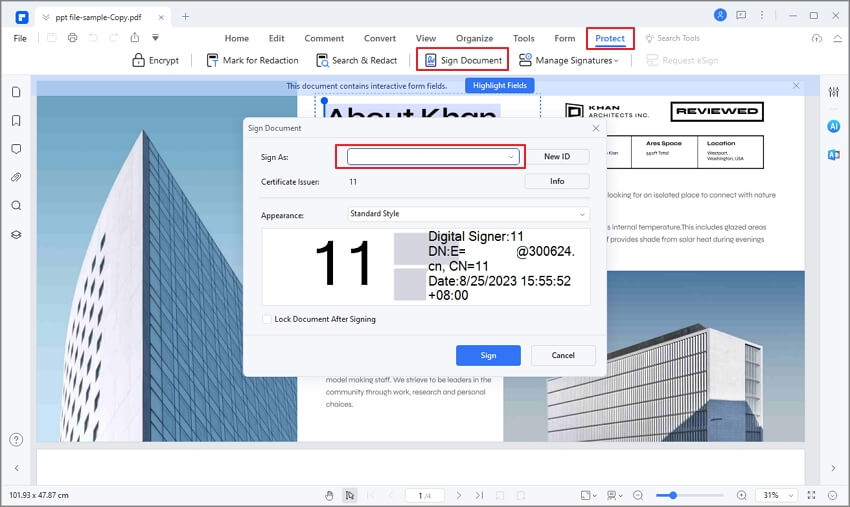
PDFelement fits naturally into this workflow. After creating a signature line template in Word or another editor, you can use PDFelement to convert the file to PDF, review the layout, add annotations or form fields, and place signature fields where needed. If the source document is scanned, OCR can make the text editable or searchable before you prepare it for signing. This is especially helpful for teams that reuse older forms but need to modernize them for electronic handling.
For a simple e-signature template workflow, you might:
- Draft the document in Word or another editor.
- Add a clean signature block with name, title, signature, and date fields.
- Convert the file to PDF.
- Open the PDF in PDFelement to check formatting and add signing fields or annotations.
- Save a master version as your reusable template.
- Duplicate the master file whenever you need a fresh agreement or approval form.
The main benefit is control. You are not rebuilding the signature area every time, and you are less likely to send a document with missing date fields, inconsistent spacing, or unclear signer labels.
A PDF signature template should also account for the signing method. If people will draw a signature on screen, leave a larger blank area. If they will use a certificate-based digital signature, leave enough room for the visible signature appearance, which may include signer information and a timestamp.
Signature Template Design Rules for Business Use
A polished signature template is usually quiet. It helps the reader understand who you are, how to contact you, and where to sign without competing with the message or document. That applies to emails, Word files, and PDFs.
Keep the hierarchy obvious
The signer’s or sender’s name should be the easiest item to find. The job title, company, and contact details should follow naturally. In an email signature, this usually means the name is bold or slightly larger, while the rest of the information stays normal size. In a document signature block, the signature line should be clear, and labels should sit close enough to their fields that nobody confuses them.
Use brand elements carefully
A company signature template should reflect the brand, but not at the cost of usability. Use official colors and a properly sized logo. Avoid large banners unless there is a specific campaign reason. Even then, campaign banners should be temporary and tested in major email clients.
For documents, brand elements belong in the header, footer, or cover page more often than in the signature block itself. A contract signature area should look formal and easy to complete.
Design for mobile and dark mode
Email signatures often look fine on a desktop monitor and cramped on a phone. Long titles, multiple phone numbers, and wide logo images can wrap badly. Test your signature on mobile before using it broadly.
Dark mode can also affect colors. A dark logo on a transparent background may disappear against a dark email client. If your logo needs a light background, use an image file that includes enough padding or a background shape.
Avoid risky or unnecessary details
Do not include personal social media links in a company signature unless they are part of your professional role. Avoid inspirational quotes in business signatures. They can feel informal, and they may create awkward associations in legal, financial, or sensitive conversations.
For legal disclaimers, use approved language rather than writing your own. Some disclaimers are necessary; others are long but not especially useful. Follow company policy.
Make document signature blocks unambiguous
For contracts and approvals, ambiguity creates friction. If there are multiple signers, label each section. If a person signs on behalf of a company, include both the company name and the signer’s title. If a date is required, give it a dedicated line or field.
A stronger signature block does not look fancy. It looks complete.
G2 Rating: 4.5/5 |100% SecureCommon Signature Template Examples
The following examples are starting points you can adapt. Replace the sample details with your own and adjust the layout for email, Word, or PDF use.
Simple professional email signature template
Jordan Lee
Operations Manager
Northline Studio
jordan.lee@example.com | +1 555 0148
www.example.com
This format works well when you do not need images, social icons, or disclaimers. It is also safer for plain-text email threads and support conversations.
Company email signature template
Maya Chen
Senior Account Executive | BrightPath Solutions
maya.chen@example.com | +1 555 0172
brightpath.example.com
LinkedIn: linkedin.com/in/mayachen
For a company version, add a small logo above or beside the text. If your company uses brand colors, apply one accent color to the name or company line, not every line.
Signature line template for Word
Approved by:
Signature: ______________________________
Printed Name: ___________________________
Title: ___________________________________
Date: ___________________________________
This works for internal approvals, HR forms, purchase requests, and short business documents. For more formal agreements, add company names and separate signer blocks.
Contract signature block template
For Client:
Company Name: __________________________
Authorized Signature: ____________________
Printed Name: ___________________________
Title: ___________________________________
Date: ___________________________________
For Service Provider:
Company Name: __________________________
Authorized Signature: ____________________
Printed Name: ___________________________
Title: ___________________________________
Date: ___________________________________
This type of signature block template is easy to convert into a PDF e-signature template. If you use it often, save a master copy and duplicate it for each new agreement.
PDF e-signature template
For PDF signing, the visible text might look similar to a contract block, but the working file should include fillable areas or signature fields. Keep each field aligned and clearly labeled:
Signer 1 Name: [Text Field]
Signer 1 Signature: [Signature Field]
Date: [Date Field]
If the document needs initials on every page, place initial fields consistently, such as the lower-right corner of each page. Consistency matters more than decoration.
People Also Ask
-
What is the best signature template for business email?
The best business email signature template is simple, branded, and easy to read. It should include your name, job title, company, phone number, and website. A small logo is fine, but avoid oversized images, long quotes, and too many links. For most companies, a full version for new emails and a shorter version for replies works best. -
What is the difference between a signature line template and a signature block template?
A signature line template is usually a basic signing area with a line for the signature and labels for name, title, and date. A signature block template is more complete. It may include company names, authorized representative details, multiple signers, witness fields, and approval sections. Signature blocks are common in contracts and formal business documents. -
Can I create a signature template in Word?
Yes. Word is a good place to create a signature line template or document signature block. Use tables for alignment, hide borders if needed, and leave enough space for handwritten or electronic signatures. If the document will be signed electronically, convert it to PDF after checking the layout. -
How do I make a Google signature template?
In Gmail, go to Settings > See all settings > General > Signature and create a new signature. Add your name, title, company, contact details, and optional logo. Keep the design narrow enough for mobile screens and test it by sending an email to yourself before using it professionally. -
Is an e-signature template legally valid?
An e-signature template is just the layout or reusable signing format. Legal validity depends on the signing process, consent, identity, record retention, and applicable law. Many electronic signatures are legally accepted, but requirements vary by country, document type, and industry. For high-value or regulated documents, check legal guidance before relying on a simple typed or drawn signature. -
What should a digital signature template include?
A digital signature template should include clear fields for the signer’s name, signature, title, date, and any required initials. If the workflow uses certificate-based digital signatures, allow enough visible space for certificate details or timestamps. For multi-party documents, label each signer’s role clearly. -
Can PDFelement help create a reusable PDF signature template?
Yes. PDFelement can support the PDF side of the workflow. You can convert a Word document to PDF, review the layout, add form or signing areas, annotate instructions, use OCR for scanned forms, and save a clean master file for reuse. It is especially useful when your signature template needs to become a stable PDF document for clients, employees, or partners to complete.


