

Table of Contents
- Why Your Email Signature Template Matters More Than It Seems
- Professional Email Signature Templates: Layouts That Work
- What to Include in a Business Email Signature
- How to Build a Responsive Email Signature Template
- Free Email Signature Templates and Download Options
- How to Install and Test Your Mail Signature Template
A polished email signature does more than put your name at the bottom of a message. It helps the recipient know who you are, how to reach you, which company you represent, and what action makes sense next. The best email signature template is not the flashiest one. It is the one that looks clean in a crowded inbox, works on a phone, and does not break when forwarded.
Many people start with a copied block of text or an oversized logo pasted into Gmail. That works for a while, until the formatting shifts, the social icons disappear, or the signature looks different in Outlook than it does in Apple Mail. A better approach is to choose a structure first, then customize it with the right details, sizing, and links.
This guide explains what to include, which professional email signature templates work best, how to choose free email signature templates, and how to test your final design before using it with clients, partners, or customers.


 G2 Rating: 4.5/5 |
 100% Secure
Why Your Email Signature Template Matters More Than It Seems
A signature sits in a small space, but it carries a lot of business context. It can make a sales email look credible, help a support message feel official, or give a new contact an easy way to book a meeting. It also appears again and again across replies, forwarded messages, proposals, invoices, and project threads.
A good email signature template should answer four questions quickly: who sent the message, what organization they represent, how to contact them, and where to go next if the reader wants more information. If the recipient has to scan six lines of decorative text before finding your phone number, the design is working against you.
For most business users, the goal is simple: create a signature that looks professional without distracting from the message. That usually means restrained colors, readable type, a small logo or headshot if needed, and links that serve a clear purpose.
The common mistakes are easy to spot. Some signatures are too tall, so they take up more space than the email itself. Some rely on one large image, which may be blocked by default in certain email clients. Others include every social profile, office address, legal disclaimer, award badge, and marketing banner in a single block. That might seem thorough, but it often feels cluttered.
A professional mail signature template should support the conversation, not compete with it.
Professional Email Signature Templates: Layouts That Work
There is no single perfect email signature layout. The right format depends on your role, company style, and how recipients usually interact with your emails. A consultant may need a booking link. A real estate agent may benefit from a headshot. A corporate employee may need a legal disclaimer. A designer may want a more visual signature, while a lawyer or accountant may prefer a restrained text-first layout.
Below are practical layout types you can use as starting points.
Compact Business Card Layout
The compact business card layout is the safest choice for most professionals. It usually includes your name, job title, company, phone number, website, and perhaps one or two social links. It resembles the information hierarchy of a physical business card, but is formatted for email.
A simple version might look like this:
Alex Morgan
Senior Account Manager | Northline Studio
alex.morgan@example.com | +1 555 012 8842
northlinestudio.com
This format works because it is short, readable, and unlikely to cause rendering problems. It is also suitable for people who send many replies during the day. The signature does not overwhelm brief messages such as “Approved,” “Thanks,” or “I’ll send the file shortly.”
If you use a logo, keep it modest. A small logo to the left or above the text is enough. Avoid inserting a full-width brand image unless you have tested it across devices.
Two-Column Company Layout
A two-column email signature template can look more polished when you need to include several types of information. The left side may show a logo or headshot, while the right side lists your name, title, contact details, and links. Another version places contact details on one side and company address or website links on the other.

This layout is useful for agencies, real estate teams, financial services firms, and B2B companies that want consistent branding across employees. The main risk is mobile display. A two-column design that looks sharp on a desktop can become cramped on a narrow phone screen. If you use this style, choose a responsive email signature template or test the HTML carefully before rolling it out to a team.
Keep the column count low. Two columns are usually enough. Three or four small columns can become unreadable, especially when social icons, badges, and disclaimers are added.
Banner-Based Promotional Layout
A banner-based design adds a slim promotional strip under the contact details. This can work well if your company wants to promote a webinar, new product, seasonal campaign, case study, or event registration page.

This style should be used with restraint. A banner is most effective when it has one message and one link. “Register for our March webinar” is better than a crowded graphic listing several offers. Also, do not make the banner so tall that every reply thread starts to look like an advertisement.
For teams, banner-based professional email signature templates can be valuable because marketing can update the campaign while keeping employee identity details consistent. Just make sure the image includes meaningful alt text if possible and that the key information is not available only inside the image.
Minimal Text-Only Layout
A text-only signature is still a strong option, especially for executives, developers, journalists, academics, lawyers, and anyone who prioritizes speed and simplicity. It loads quickly, avoids image-blocking issues, and looks good in plain-text email threads.
A refined text-only format might be:
Maya Chen
Product Counsel, Ardent Systems
maya.chen@example.com | +44 20 0000 0000
ardentsystems.com/legal
This template is easy to maintain and rarely breaks. It is also a good choice for internal communication, where logos and banners are unnecessary. If your company requires a branded external signature, you can still use a shorter internal version to keep daily messages clean.
Legal or Corporate Disclaimer Layout
Some industries require disclaimers related to confidentiality, compliance, financial advice, or data protection. If that applies to you, the disclaimer should be visually separate from your identity details and written in plain language where possible.
The problem with many disclaimer signatures is length. A long legal block repeated in every reply can make email threads hard to read. If your organization requires one, ask whether a shorter version can be used with a link to the full policy. For privacy and compliance guidance, organizations can refer to sources such as the Federal Trade Commission business guidance or local regulatory bodies, depending on the region and industry.
A disclaimer should not be used to hide weak signature design. Start with a clear identity block, then add the required legal text below it in smaller, readable type.
What to Include in a Business Email Signature
An email signature template works best when every element earns its place. Before choosing colors and icons, decide what information your recipients truly need.
At minimum, a professional signature should include your full name, role or department, company name, and one reliable contact method. Most business signatures also include a website link. A phone number is useful if calls are part of your workflow, but not everyone needs to list a mobile number in every email.
The strongest signatures use a clear hierarchy. Your name should be the most prominent line. Your title and company should come next. Contact methods should be easy to scan. Everything else is secondary.
A practical set of signature elements includes:
- Full name and job title
- Company name and website
- Work phone, direct line, or booking link
- Logo or professional headshot, if appropriate
- One to three social links that matter for your role
- Optional CTA, such as “Book a consultation” or “View our latest report”
Social icons deserve special care. A LinkedIn link may be useful for sales, recruiting, consulting, and executive communication. Instagram may be relevant for hospitality, retail, photography, beauty, design, or creator-led businesses. A YouTube icon makes sense if your company actively publishes tutorials or product demos. But if a profile is inactive, do not include it just because the icon looks familiar.
Calls to action should also be specific. “Visit our website” is fine, but “Download the 2025 pricing checklist” or “Schedule a 15-minute demo” is more useful if the link matches the recipient’s likely interest. Avoid stacking multiple CTAs. One clear next step is enough.
For images, use a professional logo file or a high-quality headshot cropped consistently. Blurry headshots and distorted logos make even a carefully written signature look unfinished. Keep image dimensions small enough for fast loading. A logo that appears around 100–150 pixels wide is often sufficient, though exact sizing depends on the layout.
How to Build a Responsive Email Signature Template
A responsive email signature template should look acceptable on desktop, tablet, and mobile email clients. “Responsive” does not always mean it behaves like a modern website, because email HTML is more limited than web HTML. Many email clients strip scripts, ignore advanced CSS, or handle spacing differently.
The safest email signatures are built with simple HTML tables, inline CSS, fixed image sizes, and conservative fonts. This sounds old-fashioned, but email clients are inconsistent. A design that relies on complex CSS may look perfect in a browser preview and then collapse in Outlook.
If you are creating your own HTML signature, use web-safe fonts such as Arial, Helvetica, Georgia, or Times New Roman. You can still reflect your brand through color, spacing, and logo use. If your brand font is not widely supported, use it in a logo image rather than relying on the recipient’s email client to load it.
Color should be simple. Choose one primary brand color for names, dividers, or links. Use dark gray or black for contact details. Very light gray text may look elegant on a designer’s monitor but become difficult to read on a phone outdoors.
A few technical rules make a big difference:
Keep total signature width around a practical email-safe range rather than designing a wide desktop banner.
Use compressed images and define their width and height in the HTML.
Avoid using one large image as the entire signature; blocked images can hide all contact details.
Test links with tracking parameters carefully, since long URLs can create formatting issues.
Include plain text where possible so copied, forwarded, and printed emails still make sense.
Using an Email Signature Template Generator
An email signature template generator can save time, especially if you do not want to write HTML. These tools usually ask for your name, company, contact details, logo, colors, and social links, then produce a signature you can copy into Gmail, Outlook, Apple Mail, or another client.
Generators are useful, but they are not all equal. Some free tools add branding, limit customization, or produce code that is harder to edit later. Before using a generated signature across a company, send test emails to multiple accounts and check the result on a desktop and phone.
Look for a generator that lets you control image size, link destinations, color values, layout, and mobile behavior. If you manage signatures for a team, choose a tool that supports consistent templates across employees rather than asking everyone to build their own version manually.
The generator should help you produce a cleaner signature, not encourage you to add every possible field. Start with the essentials. Add only what improves recognition, trust, or response rate.
Free Email Signature Templates and Download Options
Free email signature templates are helpful when you need a starting point quickly. They can show spacing, logo placement, color balance, and common layouts. Some are available as HTML files, some as copy-and-paste generator outputs, and others as image-based mockups that you need to recreate manually.
The best free templates are editable, lightweight, and clear about how to install them. If a template looks good only as a static image but does not provide usable HTML or setup instructions, it may be better as inspiration than as a working signature.

Before downloading or copying a free template, check three things. First, can you replace the logo, colors, links, and text without breaking the layout? Second, does it look good on mobile? Third, are there any hidden links or unwanted branding included in the code?
“Email signature templates free download” pages can be convenient, but use caution with unfamiliar websites. Avoid downloading compressed files from sources you do not trust, especially if they include scripts or executable files. A normal email signature should not need anything more than HTML, image files, and basic instructions.
If you need design inspiration, template galleries are useful. If you need a working signature today, a reputable generator or a simple text-based layout may be faster.
Where PDFelement Fits Into Your Signature and Document Workflow
PDFelement is not an email signature generator, and it should not be treated as a replacement for one. Its value comes in the document steps that often happen around professional email communication.
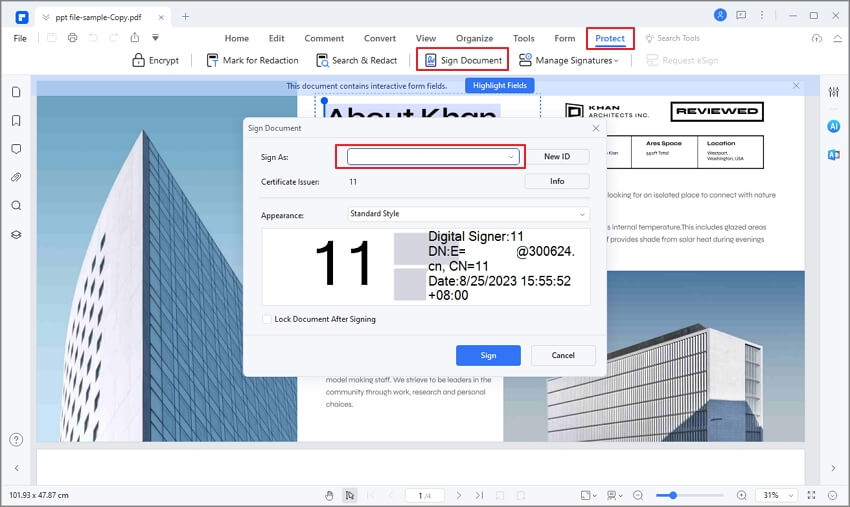
For example, you may send proposals, contracts, onboarding forms, quotes, NDAs, or approval documents by email. In those cases, your email signature identifies you, while the attached PDF needs its own document signature, comments, edits, or compression before sending. PDFelement can help with that follow-up workflow: you can edit PDF text, add annotations, organize pages, compress a large PDF attachment, convert files, use OCR on scanned documents, and apply signatures to PDF documents when needed.
G2 Rating: 4.5/5 |100% Secure
This is especially useful when your email signature links to a company identity, but the PDF itself must also look complete and professional. A clean email with a polished signature can still feel careless if the attached proposal has outdated contact details, oversized pages, or unsigned approval fields. Use your mail signature template for communication credibility, and use a PDF editor such as PDFelement to prepare the document you are sending.
How to Install and Test Your Mail Signature Template
After you create the signature, installation and testing matter just as much as design. Email clients handle signatures differently, and a layout that looks correct in the editor can change after the message is sent.
Gmail
In Gmail, open Settings, then See all settings, and find the Signature section under the General tab. Create a new signature, paste your formatted signature, and assign it to new emails and/or replies. Gmail supports images and formatting, but pasted HTML can sometimes shift spacing. After saving, send a test message to another Gmail account and to a non-Gmail account if possible.
If images do not appear, make sure they are hosted properly or uploaded into Gmail rather than linked from a location that blocks access. Also check that your social icons and CTA links open the correct pages.
Outlook
Outlook signatures can be more unpredictable because Outlook desktop uses Microsoft Word’s rendering engine for email. This is one reason simple HTML table-based signatures remain common. To add a signature, go to File > Options > Mail > Signatures on desktop Outlook, or use the signature settings in Outlook on the web.
When pasting a designed signature into Outlook, look for changes in line height, image scaling, and divider spacing. If your signature uses columns, test it carefully. Outlook may treat margins and padding differently from Gmail or Apple Mail.
Microsoft provides official support instructions for email signatures through its Outlook signature help page, which is worth checking if your interface differs by version.
Apple Mail
Apple Mail is usually friendly to clean signatures, but it can still change fonts or image handling depending on system settings. You can add a signature in Mail > Settings > Signatures on macOS. Paste your design, assign it to the right account, and send several test messages.
If Apple Mail changes the font, simplify the formatting or use standard fonts. If you use images, make sure they appear at the correct size on both standard and Retina displays.
Testing Checklist
Before using your new signature with clients, send test emails to yourself and at least one colleague. Open them on a desktop and phone. Reply to the test email and forward it once. Many signature problems appear only after a reply or forward.
Check the following:
- Do the name, title, company, and contact information remain readable?
- Do all links open the correct destination?
- Are images sharp but not oversized?
- Does the signature still look acceptable when images are blocked?
- Is the mobile version easy to scan?
- Does the reply version need to be shorter than the new-message version?
A shorter reply signature is often a good idea. The first message can include your full professional email signature template. Replies can use a reduced version with just your name, company, phone number, and website. This keeps long threads readable without removing important identity details.
People Also Ask
-
What is the best email signature template for business use?
The best template for most business users is a compact layout with your name, title, company, phone number or booking link, website, and a small logo. It should be easy to read on mobile and should not rely on a single large image. If you need stronger branding, use a two-column layout, but test it carefully in Outlook and Gmail. -
Are free email signature templates safe to use?
Free email signature templates can be safe if they come from a trustworthy source and use simple HTML or copy-and-paste formatting. Be cautious with downloaded files from unknown sites. Check the code for unwanted links, tracking, or branding before using it. If you are unsure, use a reputable email signature template generator or build a simple text-based version. -
What should I not include in an email signature?
Avoid oversized images, too many social links, inspirational quotes in formal business emails, multiple promotional banners, and long disclaimers unless required. Do not include personal phone numbers unless you are comfortable sharing them widely. Also avoid colors with poor contrast, tiny fonts, and image-only signatures that disappear when images are blocked. -
How do I make a responsive email signature template?
Use simple HTML, fixed image dimensions, readable font sizes, and a narrow layout that works on phones. Avoid complex CSS and wide banners. A one-column or carefully built two-column structure is usually more reliable than a complex layout. Always send test emails to different email clients before adopting the signature. -
Is an email signature template generator better than designing one manually?
A generator is usually faster and easier, especially for non-designers. It can produce a polished layout and installation-ready signature. Manual design gives you more control, but it requires more testing and HTML knowledge. For teams, a generator or centralized signature management tool can help keep branding consistent. -
Can I use the same signature for new emails and replies?
You can, but it is often better to use two versions. A full signature works well for new emails. A shorter version is better for replies because it keeps long threads from becoming cluttered. The reply version can include only your name, company, phone number, and website. -
What size should an email signature logo be?
A logo usually works well at a modest display width, often around 100–150 pixels depending on the layout. The file should be compressed so it loads quickly. Avoid inserting a large original logo file and shrinking it visually in the email editor, because it may still increase message size or display inconsistently. -
Do I need a PDF signature if I already have an email signature?
Yes, if the document itself needs approval, authorization, or identity confirmation. An email signature identifies the sender in the message, while a PDF signature or signed field applies to the document. For contracts, forms, quotes, and approvals, use a PDF tool such as PDFelement to prepare, sign, compress, or edit the attachment before sending it.


