

Looking for a professional signature for a name starting with S? If your name is Sarah, Steven, Samuel, Sophia, Scott, or Susan, you’ll likely sign contracts, forms, approvals, or agreements—most of which now arrive as PDFs.
This guide shares practical signature styles for S names that stay clear in PDF files, explains how those signatures are used in real document workflows, and walks you through signing PDFs using Wondershare PDFelement.


 G2 Rating: 4.5/5 |
 100% Secure
In this article
Signature Styles for Names Starting with S (Optimized for PDF Use)
The letter “S” naturally lends itself to elegant curves, but a good digital signature should be more than stylish. When you place a signature into a PDF, it must remain readable at different sizes, look professional on screen, and work well in typical signature fields.
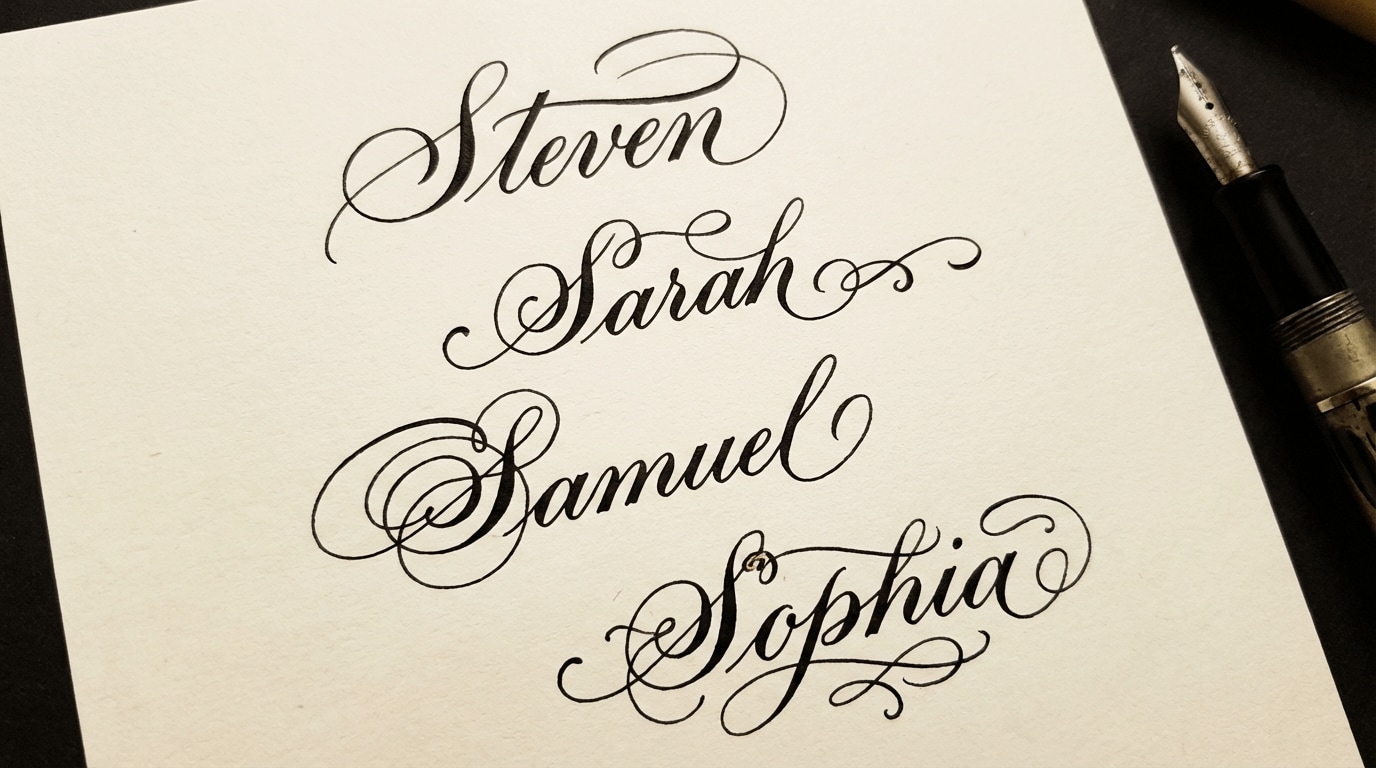
1) Elegant Script Signature (Professional and Refined)
Elegant script signatures use flowing strokes and often emphasize the opening curve of the “S.” This option is a strong fit for formal agreements and business documents.
- Best for: contracts, business agreements, formal approvals
- Why it works in PDFs: curved strokes scale cleanly and stay readable on screen
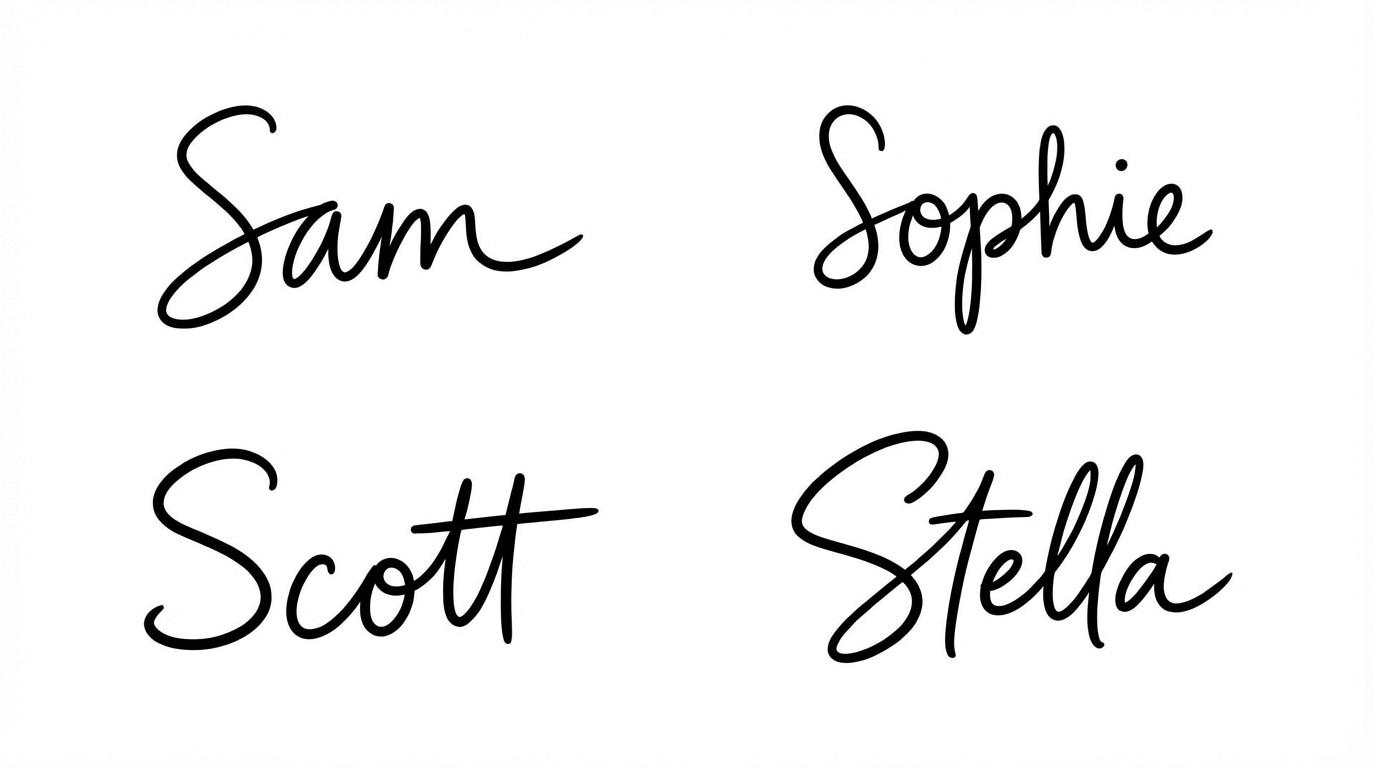
2) Simple Handwritten Signature (Clean and Practical)
A simple handwritten style reduces visual complexity and focuses on clarity. It’s easier to reproduce digitally, especially if you sign often.
- Best for: routine paperwork, internal approvals, everyday documents
- Why it works in PDFs: fits standard signature boxes without crowding or blur
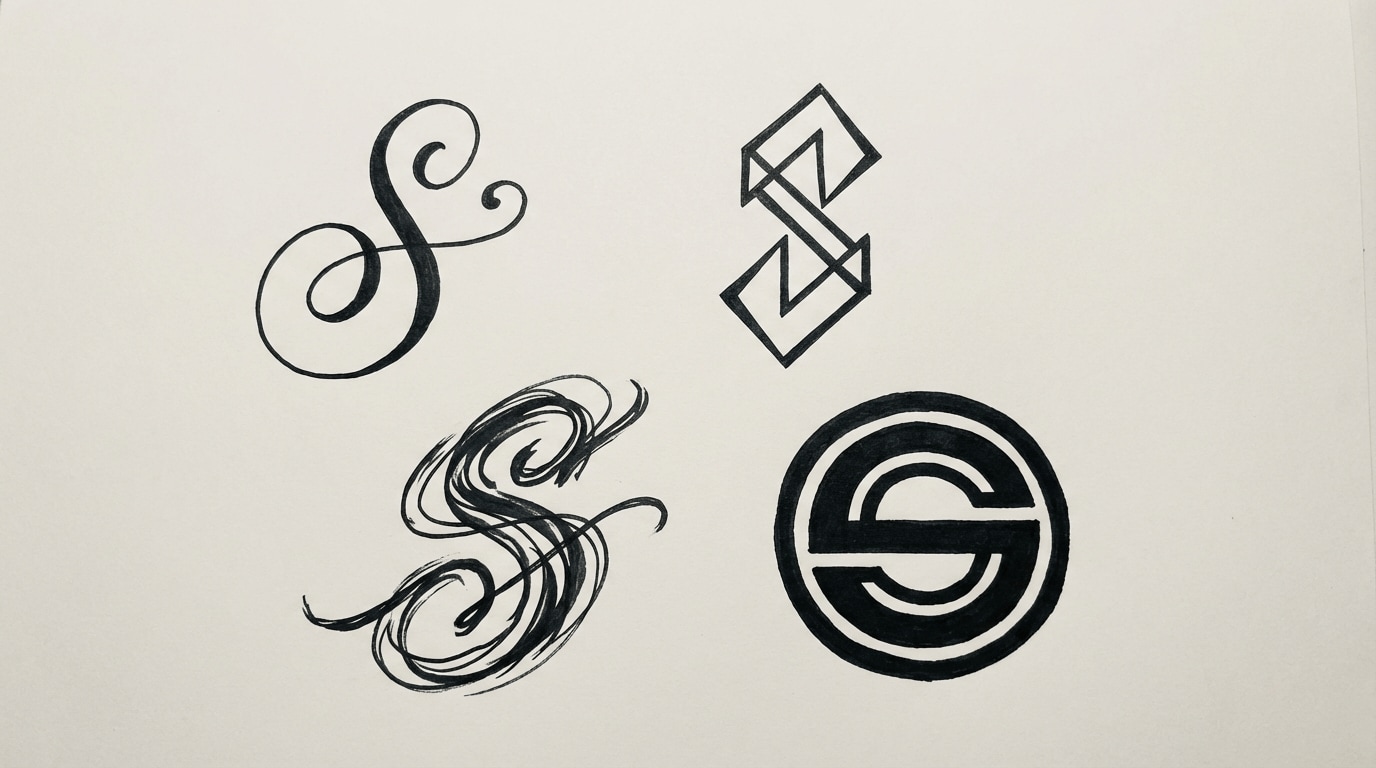
3) Initial-Based Signature (Compact and Distinct)
If your documents commonly have small signature fields, an initial-based signature highlights the “S” and keeps the rest compact. It’s also easier to keep consistent across many files.
- Best for: short forms, quick approvals, informal agreements
- Why it works in PDFs: compact design remains consistent across different layouts
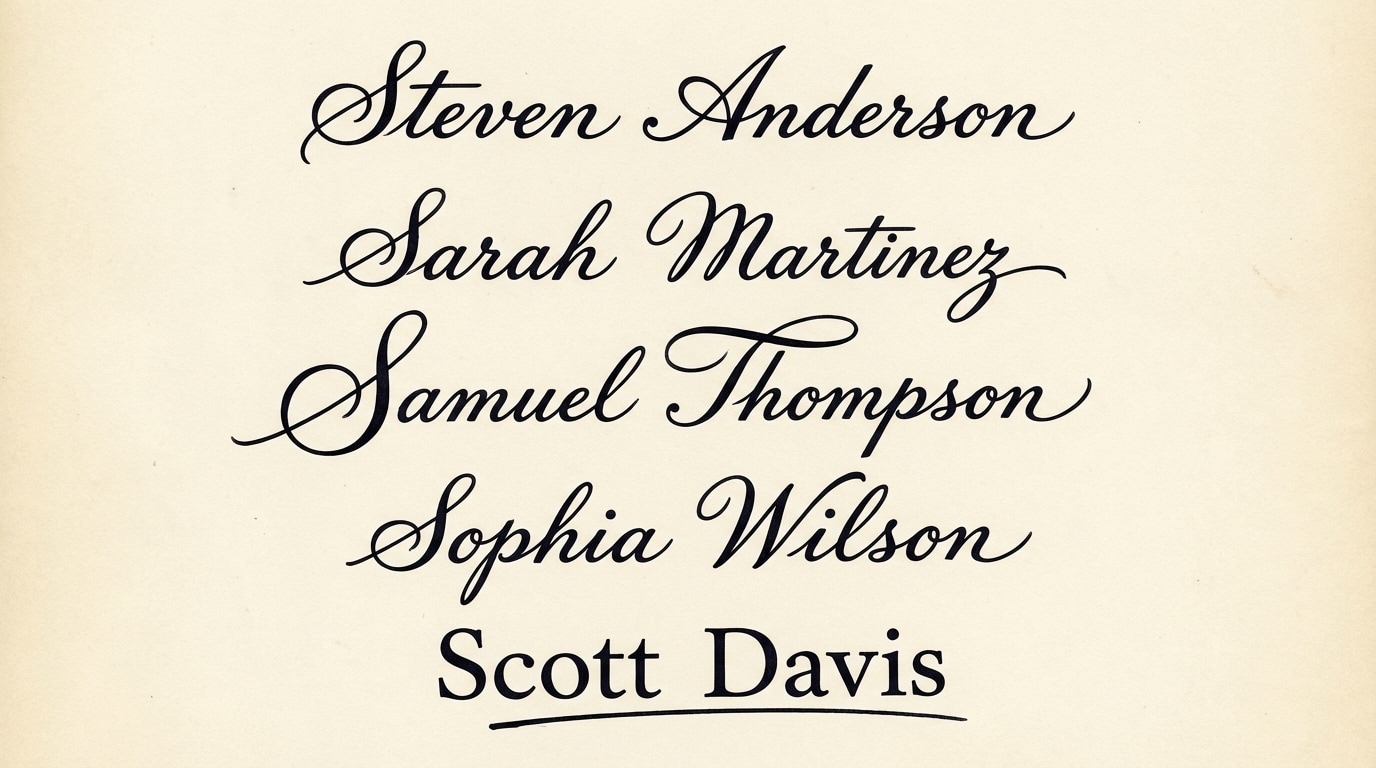
4) Full-Name Signature (Clear and Traditional)
A full-name signature prioritizes readability and recognition. This approach is useful when a reviewer needs to identify the signer quickly.
- Best for: applications, institutional documents, official submissions
- Why it works in PDFs: clear text is easy to verify and archive
How S Signatures Are Used in PDF Documents
Most signature requests today come in PDF format—employment contracts, NDAs, vendor agreements, onboarding paperwork, or approval forms. In many cases, you’ll need to make edits before signing, such as correcting text, updating dates, or confirming field entries.
If you need to revise your document before signing, these guides can help:
- Edit PDF (common editing tasks and workflows)
- Edit PDF text (change text content before you sign)
If you prefer a handwritten look, you may also find this guide useful: Sign a digital PDF with handwritten signature.
With Wondershare PDFelement, you can create a signature once and reuse it across multiple PDFs—helping you stay consistent and avoid printing or scanning.
Step-by-Step: Create and Sign a PDF with PDFelement
Below is a practical workflow for creating an S-name signature and applying it to a PDF document. The goal is simple: create a clear signature once, then reuse it whenever you need to sign PDFs.
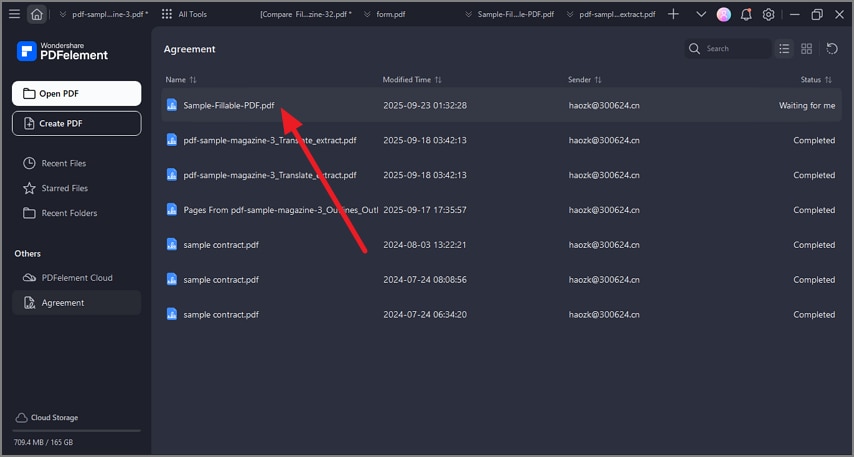
Step 1Open the PDF in PDFelement
Launch PDFelement and open the PDF you need to sign. Review the pages to locate the signature field or the correct signing area.
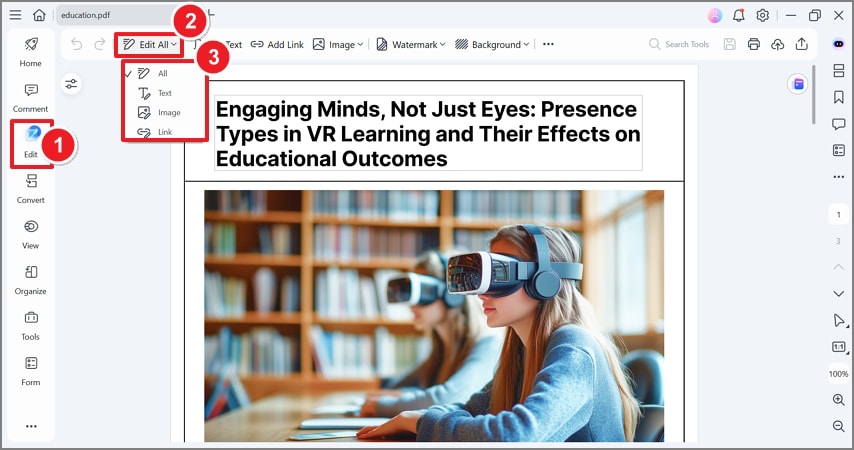
Step 2Prepare the document (edit if necessary)
If your PDF needs edits—such as correcting names, dates, or clauses—make those changes before you sign. This reduces the chance you’ll need to re-sign later.
Helpful reference: Edit PDF text.
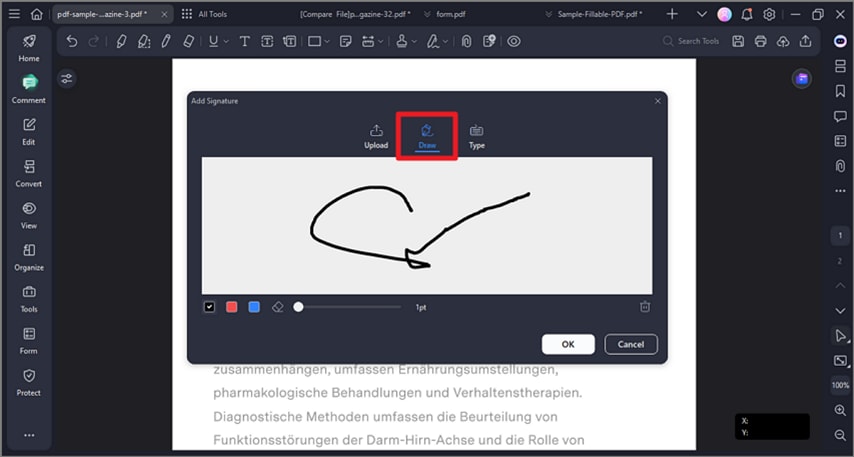
Step 3Create your signature
Create a signature using the method that best matches your preferred style:
- Type for a clean, consistent look
- Draw for a natural handwritten appearance
- Upload if you already have a scanned signature image
Once created, save the signature so you can reuse it for future PDFs.
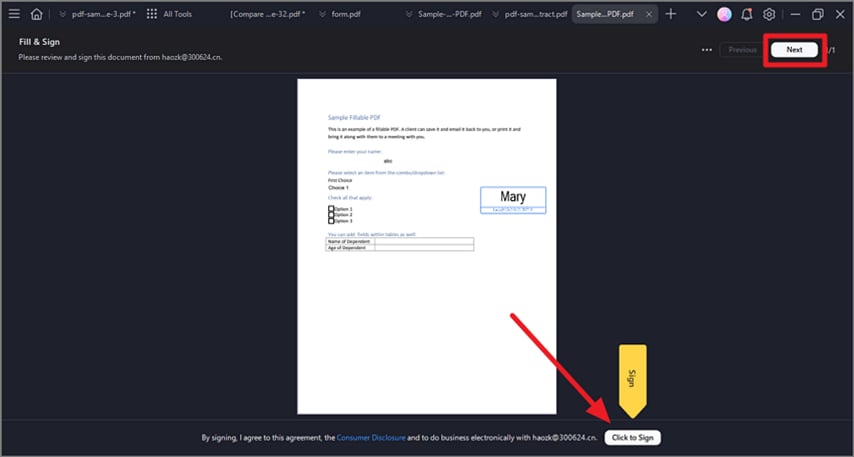
Step 4Insert, adjust, and save
Insert the signature into the correct field (or signing area), adjust its size if needed, then save the signed PDF. You can now share the file via email or your preferred workflow.
G2 Rating: 4.5/5 |100% Secure
Real-World Examples
Signing a Contract
Steven signs client agreements weekly. By saving a script-style S signature once, he keeps a consistent appearance across every PDF contract without recreating the signature each time.
Filling Out an Application
Sophia completes applications digitally and signs PDFs without printing. A clear full-name signature helps reviewers identify the signer quickly.
Approving Documents Remotely
Sarah approves documents from both laptop and mobile devices. A compact initial-based signature works well in small fields and remains readable on any screen size.
People Also Ask
-
Are electronic signatures legally valid?
In many regions, electronic signatures are legally recognized when used appropriately and in accordance with applicable rules. For high-stakes documents, confirm the requirements that apply to your jurisdiction and document type. -
Can I reuse the same signature for multiple PDFs?
Yes. Once you create a signature in PDFelement, you can reuse it across multiple PDF documents without recreating it each time. -
Can I sign PDFs on different devices?
Yes. PDF signing workflows commonly support both desktop and mobile use, so you can sign files from different devices as needed.




