

In many professional and legal workflows, digital documents are often rejected simply because they appear too perfect. Government offices and compliance teams sometimes require files that resemble scanned paperwork, complete with textures or alignment variations. When a document lacks these visual cues, it can cause unnecessary delays, even if the content itself is accurate.
All of this highlights the need for comprehensive guidance on how to "make PDF look scanned" while maintaining overall consistency. With this in mind, the guide that follows covers everything you need, from the right scanning approach to tips for a perfect scan.
In this article
- Why This Guide Matters: When a "Scanned Look" Is Actually Necessary
- Preflight: Understand Your Source File and Target Outcome
- Quick Decision Flow: Consider the Right Method for Scan
- Method 1: Print and Scan the Document Again
- Method 2: Simulate a Scanned PDF locally
- Fine Control vs. Batch Processing: What Works Best When Layouts Differ
- Online Quick Fix — Make PDF Look Scanned Online for Free
- Tips To Make a PDF Look Like a Real Scan
- Legal and Ethical Considerations You Should Be Aware Of
Part 1. Why This Guide Matters: When a "Scanned Look" Is Actually Necessary
Not every situation calls for added noise or texture; often, a file that appears digitally generated can be rejected without review. Guidance on when a PDF look scanned is necessary to help you meet requirements and keep results consistent and professional:
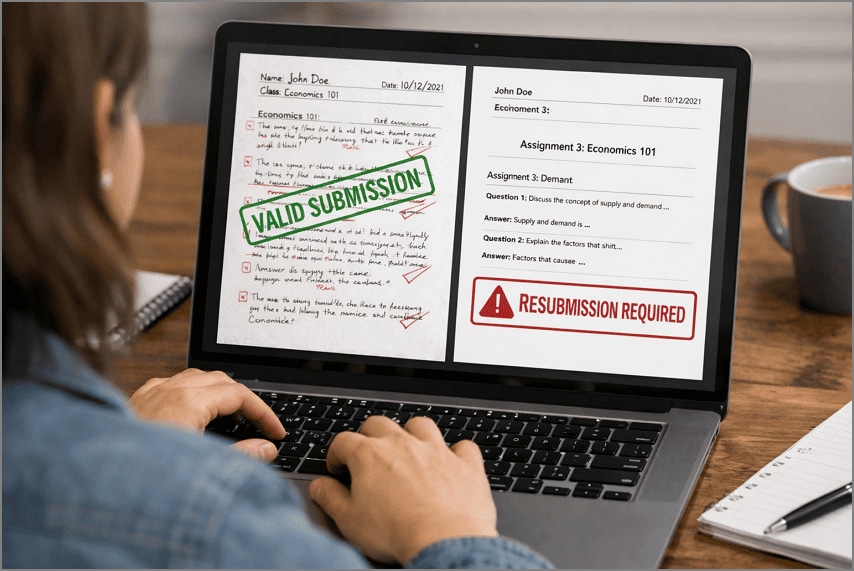
- To turn clean digital PDFs into documents that resemble real scans, complete with minor imperfections.
- Meet the submission requirement that explicitly asks for "scanned copies" rather than digitally generated files.
- For creating image-based PDFs that appear non-editable while preserving text readability for viewers and systems.
- Maintain consistency by avoiding physical print-and-scan methods, which reduce clarity and waste time.
Part 2. Preflight: Understand Your Source File and Target Outcome
With the purpose clearly defined, now move forward from why a scanned appearance is needed to how it can be achieved. For a PDF to look like scanned, you're guided on your document's source and settings so the outcome aligns with the intended scanned style.
Input File Types
First, let's examine the types of source files and how they influence the scanned PDF's appearance.
| Types | What It Means for Making a PDF Scanned |
| Native PDF (Text-Based) | Clean text; ideal for adding controlled noise or grayscale effects. |
| Word/Google Docs–Exported PDF | Often very uniform; benefits from slight fading and alignment variations. |
| Image-Heavy or Mixed-Content PDF | Already contains images; requires careful adjustments to avoid excessive blur. |
Target Scan Styles
Next, consider the desired scan style to achieve the intended look and feel for your PDF.
| Scan Styles | What It Means for Scanned PDF Look |
| Light Grayscale (Office Scanner Look) | Resembles modern scanners, with light gray tones and high readability. |
| Slightly Faded/Textured (Older Scan) | Adds paper texture, light shadows, and minor fading to review as resued document. |
| Black-and-White (Forms and Records) | High contrast style used for official forms and archival documents. |


 G2 Rating: 4.5/5 |
 100% Secure
What Does "Make a PDF Look Scanned" Actually Mean?
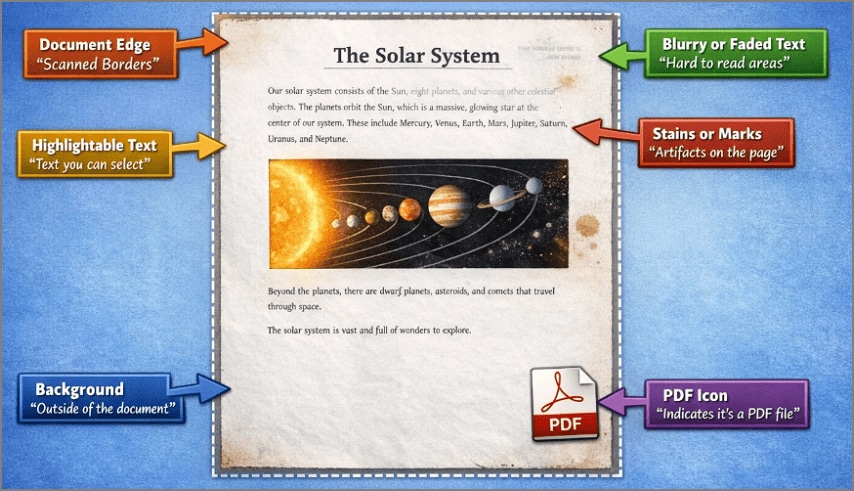
To make a document look scanned means turning each page into an image-only or image-based page. The text is essentially a picture, with minor, deliberate flaws layered like light gray noise or uneven brightness. This mimics how a real office scanner lightly skews, softens, and textures paper without ruining readability.
Part 3. Quick Decision Flow: Consider the Right Method for Scan
Once you've assessed your source file and desired outcome, proceed to determine the most effective approach. The following table will guide you towards the correct method to "convert PDF to a scanned look" without unnecessary trials:
| Situation/Need | Best Approach to Consider | Why This Method Matters |
| Few Files, Want Realistic Control | Consider the PDFelement desktop version. | Gives fine control over effects, security, and saving. It's an ideal solution for manually modifying a small number of files. |
| For Many Files, the Same Layout | Batch scanning through PDFelement on the desktop. | Supports bulk scanning to apply the same "scanned look" across multiple PDFs with a click. |
| Quick, Non-Sensitive Task | Use the i2PDF online tool to scan. | Fast, free, in-browser way to convert to scanned-look files. |
| Highest Authenticity Needed (Last Resort Option) | Go for physical print and scan | Real paper + hardware scanning gives the most authentic results when required for legal use. |
G2 Rating: 4.5/5 |100% Secure
Part 4. Method 1: Print and Scan the Document Again
Best Use: For final legal or official documents where you want the scan to look unquestionably real.
To obtain a "PDF look like scanned", download PDFelement to print your PDFs double-sided with customized print modes. Besides this, you can print multiple documents at the same time in the best possible format. It allows users to print a PDF as an image, preserving the visual layout exactly as it appears on screen.
More impressively, you can scan the printed document and save it to your device as a PDF. For more clarity on how convert a PDF that looks like a scan, follow the guidelines for PDFelement:
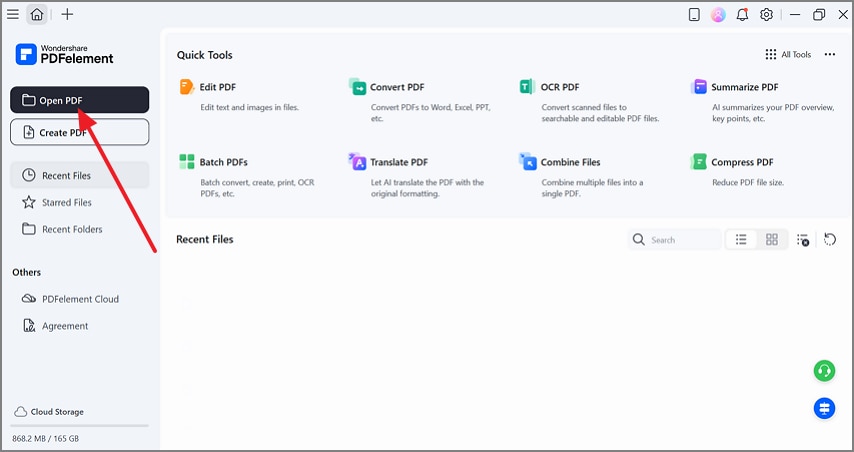
Step 1Launch PDFelement and Open Your PDF
Enter the main workspace for PDFelement and press the "Open PDF" button to insert your document.
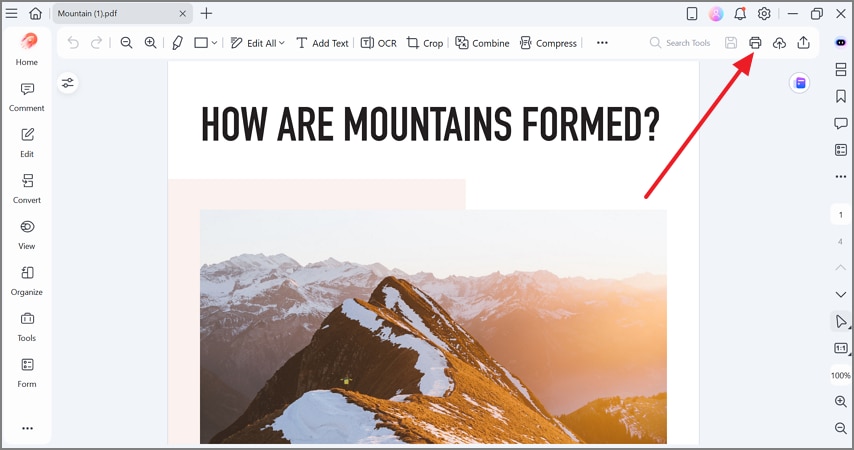
Step 2Choose the Print Option to Proceed
Once done, navigate to the "Print" icon at the top right to reveal further print possibilities.
G2 Rating: 4.5/5 |100% Secure
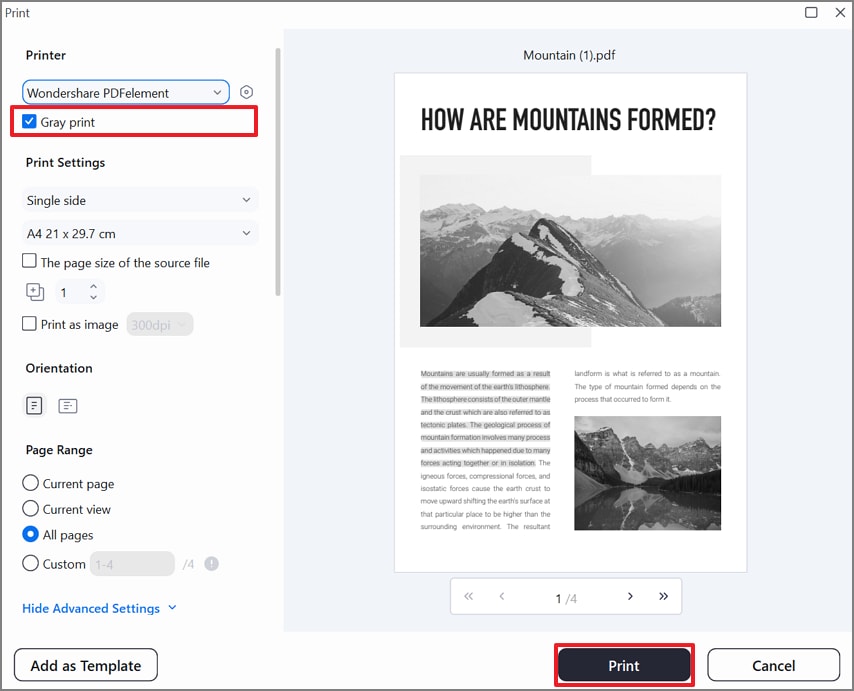
Step 3Specify Print Settings and Print the Document
From the Print window, tick the "Gray Point" option and specify other settings. Move forward, and click the "Print" button to generate a scanned document for later reference.
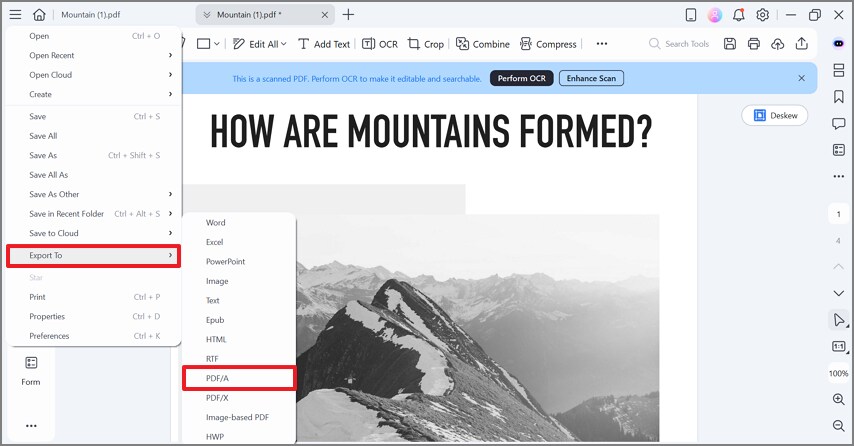
Step 4Export the Scanned File as a PDF Document
Later, press the three horizontal lines icon and expand the menu for "Export To." Now, select "PDF/A" as your output format and save the scanned file to a specific location.
Part 5. Method 2: Simulate a Scanned PDF locally
Best Use: Perfect for finalized documents that need to look professional, with scans at minimal cost.
For a faster, paper-free approach, PDFelement offers the Enhance Scan workflow, allowing you to digitally make PDF look scanned. This way, you can apply settings such as "Deskew," "Text Sharpening," and "Background Removal" to remove shadows or paper noise. To generate scanner-like results without printing, simply follow the guidelines as guided below:
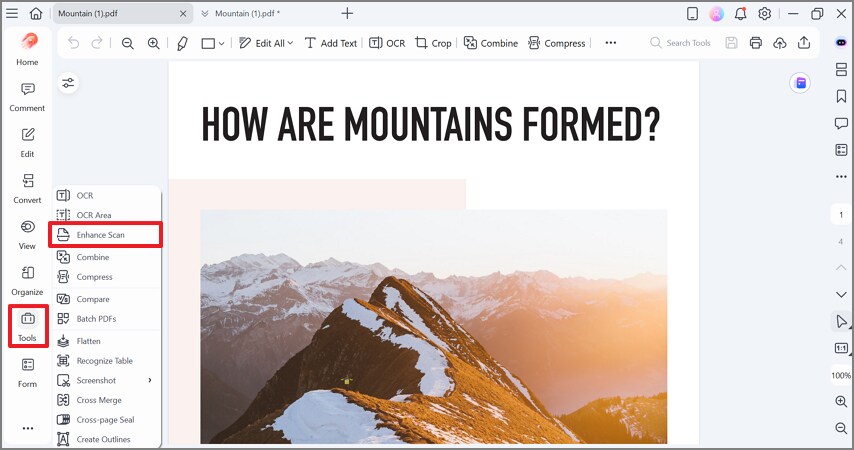
Step 1Import Your PDF and Choose the Enhance Scan Option
Open your PDF, access the "Tools" option, and select the "Enhance Scan" feature from the list.
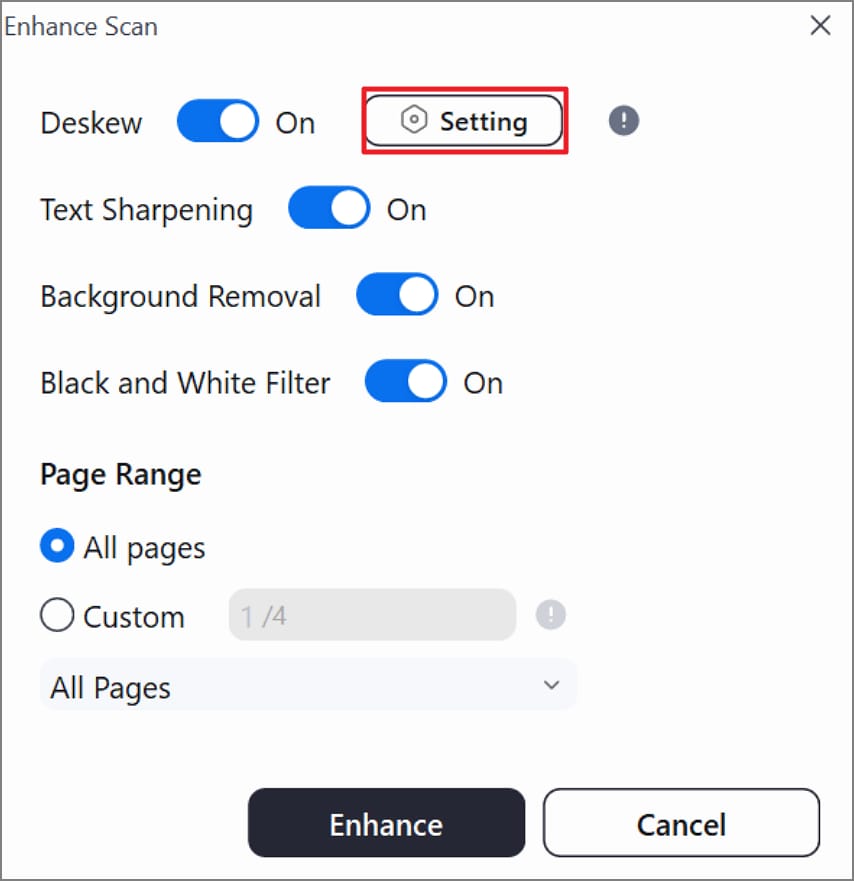
Step 2Access Further Settings for Deskew Option
Now, toggle the "Deskew" option and press the "Settings" option to reveal further possibilities.
G2 Rating: 4.5/5 |100% Secure
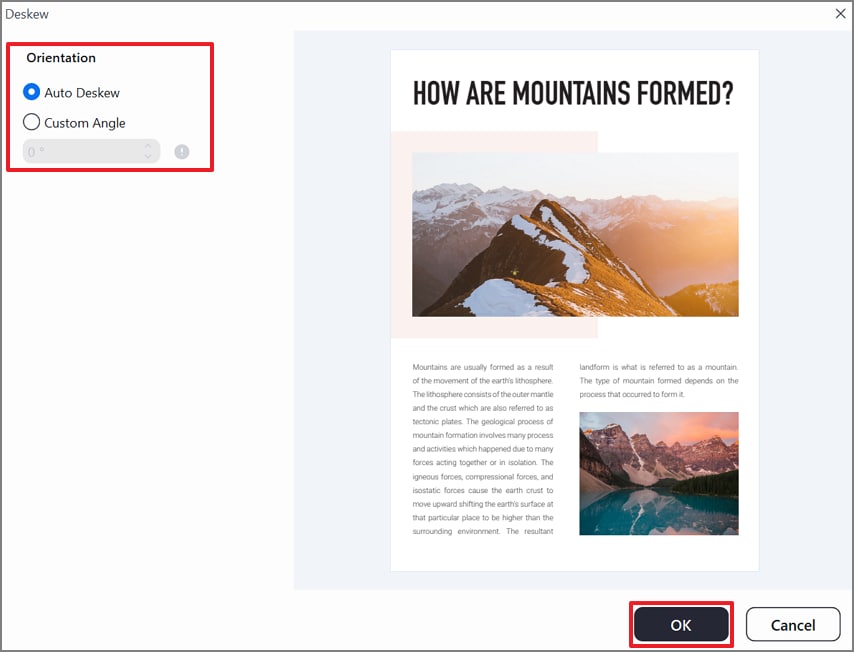
Step 3Specify the Deskew Orientation Settings for Document
After this, select "Auto Deskew" or set the "Custom Angle" option as your "Deskew Orientation" and click the "OK" button.
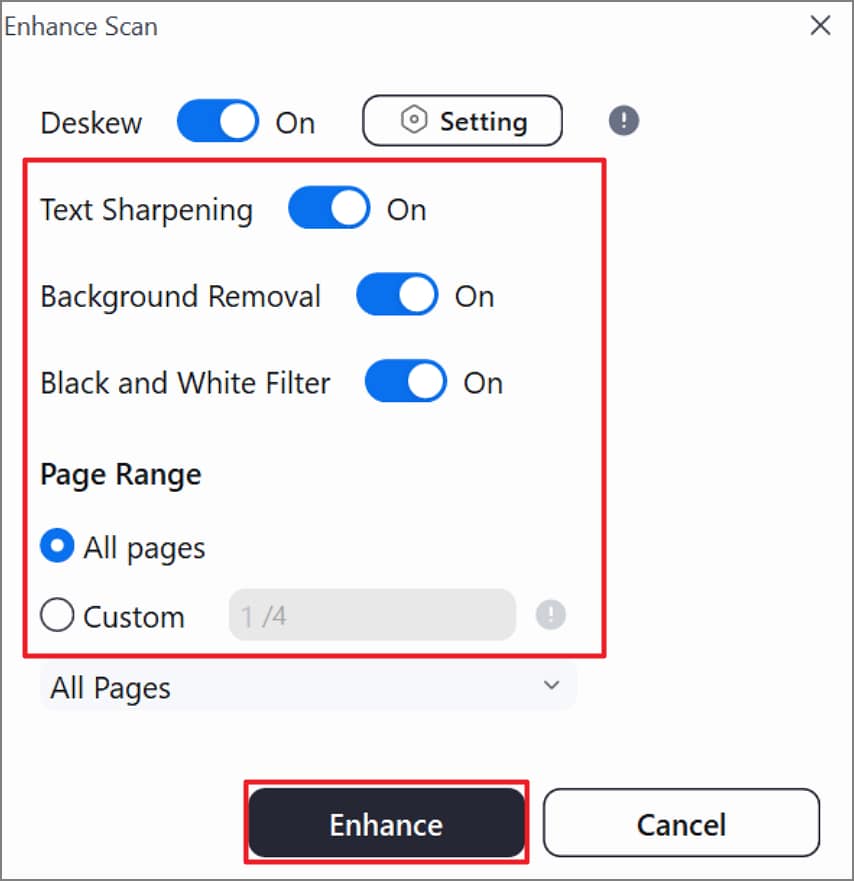
Step 4Adjust Other Scan Settings and Start PDF Enhancement
Proceed and toggle "Text Sharpening," "Background Removal," and "Black and White Filter" options. Once done, specify the Page Range and press the "Enhance" button to start the enhancement process.
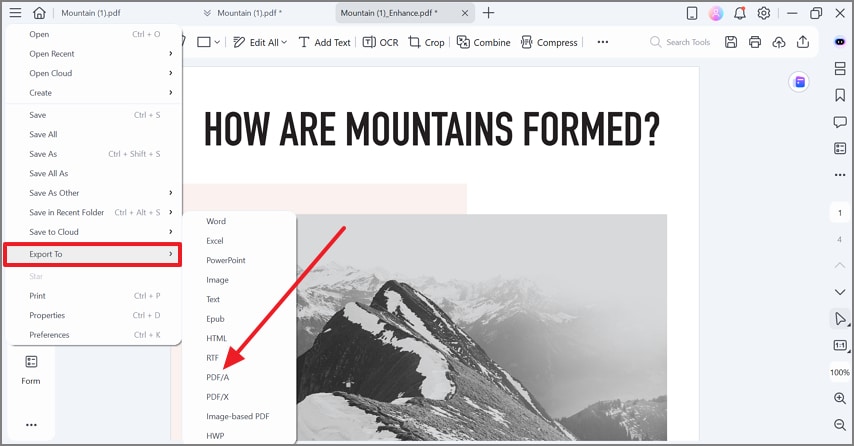
Step 5Review Your Enhanced Results and Export Them
Examine your scanned document, press the three horizontal line icon, and extend the menu for "Export To." Later, press the "PDF/A" option to download your scanned document as a PDF to your device.
G2 Rating: 4.5/5 |100% Secure
Part 6. Fine Control vs. Batch Processing: What Works Best When Layouts Differ
Explore the distinction between fine control and batch processing to make a document look scanned in the most effective way possible:
| Dimensions | Page‑by‑Page Adjustment | Batch Scan‑Style Conversion |
| When to Use | When different pages in a file need different scan intensities. | Where many files or pages share the same layout and can use one shared preset. |
| Control Over Look | Fine‑tune brightness, contrast, and deskew selectively on specific pages. | Apply identical Enhance Scan settings to all selected documents. |
| Effort and Speed | More manual work but maximum precision per page. | Faster for large volumes, but less granular control page‑to‑page. |
| Best Workflow Example | Mixed-quality scans, multi‑chapter reports, or documents. | For HR files, student records, and compliance document sets with repeated structure. |
Part 7. Online Quick Fix — Make PDF Look Scanned Online for Free
Best Use: When you need to give a few non-confidential PDFs a scanned look directly from your browser.
You can "make PDF look scanned online free" with i2PDF using adjustment options like "Background Color" and "Noise Level." More impressively, it allows users to choose "Output PDF" and "Resolution DPI" accordingly from the options. For online scanning convenience, adhere to the tutorial to scan and download your document using i2PDF:
Step 1
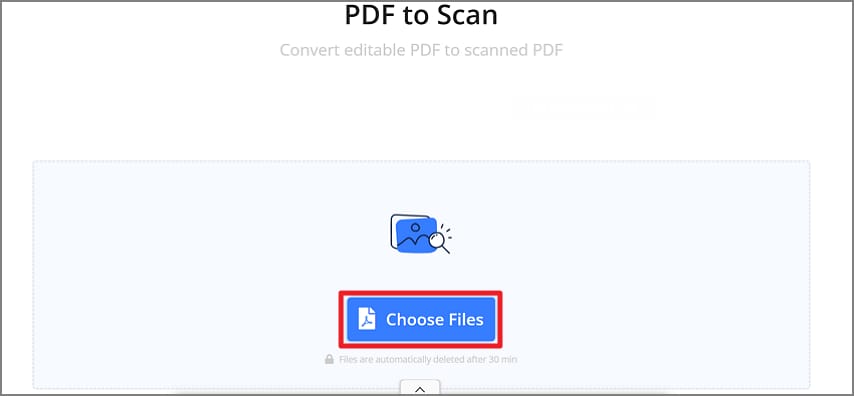
Browse i2PDF and click the "Choose Files" button to upload your regular PDF document.
Step 2
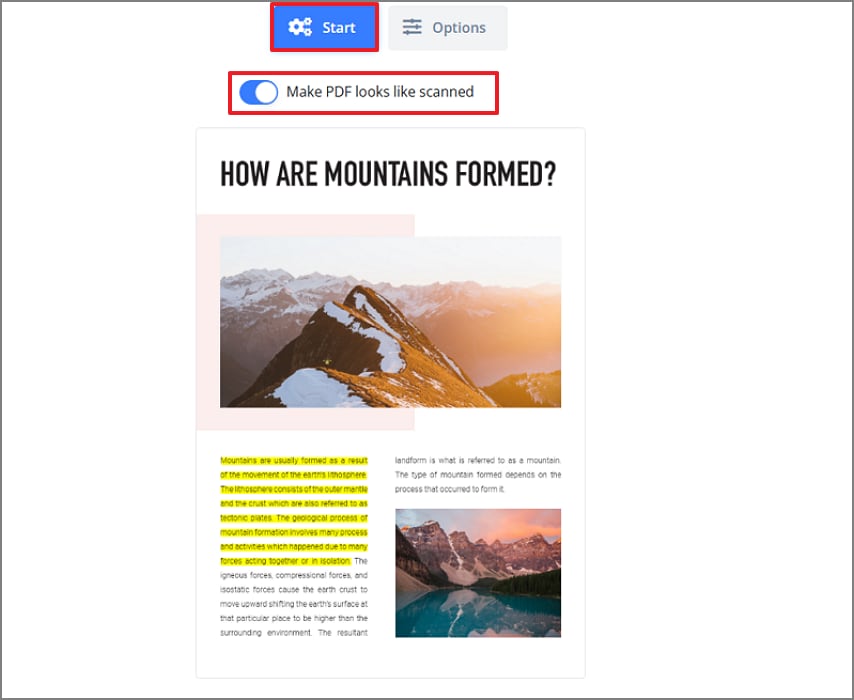
After this, toggle the "Make PDF Looks Like Scanned" option and press the "Start" button to proceed.
Step 3
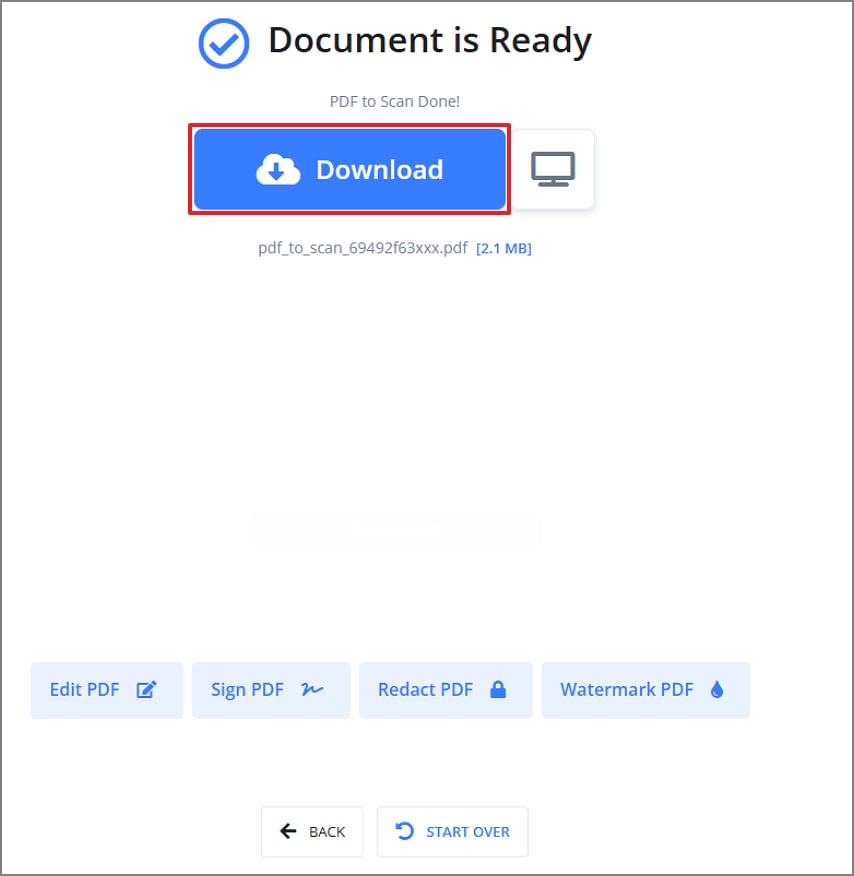
When your document is ready, click the "Download" button to save it to your device.
Common Limitations
- File size or usage caps may apply depending on network and service policies.
- Very large or many files are less practical to handle online through i2PDF.
- Limited realism and manual control compared with desktop software like PDFelement.
Part 8. Tips To Make a PDF Look Like a Real Scan
Pair the provided tips with your working approach and create a "look like scanned PDF" that feels acceptable in formal submissions:
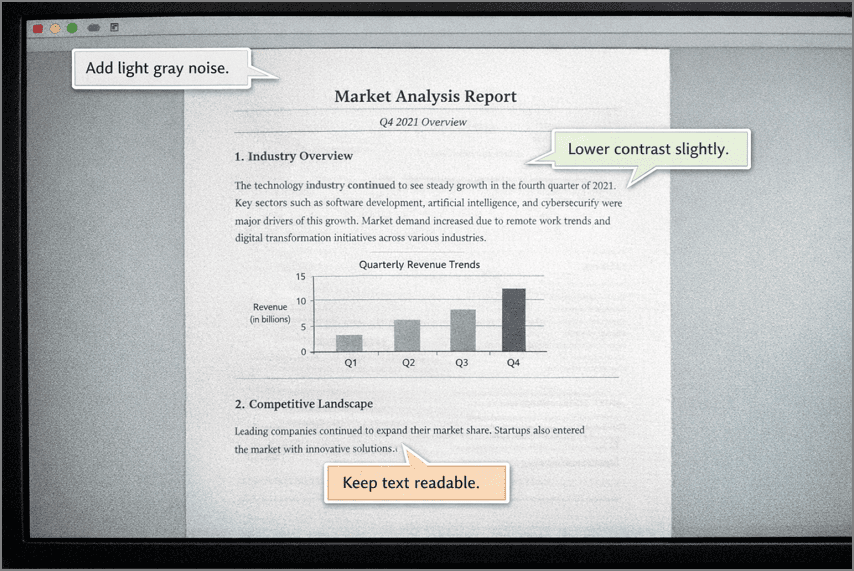
- Prefer Grayscale Over Pure Black and White: Consider using Grayscale, as it closely matches how most office scanners capture documents. It preserves the soft tonal variations, helping your file appear like a scanned PDF rather than a digitally processed image.
- Avoid Overly Sharp Corners: Digital PDFs render text and lines perfectly sharp, which is rarely how scanned pages appear. Slightly soft corners mimic the natural limitation of scanners and make the document seem less computer-generated.
- Keep Small Margins: When paper is placed on a scanner bed, it's rarely aligned with absolute precision. Introduce subtle margin variations to break the "perfect layout" and reinforce the illusion of a physical scan.
- Do Not Add Heavy Noise or Stains: While a touch of texture can enhance authenticity, excessive noise often looks forced and unprofessional. Real scans usually have minimal imperfections, keeping effects light and ensuring the document remains believable.
Part 9. Legal and Ethical Considerations You Should Be Aware Of
Though making a "PDF looks like scanned" can be valuable, it also carries the following legal and ethical responsibilities that should be noted:
- Maintain Authenticity: Visual scanning effects should only alter appearance, not the legal validity of the content. The information, dates, and text remain the same, even if the PDF appears to be a scan.
- Avoid Misrepresenting Signatures: It is unethical and often illegal to add or manipulate signatures or stamps to create a scanned look. Besides this, scan effects should never be used to imply authorization that doesn't exist.
- Follow Submission Rules: In many cases, organizations only expect a file that visually resembles a scan, not a physically scanned document. Always review the submission guidelines to ensure your PDF looks like a scanned file without violating the stated rules.
People Also Ask
-
How do I make a PDF look scanned without printing it?
You can make a PDF look scanned without printing by using digital programs that simulate a physical scan. Software such as Wondershare PDFelement lets you apply a grayscale effect and black-and-white filter to achieve a realistic scanned appearance. -
What is the best way to convert PDF to scanned look in bulk?
One of the most effective ways to bulk convert PDFs to scanned documents is to use Wondershare PDFelement. It offers batch processing capabilities that let you apply scan-like effects, such as grayscale conversion, to multiple PDFs simultaneously. -
Can I make a PDF look scanned online for free without watermarks?
Indeed, online platforms such as i2PDF allow you to "make a PDF look scanned" without any software installation. While many online tools automatically add watermarks, i2PDF downloads watermark-free files instantly. The platform provides basic functionality, such as setting a background color or adjusting the noise level for professionally scanned files. -
Why does my scanned-style PDF look too sharp or too blurry?
Your scanned style PDF might appear too sharp because the corners haven't been softened at all. Not only this, but extensive noise or blur addition can reduce the overall readability of your scanned file. -
How do I make a Word-exported PDF look like it was scanned?
The Word-exported PDFs are often very uniform, but to achieve a scanned look, you can use PDFelement. Simply, open your PDF in the program, apply the grayscale effect from the Print option, and export the final file as a PDF.
Conclusion
In conclusion, to make PDF look scanned, it's suggested to use local scan-enhancement programs when consistent results are needed. While online tools are helpful for quick, low-risk tasks, they do possess restrictions on customization. When the primary goal is not to degrade your document, PDFelement is a trusted solution that delivers results ready for submission.
![The Definitive Guide to OCR PDF to Text Mac [2026]](https://images.wondershare.com/pdfelement/images2026/pdf-like-article-1.png)



