

Signing PDFs has become essential for personal, business, and legal documents, ensuring authenticity, security, and convenience. When you can't sign a PDF, it can delay approvals, disrupt workflows, and even cause compliance issues, making simple tasks frustrating. Many users encounter errors like greyed-out options or digital signing failures, which can be confusing and stressful. To overcome these common issues and get your documents signed smoothly, read on for proven methods that work.
In this article
- What "Can't Sign PDF" Really Means and How to Spot the Issue Quickly
- Fast Check: Reasons You Can't Sign Your PDF
- Reason 1: Document Restrictions Prevent Signing
- Reason 2: PDF Lacks Signable Areas
- Reason 3: Digital Signature Requires a Valid ID
- Reason 4: Saved PDF Fails to Display Your Signature
- Reason 5: Your PDF Tool Cannot Apply Signatures Properly
- Quick Guide: Signing a PDF Easily with PDFelement
Part 1. What "Can't Sign PDF" Really Means and How to Spot the Issue Quickly
Users often experience PDF signing problems in a few recognizable ways that make it easier to diagnose the issue. Reviewing these common situations can help you quickly identify what's preventing you from signing the document and move toward the right fix:
Common Situations Users Report
The Document Does Not Allow Signatures: If you can't sign PDF, it usually means the document is locked or restricted by the creator, preventing any changes. In some cases, the PDF viewer you're using may not support signing features.
The Sign Option Appears Disabled: A greyed-out sign button often indicates that the PDF is read-only or already certified. It can also happen if the signing tool is disabled or unavailable in your PDF software.
The Signature Was Added but is Not Visible: This issue commonly occurs due to display glitches or unsupported signature formats. The signature may still exist but isn't visible until the document is refreshed or opened in a compatible reader.
Digital Signing is Unavailable for this PDF: Digital signatures require certificate-based authentication, which may not be set up on your device. Without a valid digital ID, the signing process cannot be completed.
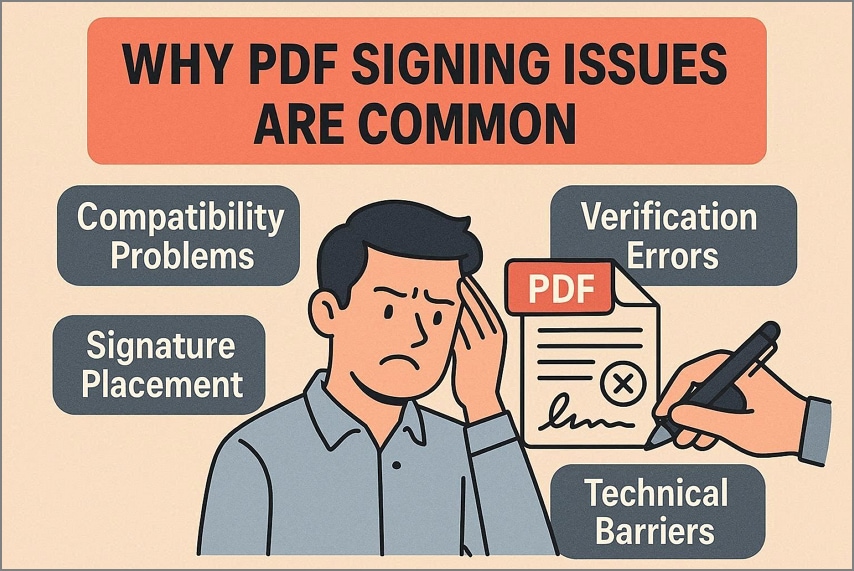
Why PDF Signing Issues are Common
Security Restrictions and Permissions: Many PDFs are locked by their creators to prevent editing or signing. These permission settings can block signature tools unless the document owner allows changes.
Limited PDF Viewer Capabilities: Not all PDF readers support signing or digital signature features. Free or basic viewers often restrict advanced functions, causing the signing option to be unavailable.
Outdated or Incompatible Software: Older PDF software may not support modern signing standards or certificate-based signatures. This can lead to missing options, errors, or signatures not appearing correctly.
Certificate and Format Conflicts: Digital signatures rely on valid certificates and compatible file formats. If a certificate is missing, expired, or unsupported, the PDF won't let me sign, even when the document opens normally.
Note: The majority of signing errors relate to permissions, software limitations, or document protection. Once the specific cause is identified, the issue can usually be resolved with a simple adjustment or tool change.


 G2 Rating: 4.5/5 |
 100% Secure
Part 2. Fast Check: Reasons You Can't Sign Your PDF
When trying to sign a PDF, different symptoms often point to specific underlying issues. Identifying the exact problem can help you apply the most effective fix quickly.
| Symptom | Likely Cause |
| The sign button is disabled | Permission or restriction issue |
| Signature disappears after saving | Display or compatibility issue |
| Unable to add a digital signature | Certificate or tool limitation |
| Nothing happens when clicking Sign | Software capability issue |
Part 3. Reason 1: Document Restrictions Prevent Signing
Some PDFs prevent signing for specific reasons that are usually easy to identify once you know what to look for. Understanding these common restrictions can help you quickly determine why a signature isn't being accepted and guide you toward the right fix:
Why Some PDFs Block Signing
The following are the reasons why PDF won't allow me to sign:
- Permission Settings: Some PDFs are set with restrictions that prevent editing or signing. These permissions are often applied by the document creator to protect sensitive content or maintain document integrity.
- Certified or Locked Documents: PDFs that are certified or locked restrict changes to ensure authenticity. Trying to sign these files without proper access will result in disabled or greyed-out signing options.
- Form Restrictions: Certain PDFs are designed as interactive forms with limited editable fields. If the signature field is not enabled, users cannot add or apply their signature.
- Read-Only Mode: Opening a PDF in read-only mode prevents any modifications, including signing. This often happens when a file is downloaded from email attachments or shared platforms with restricted access settings.
How to Fix it Using PDFelement
PDFelement simplifies signing restricted PDFs by using OCR technology to convert scanned or locked documents into editable files. Once the text and layout are recognized, permission barriers that prevent signing can be addressed. This makes it possible to add signatures to PDFs that would otherwise remain un-editable.
By combining OCR with signing tools, PDFelement helps users complete approvals quickly and efficiently. To learn how to fix the "PDF won't allow me to sign" issue, follow the guide below:
G2 Rating: 4.5/5 |100% Secure
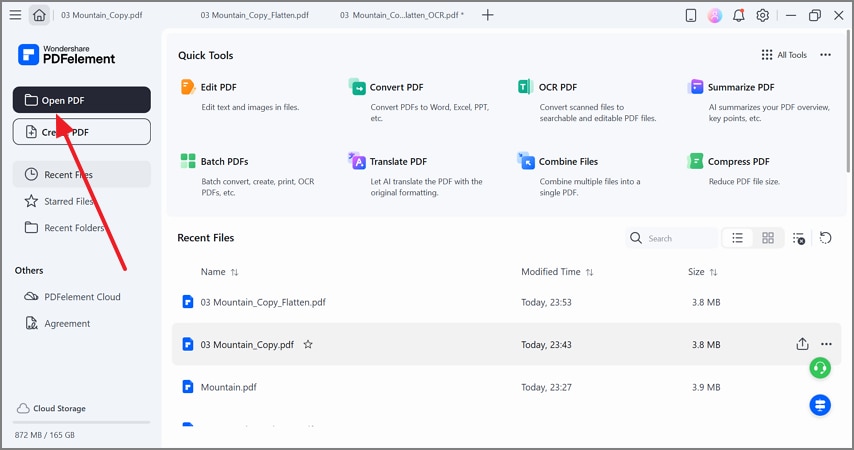
Step 1Open a PDF on PDFelement
To begin with, select the "Open PDF" option to import a file from your device.
Step 2Select the Encrypt Option
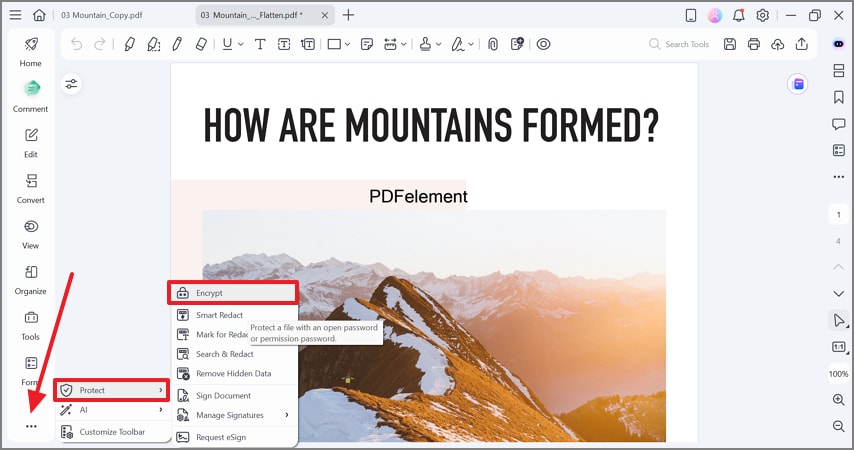
From the left sidebar, expand the "Menu" and hover the cursor over "Protect" to open the "Encrypt" window.
Step 3Reset PDF Passwords
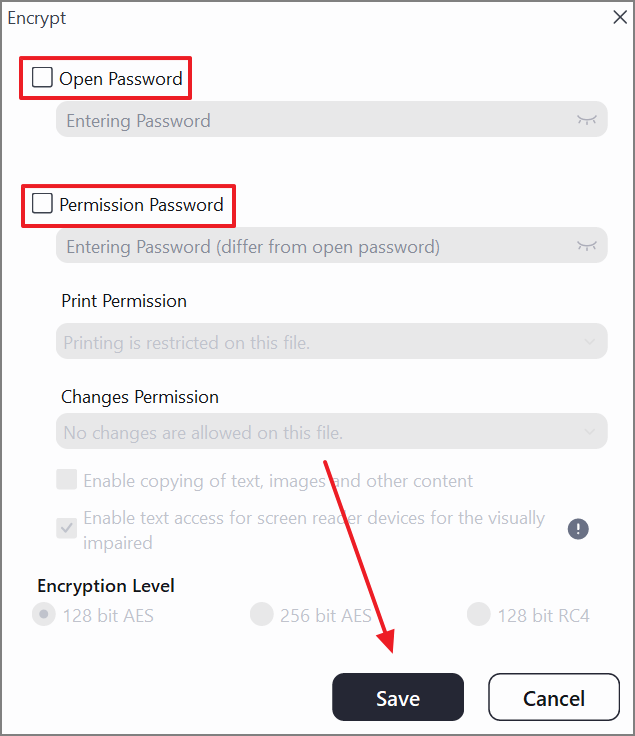
Using the following window, uncheck the "Open Password" and the "Permission Password" boxes and click "Save" to apply the changes.
Step 4Proceed to Unflatten the File
G2 Rating: 4.5/5 |100% Secure
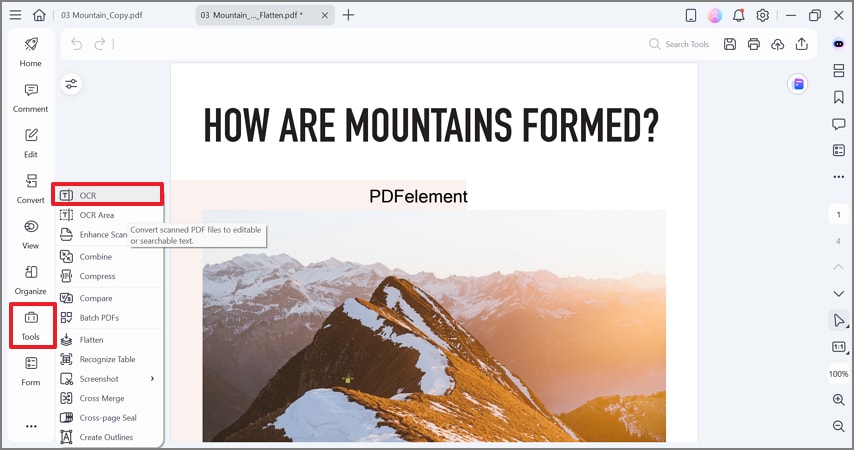
Now, select the "Tools" tab from the left panel and select the "OCR" option to unveil a new window.
Step 5Run the OCR to Make the Text Editable
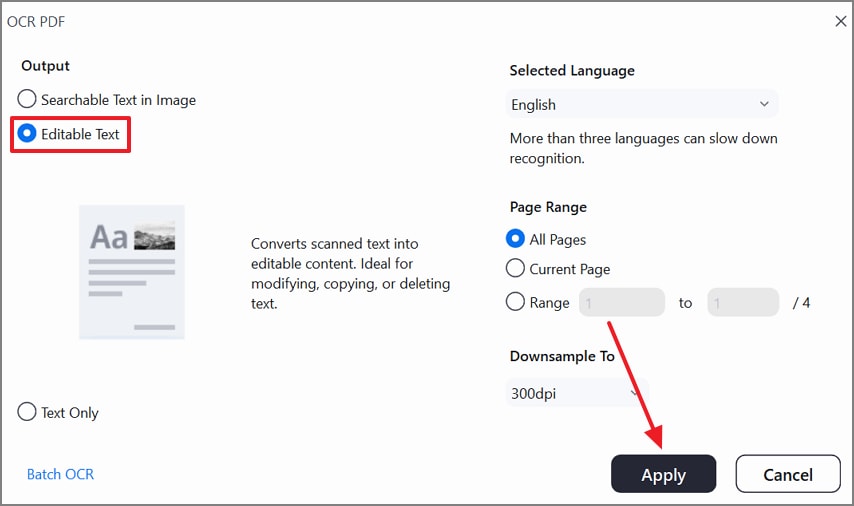
Select the "Editable Text" radio button and pick your desired OCR settings. Once done, click the "Apply" option to make the file editable.
Part 4. Reason 2: PDF Lacks Signable Areas
If your PDF files look signable but aren't, you need to understand the differentiation between a visual and a fillable PDF. Not all files are created the same, and the type of PDF you're using affects whether you can sign it or can't sign a PDF. The table below highlights the key differences between visual PDFs and signable PDFs to help you understand why signing may fail:
| Type of PDF | Description | Signing Capability |
| Visual PDF | Static document, usually scanned or exported as an image. | Cannot be signed digitally or filled; requires conversion to add a signature. |
| Fillable/Signable PDF | Interactive PDF with designated form fields for text and signatures. | Allows users to type, select options, and digitally sign directly within the document. |
How PDFelement Helps
PDFelement offers a dedicated Form Mode that helps when a PDF has no existing signature fields. Users can create custom form fields, including signature boxes, directly on the document. This makes it easy to add a signable area exactly where it's needed without modifying the original layout.
By designing your own fields, PDFelement ensures you can sign any PDF smoothly, even if it wasn't originally built for signing. If you want to learn how to create a signature field on this tool, follow the guide below:
Step 1Enter the Form Creation Mode and Add a Signature Field
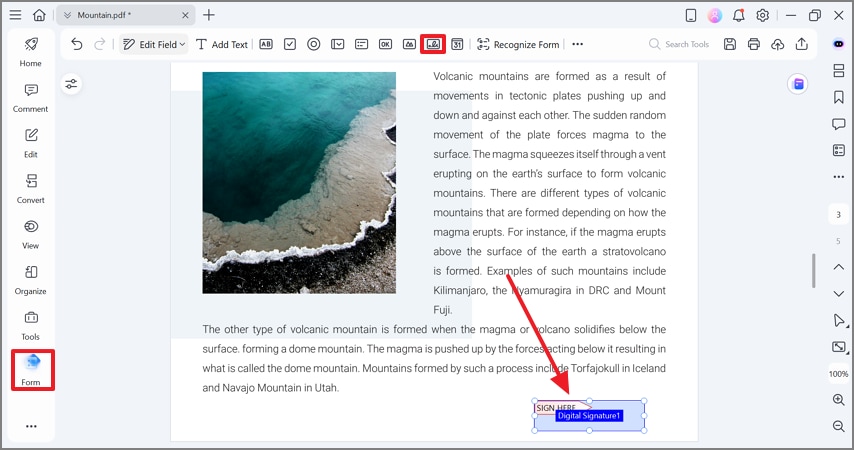
After importing the file, enter the "Form" tab in the left sidebar and select the "Signature" option from the top. Now, use your mouse to make a sign field where needed in the file.
Step 2Use the Comment Mode to Add a Signature
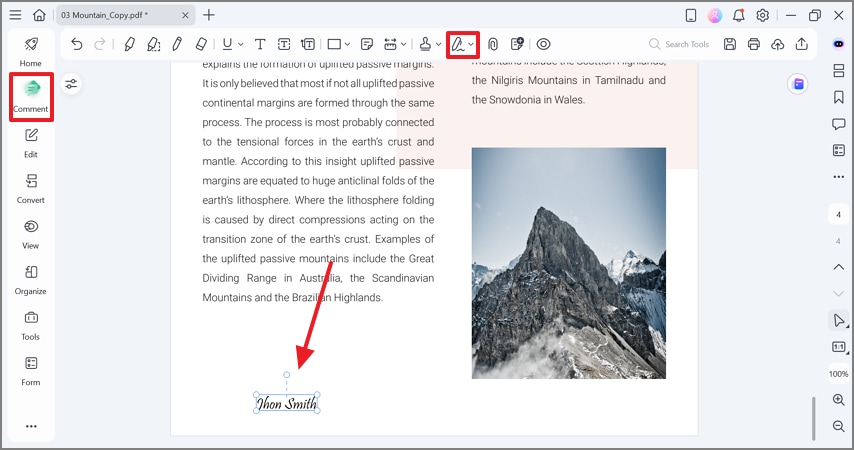
In the "Comment" mode on the left, select the "Signature" tab at the top and add a signature in the designated field.
G2 Rating: 4.5/5 |100% Secure
Part 5. Reason 3: Digital Signature Requires a Valid ID
Digitally signing a PDF is different from simply adding an electronic signature, and several technical requirements must be met. Understanding these key points can help you understand why cant I sign a PDF digitally:
Digital Signature vs. Electronic Signature: A digital signature uses encryption and a certificate to verify identity, while an electronic signature can be a simple typed name or image. Confusing the two often leads users to try digital signing without the proper setup.
Why Digital Signatures Require Certificates: Digital signatures rely on certificates to confirm the signer's identity and ensure document integrity. Without a valid certificate installed on your device, the PDF cannot be signed digitally.
Common Error Messages Users See: Users may encounter errors like "No valid digital ID" or "Cannot apply digital signature" when attempting to sign a PDF. These messages usually indicate missing certificates, software limitations, or incompatible file settings.
Software or Tool Limitations: Not all PDF viewers or tools support digital signing. Using a program that doesn't handle certificate-based signatures will prevent you from completing the signing process, even if your certificate is valid.
Fix with PDFelement
When you're unable to digitally sign a PDF due to a missing digital ID, PDFelement provides flexible solutions. It allows you to create a self-signed digital ID for immediate use or import an existing certificate issued by a trusted authority. If a digital signature isn't mandatory, you can easily switch to an electronic signature instead.
These options ensure you can complete signing tasks without unnecessary delays or technical barriers. The following guide shows you how to perform these steps on PDFelement:
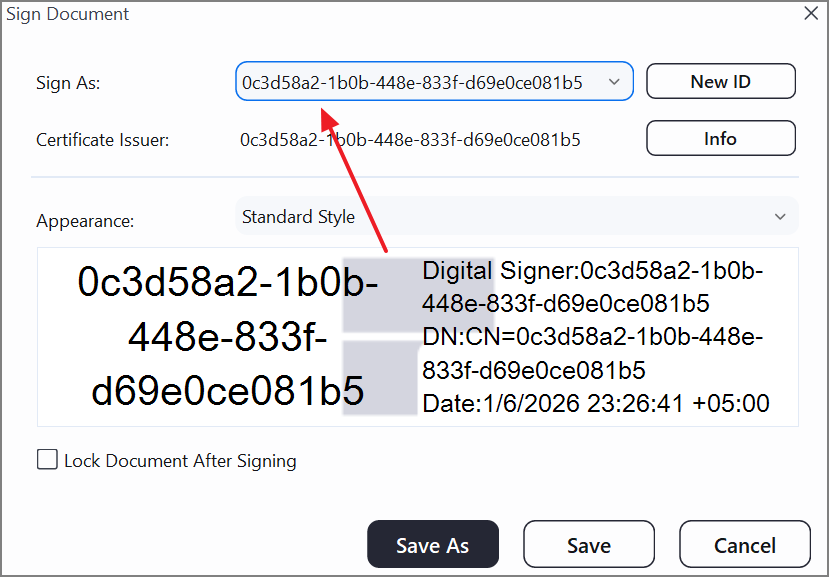
Step 1Create a Self-Signed Digital ID
After adding a signature to the file, click on it and open a "Sign Document" window. Here, make a new ID or confirm the existing one and add more information if needed. To make these changes effective, click the "Save" button.
Part 6. Reason 4: Saved PDF Fails to Display Your Signature
It's frustrating and stressful when you carefully sign a PDF, only to discover digital signature not showing in PDF after saving. Knowing the most common causes can help you act quickly before deadlines pass or documents are rejected.
Signature Layer Visibility: Some PDFs separate the signature into a hidden layer that may not display in certain viewers. If this layer isn't visible, the signature appears missing even though it exists in the file.
Viewer Incompatibility: Not all PDF readers display signatures correctly. Opening the PDF in an incompatible program can make your signature invisible or misaligned.
Incorrect Save Method: Saving the document improperly can remove or hide the signature.
Corrupted PDF File: If the PDF file is damaged or partially corrupted, signatures may fail to display. This can happen when downloading from email attachments, cloud storage, or after repeated edits.
G2 Rating: 4.5/5 |100% Secure
How PDFelement Avoids This
If your PDF fails to display your signature, use PDFelement, as it helps through the following features:
Embeds Signatures Directly into the PDF: PDFelement places signatures directly within the PDF structure instead of overlay layers. This prevents signatures from disappearing or becoming detached from the document.
Preserves Signature Appearance After Saving: The tool ensures the signature's size, position, and visibility remain unchanged after the file is saved. This avoids common issues where signatures shift or vanish upon reopening.
Ensures Signatures Remain Visible When Shared: Signed PDFs retain their signatures across different devices and PDF readers. This guarantees recipient can see and verify the signature without compatibility issues.
Part 7. Reason 5: Your PDF Tool Cannot Apply Signatures Properly
Even if your PDF opens perfectly, your tool might be silently blocking signatures, causing delays or missed deadlines. Recognizing the limitations of your PDF software is crucial before blaming the document or your device when you can't sign a PDF:
View-Only PDF Tools: Many PDF viewers let you open and read documents, but do not allow signing. Relying on these tools can make it seem like the PDF itself is the problem.
Limited Annotation Support: Some programs support only basic notes or highlights, not formal signatures. Users may attempt to sign, only to find the option missing or disabled.
Disabled Features in Free Versions: Free versions of PDF software often restrict advanced features like digital signing. Upgrading or switching tools is sometimes necessary to enable proper signing capabilities.
Outdated or Incompatible Software: Older PDF tools may not support modern signature formats or certificate-based digital signing. Using such software can prevent signatures from being applied or displayed correctly.
Why a Full PDF Editor Matters
Not all PDF tools handle signatures the same way, which often leads to missing or invalid signatures. PDFelement supports multiple signing methods to ensure your documents remain properly signed and universally accessible.
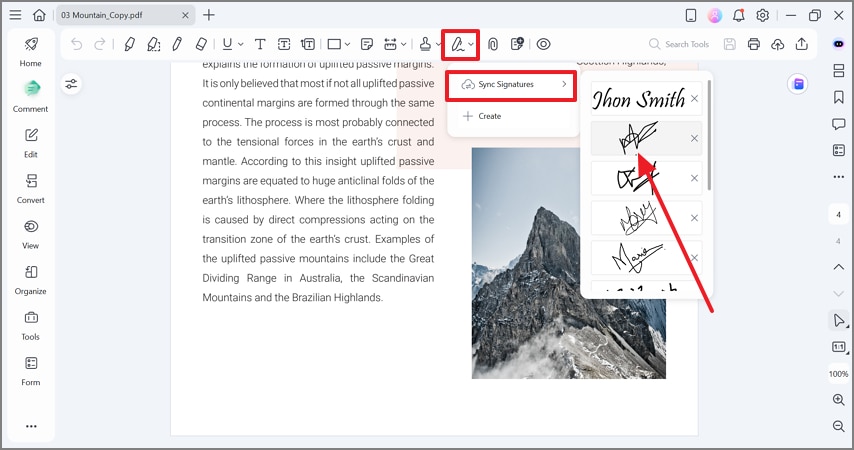
Electronic Signatures
PDFelement allows you to add simple electronic signatures using typed text, handwritten drawings, or image-based signatures. This method is ideal for quick approvals and informal documents.
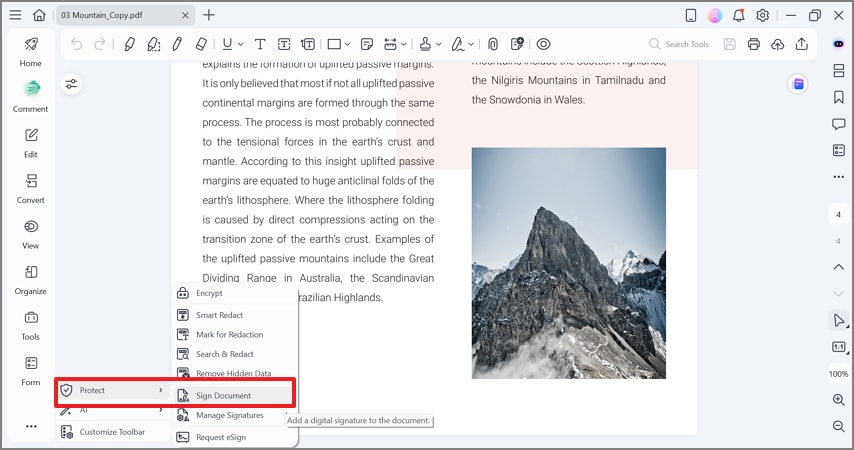
Digital Signatures
The software supports certificate-based digital signatures for enhanced security and authenticity. These signatures verify identity and ensure the document hasn't been altered after signing.
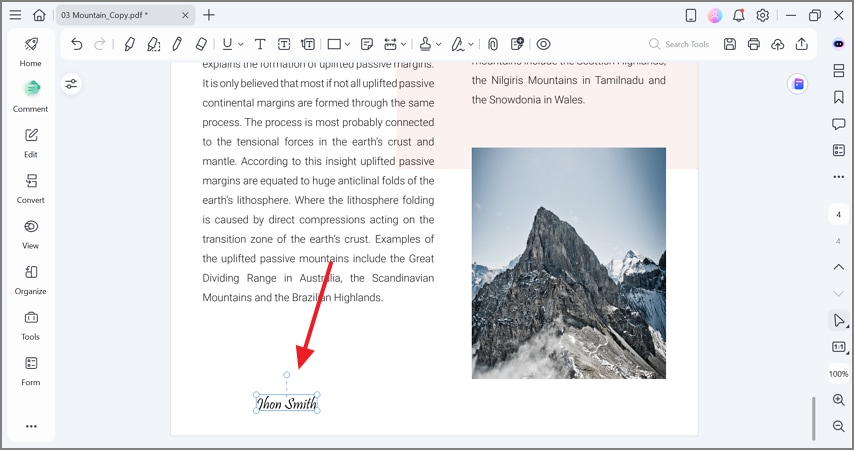
Signing PDFs Created in Other Tools
PDFelement can sign PDFs created by different software without compatibility issues. This ensures consistent signature display even when files come from multiple sources.
G2 Rating: 4.5/5 |100% Secure
Part 8. Quick Guide: Signing a PDF Easily with PDFelement
Even after successfully signing a PDF, it's easy for the signature to disappear or display incorrectly if certain precautions aren't taken. Checking a few key points before sending ensures your signature remains visible and the document is accepted. Explore the following points to avoid the "can't sign a PDF document" situation again:
Re-open the File After Saving: Always reopen the PDF after saving to confirm your signature has been applied correctly. This helps catch any glitches or errors immediately before sharing the file.
View the PDF in Another Reader: Different PDF viewers can display signatures differently. Opening the document in another reader ensures your signature is visible and appears as intended.
Confirm Signature Visibility and Position: Check that the signature is correctly placed in the designated field and fully visible. Misaligned or hidden signatures can cause the recipient to reject the document.
Avoid Editing the File After Signing: For digital signatures, making changes after signing can invalidate the signature. Ensure the document remains unchanged to maintain authenticity and integrity.
Frequently Asked Questions
-
Why won't my PDF let me sign it?
This usually happens because the PDF is locked, read-only, or has restricted permissions set by the creator. Using a tool like PDFelement can help you check permissions and enable signing if allowed. -
Why does my digital signature disappear after saving?
Signatures may not show if the PDF was saved incorrectly, the viewer is incompatible, or the signature layer isn't visible. Always reopen the file in a compatible PDF reader to verify the signature before sending. -
Can I sign a locked PDF?
Locked or certified PDFs prevent changes, including adding signatures, unless you have permission from the document owner. You'll need to unlock the PDF or request editing rights before signing. -
Why can't I digitally sign a PDF without a certificate?
Digital signatures require a valid certificate to verify your identity and ensure document integrity. Without a certificate installed, the signing process cannot be completed, and no software can bypass this requirement. -
What's the easiest way to fix PDF signing issues?
The simplest approach is to use a fully compatible PDF tool that supports signatures and digital certificates. PDFelement is recommended because it allows you to sign, edit, and manage signatures reliably across all types of PDFs.
Conclusion
Most "can't sign PDF" issues stem from common causes such as restrictive permissions, missing signature fields, or limitations of the PDF tool you're using. Using a full-featured solution like PDFelement can help you diagnose the problem, apply the signing method, and ensure that your signatures remain visible and valid every time. By addressing these key factors, you can prevent signing errors and streamline your document workflow.




