In this article
- What Does "Image to Text" Mean? (Understanding OCR)
- Why Use an Image to Text Converter?
- How to Convert Image to Text with PDFelement (Windows & Mac)
- How to Convert Image to Text Online with Google Drive
- How to Convert Image to Text Using Microsoft OneNote
- Best Practices for Accurate Image to Text Conversion
- Frequently Asked Questions (FAQ)
Have you ever taken a photo of a document, a whiteboard, or a textbook page and wished you could instantly copy and paste the words? When you scan or photograph a document, it is saved as an image file (like JPG or PNG). While these files are easy to share, their content is "locked." You cannot edit, search, or copy the text using standard word processors like Microsoft Word.
To bridge this gap, you need to convert the file from image to text. Thanks to Optical Character Recognition (OCR) technology, turning a static photo into an editable document is easier than ever. Whether you need a dedicated image to text converter or a quick image to text online solution, this guide will show you exactly how to convert image to text using the most effective tools available today.
What Does "Image to Text" Mean? (Understanding OCR)
When you convert image to text, you are essentially teaching your computer or smartphone to "read" the letters and numbers trapped inside a picture. This is made possible by Optical Character Recognition (OCR).
OCR software scans the pixels of an image, identifies the shapes of letters, and translates them into machine-readable text. By extracting data from image to text, you eliminate the need to manually retype long documents. You simply upload the image, run the OCR process, and within seconds, you change image to text that can be edited, formatted, and shared.


 G2 Rating: 4.5/5 |
 100% Secure
Why Use an Image to Text Converter?
Using an image to text converter offers massive benefits, transforming how we handle information. As noted by industry leaders like Adobe, extracting text from images is particularly beneficial in various scenarios:
1. Enhancing Student Learning and Note-Taking
For students, the ability to turn image into text is a game-changer. Instead of frantically copying notes from a classroom whiteboard or retyping passages from a library reference book, students can simply snap a picture. Using an OCR tool, they can convert that image into a text file, allowing them to organize their study materials, search for specific keywords during exam prep, and integrate quotes directly into their essays.
2. Boosting Professional Productivity
In the corporate world, professionals deal with business cards, printed contracts, and receipts daily. To convert image to text file formats means data entry tasks that once took hours can now be completed in seconds. You can photograph a printed financial report and convert it into an editable Excel sheet or Word document.
3. Improving Accessibility
Converting images to text is vital for accessibility. Screen readers cannot read words embedded in a JPEG or PNG. By changing the image to text, visually impaired individuals can use text-to-speech software to hear the content of scanned documents, flyers, and menus.
How to Convert Image to Text with PDFelement (Windows & Mac)
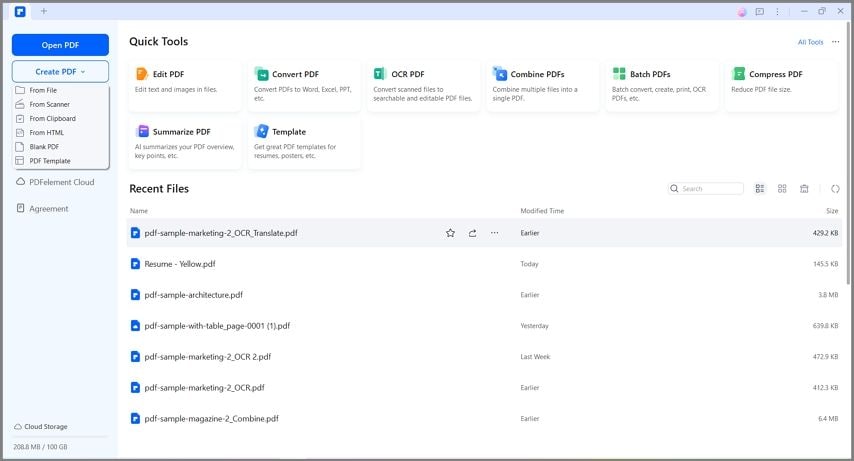
If you are looking for the most reliable, accurate, and feature-rich method, a dedicated desktop application is the best choice. PDFelement is one of the most effective image to text converters in the industry. Its advanced OCR engine supports dozens of languages and preserves the original layout of your document perfectly.
Here is a simple 3-step guide on how to convert image to text using PDFelement:
G2 Rating: 4.5/5 |100% Secure
Step 1Open an Image
First, download and launch PDFelement on your computer. You can simply drag and drop your image file (JPG, PNG, BMP, etc.) directly into the software interface to open it. PDFelement will automatically create a PDF version of your image.
Step 2Perform OCR
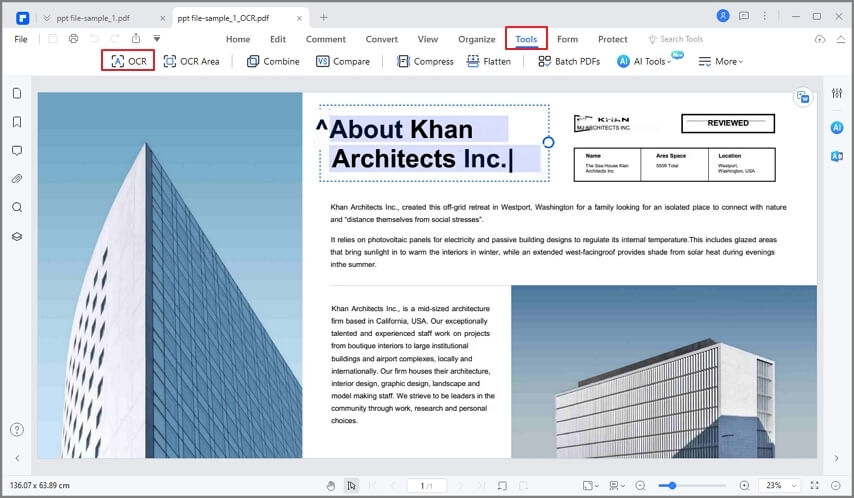
Once the image is open, the software will detect that it is a scanned file. The Optical Character Recognition tool in PDFelement is used for scanning documents and translating any text in the image file into a format which can be edited. Click the "OCR" button in the top menu to perform OCR as required. You can select the language of the text to ensure maximum accuracy.
Step 3Convert Image to Text
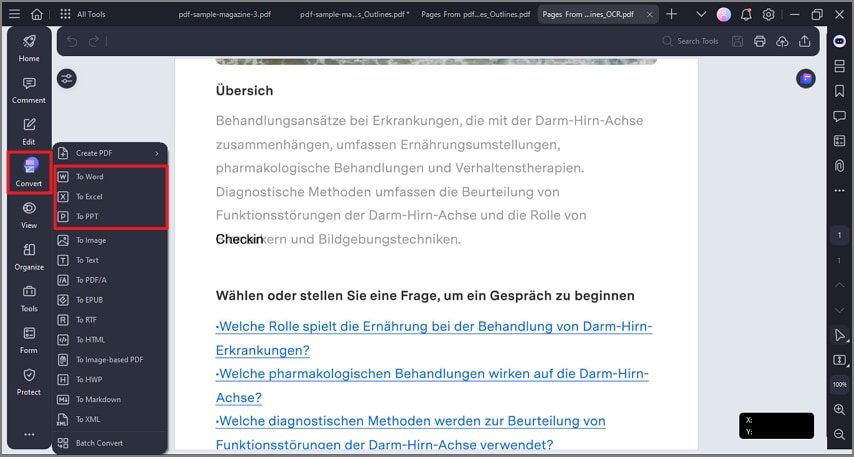
After the OCR process is complete, the text becomes selectable and editable. The last step is to convert image to text file. Simply click the "To Text" (or "To TXT") button under the Convert tab. This will save your extracted data into an editable .txt format or Word document.
PDFelement isn't just an image to text tool; it is a sophisticated document editor that lets you open, create, annotate, and secure PDF files with ease.
How to Convert Image to Text Online with Google Drive
If you are away from your main computer and need an image to text online solution, Google Drive offers a fantastic, free alternative. You don't need to download any third-party software; you just need a Google account.
Here is how to process an image using Google Drive:
Step 1Upload an Image
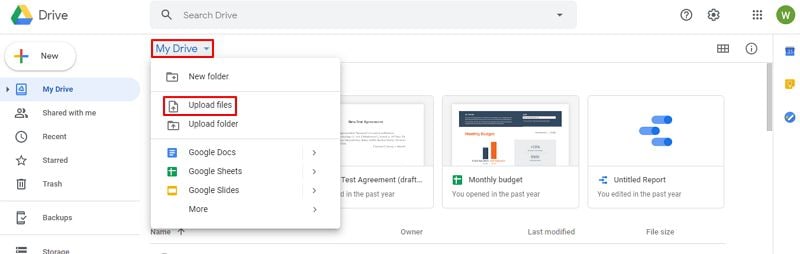
Log into your Google Drive account. Click the "New" button and select "File upload" to upload your image file into your drive.
Step 2Process OCR with Google Docs
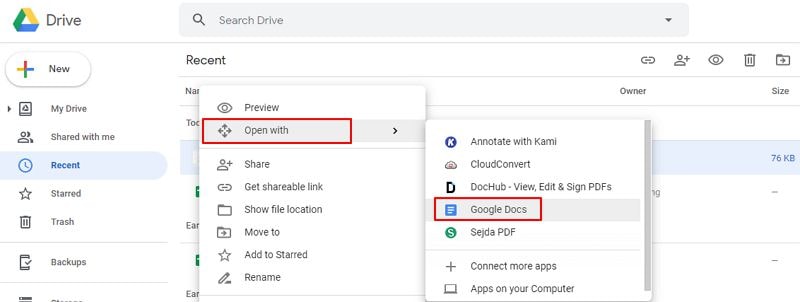
Once the image is uploaded, find it in your drive. Right-click the image, hover over "Open with," and select "Google Docs." Google Drive will automatically process the OCR in the background.
Step 3Save as a Text File
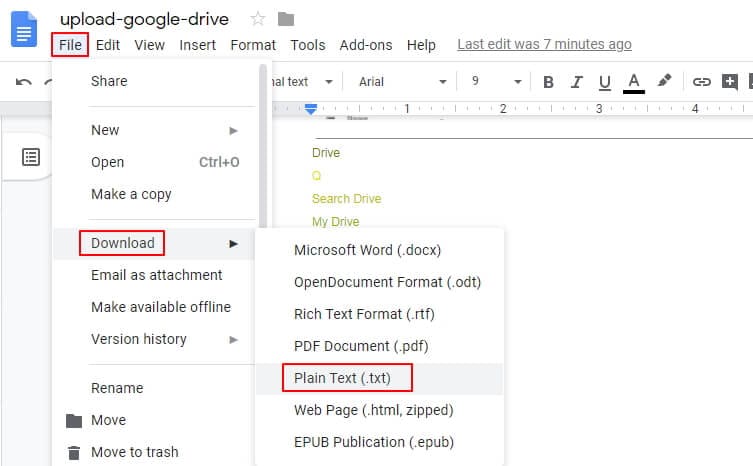
Google Docs will generate a new document containing your original image at the top, with the extracted, editable text directly below it. You can easily delete the image, edit the text, and go to File > Download > Plain Text (.txt) to save it as a text file.
While Google Drive is incredibly convenient, keep in mind that its OCR capabilities might struggle with complex layouts, messy handwriting, or low-resolution images compared to a dedicated desktop tool.
How to Convert Image to Text Using Microsoft OneNote
If you already use the Microsoft Office suite, you have a powerful built-in tool at your disposal. Microsoft OneNote includes a hidden but highly effective image to text converter that works great for quick text extractions, especially for students and office workers taking digital notes.
Here is how to use OneNote to extract your text:
Step 1Insert Your Image
Open a new or existing notebook in Microsoft OneNote. Go to the "Insert" tab at the top of the screen, click "Pictures," and select the image file you want to extract text from.
Step 2Copy Text from Picture
Once the image is placed onto your OneNote page, simply right-click the image. From the drop-down menu, select the option that says "Copy Text from Picture." OneNote will silently perform OCR in the background and copy all recognized text to your clipboard.
Step 3Paste and Edit
Click anywhere on your OneNote page (or open a new Microsoft Word document or Notepad file) and paste (Ctrl+V or Cmd+V). You will see the extracted text appear instantly. You can now easily turn image into text and edit it formatting as needed.
Best Practices for Accurate Image to Text Conversion
Even the best image to text converter relies on the quality of the source image. To ensure you get the most accurate results when you convert image to text, follow these best practices:
- Use Good Lighting: If taking a photo of a document with your phone, ensure the room is well-lit. Shadows across the page can confuse OCR software and result in missing or garbled text.
- Keep It Steady: Blurry text is the enemy of OCR. Keep your camera steady, or better yet, use a flatbed scanner if you have access to one.
- High Contrast is Key: Black text on a stark white background yields the best results. If your image is faded or discolored, consider adjusting the contrast and brightness using a basic photo editor before running it through an OCR tool.
- Crop Out Clutter: If the image contains a lot of background clutter (like a messy desk surrounding the paper), crop the image so only the text document is visible.
G2 Rating: 4.5/5 |100% Secure
Frequently Asked Questions (FAQ)
-
Can I convert a handwritten image to text?
Yes, but the accuracy depends heavily on the legibility of the handwriting. Print handwriting is generally recognized much better by OCR tools than cursive. Advanced AI-driven tools and built-in mobile features (like Apple's Live Text) are getting better at reading handwriting, but you should expect to do some manual proofreading. -
Is there a safe way to convert image to text online?
Yes. Reputable services like Google Drive offer safe ways to change image to text online. However, if your document contains highly sensitive or confidential information (like financial records or medical data), it is highly recommended to use a secure, offline desktop application like PDFelement to ensure your data is not stored on external servers. -
What is a TXT file?
A TXT file is a standard text document containing unformatted text. It is recognized by text editing software or word processing programs like Notepad or TextEdit. TXT files are important for information storage in plain text without the use of any special formatting (like bolding, italics, or varying font sizes). They are incredibly lightweight and universally compatible. -
How do I extract text from a picture on my phone?
Modern smartphones have built-in OCR features. On iPhones (iOS 15 and later), you can use the "Live Text" feature in the Photos app by simply tapping and holding the text inside an image to copy it. Android phones have a similar feature integrated into Google Photos via Google Lens. -
Why is the converted text full of typos?
If your extracted text has errors, it is usually due to poor image quality. Blurry focus, bad lighting, low resolution, or complex background patterns can confuse the OCR engine. Try retaking the photo with better lighting or using a higher-resolution scan.