

In this article
- How to Remove Header and Footer from the Entire Word Document
- How to Remove Header and Footer from the First Page Only
- How to Remove Header and Footer from a Specific Page
- How to Remove Header and Footer in Word Online
- How to Remove Header and Footer in Word on Mac
- How to Remove Header and Footer from a Word-to-PDF File Using PDFelement
- Troubleshooting: Why Can't I Delete Header in Word?
Microsoft Word documents often include headers and footers to display document titles, author names, page numbers, and corporate logos. While these elements are excellent for professional formatting, there are many instances where you might need to clean up a document. Whether you are finalizing a report, designing a cover page, or preparing a manuscript, figuring out how to remove header and footer in Word can sometimes feel like a formatting puzzle.
This comprehensive guide will walk you through every scenario, from deleting headers across your entire document to mastering section breaks for page-specific formatting.
If you are unable to remove the header or footer in a Word document with Microsoft Word, a third-party document management tool, such as Wondershare PDFelement - PDF Editor Wondershare PDFelement Wondershare PDFelement, can help you with that. It lets you edit, add, or delete the header and footer in Word and PDF documents with ease.


 G2 Rating: 4.5/5 |
 100% Secure
How to Remove Header and Footer from the Entire Word Document
If you want to strip all headers and footers from your document completely, the process is very quick. Here is how to delete header and footer in Word across all pages simultaneously using the desktop application.
Method 1: Using the Ribbon Menu
This is the cleanest and most reliable way to remove header from Word documents globally.
- Open your Microsoft Word document.
- Navigate to the Insert tab located on the top ribbon.
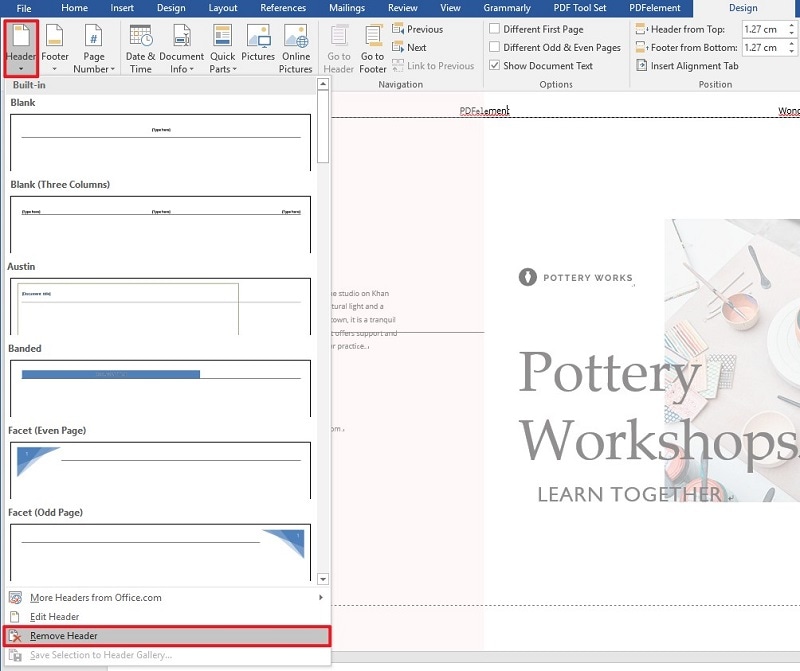
- In the "Header & Footer" group, click on Header.
- Scroll to the bottom of the drop-down menu and select Remove Header.
- To remove the footer, click on Footer in the same group and select Remove Footer.
Method 2: Manual Deletion
If you prefer a more hands-on approach to delete header in Word:
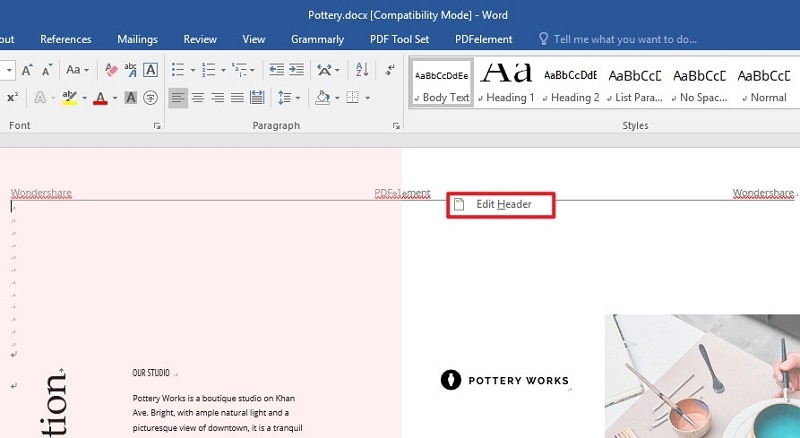
- Double-click on the top margin of any page in your document. This action opens the Header & Footer workspace.
- Highlight all the text, images, or elements inside the header box.
- Press the Delete or Backspace key on your keyboard.
- Scroll down to the footer area, highlight the contents, and press Delete.
- Double-click anywhere in the main body of the document (or click Close Header and Footer on the ribbon) to exit.
How to Remove Header and Footer from the First Page Only
One of the most common formatting requirements is removing the header or footer from a title page or cover page while keeping them intact for the rest of the document. Here is how to remove footer in Word (and header) for just the first page:
- Double-click the header or footer area on the very first page of your document.
- This will automatically open the Header & Footer tab on the top ribbon.
- In the Options group within this ribbon, check the box that says Different First Page.
- You will notice the label on the header changes to "First Page Header." You can now delete the contents of this header and footer.
- Once deleted, the header and footer on page 2 and beyond will remain unaffected.
How to Remove Header and Footer from a Specific Page
Learning how to remove the header from a specific middle page (for example, a page featuring a large chart or image) is slightly more complex. It requires the use of Section Breaks. Word links headers and footers throughout the document by default; section breaks allow you to break that link.
Step 1Insert a Section Break
- Place your cursor at the very end of the page just before the page where you want to remove the header.
- Go to the Layout tab on the ribbon.
- Click on Breaks and select Next Page under Section Breaks.
- Repeat this step at the end of the target page so that the specific page is isolated in its own "Section."
Step 2Unlink the Header/Footer
- Double-click the header on the specific page you want to clear.
- In the Header & Footer ribbon, look for the Link to Previous button (it will be highlighted). Click it to turn it off.
- Now, highlight and delete the header text.
- Move to the next page (the page after your specific page), double-click its header, and turn off Link to Previous again. Then, type your header back in.
- Your specific page is now free of headers and footers without affecting the rest of the document.
How to Remove Header and Footer in Word Online
Microsoft Word Online is a streamlined web version of the software. If you are wondering how to delete header in Word using a web browser, the interface is slightly different.
- Open your document in Word Online.
- Go to the Insert tab on the ribbon and click Header & Footer.
- The interface will open side-tabs for the header and footer.
- Click inside the header or footer area. You can now manually highlight and delete the text.
- Alternatively, click the Options button on the right side of the header area and select Remove Header or Remove Footer.
- Press the Escape key or click back into the main document body to save changes.

How to Remove Header and Footer in Word on Mac
If you are a macOS user, the process to remove header and footer in Word is nearly identical to Windows, with slight interface variations.
- Open your document in Microsoft Word for Mac.
- Go to the Insert menu at the top of the screen.
- Select Header > Remove Header.
- Repeat for the footer by selecting Footer > Remove Footer.
- For page-specific deletions, you can still access the Different First Page option by double-clicking the header and checking the box in the Header & Footer ribbon.
How to Remove Header and Footer from a Word-to-PDF File Using PDFelement
Often, you might receive a document that has already been converted to a PDF, and you realize you need to remove the headers and footers before presenting it. If you do not have the original Word document, you can use a professional PDF editor like Wondershare PDFelement.
PDFelement easily processes Word, PDF, and Excel documents, allowing you to seamlessly edit, add, or delete headers and footers. Here is how to do it:
G2 Rating: 4.5/5 |100% Secure
Step 1Launch and Open the Document
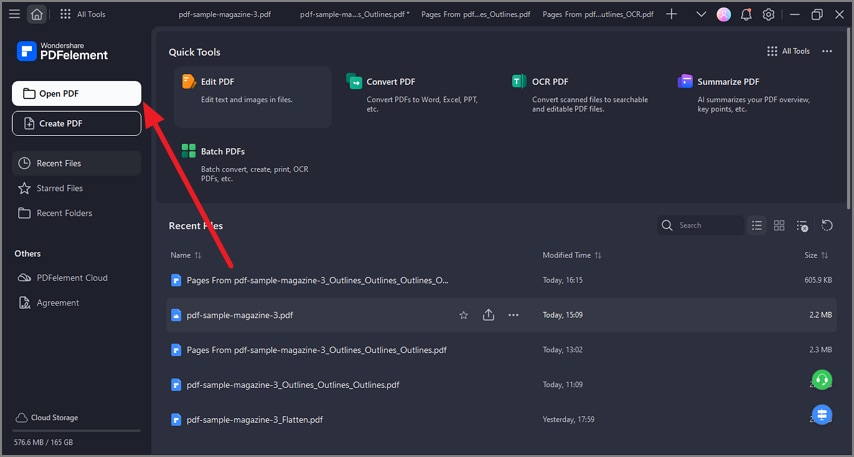
Start PDFelement on your desktop. Click on Open Files in the main window. Locate your PDF or Word file and open it. (If you open a Word file, PDFelement will automatically convert it to a high-quality PDF for editing).
Step 2Remove Header and Footer
Navigate to the Edit tab at the top. Click on the Header & Footer option in the toolbar. From the drop-down menu, select Remove Header & Footer. The software will ask for confirmation and instantly wipe the elements from all pages.

Step 3Save or Convert the Document
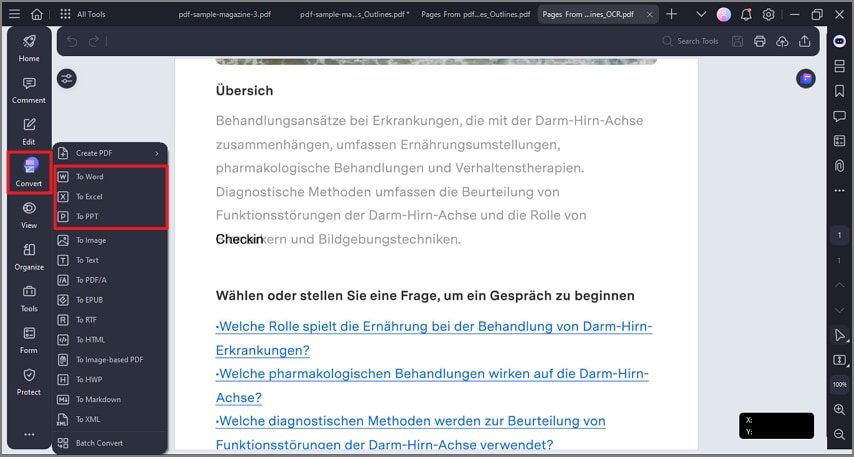
Once the headers and footers are removed, go to the File menu to save your changes. If you need the document back in Microsoft Word format, simply click Convert > To Word and save your newly formatted file.
Troubleshooting: Why Can't I Delete Header in Word?
Sometimes, you might try to delete a header, but it persists or acts erratically. Here are a few common issues:
G2 Rating: 4.5/5 |100% Secure
- Document Restrictions: If the document is locked for editing or protected by a password, you will not be able to modify the headers. You must disable "Restrict Editing" in the Review tab first.
- Watermarks Anchored in Headers: Sometimes, watermarks or background images are anchored to the header space. You need to double-click the header, then click directly on the watermark image to select and delete it.
- Corrupted Formatting: If section breaks are tangled, the document might not let you remove a header cleanly. Go to View > Draft to see all your section breaks clearly and delete any unnecessary ones.
People Also Ask
-
How do I remove the header line in Word?
Sometimes Word places a horizontal line beneath the header. To remove this, double-click the header, highlight the header text (or empty paragraph mark), go to the Home tab, click the Borders drop-down arrow, and select No Border. -
How to delete header in Word without deleting page numbers?
Page numbers are usually housed within the header or footer workspace. If you want to delete the text in the header but keep the page number, do not use the "Remove Header" button from the ribbon. Instead, double-click the header, highlight only the text you want to remove, and press Delete, leaving the page number field untouched. -
Why does my header reappear on the next page?
This happens because the pages are linked. You need to insert a Section Break (Layout > Breaks > Next Page), double-click the header on the new page, and turn off the "Link to Previous" option in the ribbon before deleting the header text.



