

Apple's upgrade page for macOS 27 recommends backing up your files before you install the new system. New features such as Siri AI make it tempting, but the install replaces the system your files and apps rely on. Work documents, study notes, contracts, and personal files usually come through untouched.
If an install fails or the power cuts out, the fix can involve erasing the Mac, and anything without a copy goes with it. Time Machine copies your apps, photos, email, and documents, while PDFelement keeps key files accessible from any device.


 G2 Rating: 4.5/5 |
 100% Secure
In this article
Part 1. Why a macOS Upgrade Can Cause File Loss
Files rarely disappear when upgrading to macOS 27, but three situations can put them at risk. Each one can leave documents out of reach even though nothing was deleted on purpose:
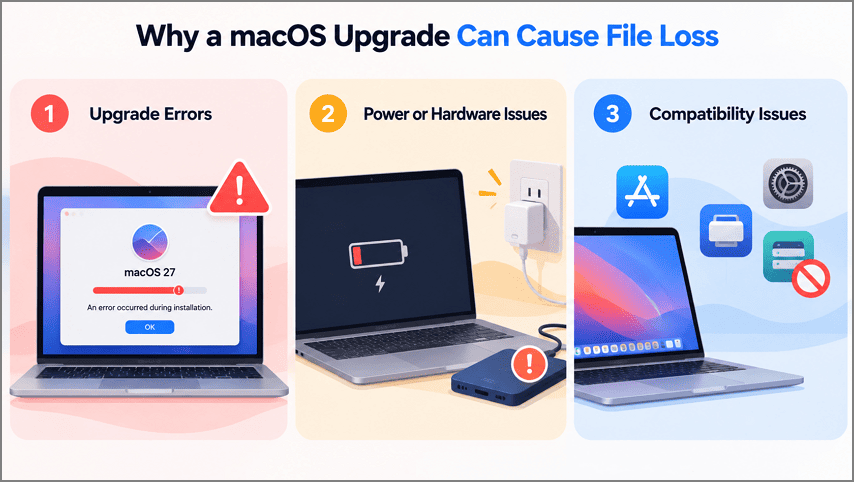
- Upgrade Errors: An install that stops with an error may need several fixes, and Apple's last resort for stubborn cases is erasing the Mac.
- Power or Hardware Issues: A power cut or failing drive mid-install can damage the startup disk, which Apple suggests repairing with Disk Utility.
- macOS 27 drops AFP support: Some apps and connections change behavior afterward, and AirPort Time Capsule and some network drives use AFP for backups.
None of this makes an upgrade dangerous, since most installs leave every file in place. Since a failure is costly, though, it pays to back up your Mac while everything still works.
Part 2. 2 Ways to Back Up Your Files Before Upgrading to macOS 27
In this guide, you will see two methods. You can choose the one that suits your needs.
Method 1. Back Up Your Mac with Time Machine
The full-copy layer comes first, and Time Machine can back up your Mac to a separate drive, then keep hourly copies while it stays connected. Setting it up and running a fresh backup before the upgrade takes a few steps:
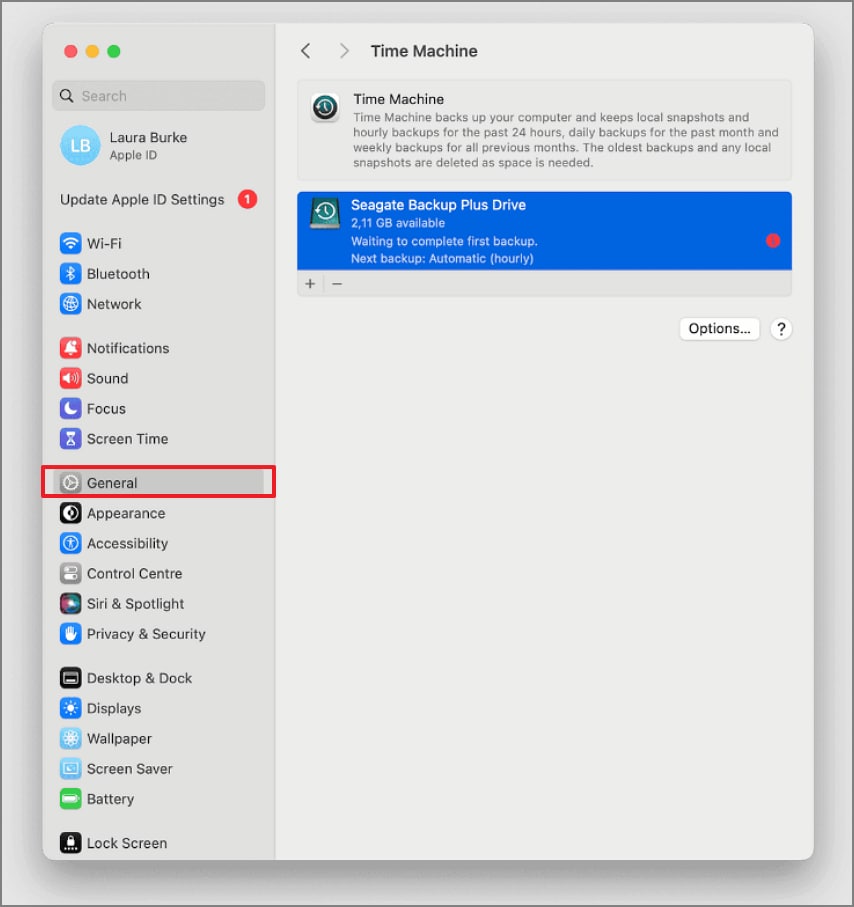
Step 1. Connect an External Storage Device
Plug a USB, USB-C, or Thunderbolt storage device into your Mac. Go to the Apple menu > System Settings > General > Time Machine.
Step 2. Choose a Backup Disk
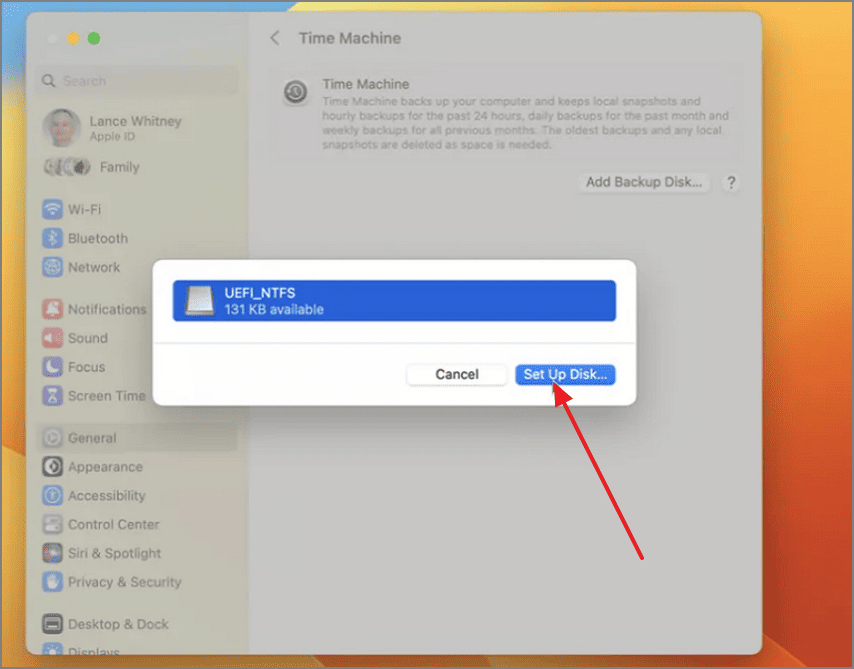
Click Add Backup Disk, select your drive, and choose Set Up Disk. If macOS offers to erase the drive, move any files you need off it first.
Step 3. Run a Backup Before Upgrading
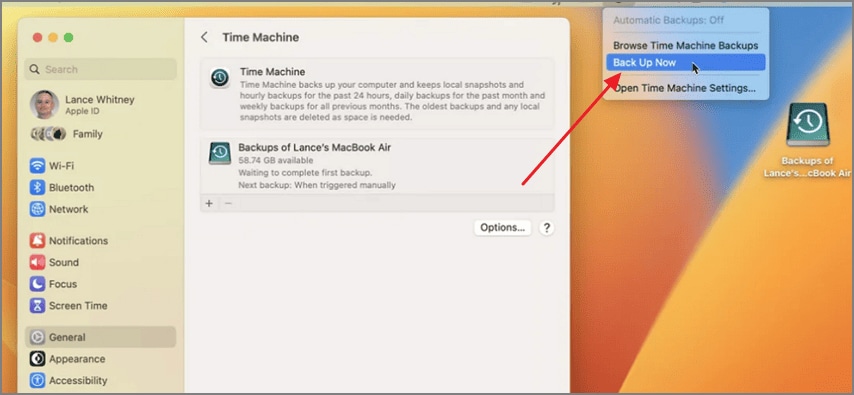
After setup, Time Machine starts backing up automatically. To force a backup before upgrading, open the Time Machine menu in the menu bar and choose Back Up Now.
Method 2. Keep Important Documents in PDFelement
Time Machine is the full Mac backup, but you may still want a separate copy of the files you need most. PDFelement Cloud gives those documents an online location. In addition, AI Space keeps related project files together for later access. Neither replaces a Time Machine backup.
Store PDFs in PDFelement Cloud
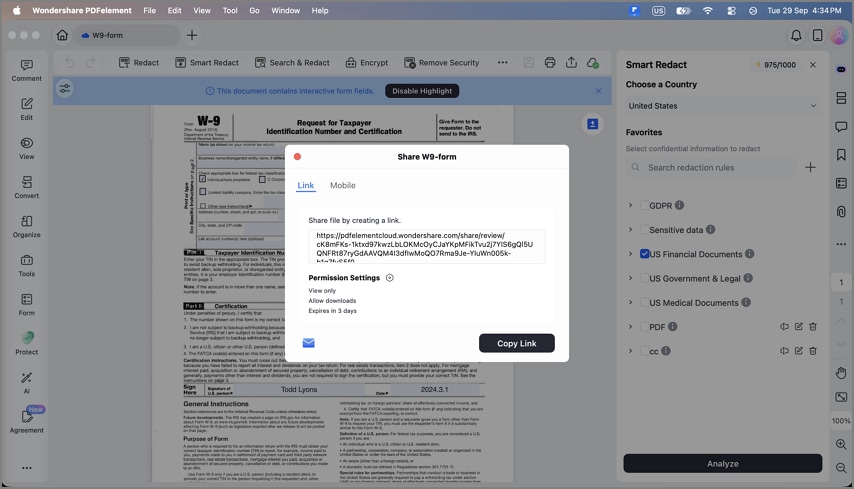
Only PDFs go into PDFelement Cloud, which offers 1GB free and up to 100GB on a paid plan. On a Mac, choose File > Share > PDFelement Cloud and share the file accordingly. Those files then open on Windows, macOS, Linux, Android, and iOS.
Keep Related Files Together in AI Space
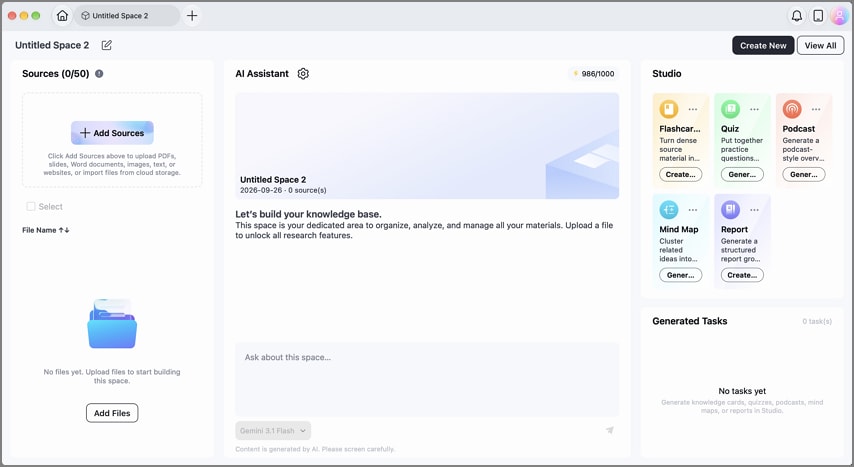
For material beyond PDFs, AI Space works as a knowledge base for one topic, holding a client's contracts, slides, and notes together. It takes PDFs, Word documents, presentations, and images, along with notes and YouTube links, and it answers questions about them with cited sources.
Part 3. Time Machine or PDFelement: Choosing the Right Option
The two methods protect different things, so the better fit depends on what you would miss most if upgrading to macOS 27 went wrong. Six practical differences separate them, from what each one copies to where those copies live:
| Factor | Time Machine | PDFelement Cloud and AI Space |
| What It Protects | Apps, photos, email, and documents | Selected PDFs, plus mixed files in AI Space |
| Where Copies Live | An external drive, another Mac, or an SMB network drive | Your Wondershare account in the cloud |
| Cost | Built into macOS, plus a drive you supply | 1GB free, up to 100GB on a paid plan |
| Pros | Automatic hourly backups and full restores through Migration Assistant | Reachable from any device, with AI answers across files |
| Cons | The copy stays local, and AFP destinations fail on macOS 27 | PDF-only cloud storage, with no apps or settings |
| Best For | A complete safety net before any upgrade | Documents you need while the Mac is out of action |
Time Machine suits recovering the entire Mac, while PDFelement better fits files you must open on another device mid-upgrade. If you only have time for one step, back up your Mac with Time Machine, then add PDFelement for files you need elsewhere.
Part 4. A Quick Checklist Before Upgrading to macOS 27
A backup protects your files, and a few quick checks lower the chance that you will ever need it. Work through them in order before you open Software Update in System Settings:
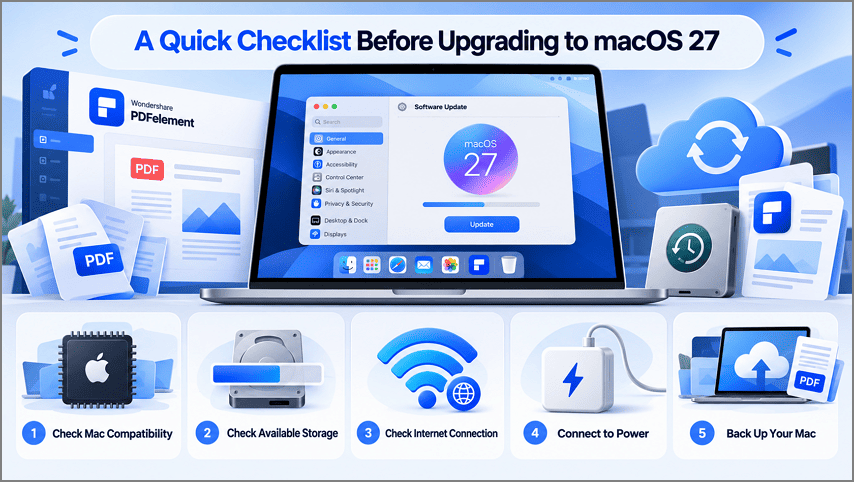
- Check Your Mac's Compatibility: macOS 27 needs Apple silicon, so open About This Mac from the Apple menu and look for an M-series or A-series chip.
- Check Available Storage: Open General > Storage in System Settings to see free space. Apple Intelligence alone needs up to 14GB on M3 and later Macs with 12GB or more of memory, and up to 8GB on others.
- Check Your Internet Connection: The installer downloads macOS and firmware specific to your Mac model, so use a stable network rather than a busy hotspot.
- Connect Your Mac to Power: Plug a MacBook into power and keep the lid open, since Apple says the install should finish without the Mac sleeping.
- Back Up Your Mac One Last Time: Run Back Up Now in Time Machine before you click the upgrade button.
Final Takeaway
Before upgrading to macOS 27, back up your Mac with Time Machine and check storage, power, internet, and compatibility. For important documents you may need during the upgrade, PDFelement is a useful second layer, with cloud access and AI Space for related files. It does not replace a backup, but it keeps documents easier to reach if something goes wrong.
G2 Rating: 4.5/5 |100% Secure




