

If a PDF will not open on your Android phone, the file is not always the problem. In many cases, the failure starts in the app preview, the PDF app path, file access permission, or a bad download.
This guide helps you check the simplest fixes first so you can tell whether you need a different app, a clean local copy, or a new version of the file.



In this article
Part 1. Why PDFs Stop Opening on Android Phones
When a PDF will not open on an Android phone, the failure usually starts in one of four places: the preview path, the PDF app, Android file access, or the file itself.
That is why cannot open PDF files on Android phone does not always mean corruption. Many users are dealing with a message-app preview, an email attachment path, no working PDF app, or an incomplete download instead.

| What you see | What it usually means | Best next step |
| The PDF will not open inside Chrome, Gmail, WhatsApp, or another app preview | The preview path may be failing, even if the PDF itself is usable | Save the file first, then open the local copy |
| The phone says there is no app to open the file | Android does not have a working PDF app path for that file | Try Files or open the PDF in a different app |
| The PDF opens in one app but not another | The issue is likely app-specific, not true file damage | Keep using the app that works or save a fresh copy there |
| Only one PDF fails, while other PDFs open normally | The problem is likely file-specific | Ask for a fresh copy or check the file on another device |
| The file is 0 KB or looks incomplete | The download likely failed or the file was never saved correctly | Download it again or ask the sender to resend it |
| The PDF asks for a password | The file may be protected, not broken | Get the password or a different copy from the sender |
If you separate those scenarios first, you can usually avoid the wrong fix.
Part 2. Save the PDF to Your Phone First
On Android, this is the cleanest first test. If the PDF only fails in a preview window, the file may still open normally once it is saved to the device.
- Use the app's Download, Save, or Share option to keep a local copy of the PDF.
- Open Files by Google or your phone's file manager.
- Check Recents first, then Downloads or the folder you chose.
- Open that local copy instead of reopening the original preview.

Part 3. Open It from Files or Another PDF App
Files by Google can open PDFs directly, and it also includes Open with under its More actions. That makes it a good neutral check when the original app keeps failing.
- Open Files by Google or your phone's file manager.
- Find the PDF under Recents, through search, or in your saved files.
- Tap the file.
- If the file does not open the way you expect, tap More and use Open with to test a different PDF app.
If the PDF opens in one app but not in another, the issue is usually the app path, not the file itself.
Try a dedicated PDF app if needed
If your current app keeps failing, a dedicated PDF app gives you a better test than repeating the same broken preview. PDFelement for Android can open PDFs from local device storage and cloud sources such as Google Drive. Wondershare also offers PDFelement on iOS, but for this page the useful path is the Android workflow below.
- Open PDFelement on your Android phone.
- Open the file picker inside the app.
- Choose the PDF from your device or a cloud source.
- Check whether the file opens normally there.
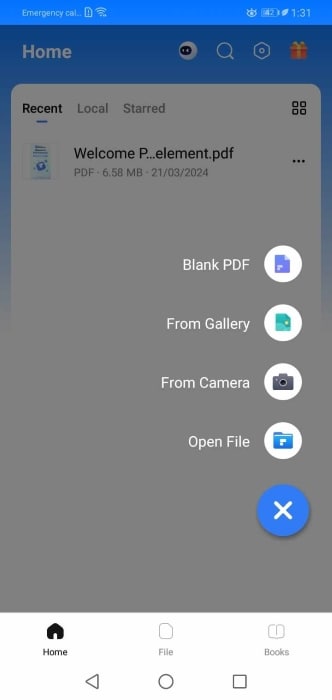
If the file opens there, the original app path was likely the problem. If it still does not open anywhere on the phone, the issue may be the file itself. The exact open path can vary by app version, and Wondershare also has a dedicated Android guide here: PDFelement for Android Guide.
Part 4. If the PDF App Path Is Missing or Not Working
Sometimes the file is fine, but the Android app path is not. The fastest way to diagnose that is to look at what the phone is actually doing.
| If Android says or does this | What it usually means | What to do next |
| There is no app to open the file | Your phone does not have a working PDF app path for that file | Open the file from Files and choose another PDF app |
| The app asks for file access or cannot access the file | The app may not have the permission it needs | Check Settings > Apps > [App name] > Permissions |
| The app freezes, crashes, or keeps closing | The app itself may be unstable or outdated | Update it, clear cache if needed, and restart the phone |
| The same PDF opens in one app but not another | The problem is app-specific | Keep using the app that works and stop treating it like file corruption |
Google's Android help and Samsung's device support both point to the same practical pattern here: check permissions, update the app, clear cache or data when needed, restart the device, and test another app before blaming the PDF.
Part 5. If the PDF Came from WhatsApp, Gmail, or Google Drive
This is one of the most common Android-specific scenarios. A PDF can fail inside a messaging app, mail app, or preview layer even though the saved file is still usable.
- Save or share the PDF out of the original app first.
- Open the saved copy from Files or your PDF app.
- If it opens there, the original app or preview path was the problem.
- If it still fails, check whether other PDFs open normally on the phone.
If the sender can resend the file, that is often faster than reopening the same bad attachment path again and again.
When not to keep chasing the phone preview
- If the file opens after saving, use the local copy and move on.
- If the file stays at 0 KB or never finishes downloading, get a new copy.
- If the same PDF works on another device, the problem is more likely phone-specific than file-specific.
- If the same PDF fails everywhere, treat it as a file-quality issue instead.
Part 6. If Only One PDF Still Will Not Open
If every other PDF works on your phone but one file still will not open, the problem is likely the file itself. Common causes include incomplete downloads, broken exports, damaged attachments, or password protection.
At this point, keep the next step practical:
- Download the file again.
- Ask the sender for a fresh export.
- Check whether the file opens on another phone or a computer.
- If a clean source file still exists, ask for a new PDF instead of forcing more mobile fixes.
If the PDF now looks clearly damaged, move into the more specific recovery guide here: How to Fix a Corrupted PDF File and Open It Again.
If you want the broader all-device troubleshooting path, use this guide: PDF Will Not Open? What to Check First.
Frequently Asked Questions About PDFs That Will Not Open on Android
Why can't I open a PDF on my Android phone?
Usually because the problem starts in the preview path, the app path, file access, or one bad PDF. Save the file first and test it from Files before you blame the document itself.
Do I need a separate PDF app on Android?
Not always. What you need is a working PDF open path. Some phones can open PDFs directly in Files, while others hand the file off to another app.
Why will a PDF not open from WhatsApp or email?
That usually points to the preview or attachment path, not the PDF itself. Save the file first and open the local copy from Files.
What if a PDF opens in one Android app but not another?
That usually means the issue is app-specific, not true file corruption. Use the app that works or save a fresh copy from there.
What if Android says the app cannot access the file?
Check the app's permissions in Android settings, then try opening the PDF again from Files instead of the original preview path.
Can PDFelement for Android open PDFs from my phone storage?
Yes. Wondershare documents opening PDFs from On This Device, and the app also supports cloud sources. If the file opens there, the original app path may have been the issue.
Can I repair a damaged PDF on Android?
Usually not deeply or reliably. If one file keeps failing everywhere on the phone, a fresh copy or a desktop damaged-file workflow is usually the better next step.
Final Takeaway
If a PDF will not open on your Android phone, start with the simplest test first. Save the file locally, open it from Files, and try a different PDF app before you assume the document is corrupted.
If the problem follows only one file, stop troubleshooting the whole phone and focus on the file itself. In many cases, a clean resend or a desktop check is the faster answer.



