

If a PDF will not open, do not assume the file is broken right away. In many cases, the problem is the browser preview, the default PDF app, the attachment path, or the reader itself.
This guide helps you separate those scenarios first, then decide whether you need a simple settings fix, a local file check, or a clean replacement.


 G2 Rating: 4.5/5 |
 100% Secure
In this article
Part 1. Why Your PDF Will Not Open and Where the Problem Starts
If your PDF will not open, the first job is not repair. It is diagnosis. You need to find out whether the failure starts in the browser, the PDF reader, the attachment preview, your computer settings, or the file itself.
This matters because a PDF file not opening is not one single problem. In many real cases, users who search cannot open PDF are dealing with a preview path or app issue, not a broken file.

| What you see | What it usually means | Best next step |
| The PDF fails only inside a browser tab or page preview | Usually a browser-preview or website-loading issue | Save the file locally and open it from your device |
| The PDF opens after download but not in the page preview | The file is likely fine, but the preview path is failing | Keep working with the downloaded copy instead of the web preview |
| Only one PDF fails, while other PDFs open normally | The issue is likely file-specific | Test that file locally and consider a fresh export or repair path |
| Every PDF fails on the same computer | The default app, reader, or installation may be the problem | Check the default PDF app, then update or repair the reader |
| A PDF attachment will not preview in Outlook or webmail | The attachment preview path may depend on the browser or local app | Save the attachment first, then open it in a PDF app |
| The file asks for a password | The PDF may be protected, not broken | Get the password or a new copy from the sender |
| You see a warning such as access denied or a security block | The app may be blocking the file for security reasons | Verify the source first, then review the relevant app security setting |
If you answer this first question correctly, you avoid wasting time on the wrong fix.
G2 Rating: 4.5/5 |100% Secure
Part 2. If the PDF Will Not Open in a Browser
This is one of the most common open-failure scenarios. Treat browser failure and local file failure as different problems. If the PDF opens after download, the preview path was likely the issue.
Start with the cleanest test
- Use your browser's save or download option to save the PDF to your device.
- Open the downloaded copy from your Downloads folder or desktop.
- If it opens there, the file is probably usable and the browser preview was the issue.
If the browser preview still matters
- Refresh the page and try again.
- Try a different browser if the same PDF will not display in the current one.
- If one local PDF opens in the browser but the website PDF does not, the site or the served file may be the problem.

Part 3. If the PDF Will Not Open on Your Computer
If the problem follows the file onto your computer, move from browser checks to app checks.
Check the default PDF app first
On Windows, the default app for .pdf files can be changed in Settings > Apps > Default apps. If the wrong app is attached to PDF files, double-clicking may fail or open them in an app that cannot handle the file properly.
- Right-click the PDF and choose Open With.
- Select a working PDF app.
- Set it as the default for .pdf files if needed.
If you use Acrobat or Reader
If you use Acrobat or Reader, start with three basics: make sure the app is installed, make it the default PDF app, and update it.
- Update Acrobat or Reader if it is already installed.
- Use Help > Repair Installation on Windows if the app itself may be damaged.
- If you see Access Denied, treat that as a security-setting or source-trust issue, not automatically as file corruption.
- If Acrobat flags the file as suspicious or unsafe, verify the source before you change any security setting or keep trying to force the file open.
If you are on a Mac
macOS users can try the file in Preview first or choose Open With to select another working PDF app. If one app fails and another opens the same file, the problem is probably app-specific rather than file-specific.
G2 Rating: 4.5/5 |100% Secure
Part 4. If the PDF Attachment Will Not Open
Attachment issues often look like bad PDFs, but they are frequently preview-path problems instead.
In Outlook for Windows, PDF preview can depend on the default browser and the local PDF app. If Microsoft Edge is your default browser, PDF attachments should open in Edge. If you want them to open in Acrobat Reader or another viewer, change the default app path in Windows.
If the preview fails but the saved file opens normally, the attachment path was the issue.
What to do with an attachment that will not open
- Save the attachment to your computer instead of previewing it in the mail app.
- Open the saved file in a dedicated PDF app.
- If it opens after saving, the attachment preview path was the problem.
- If it still does not open, test whether other PDFs open normally on the same computer.
When not to keep chasing the preview path
- If the file opens after download, move on and use the local copy.
- If the sender can resend the document, that is often faster than repeated mail-preview troubleshooting.
- If the problem only happens on Android, phone, or WhatsApp, treat that as a separate device-specific path.
- If Outlook says the attachment is unsafe, ask for a zipped copy or a different delivery method instead of assuming the PDF itself is broken.
G2 Rating: 4.5/5 |100% Secure
Part 5. What to Do If One PDF File Will Not Open
If only one PDF file will not open while other PDFs work normally, the problem is more likely tied to that file than to your browser or PDF app. This is the point where pdf file not opening starts to look like a file-quality issue, not a general device issue.
Common examples include incomplete downloads, broken exports, damaged attachments, or PDFs that are only partly readable. This is where a local desktop check makes more sense than another browser preview attempt.
Try a local file check in PDFelement
PDFelement is useful when you need to answer one practical question: does this file still open outside the browser, attachment preview, or default-app path? It can open normal PDFs locally and can try to open some damaged PDFs, but success still depends on the file condition.
G2 Rating: 4.5/5 |100% Secure
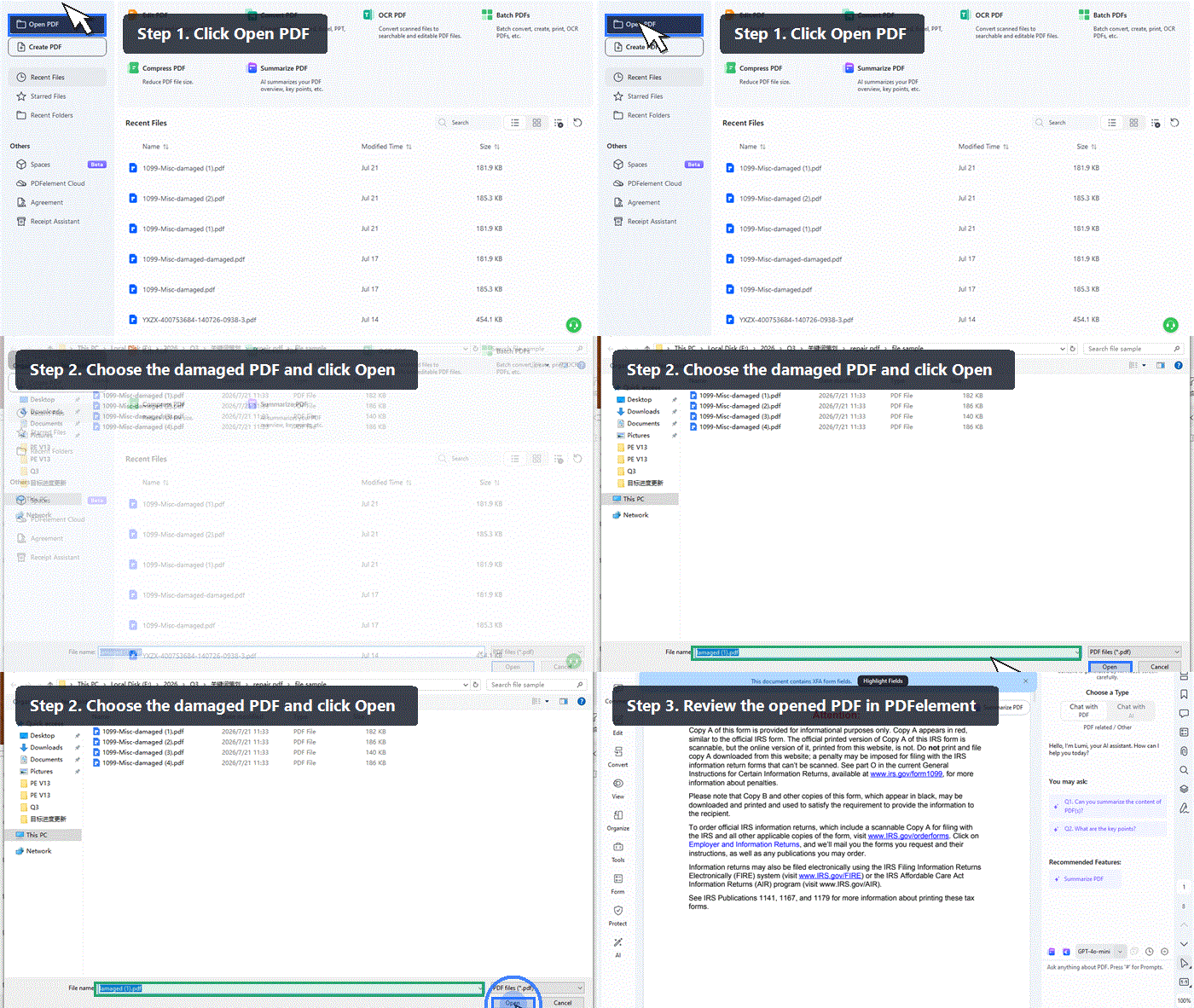
- Open the PDF directly from your computer.
- Check whether it opens fully, partly, or not at all.
- If it opens, save a new copy before making other changes.
- Test the new copy in the place where you originally had the problem.
If the PDF now looks clearly damaged, use the more specific repair guide here: How to Fix a Corrupted PDF File and Open It Again.
G2 Rating: 4.5/5 |100% Secure
Part 6. What to Do If the PDF Still Will Not Open
If the PDF still will not open after browser checks, app checks, and a local file test, keep the next decision simple. At this stage, the best answer is often a clean replacement, not more troubleshooting.
This is the point many users reach when they search why won't my PDF open after trying several fixes. If the same file keeps failing everywhere, you should stop treating it like a small settings problem.
- Stop if the file is 0 KB or clearly incomplete.
- Stop if the original Word, Excel, scan, or source document still exists.
- Stop if the sender can resend the file quickly.
- Stop if a high-stakes submission needs a clean file more than another repair attempt.
- Stop if repeated attempts start creating multiple confusing copies without a clear working version.
Frequently Asked Questions About PDFs That Will Not Open
Why will my PDF not open in Chrome or another browser?
That often points to a browser-preview issue rather than a broken PDF. Save the file first and open it locally. If the downloaded copy works, the preview path was the problem.
What if no PDF files will open on my computer?
That usually points to a default-app, reader, or installation problem rather than one bad file. Check which app is opening .pdf files, then update or repair the reader you use.
Why does my PDF attachment not open in Outlook?
Outlook preview behavior can depend on the default browser and the local PDF app. Save the attachment first and open it from your computer before assuming the PDF itself is broken.
Does a password prompt mean the PDF is damaged?
No. It usually means the file is protected. You need the password or a new copy from the sender.
What if only one PDF will not open, but everything else works?
That usually means the problem is file-specific. Try the file locally, then decide whether to save a new copy, move into the damaged-file workflow, or ask for a fresh export.
Can PDFelement fix every PDF that will not open?
No. PDFelement is useful as a local file check and can try to open some damaged PDFs, but it does not guarantee recovery. If the file opens, save a new copy first. If it does not, a clean replacement may be the better answer.
What if Acrobat warns that the PDF could be unsafe?
Treat that as a security warning first, not just an opening error. Confirm the file source before you loosen any security setting or keep trying to force it open.
Final Takeaway
A PDF that will not open is not one single problem. It may be a browser preview issue, a default-app issue, an attachment issue, or a damaged file.
Start with the cleanest test, not the most complicated one. Save the file locally, see whether other PDFs open normally, and only move into repair or recovery when the problem clearly follows the file itself.
G2 Rating: 4.5/5 |100% Secure



