

Social media trends have left creators experimenting with various ideas and concepts. One such idea is brainrot video trend that is quite popular among Gen Z, as it simplifies complex textbook ideas. Through the power of this short and consumable content, students are able to understand their subjects in an engaging way. However, many users want to try this idea but face the limitation of picking the right tool.
If you are among them too, this guide uncovers the 10 best text to brainrot tools that you can consider to create notes by making AI videos. Besides that, the guide will look into Wondershare PDFelement, an intuitive PDF tool that prepares your notes before you turn text to brainrot.
In this article
Part 1. Top Text-to-Brainrot Video Generators to Use in 2026
Before we explore how to prepare notes to convert into videos, let's look into the tools that help us generate these AI videos. The following list features all these platforms along with their important features:
1. Revid.ai
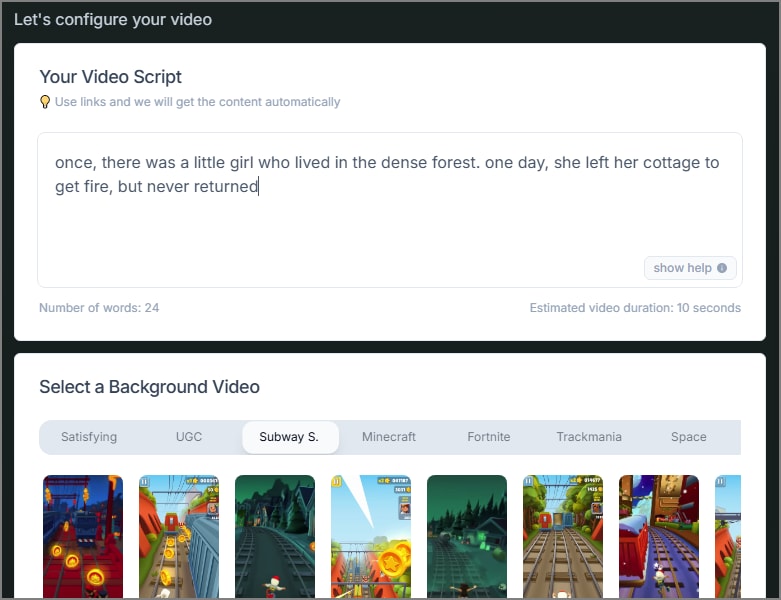
Whether you want to convert plain texttobrainrot or upload a document file, you can do both using Revid.ai. Users can give their videos a life-like touch by filtering the AI voices to find conversational AI speakers.
Key Features
- By selecting the video's aspect ratio, users can generate ready-to-share brainrot content.
- You can select up to 7 gameplay background videos to give your content a visual appeal.
- For process navigation, the Revid's AI system shows the expected video duration accordingly.
2. Text to Brainrot (Dang.ai)
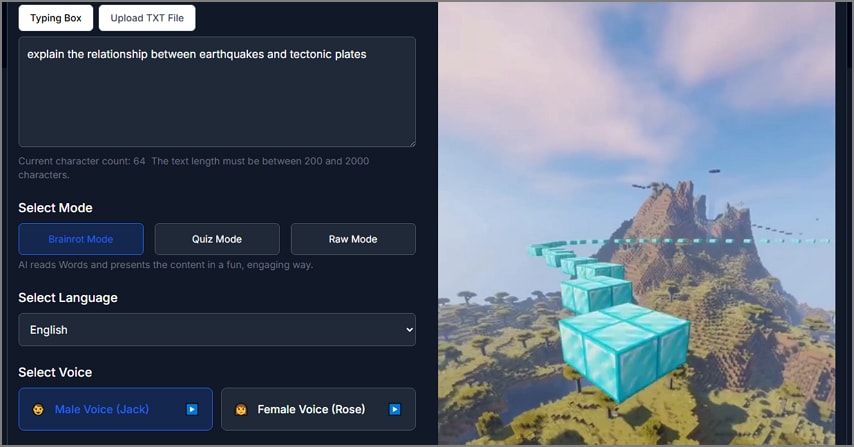
To create a detailed yet engaging video with female and male voice, use Dang.ai. This tool allows you to incorporate audio in the form of background music and AI voiceover.
Key Features
- Besides writing text in the designated box, you can also upload a TXT file from your device.
- Dang.ai allows you to enter a text description of up to 2000 characters.
- By selecting your native language, users can tailor the videos to their local needs.
3. PDFtoBrainrot.org
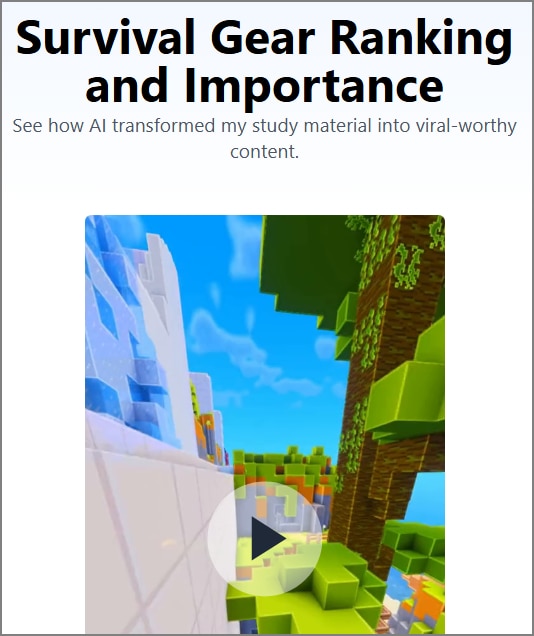
Using this text to brainrot video generator, users can create an engaging study video by transforming static PDFs. This tool allows you to select a background audio if you want to engage your students with informative videos.
Key Features
- Besides inputting plain text, this tool also supports uploading files and pasting article URLs.
- Choose among Brainrot, Quiz, and Raw modes to generate content that aligns with your needs.
- You can pick the no background audio option if you are not looking to add music.
4. StoryShort AI
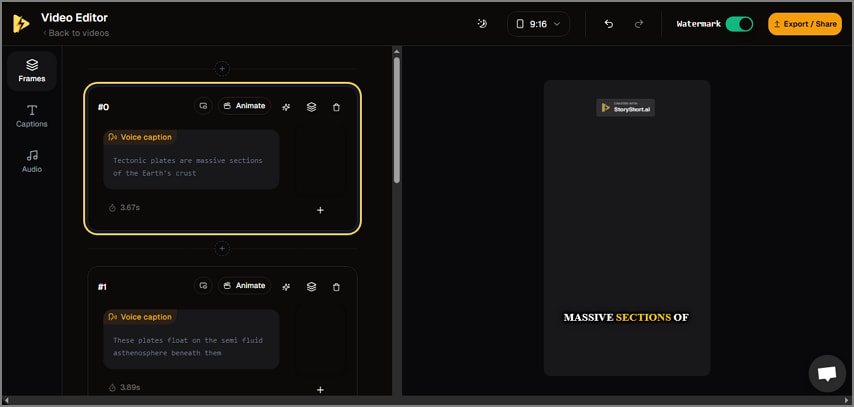
If you have no idea how to explain a complex story to your students, use StoryShortAI to formulate an engaging video that narrates the events. Besides stories, this platform explains important events of history in a short video.
Key Features
- If you have images on your device, you can upload them to generate videos.
- Users can create customizable captions for their videos for maximum audience engagement.
- For easy access, the tool preserves the generated videos in its dashboard.
5. Raena AI
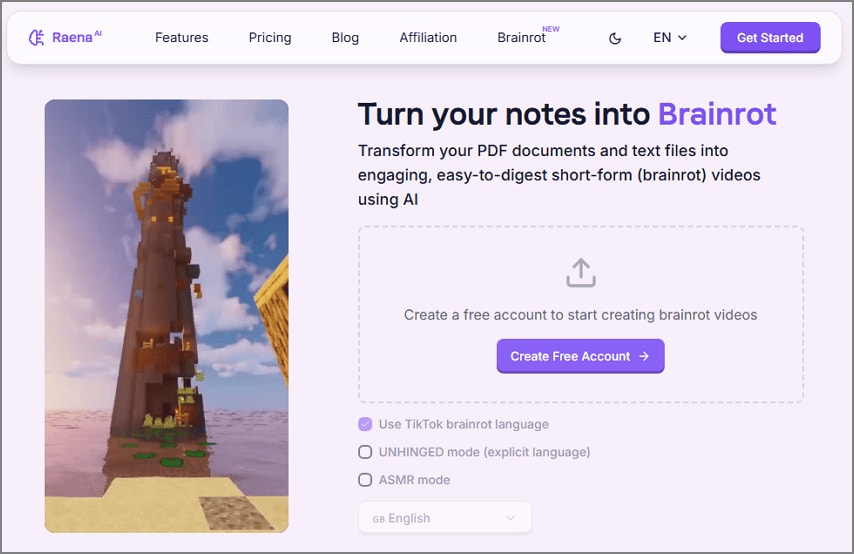
Raena AI is a complete platform for educators and students that transcends the traditional ways of studying. In addition to curating engaging reading material, it allows students to consult with a tutor within the website.
Key Features
- To generate an enhanced aesthetic video, you can use the ASMR mode.
- Unlike other tools, the tool let you export PDF and text files to generate videos.
- Besides videos, this platform also generates quizzes and flashcards to aid learning.
Part 2. The Need to Convert Text to Brainrot Video
Before starting with video-making, you must have a clear understanding of why you are doing it. The following list mentions the reasons you might need to convert text to brainrot videos:
- Better Engagement: Converting plain text or study notes into brainrot-style videos instantly grabs attention, as their format is designed to stop the scroll. This leads to higher views, shares, and interactions compared to traditional formats.
- Readily Shareable: Brainrot videos are formatted for short-form platforms like TikTok, Instagram Reels, and YouTube Shorts. These videos are built for virality and tailored to what users expect in their feeds.
- Enhanced Comprehension: Complex topics become easier to process when integrated with humor and overstimulation. The format calls for attention, which can help improve retention for younger audiences.
- Tailored Outcomes: Users can personalize everything to fine-tune their content for their audience and platform. Customization ensures the final product is both unique and aligned with your brand or message.
- Diverse Language Support: Text-to-brainrot video generators now support multiple languages, letting you translate and dub your content effortlessly. Using multilingual facilities increases the reach and potential virality of videos across regions.
Part 3. How to Prepare and Optimize Your Text for Brainrot Videos with PDFelement
Before you start following this trend, you must review the contents of your raw notes. If you are not sure how to do that, use Wondershare PDFelement and get help refining your notes. With its powerful PDF-related tools, it helps you delete extra information from your file and form a precise document.
Your files edited through this tool are secure, as they are not shared across the cloud storage. Now that you have some idea about this platform, follow the list below to have an in-depth analysis of PDFelement's tools:


 G2 Rating: 4.5/5 |
 100% Secure
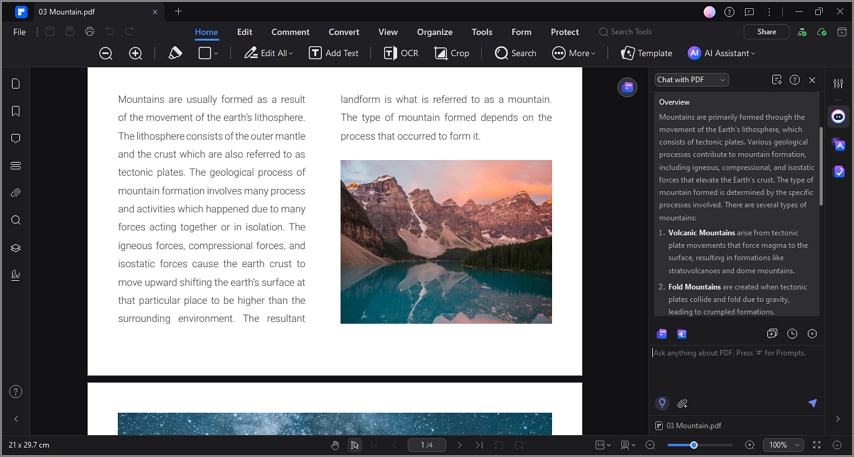
1. Summary Extraction
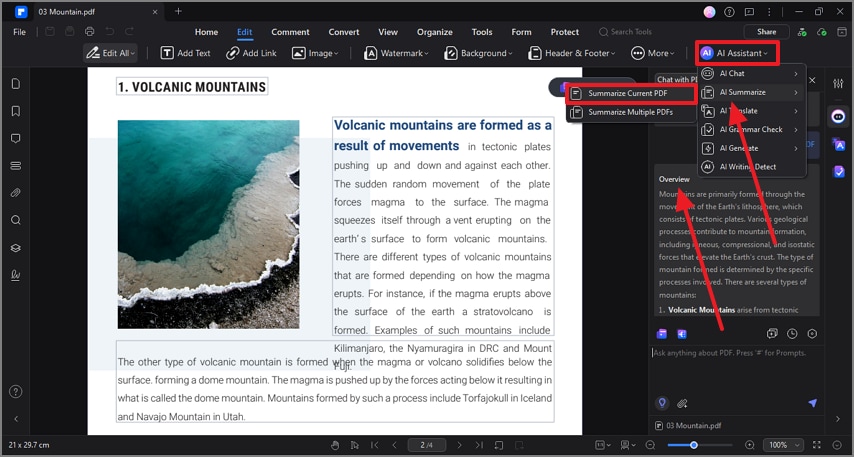
To make the text-to-brainrot-free converter focus on the key points of your document only, it is important to summarize the contents. Using the "AI Summarize" utility by PDFelement, you can generate a short form of your file, making it ready for conversion.
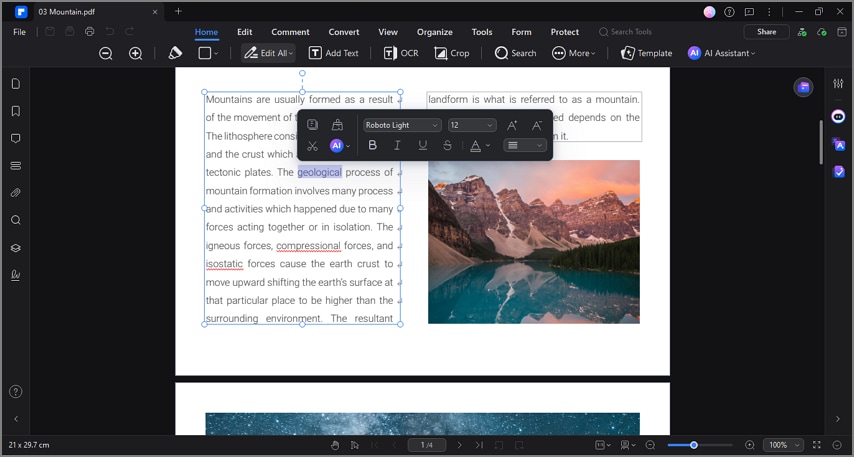
2. PDF Editing
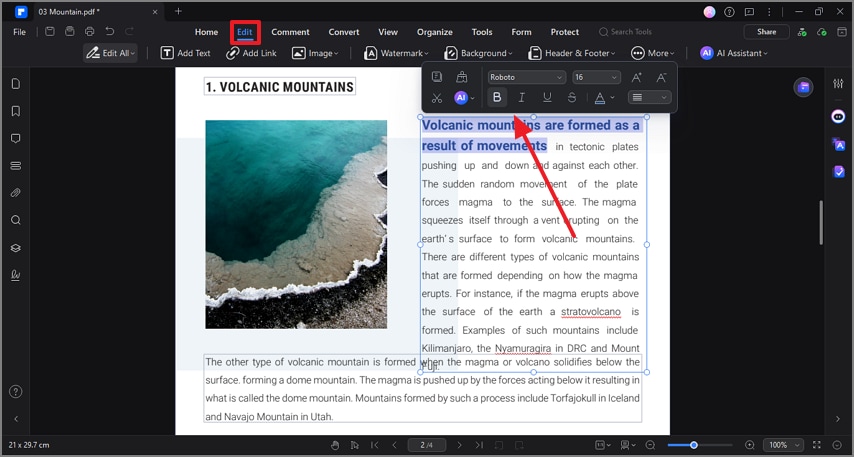
If your document has some errors, you can enter the Edit mode to change the content for accuracy. This utility allows users to add and delete text, images, and URLs to and from their PDF files. They can also change the appearance of the file by using the font formatting options.
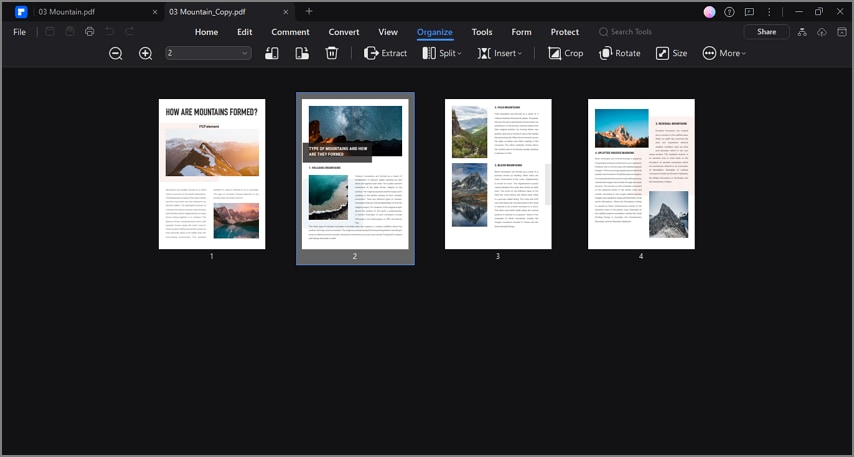
3. File Organization
Curating a well-organized raw notes file is mandatory before exporting it to a text-to-brainrot video generator. Use the cutting-edge organization features of PDFelement to split a file, insert or delete pages, and crop the page size.
4. Read Aloud
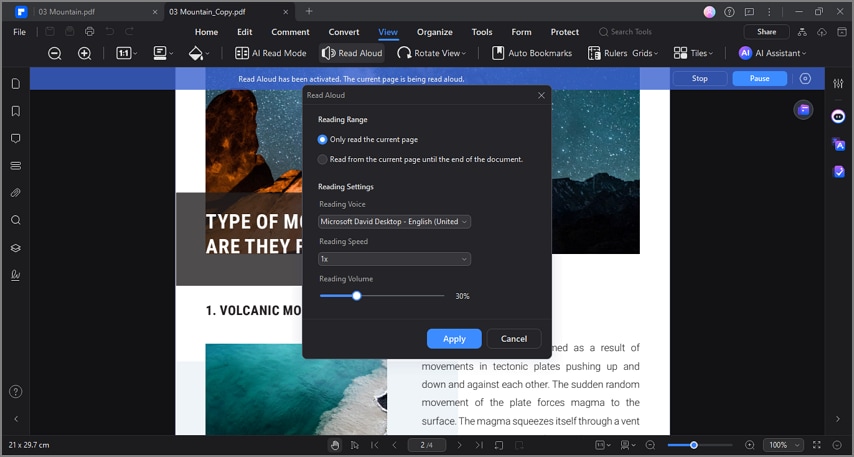
To test the flow of your notes and explore how your ideas sound, use the Read Aloud feature. This utility uses the text-to-speech features of the tool to narrate your file in your custom settings.
5. File Conversion
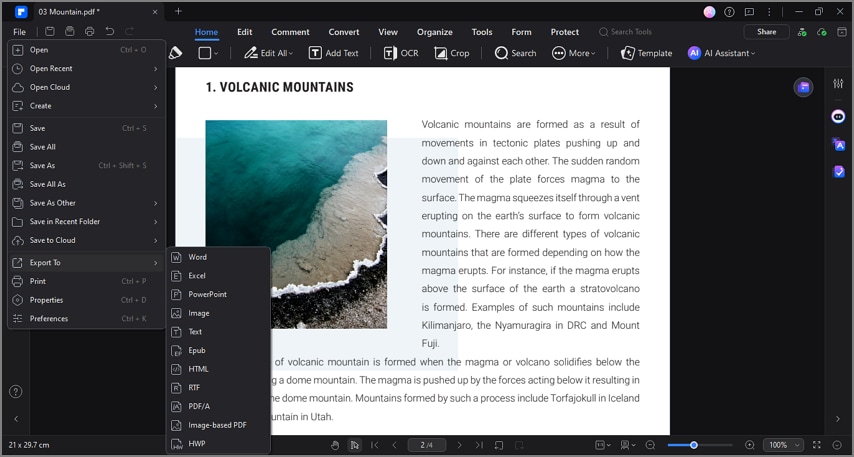
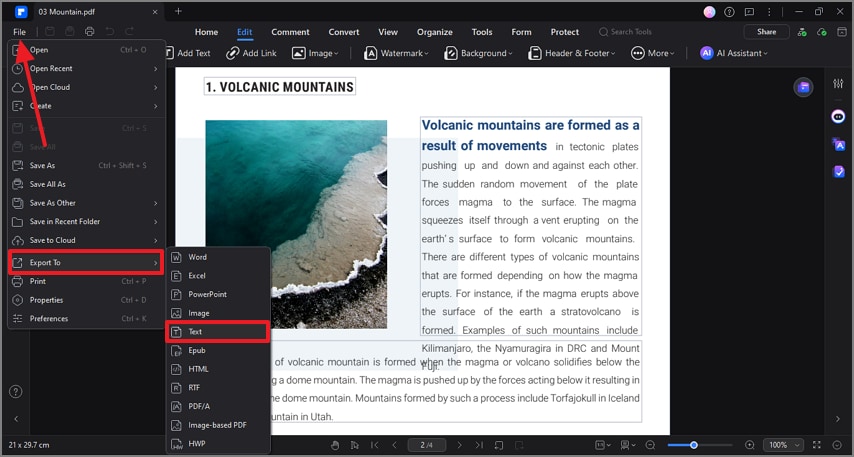
If your video generator has a specific file format support, use PDFelement to export it in a compatible format. Using this tool, convert and save the file in Word, PowerPoint, Text, and more formats.
6. Export and Share
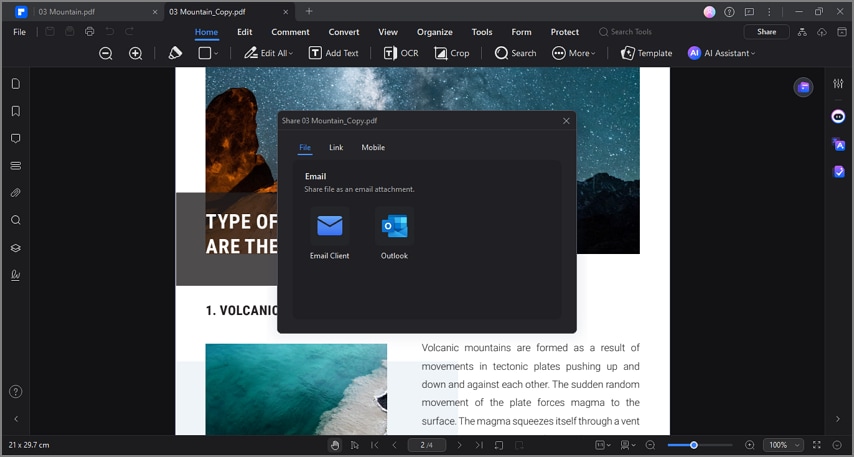
With this versatile tool, users can share their documents across Outlook using PDFelement's interface. If your audience does not use email, generate a URL of the file and share it across any platform.
G2 Rating: 4.5/5 |100% Secure
From Text to Brainrot Video: Exploring a How-to Guide
The above section covers the tools offered by PDFelement, but having a generic knowledge of its utilities is not enough. Follow the walkthrough guide below to learn more about how you can practically perform the process:
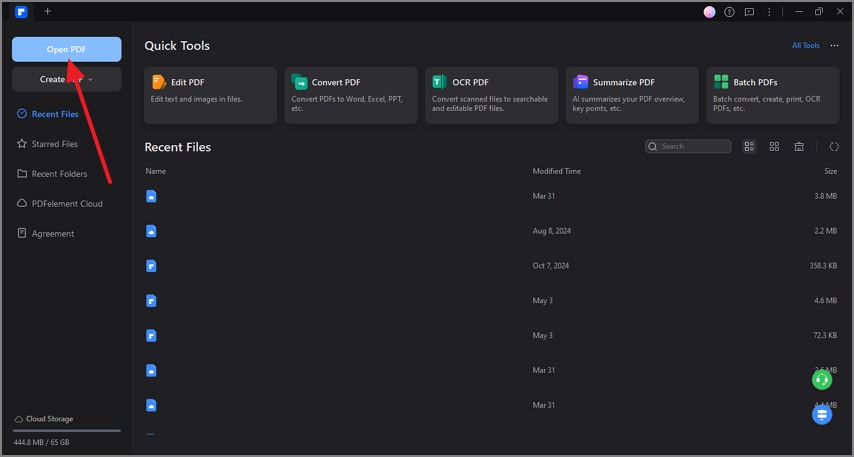
Step 1Select a Text File from Your Device and Open it in PDFelement
After opening the main interface of PDFelement, start by clicking the "Open PDF" button at the top left.
Step 2Make Necessary Changes to the PDF Using the Edit Mode
As the file opens in the next screen, enter the "Edit" mode and make changes to the document.
Step 3Use the AI Assistant to Generate an AI Summary
To cut the story short, select the "Summarize Current PDF" button from the "AI Assistant" drop-down menu to access the results in the right panel.
Step 4Save the TXT File to Incorporate it into a Brainrot Video Generator
Once the file is ready, save it in "Text" format using the "File" tab at the top left.
Step 5Upload the Document in PDF to Brainrot and Customize it
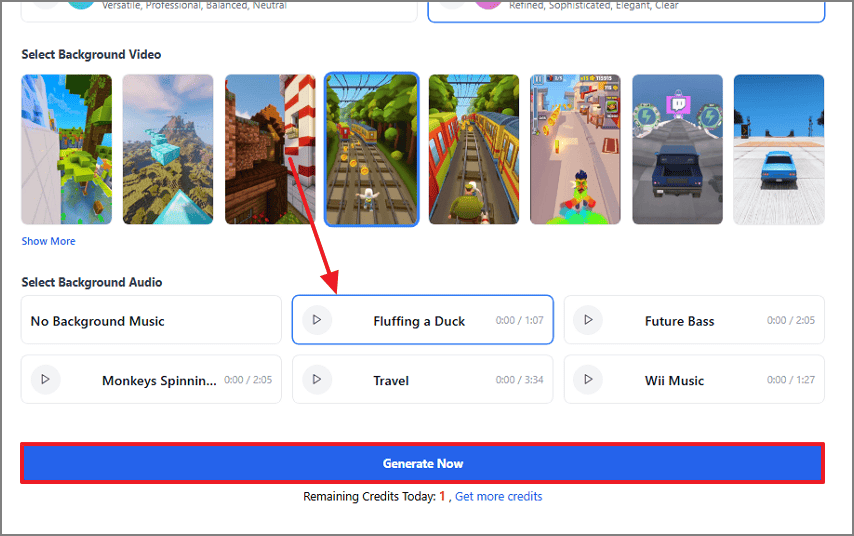
In the next step, open the PDF to Brainrot website and upload the recently saved TXT file. When it is uploaded, use the main interface to customize the video by specifying the music and the background video.
Step 6Broadcast the Video for Your Study Buddies to See
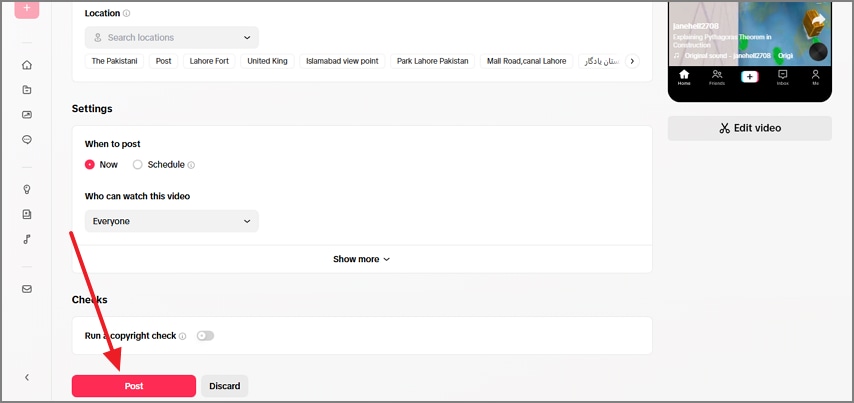
When your brainrot video is ready, download it and upload it across the web version of TikTok. Once the video thumbnail shows, enter your post specifications and select "Post" to share the video to help your group study pals.
Tips for Viral Brainrot Content
- Concise is Crisp: Text to Brainrot video encourages speed and overstimulation, so avoid long explanations. Use short and direct sentences to immediately grab attention and hook viewers within the first second.
- Music Makes it Better: Leveraging viral audio keeps your content aligned with the trending videos on social media. These trending elements increase the chance that the algorithm will boost your video.
- Play with the Narration: Before finalizing the video, it is better to experiment with different AI voices until you land the desired asset. To make the content more engaging, you can consider animated voices or characters.
- Use the Key Points Only: The brainrot format can help explain serious or difficult information by reducing it to its key points. Consider breaking down complicated subjects into a few memorable statements that stick.
Final Thoughts
Ultimately, text-to-brainrot is a great strategy to make students understand complex ideas through the power of videos. As these video generator platforms require properly curated content, it is essential to put effort into the raw notes. This can be achieved using the helpful features of PDFelement that assist you in putting together comprehensive raw notes.
G2 Rating: 4.5/5 |100% Secure
![All the Methods to Convert a PDF to Black and White [2026]](https://images.wondershare.com/pdfelement/images2026/pdf-like-article-1.png)



