

In today's modern world, getting documents signed quickly can be difficult for businesses and personal matters. Contracts, forms, and agreements are hosted as PDFs, but not every one of them can be signed. Many people waste time printing and sending files back and forth, which leads to delays in important tasks.
Preparing your documents correctly makes signing easier for everyone involved in completing the required tasks. A well-prepared PDF allows anyone to sign it quickly without confusion or mistakes. This article shows how to make a signable PDF and prepare your documents for smooth electronic signing.
In this article
- What Does a "Signable PDF" Actually Mean?
- Why Are Some PDF Documents Not Signable?
- What Do You Need to Make a PDF Signable?
- How to Create a Signable PDF using PDFelement (Step by Step)
- How to Make a PDF Signable for Someone Else to Sign
- Can You Make a PDF Signable for Free?
- Making a Signable PDF vs. Signing a PDF
- Common Mistakes When Creating Signable PDFs and How to Avoid Them?
Part 1. What Does a "Signable PDF" Actually Mean?
A signable PDF is a digital PDF document that is intentionally prepared so people can add electronic or digital signatures directly inside it. It usually includes dedicated signature fields or supports e‑signature tools to enable trackable signing without printing, scanning, or manual paperwork. This maintains document integrity and provides clear evidence of who signed, when, and how.
Difference Between Static and Signable PDFs
Not all PDFs are created the same, and only some can be signed electronically without extra steps. The table below briefly contrasts a static PDF with a signable PDF document.
| Aspect | Static PDF | Signable PDF |
| Purpose | View or print only | Made for electronic signing |
| Interactivity | No form fields | Has form and signature fields |
| How it's Signed | Print and hand sign | Click to sign digitally |
| Signature Structure | No defined signature spots | Clear signature boxes and roles |
| Integrity and Tracking | Hard to verify changes | Tracks signer time and changes |
| Typical Creation | Simple export or scan | Built with form or e-signature tools |
Why Can't Many PDFs be Signed by Default?
Many PDFs cannot be signed by default because they are created with viewing in mind, not with an electronic approval process in place. Instead of guiding someone through where and how to sign, these files behave like digital printouts and offer no clear signing journey. To make them signable, the document needs to be deliberately structured for interaction, so signature steps fit smoothly into the overall workflow.


 G2 Rating: 4.5/5 |
 100% Secure
Part 2. Why Are Some PDF Documents Not Signable?
Some PDFs are hard to sign because of how they were created, and the main problem is actually in the document structure itself. Before learning how to make a document signable PDF, let's explore the most common structural issues and how they affect making a document signable.
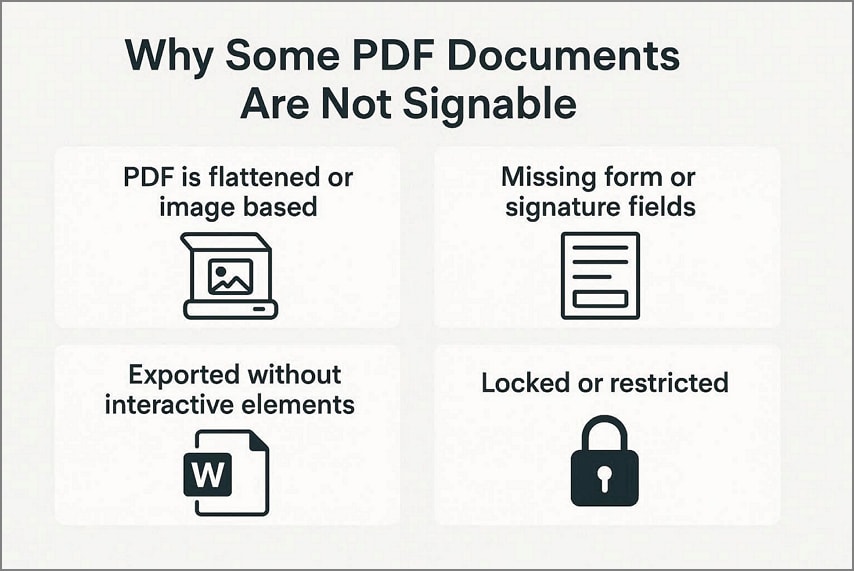
- PDF is Flattened or Image Based: The file is essentially an image of each page, so text and signature areas cannot be recognized or tagged for signing. Text needs to be selectable for most tools to place proper, reliable signature fields.
- Missing Form or Signature Fields: The document has no interactive form and signature fields, so there is nowhere for a signer to click and add a signature. PDF behaves like a simple static page instead of a signable document without these fields.
- Exported Without Interactive Elements: The PDF was exported from Word, PowerPoint, or another app without preserving any form controls or signature placeholders. As a result, all potential fields are flattened, and you must rebuild them to make the document signable.
- Locked or Restricted Document: Editing, annotations, or form changes are disabled, which also prevents adding new signature fields or using certain e‑signature features. Until permissions are relaxed or the document is regenerated, most signing tools will treat it as non‑signable.
What this Means for Signing
PDF signing issues are often structural and not about the tool you use. To make a document signable, change the file so it allows form fields and signatures. Once the structure is ready, you can then use your preferred signing tool and follow its specific steps to add signatures.
G2 Rating: 4.5/5 |100% Secure
Part 3. What Do You Need to Make a PDF Signable?
Before you create signable PDF files, knowing what is required to turn a normal PDF into a signable document is important. Look at the checklist below that shows what you should have ready so you can focus on placing fields instead of rebuilding your file.
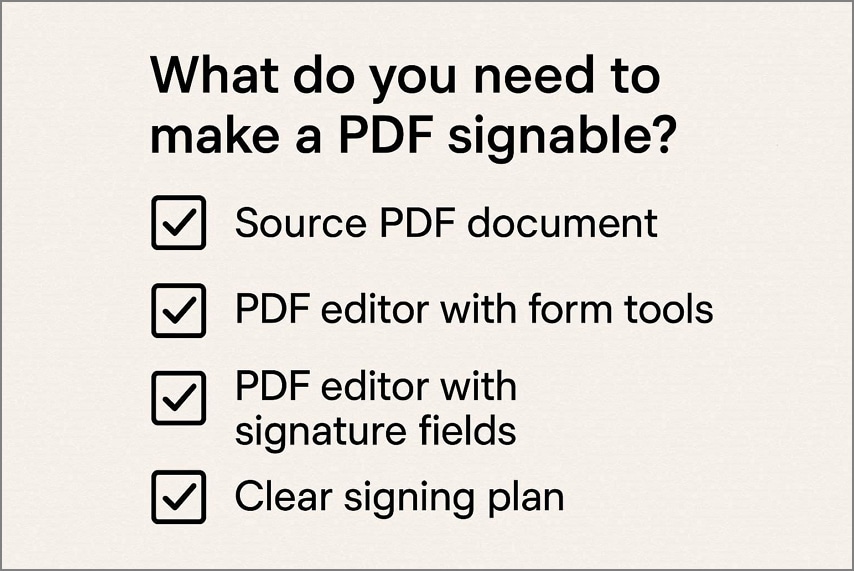
- Source PDF Document: This is the main PDF with final text and layout, so you only prepare it for signing steps. It should already include correct wording, page order, and formatting, because you will not rewrite content while adding signatures.
- PDF Editor With Form Tools: A PDF editor can add text fields, checkboxes, and other interactive form elements to the file. Plain areas then turn into fillable spaces, so people type information directly instead of printing the document.
- PDF Editor With Signature Fields: Some tools also let you place dedicated signature boxes for each signer on the page. It creates clear, clickable areas for signatures, so the PDF becomes easy to sign and looks professional for everyone.
- Clear Signing Plan: This is a basic idea of who signs where and on which page, before you start placing any fields. It helps you avoid confusion later because each signer already has a clear place reserved for their own signature.
No Rebuild or Platform Required
You can keep your existing PDF and still make it signable by adding form fields and signature boxes. This approach keeps your layout and branding intact while only changing how people interact with the document. Online signing services can wait until later, after the PDF itself is properly prepared and ready for signatures.
Part 4. How to Create a Signable PDF using PDFelement (Step by Step)
Many users struggle to turn static PDFs into documents others can sign without technical experience. They often look for tools that allow adding signature fields, editing forms, and preparing documents without complex steps. This is where Wondershare PDFelement helps, offering an easy way to create signable PDFs using built-in form and signature tools.
Unlike basic PDF editors, PDFelement focuses on document preparation rather than simple viewing. It helps users structure PDFs correctly, so they are ready to be signed by others without errors or confusion. This makes it a reliable choice for users who need to prepare a signable PDF document as part of everyday workflows.
Why PDFelement Works Well for Creating Signable PDFs
Now, let's look at the key features that make it effective for creating signable PDFs.
- Form Editing Tools: PDFelement lets you add and adjust form fields, so your PDF is ready for user input.
- Signature Field Support: It allows you to place digital signature fields exactly where signers need to sign.
- Compatible Output: The saved PDF works smoothly with standard electronic signing tools without format issues.
G2 Rating: 4.5/5 |100% Secure
Creating a Signable PDF using PDFelement: Step-by-Step Flow
Next, follow the steps below to learn how to create a signable PDF using PDFelement for your documents:
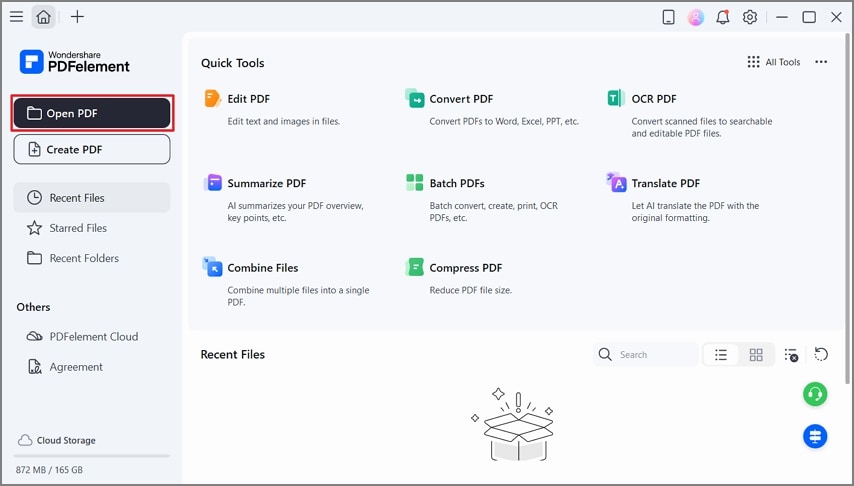
Step 1Open PDF in PDFelement
Once you reach the main interface of PDFelement, press the "Open File" option in the top left corner to open a PDF file.
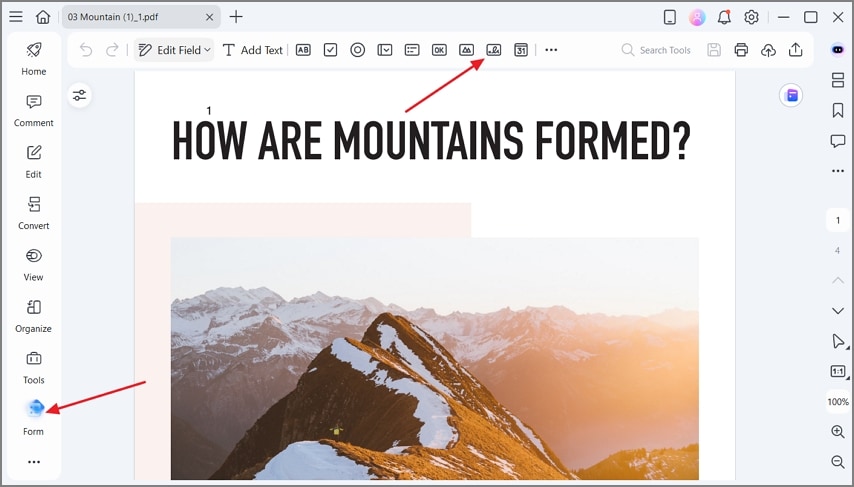
Step 2Access Forms and Digital Signature Field
As you lead further, press the "Forms" option in the left side panel and click the "Digital Signature Field" option to choose it.
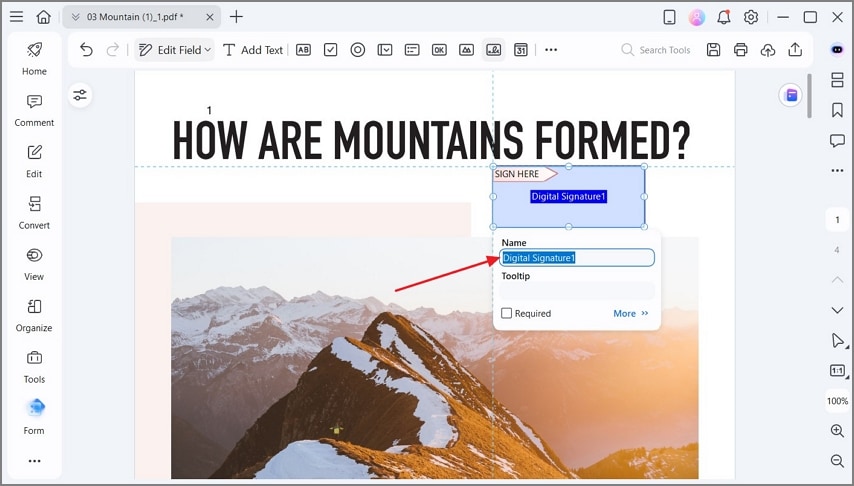
Step 3Create a New Digital Signature Field
Next, press anywhere on the PDF page to create a new Digital Signature Field and type the name of the field in the pop-up. After that, adjust the size of the field by dragging the corners until it fits the signature area.
G2 Rating: 4.5/5 |100% Secure
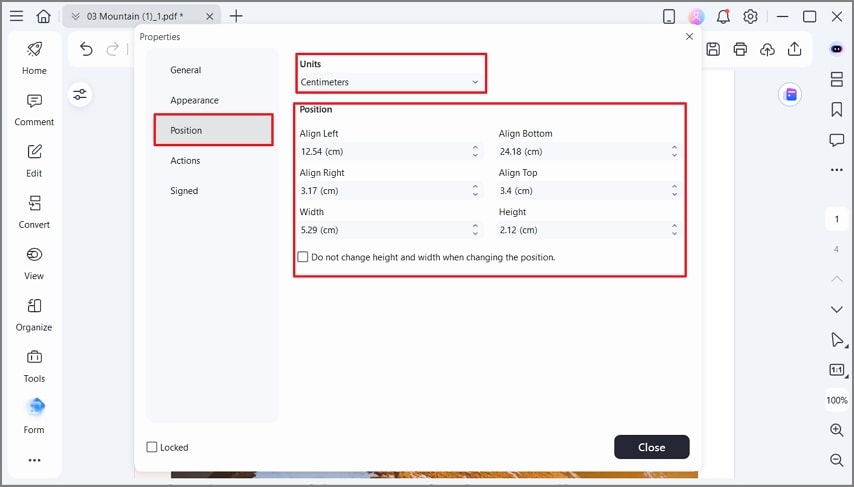
Step 4Adjust the Positioning of The Field
Afterwards, double-click the signature field to open a pop-up window of field settings. Next, press the "Position" option, choose a correct "Unit," and adjust the positioning under the "Position" section.
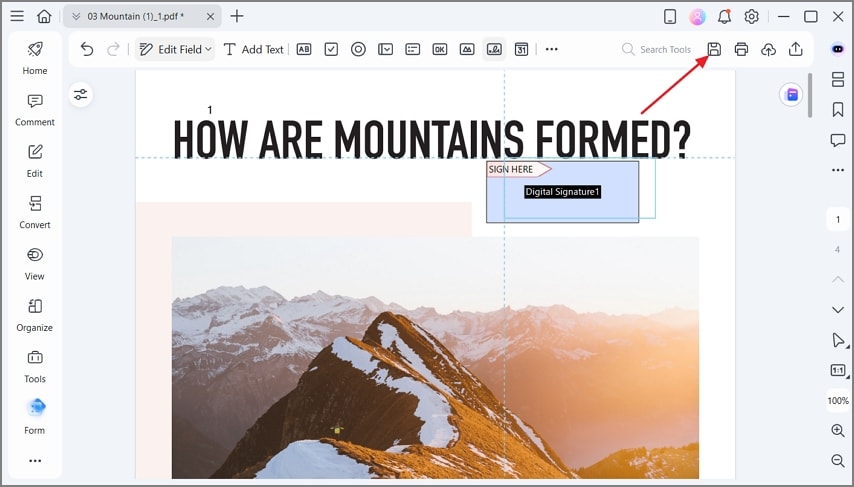
Step 5Save the PDF as a Signable Document
Lastly, press the "Save" option to save the document as a signable PDF.
Part 5. How to Make a PDF Signable for Someone Else to Sign
Before sending a signable PDF document, it's important to prepare it so the signing process is smooth and straightforward. Now, we'll see how to prepare a PDF so someone else can sign it correctly.
Tailoring PDFs for Different Recipients
When preparing documents, consider whether the signer is a client, employee, or partner to ensure clarity and proper instructions. Adjust the PDF layout, content, and fields according to the recipient so the signing process is smooth, quick, and organized.
Showing Where Signatures Are Needed
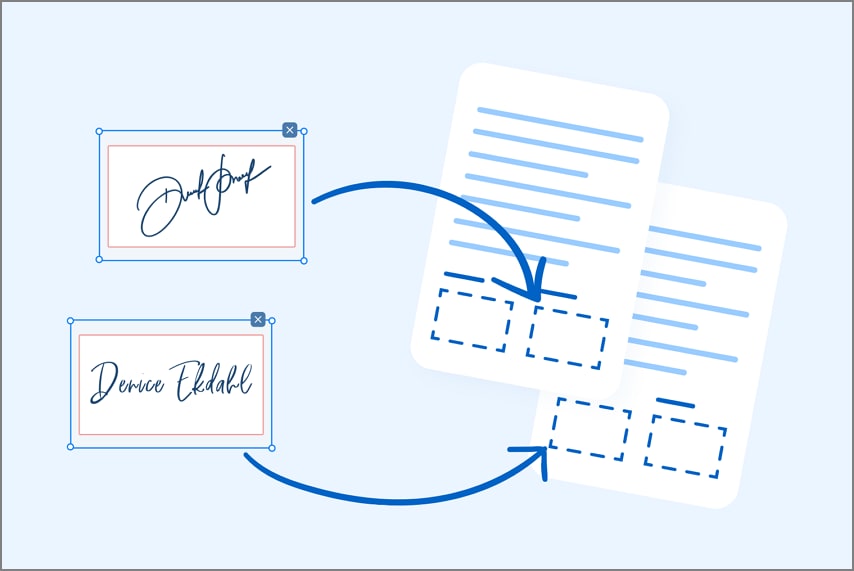
Place signature fields in obvious locations to guide the signer, reducing mistakes and ensuring the form is filled correctly. Use labels or instructions near signature fields so the recipient knows exactly what action is required in each area.
Reducing Confusion and Revisions
The creation of PDFs helps to avoid unnecessary transmissions and allows all parties to finish the paper on time. A PDF document saves time, improves accuracy, and provides a professional experience for both sender and signer.
Part 6. Can You Make a PDF Signable for Free?
Many users want to know how to make a PDF signable free without paying for software. "Free" tools often allow basic functionality, but they come with some limitations.
How to Make a PDF Signable Free
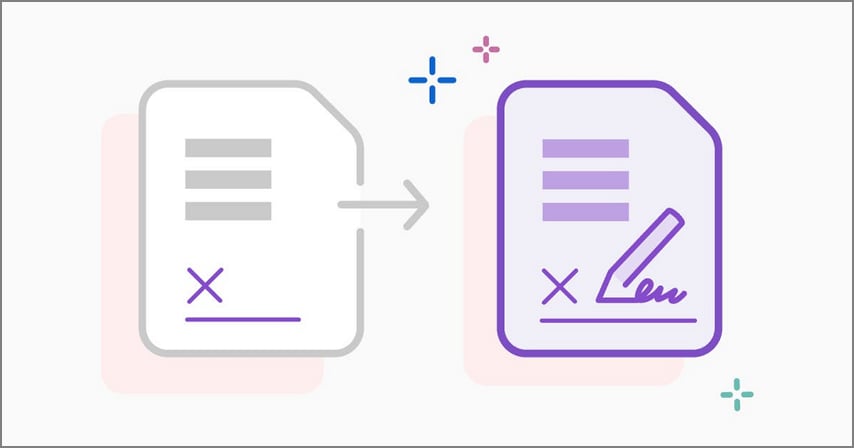
Free PDF tools usually offer only basic functionality, allowing users to add signature fields to documents easily. You can create simple signable PDFs without paying anything, which works for most contracts, forms, or agreements. This approach lets anyone prepare a PDF for signing quickly and efficiently without having to spend any money.
Limitations of Free PDF Tools
While free tools let you create basic signable PDFs, they often come with certain restrictions that can slow your workflow. Look at the most common limitations you may encounter when using free tools to make a signable PDF.
- Most free tools limit the number of signature fields you can add in a single document.
- Some tools do not support multiple signers, which makes collaboration on forms difficult.
- Advanced automation features like auto-fill or bulk sending are usually unavailable.
- Free versions may add watermarks on the final PDF, which can affect professional presentation.
- Editing options for form fields or layout adjustments are often restricted or very basic.
G2 Rating: 4.5/5 |100% Secure
Part 7. Making a Signable PDF vs. Signing a PDF
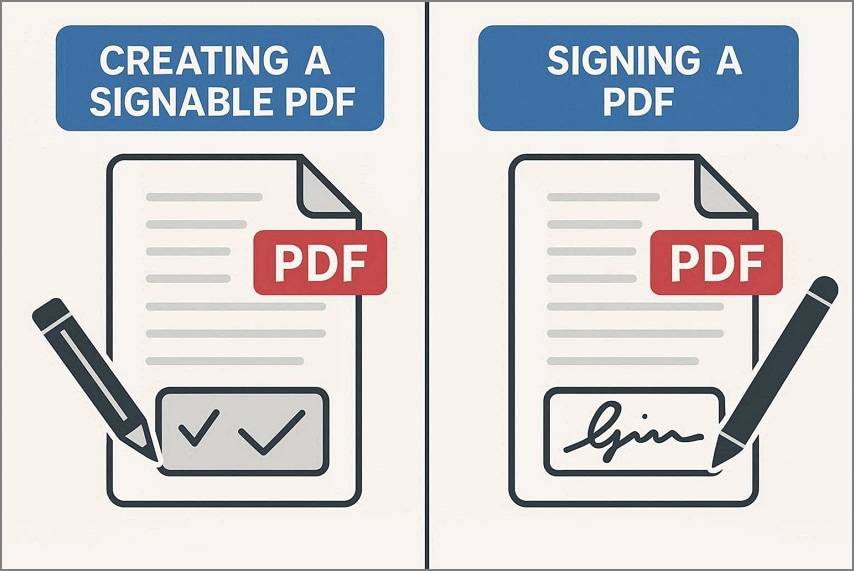
Creating a signable PDF means preparing the document so others can easily add their signatures in the right place. A signed PDF is the result after someone has applied their signature to the prepared document. Let's look at the key differences between preparing a PDF and actually signing it, so you can avoid confusion.
| Aspect | Making a Signable PDF | Signing a PDF |
| Main Goal | Get the document ready for others to sign | Complete the actual signature on the document |
| Who Does it | Sender or document owner | Employee, client, or partner |
| Key Actions | Add form fields, place signature boxes, and label roles | Click signature field, confirm, and apply signature |
| When it Happens | Before sending the PDF to anyone | After receiving a ready‑to‑sign document |
| Tools Needed | PDF editor with form and signature tools | PDF viewer or e‑signature tool |
Why Preparation and Signing are Separate
A signable PDF document focuses on design and structure. You decide who signs, where they sign, and which fields they complete before sending. On the other hand, signing happens later and takes less time when the document is well prepared, guides the signer clearly, and avoids confusion or delays.
Part 8. Common Mistakes When Creating Signable PDFs and How to Avoid Them?
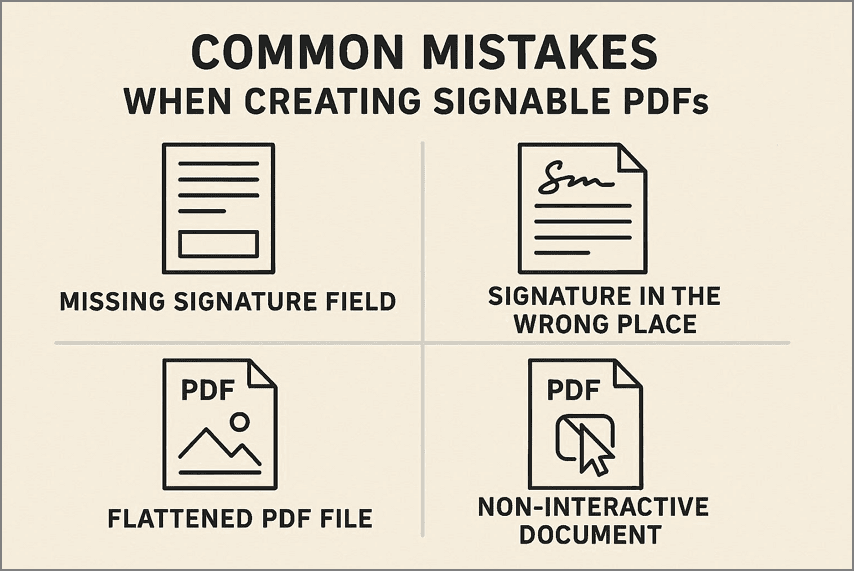
Before you create a signable PDF document, let's explore the most common mistakes that make it hard to sign.
- Missing Signature Field: Many creators forget to add any signature area at all, so the signer has nowhere to complete the process.
- Signature in the Wrong Place: A field dropped on the wrong page or far from the agreement text forces the signer to hunt for it.
- Flattened PDF File: Once the PDF is flattened, existing interactive fields stop working and the document behaves like a static image.
- Non-Interactive Document: A PDF sent without fillable fields means the signer must print, sign by hand, and scan instead of signing digitally.
How to Avoid These Mistakes
Always review the PDF in a regular viewer to confirm fields are visible, clickable, and in the right place. Make sure you save a version that keeps all form and signature fields active before sending it to anyone.
People Also Ask
-
How do I make a PDF signable without recreating it?
You can open the existing file in PDFelement and add signature fields plus form fields directly on each page. This keeps your original layout intact while turning the static PDF into an interactive, ready‑to‑sign document instantly. -
Can I make a PDF signable for someone else to sign?
Yes, you can make a signable PDF for the other person by inserting dedicated signature boxes and required form inputs for them. Tools like PDFelement let you assign fields to specific signers, then email the document for quick completion online. -
What makes a PDF document signable?
A PDF becomes signable when it contains clearly labeled signature fields, fillable form areas, and allows secure, trackable electronic signatures. Good signable PDFs also guide signers step‑by‑step, so they cannot miss required fields or mandatory acknowledgments anywhere. -
Can a signable PDF be signed electronically?
An electronically signed PDF is possible, and the electronic signatures are accepted in most areas and industries. PDFelement supports drawing, typing, or importing digital signatures, then securely embedding them into the PDF for recordkeeping. -
Do signers need special software to sign a signable PDF?
Most signers can complete and sign a prepared PDF using standard PDF readers or modern browser‑based viewers that support form fields. As long as the PDF includes interactive fields, they usually just click, type, or draw a signature without installing anything complex.
Wrap-up: The Easiest Way to Make a PDF Signable
In conclusion, we learned how to make a signable PDF with proper structure and placement of signature fields, without redesigning the document. Handing files prepared in advance will make it easier to sign, save time, and lead the recipients through the procedure. If you want to create professional, ready-to-sign PDFs quickly, consider using PDFelement, which turns static PDFs into signable documents.




