

Digital documentation has become standard across professional, academic, and administrative workflows today. Consequently, users increasingly seek reliable ways to sign files without printing or scanning delays. Windows users, in particular, prefer tools that are simple, secure, and effective to cost. Moreover, electronic signing improves turnaround time while maintaining document accuracy and legal acceptance.
Therefore, this guide explains how to sign PDFs step by step using free PDF signature software on Windows. It focuses on practical workflows, essential features, and common signing scenarios. As a result, readers can complete approvals confidently while keeping documents fully digital and professionally formatted.
In this article
Part 1. What People Mean By "Free PDF Signature Software"
When users search this term, they usually want quick clarity, realistic expectations, and a practical signing solution.
What Users Usually Want
- Sign PDFs on Windows: Users want to sign documents directly on Windows without complex setup steps. The goal is fast approval using familiar desktop workflows every day.
- Complete Tasks Without Paying: Many users expect core signing features without upfront costs at all. They prioritize basic functionality over advanced enterprise tools for everyday tasks.
- Avoid Printing and Scanning: Users want fully digital signing instead of paper-based processes in workflows. This saves time and reduces unnecessary hardware dependence across organizations globally.
Common Misunderstandings
- Free vs. Free Trial: Free PDF signature software often differs from limited-time trials in practice. Trials expire, while free tools usually include basic permanent features.
- Viewers vs. Signing Tools: PDF viewers may open files but lack signing capabilities entirely. Pdf signer software free options include actual electronic signature tools for users.
What Free Software Usually Supports
- Electronic Signatures: Most tools support typed, drawn, or image-based electronic signatures reliably today. These signatures work for everyday document approvals across common professional workflows.
- Saving Signed Documents: Users can save and share signed PDFs easily without compatibility issues. Document signing software free options focus on single-file workflows for simplicity.


 G2 Rating: 4.5/5 |
 100% Secure
What is Often Limited
- Advanced Digital Signatures: Certificate-based signatures are usually restricted in free versions for security reasons. These features target compliance-heavy environments requiring strict identity verification standards globally.
- Batch and Enterprise Tools: Bulk signing and team management are often unavailable in free software editions. Such features typically require paid upgrades for business or enterprise use.
Part 2. How to Sign PDFs on Windows for Free Using PDFelement
For Windows users seeking reliable PDF signing software, desktop tools offer better control than online alternatives. They work offline, handle large files smoothly, and avoid browser-related limitations. Users also expect compatibility with documents created in Word, Adobe, or other editors. A practical solution should support electronic signatures while keeping workflows simple and cost-effective.
This is where PDFelement meets these expectations for everyday document approvals on Windows systems. It functions as a complete software to sign PDF documents without printing or scanning requirements. Furthermore, users can open externally created PDFs and sign them directly. This makes it suitable as dependable PDF document signing software for routine personal and professional use.
Guide to Sign PDFs on Windows for Free Using PDFelement
To complete the signing process efficiently, follow the steps below using a clear Windows workflow:
Step 1Load the Document and Access the Signature Tool
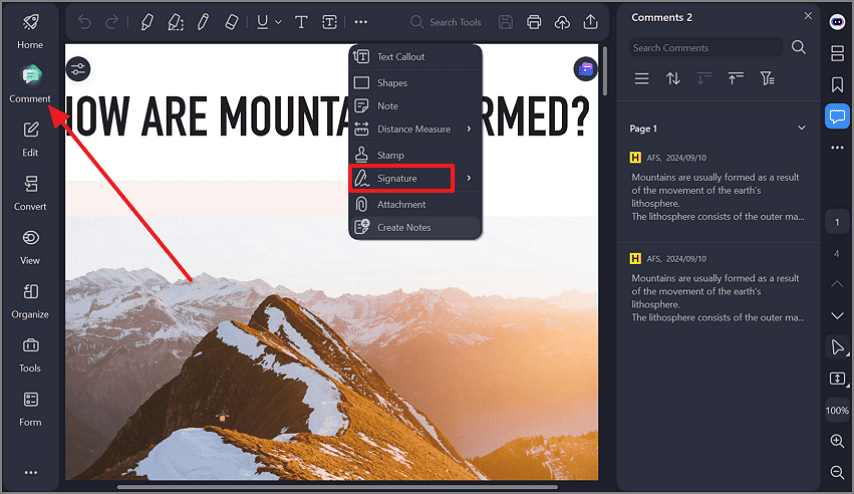
Start by opening the PDF file on your Windows to access the "Comment" option later, and after that, select the "Signature" option from the list.
Step 2Creation and Placement of Electronic Signature
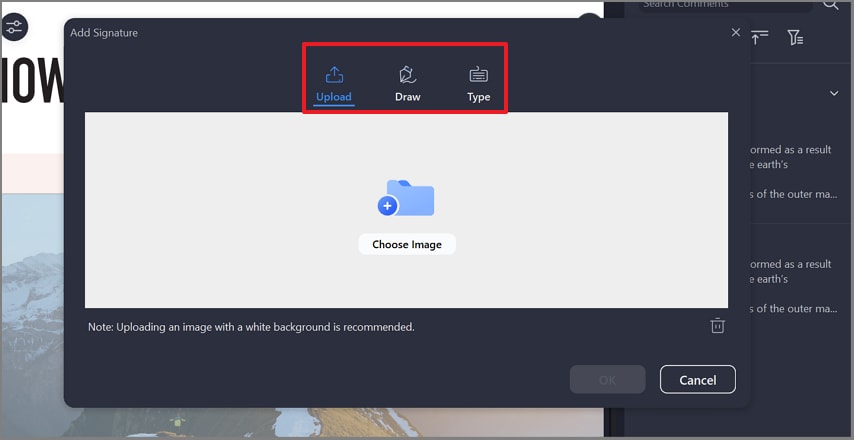
Here, creates a signature by typing, drawing with a mouse, or uploading an image. Next, click inside the document to place the signature at the required location.
G2 Rating: 4.5/5 |100% Secure
Step 3Aligned and Save the Final Signed PDF
Lastly, resize or reposition the signature to match the document layout accurately. Afterwards, select the "Save File" icon to render the signed document to your device.
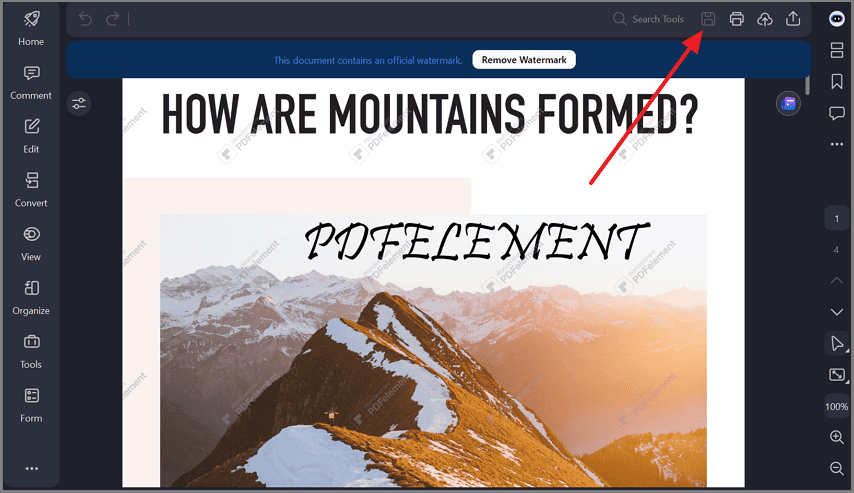
Outcomes after Signing with PDFelement
- Signature Visibility: The applied signature remains clearly visible after saving the signed PDF document.
- Ready for Sharing: The signed file is immediately ready to email, upload, or submit digitally.
- Paperless Workflow: No printing or scanning is required, keeping the entire signing process fully digital.
Part 3. Other Free PDF Signature Software Options
When exploring software for signing documents, users often encounter several broad tool categories. Each option serves different needs depending on usage frequency, privacy concerns, and workflow complexity.
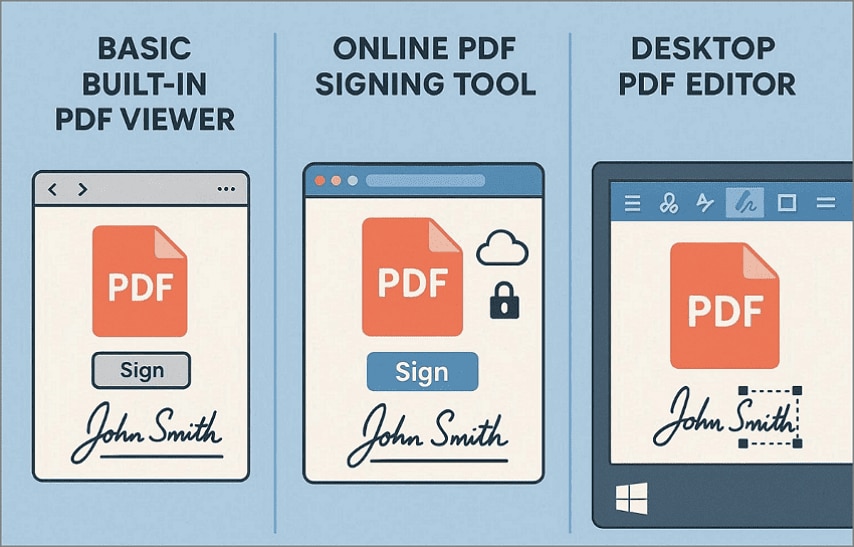
- Built-in PDF Viewers: Some operating systems include basic PDF viewers with limited signing features. These tools may work for simple tasks, but they often feel inconsistent. Signature placement and saving options can vary across different file types.
- Online PDF Signing Tools: Web-based tools offer quick access for one-time document signing tasks online. They are convenient but limit file size, usage counts, or add watermarks. Uploading sensitive documents may also raise privacy concerns for some users.
- Desktop PDF Editors: Desktop tools provide stronger control over files and signature placement accuracy. They are more reliable for repeated signing and offline workflows overall. Many users prefer this category for document signing software that is free on Windows.
Positioning Note: PDFelement is commonly chosen when users need a stable Windows desktop solution.
G2 Rating: 4.5/5 |100% Secure
Part 4. Free Desktop Software vs. Online Tools
To help users decide which option fits their workflow best, the comparison below highlights practical differences:
| User Perspective | Free Desktop Software (Windows) | Online Signing Tools |
| Installation | Requires installation on the Windows system | No installation required |
| Internet Access | Works fully offline after installation | Requires an active internet connection |
| File Privacy | Files remain stored on the local machine | Files must be uploaded to external servers |
| Signing Frequency | Better suited for repeated and regular signing | More suitable for occasional, one-time use |
| Free Tier Limits | Usually stable for basic signing tasks | Often limited by watermarks or usage caps |
| Reliability | Consistent performance across different PDF files | Performance may vary by browser or file size |
When to Choose Each Option
- Free desktop software makes sense when users sign documents regularly and value privacy.
- Online tools are useful for quick, one-off signatures when installation is not possible.
Part 5. Common Problems When Signing PDFs on Windows (and Fixes)
These common issues often frustrate users, but practical fixes help complete signing smoothly:
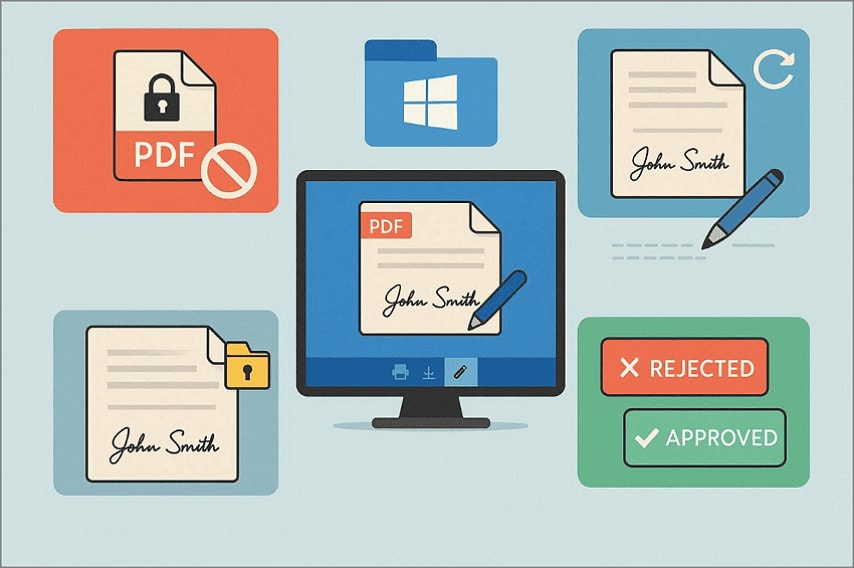
PDF Won't Let Me Sign
This problem usually occurs when the document has editing or annotation restrictions enabled. Some PDFs are locked by the creator, preventing signature placement or changes. To resolve this, open the file properties to check permissions or request an unlocked version. Using a full PDF editor like Wondershare PDFelement helps identify restrictions and supported signing options.
G2 Rating: 4.5/5 |100% Secure
Signature Not Showing After Saving
Signatures may not appear due to display refresh issues or viewing mode limitations. The signature may still be embedded but temporarily hidden on screen. To address this issue, close and reopen the PDF, then zoom or scroll to confirm placement. Reliable PDF editors preserve signature visibility during saving and reopening.
PDF Becomes Read-Only After Signing
This issue occurs when users sign documents before completing the required form fields. Some PDFs automatically lock content immediately after a digital signature is placed. Always finish edits, form entries, and thorough reviews before signing documents. Save the document after signing to prevent unintended read-only restrictions issues.
Signed PDF Rejected
Rejection often occurs because signatures are placed incorrectly or document formats appear altered. Some systems require signatures to remain clearly visible and correctly positioned within documents. Verify signature placement, size, and compatible file format carefully before final submission. Using a structured PDF editor reduces formatting changes and minimizes rejection risks.
People Also Ask
-
What is the best free PDF signature software for Windows?
One top free PDF signature software for Windows is PDF-XChange Editor, fully featured today. It supports easy signatures, annotations, and form filling without hidden costs or limitations. -
Can I sign PDF documents on Windows for free?
Yes, you can sign PDF documents on Windows without paying any fees at all. Free tools provide digital handwritten or certificate signatures with basic editing functions included today. -
Do free PDF signing tools add watermarks?
Most free PDF signing tools do not add watermarks when signing standard documents automatically. However, some free versions may restrict features or occasionally prompt upgrades for advanced capabilities. -
Is an electronically signed PDF legally valid?
Yes, an electronically signed PDF is generally legally valid under applicable electronic signature laws. Validity depends on jurisdiction and compliance with standards like eIDAS or the ESIGN Act rules. -
Can I sign a PDF without Adobe?
Yes, you can sign a PDF without Adobe using free software or online services. Windows apps and web tools allow quick e-signatures with no costly subscriptions required.
Conclusion
To conclude, free PDF signature software enables Windows users to complete approvals efficiently without printing delays or extra costs. By understanding free feature limits and choosing reliable desktop tools, users can maintain privacy and workflow consistency. Moreover, selecting dependable PDF signing software simplifies everyday document tasks while preserving legal acceptance. For regular Windows signing needs with clear controls, PDFelement offers a practical, balanced solution.




