

In this article
- How to Choose the Best Free PDF Converter
- Part 1: Best Software for PDF Converter (Desktop for Windows & Mac)
- Part 2: Best Free PDF Converter Online
- Part 3: Free PDF Converter Apps for Mobile
- Part 4: Feature Comparison Summary
- Part 5: How to Convert PDF Files on Windows & Mac
- FAQs about PDF Converters
Finding a reliable free pdf converter can dramatically improve your daily document workflow. Whether you need to extract text from a scanned invoice, turn a presentation into a PDF, or convert a financial report into an editable Excel spreadsheet, having the right tool is essential.
With so many options available, from browser-based utilities to comprehensive desktop applications, it can be overwhelming to choose. Are you looking for the best software for pdf converter that works entirely offline? Or do you just need a quick web tool to convert a single document? In this comprehensive guide, we have tested and curated the absolute best pdf converter tools available today, categorized by desktop, online, and mobile platforms. We will also pay special attention to ensuring these tools work flawlessly as a pdf converter windows 10 and a pdf converter for windows 11.


 G2 Rating: 4.5/5 |
 100% Secure
How to Choose the Best Free PDF Converter
Before diving into the list of tools, it is vital to understand what makes a PDF converter stand out. Not all converters are created equal. When evaluating the best software for your needs, consider the following criteria:
Platform Compatibility
Your operating system dictates the type of software you should use. If you are upgrading your PC, you need to ensure the software acts as a seamless pdf converter for windows 11, while maintaining backward compatibility as a pdf converter windows 10. Mac users need dedicated macOS support, often optimized for Apple Silicon. Mobile users need intuitive apps designed for touch screens.
Output Format Fidelity
The hallmark of the best pdf converter is its ability to retain original formatting. When converting a PDF to Microsoft Word, for example, the headers, footers, images, and tables should remain exactly where they were in the original document. Poor converters will scramble text and break image alignments, causing you more work in post-editing.
OCR (Optical Character Recognition) Capabilities
If you deal with scanned documents or image-based PDFs, a standard converter will only output an image embedded inside a Word file. OCR technology recognizes the text within the image and makes it fully selectable, searchable, and editable. This is a premium feature, but the best software for pdf converter tasks will offer it natively.
Security and Privacy
If you are converting confidential business documents, legal contracts, or documents containing personally identifiable information, uploading them to a free online converter poses a significant privacy risk. In these scenarios, offline desktop software is paramount because processing happens locally on your machine.
Part 1: Best Software for PDF Converter (Desktop for Windows & Mac)
Desktop PDF converters are generally more powerful than their online counterparts. They offer batch processing, offline security, advanced OCR, and superior formatting retention. Here are the top desktop tools.
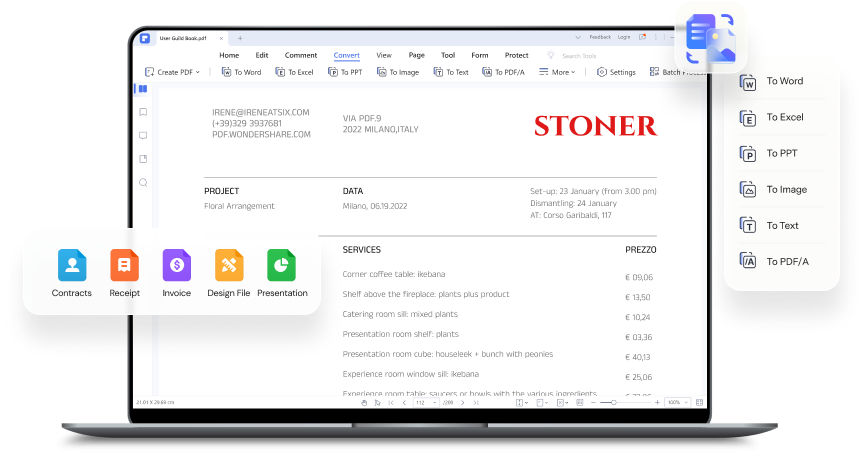
#1 PDFelement - Best PDF Converter Software Overall
Wondershare PDFelement is widely considered the best free pdf converter software for both home and professional users. It perfectly balances an intuitive, modern interface with robust, enterprise-level features. Whether you need a reliable pdf converter windows 10 or a modern, fluid pdf converter for windows 11, PDFelement delivers flawlessly.
- Extensive Format Support: Converts PDFs to Word, Excel, PowerPoint, standard images (JPG, PNG, TIFF), Text, HTML, EPUB, and RTF. It also creates PDFs from almost any file format.
- Industry-Leading OCR: Features highly accurate Optical Character Recognition supporting dozens of languages, allowing you to turn scanned receipts and paper documents into editable digital files.
- Batch Processing: Need to convert 50 PDFs to Word at once? PDFelement handles batch conversion rapidly without freezing your computer.
- High-Quality Output: Retains original layouts, fonts, and image placements with incredible accuracy.
- Full PDF Editing Suite: Beyond conversion, it allows you to edit text, swap images, add watermarks, insert digital signatures, and encrypt files with passwords.
G2 Rating: 4.5/5 |100% Secure
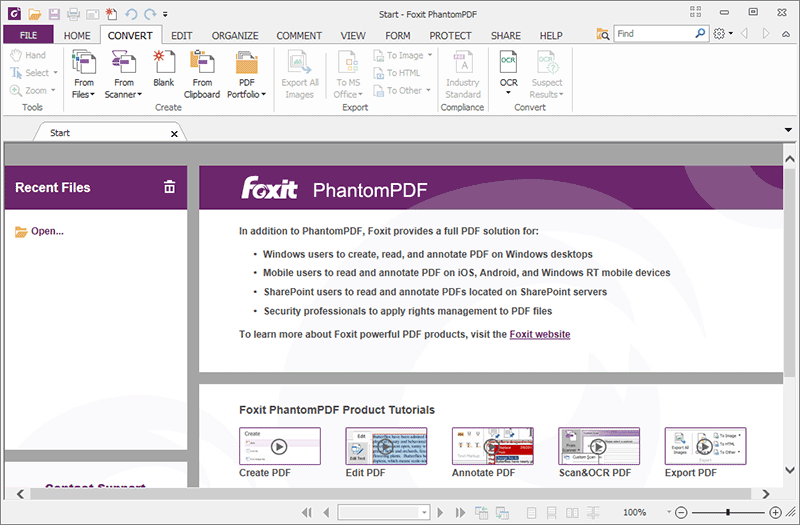
#2 Foxit PDF Editor
Foxit PDF Editor is a powerhouse in the document management space, heavily favored in corporate environments. It is a fantastic best software for pdf converter option if you require advanced collaboration tools alongside your conversion needs.
- Versatile Conversion: Easily converts PDF files to Microsoft Office formats, HTML, image formats, and RTF.
- Cloud Integration: Integrates tightly with cloud storage providers and Enterprise Content Management (ECM) systems.
- ConnectedPDF: Features proprietary technology for document tracking, sharing, and version control.
- Performance: Known for being lightweight and fast, making it an excellent pdf converter windows 10 for older machines.
#3 Adobe Acrobat Pro
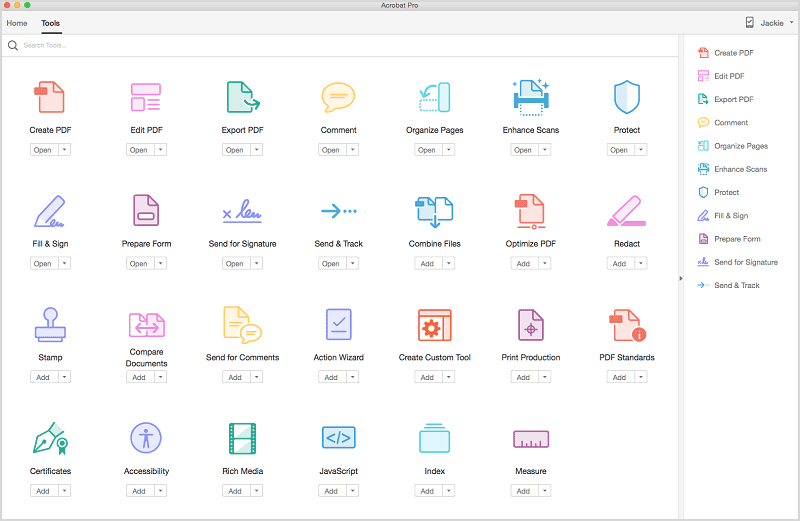
No list of the best pdf converter tools is complete without mentioning Adobe Acrobat. As the creators of the PDF format, Adobe offers unparalleled reliability, though it comes at a premium price point after the free trial expires.
- Perfect Fidelity: Since Adobe invented the format, its conversion engines are incredibly precise, particularly when dealing with complex vector graphics and intricate fonts.
- Deep Microsoft 365 Integration: Operates seamlessly directly inside Word, Excel, and PowerPoint ribbons.
- Advanced Accessibility: Provides robust tools for creating PDFs compliant with WCAG and PDF/UA standards.
- Cross-Device Sync: Start converting a file on your Windows 11 desktop and finish reviewing it on your iPad.
#4 Nitro PDF Pro
Nitro Pro is a direct competitor to Adobe Acrobat, offering a very similar feature set but with a user interface heavily inspired by the Microsoft Office ribbon. This makes it instantly familiar for new users looking for a capable pdf converter for windows 11.
- Office-Style Interface: Drastically reduces the learning curve for users migrating from other tools.
- Nitro Sign Integration: Built-in e-signature capabilities streamline contract workflows post-conversion.
- QuickSign Tool: Easily apply your saved signature to any document.
- CAD Support: Excellent handling of high-quality blueprints and 3D PDFs.
Part 2: Best Free PDF Converter Online
If you only need to perform a one-off conversion and do not want to install any software, online PDF converters are the way to go. They work on any device with a web browser. Here is the best pdf converter list for web users.
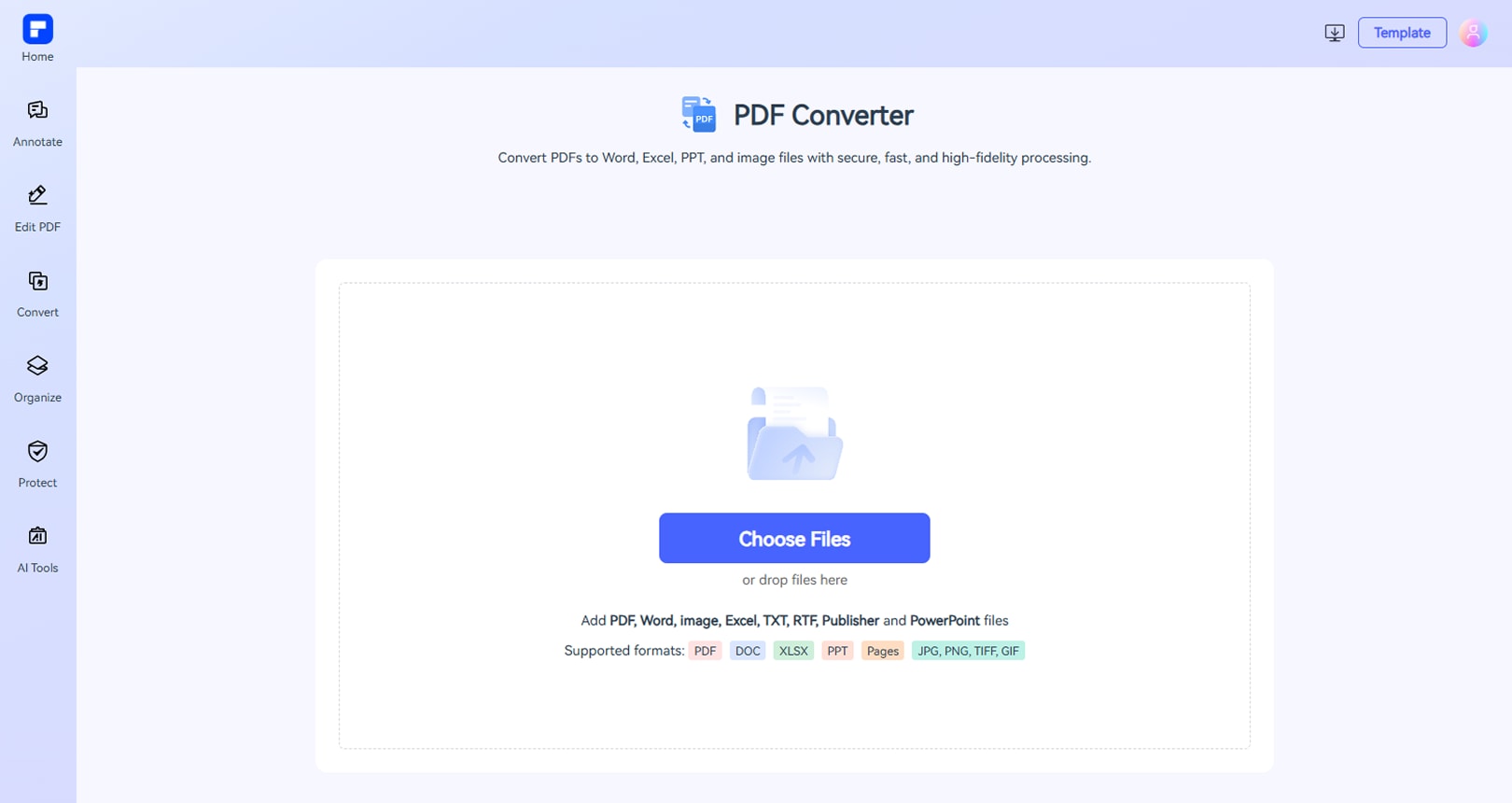
#1 PDFelement Online
PDFelement Online is a comprehensive web-based platform that brings much of the desktop application's power directly to your browser.
- Multi-Format Support: Convert to Word, Excel, PPT, JPG, PNG, and more.
- Clean Interface: Ad-free and highly intuitive user experience.
- Cloud Processing: Fast conversion speeds powered by robust cloud servers, meaning it won't drain your laptop's battery.
- Free to Use: Offers generous daily conversion limits without requiring a credit card.
#2 iLovePDF
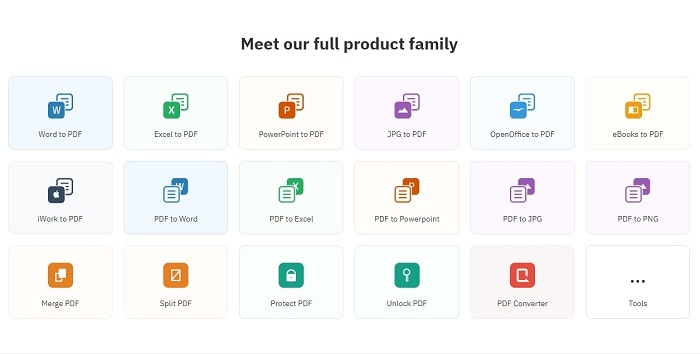
iLovePDF is arguably one of the most popular free online document utilities in the world. It provides a massive grid of specific tools to handle almost any PDF-related task.
- Granular Tools: Specific buttons for "PDF to Word", "Word to PDF", "PDF to Excel", etc., making navigation incredibly straightforward.
- Google Drive & Dropbox Integration: Fetch files directly from your cloud storage and save the converted files right back.
- Mobile Friendly: The website is highly responsive, working well on mobile browsers.

#3 Smallpdf
Smallpdf is known for its beautiful, minimalist design and reliable conversion engine. It simplifies complex document tasks into a drag-and-drop experience.
- Chrome Extension: Offers a handy browser extension for quick access to conversion tools.
- Solid Security: Files are automatically deleted from their servers after one hour.
- Compression: Not just a converter, it features one of the best online PDF compression algorithms to shrink file sizes.
#4 FreePDF Convert
As the name implies, FreePDF Convert is dedicated to rapid document transformation. It supports a surprisingly wide array of niche formats.
- 100+ Formats: Quickly convert PDFs to more than 100 different file types.
- Universal Compatibility: Works on Mac, Windows, Linux, iOS, and Android seamlessly.
- Encryption: Uses 256-bit SSL encryption to keep your uploads secure during transit.
#5 Soda PDF Online
Soda PDF offers both a desktop and an online version, but their online converter is exceptionally feature-rich, mirroring a desktop experience in the browser.
- Desktop-like UI: Offers a more advanced interface than standard single-click online converters.
- Direct Emailing: You can opt to have the converted file emailed directly to your inbox.
- Merge and Split: Easily combine multiple converted files into a single document or split them up.
Part 3: Free PDF Converter Apps for Mobile
For professionals on the go, managing documents from a smartphone or tablet is a daily reality. Here are the best mobile apps for PDF conversion.
#1 PDFelement App for Mobile (iOS & Android)
The PDFelement mobile app brings desktop-class PDF processing to your pocket. Whether you are using an iPhone, iPad, or an Android smartphone, this app is incredibly versatile.
- Cross-Platform: Available on both Apple App Store and Google Play Store.
- Camera to PDF: Use your phone's camera to scan physical documents directly into high-quality PDFs.
- Edit on the Go: Modify text, sign documents with your finger, and add annotations directly from your phone.
- Seamless Sharing: Quickly share converted documents via email, WhatsApp, or cloud storage.
#2 Adobe Acrobat Reader Mobile
While primarily known as a reader, the Acrobat mobile app includes powerful conversion tools (though some require a premium subscription).
- Liquid Mode: A revolutionary reading experience that reformats PDFs to fit mobile screens perfectly.
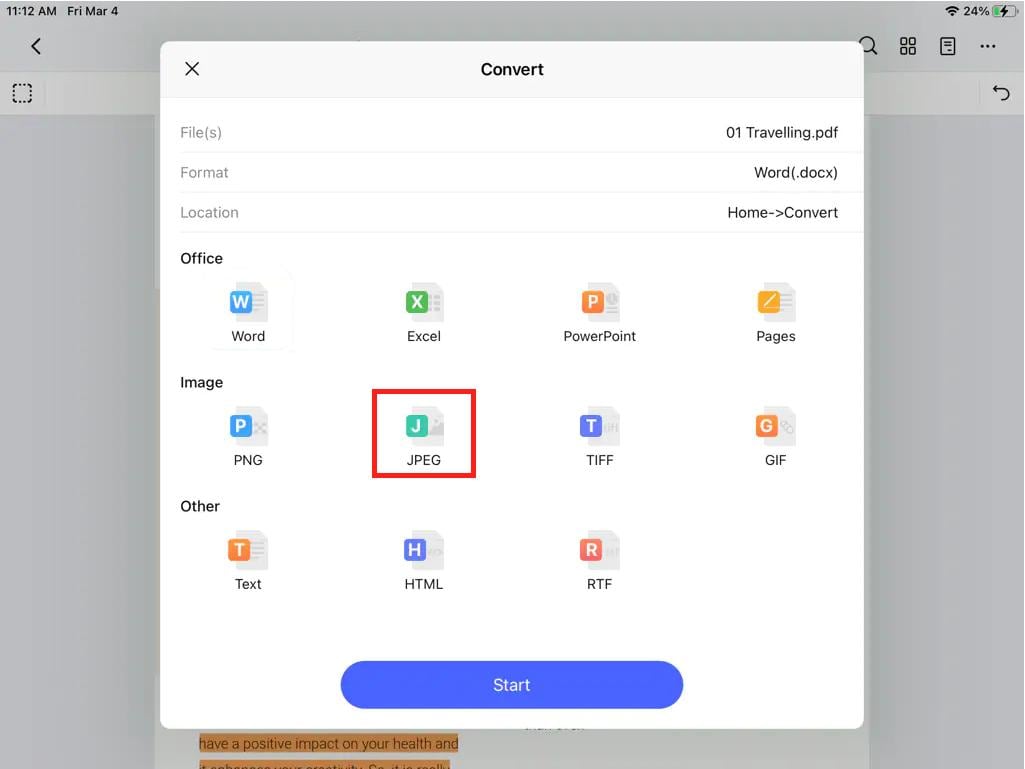
- High-Quality Exports: Export PDFs to Word, Excel, or PowerPoint right from your mobile device.
- Document Cloud: Syncs flawlessly with your desktop Acrobat software.
Part 4: Feature Comparison Summary
To help you decide which free pdf converter is right for you, here is a quick comparison of the top desktop software options:
| Software Name | Best For | OCR Support | Batch Conversion | Windows 11 Support |
|---|---|---|---|---|
| PDFelement | Overall Best Balance of Features & Price | Yes (Highly Accurate) | Yes | Full Support |
| Foxit PDF Editor | Corporate environments | Yes | Yes | Full Support |
| Adobe Acrobat Pro | Professional graphic designers | Yes | Yes | Full Support |
| Nitro PDF Pro | Microsoft Office users | Yes | Yes | Full Support |
G2 Rating: 4.5/5 |100% Secure
Part 5: How to Convert PDF Files on Windows & Mac
Using a high-quality desktop application like PDFelement ensures your files are converted securely and accurately. Here is a step-by-step guide on how to perform conversions on your computer.
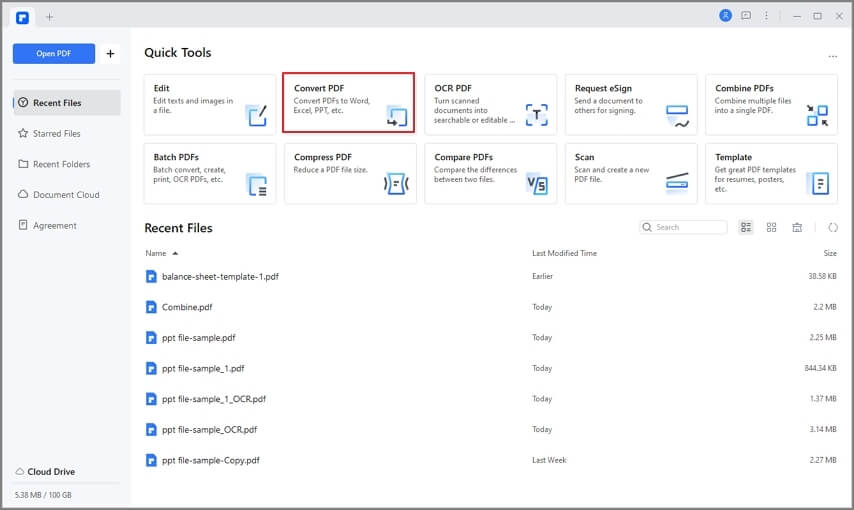
Step 1Open the PDF File
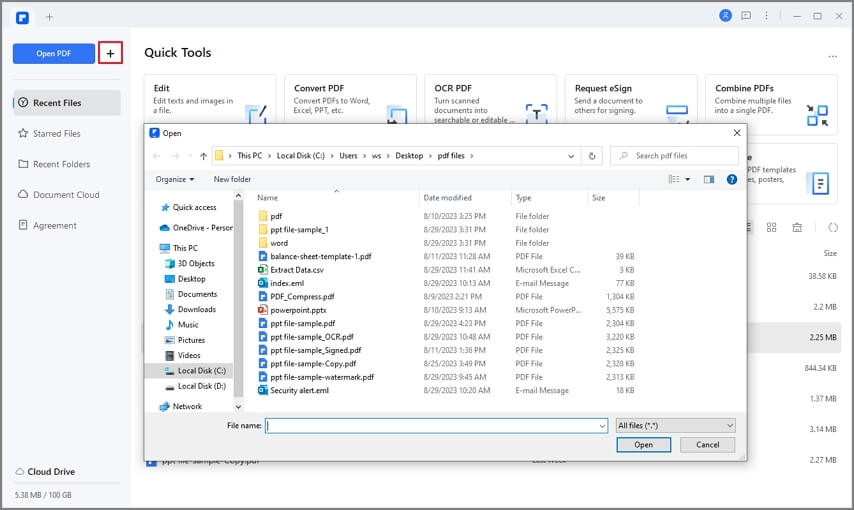
Launch PDFelement on your computer. On the Home screen, click the "Convert" button. This will prompt you to browse your local files and add the PDF document you wish to transform.
Step 2Select the Output Format
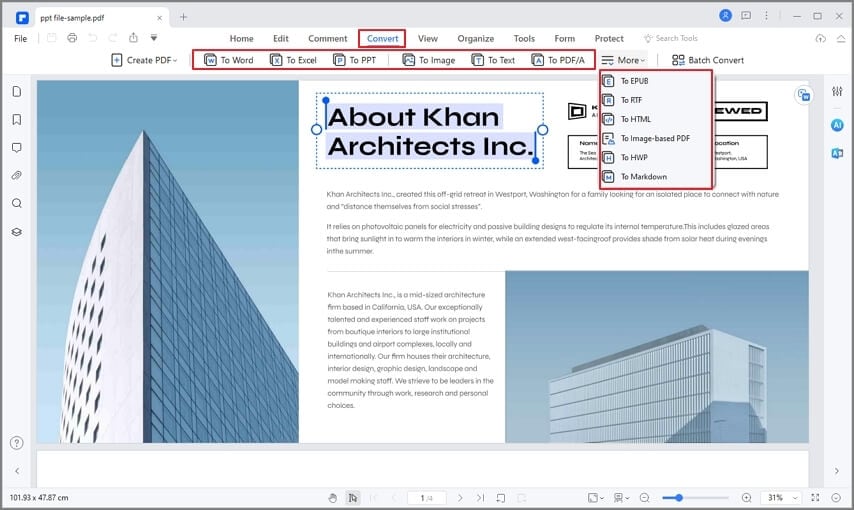
Once the conversion dialogue opens, choose your desired output format from the dropdown menu (e.g., Word, Excel, PPT, Image, Text). Select the destination folder where you want to save the new file.
Step 3Complete the Conversion
Click the "Convert" button. In just a few seconds, PDFelement will process the file. You can then open the newly converted document in its native application (like Microsoft Word) to begin editing.
Bonus: How to Create a PDF from Other Files
Converting works both ways! If you have a Word document or an image you want to secure as a PDF, simply click the "Create PDF" button on the PDFelement home screen, select your file, and save it as a PDF.
G2 Rating: 4.5/5 |100% Secure
Bonus: Batch Processing
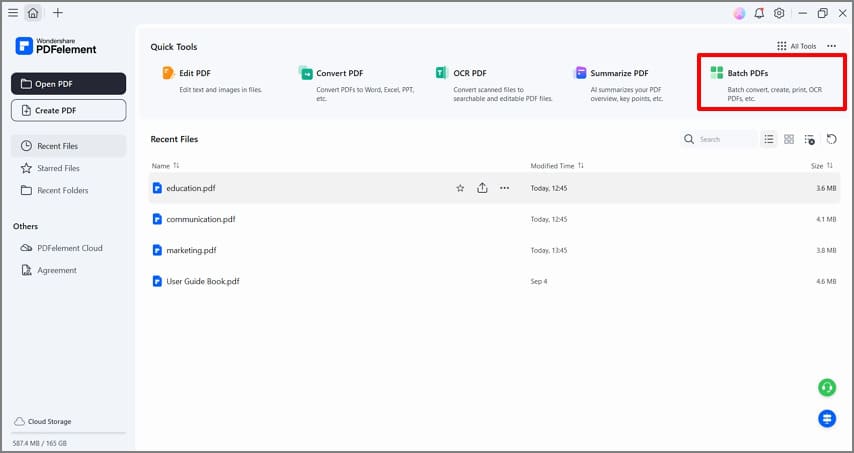
If you have a whole folder of files to convert, use the Batch Process feature. Click "Batch Process" > "Convert", add all your files, select the target format, and let the software convert dozens of files simultaneously.
FAQs about PDF Converters
-
Which is the best free PDF converter?
The "best" tool depends entirely on your workflow. For desktop users looking for a comprehensive suite, Wondershare PDFelement is highly recommended due to its rich feature set and excellent formatting retention. For quick, one-off web conversions, PDFelement Online and iLovePDF are fantastic, user-friendly choices. -
Is there a completely free PDF converter?
Yes. Many online tools like FreePDF Convert, iLovePDF, and Smallpdf offer completely free conversion services. However, it is important to note that most truly free services have limitations, such as a maximum file size (e.g., 15MB), a cap on how many files you can convert per day, or the inability to use advanced OCR. Desktop tools usually offer free trials with watermarks. -
Does Google have a free PDF converter?
Google does not have a dedicated, standalone PDF converter product. However, you can use Google Drive as a workaround. If you upload a PDF to Google Drive, right-click it, and select "Open with Google Docs," Google will attempt to convert the PDF into an editable text document. Note that this method often breaks complex formatting, images, and tables. -
Does Windows 10 or Windows 11 have a built-in PDF converter?
No. While Windows 10 and Windows 11 feature "Microsoft Print to PDF" (which allows you to save web pages or documents *as* PDFs), they do not include native software to convert PDFs *back* into editable formats like Word or Excel. You will need to install a dedicated pdf converter windows 10 or pdf converter for windows 11 like PDFelement or Foxit.


![All the Methods to Convert a PDF to Black and White [2026]](https://images.wondershare.com/pdfelement/images2026/pdf-like-article-3.png)

