Between a printed report and headphones, most people never consider the choice. Software can turn a PDF into audio in 2 ways. One narrates the document, keeping every word in the order the author wrote it. The other interprets the file and gives you a conversation or briefing instead of a straight read-through.
Both approaches are useful, but the right one depends on what you need. If the exact wording matters, choose narration. If the main argument matters more than the phrasing, choose the interpretive route. Understanding that difference helps you save time and choose the right tool, which is the focus of this article.


 G2 Rating: 4.5/5 |
 100% Secure
In this article
Part 1. What Happens When a PDF Becomes Audio
Before you turn a PDF into audio, it helps to understand what happens between the document and the finished sound. Most tools follow the same basic sequence. Adobe’s 2025 accessibility report also notes that structured PDF content can be presented through speech and other accessible formats.
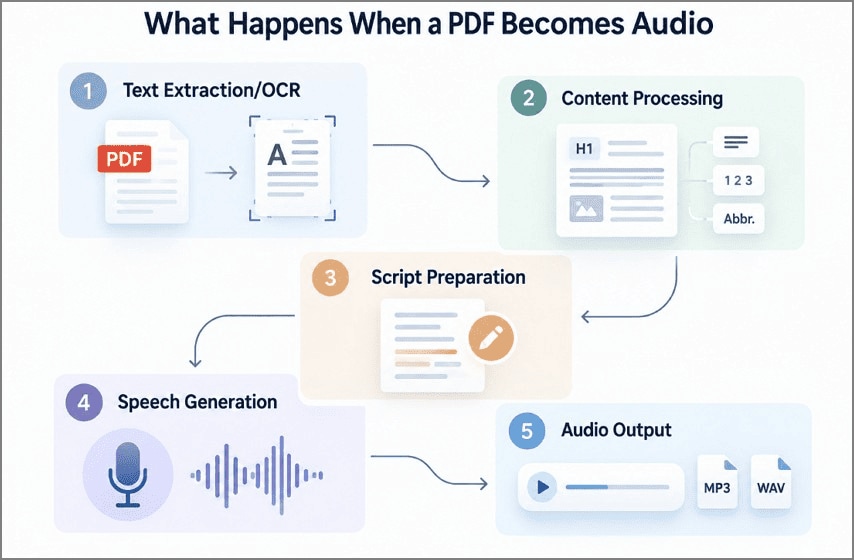
- Text Extraction/OCR: A normal PDF already contains readable text. Scanned pages do not, so OCR has to identify the characters first.
- Content Processing: After extraction, the software sorts out reading order, line breaks, headings, page numbers, and abbreviations before speech is created.
- Script Preparation: Straight narration stays close to the source, while AI podcast tools can trim, rearrange, or rewrite parts of the document.
- Speech Generation: The prepared text then passes to a text-to-speech system, which adds the voice, pacing, pauses, and pronunciation.
- Audio Output: Once generated, the audio can be played in the app or saved as MP3 or WAV for listening elsewhere.
Where PDF-to-Audio Conversion Can Go Wrong
When you convert PDF to audio, extraction and processing can create several reading problems. The issues below are the most common ones to check:
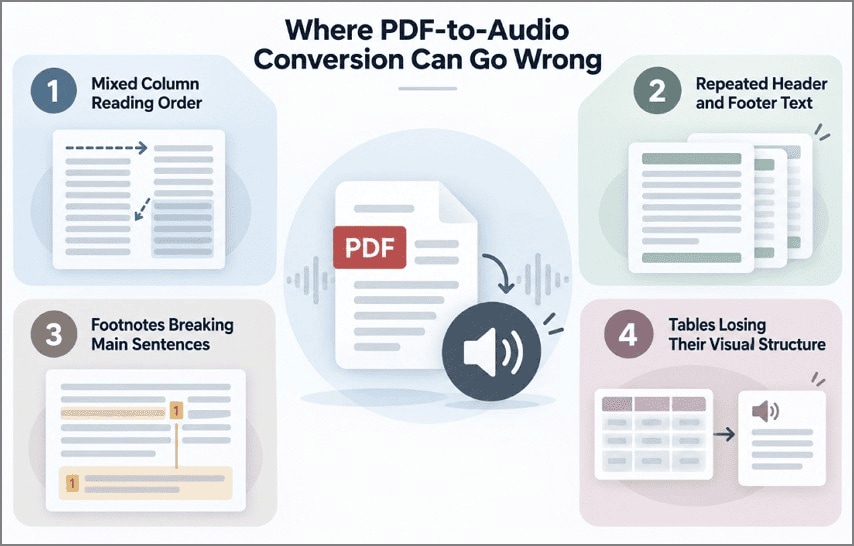
- Mixed Column Reading Order: Multi-column pages may be read straight across instead of finishing one column before moving correctly to the next.
- Repeated Header and Footer Text: Page numbers, document titles, or recurring labels can be spoken on every page and make the audio repetitive.
- Footnotes Breaking Main Sentences: Supporting notes may appear in the middle of a sentence, interrupting the narration and making the original meaning harder to follow.
- Tables Losing Their Visual Structure: Rows and cells may be read one after another, which often sounds confusing once the table layout is no longer visible.
Narration vs. AI-Generated Audio
The main difference is how closely the spoken result follows the original PDF.
- Direct PDF Narration: This is the closer reading. The wording stays mostly as it appears in the file, which matters when details cannot be skipped.
- AI-Generated Audio Summary: This version does more than read. It pulls out the main points, trims less useful material, and reshapes the content for listening.
Stanford’s 2025 Emerging Technology Review highlights this capability, noting that large language models can generate summaries and other new text from existing material. Thus, knowing what output you want makes it easier to choose the right way to turn PDF into audio.
Part 2. Two Ways to Turn PDF into Audio
Not every PDF needs the same kind of listening experience. Sometimes you need every sentence exactly as written. In other cases, you only want the main ideas without spending an hour hearing the whole file. PDFelement supports both approaches, so the better option depends on what you need from the document.
Listening to the Full PDF With Text-to-Speech
A long PDF can be awkward to get through on screen, especially when you would rather listen while doing something else. PDFelement’s Read Aloud feature lets you convert a PDF to audio and follow the document by ear instead. This method has the following characteristics that shape the listening experience:
- Close Fidelity to the Original Text: Read Aloud stays near the source instead of turning the PDF into a summary, explanation, or conversational script.
- Dependence on Document Reading Order: Headings, paragraphs, lists, and page structure can influence how naturally the PDF sounds when converted into speech.
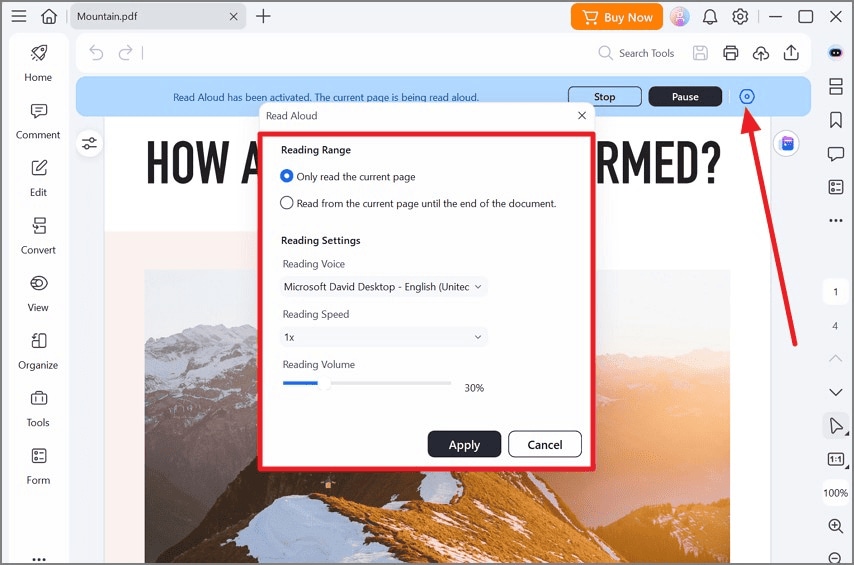
- Adjustable Voice and Playback Controls: Voice, speed, volume, and reading range can be changed to suit the document type and the listener’s preference.
- Longer Listening Time for Large PDFs: Since the content is not heavily condensed, lengthy reports usually take much longer to hear than summarized audio.
Full narration can become a time commitment with large files. At about 150 words a minute, a 50-page report averaging 450 words per page runs for roughly 2.5 hours. Dense technical material may also need almost the same level of attention as reading it.
Turning a PDF Into an AI-Generated Podcast
When you need the main ideas rather than every sentence, an AI podcast offers a more condensed way to turn a PDF into audio. In PDFelement, the document becomes source material for a newly generated spoken script instead of being read line by line. These 4 characteristics define what comes back, and together they explain why the output differs so sharply from narration:
- Key Content Prioritized: Main arguments, findings, and supporting evidence receive priority, while less useful background material may be shortened or omitted.
- Repetition Reduced: Repeated explanations, boilerplate, and overlapping points can be condensed so the generated discussion moves through the document more efficiently.
- Text Made Conversational: Dense paragraphs are rewritten into spoken language, making complex information easier to follow without constantly referring to the original page.
- Long PDFs Condensed: Large documents can become a more manageable listening experience when understanding the central ideas matters more than hearing everything.
Choosing Between the Two Methods
Putting the 2 approaches side by side makes the trade-offs easier to see. The table below compares the factors that usually matter most when choosing between them:
| Factor | Text-to-Speech | AI Podcast |
| What it Preserves | Every word, in the original order | The argument and its supporting evidence |
| Typical Length | Hours for a long report | Minutes, set by you |
| Handles Tables and Footnotes | Poorly, since both read linearly | Better, because they are summarised |
| Attention Required | Same as reading the document | Suitable for driving or exercising |
| Best Suited To | Contracts, proofreading, accessibility | Reports, research, deciding what to read |

Part 3. How to Convert PDF to Audio with PDFelement
PDFelement keeps both audio workflows inside the same application, so there is no need to extract text in one tool and move it into another. You can convert PDF to audio as direct narration or generate a shorter AI podcast from the document already open in your workspace.
The PDF remains available while you listen, which makes it easier to follow the text or check a passage. Scanned files can also be processed with OCR before audio generation.
Method 1. Read Your PDF Aloud
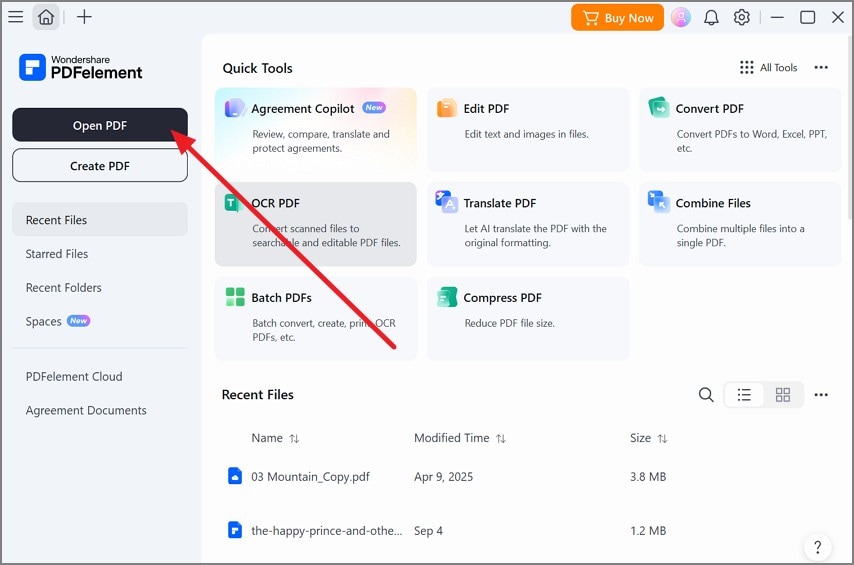
Step 1. Open the PDF in PDFelement
Launch PDFelement and click “Open PDF.” Select the document you want to hear and open it in the editor.
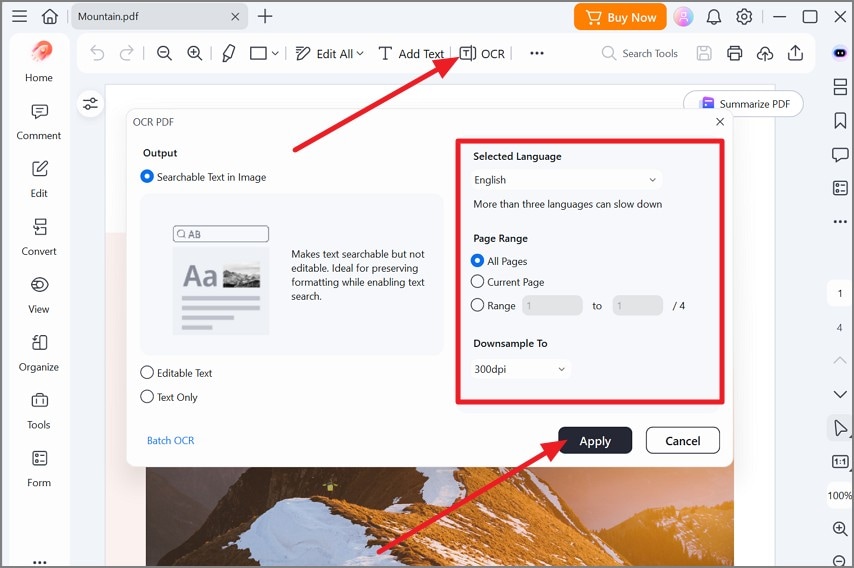
Step 2. Run OCR if the PDF Is Scanned
Click “OCR” on the top toolbar. Choose the correct language and page range, then click “Apply” to recognize the scanned text.
Step 3. Start the Read Aloud Feature
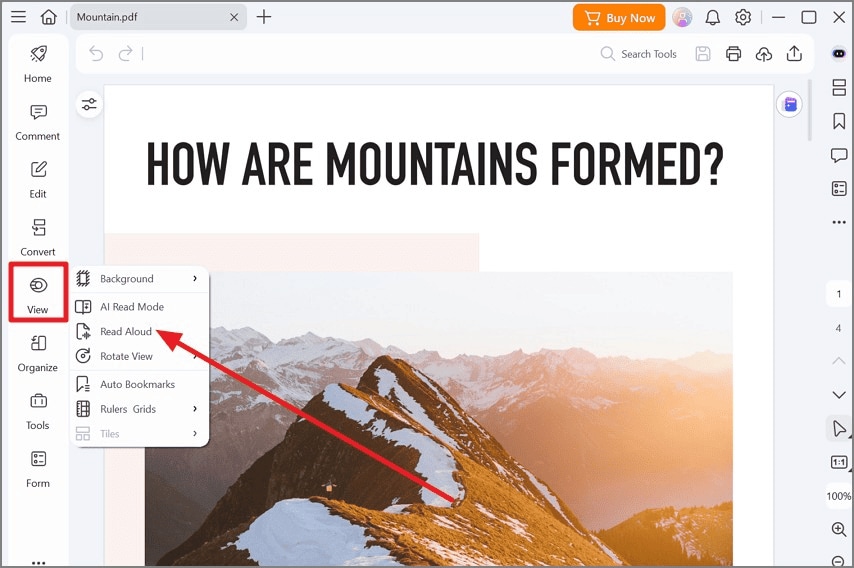
Choose “View” from the left sidebar and select “Read Aloud.” PDFelement will begin reading the current page aloud.
Step 4. Configure the Reading Settings
Open the “Read Aloud” settings panel. Choose the reading range, voice, speed, and volume, then click “Apply” to continue with your preferred settings.
Method 2. Turn Your PDF Into a Podcast With AI
Step 1. Create a New Space in PDFelement
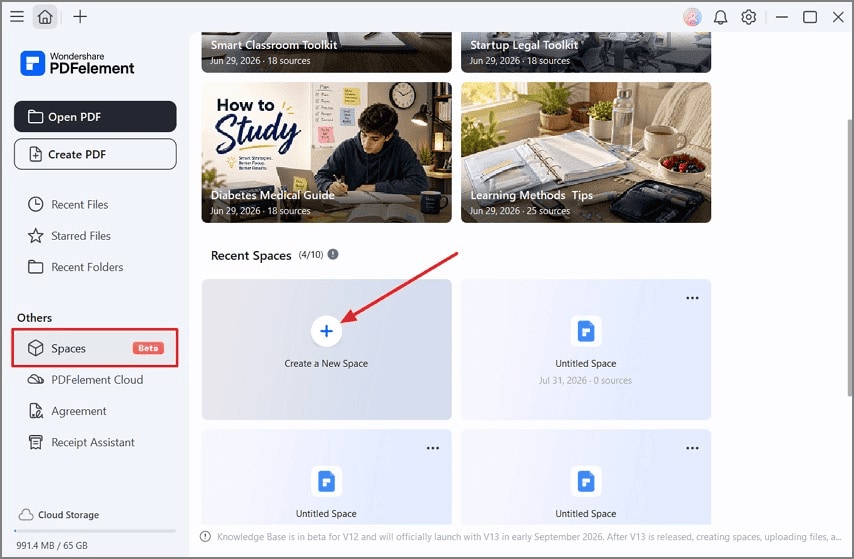
Open “Spaces” from the left sidebar, then press “Create a New Space” to set up a workspace for the PDF you want to process.
Step 2. Add the PDF as a Source
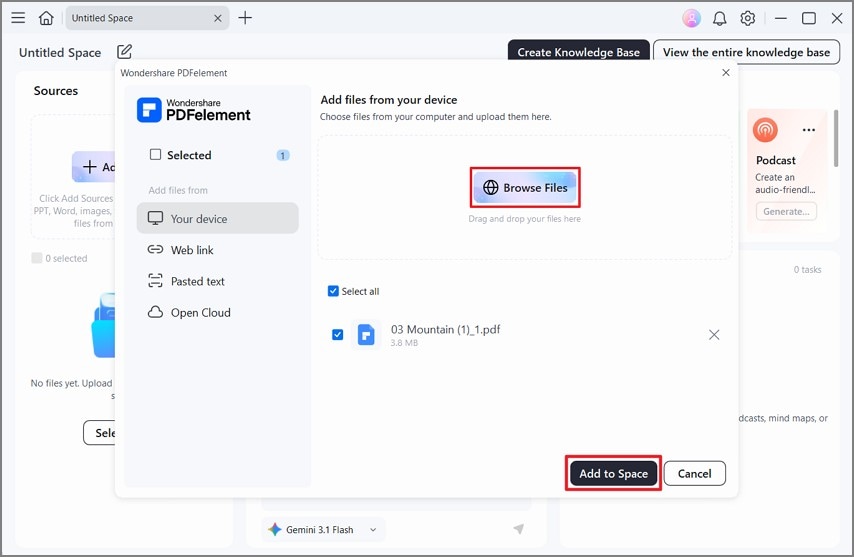
Navigate to “Add Sources,” choose “Browse Files,” select the PDF from your device, and click “Add to Space” to upload it.
Step 3. Configure and Generate the Podcast
Select “Podcast,” then choose the audio type, length, and any focus instructions for the AI hosts. Then choose “Save” to start generation.
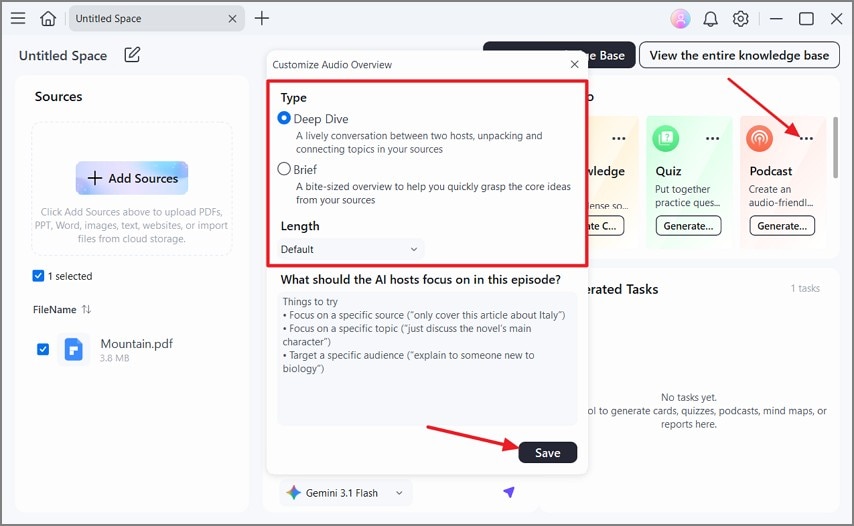
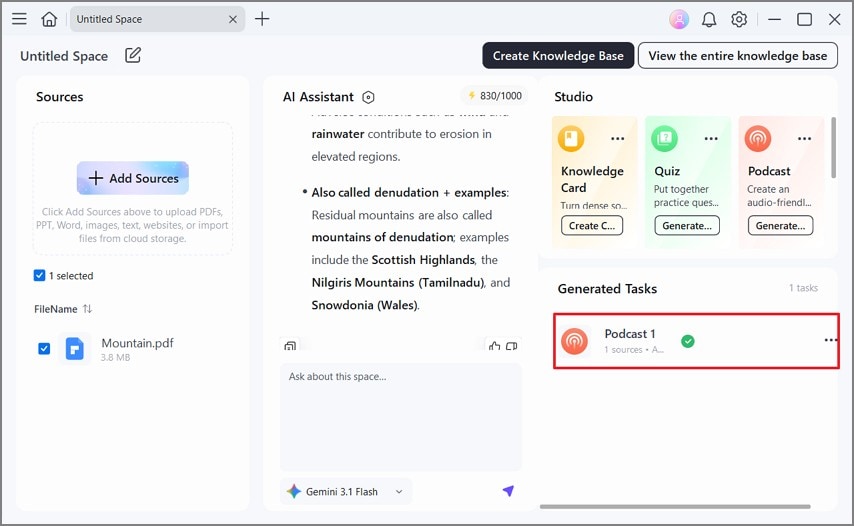
Step 4. Open the Generated Podcast
When processing finishes, find the podcast under “Generated Tasks” and open it to review or play the completed AI-generated audio.
G2 Rating: 4.5/5 |100% Secure
Part 4. Why PDFelement Suits Both Approaches
If you are deciding how to turn a PDF into an audio file, PDFelement keeps the main document, OCR, narration, and AI podcast tools in one workflow. The points below explain where that integration is most useful:
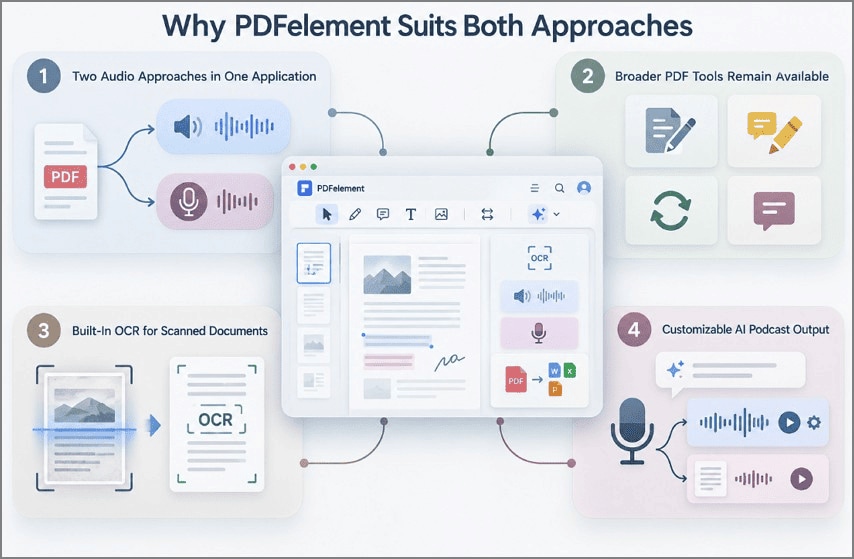
- Two Audio Approaches in One Application: Read Aloud handles direct narration, while AI Space can generate podcast-style audio from the same document source.
- Broader PDF Tools Remain Available: Editing, annotation, conversion, and other PDF functions stay accessible when you need to review or revise the source document.
- Built-In OCR for Scanned Documents: PDFelement can recognize text in image-based PDFs, making scanned content usable before reading or further document processing.
- Customizable AI Podcast Output: AI Space offers Deep Dive or Brief formats and lets you guide the podcast with prompts for topic, audience, or focus.
Frequently Asked Questions
Can I turn a scanned PDF into audio?
Yes, once OCR has converted the page images into a text layer. Attempting to turn a PDF into audio without that step produces silence, because a scanned page contains no characters for a speech engine to read.
Can I convert a long PDF into audio?
Length rarely blocks the conversion, though it changes which method makes sense. Narrating a 200-page report takes most of a working day. Choosing the podcast route instead compresses the same document into a single listening session.
What is the best free PDF audio reader?
A handful of free options handle basic narration perfectly well. Adobe Acrobat Reader includes Read Out Loud, Microsoft Edge offers a built-in read-aloud function, and Apple devices provide Speak Selection. All of them read text as written rather than summarising it.
Final Takeaway
Knowing how to turn a PDF into an audio file comes down to choosing between full narration and a shorter AI-generated summary. Narration suits documents where wording matters, while podcast-style audio works better for faster understanding. Since PDFelement supports both approaches in one place, it is a practical choice for switching between careful listening and quick document review.
G2 Rating: 4.5/5 |100% Secure