

In this article
- How Can You Quickly Save QuickBooks Files as PDF Without Errors?
- What Types of QuickBooks Files Can You Actually Save as PDFs?
- What are the Best Practices to Save QuickBooks to PDF?
- How Do PDF Workflows Differ Between QuickBooks Desktop and Online?
- What Should You Do If QuickBooks Cannot Save to PDF?
- Which QuickBooks-to-PDF Method Is Best?
- What Should You Do After Exporting QuickBooks to PDF?
- How Can You Improve QuickBooks PDFs After Export with PDFelement?
- What Are the Most Common Use Cases for Saving QuickBooks to PDF?
- Frequently Asked Questions (FAQs)
- Conclusion
When deadlines hit and records need to be shared quickly, financial files can become harder to manage. Many businesses need a simple way to save QuickBooks to PDF for invoices, reports, and forms that are easier to send, review, and archive. Exporting QuickBooks to PDF solves this by creating more accessible files for billing, reporting, and recordkeeping. However, exported PDFs may still need cleanup before final delivery. This guide explains how to export QuickBooks to PDF and when to refine the final file with PDFelement.
Part 1. How Can You Quickly Save QuickBooks Files as PDF Without Errors?
QuickBooks allows users to convert financial documents into PDFs using built-in print or export features. The exact workflow can vary slightly between the desktop and online versions.
PDF Export Basics: Users can save invoices, reports, forms, and statements as PDFs directly through the print or export options. This makes sharing and storing financial data simple and universally accessible.
Desktop vs. Online Differences: The steps may differ between QuickBooks Desktop and QuickBooks Online due to interface and feature variations. However, both versions support reliable PDF generation through built-in tools.
Fixing PDF Save Failures: If QuickBooks’ Save As PDF does not work, users should first troubleshoot printer settings or PDF driver issues. Resolving these common setup problems usually restores the export function.
Post-Export PDF Refinement: Once exported, PDFs can be further edited, organized, or compressed using PDFelement. This helps ensure documents are polished and ready for professional use or sharing.
Part 2. What Types of QuickBooks Files Can You Actually Save as PDFs?
QuickBooks supports exporting a range of financial documents as PDFs, making it easier to share and store information. This flexibility helps users manage both external communication and internal documentation efficiently.
| File Type | Main Purpose |
|---|---|
| Invoices | Share customer billing records as PDFs |
| Reports | Save financial summaries and audit reports |
| Forms and Statements | Export printable business documents as PDFs |
Part 3. What are the Best Practices to Save QuickBooks to PDF?
There are several ways of exporting QuickBooks to PDF based on your needs. The best method depends on the document type and whether you need a direct export or a reliable fallback like print to PDF.
Method 1: Save QuickBooks Invoices as PDF
Saving invoices as PDFs ensures customer-facing documents are shared in a consistent, professional format. It also creates a reliable record for billing, tracking, and future reference.
Step 1
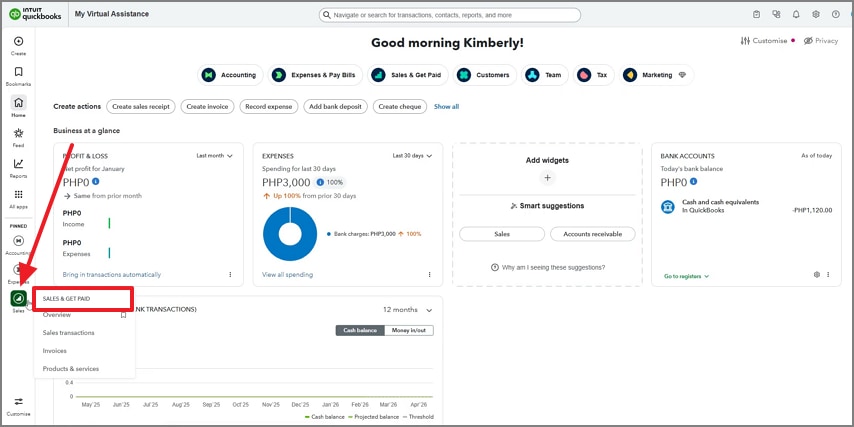
In QuickBooks, open the “Sales” tab and choose “Sales & Get Paid” to continue.
Step 2
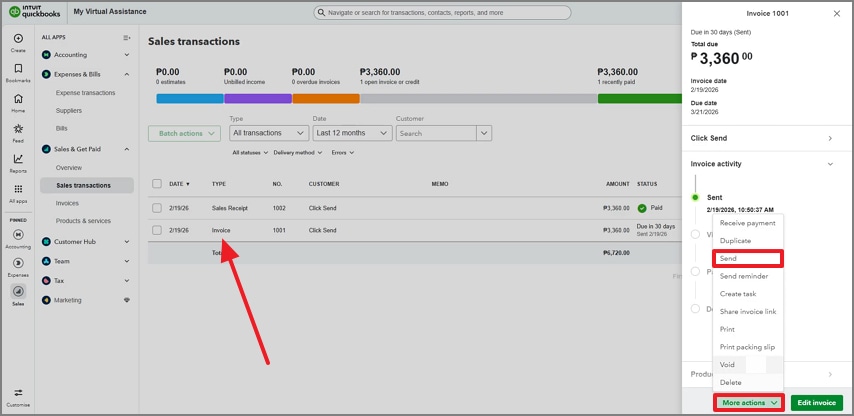
Upon locating the desired invoice, select it and refer to the right panel. Here, expand the “More Actions” menu and pick the “Send” option to open the invoice in a new tab.
Step 3
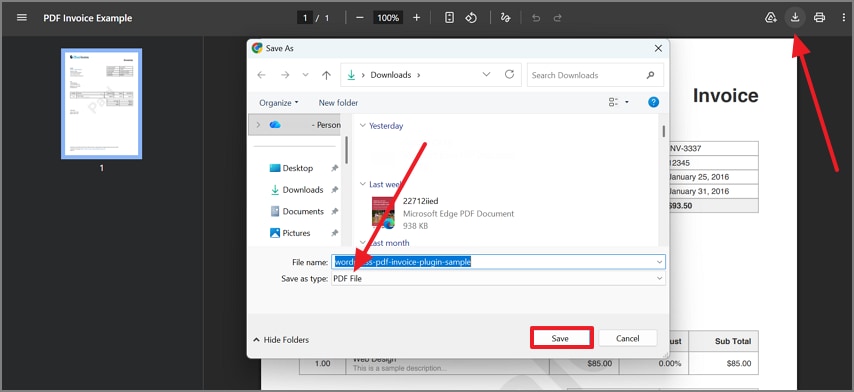
Now, click the “Download” icon at the top right and select the save type as “PDF File”.
Method 2: Export QuickBooks Reports as PDF
Exporting reports as PDFs helps with financial analysis, audits, and stakeholder communication. It ensures data is preserved in a fixed format that is easy to review and share.
Step 1
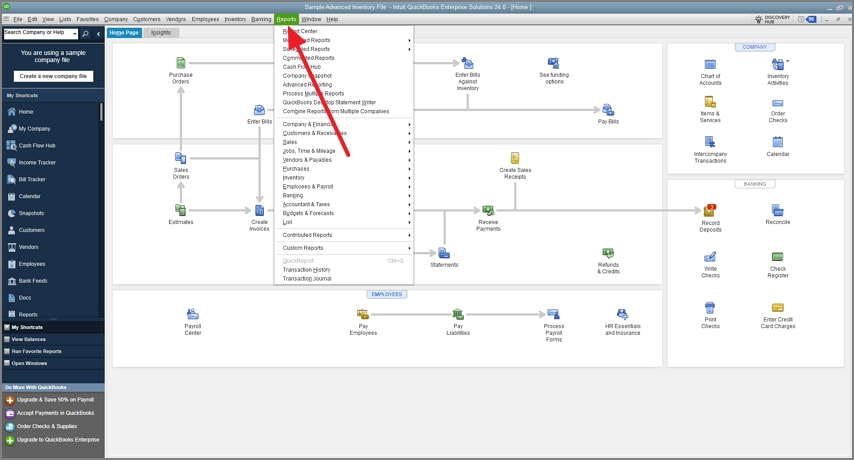
Using the top menu, open the “Reports” tab and select the desired report category.
Step 2
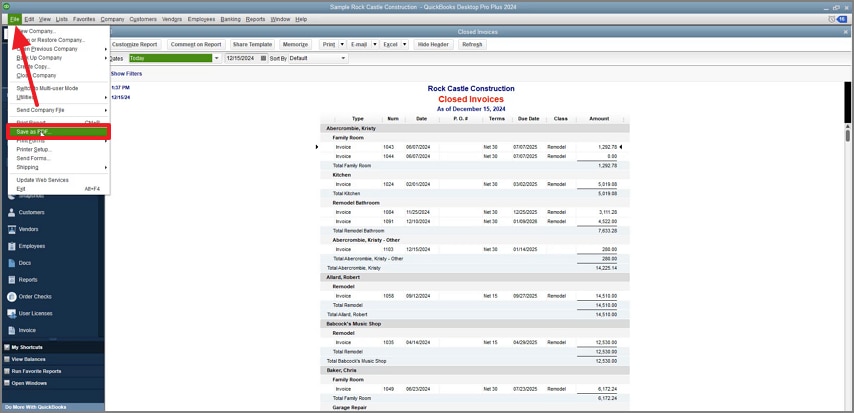
Once the report is open, open the “File” menu and click the “Save As File” option. When the dialogue box appears, select the “PDF” option and save the file.
Method 3: Save Forms or Statements as PDF
Saving forms or statements as PDFs supports documentation, approvals, and client communication. It helps maintain organized records for estimates, statements, and supporting documents.
Step 1
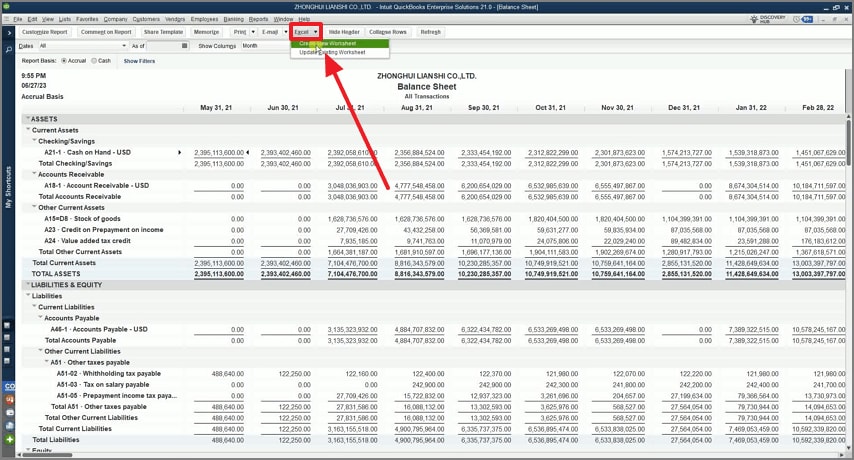
First, open the statement on QuickBooks and expand the “Excel” menu to “Create New Worksheet.”
Step 2
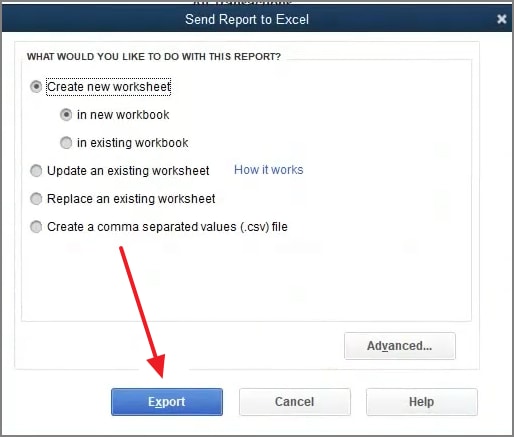
In the following dialogue box, enter the statement settings and click “Export” to take it to Excel’s interface.
Step 3
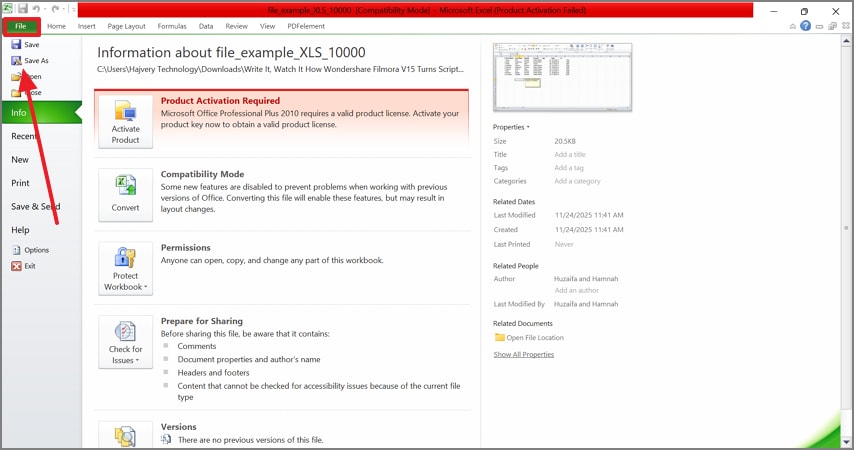
Here, expand the “File” menu and click “Save As” to open a new dialogue box. In this window, select the file format as PDF and save it in the desired folder.
Method 4: Use Print to PDF as a Fallback
Print to PDF provides a reliable workaround when the direct export option is unavailable or not working. It ensures you can still generate a usable PDF quickly, though minor formatting adjustments may be needed afterward.
Instructions
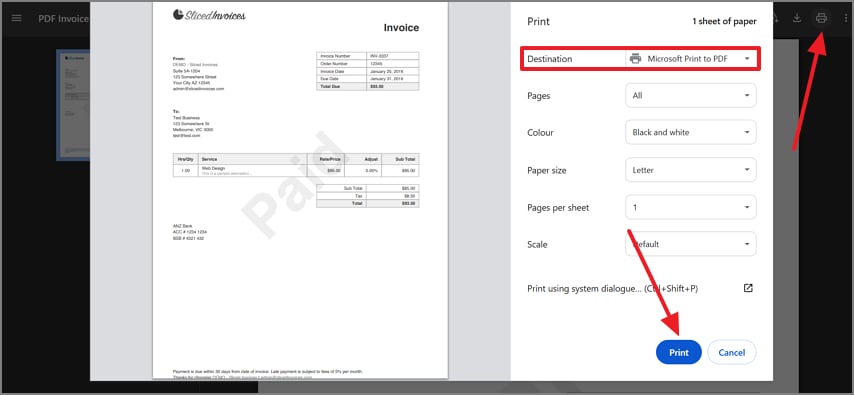
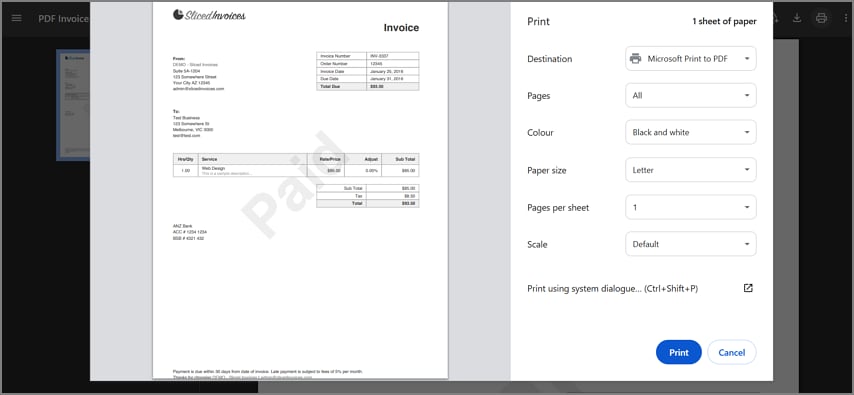
After opening the file in the first method, click the “Print” icon to open the print window. There, choose “Microsoft Print to PDF” and click “Print” to save the PDF to your device through the next dialog box.
Part 4. How Do PDF Workflows Differ Between QuickBooks Desktop and Online?
QuickBooks Desktop and QuickBooks Online both support PDF exports, but the way users access and complete these actions can vary. Understanding these differences reduces confusion and helps users choose the fastest workflow.
| Aspect | QuickBooks Desktop | QuickBooks Online |
|---|---|---|
| Workflow Style | Relies more on print and “Save as PDF” options within the desktop environment. | Uses UI-driven export or print options that vary by screen and document type. |
| System Dependency | More dependent on system settings like PDF drivers and printer configurations. | Less reliant on system setup, but depends on browser and interface behavior. |
| Common Issues | May face issues related to PDF components, printer setup, or local environment errors. | Issues may arise from limited export paths or document-by-document handling. |
| Flexibility | Offers more control in print settings and file handling. | Can feel more limited depending on the document type and available export options. |
Section Takeaway
The right PDF workflow depends on both the QuickBooks version you are using and the type of document you want to export.


 G2 Rating: 4.5/5 |
 100% Secure
Part 5. What Should You Do If QuickBooks Cannot Save to PDF?
When QuickBooks cannot save to PDF, the issue is often tied to temporary glitches or system-level settings. Each troubleshooting step below helps isolate the cause and restore PDF output more effectively.
Restart and Try the Save Workflow Again
Restart QuickBooks and repeat the save or print-to-PDF process. This clears temporary system or application glitches that commonly interrupt printing or PDF output.
Step 1
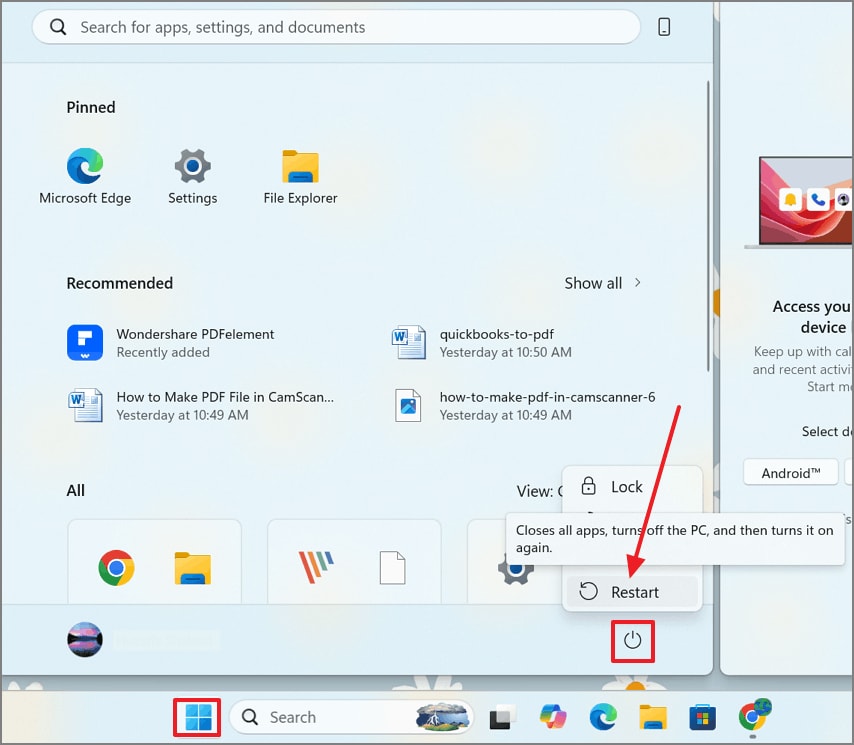
First, press the “Ctrl+Shift+Esc” keys to end QuickBooks processes, then open the “Start” menu on the device.
Step 2
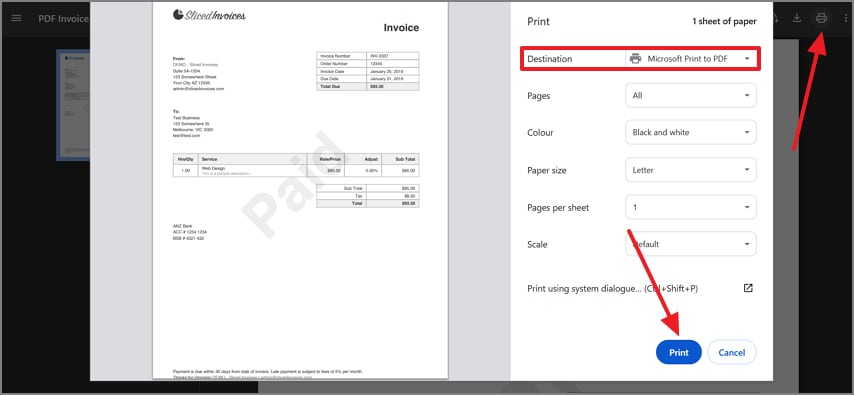
Now, reopen QuickBooks and open the invoice in a new tab. From the top right corner, click the “Print” option and select the “Microsoft Print to PDF” option. Lastly, click the “Print” button to save the file as a PDF.
Check Printer or PDF-Related Components
Ensure your default printer is set correctly and any PDF drivers are properly installed. QuickBooks relies on these components to generate PDFs, and any misconfiguration can block the export function.
Step 1
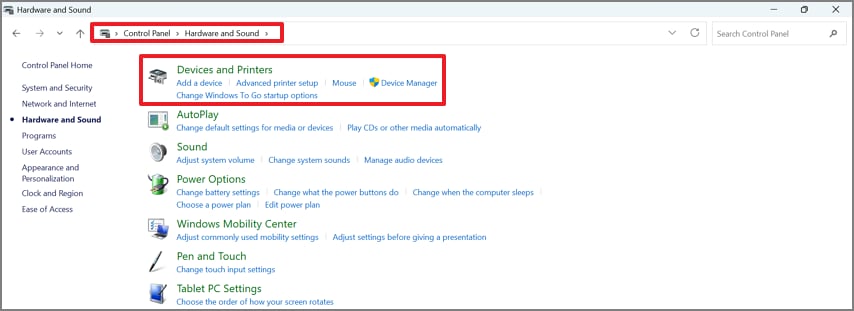
To start, open “Control Panel” and follow this navigation: Hardware and Sound > Devices and Printers.
Step 2
In the Settings app, follow this path: Bluetooth & Devices > Printers & Scanners > Microsoft Print to PDF. Click “Set as default,” then restart QuickBooks and try exporting again.
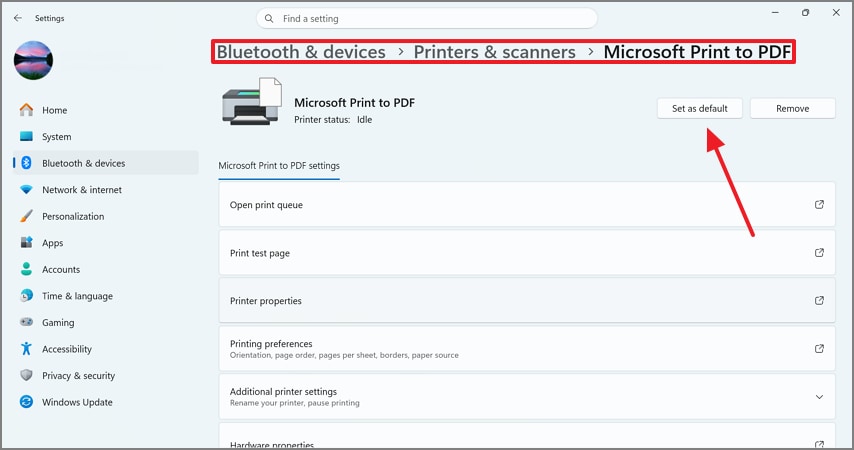
Check Permissions or Temp-Folder Problems
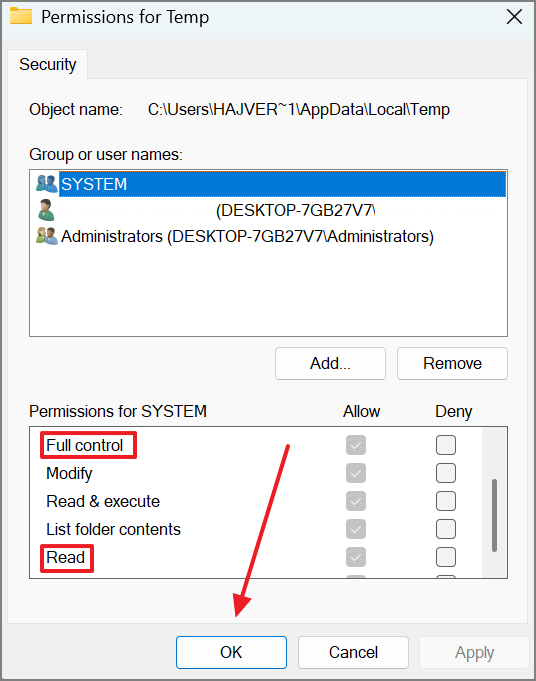
Verify that your system allows access to the required folders and has proper permissions enabled. Restricted access can silently prevent QuickBooks from creating or saving PDF files, even when everything else appears functional.
Step 1
In the “Win+R” window, type “%temp%” and click “OK.”
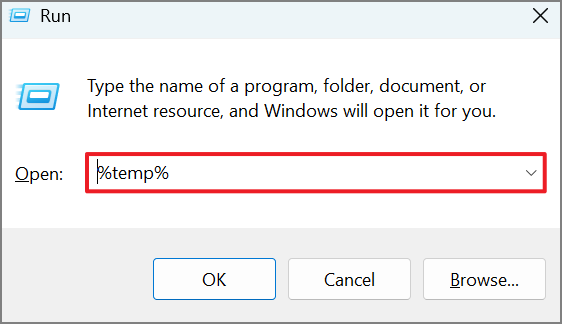
Step 2
Inside the temp folder, right-click to open the “Properties” window.
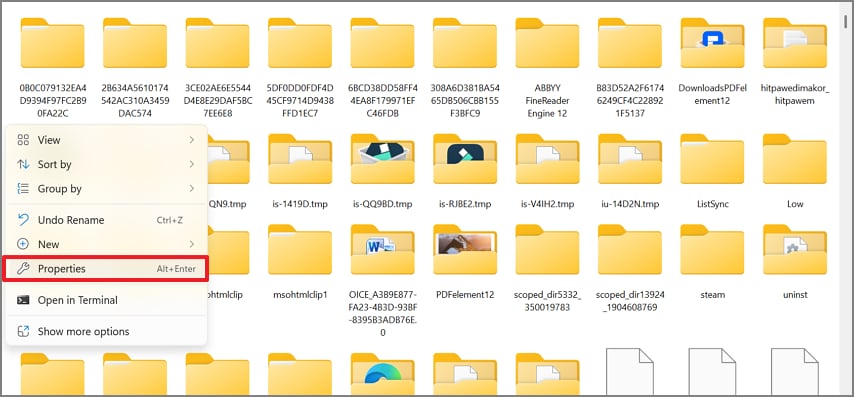
Step 3
Using the next window, enter the “Security” tab and click “Edit” to make changes.
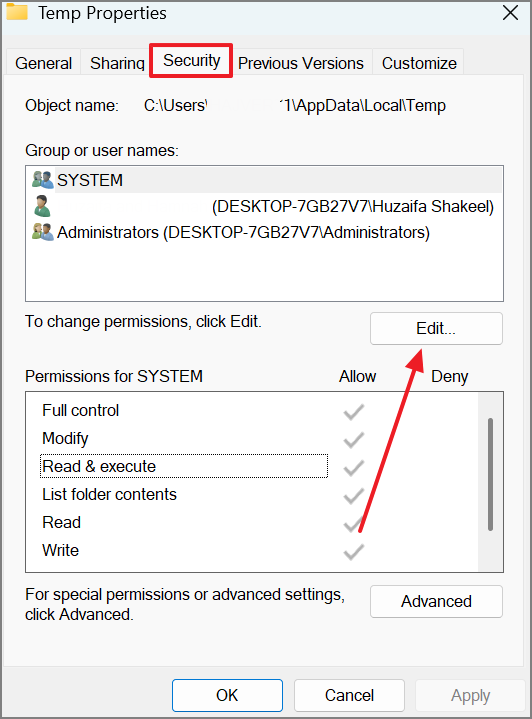
Step 4
Grant the system “Full Control,” “Read,” and “Write” permissions. Then delete unnecessary temp files and try saving the PDF in QuickBooks again.
Use QuickBooks PDF and Print Repair Options If Available
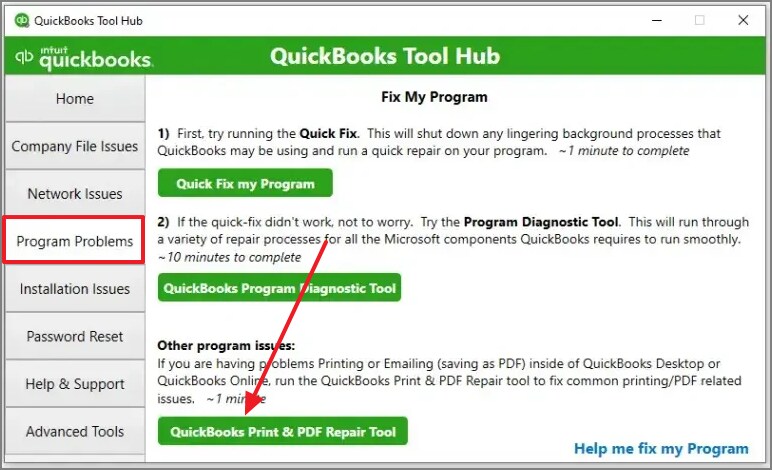
Run QuickBooks’ built-in PDF and print repair tools if available. These tools are specifically designed to detect and fix common configuration issues that manual checks might miss.
Instructions
First, install QuickBooks Tool Hub on your device and open it. From the left sidebar, go to “Program Problems” and select “QuickBooks PDF and Print Repair Tool.” Let the tool finish running, restart your computer, and then test the PDF save workflow again in QuickBooks.
Check Whether the Problem Affects Invoices, Reports, or Everything
Test saving different document types like invoices and reports. This helps identify whether the issue is limited to a specific workflow or affecting the entire system, making troubleshooting more targeted and efficient.
Use Print to PDF as a Temporary Fallback
Use the print-to-PDF option if QuickBooks cannot save to PDF. This provides an immediate workaround, ensuring you can still generate and share critical documents while resolving the underlying problem.
Part 6. Which QuickBooks-to-PDF Method Is Best?
This section helps you quickly choose the right method based on what you’re trying to save or fix in QuickBooks.
| Use Case | Best Method | Why It Works |
|---|---|---|
| Single invoice | Built-in invoice save or print workflow | Fastest way to generate a clean, shareable PDF without extra steps |
| Reports | Report export or print-to-PDF workflow | Keeps financial summaries structured and easy to read for audits or reviews |
| Export limitations | Print to PDF fallback | Works even when direct export options fail or are restricted |
| PDF saving fails | Repair and troubleshooting steps first | Fixes underlying system issues before retrying export methods |
Part 7. What Should You Do After Exporting QuickBooks to PDF?
Exporting QuickBooks to PDF is often only the first step in managing financial documents. While invoices, reports, and forms are now saved in a universal format, they are not always ready for final use.
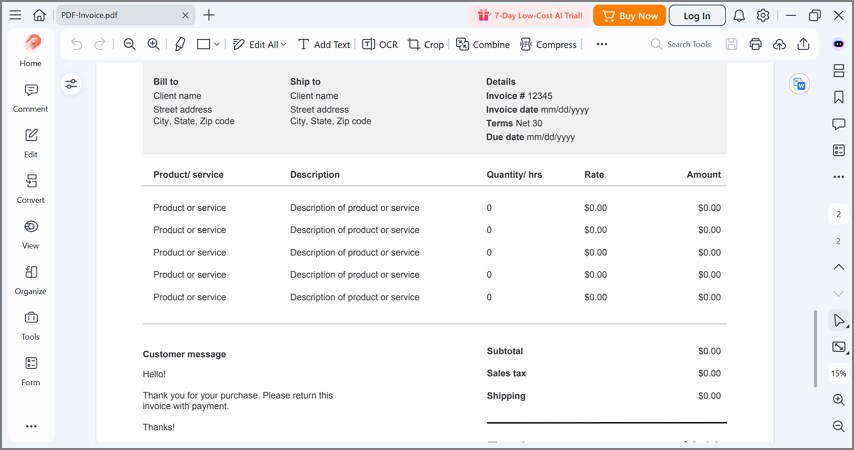
Users frequently need to merge multiple invoices, annotate financial reports, compress large files for easy sharing, reorganize page order, or clean up the overall document presentation. This is where PDFelement becomes useful, offering a practical way to refine and manage QuickBooks-exported PDFs with editing, organizing, and optimization tools in one place.
Part 8. How Can You Improve QuickBooks PDFs After Export with PDFelement?
Before using PDFelement, it helps to understand where it fits in the workflow. After QuickBooks exports the file as a PDF, the following capabilities can make that PDF cleaner and easier to share.
Merge Multiple Exported PDFs into One File
Combine separate invoices, reports, or statements into a single, organized document. This makes it easier to manage client bundles or complete financial records in one place.
Annotate Reports Before Review or Approval
Add comments, highlights, or notes to explain financial data or flag important sections. This is useful during team reviews, audits, or client discussions.
Compress Large PDF Files for Sharing or Email
Reduce file size without affecting readability so documents can be sent quickly. This is especially helpful for heavy reports or multi-page exports.
Reorder Pages in Multi-Page Exports
Adjust page sequence to ensure reports, invoices, or statements follow a logical flow. This improves clarity and professional presentation.
Edit or Clean Up Small PDF Details After Export
Fix minor formatting issues, adjust text, or refine layout after exporting from QuickBooks. This helps ensure documents look polished and consistent.
Prepare a Cleaner PDF for Clients, Managers, or Auditors
Finalize documents into a professional, well-structured format ready for external or internal use. This improves readability and overall presentation quality.
G2 Rating: 4.5/5 |100% Secure
Part 9. What Are the Most Common Use Cases for Saving QuickBooks to PDF?
Saving QuickBooks to PDF is a practical way to make financial information easier to manage. Different users rely on this feature for different needs.
| Use Case | Why PDF Helps |
|---|---|
| Sending invoices to customers | Convert invoices into PDFs to share with clients in a universally accessible format |
| Sharing financial reports internally | Export reports as PDFs for easy distribution within teams or management |
| Saving forms and statements for records | Store estimates, statements, and other business forms as PDFs for long-term recordkeeping |
| Preparing documents for audit or review | Use PDFs to compile and present financial data in a structured format for audits or compliance checks |
| Keeping cleaner files for filing and communication | Maintain organized digital records and improve efficiency in communication and file management |
Part 10. Frequently Asked Questions (FAQs)
What does QBO to PDF mean?
It usually refers to exporting documents from QuickBooks Online into PDF format. In some contexts, users may also mean a separate .qbo file-related question, so the meaning depends on how the term is being used.
How do I save a QuickBooks invoice as a PDF?
Open the invoice, select the print or export option, and choose “Save as PDF” or a PDF printer to download it.
Can I export QuickBooks reports to PDF?
Yes, most financial reports can be exported directly as PDFs for review or sharing.
Why can QuickBooks not save to PDF?
It usually happens because of missing PDF drivers, printer setup issues, permissions, or system configuration errors.
What should I do if QuickBooks save as PDF is not working?
Restart QuickBooks, check printer settings, run repair tools, or use Print to PDF as a temporary workaround.
Is printing to PDF a good fallback in QuickBooks?
Yes, it is a reliable backup method when the built-in save-to-PDF option is unavailable.
Is QBO the same as QuickBooks Online when saving to PDF?
QBO is commonly used as an abbreviation for QuickBooks Online in this workflow context, but in other situations it can also refer to a different file-related topic.
Can I edit a QuickBooks PDF after exporting it?
Yes. After export, you can use PDFelement to edit, annotate, organize, or refine the final PDF.
How do I combine or compress QuickBooks PDFs before sharing them?
Use PDFelement to merge multiple files, reduce file size, and prepare documents for easier sharing.
Conclusion
Saving QuickBooks to PDF is an export task with several practical workflows, and the best one depends on the document type and QuickBooks version. After export, users often still need to refine files for professional use. Tools like PDFelement help with editing, organization, compression, and sharing, making QuickBooks PDFs cleaner and easier to use.
G2 Rating: 4.5/5 |100% Secure


![All the Methods to Convert a PDF to Black and White [2026]](https://images.wondershare.com/pdfelement/images2026/pdf-like-article-3.png)

