

In this article
- Can You Convert WEBP to PDF?
- What Is the Best Way to Convert WEBP to PDF?
- What Is the Fastest Way to Convert WEBP to PDF Online?
- What Makes Desktop PDF Tools Better for Advanced WEBP Conversion Tasks?
- What Is the Best Way to Convert Multiple WEBP Images Into One PDF?
- Online vs. Desktop WEBP to PDF Conversion: Which One Is Best?
- What Helps Maintain Clear Images in a WEBP to PDF Conversion?
- What Causes Large File Size in WEBP to PDF Documents?
- Which Issues Can Happen When Converting WEBP to PDF Files?
- What Are the Most Common Uses of WEBP to PDF Conversion?
- Frequently Asked Questions (FAQs)
- Conclusion
Many people keep images in WEBP because the format is lightweight and web-friendly, but sharing those files across devices or workflows is not always smooth. Some platforms, print flows, and document-heavy teams still work better with PDF. That is why many users need a reliable way to convert WEBP to PDF for easier sharing, storage, printing, and file organization. Industry references such as W3Techs also reflect how format support still varies across real-world environments. This guide explains when to use a quick online converter, when a desktop workflow is the better choice, and where PDFelement fits when you need more control after conversion.
Part 1. Can You Convert WEBP to PDF?
Yes, you can convert WEBP to PDF on almost any device. Users can rely on online converters for quick tasks or choose desktop software for offline work and better file control. The right method depends on whether you need speed, privacy, batch handling, or editing after conversion.
Part 2. What Is the Best Way to Convert WEBP to PDF?
The best WEBP to PDF converter depends on the job you need to finish. Some users only need a fast single-file conversion, while others need to combine images, work offline, or keep the final PDF editable.
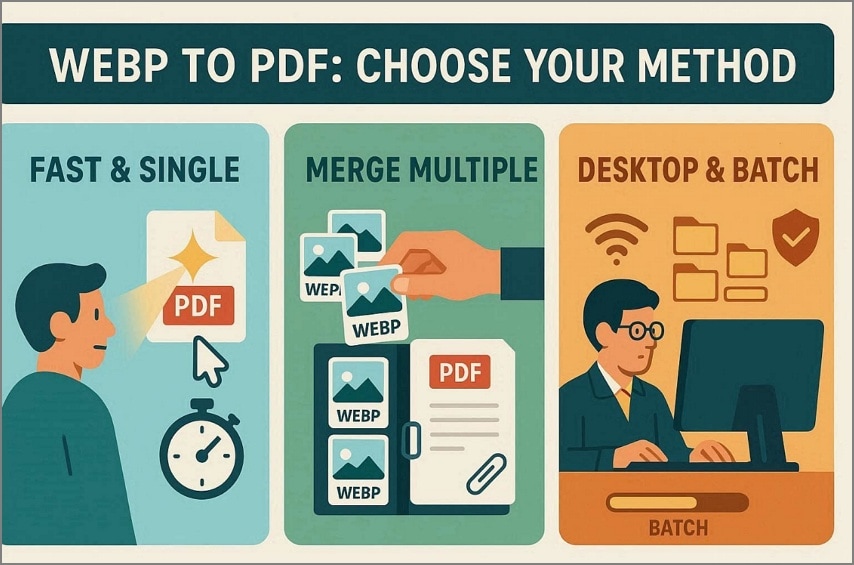
| Use Case | Best Option | Key Benefit |
|---|---|---|
| Fast One-Off Conversion | Quick online tools | Fast conversion without installation |
| Multiple WEBP Images | PDF merging tools | Combine and organize multiple images into one PDF |
| Offline, Batch, or Editable Workflows | Desktop solutions | Offline access, bulk conversion, and editing support |
Part 3. What Is the Fastest Way to Convert WEBP to PDF Online?
For most users, the quickest path is an online converter. This method works best when you only need to turn one or two images into a PDF and do not want to install software.
When an Online WEBP to PDF Converter Makes Sense
Online conversion is a good fit when speed matters more than advanced editing. It is especially helpful on shared computers, mobile devices, or temporary workstations where installing software is not practical.
- Good for quick one-off conversion jobs
- Useful on laptops, phones, or shared devices
- Best when you only need a simple PDF output
- Helpful when you do not need offline access or editing tools
Basic Online Conversion Steps
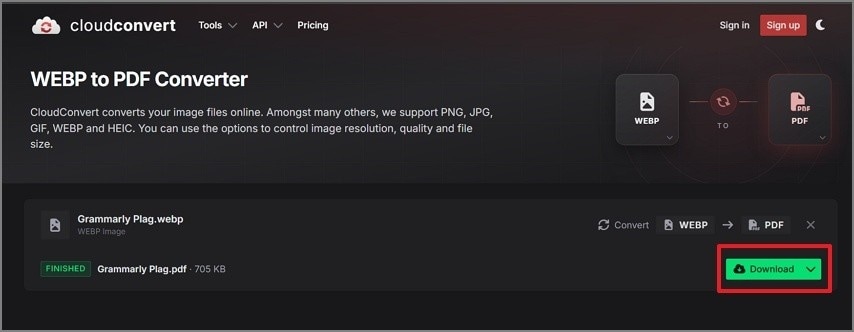
To convert WEBP to PDF online, follow the simple process below:
Step 1
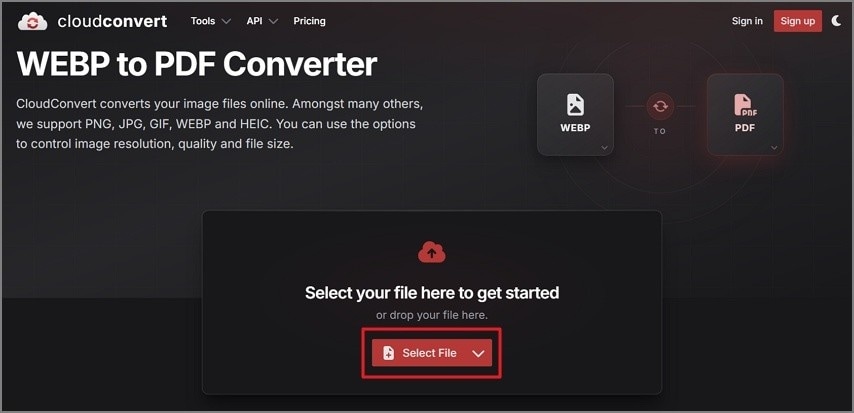
To begin, go to an online converter such as CloudConvert and choose “Select File” to upload your WEBP image.
Step 2
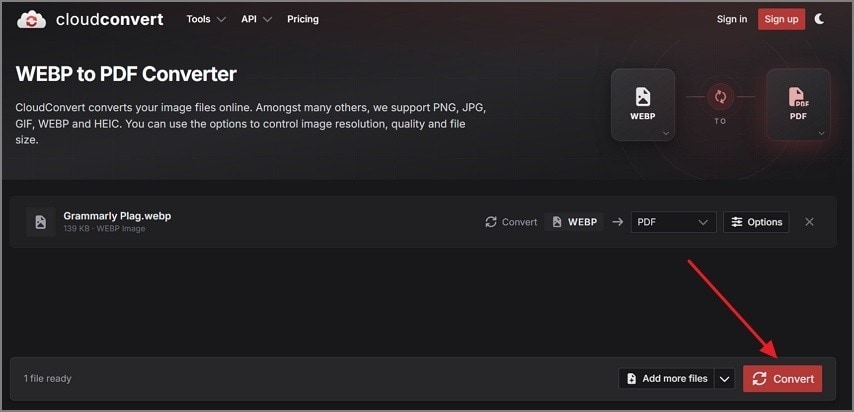
After uploading the file, press the “Convert” button to turn the WEBP image into a PDF.
Step 3
Once the process finishes, click the “Download” button to save the PDF.
Limits of Online Conversion
Although online tools are fast, they usually come with restrictions around file size, editing, security, and repeated use.
| Limitation Type | What It Means in Practice |
|---|---|
| Batch & file-size restrictions | Many online tools limit large WEBP files and repeated daily conversions. |
| Privacy & offline usage | Not suitable for sensitive files since data is uploaded to external servers. |
| Security control limits | Users have limited control over file storage and protection during processing. |
| Post-conversion editing limits | Difficult to edit, reorder, or refine the PDF after conversion is completed. |
| Performance with large files | High-resolution or multiple images may slow down or fail during upload. |
Part 4. What Makes Desktop PDF Tools Better for Advanced WEBP Conversion Tasks?
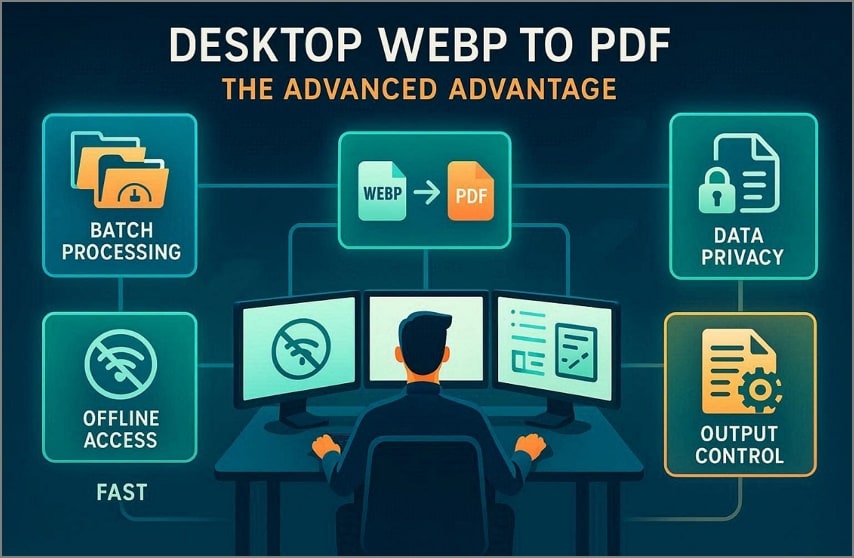
Many users prefer to convert WEBP to PDF offline when they need better control over privacy, output quality, and larger workloads. Desktop tools are often stronger when the job goes beyond a quick one-time export.
When a Desktop Image-to-PDF Workflow Is Better
- Better for batch WEBP to PDF conversion
- Works offline without depending on internet access
- Safer for sensitive files that should stay local
- More useful when you need to merge, reorder, annotate, or edit the PDF
- Offers stronger control over output settings and final organization
How to Frame PDFelement Safely in This Topic
For users who need more than one-off conversion, PDFelement is a broader desktop PDF workflow tool. It supports image-based PDF work, helps combine multiple files into one document, and gives users more control over what happens after conversion.
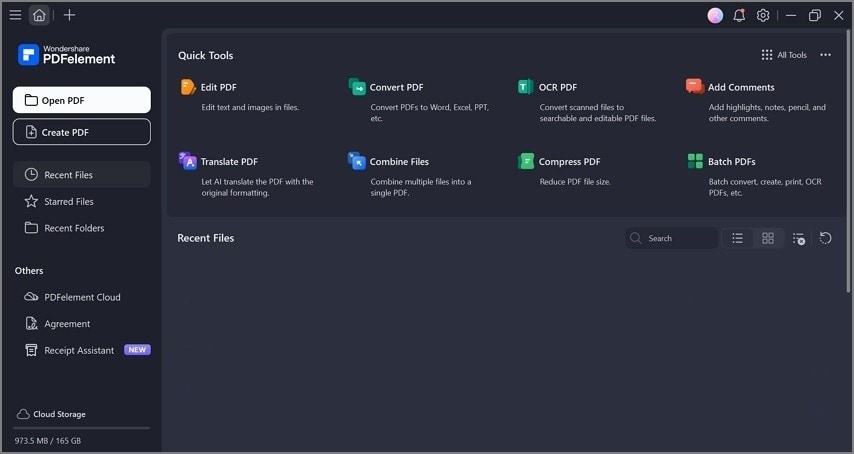
Apart from conversion, PDFelement supports PDF editing, page organization, and compression. It also works with other image formats such as PNG and JPG, which is useful when your workflow is not limited to WEBP only.
Why PDFelement May Still Fit Beyond One-Off Conversion:
- Full Workflow: Helps manage, edit, and organize PDFs after conversion.
- AI Integration: Supports AI-powered document workflows for smarter handling.
- OCR Support: Makes scanned content easier to search and reuse.
- Page Ordering: Helps keep image sequence correct before final output.
- Format Support: Supports 300+ formats in broader PDF workflows.


 G2 Rating: 4.5/5 |
 100% Secure
Part 5. What Is the Best Way to Convert Multiple WEBP Images Into One PDF?
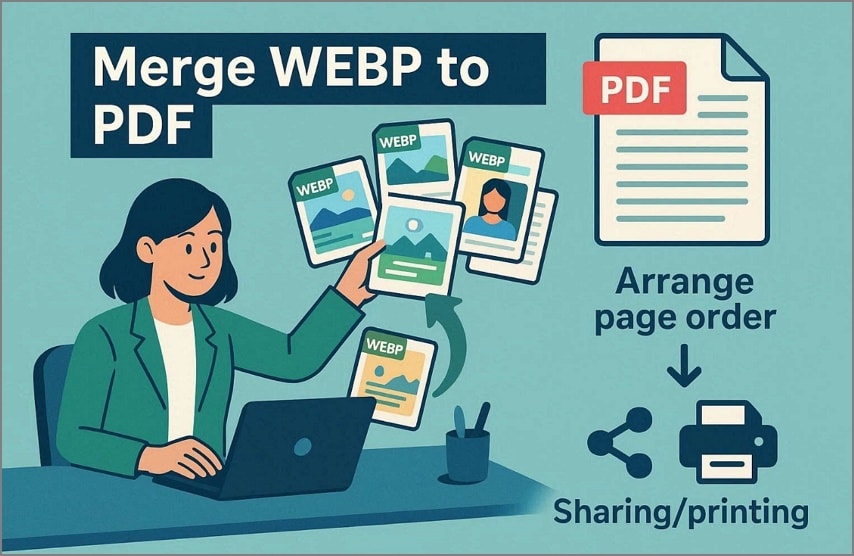
The easiest method is to use a tool that lets you upload several images and arrange them in the correct order before exporting. This is especially helpful when you want a single clean document instead of many separate files.
When Users Need One PDF Instead of Separate Files
- One PDF keeps WEBP images better organized.
- A single file is easier to share than multiple attachments.
- Correct image sequence improves readability and presentation.
- A combined PDF looks more professional for school, client, or team use.
- Printing is easier when every page is already inside one file.
Why Page Order Matters
Page order affects readability, structure, and clarity. If images are out of sequence, the final PDF can become confusing or look incomplete.
| Aspect | Importance of PDF Conversion |
|---|---|
| Reading flow | Ensures logical content progression |
| Document structure | Maintains a clear beginning and end |
| Error prevention | Reduces confusion and mistakes |
| Content navigation | Makes pages easy to find |
| Image sequence | Preserves correct visual order |
When to Merge Before Sharing or Printing
Merging before sharing reduces confusion and keeps the output easier to review. It is particularly useful for teachers, clients, teammates, and anyone who needs to receive the full image set in the correct order.
Part 6. Online vs. Desktop WEBP to PDF Conversion: Which One Is Best?
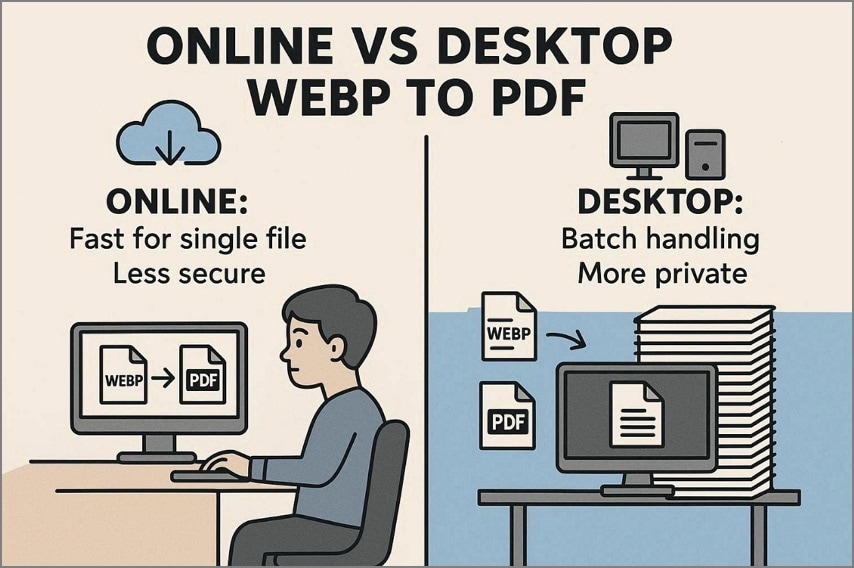
Both methods can work well, but the better option depends on your priorities. If you only need speed, online conversion is often enough. If you need privacy, batch handling, and refinement, desktop tools usually win.
| Situation/Priority | Online Conversion | Desktop Conversion |
|---|---|---|
| Speed for one-off tasks | Fast for single-file conversion | Slightly slower setup but consistent performance |
| Batch handling | Limited support for large or multiple files | Handles large batches |
| Offline access | Requires an internet connection for conversion | Works fully offline without internet |
| Privacy/local handling | Files uploaded to external servers are less secure | Files stay local, better privacy |
| Editing and organization | Limited editing and organization | Full editing and organizing features |
Part 7. What Helps Maintain Clear Images in a WEBP to PDF Conversion?
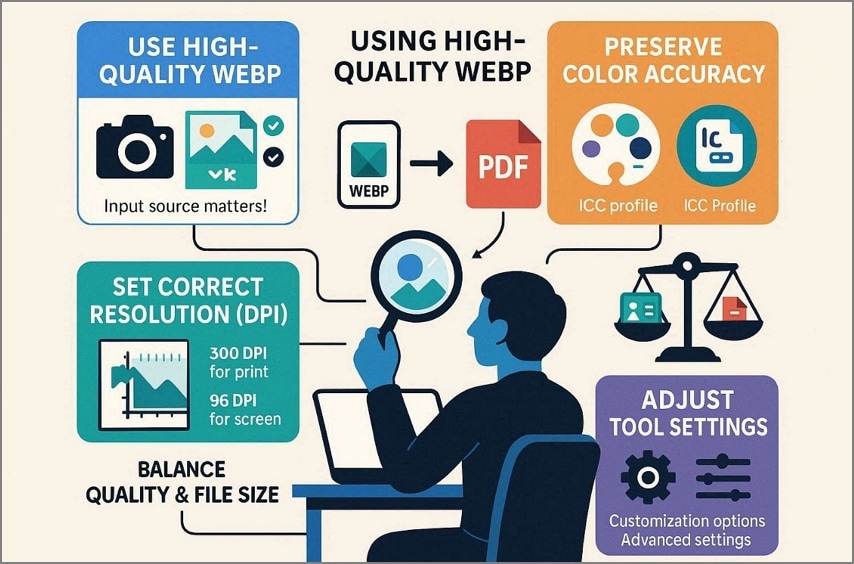
If converted PDFs look blurry or washed out, the issue is usually tied to image quality, resolution, or export settings. Keeping the final PDF clear depends on both the source file and the tool you choose.
| Factor | Best Practice |
|---|---|
| Image Quality | Use high-quality WEBP images |
| Color Accuracy | Enable ICC color profiles |
| Image Resolution | Use 300 DPI for print and 96 DPI for screen |
| Tool Settings | Choose tools with quality and compression controls |
| File Size Balance | Balance clarity with manageable PDF size |
Part 8. What Causes Large File Size in WEBP to PDF Documents?
Large PDFs usually happen when users combine many images, rely on very high resolution, or skip compression settings. This becomes more noticeable when the file needs to be emailed, uploaded, or stored in limited space.
If you need to reduce file size after conversion, a desktop workflow can help. Tools such as PDFelement are useful when you want to compress the PDF while keeping the document readable and visually clean.
G2 Rating: 4.5/5 |100% Secure
Part 9. Which Issues Can Happen When Converting WEBP to PDF Files?
Several problems can appear during conversion, especially when the source images are low-quality or the tool has limited format support. The table below outlines the most common issues users run into.
| Problem | Explanation |
|---|---|
| Incorrect file order | Multiple WEBP files may not follow the proper sequence in the final PDF output. |
| Large file size | High-resolution images and limited compression lead to oversized PDF documents. |
| Unsupported WEBP file | Some converters do not recognize or process the WEBP format correctly. |
| Layout misalignment | Images may resize or shift, affecting proper page structure and alignment. |
Part 10. What Are the Most Common Uses of WEBP to PDF Conversion?
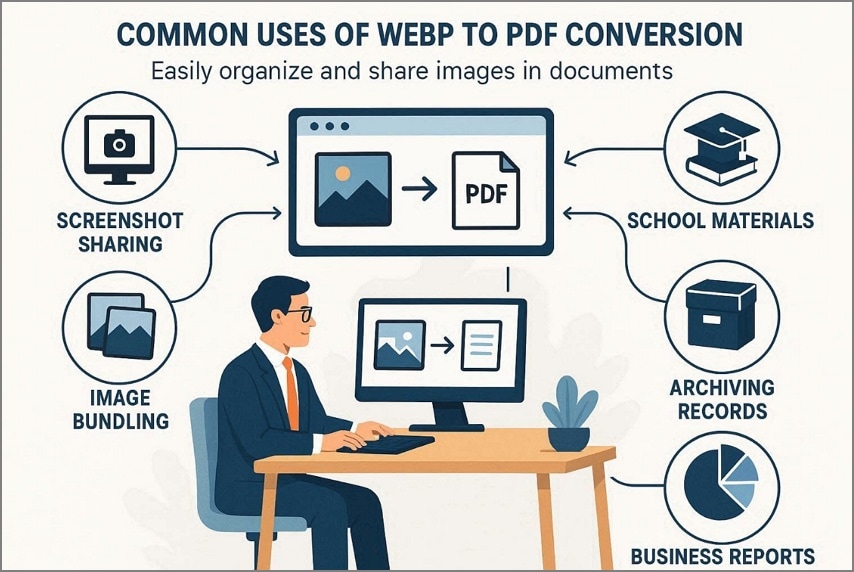
Users often convert WEBP files into PDFs when they need a more universal, organized, and professional format. This is common in education, archiving, screenshot sharing, and business reporting.
| Use Case | Purpose |
|---|---|
| Screenshot Sharing | Share screenshots in a universally readable format |
| School Materials | Combine notes, images, and diagrams into one file |
| Image Bundling | Merge multiple images into a single organized PDF |
| Archiving Records | Store image records for long-term organization |
| Business Reports | Create structured visual reports for meetings and reviews |
Frequently Asked Questions (FAQs)
Can I convert multiple WEBP files into one PDF?
Yes. Most conversion tools let you upload several WEBP images, arrange them in the correct order, and export them as one PDF. This makes the final document easier to share and store.
Is there a way to convert WEBP to PDF without losing quality?
Yes, but it depends on your source images and export settings. Use high-resolution images, avoid unnecessary auto-shrink options, and choose tools that let you control quality and compression.
Can I convert WEBP to PDF offline?
Yes. Desktop software can handle WEBP to PDF conversion without an internet connection, which is often a better fit for private files, repeat workflows, and batch processing. Broader format-support discussions such as ConvertFiles also show why users keep looking for dependable offline-capable image workflows.
What is the best WEBP to PDF converter for batch work?
Desktop converters are usually the better choice for batch work because they can process more files at once, keep everything local, and give you better control over output order and organization.
Can I edit the PDF after converting the WEBP images?
Yes. Once the PDF is created, you can use advanced PDF tools to edit pages, adjust layout, organize order, add annotations, or compress the file for sharing.
Is online WEBP to PDF conversion safe for private files?
Not always. Online tools upload files to external servers, so they are not ideal for sensitive documents. For private or confidential image sets, an offline desktop workflow is usually safer.
G2 Rating: 4.5/5 |100% Secure
Conclusion
Converting WEBP to PDF makes image files easier to share, print, archive, and organize across devices. Online tools are great for quick, lightweight tasks, while desktop workflows are better for privacy, batch work, and post-conversion control. If you need to merge pages, refine layout, compress file size, or continue working with the final PDF, PDFelement is a useful next-step tool in that workflow.


![All the Methods to Convert a PDF to Black and White [2026]](https://images.wondershare.com/pdfelement/images2026/pdf-like-article-3.png)

