

In this article
- Quick answer: how to turn a resume into a PDF
- Where does the resume start
- Should you send your resume as PDF or Word
- How to convert a Word resume to PDF
- How to download a Google Docs resume as PDF
- How to export a resume builder or Canva resume as PDF
- How to turn an image or scanned resume into a PDF
- How PDFelement helps you create and polish a PDF resume
- How to make a resume PDF ATS-friendly
- How to check a resume PDF before sending
- What problems can happen when turning a resume into a PDF
- Best practices for sending a resume PDF
Many applicants export a resume and then notice that the PDF looks different from the original file. Opening the document is easy, but formatting shifts, missing links, broken bullets, and incorrect fonts can still appear. Online resume to PDF converters often show up first, yet they can also introduce privacy worries and layout distortions.
Designed and scanned resumes are even harder to convert correctly, and some versions may confuse job portals or ATS systems. This guide explains how to turn a resume into a reliable PDF without losing control over the final result.
Part 1. Quick Answer — How Do You Turn a Resume into a PDF?
Users can turn a resume into a PDF by exporting it from common tools such as Word, Google Docs, and online resume builders. If the resume starts as an image or scan, it should be converted into an editable PDF first, especially when the file needs to stay readable in recruiting systems.
Always check the job posting first to see whether the employer wants a PDF or DOCX file. The best method depends on how the resume was created, how visual the layout is, and whether the file must remain ATS-friendly.
Part 2. Where Does the Resume Start?
Different starting files need different conversion steps. The table below helps match each resume source with the most practical PDF workflow.
| Starting Point | Best Way to Make a PDF | Why it Works Well |
|---|---|---|
| Word Resume | Use Save As PDF | Keeps layout close to original |
| Google Docs Resume | File → Download → PDF | Easy for cloud resumes |
| Canva or Resume Builder | Download as PDF | Preserves design for visual resumes |
| Image or Scanned Resume | Convert to PDF with OCR | Makes text selectable and searchable |
| Existing PDF Resume | Edit and compress in PDFelement | Good for updating an old PDF |
| Need to Send from Phone | Share as PDF, then preview | Quick sending with basic checks |
Part 3. Should You Send Your Resume as PDF or Word?
Always follow the recruiter or job posting instructions before choosing a file format. PDF is usually the safer option when formatting needs to stay stable across email forwarding and recruiter sharing. However, DOCX is better when an application portal specifically requests Word or when the employer needs to edit the file.
Avoid scanned PDFs for online applications unless OCR has already been applied. It is also smart to keep an editable source file and a final polished PDF version, using PDFelement or another reliable Word-to-PDF workflow.


 G2 Rating: 4.5/5 |
 100% Secure
Part 4. How to Convert a Word Resume to PDF?
Many people want a clean way to save a resume as a PDF without breaking the layout. Follow the steps below to export the resume correctly and review it before sending.
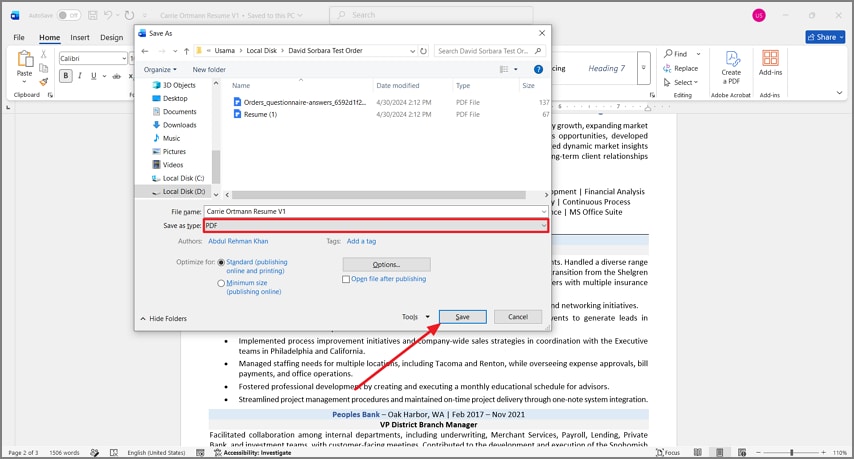
Step 1Open the Word resume and save it as a PDF
Open the resume in Word and press F12. Then choose PDF as the save-as type and click Save.
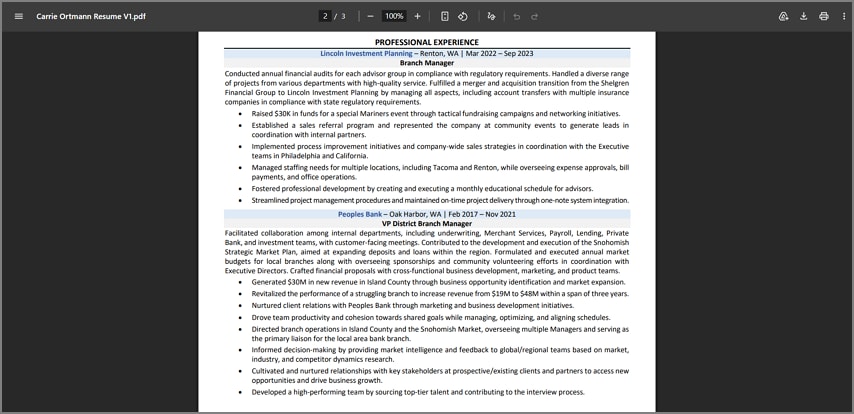
Step 2Review the converted resume PDF
Open the PDF in a viewer and check the line breaks, bullet spacing, fonts, and page count.
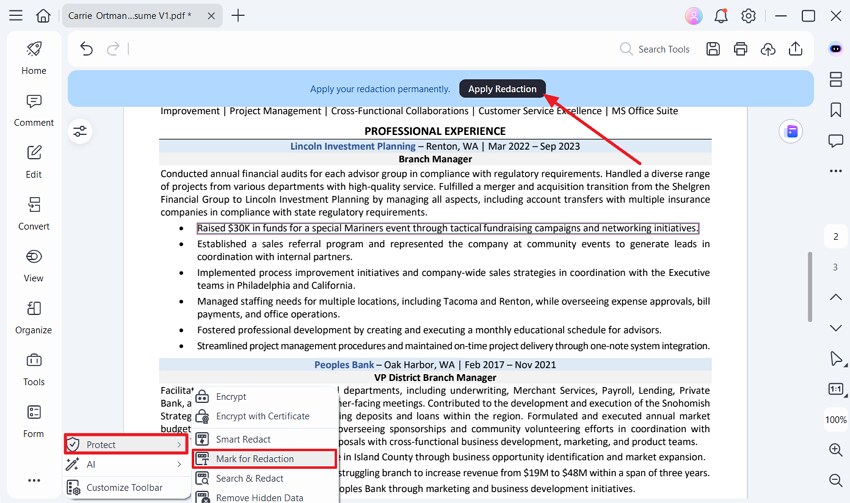
Step 3Protect sensitive information if needed
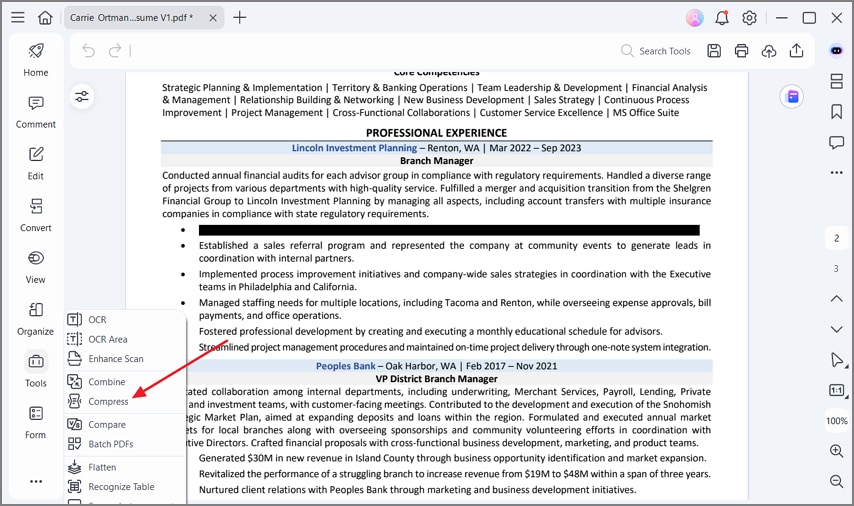
Import the PDF into PDFelement, click Protect, and choose Mark for Redaction if you need to hide personal or sensitive details before sharing.
Step 4Compress and save the final file
Compress the PDF if the file is too large, then click the Save icon to store the final version.
Part 5. How to Download a Google Docs Resume as PDF?
Google Docs makes it easy to export a cloud-based resume into a shareable PDF.
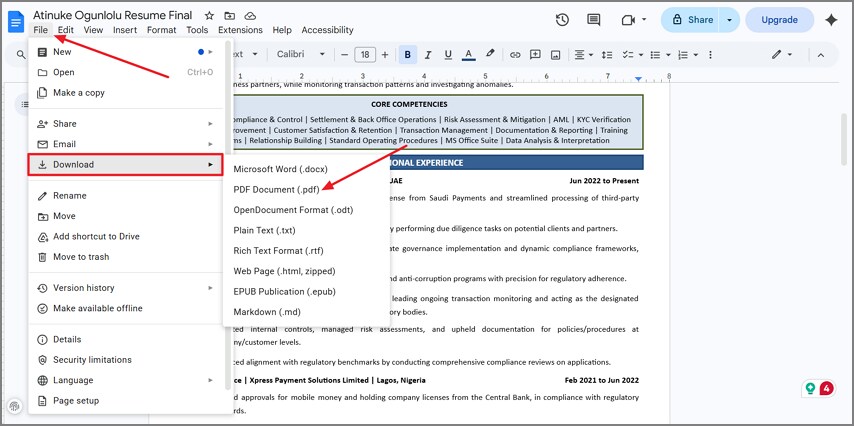
Step 1Download the resume as a PDF from Google Docs
Open the resume in Google Docs, click File, choose Download, and then select PDF Document.
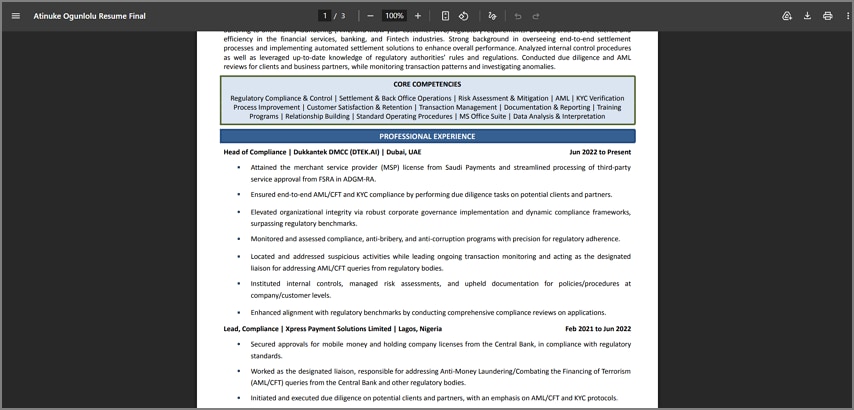
Step 2Review the downloaded layout
Open the PDF in a viewer and review the layout carefully. If any spacing or formatting issue appears, return to Google Docs, fix the source file, and export again.
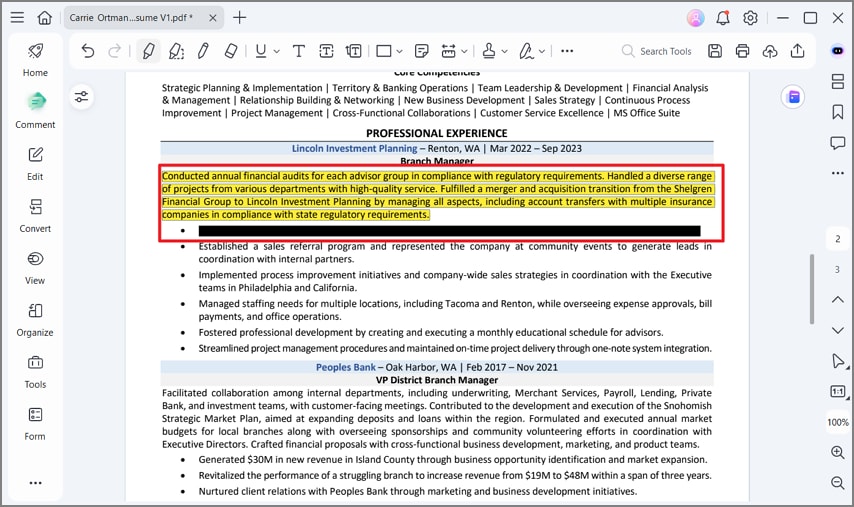
Step 3Use PDFelement for final cleanup
Open the file in PDFelement if you need to redact information, annotate, or make final presentation checks.
Part 6. How to Export a Resume Builder or Canva Resume as PDF?
Many resumes are created in Canva or online builders with strong visual styling. These designs can look polished, but they also create more risk when uploaded to ATS systems.
- Download or export the resume from the builder in PDF format for safer sharing.
- Select a simple layout with real text rather than a heavily graphic design.
- Open the PDF and try selecting text to confirm it is real text and not only an image.
- Avoid layouts built from too many images, icons, and columns when applying through online systems.
- If the text cannot be selected, rebuild the resume using fewer graphics and a clearer structure.
Part 7. How to Turn an Image or Scanned Resume into a PDF?
When starting with a photo or scanned resume, first decide whether you only need a visual copy or a truly readable file that recruiters and ATS systems can process.
- Turn the image or scan into a PDF when you mainly need digital storage or sharing.
- Remember that image-only resume PDFs may not work well for ATS screening.
- Use OCR tools when the text needs to become searchable and selectable.
- Rebuild the resume in Word, Google Docs, or a clean template if the file must pass online screening.
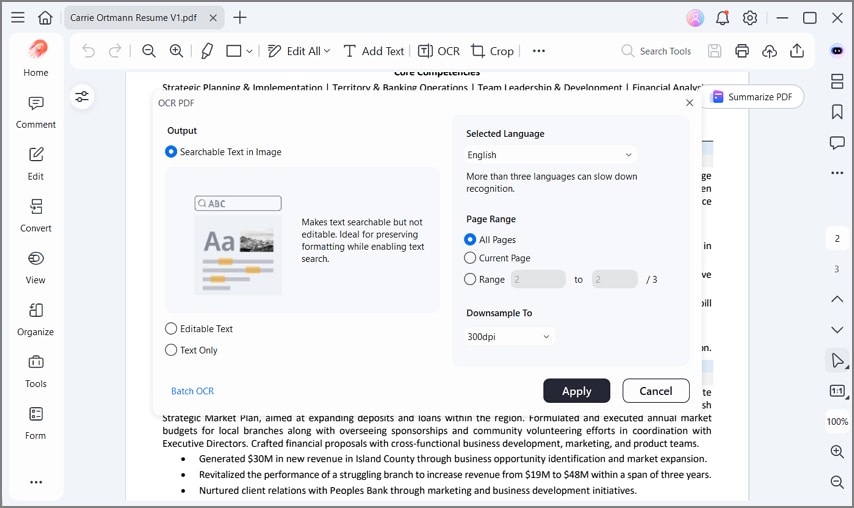
- Use PDFelement OCR when converting or repairing scanned resumes and damaged PDF files.
Part 8. How PDFelement Helps You Create and Polish a PDF Resume
Many job seekers feel unsure whether a resume is truly ready before submitting an important application. PDFelement offers one place to review wording, dates, layout, and file quality before the resume goes out.
Different resume versions for different roles also become easier to manage when everything stays organized in one PDF workflow. That extra polishing step can make the final resume feel more professional and easier to share.
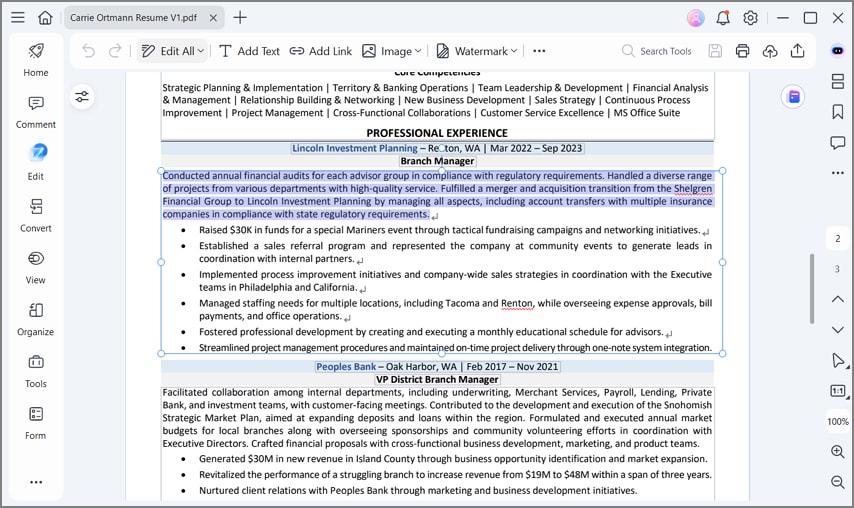
Features of PDFelement for resumes
- Create Resume: Start from an existing draft or a blank page when building the next version.
- Resume Templates: Ready-made layouts help speed things up when deadlines are tight.
- Edit PDF: Text and images can be adjusted much like a normal document.
- AI Writing Help: Useful for wording ideas while keeping the final choices under your control.
- File Compression: Smaller files help when job portals reject uploads above certain size limits.
- Resume OCR: Scanned or photo resumes can become selectable text for search and light editing.
- Sharing Controls: Passwords or limited permissions may help when sending resumes to unfamiliar platforms.
G2 Rating: 4.5/5 |100% Secure
Part 9. How to Make a Resume PDF ATS-Friendly?
Some hiring systems scan resumes automatically before a person reads them. Clean formatting helps those systems read names, dates, titles, and sections in the right order.
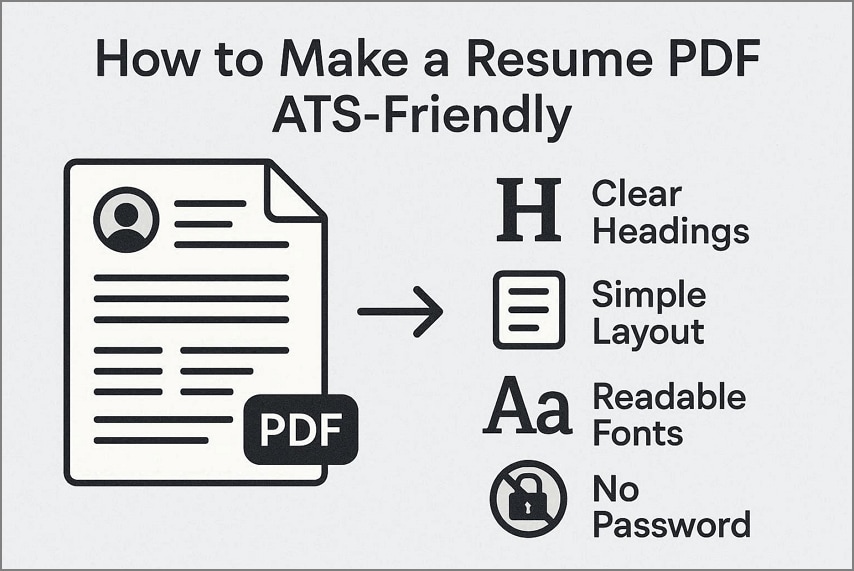
- Use clear headings such as Summary, Experience, and Skills.
- Avoid complex tables, layered graphics, many columns, and icon-only labels in the main resume layout.
- Choose readable fonts and keep spacing consistent so the content scans correctly.
- Keep a Word version, and avoid passwords unless the employer specifically requests a protected file.

Part 10. How to Check a Resume PDF Before Sending?
Small details can cause avoidable problems in an application. A quick review helps prevent mistakes that make a strong candidate look careless.
| Item | Check |
|---|---|
| File Name | Professional name like FirstName-LastName-Resume.pdf |
| Contact Info | Name, email, and phone number are correct |
| Links | Portfolio, LinkedIn, and website links all work |
| Formatting | Layout looks right on desktop and mobile |
| Text | Text can be selected and copied easily |
| File Size | Size fits portal or email upload limits |
| Page Count | Length suits the role and experience level |
| Extra Pages | No blank pages remain at the end |
| Hidden Content | No comments, notes, or draft labels are left behind |
| File Type Request | The posting does not ask for DOCX instead |
Part 11. What Problems can Happen When Turning a Resume into a PDF?
Resume conversion can go wrong in several familiar ways. Matching each issue with a likely cause and quick fix makes the file easier to troubleshoot.
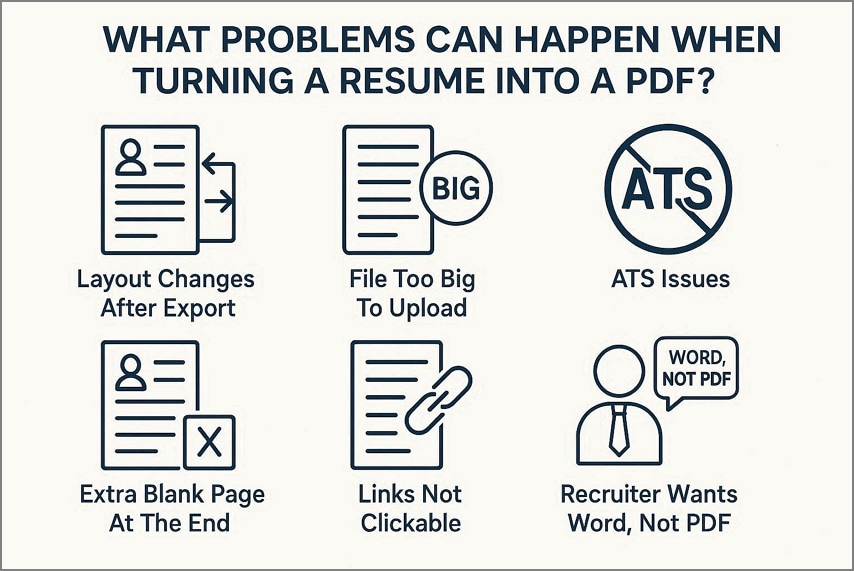
1. Layout changes after export
Cause: Fonts, margins, or graphics changed during export or saving.
Fix: Use standard fonts, adjust margins in the source file, then export and review again carefully.
2. File too big to upload
Cause: Too many pictures or heavy graphics increase the file size quickly.
Fix: Compress the resume PDF in PDFelement and remove unnecessary image-heavy elements.
3. ATS issues
Cause: Hiring software struggles with scanned files or complex layouts.
Fix: Switch to a text-based PDF, apply OCR if needed, and rebuild the resume with simpler formatting.
4. Extra blank page at the end
Cause: Hidden spacing, page breaks, or margin settings create an extra page.
Fix: Fix spacing in the original file or remove the blank page using a PDF editor.
5. Links are not clickable
Cause: Portfolio or LinkedIn links appear visually correct, but hyperlink data was lost after export.
Fix: Open the final PDF and correct the hyperlinks before sending the file.
6. Recruiter wants Word, not PDF
Cause: Some recruiters request Word files for ATS compatibility or later editing.
Fix: Follow the employer’s instructions and keep both a polished DOCX and PDF ready.
Part 12. What are The Best Practices for Sending a Resume PDF?
Small sending mistakes can weaken even a strong resume and create unnecessary friction for recruiters. A final checklist helps keep the file easy to open, read, and forward.
| Item | What To Check |
|---|---|
| File Name | Professional file naming |
| Resume Focus | Concise and targeted to the role |
| Sending Method | Attach the PDF unless a link is requested |
| Email Message | Short and clear note to the recruiter |
| Protection | No password unless specifically requested |
| DOCX Version | Matching Word copy available if needed |
| Final Review | Open the PDF on another device to confirm |
FAQs
-
How do I turn my resume into a PDF?
Export the resume from Word, Google Docs, or a similar tool by choosing PDF as the save or download format. -
Should I send my resume as a PDF or a Word document?
PDF is usually best because the formatting stays more stable, unless the job posting specifically requests a Word file. -
How do I convert a Word resume to PDF?
In Word, use the Save As option and choose PDF as the format. Tools like PDFelement can also help convert and tidy the layout afterward. -
How do I download a Google Docs resume as a PDF?
In Google Docs, go to File, choose Download, and then select PDF Document. -
Can I make a resume PDF from my phone?
Yes. Most mobile Word and Google Docs apps can export to PDF and let you share the file directly. -
Why does my resume PDF look different from the original?
Fonts, margins, spacing, or images may change during export. Using standard fonts and reviewing the final PDF usually helps keep the layout closer to the original. -
Is a PDF resume ATS-friendly?
Yes, when it is text-based, uses simple formatting, and avoids image-only pages or overly decorative layouts. -
How do I reduce the size of my resume PDF?
Compress the file with a PDF tool, remove unnecessary images, and keep the content simple so the resume remains easy to upload and share. -
Can I edit a resume after it is saved as a PDF?
Yes. PDF editors that support text editing can help, although very complex layouts may still be harder to change cleanly. -
How can PDFelement help with a PDF resume?
PDFelement can help edit text, adjust layout, compress file size, apply OCR, and make other final refinements before you send the resume.
Conclusion
Candidates can convert a resume to PDF from many reliable starting points, including Word, Google Docs, resume builders, and existing scanned files. The most important rule is still to follow the employer’s format request first, even when another format feels more convenient.
After export, always review the final layout, links, readability, and file size. A flexible PDF toolkit such as PDFelement can then help refine, compress, protect, OCR, and share resumes more confidently.


![All the Methods to Convert a PDF to Black and White [2026]](https://images.wondershare.com/pdfelement/images2026/pdf-like-article-3.png)

