

In this article
- Can You Convert PDF to WEBP Directly?
- What Is the Best Way to Convert PDF to WEBP for Your Workflow?
- What Is the Fastest Way to Convert PDF to WEBP Online?
- How Does the PDF to WEBP Conversion Process Actually Work?
- How Do You Convert Multi-Page PDFs into Individual WEBP Images?
- How Can You Maintain High Image Quality When Converting PDF to WEBP?
- How Do You Reduce WEBP File Size Without Losing Output Clarity?
- What Are the Most Common Problems When Converting PDF to WEBP?
- Should You Choose PDF to WEBP vs. PDF to PNG or JPG?
- What Are the Best Use Cases for Converting PDF Pages to WEBP?
- Frequently Asked Questions (FAQs)
- Conclusion
Many users need faster-loading images when publishing document content on modern websites. Research discussed by Digiexpo also highlights how even small page-speed delays can hurt engagement and conversions. That is why many teams look for ways to convert PDF to WEBP and turn document pages into lighter, web-ready image assets. This guide explains the fastest online methods, how multi-page exports work, and how to keep image quality under control. It also shows where PDFelement can help when you need to prepare or refine PDF pages before conversion.
Part 1. Can You Convert PDF to WEBP Directly?
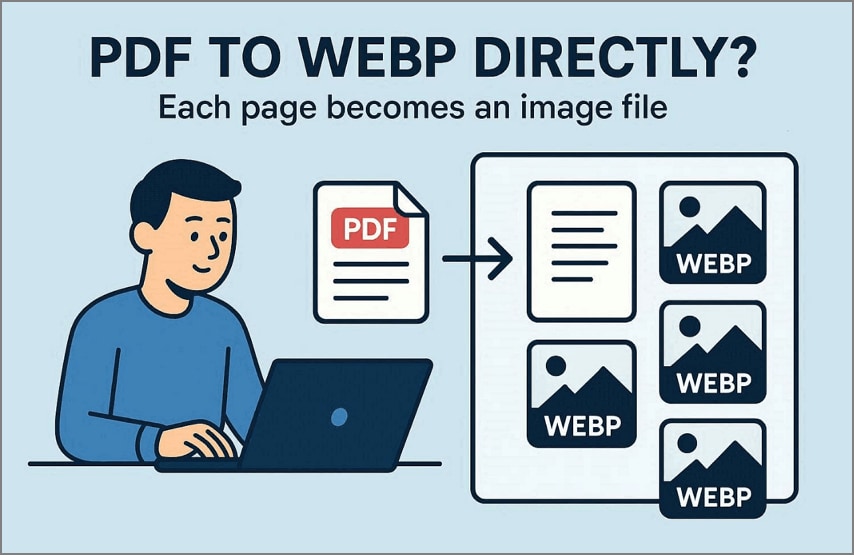
Yes, you can convert PDF to WEBP directly with dedicated online tools. In most cases, each page of the PDF becomes its own WEBP image, making the result easier to use in web workflows, previews, content libraries, and lightweight publishing systems.
Part 2. What Is the Best Way to Convert PDF to WEBP for Your Workflow?
The right PDF to WEBP converter depends on what you need from the output. Some users only need a quick browser-based export, while others care more about multi-page handling, file-size control, or visual quality.
Best for Fast Online Conversion: Online tools work well when you need a simple one-off conversion and want immediate access from any device.
Best for Multi-Page PDF Export: This is useful when your PDF contains many individual pages that need to be saved as separate image assets.
Best for Quality or File-Size Control: More advanced workflows benefit from better compression, page preparation, and output management.
Part 3. What Is the Fastest Way to Convert PDF to WEBP Online?
For most users, an online tool is still the fastest way to turn document pages into WEBP images. It avoids installation, works in the browser, and is usually enough for lightweight publishing tasks.
When an Online PDF to WEBP Converter Makes Sense
Online converters are useful when speed and accessibility matter most. They are especially practical for quick exports on shared devices, temporary workstations, or simple publishing tasks.
| Advantage | Why It Matters for Users |
|---|---|
| Instant Access | You can convert files immediately without installing complex third-party software. |
| No Installation | Browser-based tools save local storage space on your computer or mobile device. |
| Simple Workflow | The interface is easy to use for quick one-off tasks with minimal setup. |
| Fast Exporting | These platforms provide a rapid way to generate web-ready images from document pages. |
Basic Online Conversion Steps
Follow the steps below to see how a quick online PDF to WEBP conversion works:
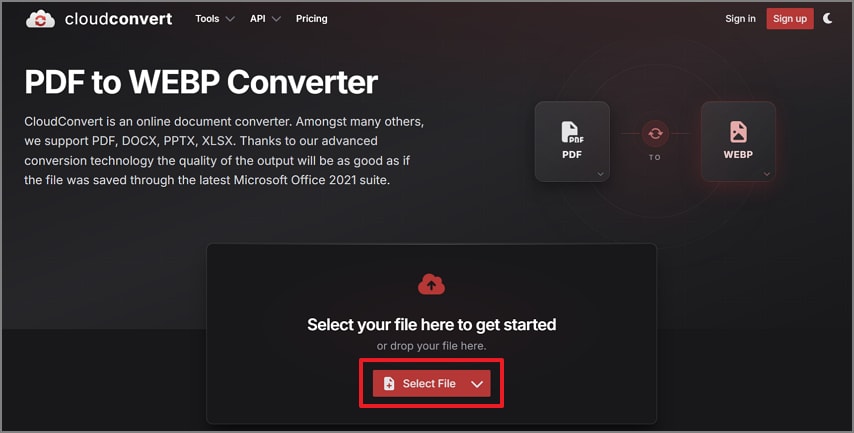
Step 1
When you open an online converter such as CloudConvert, press “Select File” to upload your PDF document.
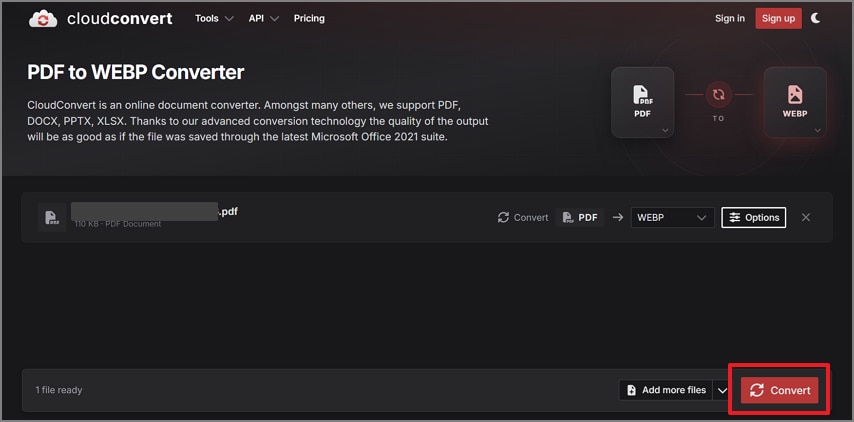
Step 2
After uploading, click the “Convert” button to start the export process.
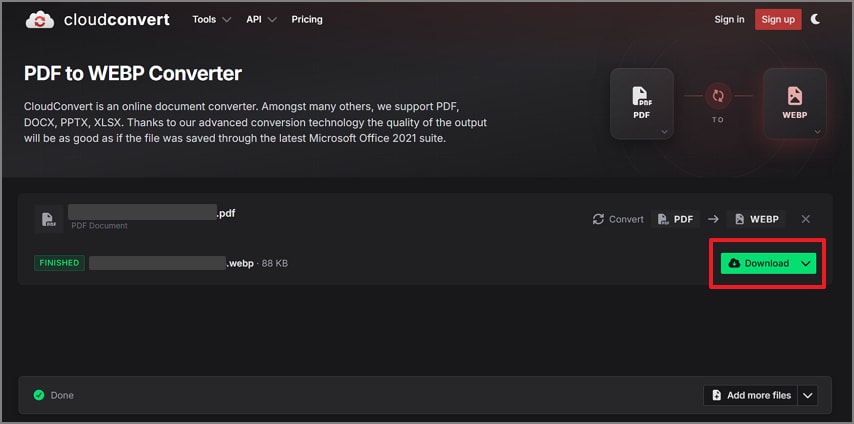
Step 3
Once the conversion finishes, press the “Download” button to export your WEBP file.
Limits of Online Conversion
Online tools are convenient, but they often have limits that matter once files become larger or more sensitive.
- Free platforms often cap upload size.
- Output quality can vary between different services.
- Uploading sensitive PDFs to third-party servers may raise privacy concerns.
- Daily usage limits can interrupt repeat workflows.
- Advanced page selection is often missing from free plans.
Part 4. How Does the PDF to WEBP Conversion Process Actually Work?
PDF to WEBP conversion usually renders each document page as an image for web use. That process changes editable page content into static image output, which is useful for fast loading but different from keeping the file as an editable PDF.
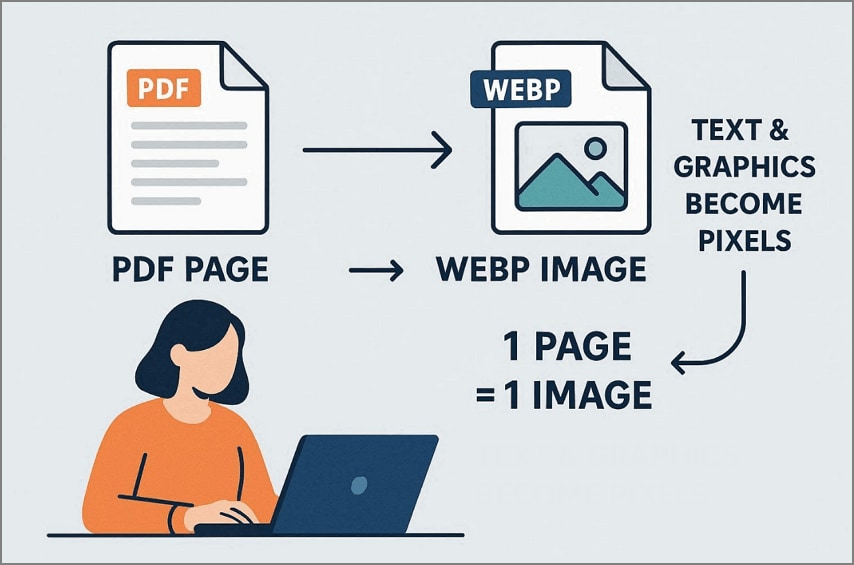
One PDF Page Usually Becomes One WEBP Image: A 10-page file will normally become 10 individual WEBP images, which makes page-based reuse easier.
Text, Graphics, and Layout Become Image Output: Once exported, the PDF page is flattened into pixels instead of staying editable like the source document.
When WEBP Is Better Than PNG or JPG: According to Elementor, WEBP can deliver smaller files while still preserving strong visual quality for web content.
| Comparison Factor | Why WEBP Often Wins |
|---|---|
| File Size | It often creates smaller files than traditional JPG or PNG formats. |
| Visual Quality | You can maintain strong clarity while reducing total image weight. |
| Transparency | It supports alpha transparency, which JPG does not. |
| Web Performance | Smaller image sizes usually help pages load faster. |
Part 5. How Do You Convert Multi-Page PDFs into Individual WEBP Images?
Multi-page PDFs need a slightly different mindset because you are no longer converting a single static image. The tool has to export and name each page correctly, especially when you only want selected pages or plan to reuse the output across a larger asset set.
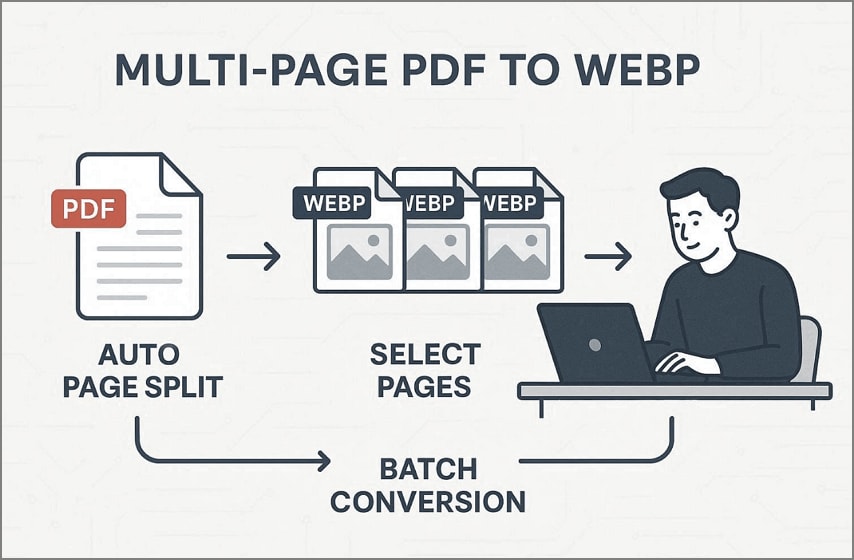
What Happens with Multi-Page Files: Most tools export each page as a separate WEBP image automatically, which helps preserve the original order.
When Users Need Only Selected Pages: Some workflows only require a few pages from a larger document. In that case, tools such as PDFelement can help split or extract pages before conversion.
When Batch Output Becomes Important: If you need to convert multiple PDFs or many pages at once, good output naming and batch handling become more important.


 G2 Rating: 4.5/5 |
 100% Secure
Part 6. How Can You Maintain High Image Quality When Converting PDF to WEBP?
Image quality depends on the source PDF, export settings, and how aggressively you compress the result. If the file contains small text, charts, or detailed layout elements, poor settings can make the final WEBP look blurry or harder to read.
| Quality Strategy | How to Optimize Your Output |
|---|---|
| DPI Settings | Use a higher resolution setting to keep small text and fine details sharper. |
| Lossless Encoding | Choose lossless export when the document contains detailed graphics or technical visuals. |
| Review Zoom | Inspect the final image at 100% zoom to catch blurry pixels or weak text rendering. |
| Color Accuracy | Keep the original color profile when consistent branding or charts matter. |
You can also refine the source document with PDFelement before export if you want cleaner page selection, layout prep, or page cleanup before turning the PDF into WEBP.
Part 7. How Do You Reduce WEBP File Size Without Losing Output Clarity?
The goal is to balance byte size and clarity so the page loads quickly without making the image look weak or muddy. Good file-size control matters most when the output is going onto websites, blogs, knowledge bases, or landing pages.
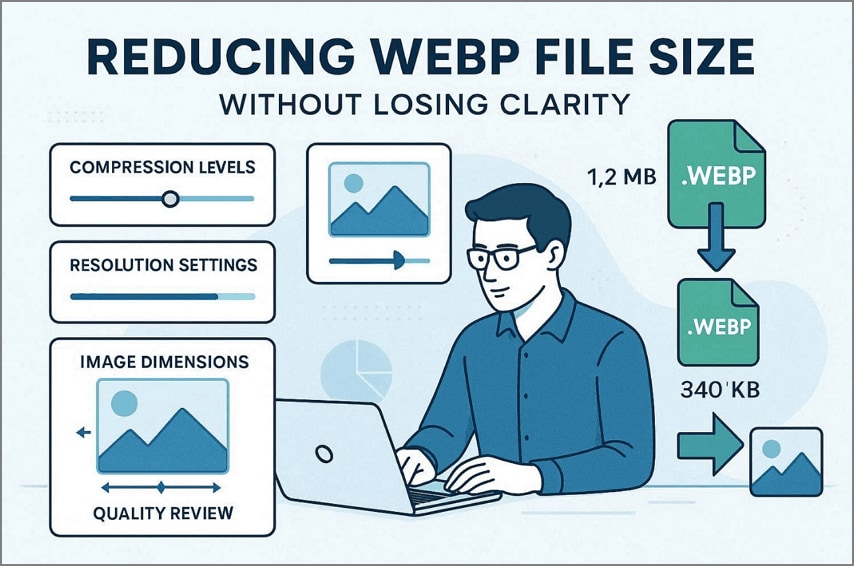
Compression Levels: Adjust compression gradually until you find the smallest size that still looks clean. Industry guidance such as Digital Applied also highlights how efficient image choices support faster pages.
Resolution Settings: Higher resolution produces larger files, so match DPI and dimensions to the actual display use case.
Image Dimensions: Smaller pixel dimensions reduce file weight significantly, especially on mobile-first pages.
Quality Review: Always test a few exports before finalizing the assets for production use.
Part 8. What Are the Most Common Problems When Converting PDF to WEBP?
Several issues can appear during conversion, especially when the source document has small text, low resolution, or too many pages for the selected tool.
Why Does the WEBP Output Look Blurry? Very low source resolution or heavy compression can make the final image look fuzzy.
Why Is the Text Harder to Read After Conversion? Small fonts can become harder to read once a vector PDF is flattened into a raster image.
Why Did Only Some Pages Convert? Some online tools impose page or size limits, so larger files may not process fully.
Why Are the Output Files Too Large or Too Small? Compression and export settings may be poorly matched to the intended display size.
Part 9. Should You Choose PDF to WEBP vs. PDF to PNG or JPG?
The best output format depends on where the images will be used. WEBP is often strongest for web performance, while PNG or JPG may still make sense depending on compatibility or lossless needs.
| Format | Best Use Case | Key Advantage | Limitation |
|---|---|---|---|
| WEBP | Web publishing and fast-loading pages | Smaller file sizes with good visual quality | Limited compatibility on older systems |
| PNG | Graphics, logos, and lossless images | High quality with no compression loss | Larger file sizes compared to WEBP |
| JPG | General image sharing and photos | Wide compatibility across platforms | Quality loss due to compression |
If you need to export a PDF into other image formats beyond WEBP, PDFelement can also support broader PDF conversion workflows.
Part 10. What Are the Best Use Cases for Converting PDF Pages to WEBP?
PDF to WEBP is especially useful when you want document visuals to load quickly online while still looking clear enough for readers. This is common in content previews, help centers, blog assets, and digital libraries.
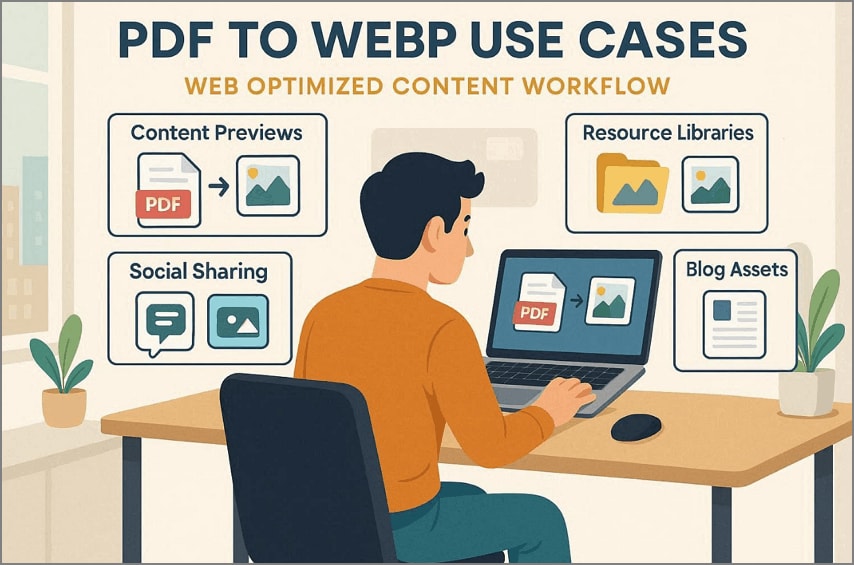
| Use Case | Purpose | Key Benefit |
|---|---|---|
| Content Previews | Create visual previews of documents before download | Improves user engagement on landing pages and portfolios |
| Resource Libraries | Reuse document visuals in online help centers | Displays charts efficiently without slowing page speed |
| Social Sharing | Convert document pages into shareable images | Enables fast-loading visuals for social media platforms |
| Blog Assets | Add document graphics into blog content | Maintains image clarity while reducing bandwidth usage |
G2 Rating: 4.5/5 |100% Secure
Frequently Asked Questions (FAQs)
Can I convert a multi-page PDF to WEBP?
Yes. Most modern tools let you convert multi-page PDF files into WEBP images, usually by exporting each page separately. This makes the result easier to sort, preview, and reuse on websites.
Does each PDF page become a separate WEBP image?
Usually, yes. Most tools handle each page as its own output image, which is why PDF to WEBP is practical for content previews and page-by-page web assets.
What is the best free PDF to WEBP converter?
The best option depends on what matters most to you, such as speed, page limits, quality, and ease of use. Reliable online tools are often enough for lightweight work, but they do not always offer strong control for larger jobs.
Will converting PDF to WEBP reduce quality?
It can if the compression is too aggressive or the source PDF is already weak. Better DPI settings and careful export choices usually help preserve clarity.
Is WEBP better than PNG for PDF page images?
WEBP is often better for web speed because it usually creates smaller files. PNG may still be the better choice when maximum lossless output or broader legacy compatibility matters more than size.
How do I reduce file size when converting PDF pages to WEBP?
Increase compression carefully, reduce unnecessary dimensions, and export only the pages you actually need. Small setting changes can cut file size without destroying visual clarity.
G2 Rating: 4.5/5 |100% Secure
Conclusion
Converting PDF to WEBP is a practical way to create lighter, faster-loading document images for modern web use. Online converters are usually the quickest path for simple tasks, while more complex files may need better page preparation, quality tuning, or page extraction before export. If you need to split pages, prepare selected content, or continue working with the source PDF before conversion, PDFelement is a useful supporting tool in that workflow.


![All the Methods to Convert a PDF to Black and White [2026]](https://images.wondershare.com/pdfelement/images2026/pdf-like-article-3.png)

