

In today’s fast-paced digital world, staying focused while reading long texts can be challenging. Reading in difficult-to-read fonts often causes eye strain, leading to physical discomfort and digital burnout. While you cannot avoid reading, it is better to find an alternative way to make your text more readable and accessible. With targeted visual techniques, the Bionic Reading method enhances the reading experience by making it smoother and more intuitive.
If you do not have the text in this format, use a Bionic reading converter to make words more prominent. This article explores the details about Bionic Reading and looks into PDFelement to convert regular text into the Bionic reading format.
In this article
- What is Bionic Reading and Why Use It?
- Common Challenges with Bionic Reading Conversion
- Introducing PDFelement: Your All-in-One Bionic Reading Solution
- Convert Text and PDF to Bionic Reading with PDFelement's AI Chat
- Bring Bionic Reading to Your Browser: Convert PDF to HTML/Website
- Enhance PDF Accessibility: Read PDF Aloud with PDFelement
- Why Choose PDFelement for Bionic Reading Conversion?
Part 1. What is Bionic Reading and Why Use It?
The Bionic format enhances your reading by bolding the first letters of each word in a sentence, guiding your eyes more smoothly. This unique format enhances the reading process, allowing the brain to recognize and process words faster. It reduces the cognitive load required to process each word alone and helps readers maintain better focus and flow. If you are wondering why you need this type of format, read the points below:
- Boosts Reading Speed: By allowing the brain to recognize words more quickly through highlighted anchors, Bionic Reading enables you to move through text faster.
- Accessible For People With Reading Challenges: For dyslexia and ADHD patients, Bionic text conversion can provide a visual structure that makes reading less intimidating and more manageable.
- Makes Diverse Content More Digestible: From eBooks to business reports, Bionic Reading can be applied across a wide range of content types. This makes it easier to absorb key points and understand material, even when you do not have the time.
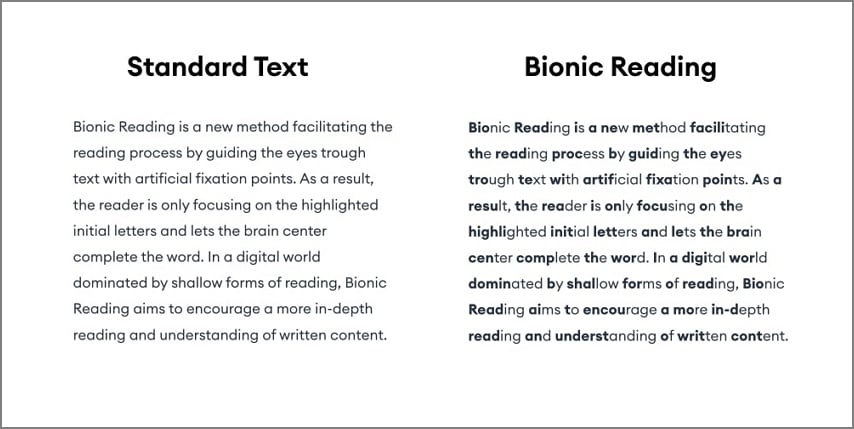
Part 2. Common Challenges With Bionic Reading Conversion
While the idea of reading format conversion sounds useful, it has many challenges. The following list is about the most common challenges faced while using a Bionic font converter:
- Lack of Built-in Support: One of the challenges with using Bionic Reading is that most PDF readers do not support this format. Users often have to rely on third-party tools or manually convert text, which can be time-consuming and inconsistent in quality.
- Limited Tools for Bionic Reading Conversion: While some web-based tools and browser extensions do exist, the selection is still limited and often lacks advanced features or customization options. Due to their limitations, it is difficult to rely on a single tool for all reading needs.
- Transcends Accessibility Barriers: As the bold formatting modifies the text structure, some accessibility tools may not interpret the content correctly or may read it inconsistently. The Bionic Reading with accessibility needs remains a challenge for inclusive reading experiences.
- Inconsistent Formatting: A major drawback of Bionic reader converters is that the formatting may not display consistently across different devices and platforms. This inconsistency can disrupt the user experience and undermine the purpose of improving readability.
Part 3. Introducing PDFelement: Your All-in-One Bionic Reading Solution
After exploring the above-mentioned challenges of these converters, you will need a better alternative that overcomes these limitations. Wondershare PDFelement is a renowned PDF management tool that works way beyond file and page organization. It eases the file tweaking process by offering robust editing tools that allow you to add or delete images, text, and hyperlinks from a pre-existing file.
To stand out from the crowd, it offers unique AI-powered features that allow you to convert a normal reading pattern into the Bionic reading style. The AI Chat feature intelligently understands your prompts and responds accordingly to simplify PDF-related tasks.


 G2 Rating: 4.5/5 |
 100% Secure
Part 4. Convert Text and PDF to Bionic Reading with PDFelement's AI Chat
Unlike most PDF tools, PDFelement offers a comprehensive AI Chat option, allowing you to simplify document-related tasks. This tool lets you transform any selected portion of your document into an easier-to-read format. Once the text has been transformed within the chat, you can summarize it to enhance its retention. PDFelement supports many file formats for upload and export to enhance your document's accessibility.
Chat with AI to Instantly Convert Text
Text conversion into a PDF using the Bionic reading pattern is easy, with the interactive AI assistant of PDFelement. To access this utility, you simply have to upload a PDF or a document in any other format. If you do not have a document to import, you can also work with a blank PDF. After accessing the AI Chat feature, enter the chat box and give it a prompt for text conversion.
Paste the text that you need to transform and wait for the response. Once the Bionic format is generated, you can read the text from there or copy it to the clipboard for further processing.
Practical Example of AI Chat
After having a vague concept, let's look into the guide of using PDFelement as a Bionic reading converter PDF to make it clearer:
Step 1Start by Creating a Blank PDF
Start by opening PDFelement on your desktop and selecting the "Open PDF" option to open your document
Step 2Enter Your Text and Access the AI Chat Feature
Once your PDF is open, unfold the "AI Assistant" menu from the top right corner and select text from your PDF. The selected text will be synced to the "AI Chat" chatbox.
G2 Rating: 4.5/5 |100% Secure
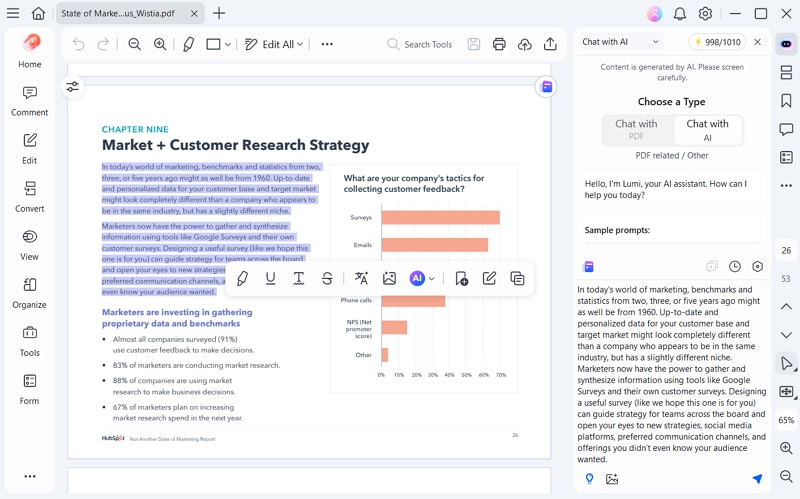
Step 3Use the AI Assistant to Generate the Bionic Reading Format
Continue by typing a prompt into the chat box: Convert text to Bionic reading format. It will get the AI to convert text to Bionic. Wait for AI's response.
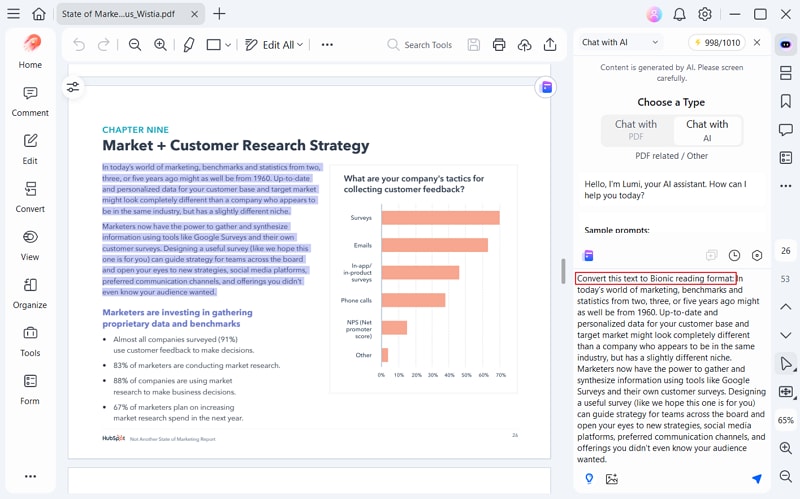
Step 4Read the Bionic Text or Copy it to the Clipboard
Upon getting the results in the chat box, you can easily read the PDF in Bionic reading format. Or use the "Copy" icon to add the Bionic reading format text to the Clipboard.
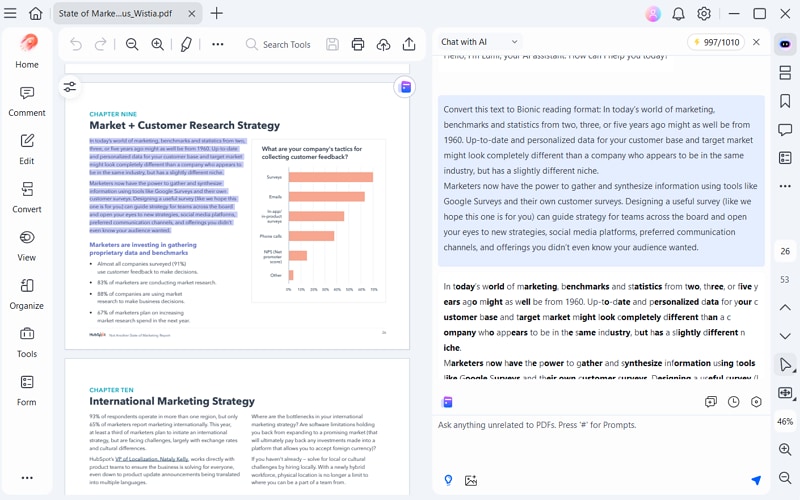
Benefits of Using the AI Chat Feature
- Working with PDFelement, you do not have to change the text formatting manually, as the layout is in accordance with the Bionic pattern.
- Whether you need to convert the text in a PDF or a Word file, you can use both in this tool, or even plain text.
- By promptly converting your words, PDFelement's AI Chat feature saves time and enhances the productivity of students, researchers, and professionals.
Part 6. Enhance PDF Accessibility: Read PDF Aloud with PDFelement
Although PDFelement's ability of PDF to Bionic reading conversion is commendable, this tool does not stop here. When it comes to easing the reading process, it helps you with its helpful speech-to-text features as well. It uses its life-like AI voices to read the text, making the user feel like a human interaction.
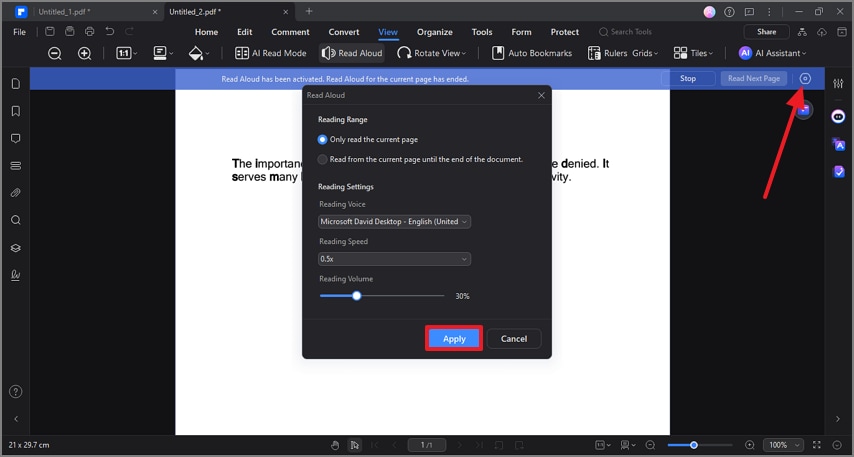
You can choose if you want the AI to read just the current page or the entire document starting from the current page. For a customized experience, PDFelement encourages you to select the AI voice of your choice. Even the reading volume can be adjusted to your ease for better accessibility.
A Complete Guide to Using PDFelement's Read Aloud Feature
G2 Rating: 4.5/5 |100% Secure
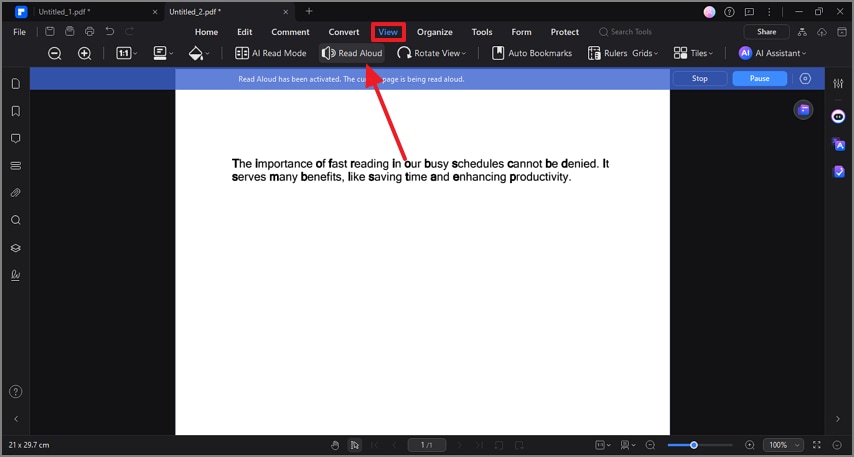
Step 1Access the Read Aloud Feature for the Imported File
Once you have uploaded a PDF file, navigate to the top toolbar and enter the "View" tab to select the "Read Aloud" feature.
Step 2Customize the Reading Experience by Entering the Desired Settings
Although the AI speaker will start reading the file, you can customize the experience by selecting the "Settings" icon at the top right. Using the next window, adjust the reading settings and "Apply" the changes for a better read-aloud experience.
Part 5. Bring Bionic Reading to Your Browser: Convert PDF to HTML/Website
Creating a Bionic reading for PDF files that are static can bring many limitations with formatting. Thus, it is important to convert such files into a flexible format, like HTML. Converting files into this format is suitable for users looking for speed reading and digital optimization. This type allows for easier changes like bolding specific syllables and adjusting line height.
Why Browser Extensions May Be Limited
In the quest to make files accessible, people often use browser extensions for faster text conversion. However, extensions may not serve as a sustainable source for converting reading formats. The following factors will let you know why you should not opt for a Bionic reading Chrome extension:
- Despite some effectiveness, extensions have limited compatibility with PDF files. Due to the layout of these documents, the extension cannot read the file, impacting its formatting.
- If you want to work with a scanned PDF file, these online platforms may not be a suitable option, as they do not have OCR. Using a third-party OCR before using these extensions can be a lengthy and hectic process.
- These tools offer minimal control over how the Bionic text appears. They do not give you the liberty to select the desired font size and style to make the words readable.
PDFelement's Solution: PDF to HTML/Website Conversion
Now that we are not going to use a bionic reader extension, we need a robust converter for websites, like PDFelement. With its practical conversion abilities, this platform allows you to transform plain text and PDF files into HTML code. To easily locate the converted file on your device, PDFelement lets you choose the desired file location on your device. The following instructions are a breakdown of using this feature:
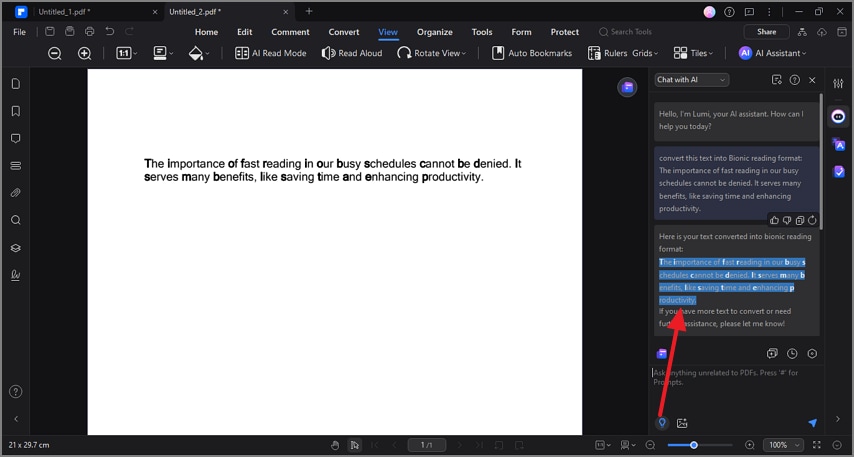
Step 1Start with Pasting the Bionic Reading Text into the Blank PDF Document
First, convert the text into Bionic reading pattern and paste the generated results on your blank PDF.
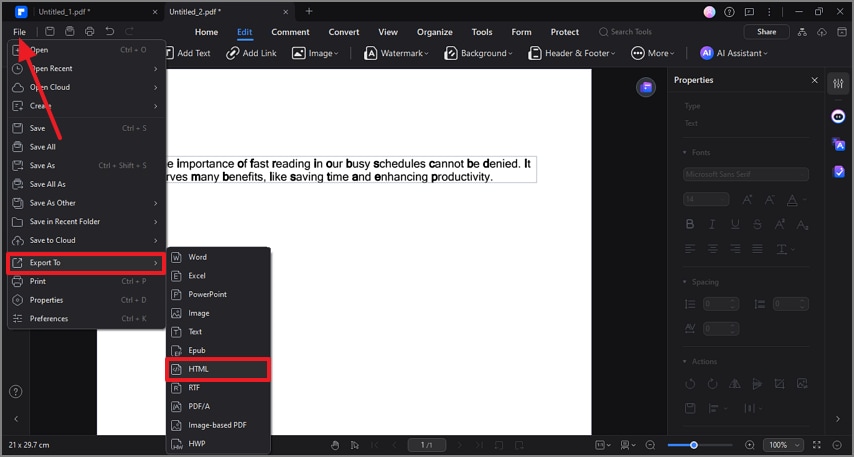
Step 2Export the File as HTML Code
Once done, access the "File" tab and hover your mouse over the "Export To" option to save the file as "HTML" code.
Part 7. Why Choose PDFelement for Bionic Reading Conversion?
If you are still indecisive about why PDFelement is a superior choice than a Bionic reading extension, the following points will help you make up your mind:
- Unlike most format converters, PDFelement offers a comprehensive solution for converting complex documents. It supports a wider range of file types and maintains consistent formatting, without the need to switch between multiple platforms or tools.
- This tool combines PDF editing, AI-driven format conversion, and accessibility tools in a single platform. This all-in-one capability allows users to manage everything PDF-related without needing additional software.
- PDFelement is widely used by professionals, educators, and accessibility advocates who require precision.
Conclusion
In essence, this article discussed the details about using the Bionic reading converters, including the challenges faced while using them. As a better alternative to these tools with limitations, PDFelement offers an array of different features that make it a superior choice. It stands out from the crowd by allowing you to convert plain text or PDF files into this reading format.
You can also export the files in this reading format to various other file formats. Therefore, acquire PDFelement on your devices to create highly compatible files in the Bionic reading format.
![All the Methods to Convert a PDF to Black and White [2026]](https://images.wondershare.com/pdfelement/images2026/pdf-like-article-1.png)



