

In this article
- Which Methods Can You Use to Convert IPYNB to PDF?
- What Are the Best Ways to Convert IPYNB to PDF?
- Which IPYNB-to-PDF Method Should You Choose?
- Step-by-Step — How to Convert IPYNB to PDF Successfully?
- Which Common Problems Appear When Converting IPYNB to PDF?
- Why Converting IPYNB to PDF Is Only Part of the Job?
- How PDFelement Helps After You Convert IPYNB to PDF?
- What Are the Best Use Cases for Converting IPYNB to PDF?
- Which Workflow Is the Best for a Polished IPYNB-to-PDF Result?
- Frequently Asked Questions (FAQs)
- Conclusion
IPYNB is a Jupyter Notebook file that holds code and notes together. Sharing these files is hard because not everyone has the right software installed. Therefore, many students and workers need to convert IPYNB to PDF for sharing or grading. According to LandBase, as of 2026, over 1,431 companies use Jupyter Notebook for data analysis and collaboration worldwide. So, this guide explains simple ways to get a clear, ready-to-use PDF output.
Part 1. Which Methods Can You Use to Convert IPYNB to PDF?
Users can transform IPYNB to PDF using Jupyter export, nbconvert, webpdf Jupyter, print preview, HTML export, or online converters. Each method works differently and suits users based on speed or formatting control. For quick results, print preview is simple, while nbconvert gives more control options.
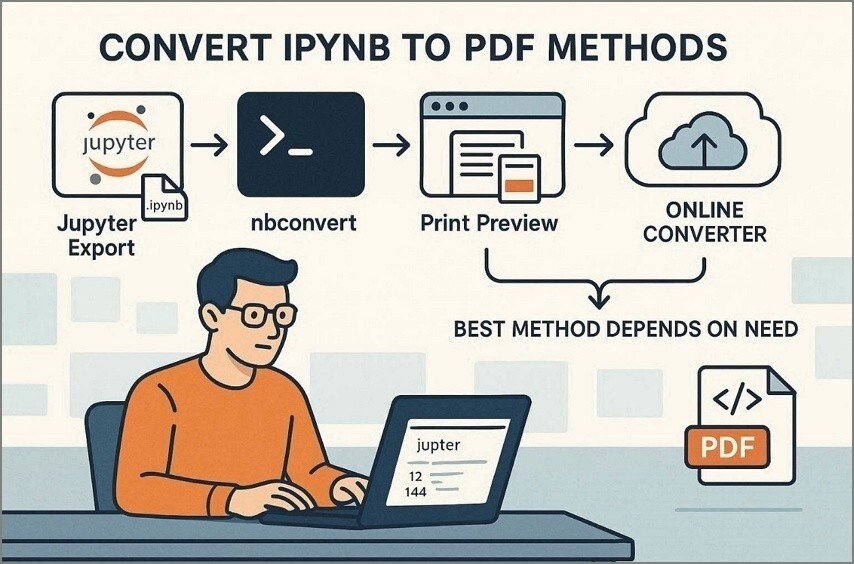
Jupyter's built-in export is useful when working directly inside notebooks without extra steps. So, the best method depends on your goal and how clean the output needs to be. If the PDF needs edits or cleanup, you can refine it later using Wondershare PDFelement.
Part 2. What Are the Best Ways to Convert IPYNB to PDF?
In 2026, multiple ways exist to convert a Jupyter notebook to PDF, such as built-in export and tools. In this section, you will explore 5 methods to transform IPython notebooks to PDF:
Method 1: Use Jupyter Notebook or JupyterLab Built-In Export
JupyterLab Built-In Export is a natural way for users to convert a Jupyter notebook to PDF. This method uses nbconvert in the background to create a PDF from notebook content. However, some setups need extra tools like LaTeX or browser engines, depending on the export type. So, go through the given instructions to use JupyterLab Notebook:
Instructions
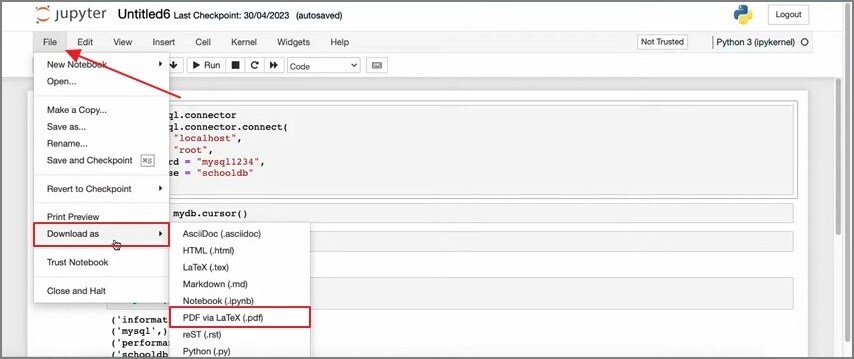
Inside “JupyterLab Notebook,” go to “File” and opt for “Download As” option.
Next, choose the “PDF via LaTeX” option from the menu.
Method 2: Convert IPYNB to PDF with nbconvert
nbconvert converts IPYNB to PDF using the command line for fast control workflows. It supports nbconvert to PDF with LaTeX-based PDF creation, turning the notebook into PDFs through code. However, it may face dependency issues like missing LaTeX or browser tools in some systems. Adhere to the instructions below to convert IPYNB to PDF:
Instructions
To initiate, download and install Jupyter and nbconvert on your device.
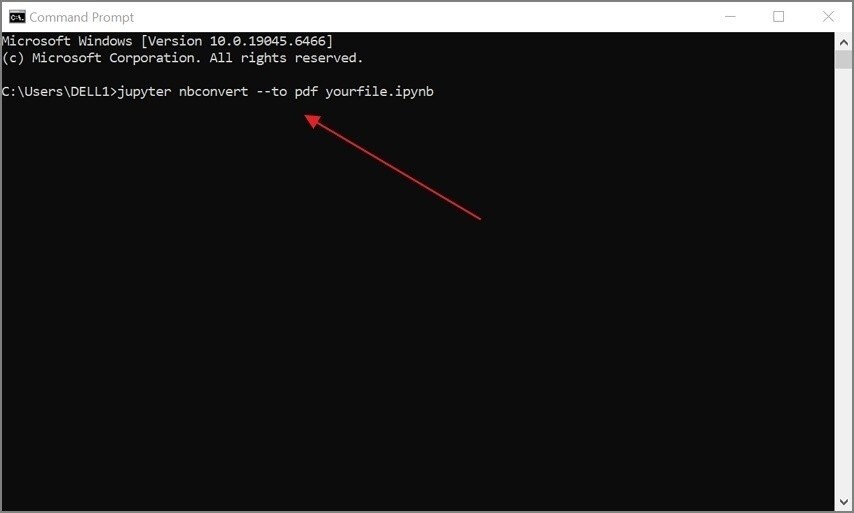
Once it is installed, open “Command Prompt” and type “jupyter nbconvert --to pdf yourfile.ipynb”, then press “Enter.”
Method 3: Print the Notebook to PDF from Print Preview or the Browser
You can also use browser print preview to convert IPYNB to PDF without any tools. It is used when users want instant output without complex setup or commands. However, long notebooks, code cells, and outputs may need cleanup after export to improve readability. Explore the instructions below to print the notebook to PDF:
Instructions
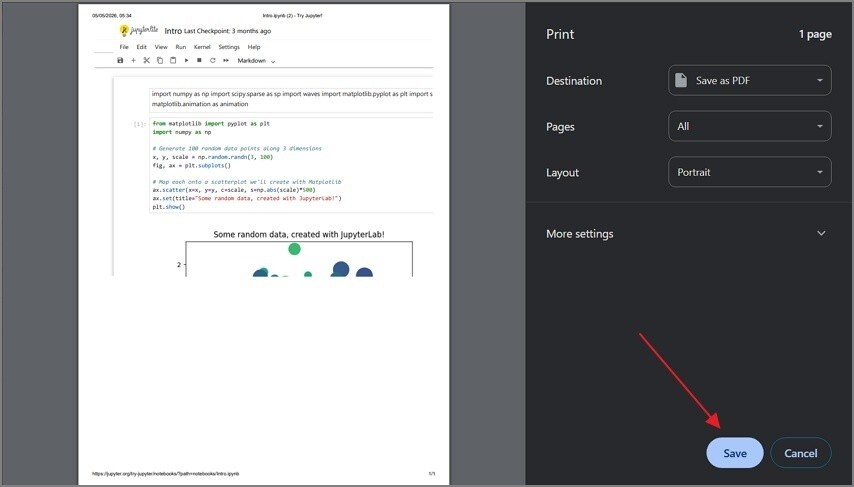
Open your “Jupyter Notebook” in a web browser, press “Ctrl+P”, then choose “Save as PDF”, and click “Save”.
Method 4: Export IPYNB to HTML First, Then Save as PDF
Users switch to HTML to PDF from Jupyter Notebook when layout issues appear in direct PDF conversion. It avoids LaTeX setup problems and gives more stable notebook rendering in a simple format. HTML export often preserves notebook formatting more reliably than direct PDF export. Review the instructions below to convert your file:
Instructions
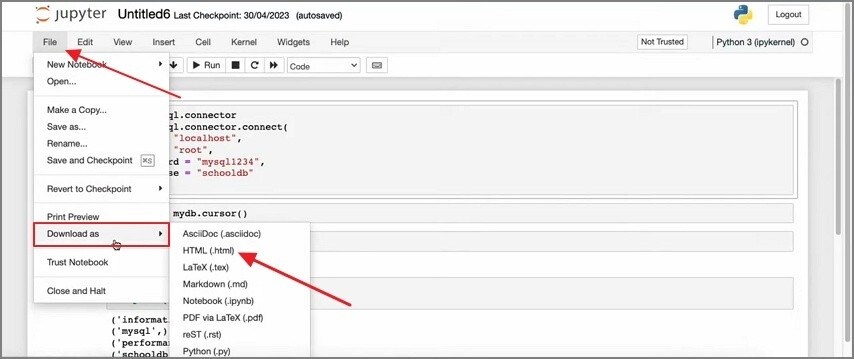
Open your IPYNB file in Jupyter Notebook or JupyterLab and click “File” to choose “Download As”.
After that, select the “HTML” option from the menu. Once it is downloaded, open it and press “Ctrl+P” to opt for “Save.”
Method 5: Use an Online IPYNB-to-PDF Converter
Online tools such as MConverter convert IPYNB to PDF without requiring any software installation. It is the fastest option for users who want one-click conversion without setup. However, it may affect privacy, file size limits, and output quality depending on the service. Adhere to the steps below to convert IPYNB to PDF:
Step 1
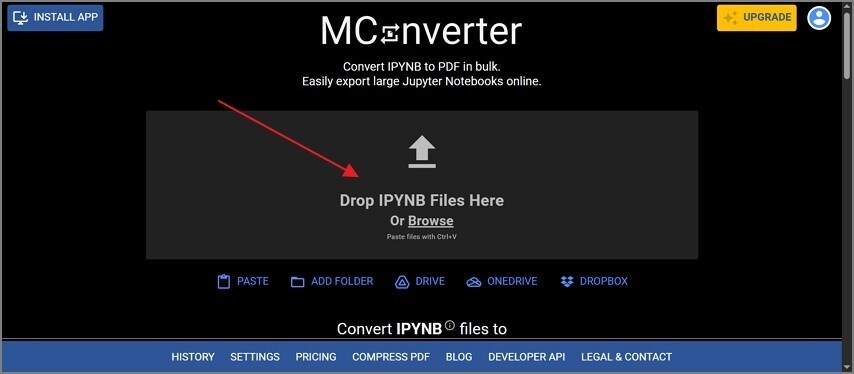
Access the official webpage of “MConverter” to drag and drop your IPYNB file into the given field.
Step 2
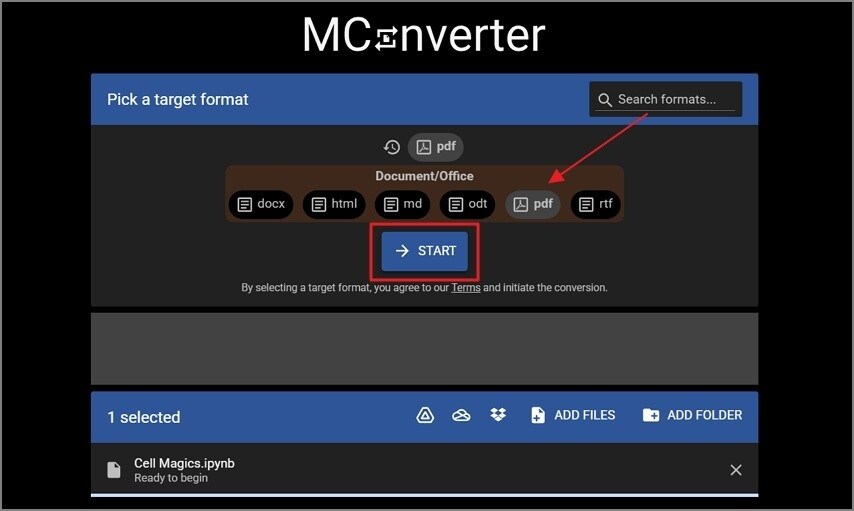
Next, select “PDF” and press the “Start” button to begin the conversion process.
Step 3
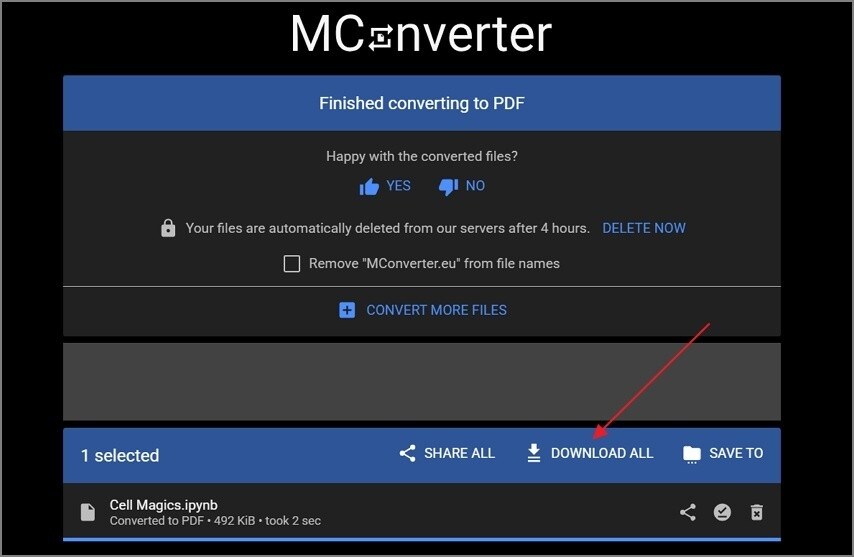
Once your IPYNB file is converted into PDF, opt for the “Download All” option to save IPYNB as PDF.
Part 3. Which IPYNB-to-PDF Method Should You Choose?
There are several options available for users who want to convert IPYNB to PDF. Therefore, review the table below to understand which method fits your needs best:
| Method | Setup | Ease | Quality | Privacy | Speed | Best For |
|---|---|---|---|---|---|---|
| Jupyter Built-in Export | Medium | Easy | Good | High | Fast | Native use |
| nbconvert (Command Line) | High | Medium | Excellent | High | Fast | Automation tasks |
| Browser Print to PDF | None | Very Easy | Medium | High | Very Fast | Quick export |
| HTML to PDF | Low | Easy | Good | High | Fast | Export fix |
| Online Converter | None | Very Easy | Medium | Low | Fastest | No install |
Part 4. Step-by-Step — How to Convert IPYNB to PDF Successfully?
Professional data scientists often follow a precise sequence to convert IPython to PDF. Therefore, this particular section explains the method for achieving perfect results.
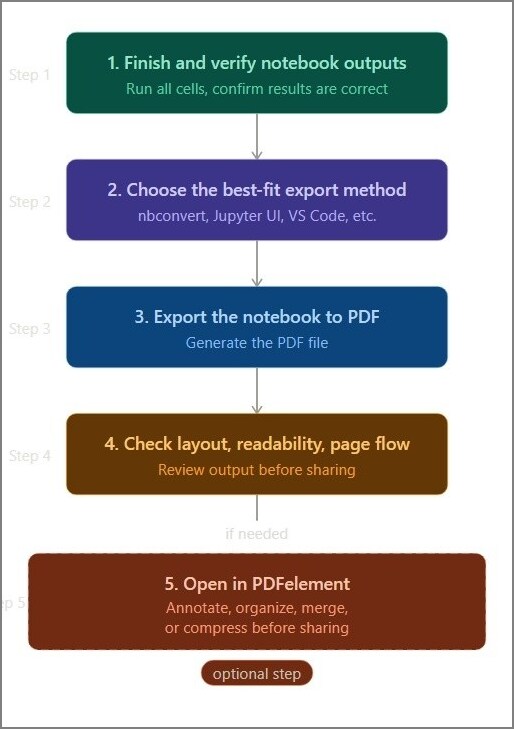
Step 1
Finalize Notebook and Rerun All Cells
Clean your notebook by removing extra cells, errors, and unnecessarily large outputs. Restart the kernel and run all cells to ensure outputs appear complete and correct.
Step 2
Select the Best Export Method
Choose an export method based on your needs, like speed, control, or system setup. Use print, nbconvert, HTML export, or online tools depending on your situation.
Step 3
Convert Notebook File into PDF
Export notebook using the selected method to generate a final PDF file for sharing. Ensure all content, like code, charts, and outputs, converts properly without missing parts.
Step 4
Review PDF Layout and Formatting
Check the PDF for layout issues, broken text, missing charts, or poor formatting. Fix problems by adjusting the export method or improving the notebook content before final use.
Step 5
After converting IPython to PDF
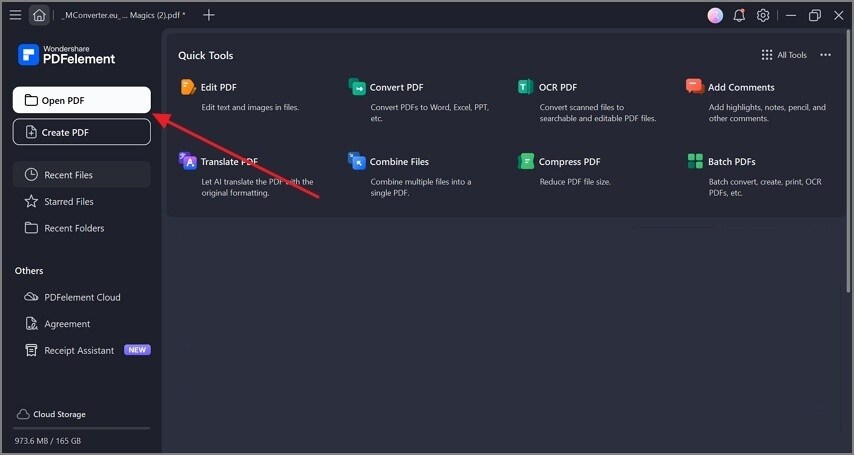
If you want to polish it by adding annotations or compressing the file, Wondershare PDFelement is a reliable choice. Open the tool and choose the “Open PDF” option from the main interface to import the recently converted PDF.
Step 5.2
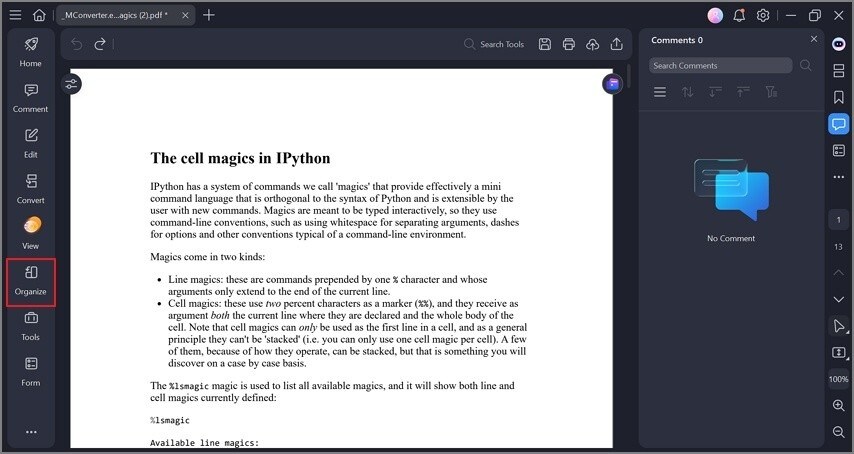
To organize a PDF file, click the “Organize” option in the working window of PDFelement.
Step 5.3
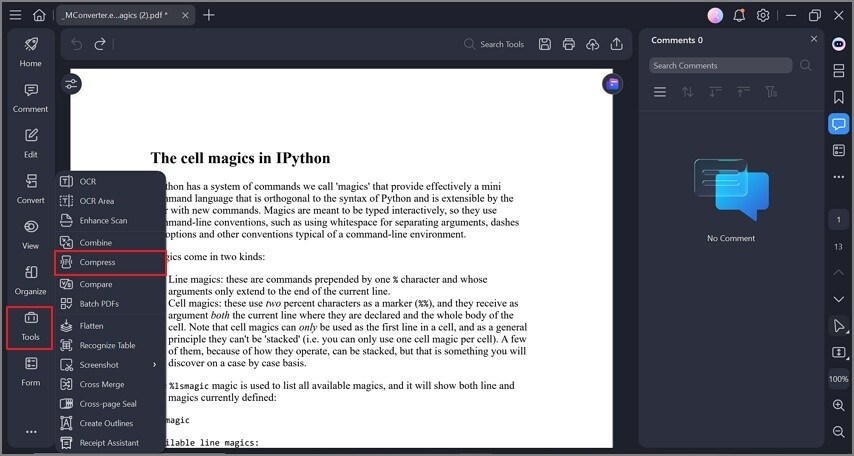
Now, click on the “Tools” option and select the “Compress” option from the menu to polish your PDF.
Step 5.4
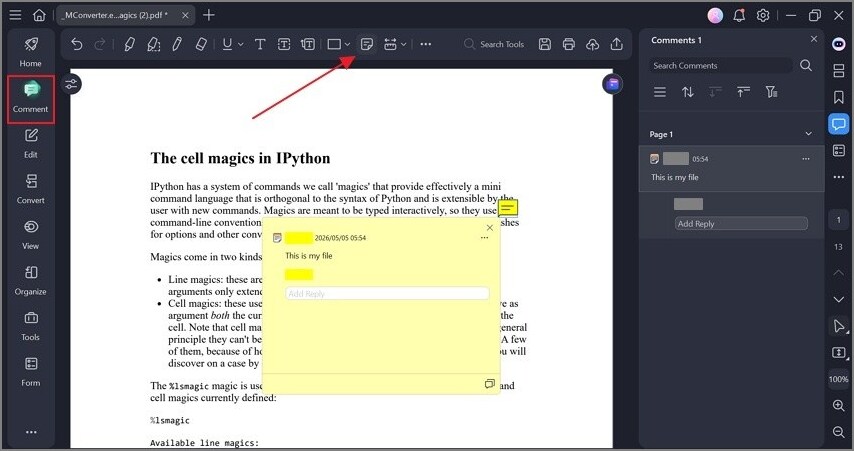
If you want to add annotations, click “Comments” and select the “Sticky Note” option.
Next, add an annotation in the given text box and place it in your preferred place in the file.


 G2 Rating: 4.5/5 |
 100% Secure
Part 5. Which Common Problems Appear When Converting IPYNB to PDF?
Users face issues during export and when they convert IPYNB to PDF without LaTeX. In this specific part, you will explore common problems and troubleshooting steps:
Layout Break
Jupyter Notebook PDF layout often looks broken with cut-off text and spacing issues. Code cells and outputs do not align properly, causing a messy and unreadable final PDF.
Visual Errors
Charts, tables, and images sometimes render poorly after converting the notebook into PDF format. This reduces readability and makes the final document less professional and visually inconsistent.
Large File
Exported notebook PDF files often become too large for sharing or uploading easily. Heavy images and outputs increase size and slow down file handling and transfer. In such cases, Wondershare PDFelement helps reduce file size and improve final PDF organization.
Export Failure
Jupyter notebook export to PDF not working is a common issue faced during conversion. This includes nbconvert errors that stop the conversion process before generating the final PDF file.
Tool Failure
Conversion tools may fail when dependencies like LaTeX, nbconvert, or browser-based engines are missing. These issues lead to incomplete export and force users to try alternative methods.
Part 6. Why Converting IPYNB to PDF Is Only Part of the Job?
Converting IPYNB to PDF only completes the first step of sharing notebook work. After conversion, students still need a clean review, submission, or final presentation preparation. Real workflows continue into documentation, peer review, and client or academic delivery tasks. At that stage, readers often need a cleaner PDF with comments or merged appendices added.
G2 Rating: 4.5/5 |100% Secure
Part 7. How PDFelement Helps After You Convert IPYNB to PDF?
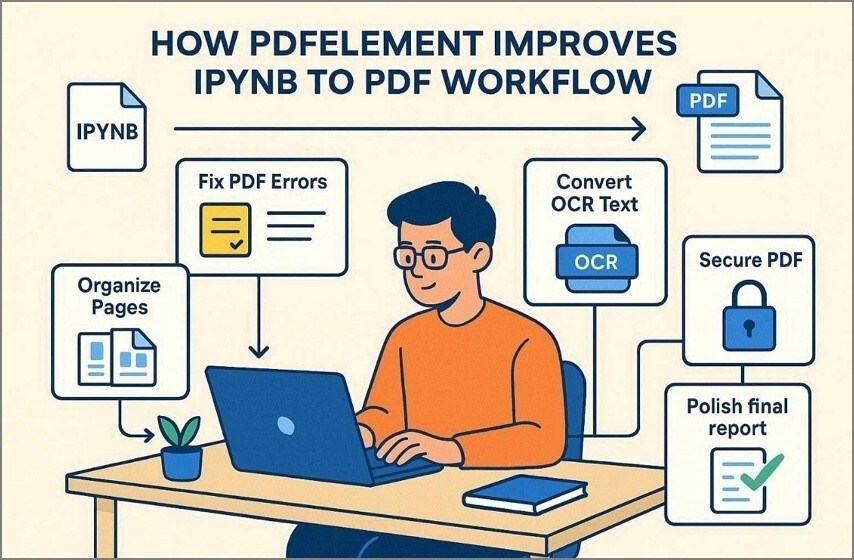
Wondershare PDFelement helps fix small formatting and text errors, supporting users after they export IPYNB to PDF for better PDF management. Here, some functions of this tool help enhance the readability and structure of PDFs:
Review Notes
Users can add highlights, comments, and notes for better review and collaboration work. It supports clear communication of notebook results during feedback and discussion stages.
Page Organize
It helps reorganize pages for better readability and structured report presentation flow. So, users can adjust the order and spacing to make the PDF easier to read.
OCR Support
Wondershare PDFelement converts scanned or image PDFs into editable and searchable text. The tool helps recover content from non-editable files for further modification.
Secure Lock
Users can encrypt PDFs to protect sensitive notebook data and information. It ensures secure sharing with password protection and restricted access control.
Final Clean
Wondershare PDFelement prepares cleaner final PDFs for submission, sharing, and professional presentation use. It ensures polished output with improved structure, readability, and better document organization.
Part 8. What Are the Best Use Cases for Converting IPYNB to PDF?
Users convert IPYNB to PDF to create shareable reports and readable documents. This part shows a table that shows common use cases and their purposes clearly:
| Use Case | Purpose |
|---|---|
| Academic assignments | Submit coursework in the required structured and readable PDF format |
| Data analysis | Present summarized insights from data in a clear document form |
| Research documentation | Document research findings in an organized and shareable PDF format |
| Team collaboration | Share notebook results for review and feedback among teams |
| Client reports | Deliver professional reports with clear insights for clients |
Part 9. Which Workflow Is the Best for a Polished IPYNB-to-PDF Result?
The best IPython to PDF workflow helps create clean and ready-to-share files. Thus, below is a flow chart that shows steps for improved and professional PDF results:
Part 10. Frequently Asked Questions (FAQs)
How do I convert IPYNB to PDF without LaTeX?
You can convert IPYNB to PDF without LaTeX using browser print or HTML export. These methods avoid complex setup and work well for quick and simple conversions.
What is the easiest way to convert a Jupyter Notebook to PDF?
The easiest way is to use the browser's print preview to save the notebook as a PDF. It doesn’t need extra tools and works directly inside the Jupyter environment.
Is Print Preview a Good Way to Save a Jupyter Notebook as a PDF?
Print Preview is a simple way to export a Jupyter Notebook as a PDF. It works fast but may cause layout issues in long or complex notebooks. However, this method works well for quick sharing but may not suit polished final reports.
Should I Use nbconvert or an Online IPYNB-to-PDF Converter?
nbconvert is better for automation, while online tools work for quick conversions. Online tools need no setup but may risk privacy and limit file size. Choose based on your needs, like control, speed, or data safety.
Why Does Jupyter Notebook Export to PDF Fail on Some Systems?
Jupyter export may fail due to missing LaTeX, nbconvert, or system dependencies. Fixing the setup or using alternative methods usually solves the export problem.
How Do I Fix the Broken Layout in an Exported Notebook PDF?
Broken layout can be fixed by adjusting the export method or using the HTML-first approach. You can also edit the final PDF to correct spacing and alignment issues. Tools like Wondershare PDFelement help improve layout and make the document more readable.
Can I Edit a Converted IPYNB PDF Afterward?
Yes, you can edit a converted IPYNB PDF using a PDF editor tool like Wondershare PDFelement. It allows changes in text, layout, and adding notes or comments easily.
How Do I Reduce the File Size of a Notebook PDF Before Submission?
You can reduce file size by compressing images and removing heavy outputs. Using PDF tools like Wondershare PDFelement helps shrink the file without losing much quality or clarity.
Conclusion
There are multiple ways to convert IPYNB to PDF for every user. Each method depends on speed, setup, and formatting needs. However, export alone rarely gives a polished, delivery-ready document. Therefore, you still need cleaner formatting, organization, annotations, and compression, and Wondershare PDFelement helps refine final PDFs.
G2 Rating: 4.5/5 |100% Secure


![All the Methods to Convert a PDF to Black and White [2026]](https://images.wondershare.com/pdfelement/images2026/pdf-like-article-3.png)

