

Imagine opening your digital planner and instantly making your notes more vibrant, organized, and engaging. Note stickers offer a versatile way to brighten up your digital or printable notes while enhancing productivity. Whether you want cute, aesthetic embellishments or practical labels like "To-Do" or "Important," the right stickers make your note-taking visually appealing.
This article explores the best free and aesthetic note sticker sets available in 2026, including how to download, use, and customize them across various note-taking apps and planners. Elevate your note-taking experience by combining style with functionality effortlessly.
In this article
- Quick Trivia on Notes Stickers
- Free Note Stickers: Downloads You Can Use Today
- Aesthetic & Cute Note Stickers (Inspiration Gallery)
- Digital Note-Taking with Stickers — The Fast Way (PDFelement Hero)
- Printable Note Stickers (Paper & Hybrid)
- Buyer’s Guide: Choose the Right Stickers for Your Use Case
- Organization Recipes (Copy-ready mini-guides)
- Frequently Asked Questions
- Conclusion
Imagine opening your digital planner and instantly making your notes more vibrant, organized, and engaging. **Note stickers** offer a versatile way to brighten up your digital or printable notes while enhancing productivity. Whether you want cute, aesthetic embellishments or practical labels like “To-Do” or “Important,” the right stickers make your note-taking visually appealing. This article explores the best free and aesthetic note sticker sets available in 2026, including how to download, use, and customize them across various note-taking apps and planners. Elevate your note-taking experience by combining style with functionality effortlessly.
Quick Trivia on Notes Stickers
Note stickers are small decorative or functional graphics used in both digital and printable notes to organize, highlight, or personalize content. Digital note stickers come as PNGs or integrated app elements to enhance visual clarity and engagement. Printable note stickers are physical adhesive labels or paper cutouts placed in planners or journals. Both types improve note-taking by segmenting information, emphasizing priority tasks, or adding aesthetic appeal.
Free Starter Pack: You can access a Free Starter Pack of note stickers free download, designed for instant use with no downloads needed, directly within PDFelement’s built-in Stickers library. This feature offers a wide variety of ready-made, customizable stickers that can be applied immediately to your PDFs.
One-line Promise: Organize lectures and meetings faster with PDFelement’s integrated Stickers, Notes, and Markup tools for seamless annotation and collaboration.
Free Note Stickers: Downloads You Can Use Today
To enhance your note-taking or planner experience, selecting from diverse free **stickers for note** packs can add both function and flair. Below is a categorized list of top free sticker packs with their attributes to help you pick the perfect set:
| Pack Name | Style | File Types | Ideal Use | Licensing |
| Clean Lines Neutral | Minimal/Aesthetic | PNG (transparent), PDF sheet | Digital planners, journaling | Free for personal use |
| Pastel Pop | Cute/Kawaii | PNG, PDF | Fun labels, digital decor | Free for personal use |
| Academic Essentials | Study/School | PNG, PDF | To-Do, Exam, Important | Free for personal use |
| Project Manager | Meeting/Project | PNG, PDF | Action, Owner, Deadline | Free for personal use |
| OK Noted Acknowledgements | Status Stickers | PNG | Approvals, Follow-ups | Free for personal use |
| Paper Classic | Paper-style Sticky Notes | PNG, PDF | Bullet journals, scrapbooks | Free for personal use |
| Monochrome Minimal Tabs | Minimal/Aesthetic | PNG, PDF | Section markers, tabs | Free for commercial use |
| Study Helper | Study/School | PNG | Definitions, Formulas | Free for personal use |
| Meeting Action Pack | Meeting/Project | PNG, PDF | Risk, Decision, Priority | Free for commercial use |
| Checklist Confirmations | Status Stickers | PNG | Checkmarks, “OK noted” | Free for commercial use |
| Vintage Paper Notes | Paper-style Sticky Notes | PDF sheet | Printing vintage style | Free for commercial use |


 G2 Rating: 4.5/5 |
 100% Secure
Aesthetic & Cute Note Stickers (Inspiration Gallery)
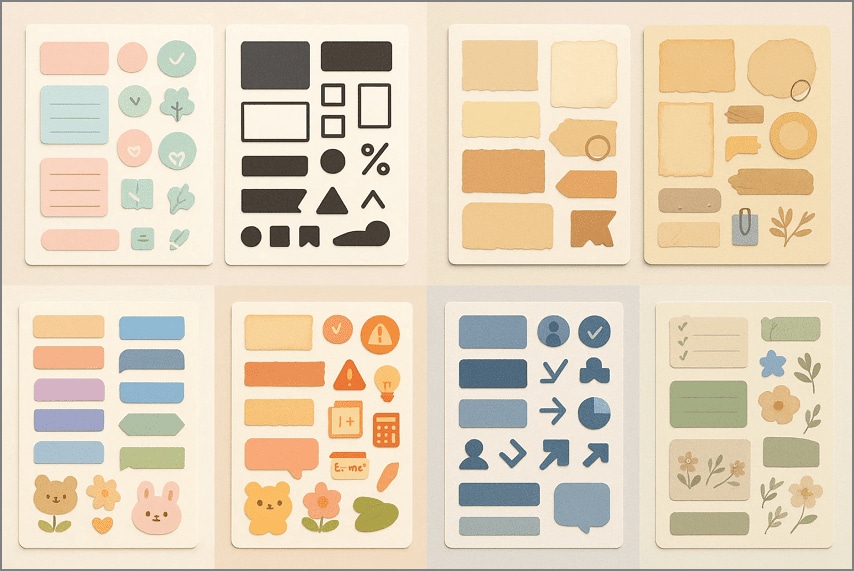
Exploring various aesthetic and **cute note sticker** themes can inspire creative and organized note-taking. Curated themed boards help you match stickers with your planning style and mood. Here are eight popular cute note sticker themed boards, each with unique colors, motifs, and uses:
- Pastel Study: Soft pinks, blues, and greens with delicate icons for calming study sessions.
- Monochrome Minimal: Black, white, and gray palette with clean geometric shapes for a sleek, distraction-free look.
- Vintage Paper: Warm beige, sepia tones, and textured backgrounds resembling aged paper, evoking nostalgia and warmth.
- Gradient Tabs: Smooth color transitions in tabs and labels, offering modern sectional organization.
- Exam Cram Icons: Bold symbols and urgent reds or oranges emphasizing important formulas and deadlines.
- Meeting Labels: Professional blues and grays with clear icons for action items, owners, and decisions.
- Kawaii Characters: Adorable cartoon elements and pastel palettes for playful note decoration.
- Floral Accents: Soft florals combined with muted tones to add elegance to planners and journals.
Combining these color palettes and fonts with complementary note templates elevates the overall visual harmony, enhancing readability and motivation. Thoughtful integration ensures a personalized yet cohesive note-taking experience.
Digital Note-Taking with Stickers — The Fast Way (PDFelement Hero)
PDFelement stands out as a hero tool for digital note-taking with stickers because its built-in sticker library eliminates import friction, enabling users to quickly enhance documents with stickers. Combined with powerful notes and markup tools, PDFelement enables seamless annotation, highlighting, and commenting within the same interface. This integration accelerates review workflows by letting users instantly apply **cute notes stickers** alongside text edits and highlights. The stickers function of PDFelement makes it the fastest way to organize, emphasize, and personalize digital notes. The comprehensive features of PDFelement empower both individual productivity and collaborative projects efficiently.
Comprehensive Guide to Use PDFelement for Digital Note-Taking
As discussed, PDFelement offers a comprehensive solution for its users to annotate and edit notes effortlessly. Provided below is a complete step-by-step guide to using this tool for efficient note-taking:
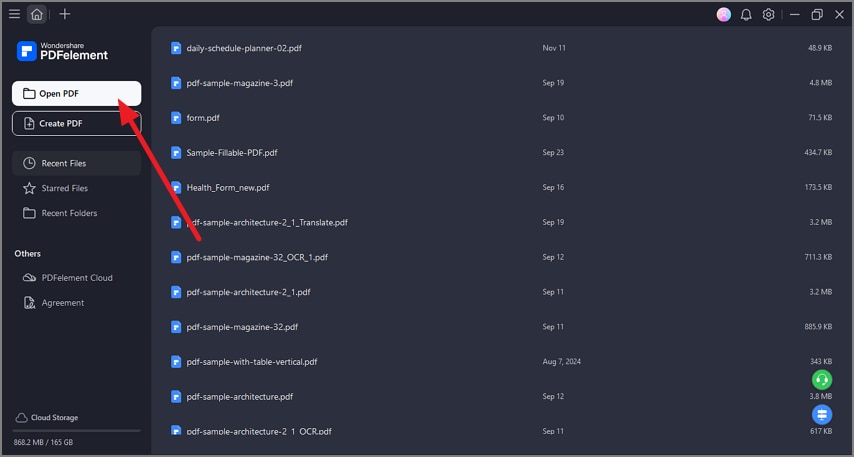
Step 1Start By Opening a PDF
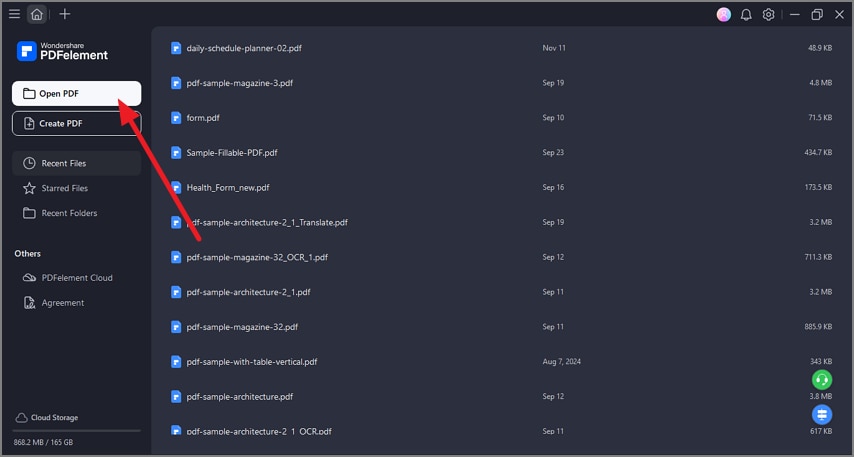
After launching PDFelement on your desktop, head to the top-left corner of the homepage and click on the “Open PDF” button. Now, find the notes PDF file and import it to the tool’s interface.
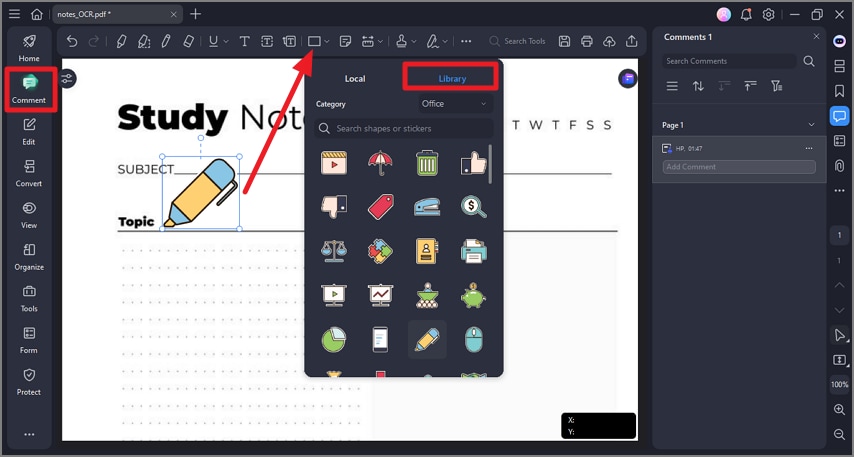
Step 2Add Stickers to Tag Sections
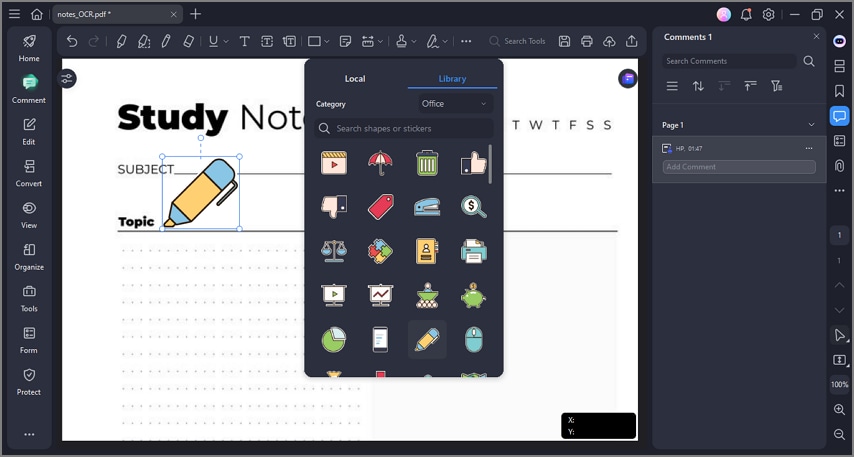
In the following interface, access the “Comment” option from the left and select the “Shapes” option from the toolbar above the page. Now, enable the “Library” section and choose the **paper note sticker** to tag sections such as the To-Do list or Actions.
G2 Rating: 4.5/5 |100% Secure
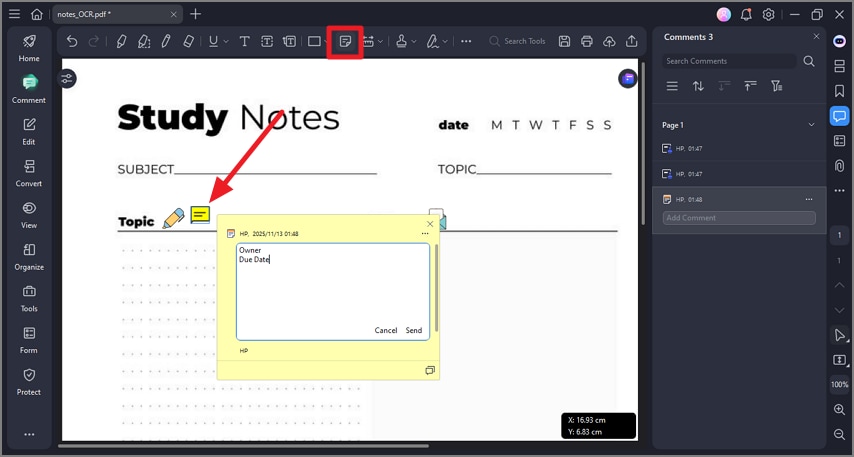
Step 3Attach Notes with Stickers
Moving forward, access the “Notes” icon from the toolbar at the top and click on the area on the page next to the sticker. Now, add details to the notes such as owner, due date, and more.
Step 4Mark up Important Details
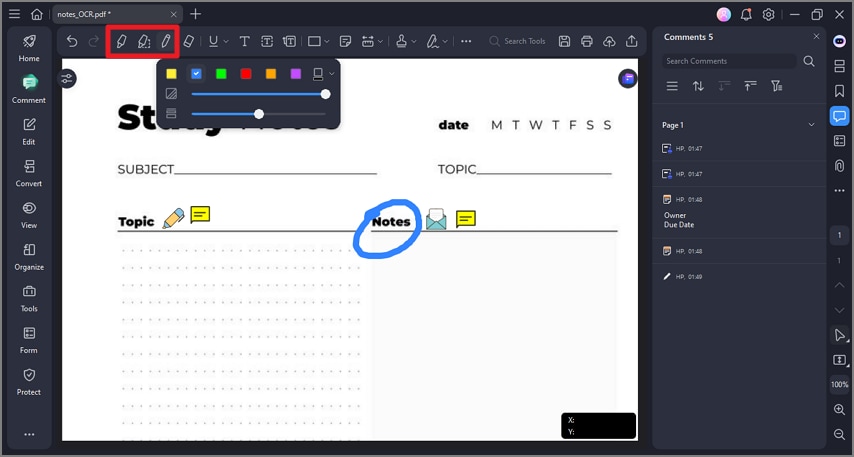
Head to the toolbar at the top and select the markup tool of your choice, like pencil, marker, or highlight. Drag the cursor across the area on the page where you want to add the markup to highlight that point.
Step 5Export or Share the Notes PDF
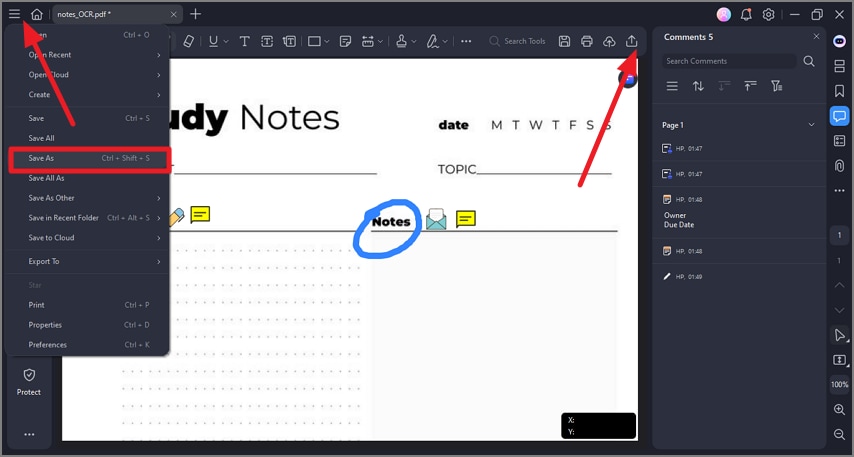
Once all the annotation is done, head to the top-left corner of the screen and press the “Three Bars” icon to choose the “Save As” option to successfully save the final result. To share the note directly from the interface, press the “Share” icon located at the top-right corner of the page and select the desired sharing option.
Printable Note Stickers (Paper & Hybrid)
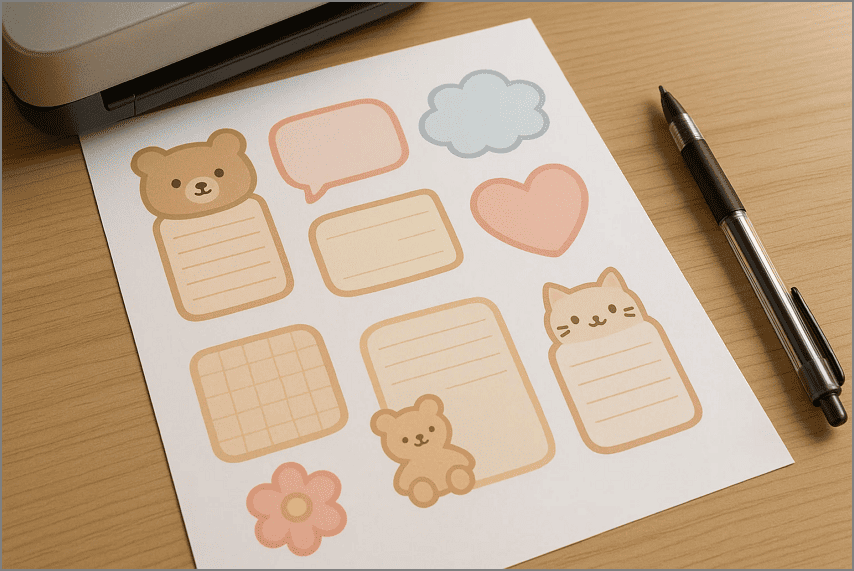
Printable note stickers are adhesive or decorative labels designed for physical or hybrid use, allowing you to write or print notes on paper-based stickers. These stickers come either in pre-cut shapes and sizes or as sheets of printable material, like adhesive paper or kraft with various textures. They facilitate organized and aesthetic note-taking, making them suitable for bullet journals and planners.
How to Print Sticker Sheets
- Paper Type: Use high-quality A4 or Letter-size adhesive sticker paper, depending on your printer settings and region.
- Cut Lines: Include clear cut lines or registration marks in your design file to guide manual or machine cutting for precise sticker shapes.
- Matte Finish: Offers a non-reflective surface ideal for writing with pens or markers; preferred for planners and journals needing handwritten **note-taking stickers**.
- Glossy Finish: Provides a shiny, vibrant look perfect for decorative stickers, but is less suitable for handwriting as ink may smudge.
- Writable Surfaces: Choose matte or specially coated papers designed for writable use to allow added notes or annotations after printing.
- Hybrid Printing: Print on paper stickers, then cut and scan back for digital use, blending physical and digital planning workflows smoothly.
Paper Note Sticker Styles and When to Choose Them
- Lined Sticky Notes: Ideal for bullet journals and planners requiring neat writing and structure; lines help keep handwriting straight and organized.
- Grid Sticky Notes: Perfect for precise layouts, charts, or sketches; these **note stickers** are commonly used in binders or journals needing graph-style annotation.
- Kraft Paper Stickers: Rustic and natural-looking, great for vintage-themed planners or creative scrapbooking with a handmade feel.
- Colored Paper Stickers: Bright or pastel hues add visual segmentation useful for categorizing different tasks or subjects in bullet journals.
- Transparent Paper Stickers: Minimal and versatile; best for layering over text or images without obscuring original content, ideal for binders.
How to Print a Sticker Sheet in a Hybrid Way
Step 1
Create or select printable **cute note sticker**s and print them on adhesive sticker paper.
Step 2
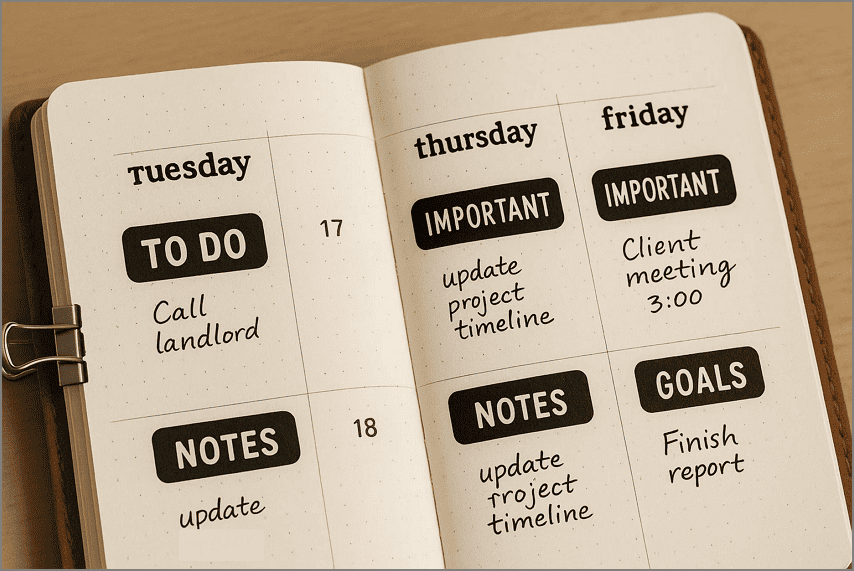
Affix the printed stickers onto your physical planner, bullet journal, or binder pages. Add handwritten notes or annotations as needed.
Step 3
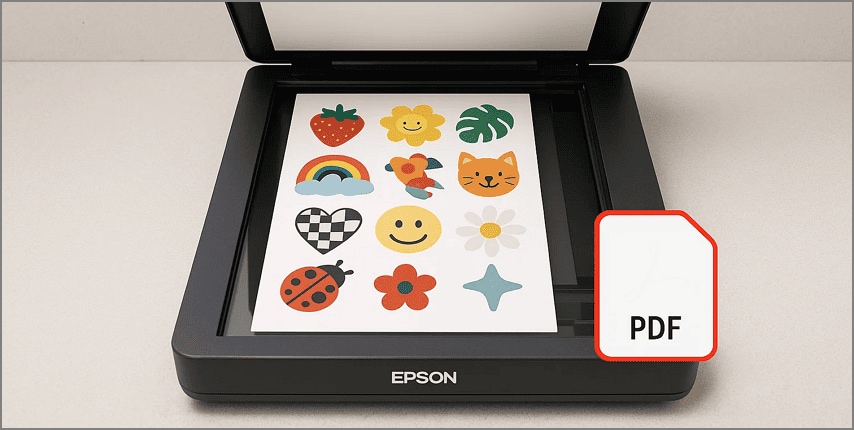
Use a scanner or high-resolution camera to digitize the pages with your stickers, saving them as PDF files.
Step 4
Open the scanned PDFs in a digital note-taking or PDF editing tool like PDFelement.
Step 5
Enhance the scanned notes by inserting additional digital stickers, highlights, and notes. And save or share the sticker from the tool for digital collaboration.
Buyer’s Guide: Choose the Right Stickers for Your Use Case
Selecting the appropriate **aesthetic note stickers** depends on your specific needs and context of use. Each user group has unique requirements that can be met with targeted sticker choices. Provided below is a buyer’s guide for different types of users and their needs:
- Students: Use study labels for organizing subjects, question icons for focus areas, and color-coded subject stickers to differentiate topics efficiently.
- Professionals: Opt for action stickers for tasks, owner/deadline tags to track responsibilities, and status tags such as “Blocked” or “Approved” to monitor project progress.
- Teachers/Coaches: Apply feedback stamps to evaluate, rubric indicators for scoring, and motivational stickers to encourage students.
- Researchers/Readers: Employ quote tags for citations, hypothesis and method stickers for clarity, and result tags to annotate findings.
Organization Recipes (Copy-ready mini-guides)
If you are working in an organization and looking for different ways to create and add **ok noted stickers** for better workflow, refer to the section below. Mentioned next are the detailed guides on how to use each notes pack according to your organization:
Lecture Pack
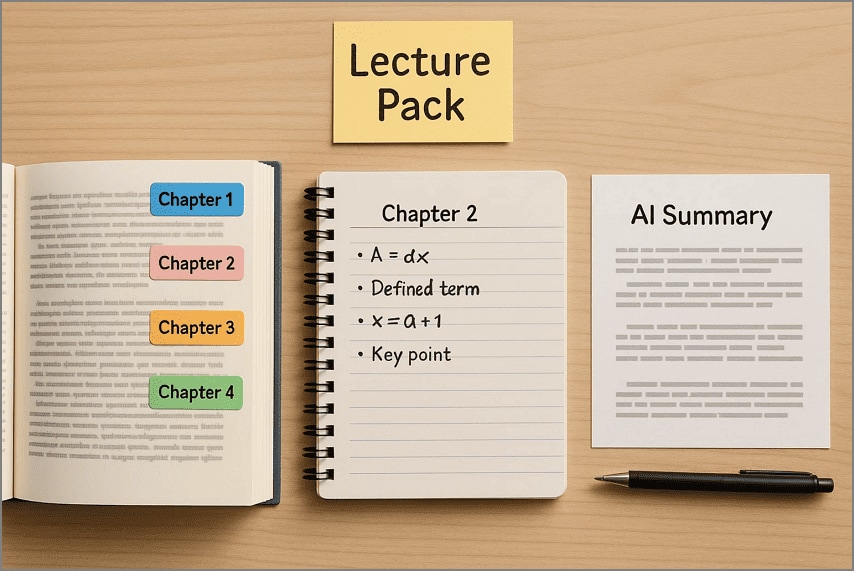
Organizing lecture materials can be streamlined effectively by combining sticker labeling, note-taking, and AI-powered summaries. This structured approach enhances comprehension by breaking content into digestible chunks. Here is how you can organize your lecture materials:
- Sticker Labels by Chapter: Use stickers to mark chapters or sections in your notes or textbooks.
- Notes with Key Points: Summarize important ideas, formulas, or definitions directly under the labeled sections to capture the essence.
- AI Read for Summaries: Utilize AI tools to analyze your notes and generate concise summaries, saving time on review.
Meeting Minutes
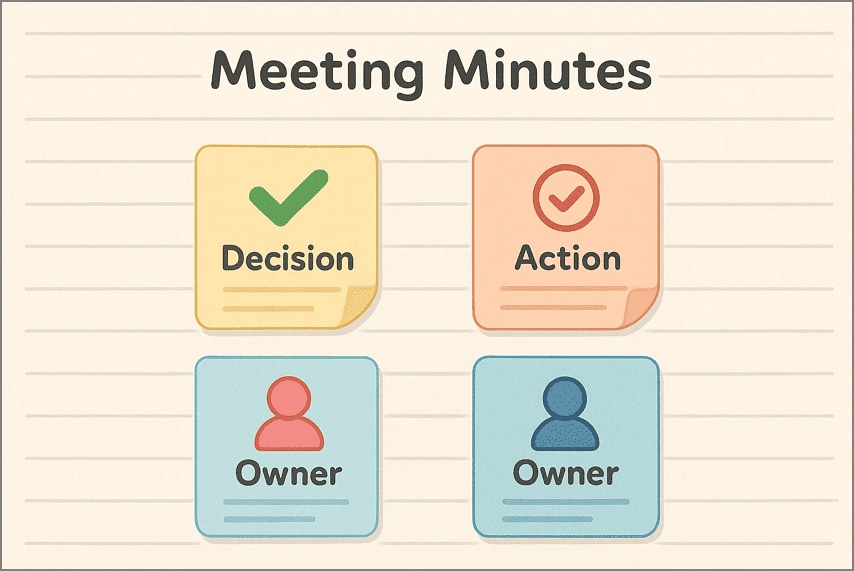
Effective meeting minutes rely on clear annotations for decisions, actions, and responsibilities. Using **cute note stickers** designed for these categories streamlines documentation and clarity.
- Decision Stickers: Mark key conclusions or agreements reached during the meeting to highlight definitive points for easy future reference.
- Action Stickers: Identify specific tasks assigned, ensuring follow-up activities are clearly distinguished and tracked.
- Owner Stickers: Tag individuals responsible for action items, promoting accountability and transparency.
Revision Sprint
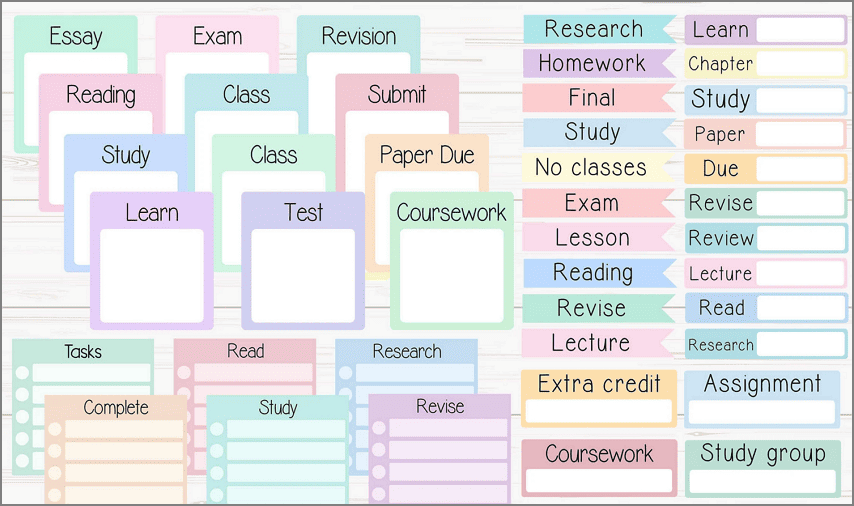
During a revision sprint, using priority **paper note sticker**s across multiple PDFs helps visually organize and focus your study sessions. This method enables quick identification of urgent topics and efficient filtering of content.
- Priority Stickers: Assign high, medium, or low priority labels to key points or sections in your study PDFs to categorize importance.
- Cross-PDF Application: Apply consistent stickers across different documents to unify your revision system and track progress across materials.
- Visual Filtering: Use PDF readers or annotation software features to filter highlighted priorities.
Reading Club
In a Reading Club setting, theme **stickers for notes** are powerful tools to enrich group discussions and deepen text analysis.
- Character Stickers: Label appearances or references to specific characters to trace their development and relationships throughout the book.
- Motif Stickers: Highlight recurring symbols or themes to recognize patterns and underlying messages in the text.
- Quote Stickers: Mark significant quotations for discussion, citation, or reflection, making it easy to locate impactful passages.

Frequently Asked Questions
People Also Ask
-
Where can I get note stickers for free download?
Free note stickers can be downloaded from websites like Honeynbutterfly, Freepik, and the Goodnotes Marketplace, where many offer personal-use collections. -
What file types work best for digital note-taking stickers (PNG vs PDF)?
PNG files are ideal for digital **note-taking stickers** due to their transparency and easy resizing. PDFs are useful for printable sticker sheets or when maintaining exact print layouts is necessary. -
How do I use stickers for notes in a PDF quickly?
Open your PDF in an editor like PDFelement, which lets you drag-and-drop digital stickers from a built-in library or import your own with instant resizing. -
What is an "OK noted" sticker, and how do I add it?
An “OK noted” sticker is a visual affirmation used to acknowledge points or tasks in notes. You can add it by importing the sticker image into your PDF and placing it next to relevant text, easily done with PDFelement. -
Can I mix paper note stickers with digital notes?
Yes, you can print paper stickers, apply them physically, then scan pages to create editable PDFs for adding digital stickers. -
How do I keep stickers aesthetic and consistent across classes/projects?
Use themed sticker packs with cohesive colors and styles, and organize them in your note app’s collections or folders.
Conclusion
To sum it up, this article provided a complete guide on what **note stickers** are and which ones to choose when. However, PDFelement’s built-in sticker library offers the fastest path to enhancing your PDFs with colorful, customizable stickers. Combining these stickers with the notes and markup tools available in PDFelement allows you to annotate, highlight, and comment seamlessly for real gains in productivity.

