

In this article
Marking measurements on PDF floor plans is essential for accuracy and allows easy sharing with clients. Core tasks of a floor plan measurements PDF tool include calculating distances, perimeters, polygon areas, and circle areas to evaluate layouts. Accurate measurements require a known scale or reference dimension, correct units, precision settings, and the use of snap-to-endpoints for reliability.
This guide explains how to calibrate, measure, label, auto-sum, and export or flatten results. All steps are demonstrated using PDFelement desktop, with mobile workflows optional for field checks.
Part 1. PDFelement Quick Setup: Easy Guide For Users
To ensure precision in measurements, you need a reliable PDF tool. PDFelement is an all-in-one platform that offers extensive file annotation features. Its PDF measurement tool enables users to measure distances, polygon areas, perimeters, and circle areas. Once you have taken dimensions of house plans with measurements PDF, your readings are all displayed in the "Comments" panel on the right.
Besides helping you take the readings, PDFelement ensures that they are readable. It allows you to customize the measurement displays in your desired line and fill colors. Your measured areas can be labelled for easy identification on reopening the PDF. Besides, users can decide the measurement units and add a scale to represent the on-ground measurements.
A Step-by-Step Guide to Using PDFelement for Taking Measurements of a Floor Plan
Although easy, you may need some help taking dimensions on PDFelement. The following steps are a detailed guide to using this tool for house plan measurements:
Step 1Open a PDF File to Start
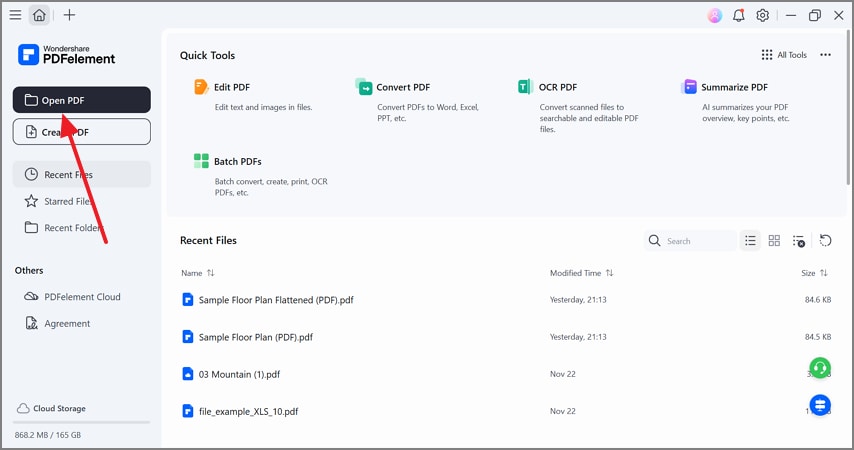
To begin with, select the "Open PDF" button at the top left to import a floor plan from your device.
Step 2Begin Measuring the Distance
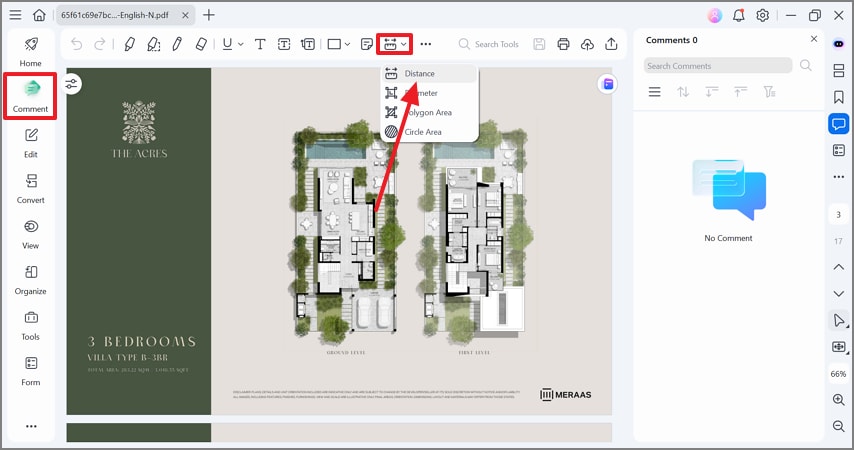
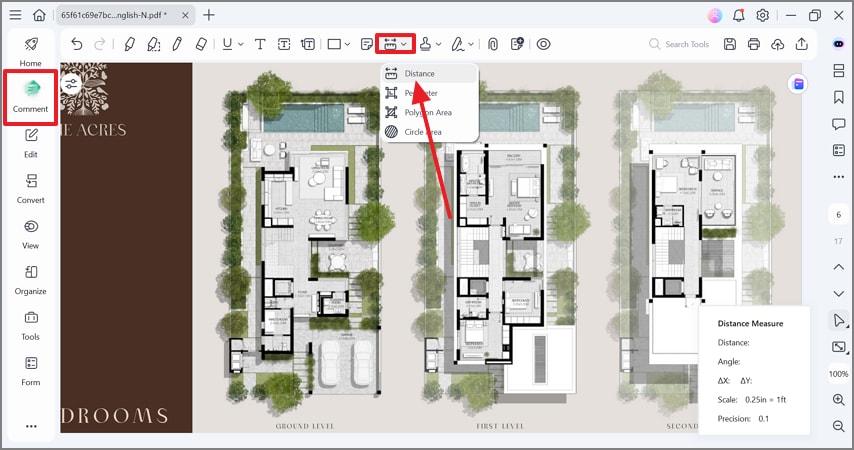
When the file is open, enter the "Comment" tab from the side bar and expand the "Measurement" drop-down menu. From the extended menu, select the "Distance" option and locate the wall that you need to measure.
Step 3Enter Properties of the Wall Measured
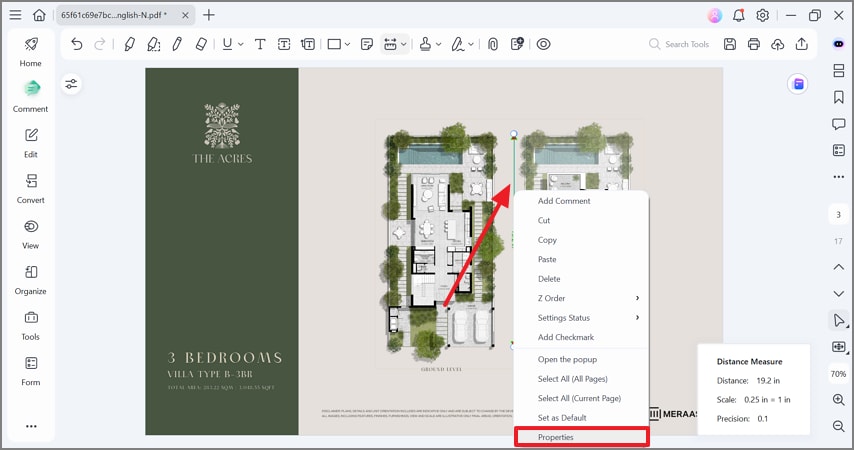
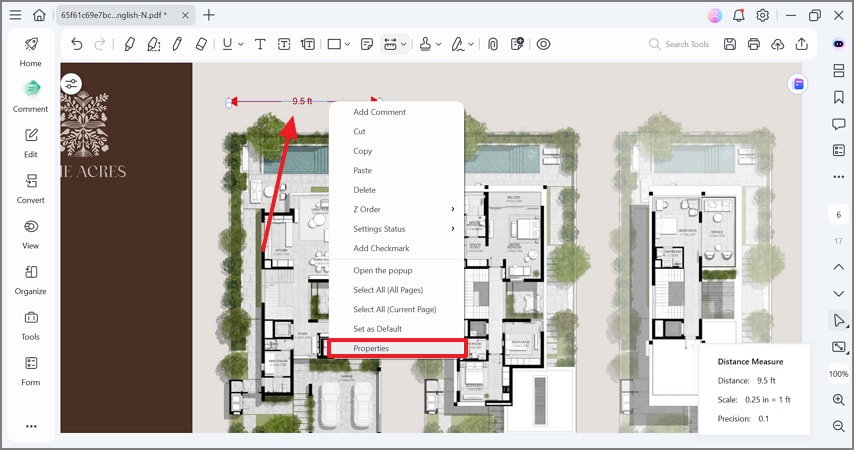
Now, draw a line along the length of the wall and let the system calculate its distance. To customize the line drawn, right-click on it and select the "Properties" option from the pop-up menu.
Step 4Adjust the Color and Appearance of the Line
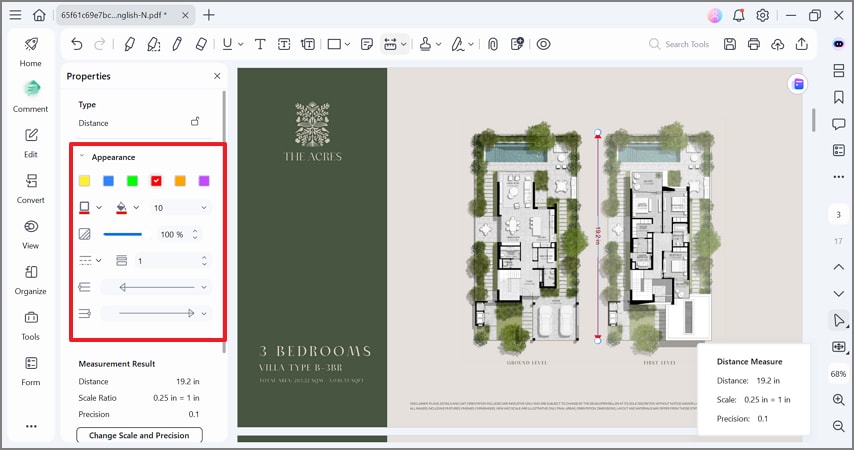
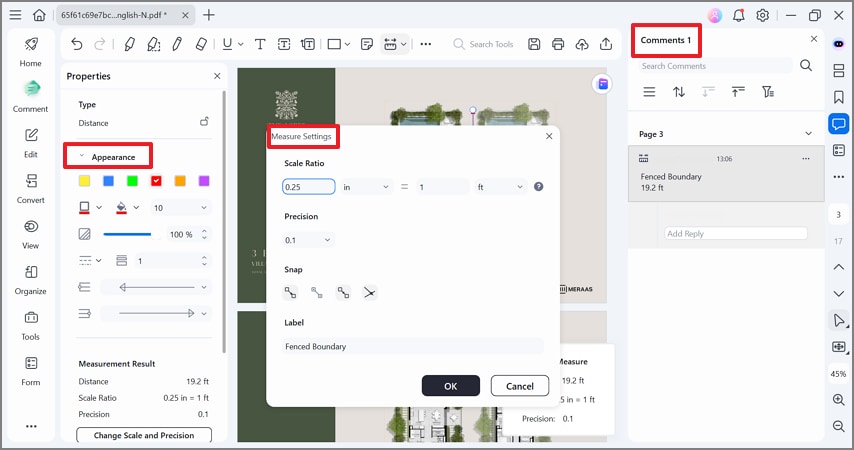
When the panel on the left opens, expand the "Appearance" section and select the line color of your choice. You can also pick a fill color for the arrowheads and the line borders.
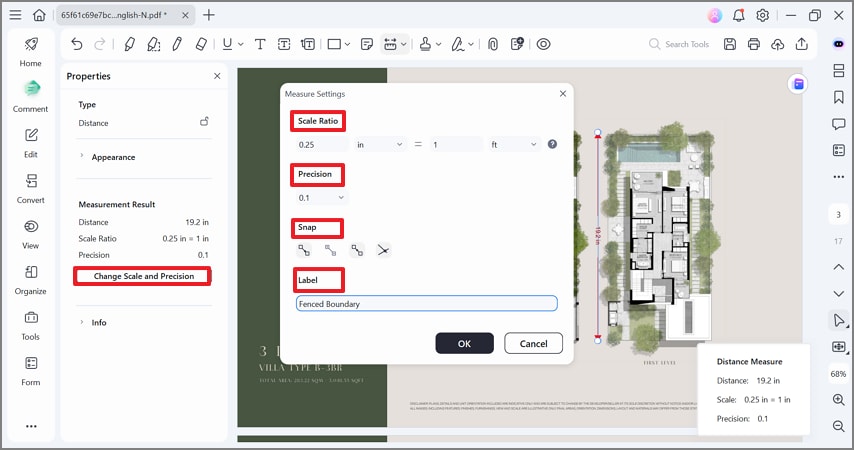
Step 5Change Scale and Precision
Using the same panel on the left, select the "Change Scale and Precision" button to open a new window. Here, explore the "Scale Ratio" options and make a scale that represents the on-ground values. Using the "Precision" drop-down, define the level of detail in measurement values. Choose "Snap" settings to help your measurement line lock onto exact points in the drawing. You can also "Label" the measurements for better readability.
Step 6Navigate to all Information About the Floor Plan
To change the look of the lines, access the "Appearance" section in the Properties panel. The scale ratio can be adjusted using the "Measure Settings" window. Your measurements can be explored through the "Comments" section in the right panel.
Part 2. Scenario A — Printed Scale Present (1:50, 1/4"=1'-0")
When you have a known scale, you can use PDFelement to make an accurate and properly calibrated measurement with correct real-world dimensions. The following steps feature a detailed guide to using this floor plan measuring tool for taking dimensions using a known value:
Step 1Start Measuring Distance
From the "Comment" tab in the left panel, expand the "Measurement" menu and pick the "Distance" option.
Step 2Enter Dimension Properties
As you draw an arrow to measure the distance, right-click on it and select the "Properties" option from the pop-up menu.
Step 3Select a Scale Ratio and Snap
Using the panel on the left, select the "Change Scale and Precision" option and open a new window. Here, enter a "Scale Ratio" of 0.25 inches and 1.0 feet. Now, select a "Snap" tool of your choice and hit the "OK" button to make more measurements.
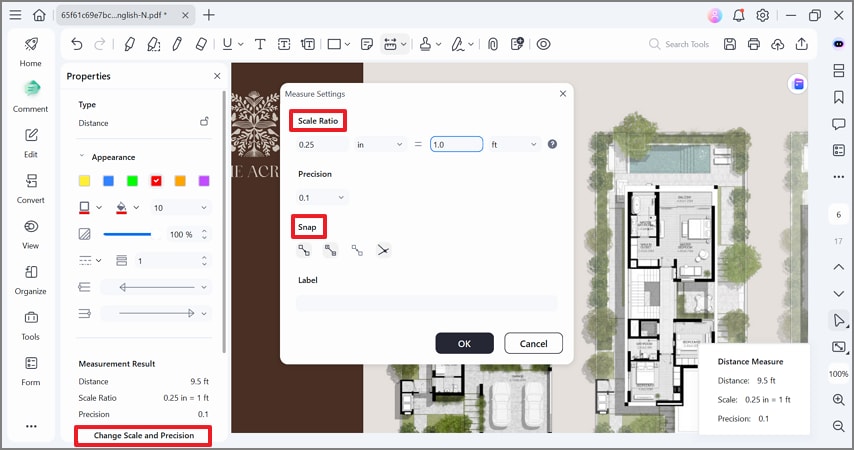
Step 4Verify from Known Span
Now, verify on a known span by measuring a labeled dimension to confirm the scale matches real-world distances before proceeding. For this, take the distance values of a known wall and see if the on-file measurement matches the scale you recently created.
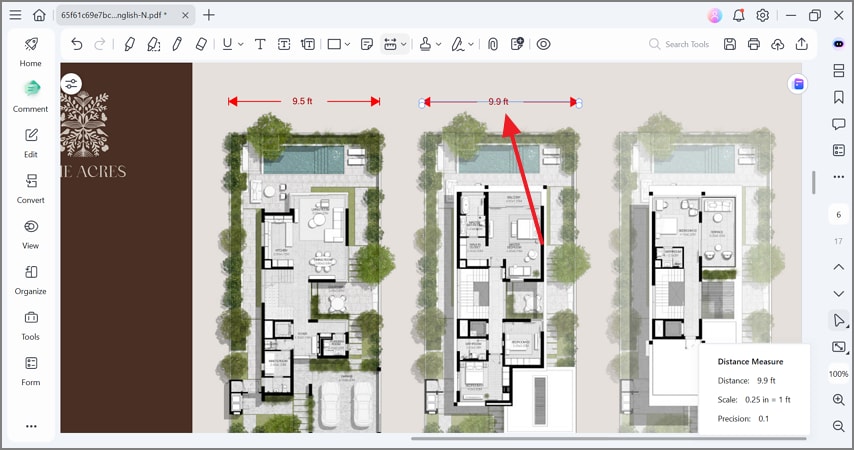
Part 3. Scenario B — No Printed Scale; Calibrate From Known Length
When you do not have a printed scale, you can calibrate from a known length using PDFelement. The following guide outlines the steps on how to measure plans on PDF:
Step 1Measure the Length of a Wall
From the "Comment" mode, open the "Measure" menu and pick the "Distance" option. Right-click on the measurement and select the "Properties" option to open a panel on the left.
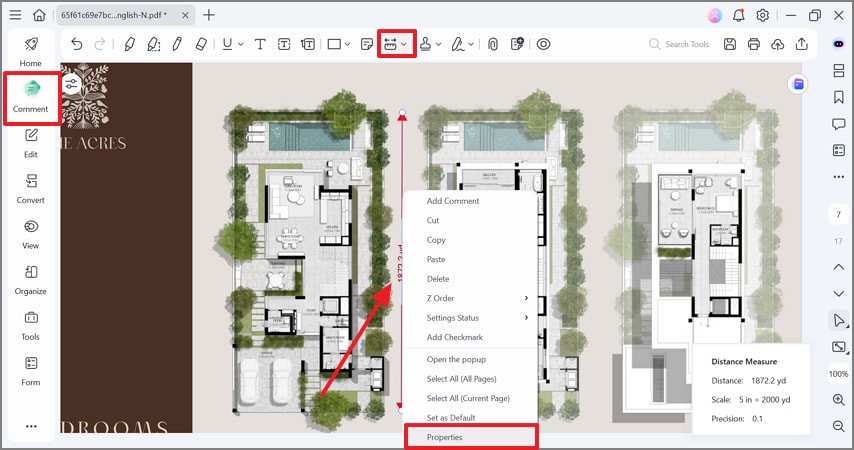
Step 2Enter the Scale Ratio
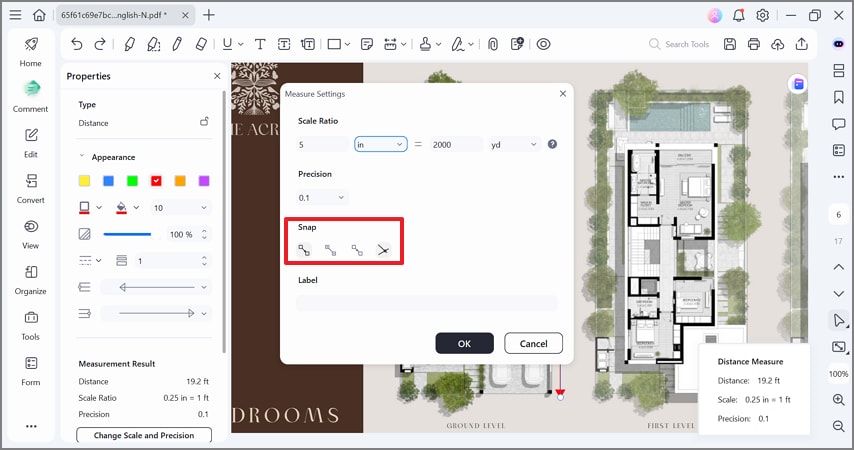
On clicking the "Change Scale and Precision" button, a window will open. Here, add a "Scale Ratio" that is known to automatically adjust the other value.
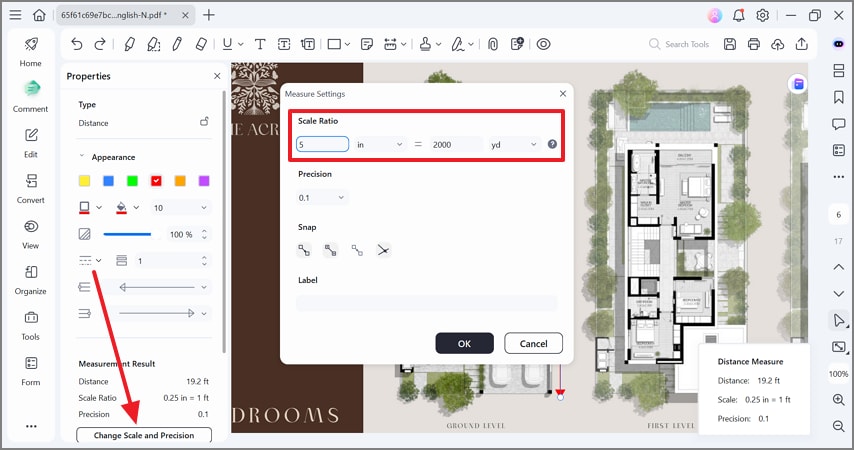
Step 3Pick a Snap for Easy Measurements
To ease subsequent measurements, pick a "Snap" option and hit the "OK" button. Now, take another measurement of a known value to check if the scale ratio settings worked.
Part 4. Scenario C — Produce Shareable, Summed Takeoffs
Now that you have taken the measurements, the next step would be to make the document shareable. PDFelement offers useful features to make a measured file easy to read and share. The following steps outline a guide to making a floor plan presentable using this free floor plan creator with measurements tool:
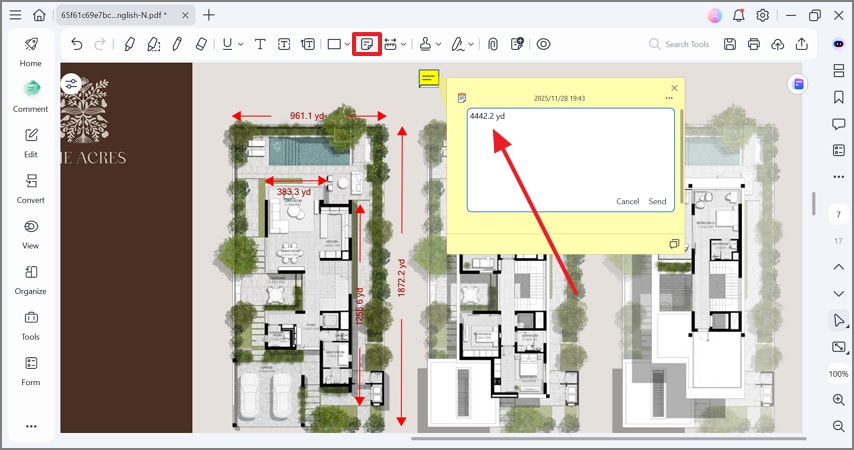
Step 1Sum Up the Values in Notes
To enhance the comprehension of the floor plan, select the "Notes" option from the top toolbar and add the summed-up value of the measurements.
Step 2Label the Measures for Better Readability
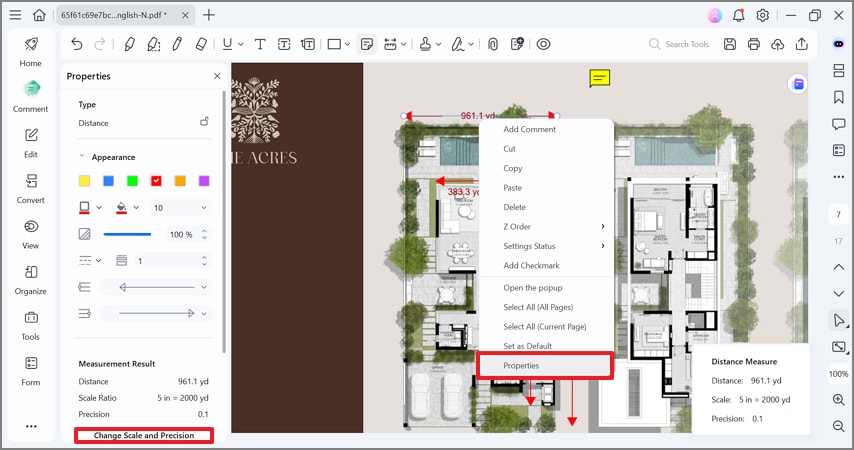
After you are done calculating all dimensions, right-click on each reading and enter their respective "Properties" option using the right-click menu. Using the left panel, select the "Change Scale and Precision" option to proceed.
Step 3Add Labels for Each Measurement
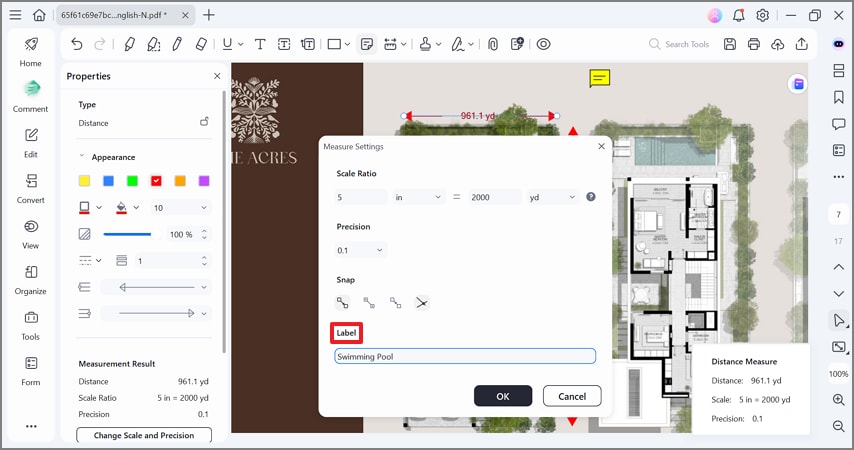
Using the following window, enter the desired name for each measurement in its respective "Label" field.
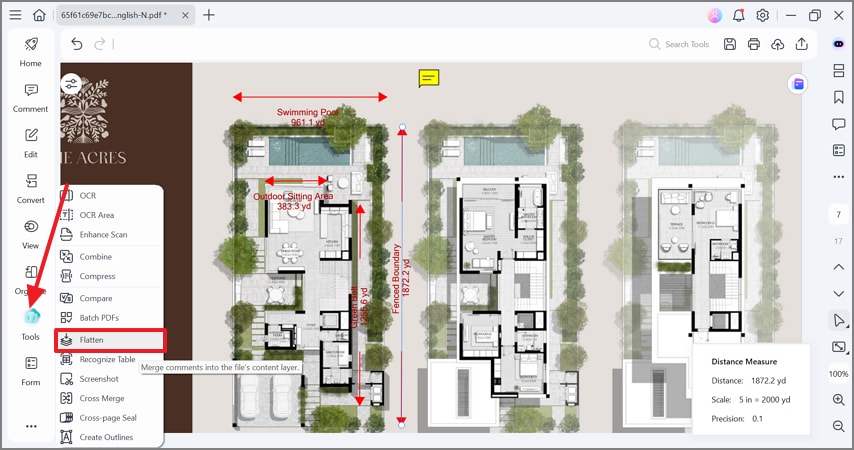
Step 4Flatten the PDF Floor Plan Before Sharing it
Before you share the document, use the "Tools" tab in the left panel and select the "Flatten" option to make the annotations static.
Part 5. Scenario D — Field Checks on Mobile
To be certain of the calibrations made on the desktop, you may use PDFelement Mobile. The following steps explain how you can confirm the measurements after measuring plans on PDF using this mobile app:
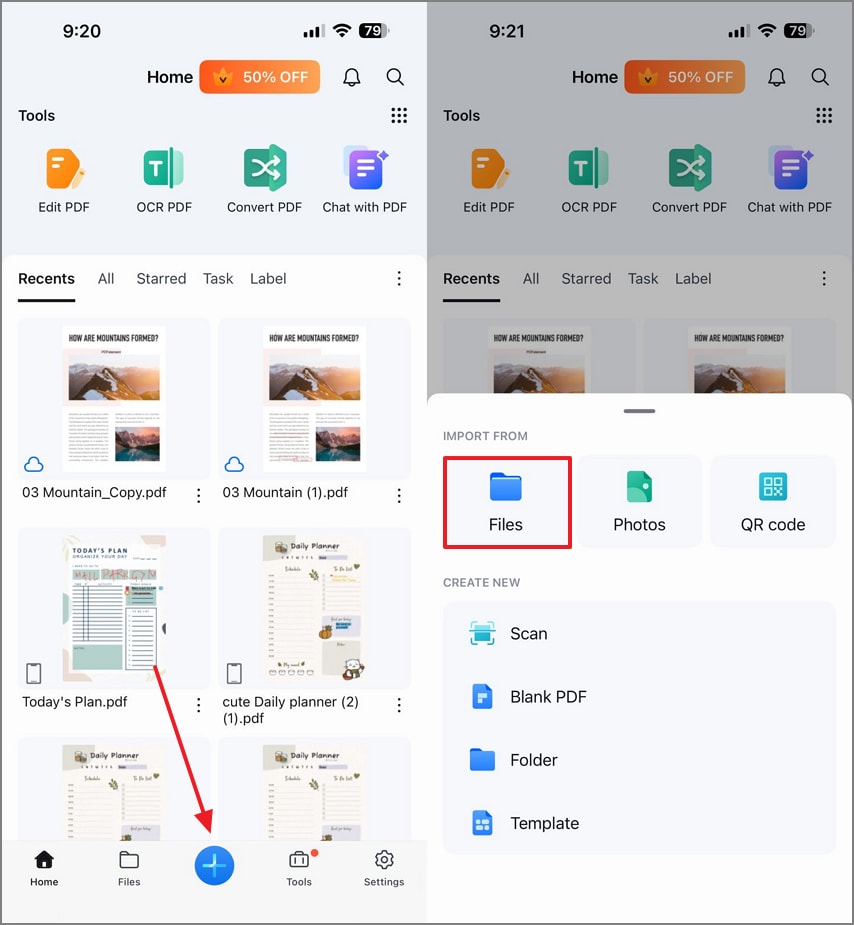
Step 1Open the PDF Floor Plan on PDFelement Mobile
Using the "+" button at the bottom, import the recently saved PDF floor plan from the "Files" app.
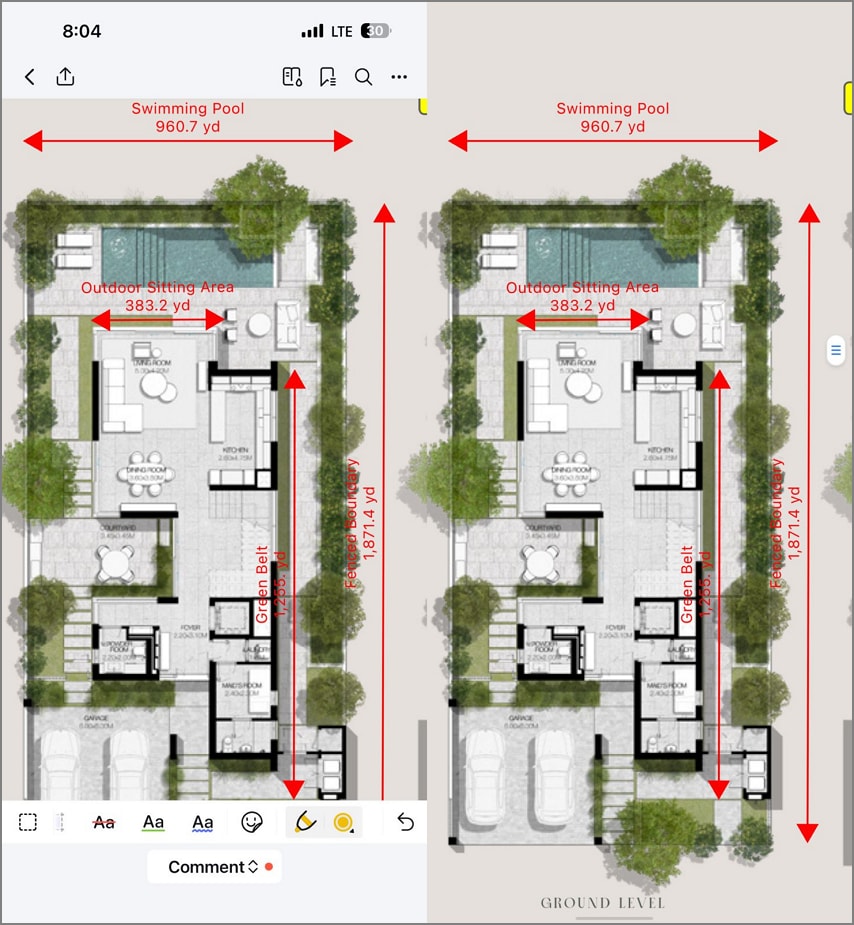
Step 2Zoom in to View the Plan
Once the plan opens, zoom in to view the desired measurements on the interface.
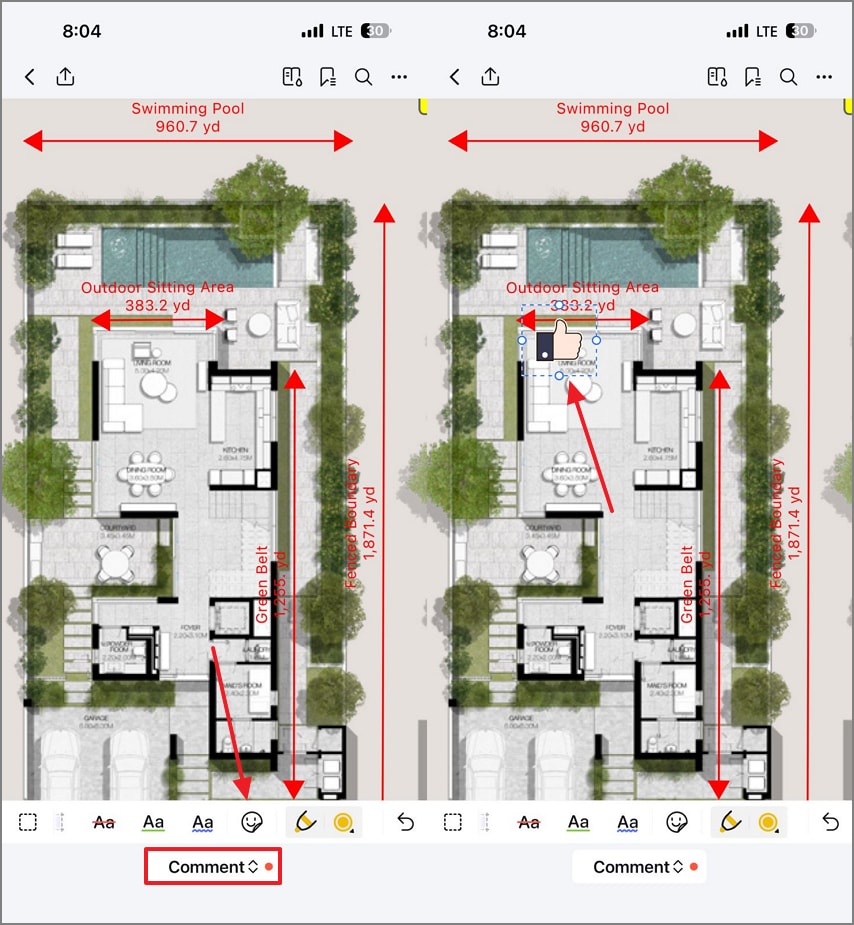
Step 3Verify the Calibration Using Stickers
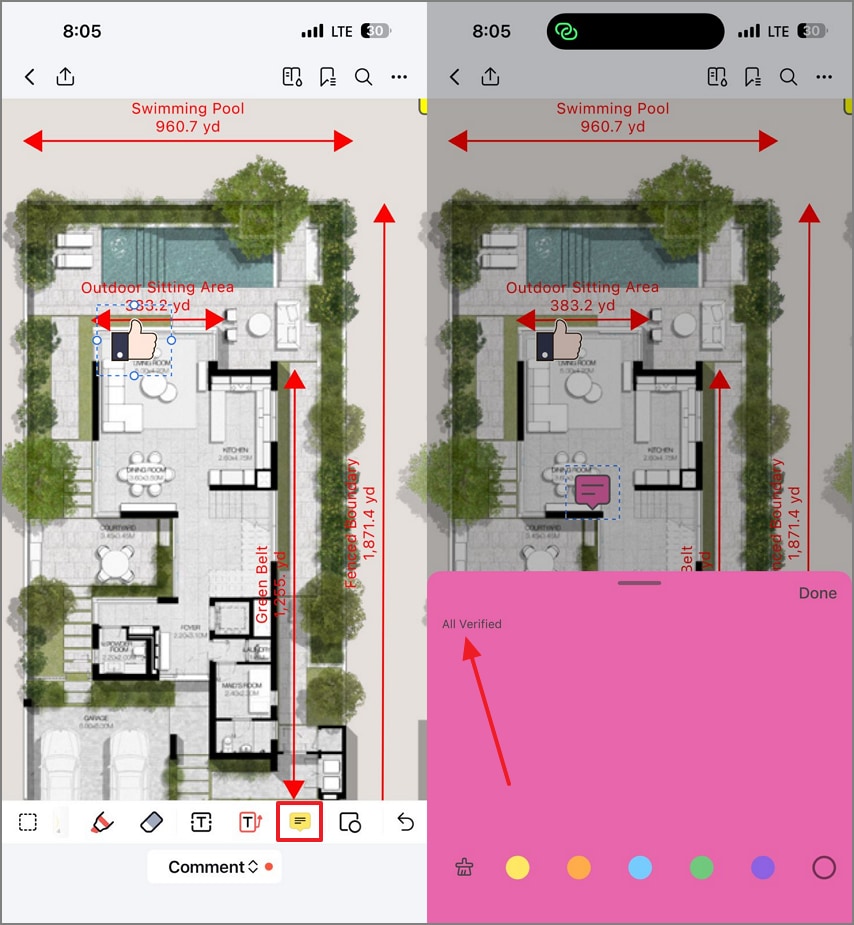
Using the "Comment" tab in the menu at the bottom, add a "Sticker" to verify the measurements.
Step 4Incorporate a Note into the Floor Plan
If you need to leave comments while reviewing, select the "Notes" button at the bottom and leave a message.
Step 5Upload the Floor Plan Across the Cloud
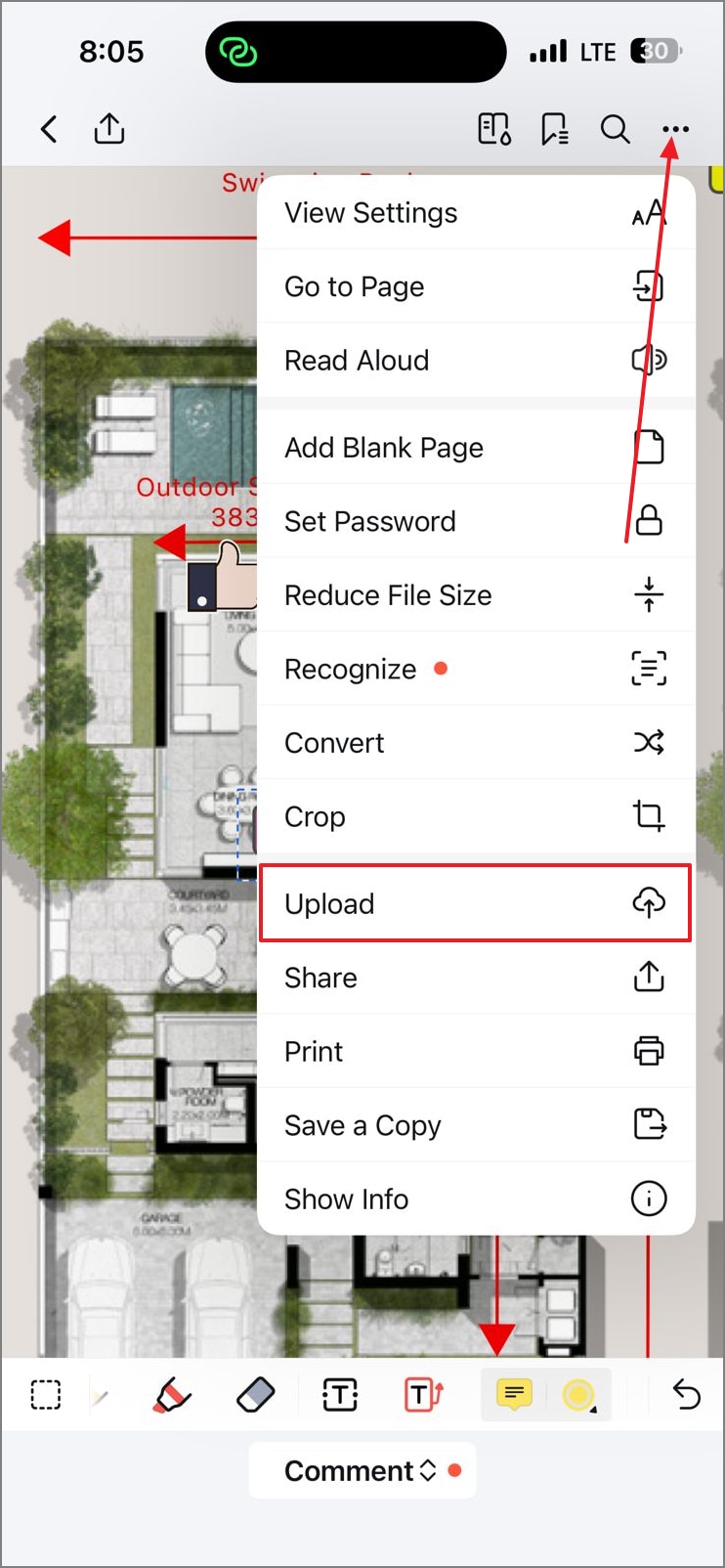
For easy access to the plan across all devices, select the "Three Dot Menu" at the top right. Using the menu that opens, tap "Upload" to share the document on the Cloud.
Part 6. Accuracy & Readability Tips
When using PDFelement to take dimensions of a floor plan, there are certain things you need to follow. The following section suggests tips for taking floor plan measurements using this tool:
- Verify Calibration with a Second Known Length: Always check your initial calibration by measuring a second known reference distance in the PDF. This confirms the scale is applied correctly before taking further measurements.
- Recalibrate if Page Scale Changes or Per Viewport/Detail: Any time the page scale changes or you zoom into a different detail, recalibrate carefully. This ensures measurements remain accurate regardless of the zoom level or section.
- Use Snap + Zoom at Corners; Set Practical Precision: Enable snapping and zooming into corners to align measurement points precisely on the drawing. Set a practical precision level to balance detail accuracy and readability.
- Color-Code Labels: Assign different colors to labels for better clarity and visual distinction in complex layouts. Check that the label size remains readable when printing at the intended scale.
- For Scans, Measure Near the Calibration Object: When working with scanned PDFs, take measurements close to the known reference object. This reduces distortion and improves the overall accuracy of the results.
People Also Ask
-
How do I set the scale in PDFelement?
Start the measurement tool and right-click to open "Measurement Settings." Choose the scale, units, precision, and enable snap for accurate results. -
What measurement types are available in PDFelement?
PDFelement supports distance, perimeter, polygon area, and circle area measurements. These cover most layout evaluation and design verification needs efficiently. -
Can I calculate totals for multiple measurements?
Multiple measurements can be automatically summed within the PDF. This provides quick totals without manual calculation or external tools. -
Do measurements travel with the PDF when shared?
Yes, measurements are saved as annotations inside the PDF. Flatten them if you want a read-only version for sharing or printing. -
Can I perform mobile checks with PDFelement?
Use PDFelement Mobile for quick on-site measurements or notes. Always finalize calibration, labeling, and totals on the desktop version for precision.
Conclusion
For reliable results while taking floor plan measurements, you need to follow some tips. You should calibrate once to take precise dimensions. For better readability for your fellow engineers, always label the areas and measurements you take. It is better to sum up the dimensions to save time calculating the raw material for individual areas and distances. To keep the annotations and measurements intact, always flatten the PDF before exploring or printing it.
Maintaining an original and editable copy of the floor plan eases future revisions and helps you make the file flexible for updates. Use snapping and precision tools wisely to produce clean, professional, and review-ready PDF documents. All of these functions can be used in the desktop version of Wondershare PDFelement.

