iPad planners are flexible and creative, using handwriting capabilities, which is why they suit contemporary planning tasks. They let you plan, schedule, and take notes wherever you are, without cluttering your workspace. They are useful in keeping you productive by offering features such as hyperlinks, stickers, and others.
Furthermore, these planners make planning every day more organized and sustainable for students and professionals. This article narrows down the best iPad planners to help create a systematic time schedule.
Part 1. Planner Apps vs PDF Planners: Which One is the Best Fit for You?
Digital planning gives 2 strong options: automation systems through apps and PDF planners through creative and handwritten organization. To learn how to select the one that will suit your workflow, read the following text:
- Planner Apps: They include built-in calendars, reminders, and widgets, which are useful for automation but usually have a learning curve.
- PDF Planners: These planners are highly customizable, ready-to-use, and offline-friendly. Writing, adding stickers, and making notes with PDFelement iPad is a seamless experience.
- Free iPad Planner Starter Pack: Download this free PDF pack and get daily, weekly, and monthly planner pages to get instantly organized.
Part 2. The iPad 2026 Planner Landscape
The iPad planning has developed into two distinct approaches in 2026, applicable to various working processes and preferences. Whether you prefer automation or creativity, the following styles are worth knowing in order to plan smarter and remain productive with a digital iPad planner:
- App-Centric Planning: For these planners, task, widget, and automation databases are important. They are best suited for those who are fond of syncing, reminders, and structured digital organization.
- PDF-Centric Planning: Designed to support handwriting and customization, these planners feature aesthetically designed templates. They include pages that are hyperlinked and can be accessed offline to facilitate creative and flexible planning.
- What Users Desire: The majority of students and professionals prefer a tool that lets them capture notes in the shortest possible time. They opt for an app with clean layouts and pages featuring planners that can be easily shared and well-organized.
Part 3. Top iPad (Apps and PDF Workflows) Planners
PDFelement for iPad
Best For: Users who like planners based on handwriting, printable-ready pages, or shareable PDF packs.
Key Features
- Edit PDF: This iPad digital planner application enables you to add or delete images or text on or off your PDF planner. During the process of adding the text, you are allowed to select the preferred font settings to make the planner look more attractive.
- The Comment Mode: Comment mode in this app allows one to highlight the text or put strikethroughs. You can also add callout text boxes to expand a task in the planner.
- Export PDF: This feature will allow you to store your PDF planner on your computer and transfer it to other platforms and apps. Moreover, this planner may also be exported in the form of a URL that can easily be accessed on any device.
- AI Record: Recording audio in a daily planner allows capturing spontaneous thoughts, reminders, or meeting notes without delay when a person is too busy to do so manually.
Pros
- This platform allows users to convert their PDFs into several formats for enhanced accessibility.
- You can import a scanned PDF file and have the text in it extracted using the OCR facilities.
- Users can set a password on their PDF documents to restrict access.
Con
- You have to buy a paid subscription plan once the free trial is over.
Who Should Pick It: Users working from pre-designed PDF templates who want just to open and write rather than build from scratch.


 G2 Rating: 4.5/5 |
 100% Secure
A Step-by-Step Guide to Using PDFelement for Making Digital Planners
The following guide covers detailed steps on making a comprehensive digital planner with this planner on iPad:
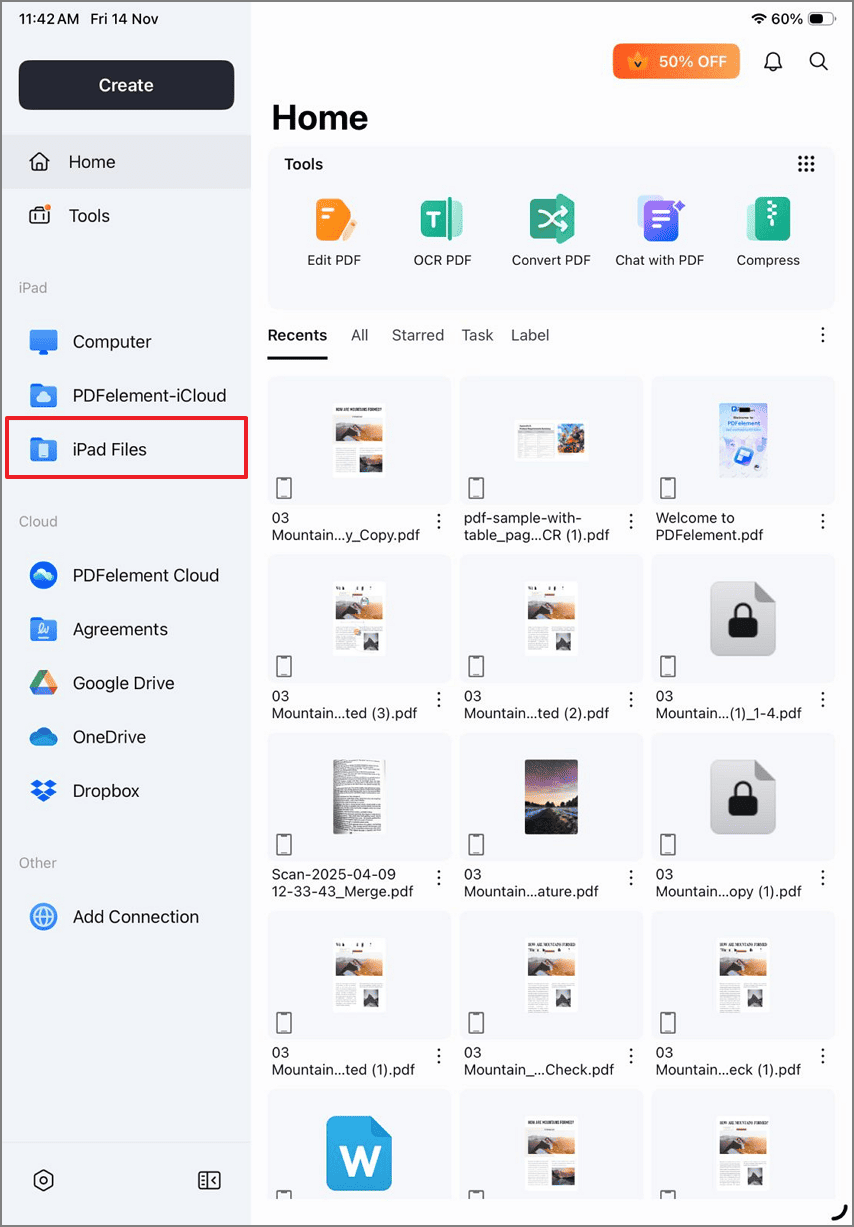
Step 1Import a PDF Template
To start the process, select the "iPad Files" option on the left to import a PDF template from the Files app.
Step 2Write Tasks in the Planner
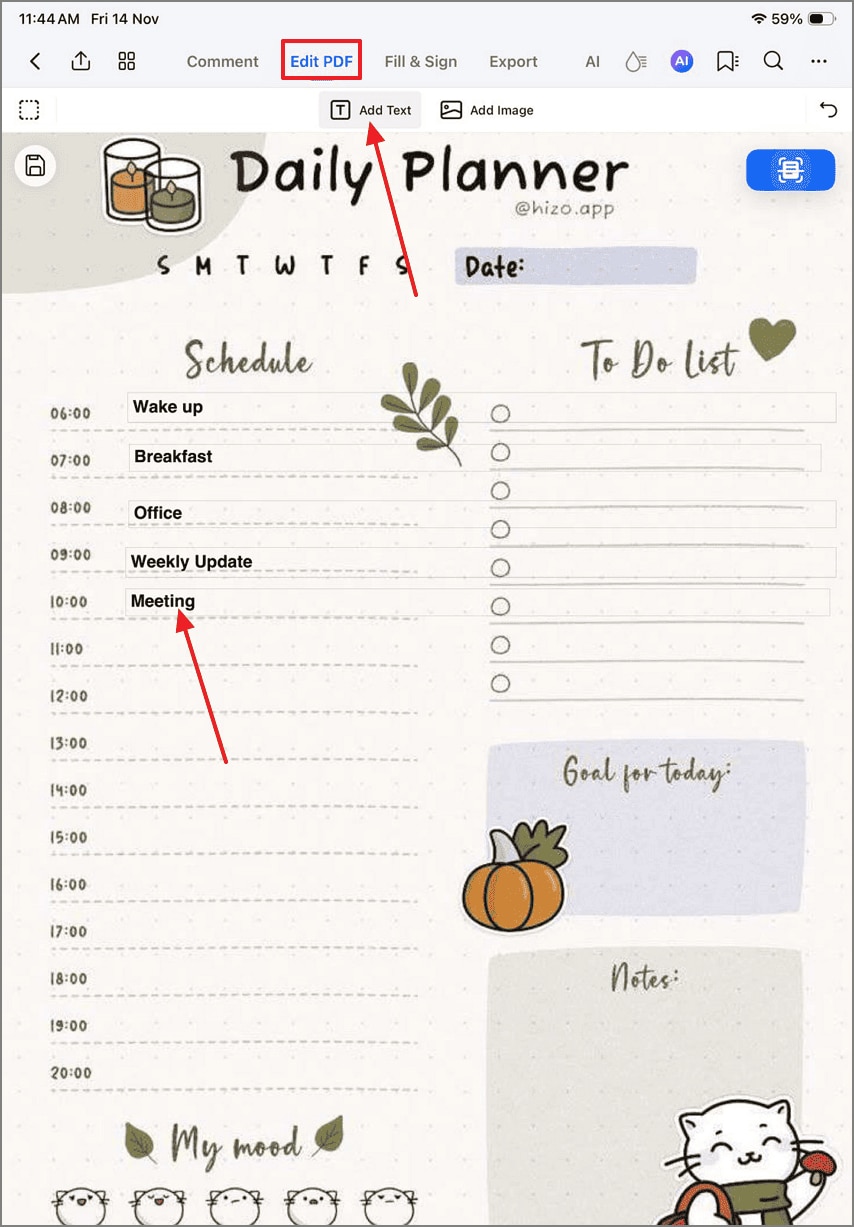
To write tasks in the planner, enter the "Edit PDF" mode from the top menu. Using the "Add Text' tab, make a text box where needed and type the task in your desired font settings.
Step 3Markup the Text on the Planner and Add Stickers
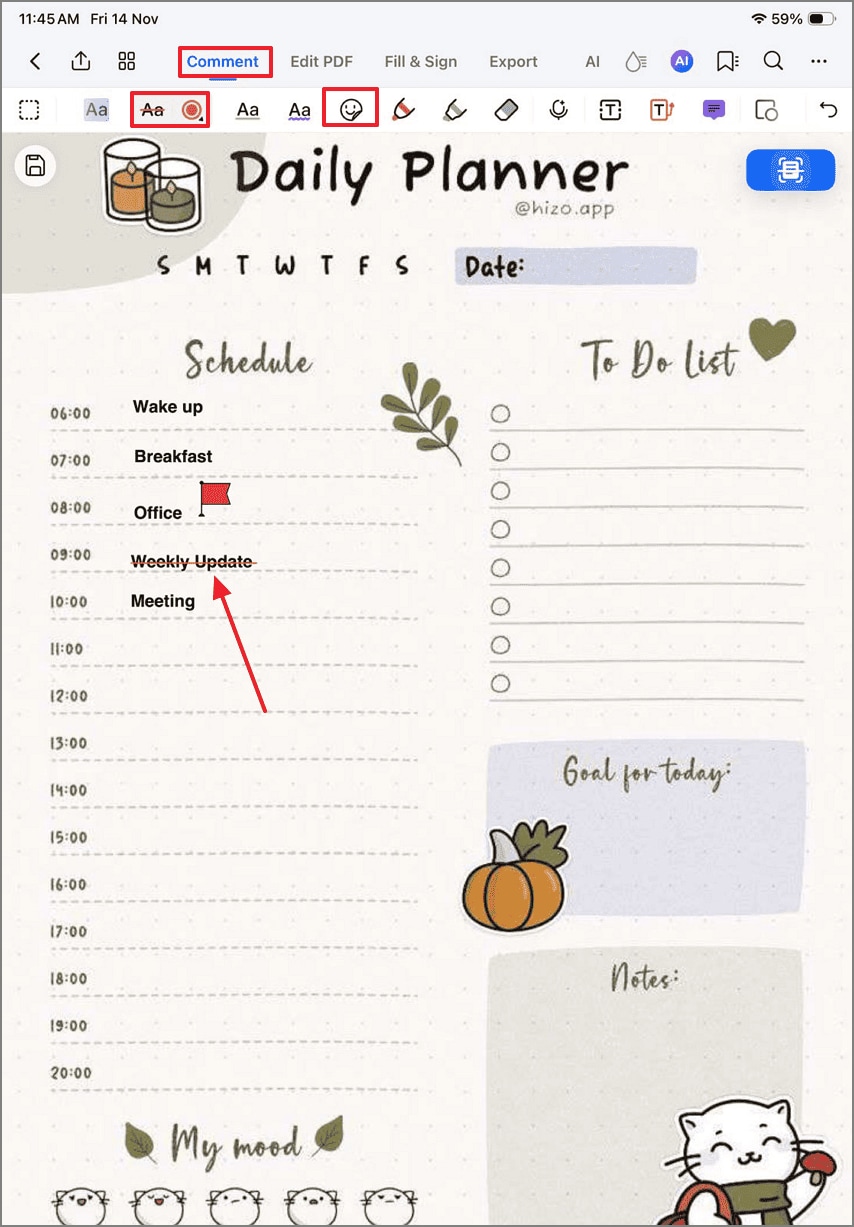
To mark cancelled tasks, use the "Comment" mode and select the "Strikethrough" tool. Enter the "Stickers" tab to add relevant elements to the planner. These elements can be added to indicate finished tasks as well.
Step 4Add a Note to Include Details of Each Task
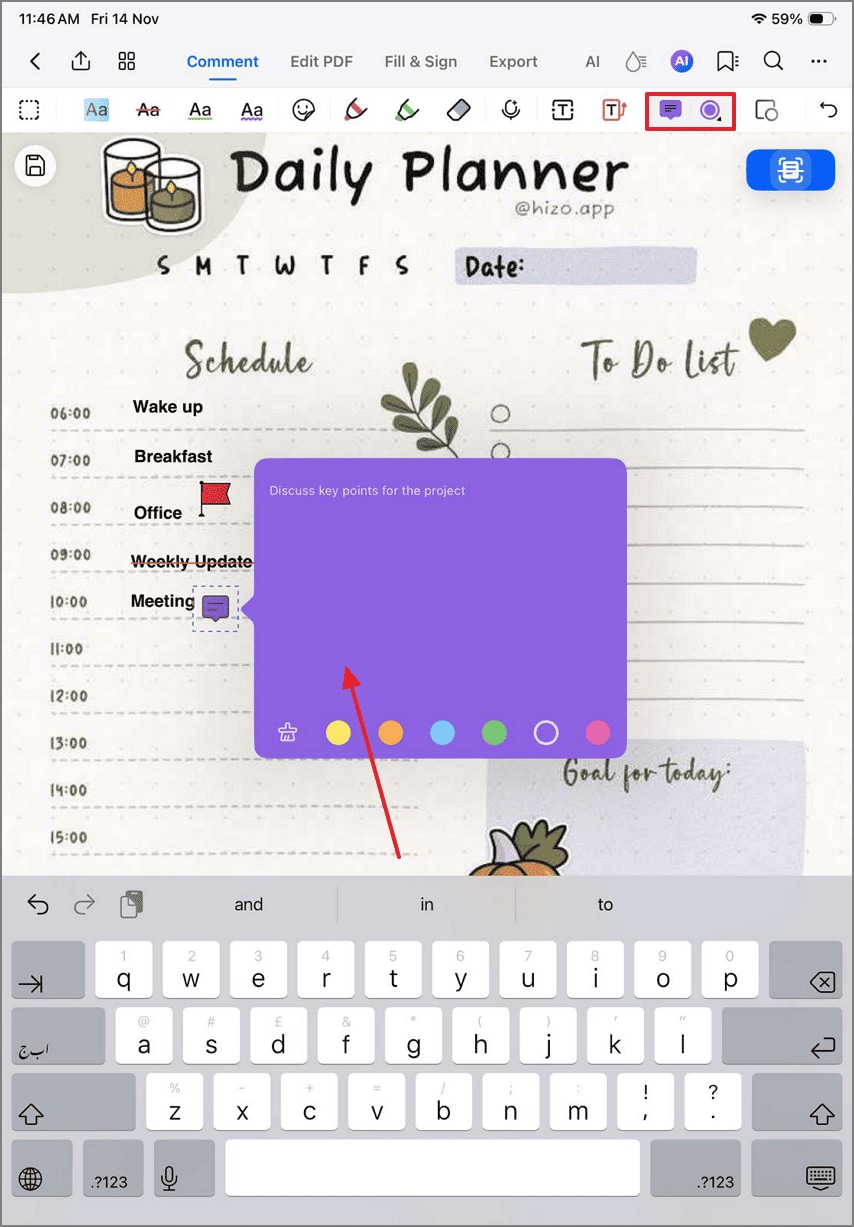
Now, stay in the "Comment" and tap the "Note" option. When the small notepad opens, type the note as additional information to the task in the planner.
Step 5Let the AI Real Out Your Planner
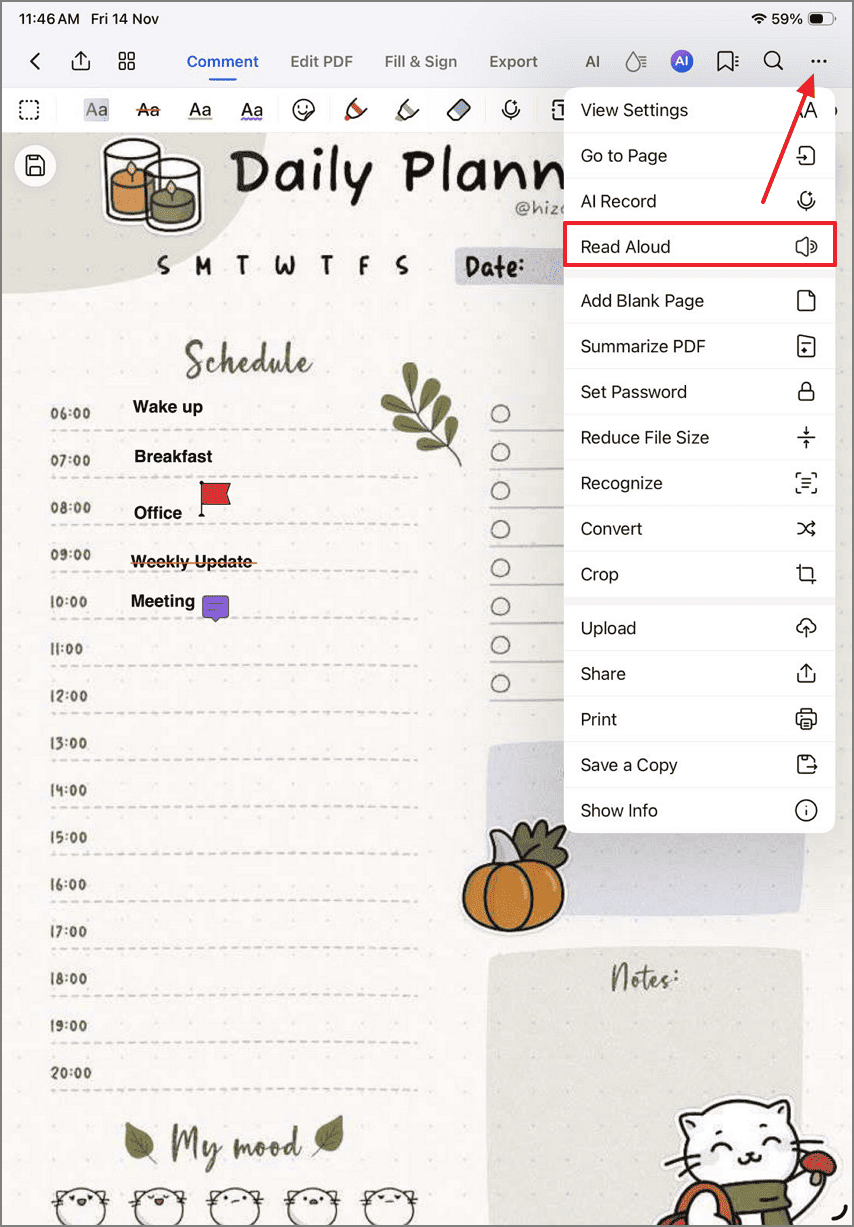
If you want to let the AI read out the daily planner as you start the day, enter the "Three Dot Menu" at the top right and select the "Read Aloud" tab. Now, press the "Play" button to listen to your digital planner. You can select the desired AI speaker and language to get a personalized experience.
Step 6Export the PDF Planner on Your Device
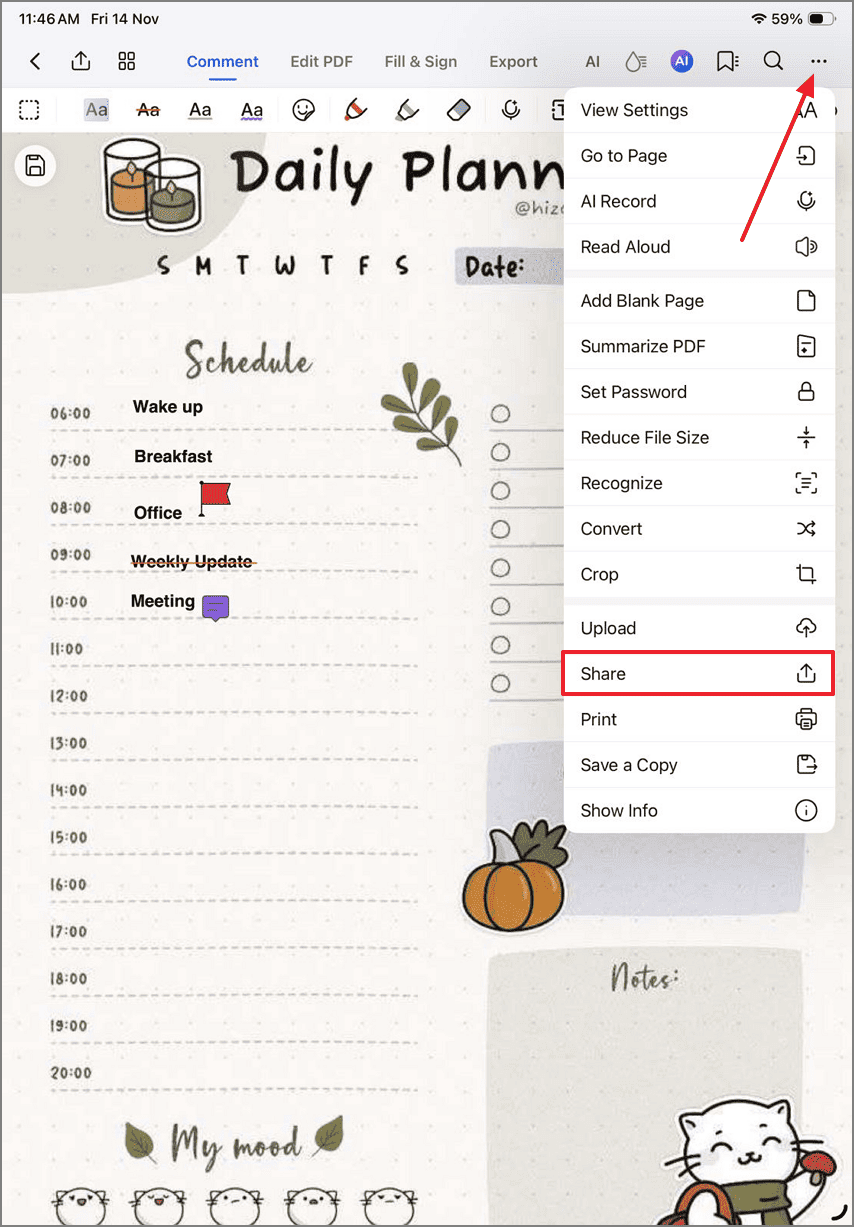
Once the planner is ready, select the "Three Dots Menu" at the top right and tap the "Share" option. Using the small pop-up menu, press the "Link" option to share the PDF planner as a URL.
Things
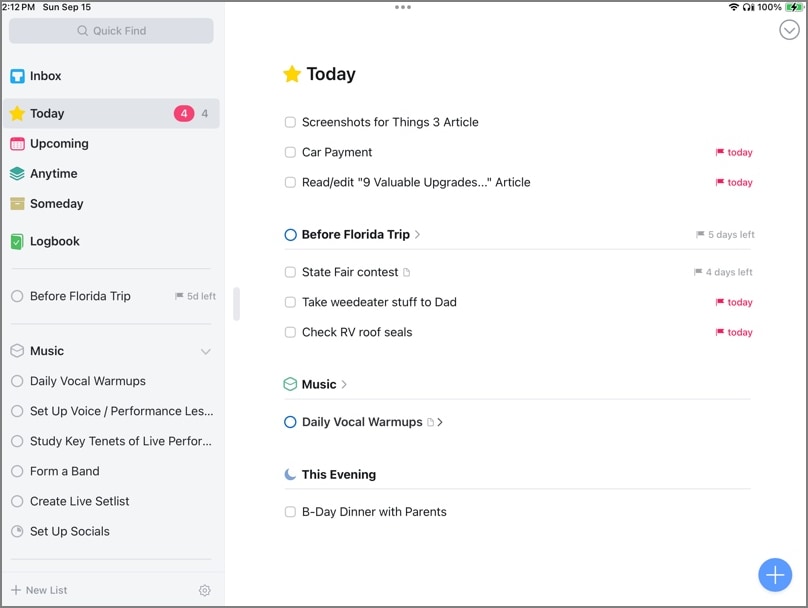
Best For: Apple users looking for a clean and well-organized task manager that can integrate with Apple devices seamlessly.
Key Features
- Breaks down tasks into easily understandable parts, such as Today and Upcoming, using simple drag and drop tools.
- Offers project organization in areas, tags, and headings to have detailed planning.
- It supports Things Cloud and can be considered reliable, so that data can be accessible across all devices.
Pros
- This app offers a smooth interface that is easy yet provides depth for the advanced user.
- The app works well with Apple functions such as widgets, Shortcuts, and the calendar to streamline operations.
Cons
- This planner iPad organizer application does not have built-in collaboration and shared project features.
- It is restricted to Apple platforms, making it not the best choice for users with multiple devices.
Who Should Pick It: This is perfect for Apple lovers who appreciate the simplicity, design, and reliability of a personal productivity application.
Any.do
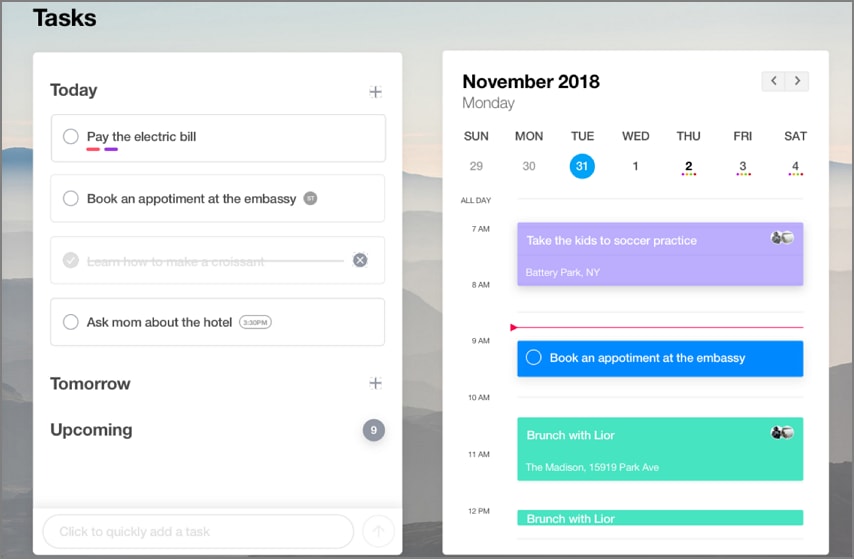
Best For: Small groups of users who need an all-in-one application to help organize their activities and reminders.
Key Features
- My Day mode helps you prioritize tasks by suggesting what to do next.
- It allows voice and natural language input, as well as time-based reminders.
- Any.do allows collaborating on boards, task templates, and connections, such as Slack, WhatsApp, and Zapier.
Pros
- This daily planner iPad is compatible with mobile, desktop, and web.
- It provides good calendar connectivity and integrations for better results.
Cons
- Any.do lacks depth in advanced project management or analytics.
- There might be some practice needed to make use of collaborative and automation tools.
Who Should Pick It: People who want a simple daily planner that combines scheduling, reminders, and shared activities.
GoodNotes
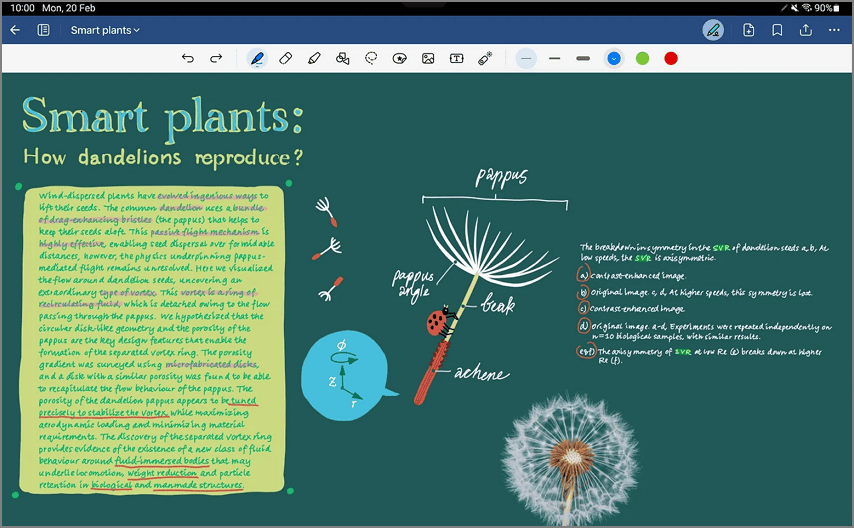
Best For: Those who enjoy handwriting and want access to digital notes, sketching, and planning their own tasks.
Key Features
- The tool provides touch-sensitive digital planners with handwriting and shape recognition.
- GoodNotes automatically syncs notes on iPad, iPhone, and Mac.
- It allows the use of PDFs, stickers, hyperlinks, and online templates.
Pros
- iPad users can have an excellent Apple Pencil handwriting experience.
- This free digital planner for iPad has easy-to-organize notes and planner pages.
Cons
- GoodNotes offers limited cloud options beyond iCloud.
- It has no built-in reminders or task automation.
Who Should Pick It: Students, teachers, and professionals who plan visually and prefer writing over typing.
Trello
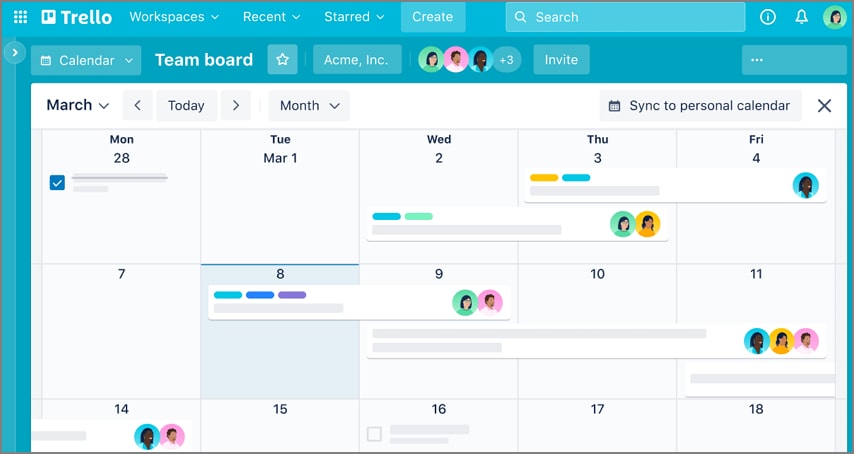
Best For: Teams and individuals managing tasks, workflows, and collaborative projects visually.
Key Features
- It offers Kanban-style boards for organizing tasks in a readable and aesthetic way.
- Trello supports drag-and-drop cards with checklists, due dates, and attachments.
- This platform offers extensive automation, calendars, and app integrations.
Pros
- The tool provides a simple visual layout for project tracking.
- Trello is a great tool for team collaboration and task sharing.
Cons
- The large boards on Trello can feel cluttered and unappealing.
- This daily planner iPad is known to have limited offline functionality.
Who Should Pick It: Teams or solo users needing clear task management and progress visualization.
Pencil Planner & Calendar Pro
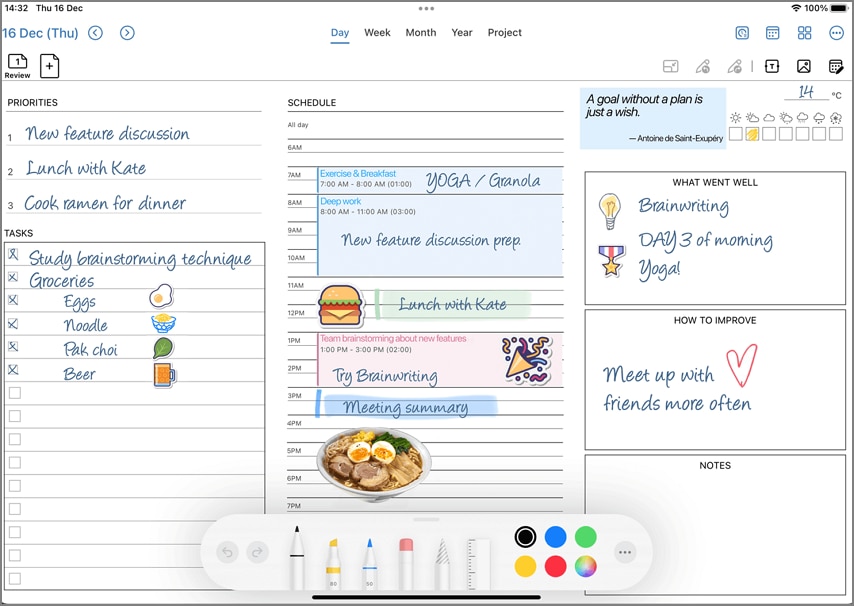
Best For: Users who want a realistic handwriting planner with integrated digital calendar support.
Key Features
- This planner syncs Apple Calendar for automatic event import and scheduling.
- It allows Apple Pencil handwriting directly on planner pages for ease of use.
- The platform supports daily, weekly, and monthly time-blocked layouts for enhanced usability.
Pros
- Its pencil support gives the experience close to planning on real paper.
- With the calendar sync feature, the scheduling becomes effortless.
Cons
- This free planner for iPad has limited customization options for visual enhancements.
- It does not support Android and is available only on Apple devices.
Who Should Pick It: Those who prefer handwritten planning combined with automatic calendar organization on an iPad.
Plaky
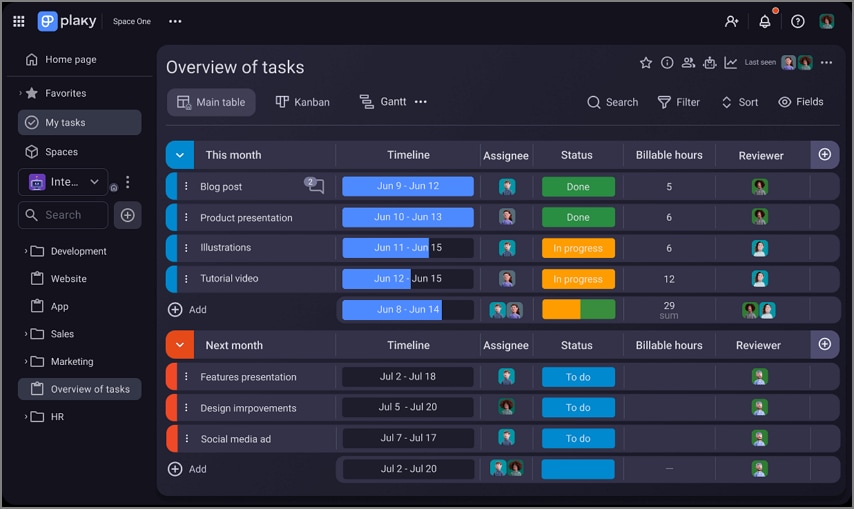
Best For: Teams needing structured task boards for project tracking and workflow management.
Key Features
- Plaky offers shared boards with task assignment and deadlines.
- This tool supports file attachments for easy integration of PDF-based templates.
- It includes collaboration tools for communication and updates on the progress.
Pros
- Plaky is ideal when you need a straightforward planner for team setup.
- Its intuitive interface includes clear visibility of ongoing projects.
Cons
- You cannot get any advanced AI tools for automating processes.
- This free iPad planner offers fewer app integrations than competitors.
Who Should Pick It: Small teams wanting a free, lightweight alternative to complex project tools.
Todoist
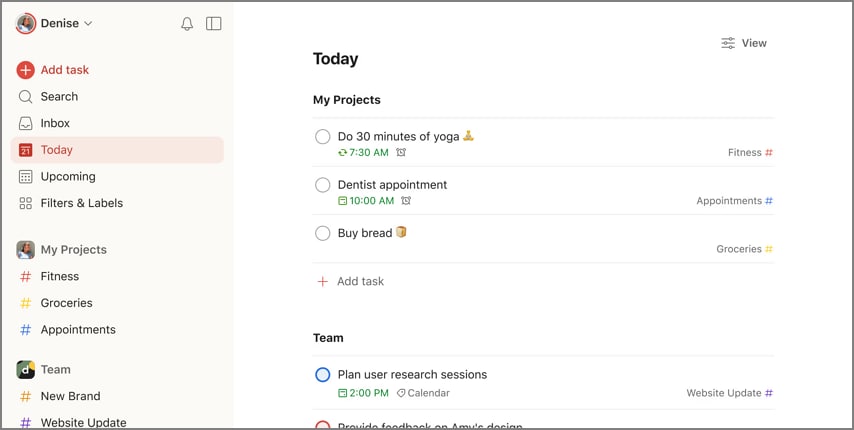
Best For: Individuals needing structured to-do lists with reminders and progress tracking.
Key Features
- Todoist creates recurring tasks and subtasks for clear readability.
- To help you achieve a professional look, it offers labels, filters, and project organization.
- For easy cross-device accessibility, it syncs across devices with cloud backup.
Pros
- The clean and fast interface allows for quick planner making.
- Its comprehensive features encourage daily productivity habits.
Cons
- The free version of this iPad digital planner free limits advanced features.
- Unlike most planners, Todoist lacks rich visual planning views.
Who Should Pick It: People who prefer list-based task management over visual scheduling tools.
Sunsama
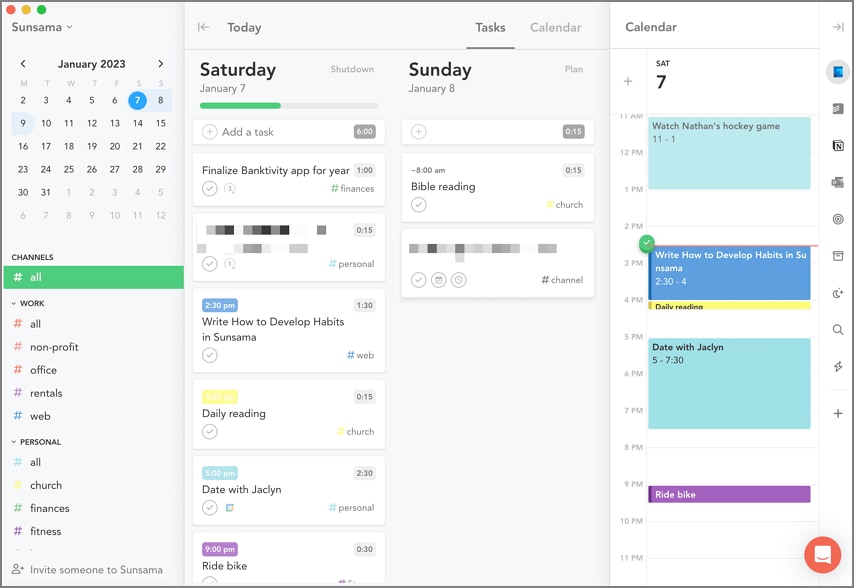
Best For: Professionals wanting calm, focused daily planning across apps and meetings.
Key Features
- It offers integration with tools like Google Calendar, Asana, and Todoist for streamlined planning.
- Sunsama tracks daily goals with reflection prompts to give you a comprehensive experience.
- The email platform integrations fetch all the important emails under one roof.
Pros
- It helps prevent burnout from everyday tasks through its Break feature.
- The analytics suggest the right time for executing productive tasks.
Cons
- Sunsama does not support Apple Pencil input.
- This weekly planner iPad is more task-oriented and less creative for free-form planning.
Who Should Pick It: Professionals seeking guided structure and mindful productivity habits.
Structured
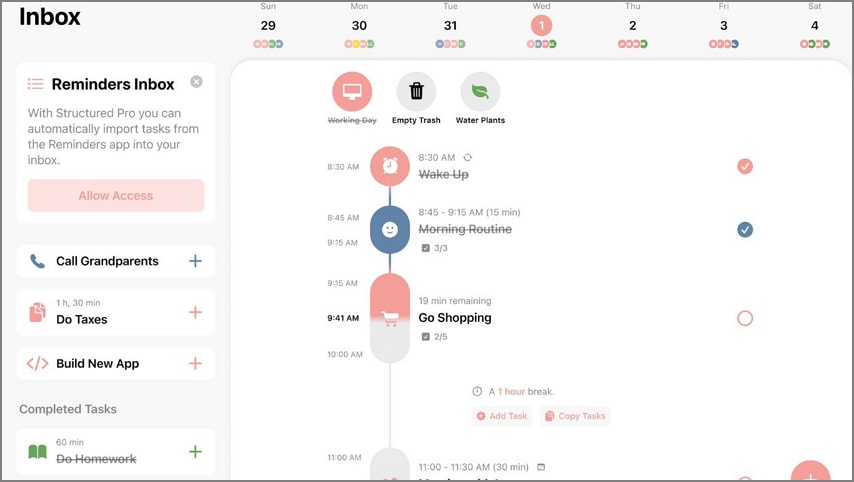
Best For: Users who prefer a timeline-style daily planner with clear visual cues.
Key Features
- Structured lives up to its name by displaying hourly blocks for each task.
- To ensure your tasks are completed, it offers reminders and progress tracking.
- The AI assistant helps you make a better plan that fits into your routine.
Pros
- Due to its visual elements and structure, time management is visually easy.
- It encourages consistent daily routines through reminders.
Cons
- This free iPad planner might not be ideal for long-term planning.
- Structured has limited task categorization options.
Who Should Pick It: Anyone who likes scheduling their day hour by hour with simple visuals.
A Comparison of the Top iPad Digital Planners
The section above explains the features of the top iPad digital planners. Go through the following table for a quick comparison of these apps:
| Workflow | Handwriting | Stickers/Tags | Template Support | Calendar Sync | Free Option | Export (PDF/Print) | Learning Curve | Best For |
| PDFelement iPad | Yes (annotate) | Yes | Yes (PDF templates) | No | Yes | PDF, print | Low | PDF annotation, digital planners with handwriting |
| Things | Yes | Tags | Yes (customizable workflows) | Yes (Apple Calendar) | No | Limited (no PDF) | Low | GTD, personal productivity, Apple ecosystem fans |
| Any.do | No | Tags/stickers | Yes (custom workflows) | Yes (Google, iCloud) | Yes | No (in-app sharing) | Low | Cross-platform syncing, reminders, collaboration |
| GoodNotes | Yes | Tags | Yes | Limited (manual/shortcut) | Limited | Yes (PDF/Print) | Medium | Digital planners, handwritten notes, creative planning |
| Trello | No | Stickers | Yes (board templates) | Google/Outlook Calendar | Yes | No (export via 3rd-party) | Medium | Team projects, kanban, visual project management |
| Pencil Planner & Calendar | Yes | No | Yes (custom pages) | Yes (iOS Calendar/Reminders) | No | Yes (export/share options) | Low | Handwritten digital planning, iOS calendar integration |
| Plaky | No | Tags | Yes (board/task templates) | No (task/project only) | Yes | No (data charts, not PDF) | Medium | Team task/project management, collaboration |
| Todoist | No | Tags | Yes (project/task templates) | Yes (Google Calendar) | Yes | Yes (export to CSV/Print) | Low | Task management, to-do lists, advanced workflow automation |
| Sunsama | No | No | Yes (workflow templates) | Yes (Google, Outlook, iCloud) | Free trial only | No (focus on integrations) | Low | Integrated planning, time-blocking, professionals managing work/life |
| Structured | No | No | Yes (routines, recurring tasks) | Yes (Calendar, Reminders) | Yes (basic features) | No (PDF not native) | Medium | Visual day planners, time-blocking, accessibility, ADHD focus |
G2 Rating: 4.5/5 |100% Secure
Part 4. Free iPad Planner Templates (Download Now)
If you are looking to organize your schedule, these free iPad planner templates provide a variety of layouts and tools for daily, weekly, and monthly planning:
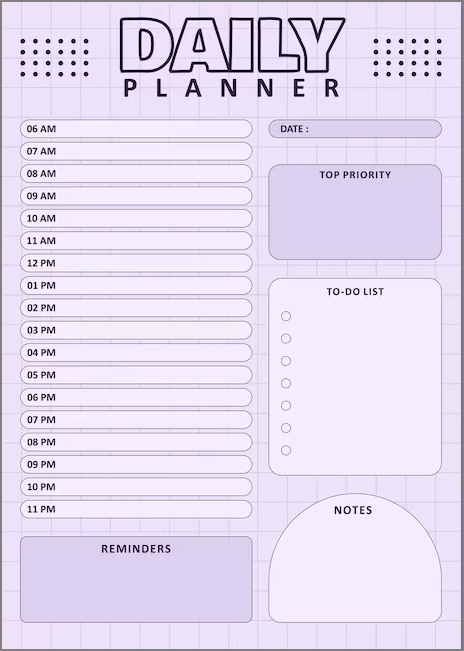
Daily Planners
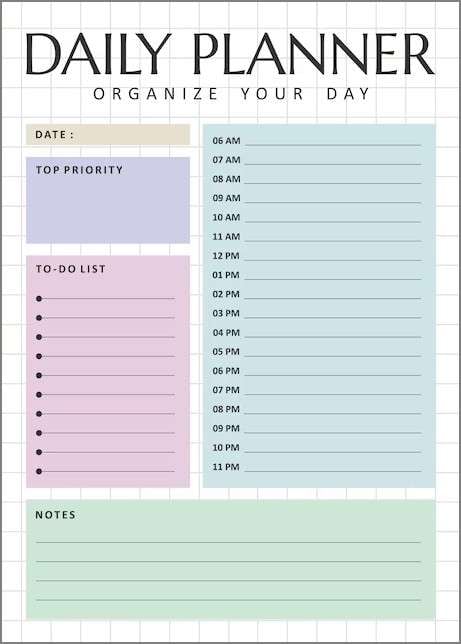
This layout includes time-blocked schedules, Top-3 priorities for efficient day-to-day planning.
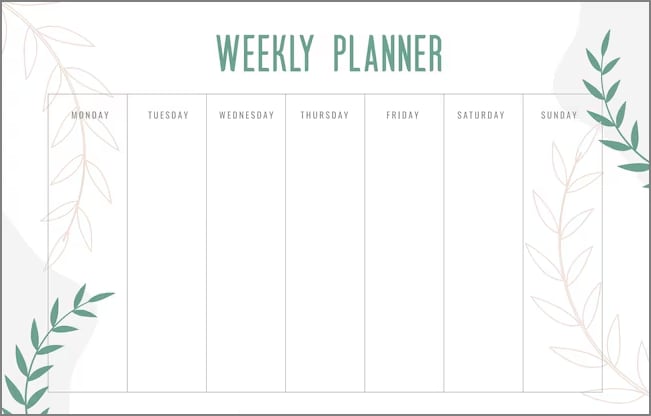
Weekly Planners
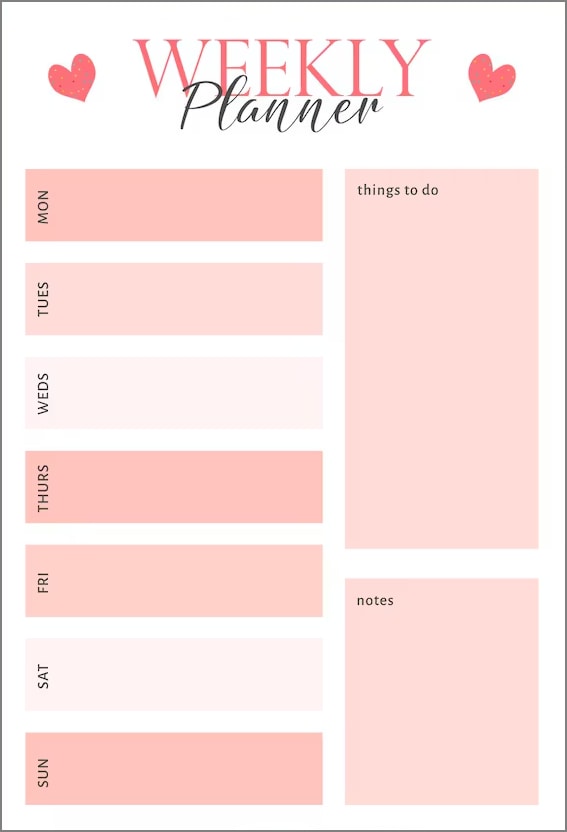
The weekly planner template below offers vertical and horizontal spreads, with 5-day or 7-day week options to suit different planning styles.
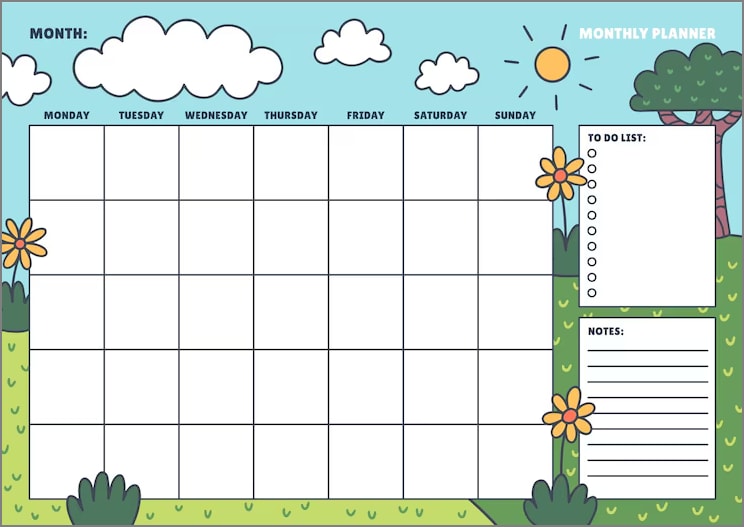
Monthly Planners
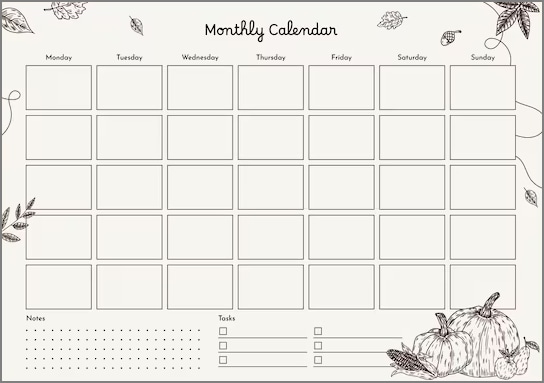
It features grids starting on Monday or Sunday, ideal for tracking long-term goals, events, and deadlines.
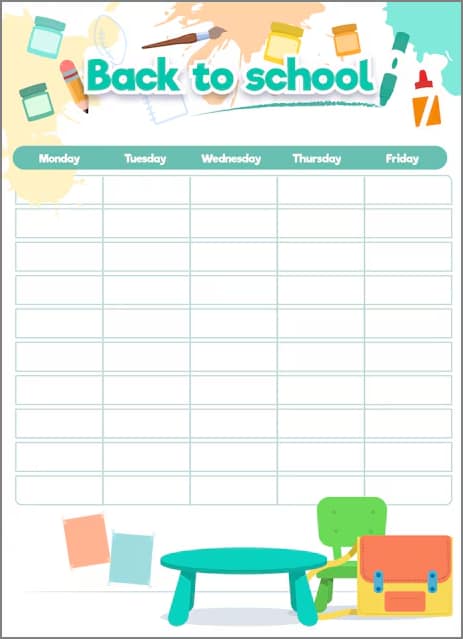
Study/Work Packs
The study or work place schedule layout includes exam planners, meeting agendas, and finance trackers for productivity management.
File Formats
Provided as PDFs in A4 or Letter size; hyperlinked layouts are included where relevant for easy navigation.
Part 5. How to Use a PDF Planner on iPad (PDFelement, 5-Step Quick Start)
Making planners is more fun when you do it on an iPad. PDFelement is a versatile PDF planner maker that supports iPad devices as well. The following steps offer a quick guide to using this best planner on iPad for making digital agendas:
Step 1. Select the "Create" button from the main page to import a PDF template.
Step 2. Navigate to the "Edit PDF" mode from the drop-down menu. From the "Add Text' tab, make a text box and type the task in desired font settings.
Step 3. Use the "Draw" mode and select the "Pencil" tool for adding markups. Select the "Stickers" tab to add the desired resources to the planner..
Step 4. Enter the "Comment" mode and press the "Note" icon. Type the note as additional information to the task in the planner.
Step 5. Let the AI read out the daily planner by entering the "Three Dot Menu" at the top right and pressing the "Read Aloud" tab.
Step 6. Tap the "Three Dots Menu" at the top right and select the "Share" option. Select the "File" option and pick the "Save to Files" option from the following menu.
Part 6. Daily/Weekly/Monthly: Which Layout Should You Use?
Choosing the right planner iPad Pro layout depends on how you structure your time and manage your priorities. Each layout serves a unique purpose, from daily focus to big-picture organization.
Daily Layout
Daily layouts are best for structured days with multiple tasks, meetings, or focus sessions. It helps you time-box activities and manage priorities hour by hour.
Weekly Layout
These templates ar ideal for planning sprints, balancing classes, or managing projects. They give you a clear overview of progress and upcoming deadlines across the week.
Monthly Layout
Perfect for tracking long-term goals, this layout is a must-use. It helps visualize your entire month and align deadlines or milestones at a glance.
Part 7. Aesthetic Setup (Make It Yours)
Personalizing your planner for iPad free makes organization more enjoyable and visually clear. With thoughtful design choices, you can turn your planner into a productive and aesthetic workspace. Follow the points below to see how you can customize an aesthetic planner:
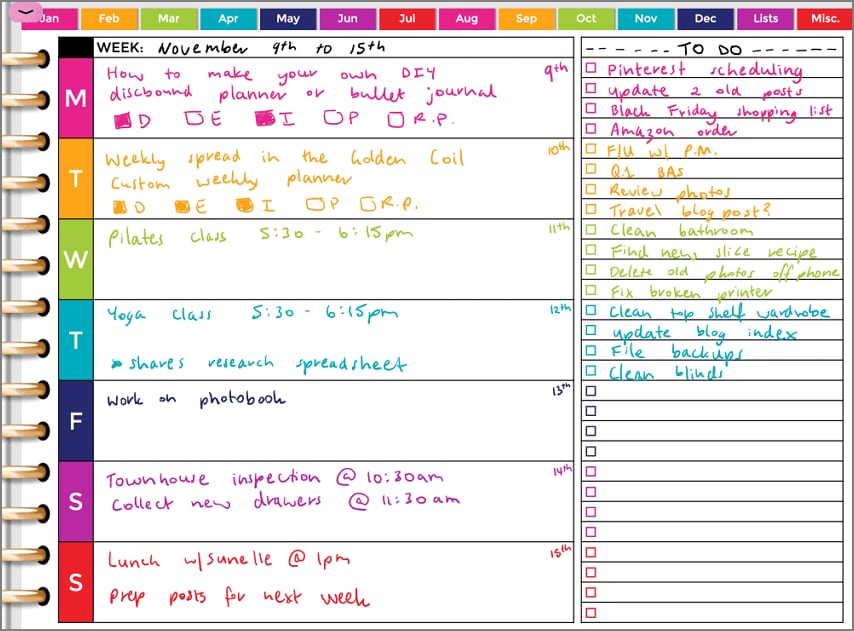
Color Systems
Use consistent color schemes to separate work, school, and personal life. Balanced type and spacing create a cleaner, more readable planner layout.
Sticker Taxonomy Ideas
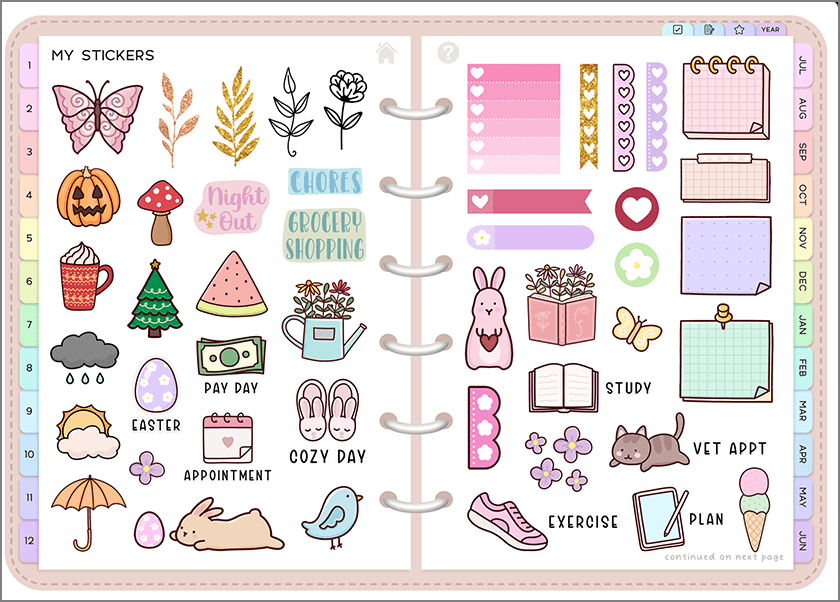
Design a sticker system with clear categories like Priority 1/2/3, Waiting, Blocked, or Review. Add special tags for events such as Exams, Labs, Meetings, and Action/Owner/Due.
Reusable Template Pages
Create master templates for goals, daily routines, finances, and reading logs. Duplicating these pages keeps your planning process consistent and visually organized.
Part 8. iPad & Pencil Tips (Usability)
Optimizing your best daily planner for iPad setup improves usability, speed, and writing comfort. The following tips help you manage files, enhance handwriting, and extend digital planning beyond the screen:
- File Organization & Cloud Handoff: Use folders, tags, and iCloud or Drive syncing to keep planner PDFs organized and accessible across devices.
- Apple Pencil Tips: Utilize tilt and pressure sensitivity for neat handwriting, while palm rejection and page zoom enhance precision and reduce errors.
- Printing & Scanning: Print spreads for wallboards or review, then scan hand-filled sheets back into PDFs for a fully integrated digital workflow.
Part 9. Buyer's Guide: Pick Your Planner Stack
Choosing the right planner setup ensures it fits your workflow, whether you prefer handwriting or digital automation. The following options help maximize productivity and flexibility using a planner on iPad:
- PDF + PDFelement: Ideal for handwriting enthusiasts who want printable outputs, instant customization, and full control over layouts.
- App-Centric: Best for users who need database views, live calendar syncing, widgets, and automated task management.
- Hybrid Approach: Plan primarily in PDF, then copy key dates to calendars and share PDFs for accountability and collaboration.
Frequently Asked Questions
1. What's the best digital planner for iPad right now?
Choosing the planner depends on your style and needs. However, if you need a full-featured app for automation or handwriting, PDFelement is the best daily planner for iPad.
2. Where can I get a free digital planner for iPad?
Free PDF planners are available online, including editable daily, weekly, and monthly templates. You can use PDFelement's customization features and its built-in planning templates under one roof.
3. How do I set up a daily/weekly/monthly planner on iPad?
To set up a planner on iPad, import the planner into PDFelement and select your preferred layout. After the template is imported, start adding notes or tasks.
4. Can I use stickers and notes inside a PDF planner?
PDFelement allows you to add stickers, text, and handwritten notes directly onto your PDF pages. You can also highlight or underline text to indicate urgency.
5. Will my planner work on iPad Pro and other models?
Any iPad compatible with Apple Pencil or stylus and running iPadOS can use PDF planners efficiently.
6. How do I export/print my spreads?
PDFelement lets you save your planner as a PDF or print it directly for offline use and sharing. It can be shared as a file or a URL for easy access. When saving as a file, it supports export as PDF or any other format.
Conclusion
In the end, the right iPad planner app depends on how you like to organize. If you prefer handwriting, flexibility, and creative layouts, a PDF-centric planner like PDFelement offers fast customization and a natural writing flow. If you rely on task automation, reminders, or integrations with calendar and email, an app-centric planner is the better choice. Pick the system that fits your workflow, and planning becomes effortless.