In modern digitalized society, planner apps have turned out to be vital in ensuring people are organized, time management and increase their productivity. The GoodNotes planning app is one app that is a versatile and handwriting-first application that offers visual planning with the convenience of the digital world. Its annotation tools, customizable templates, and hyperlinked PDFs enable the planning of tasks, meetings, and projects to be smooth.
As a student, teacher or a professional, GoodNotes lets you create the personal planners to fit your workflow. We are going to deconstruct some of the best planner apps in iPad in this article and differentiate between them regarding the layout, features, and usability to allow you to choose the one that fits the best.
In this article
- GoodNotes Planners Made Easy: Faster PDF Workflow and Free Starter Pack
- What Is a GoodNotes Digital Planner (and Why Use One)?
- How to Import & Use a Planner in GoodNotes (Step-by-Step)
- Weekly vs Monthly vs Daily: Which Layout Should You Choose?
- A Faster PDF-Planner Workflow (No PNG Management): PDFelement
- Template Gallery
- Troubleshooting & Best Practices
Part 1. GoodNotes Planners Made Easy: Faster PDF Workflow and Free Starter Pack
The GoodNotes planners are digital notebooks constructed out of PDF or hyperlinked PDF spreads to plan daily, weeks, and months. They also provide handwriting assistance, simple navigation and the paper-like touch of the screen. To begin with, download the Free GoodNotes Planner Starter Pack, which is pre-imported with weekly, monthly and undated daily pages.
You have 2 ways of planning: You can plan using both the GoodNotes planner with templates that can be reused, or you can try using PDFelement which is faster by phone. The PDFelement app streamlines PDF planning using markup, notes, and stickers, making it perfect for customizing any planner PDF or study schedule.
Part 2. What Is a GoodNotes Digital Planner (and Why Use One)?
A GoodNotes planner is a digital notebook that supports hyperlinks for easy navigation. It also enables users to handwrite with Apple Pencil to get a raw and aesthetic look. The platform has customizable templates and layouts that are fit for organizing tasks. Go through the following list to see why you should use a GoodNotes planner:
- Hyperlinked And Handwriting-First: A GoodNotes digital planner is a PDF-based program and is hyperlinked with handwriting-first capability on iPads or other tablet computers.
- Offline Capability: It is offline, and you can plan, annotate and organize your work offline without the use of an internet connection.
- Ideal Users: This kind of planner is ideal to students, teachers and knowledge workers, assisting them in the visual way to manage schedules, assignments, meetings, and projects.
- Printable Flexibility: They have the flexibility of digital convenience in the sense that you can write on it directly or print pages to use on paper.
- Interactive Navigation: With interactive layouts, users can quickly navigate weeks, months, and daily tasks, making planning efficient and visually organized.
Part 3. How to Import & Use a Planner in GoodNotes (Step-by-Step)
From importing a PDF planner to customizing and exporting it, GoodNotes digital planner supports you throughout the process. The following section breaks down how you can perform each step on this app:
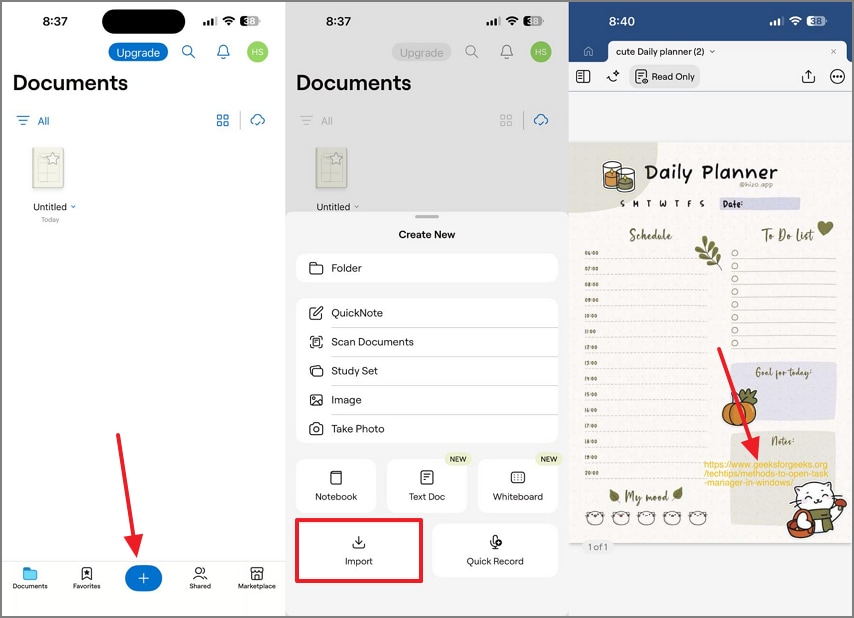
Import the PDF Planner
Instructions. To begin with, select the "+" icon on GoodNotes and tap the "Import" option to fetch a planner template PDF. When the file opens, tap on the pre-existing hyperlinks to open them.
Reuse Pages with Elements
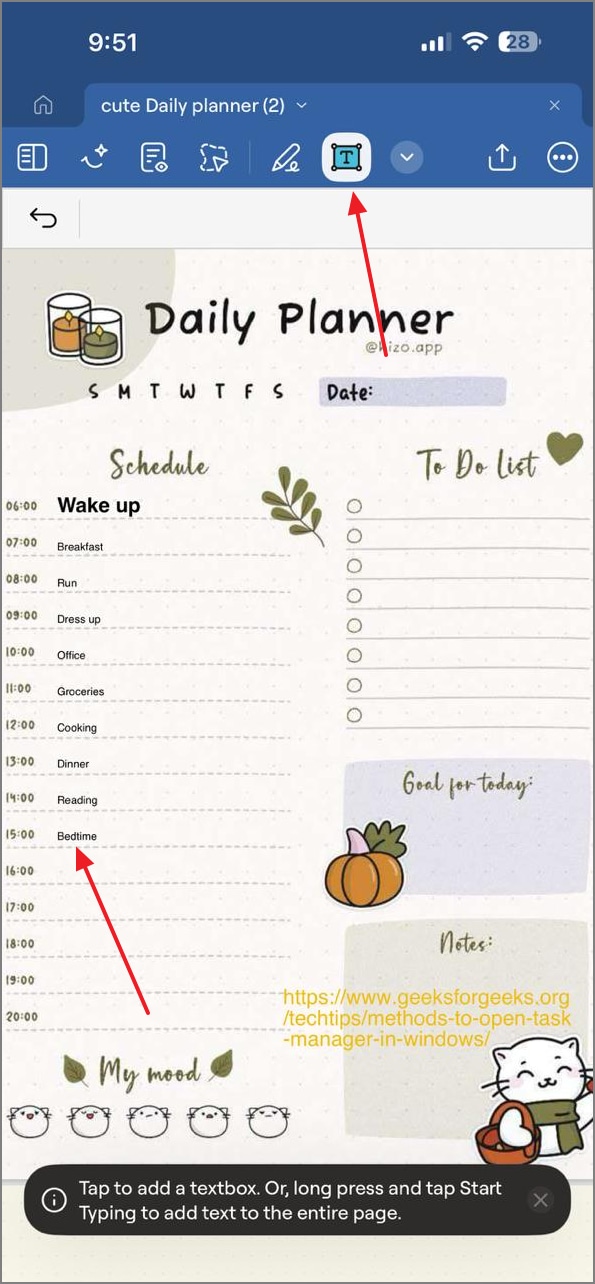
Step 1
To add the tasks for the day, enter the "Text" mode from the top toolbar and type the tasks. You can customize the color and size of the font.
Step 2
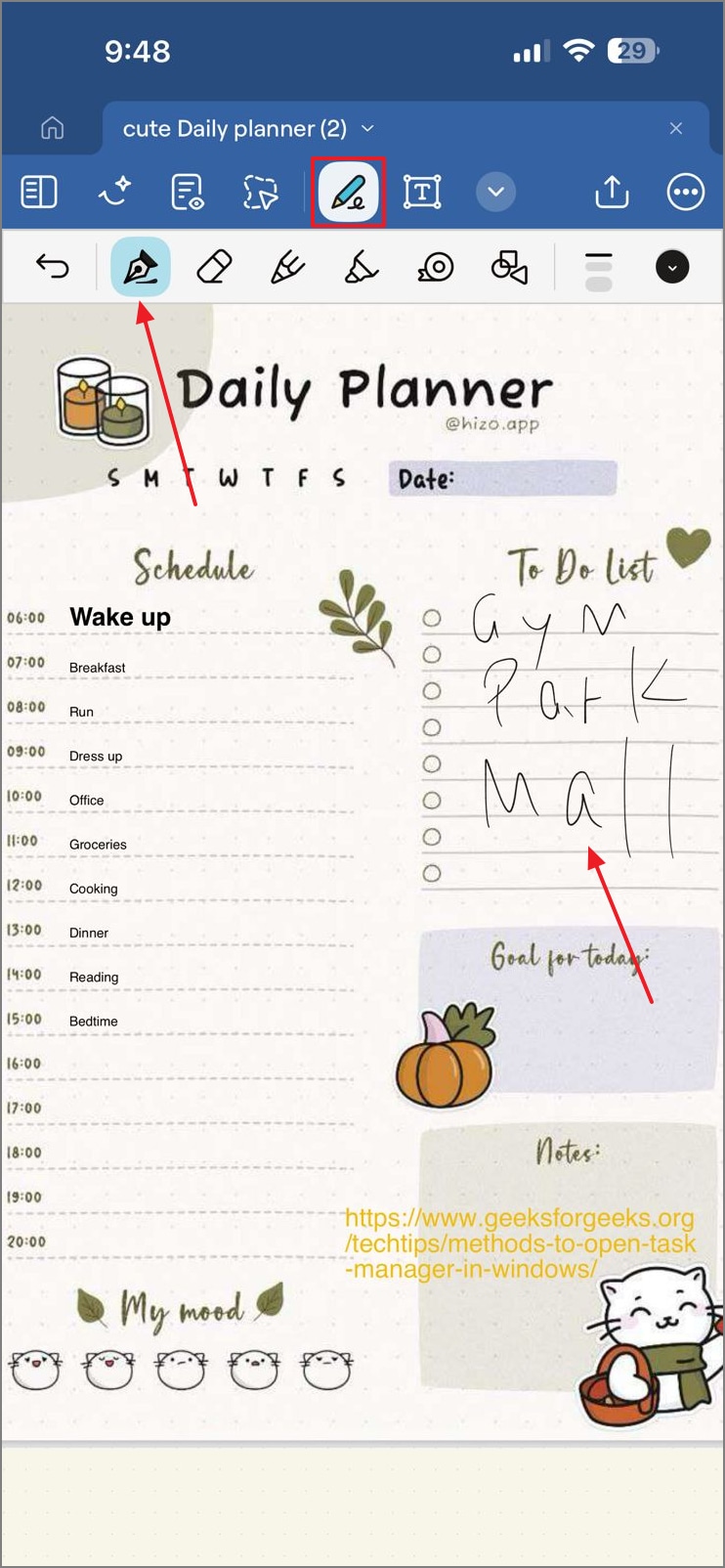
Using the "Pen Tool" from the toolbar, make drawings and write text. Use the eraser to remove any mistaken freehand drawings.
Step 3
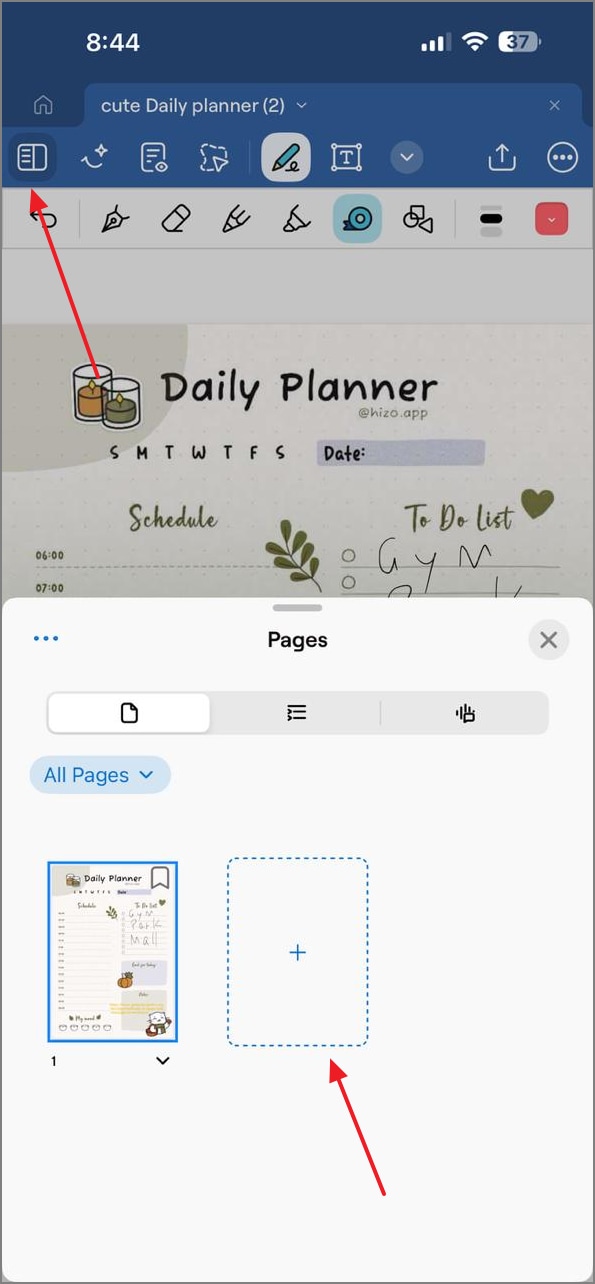
Add more pages to the planner by tapping on the "Page" icon at the top left.
Step 4
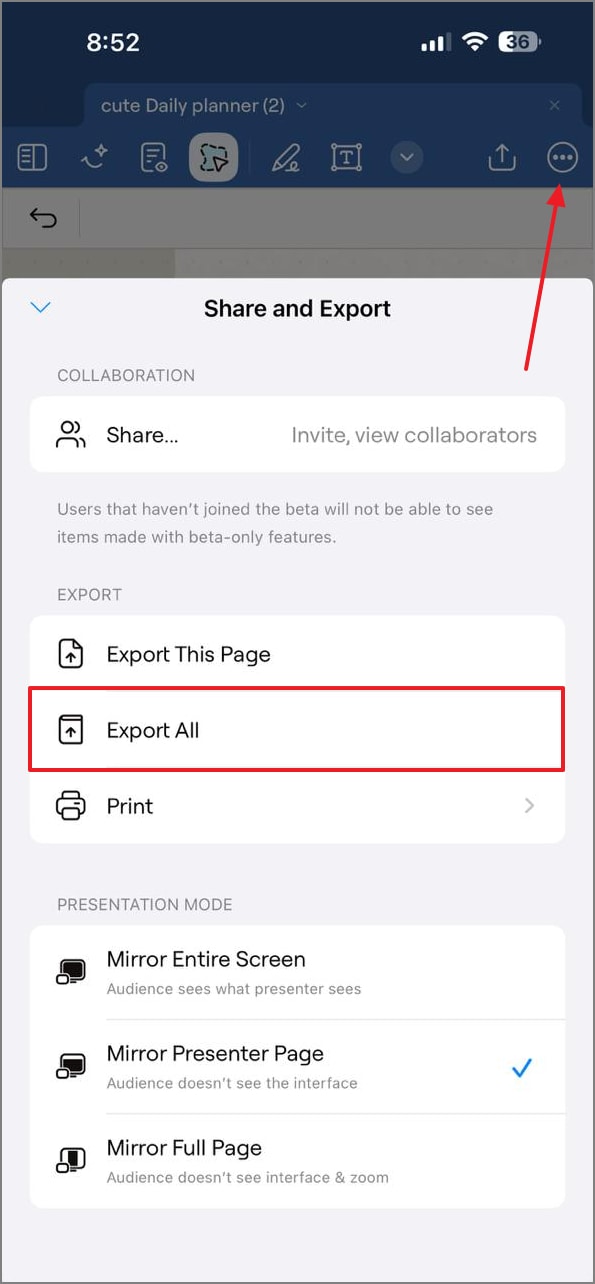
Once your planner is ready, access the "Three Dot Menu" and tap the "Export All" tab to save the entire planner.
Pro Tips for Making the Most Out of GoodNotes
The following tips will explain how to take the maximum benefits from the free GoodNotes planner:
- Consistent Naming: Have clear and repeatable names such as Week 45 Tasks or Math Notes so that you can search and sort your GoodNotes files easily.
- Color Coding: Out of subjects, projects or priorities, give certain colors so that you can visibly differentiate tasks just by looking at them.
- Note Templates: Have all your reusable planner pages in a single notebook called Templates so that you can replicate layouts on the fly without losing any of the original.
Part 4. Weekly vs Monthly vs Daily: Which Layout Should You Choose?
| Planner Layout | Best For | Key Benefits |
| Weekly Planner | Managing weekly tasks, classes, meetings, and deadlines | Provides a clear overview of the week, helping you balance your workload and track recurring tasks without getting lost in daily details. |
| Monthly Planner | Tracking major deadlines, exam schedules, and budget checkpoints | Offers a long-term perspective, making it easier to plan ahead and identify important dates and patterns across several weeks. |
| Daily Planner | Organizing busy days, deep work sessions, and time-sensitive tasks | Supports detailed task management and time-blocking, helping you prioritize activities and maximize productivity throughout the day. |
Part 5. A Faster PDF-Planner Workflow (No PNG Management): PDFelement
When looking for accessible planner tools, PDFelement Mobile comes at the top of GoodNotes planning alternatives. With its easy PDF integration features, this tool lets you import planners for customization. Using its various modes, you can add information to the digital timetable or add decorative elements for visual appeal. Besides deleting pre-existing images and text from the planner, users can add new content using the Edit PDF mode.
For users who plan within PDF files, PDFelement mobile offers a faster, smoother way to organize and share notes. It's perfect for anyone who prefers handwriting-style planning but wants digital flexibility and efficiency.
- Built-in Tools: The PDFelement app includes markup tools for highlighting and underlining. It also offers notes for adding context and Stickers for tagging priorities, to-dos, deadlines, exams, or meetings.
- Why it's Fast: You can open any planner or agenda PDF, tag it with stickers, and add notes. You can also highlight key points using markup and instantly export, share, or print them.
- Use Cases: Ideal for creating weekly planning files, recording meeting minutes, or mapping study schedules. Everything in the file stays organized, editable, and ready to share in seconds.


 G2 Rating: 4.5/5 |
 100% Secure
A Complete Guide to Using PDFelement Mobile to Make a Comprehensive Digital Planner
Follow the guide below and learn how to make a planner using this GoodNotes planner free alternative on mobile:
Step 1
Import a PDF Template
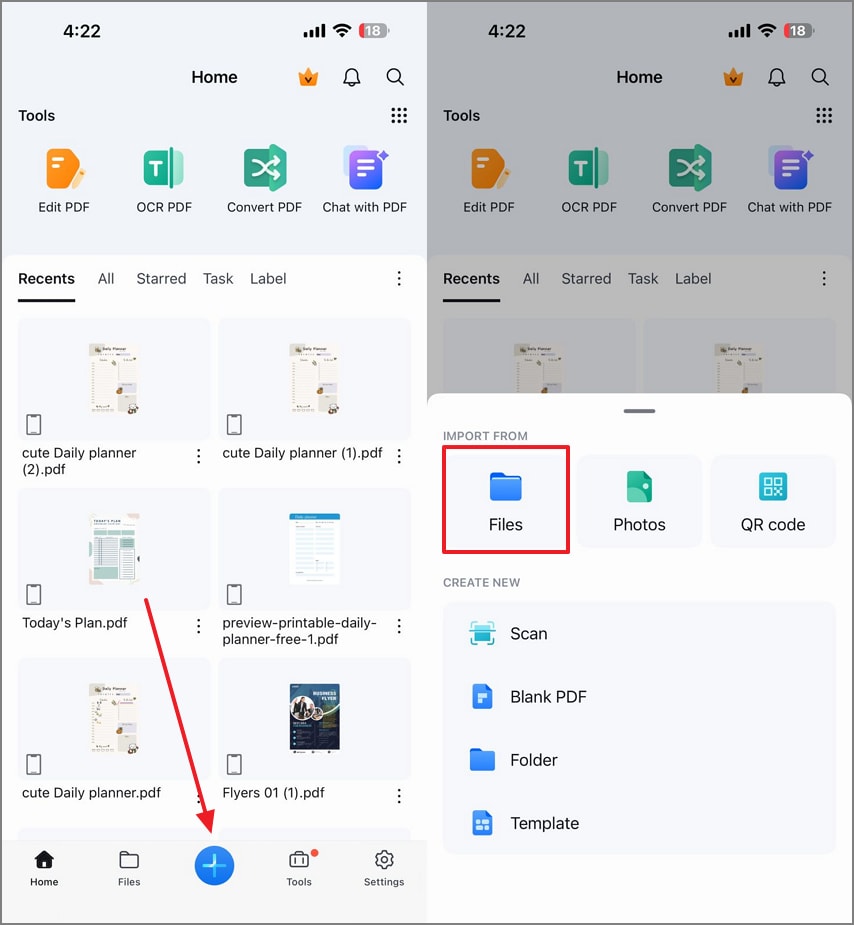
To start the process, select the "+" button to import a PDF template from the "Files" app.
Step 2
Add a Sticker to Prioritize Tasks
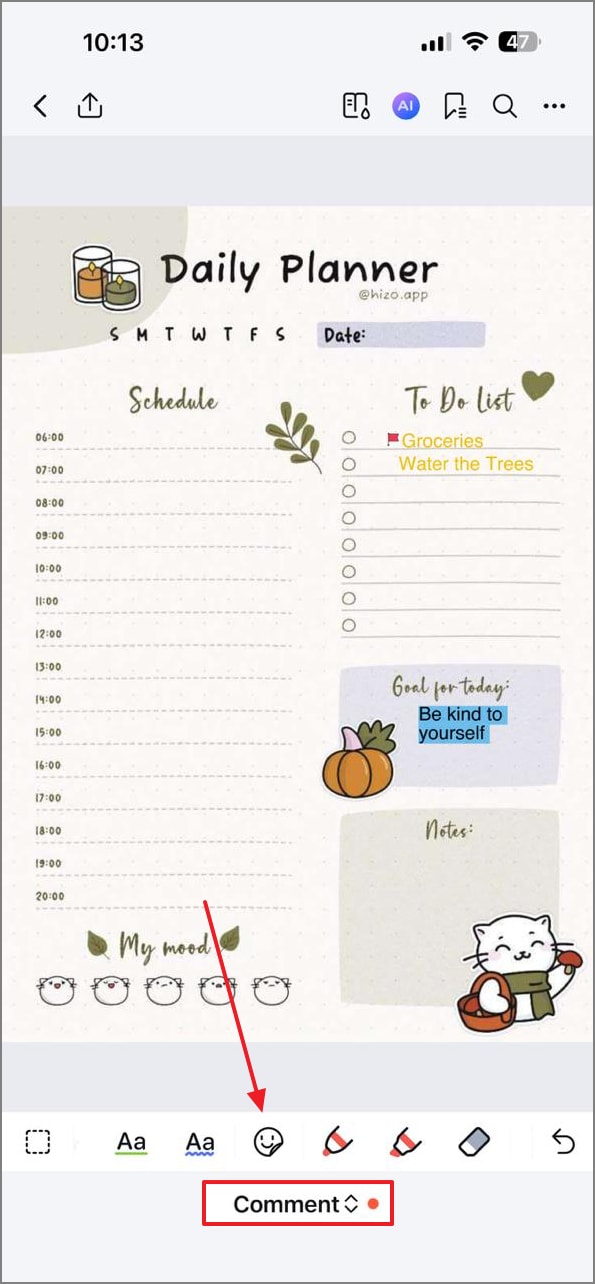
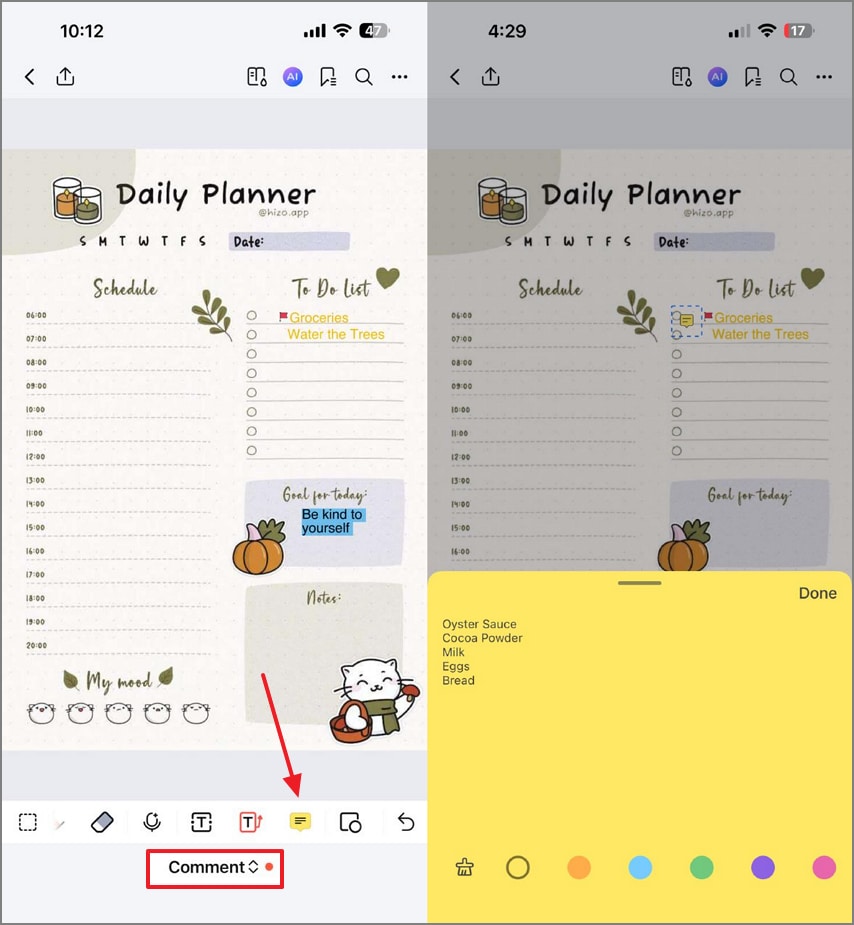
As the file is imported, enter the "Comment" mode to add a flag sticker to identify critical tasks.
Step 3
Incorporate a Note
Now, select "Comment" from the menu at the bottom and tap the "Note" option. When the small notepad opens, type the note as additional information to the task in the planner.
Step 4
Markup on the Planner to Highlight Key Tasks
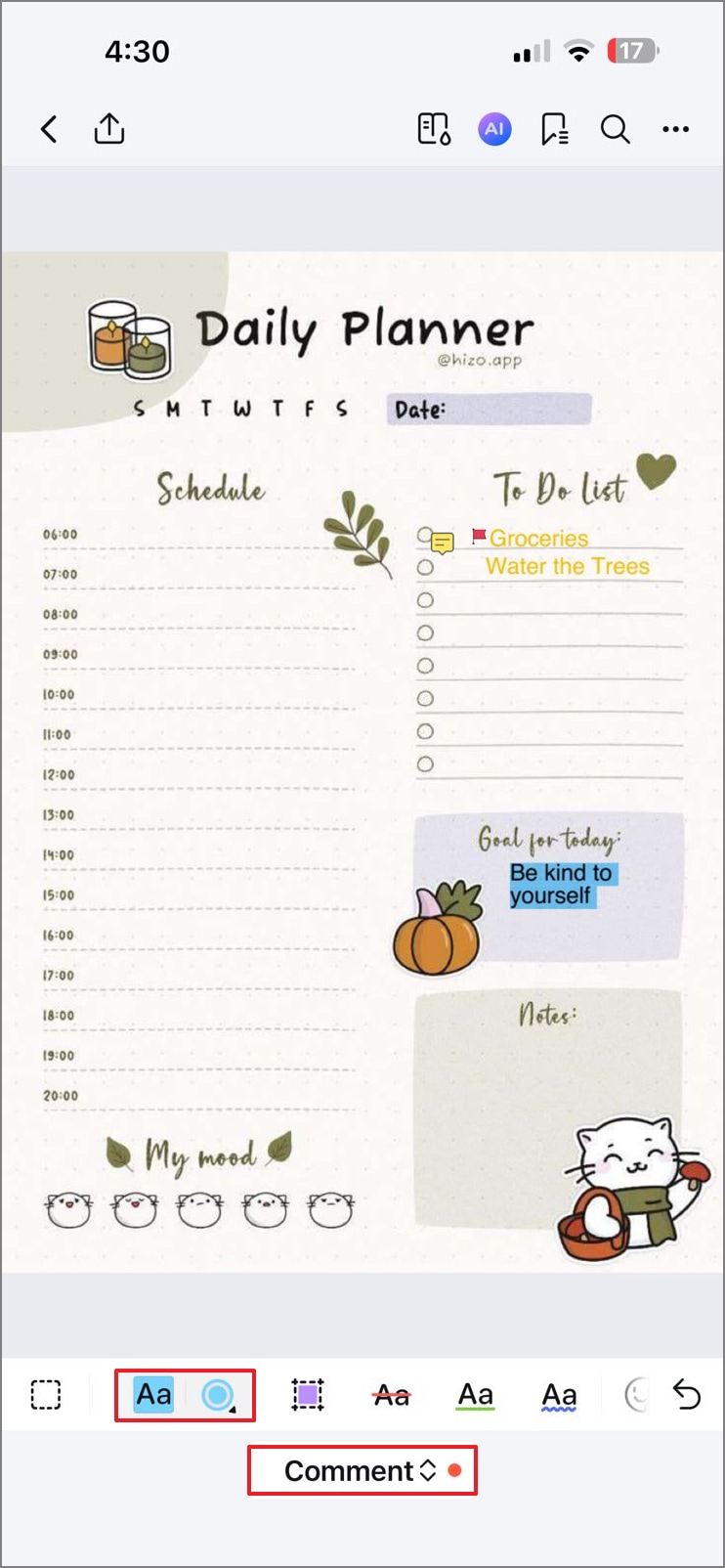
You can make the key tasks pop by staying in the "Comment" mode and selecting the "Text Highlighter" in your favorite color. Now, locate the important text and highlight it.
Step 5
Export the PDF Planner on Your Device
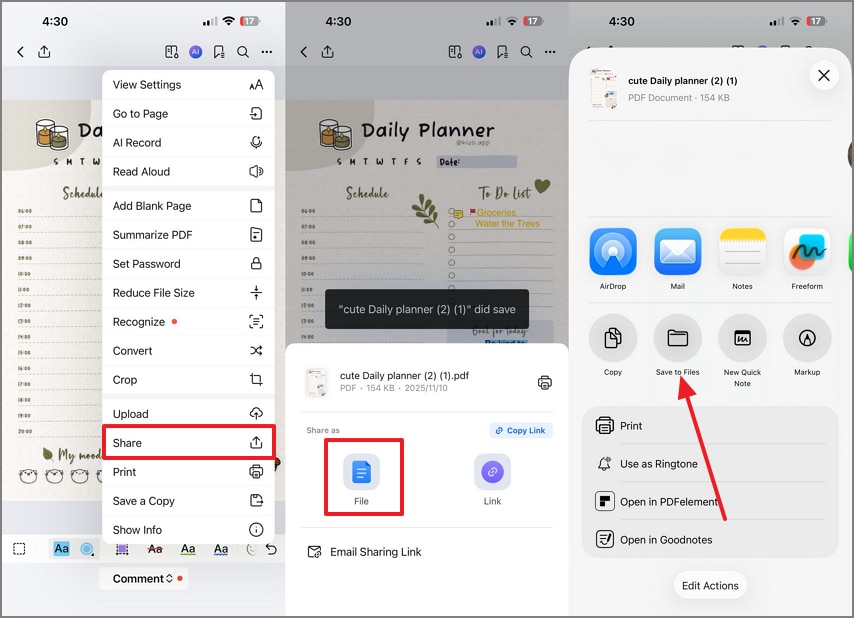
Once the planner is ready, select the "Three Dots Menu" at the top right and tap the "Share" option. Using the small pop-up menu, press the "File" option to choose the "Save to Files" option from the next menu.
Part 6. Template Gallery
The following visual representations of planner types will give you a better idea of making digital agendas for planner GoodNotes:
Weekly Planner
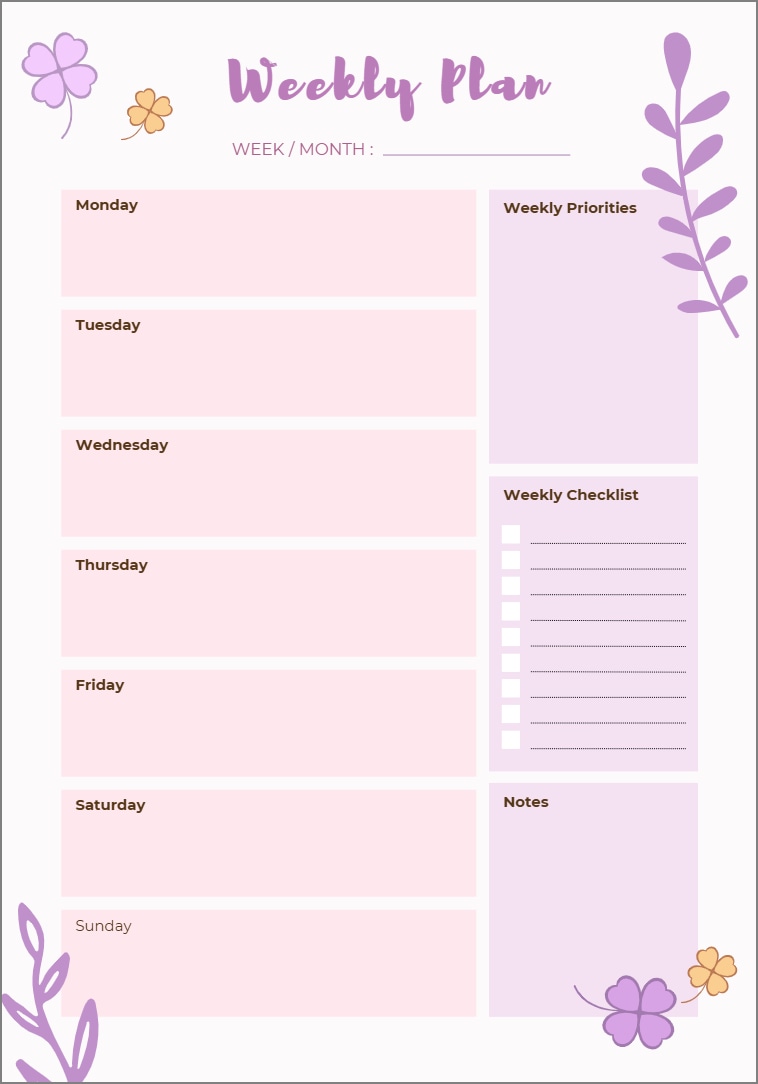
This planner template has a weekly checklist and priority list for making short pointers for important tasks of the week.
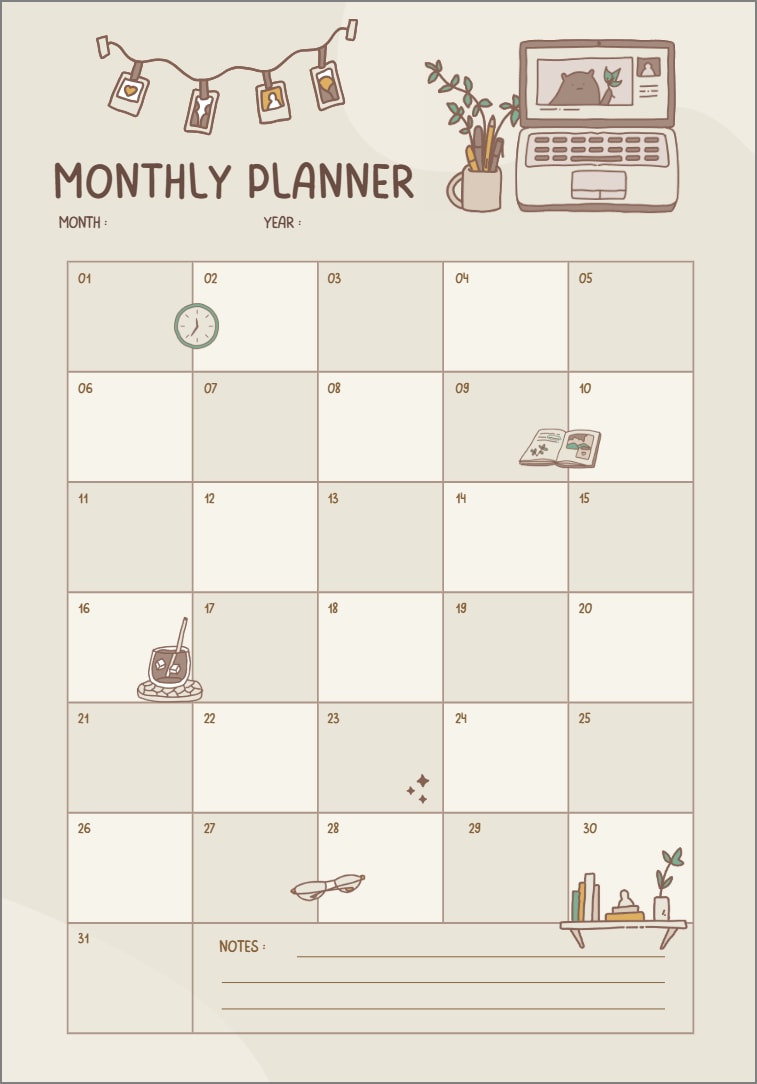
Monthly Planner
The monthly planner below represents a chart with 2 color ways for better readability and visual appeal.
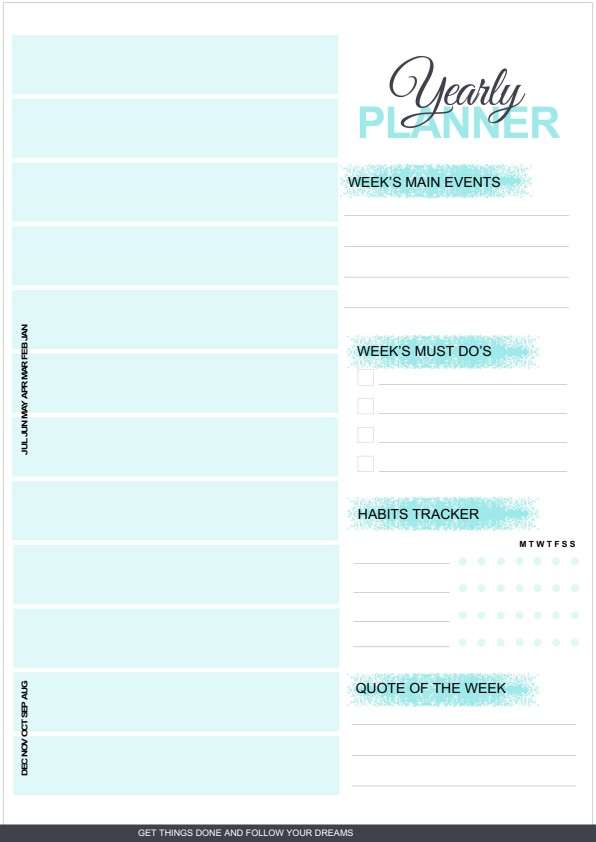
Yearly Planner
This yearly planner provides an annual overview to help you track important dates, set long-term goals, and organize your plans throughout the year.
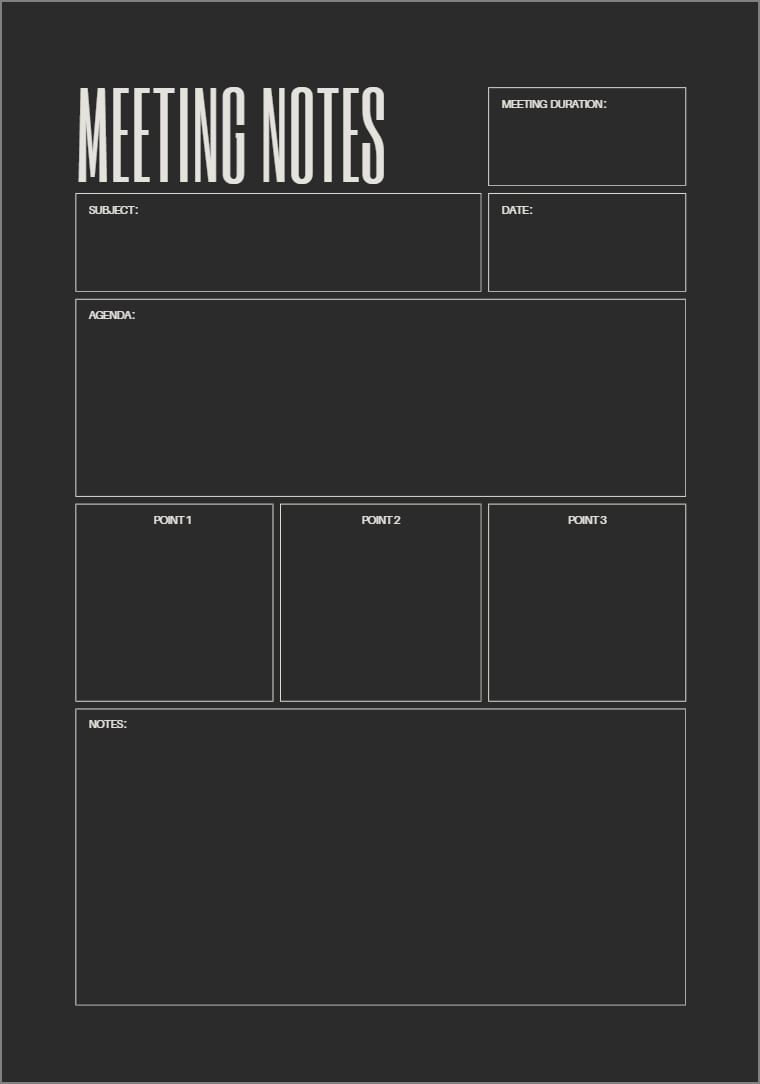
Meeting
It is a meeting template with multiple fields for meeting notes to ensure all the information is documented. The meeting duration and subject fields let you include all the necessary information.
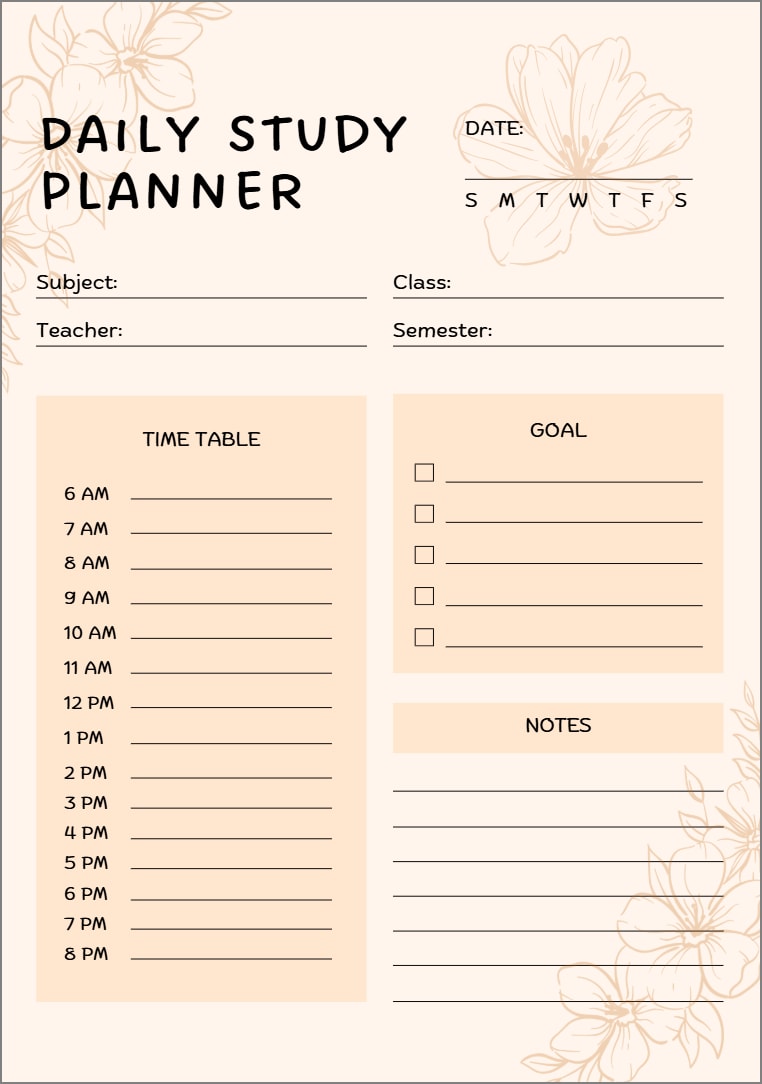
Study Pack
Students can look into this template to make a study timetable for each day. They can also document their everyday goals to stay motivated throughout the day.
In addition to the planner templates mentioned above, PDFelement offers a rich library of planners in a variety of styles. Whether you need a daily, monthly, or yearly planner, or a checklist, you can find the right template here. Download PDFelement to access a wide range of beautifully designed templates for free.
G2 Rating: 4.5/5 |100% Secure
Part 7. Troubleshooting & Best Practices
Your planners can be highly effective if you follow some tips. The following section includes tips to resolve certain issues faced while making a planner on planner GoodNotes:
PDF Blurry or Wrong Size
If your planner pages appear blurry or the dimensions are off, export your files at 300 DPI and consistently use standard sizes like A4 or Letter. This ensures crisp visuals and proper alignment across devices.
Hard to Find Spreads
Organize your templates by keeping a dedicated "Master Templates" notebook and grouping elements in collections. This makes it easy to quickly locate layouts, stickers, or recurring sections.
File Too Heavy
Large PDFs can slow down your device. Compress files and avoid using oversized images to keep your planner lightweight and responsive.
Hyperlinks not Working
If internal links don't function, re-export the file as an interactive PDF and test it on your device before sharing. This guarantees smooth navigation between pages.
Frequently Asked Questions
-
Where can I get a free GoodNotes planner?
You can find free GoodNotes planning templates on official creator sites, vetted design blogs, or starter packs offered directly by GoodNotes communities. -
How do I import a digital planner for GoodNotes with hyperlinks?
To import a digital planner on GoodNotes, tap "Import", select the file, and the hyperlinks will remain clickable automatically. -
Do you have a weekly planner template for GoodNotes?
Many free and premium packs include GoodNotes weekly templates, often in vertical or horizontal layouts with time blocks and task sections. -
Can I customize and then print my GoodNotes planner pages?
You can edit, markup, and annotate your pages in GoodNotes, then export or print them as PDFs for physical use. PDFelement is a decent choice for making the planner your own and printing it for accessibility. -
How do I make planning faster without managing PNG stickers?
Use built-in GoodNotes shapes, text boxes, or pre-made sticker libraries in PDF form to streamline planning without handling individual PNG files. If you are looking for a more professional workflow, look into the PDF handling features of PDFelement. This tool makes planners in PDF files rather than working with PNGs. -
Can I use these templates across iPad models or other note apps?
Most digital planner GoodNotes templates are cross-compatible across iPad models. PDFelement offers its cloud-based features that let you sync the saved files across all devices.
Conclusion
In essence, you can grab free daily, weekly, and monthly planner templates, import them, and easily reuse them through GoodNotes planning. For faster, more flexible PDF planning, open your templates in PDFelement mobile. You can add markup, notes, and stickers to this tool to make it look better organized and easy to see. After that, you can export or print your planner spreads to share with others or store them as records and make your planning process creative and efficient.
G2 Rating: 4.5/5 |100% Secure