

Imagine you're a student or professional looking to organize your notes efficiently on your iPad without the hassle of traditional paper notebooks; free GoodNotes templates offer an ideal solution. In this article, you will discover a curated collection of stylish and functional templates perfect for note-taking, journaling, or planning.
Beyond just templates, learn how to easily import these files into GoodNotes and enhance your workflow with creative stickers. This guide will help you transform your digital note-taking experience with easy-to-use resources and tips.
In this article
- What are GoodNotes Templates?
- Free GoodNotes Templates (Download Now)
- How to Import Templates into GoodNotes (Step-by-Step)
- Paper Templates Explained (Choose the Right Page)
- Journal & Planner Templates (Make It Actionable)
- Faster PDF Workflow (No Import Hassle): PDFelement
- Aesthetic Systems That Improve Focus
- DIY Template Creation With PDFelement
- Troubleshooting Issues While Using GoodNotes Templates
Part 1. What are GoodNotes Templates?
GoodNotes templates are digital pages in PDF or PNG format designed for note-taking and organization. They include various styles such as lined, grid, dot, and Cornell note formats, suited to different writing and studying preferences. Additionally, there are planner templates for scheduling and goal tracking, as well as journal templates for personal reflections.
Template Free Starter Pack: The Free Starter Pack offers immediate value by providing a versatile collection of free GoodNotes templates in one ZIP file. It includes daily, weekly, and monthly planners for effective time management.
Note-Taking Workflow: You can plan and customize your notes and planners in two efficient ways. The first way is by using GoodNotes' Elements tool, which allows you to save any drawing, handwriting, sticker, or image as an Element and reuse it easily across all your notebooks.
The second, faster option is PDFelement, which streamlines PDF planning by enabling you to markup documents, add notes, and insert stickers swiftly. This is ideal for customizing any planner PDF or study schedule on the go with powerful PDF editing capabilities.
Part 2. Free GoodNotes Templates (Download Now)
If you want to know what templates are offered by GoodNotes to make your note-taking task more engaging and compelling, read the section below. Provided next are a few top-rated GoodNotes templates free that you can easily download and use:
| Name | Type | File | Best For | License |
| Notebook Basics | Notebook | PDF/PNG | Everyday note-taking | Personal |
| Journal Pages | Journal | PDF/PNG | Mood and habit tracking | Personal |
| Study Spreads | Paper | Lecture notes & flashcards | Personal | |
| Planner Pages | Planner | Daily, weekly, and monthly planning | Personal | |
| 2025 Portrait Planner | Planner | Professional planning | Commercial | |
| Templatables Business Planner | Planner | Business productivity | Commercial | |
| GoodNotes Business Templates | Planner | Custom business tools | Commercial | |
| Study Spreads: Lecture Notes | Paper | Organized lecture notes | Personal | |
| Study Spreads: Formula Sheet | Paper | Quick reference for formulas | Personal | |
| Premium Digital Planners | Planner | Custom pro planners | Commercial | |
| Minimalist | Covers and Dividers | PNG | Simple designs are ideal for professional and personal use | Personal |
| Pastel | Covers & Dividers | PNG | Soft pastel colors for aesthetic folder and notebook organization | Personal |
| Dot Notebook | Notebook | Bullet journaling | Personal | |
| Education License Templates | Journal | PDF/PNG | Education & teaching | Commercial |


 G2 Rating: 4.5/5 |
 100% Secure
Part 3. How to Import Templates into GoodNotes (Step-by-Step)
With GoodNotes, users get the ability to import templates and customize them according to their preferences. To learn how to use this efficient app, head to the following section.
Import PDF (Single Page or Full Pack)
Step 1
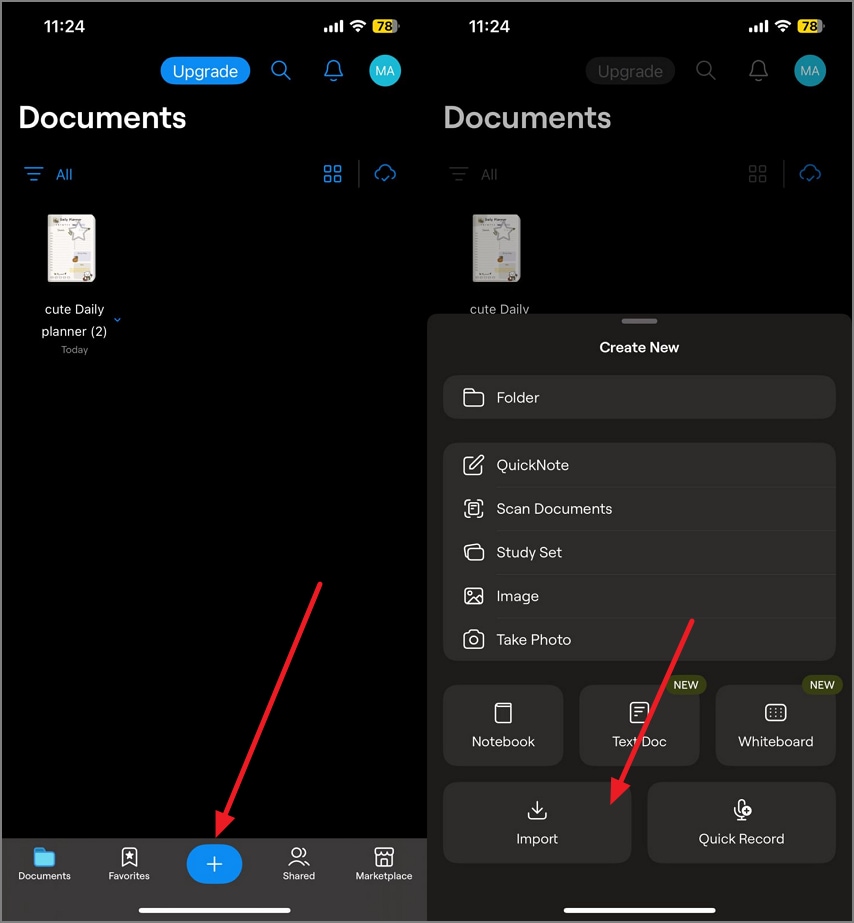
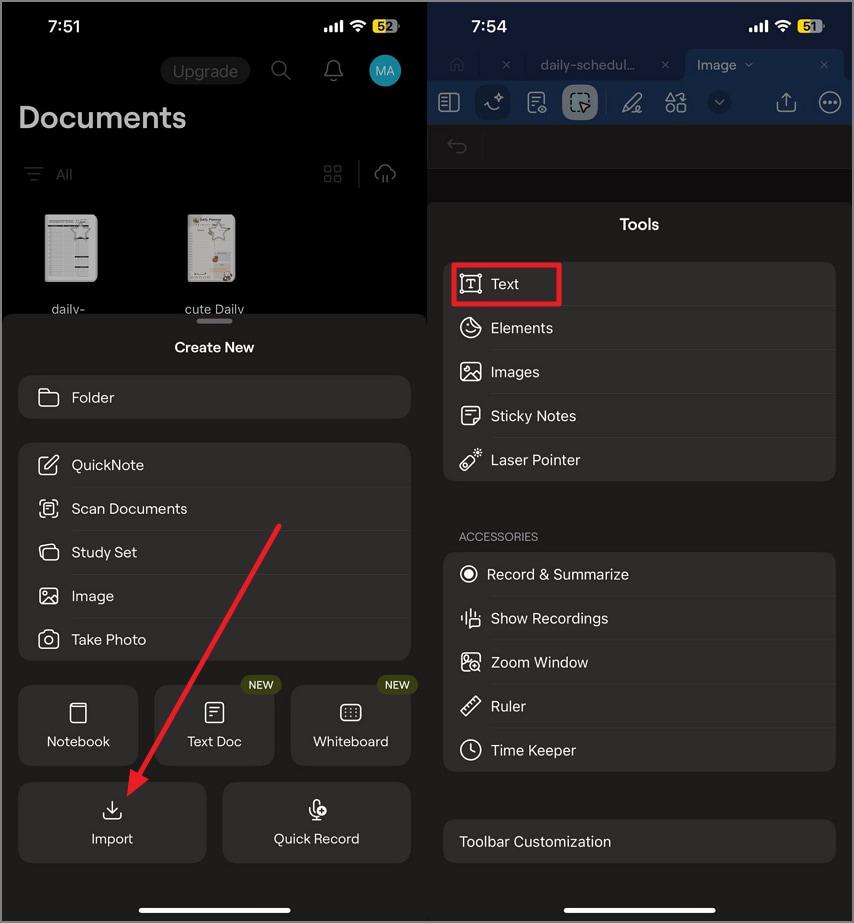
To begin the process, launch GoodNotes on your smartphone and head to the bottom of the homepage to press the "+" icon. Next, tap on the "Import" button to select the planner PDF from your phone's storage.
Step 2
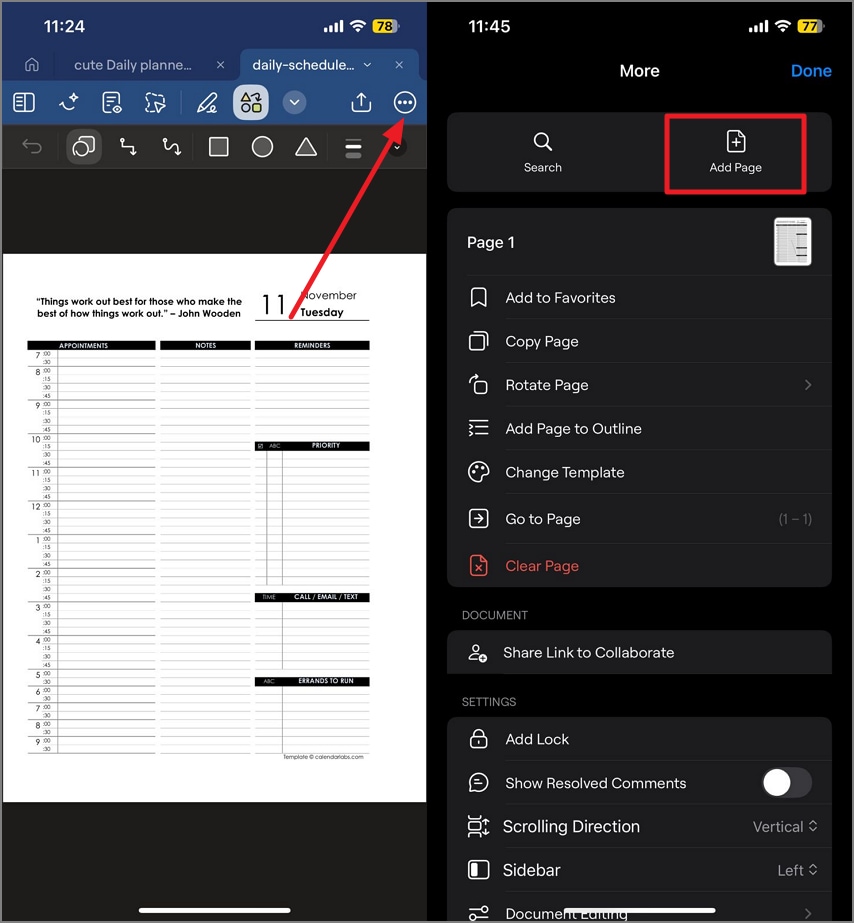
Once the GoodNotes free template is successfully imported, head to the top-right corner of the interface and press the "Three Dots" icon. In the following interface, tap on the "Add Pages" option to add more pages to the planner.
\
G2 Rating: 4.5/5 |100% Secure
Step 3
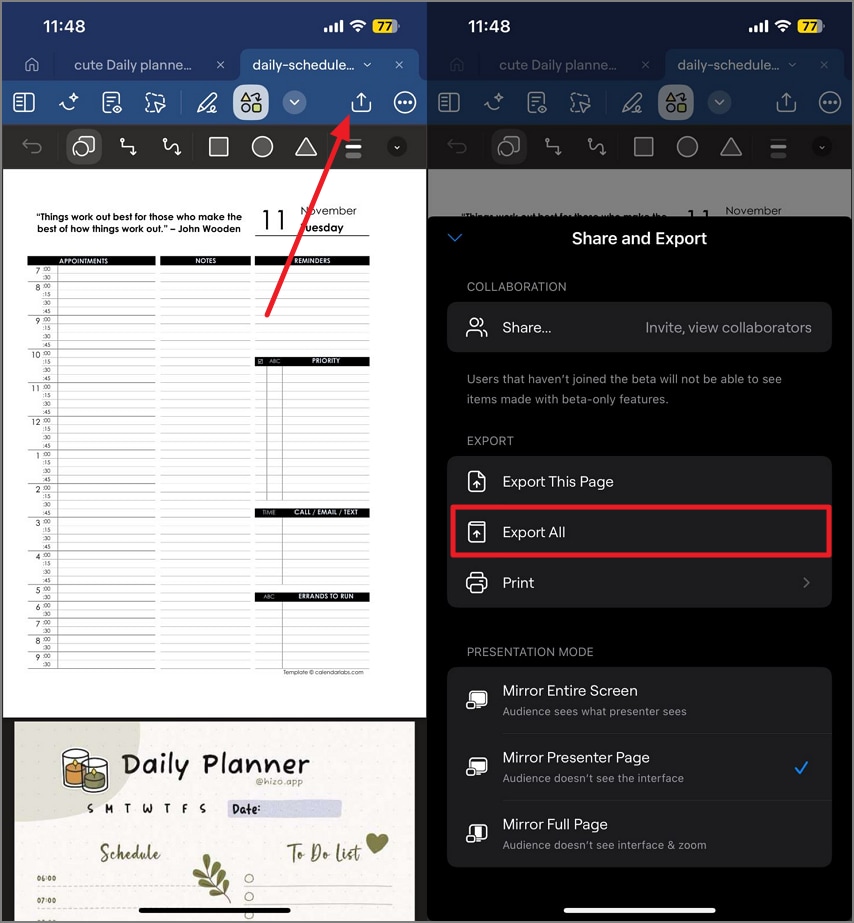
After all the pages are added to the planner successfully, apply changes as per your requirements and head to the top-right corner. Press the "Export" icon and in the following interface, tap on the GoodNotes option to save the pages as elements.
PNG Pages/Sticker-Sheets
Step 1
Begin by tapping on the "+" icon and importing the PNG template using the "Import" button. Next, access the toolbar at the top and tap on the "Arrow Down" icon to enable the list. From here, tap on "Text" to add a text element.
Step 2
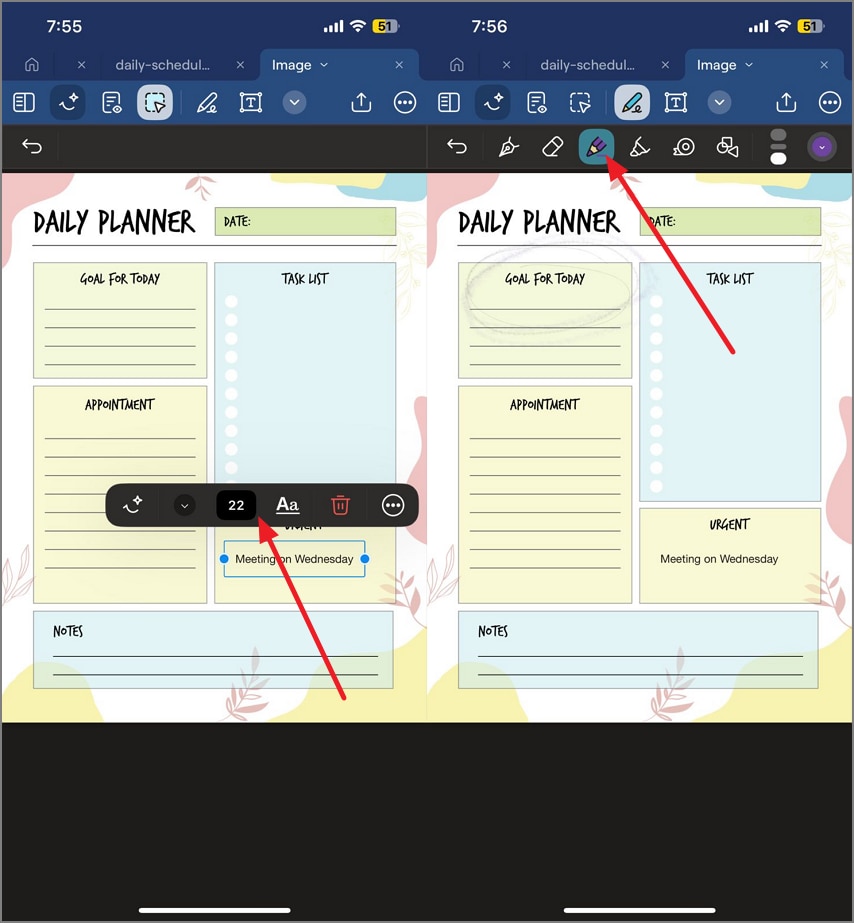
Add text and personalize it using the floating bar above the text box. Next, select the "Pen Tool" and markup by dragging your finger on the screen.
Step 3
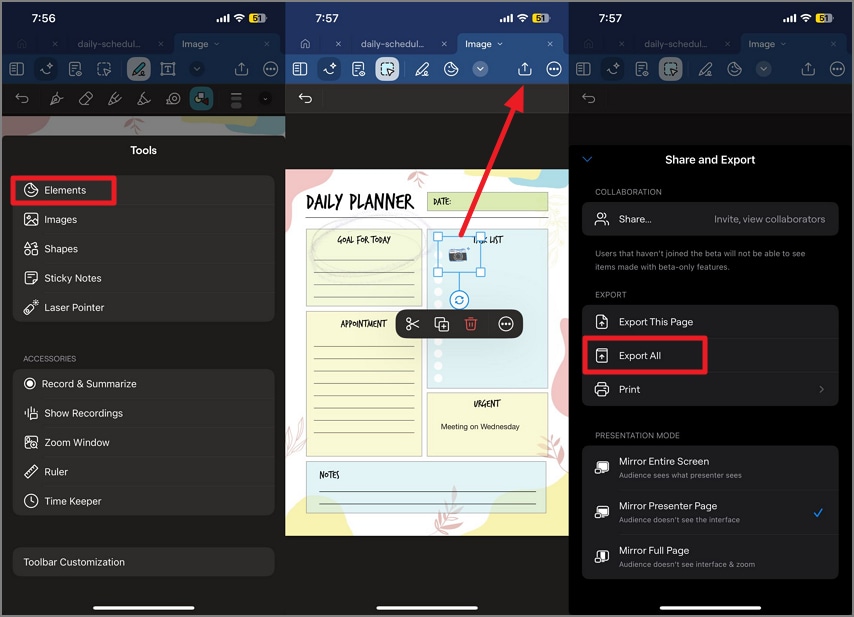
Next, select "Elements" and add a sticker to the template by dragging your finger. Once done, press the "Share" icon and choose "Export All" to successfully save the PNG pages to your device.
Part 4. Paper Templates Explained (Choose the Right Page)
When choosing the right paper template for your digital notes in GoodNotes templates free PDF, understanding the differences between paper types is essential to boost your productivity. The most popular paper types are discussed in detail in the section below:
Ruled Paper: It is ideal for traditional note-taking, offering lines to keep your handwriting neat and organized. It works well for lectures, journaling, and general writing tasks.
Dot Paper: Dot paper provides flexible guidance without the constraints of full lines. It is perfect for bullet journaling and creative layouts that need structure but with freedom.
Grid Paper: Also known as Graph paper, is excellent for precise work like charts, diagrams, and mathematical plotting. It is a favorite for STEM students and professionals because of its symmetrical grids.
Black Paper: This is best for sketching, freeform writing, or any artistic endeavor that requires an open canvas.
Specialized Templates for Specific Uses
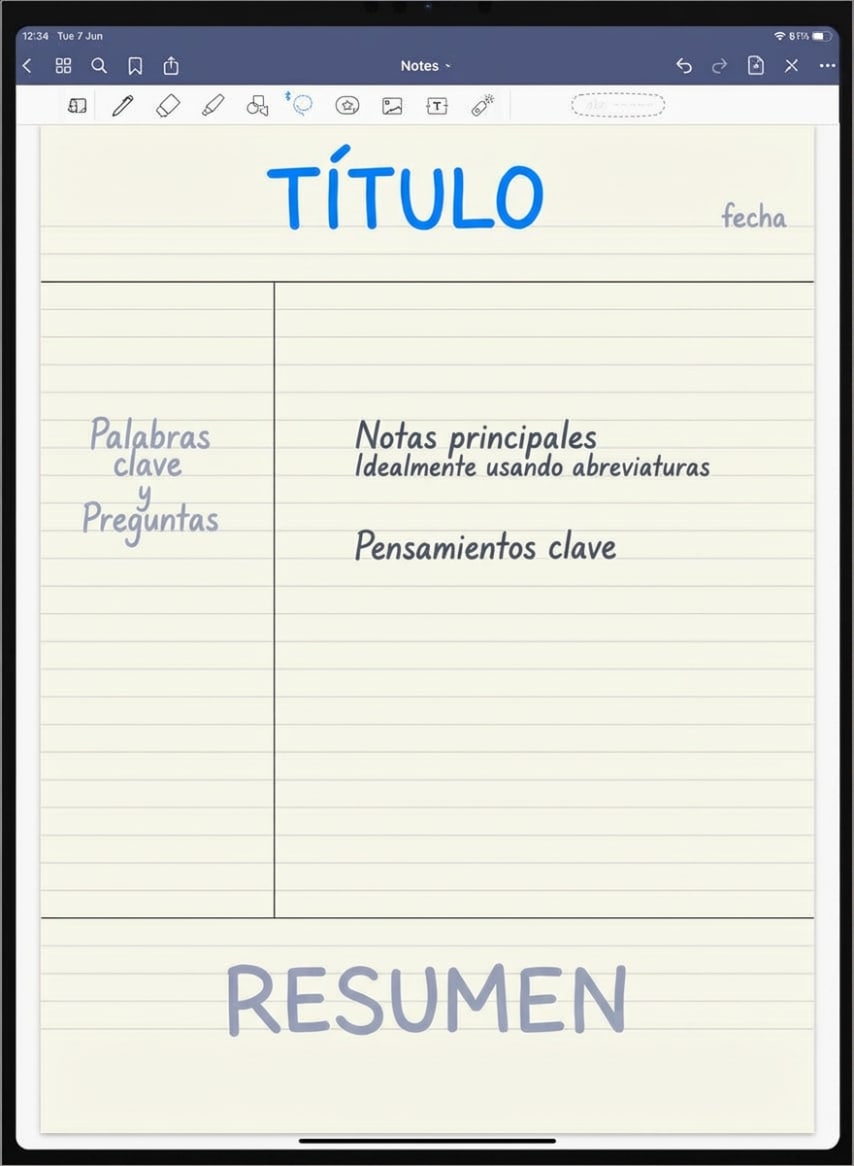
Cornell Pages: These pages are tailored for lectures, enabling an efficient system of note-taking with sections for cues, notes, and summaries in the GoodNotes notebook.
Graph and Isometric Grids: They are designed especially for STEM fields, useful for 3D drawing, engineering sketches, or architectural layouts.
Music Staff Paper: Music Staff Paper caters to music students and composers, providing clean staves for notation.
Calligraphy Paper: It supports arts and crafts with spaced guidelines to practice lettering styles.
Part 5. Journal & Planner Templates (Make It Actionable)
To enhance your productivity and self-awareness, using the right GoodNotes templates can make a significant difference. These templates transform your digital notebooks into actionable tools that drive focus and personal growth.
Journal Templates
Journal templates are designed to help you continuously engage in self-reflection and habit monitoring. Mentioned below are some of the types of GoodNotes journaling templates that you can use:
Daily and Weekly Reflection: Structured pages prompting you to review your day or week, encouraging mindfulness about achievements.
Prompts: Guided questions and writing cues that inspire deeper thinking, creativity, and emotional processing.
Mood and Habit Tracking: Visual trackers that help you monitor mental health trends and daily habits, offering insights into patterns.
Planner Templates
Planner templates focus on actionable organization, enabling you to plan your schedule and goals effectively. Popular types of these GoodNotes templates include the following:
Daily, Weekly, and Monthly Layouts: These offer a macro-to-micro view of your calendar, balancing overview planning with detailed task management.
Agenda and Action Plans: Clearly define tasks with owners and due dates, ideal for team projects or personal accountability.
Goal and OKR Overviews: Templates tailored to setting and tracking measurable goals, keeping long-term objectives top of mind.
Tip: Pairing journals and planners with visual tags such as icons, stickers, and color codes elevates scanning and retrieval efficiency.
Part 6. Faster PDF Workflow (No Import Hassle): PDFelement
If you are looking for a solution to create and edit GoodNotes templates for free and save them in different file formats, PDFelement is the right choice. The mobile application of this comprehensive PDF management tool allows you to open planner templates instantly and add quick markups to them. Moreover, you can share the imported and edited template to different platforms in no time.
For readers who use PDF planners/notes or export from GoodNotes and want quicker markup & sharing, PDFelement is the right choice. Additionally, the tool allows users to add built-in elements like shapes, stickers, and more to make the planner look cute and productive.
G2 Rating: 4.5/5 |100% Secure
Step-by-Step Guide to Import and Edit GoodNotes Templates using PDFelement
Having learned about this comprehensive solution in detail, let us have a look at the steps for importing templates for further enhancements:
Step 1Open the Template in PDFelement
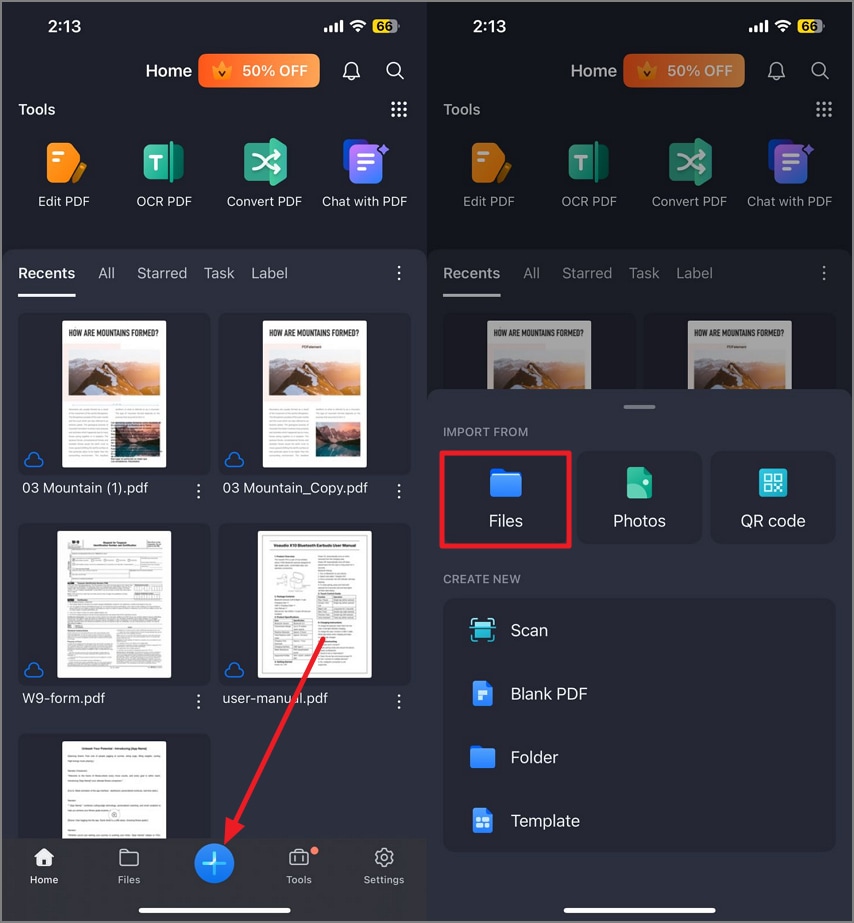
Once you have launched PDFelement on your phone, head to its homepage and tap on the "+" icon located at the bottom of the homepage. Next, tap on the "Files" option to import the PDF template to the app's interface.
Step 2Insert Stickers for Tasks
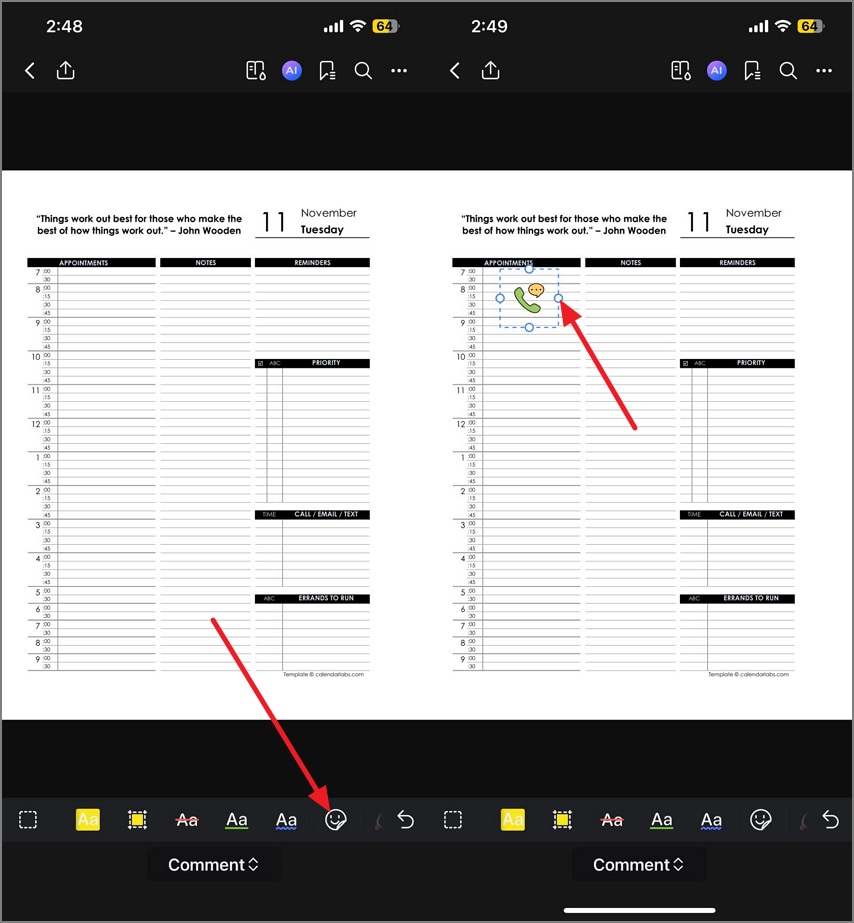
Now, access the "Comments" feature and tap on the "Stickers" icon located at the toolbar at the bottom. Now, choose the sticker of your choice and tap on the page where you want to add it. Adjust it according to your preferences on the page.
Step 3Add Notes to Emphasize
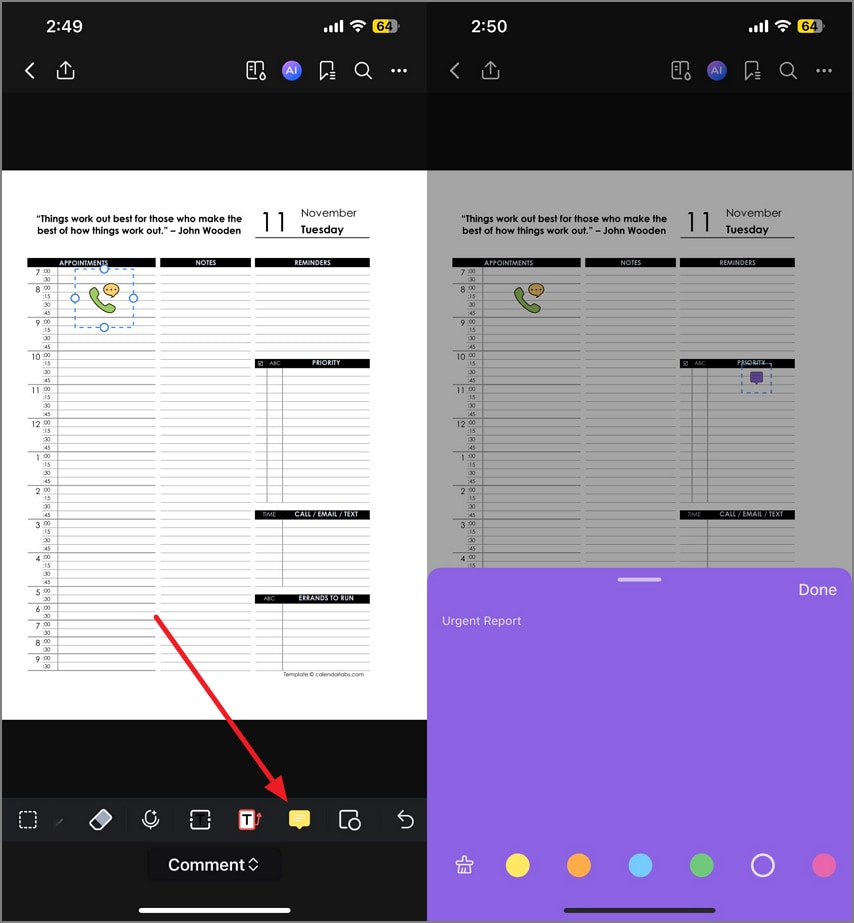
Using the same "Comments" feature, access the "Notes" icon and add notes on the page by tapping. Add text to the note and change the appearance by choosing the respective option.
Step 4Apply Markups to Templates
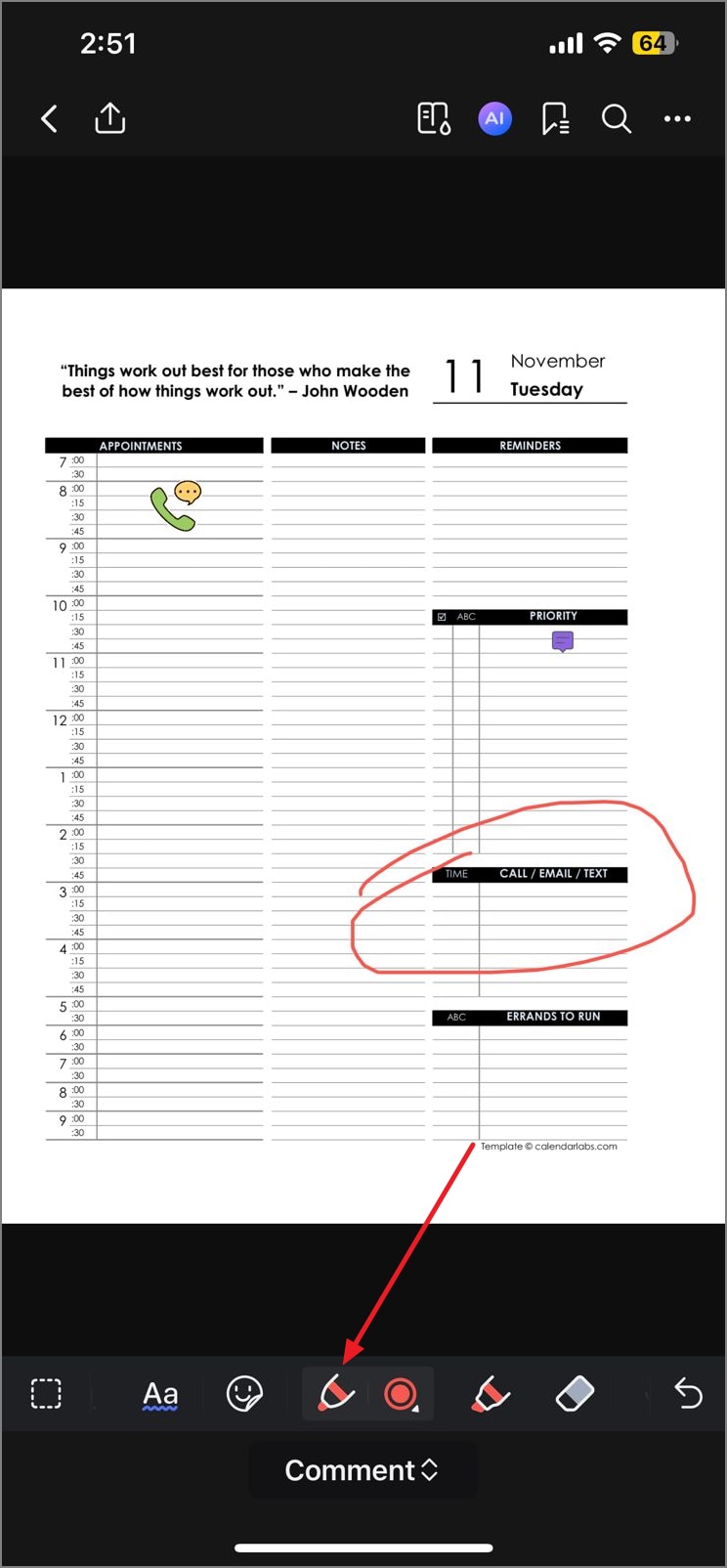
Now select any markup tool, such as a marker or a pointer, from the toolbar. Draw over the page and make changes accordingly.
Step 5Export/Share your Spread
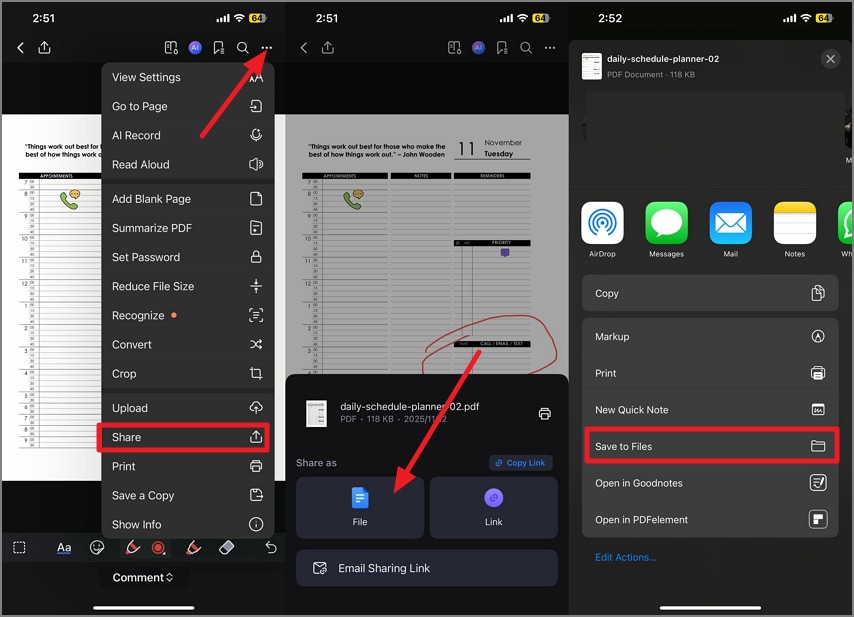
Once the template is successfully edited, go to the top-right corner and tap on the "Three Dots" icon. Choose the "Share" option and tap on "Files." Choose the platform on which you want to share the file, or simply press the "Save to Files" option to successfully export the edited template to your phone.
G2 Rating: 4.5/5 |100% Secure
Part 7. Aesthetic Systems That Improve Focus
If you want to enhance the aesthetics of your GoodNotes paper templates, you must focus on a few aspects to improve the overall visuals. Mentioned below are some of the aspects that you need to take into account to make your notes look visually appealing:
Color Systems
To create visually appealing and focus-enhancing GoodNotes templates, color systems tailored to different life areas are key. By carefully selecting colors aligned with psychological effects and organizational needs, planners become efficient tools for sustained attention and motivation. Below are detailed discussions of work, school, and personal color systems specifically curated for digital planners:
Work: The "Productivity Power Palette" for work planners in GoodNotes uses cool blues for focus, calming greens for ongoing projects, and vibrant reds to mark urgent deadlines. This balanced palette not only organizes tasks by priority and type but also helps reduce visual stress.
School: The "Academic Clarity Code" applies vibrant yet soothing colors to differentiate study activities. The "Academic Clarity Code" applies vibrant yet soothing colors to differentiate study activities.
Personal: The "Balanced Life Spectrum" system embraces soft, harmonious colors to support well-being and personal organization. This calming palette reduces overstimulation in digital planners, helping users visually separate and prioritize different facets of personal life.
Choose Visual Style Carefully
While crafting a journal, planner, or any note, choosing between minimal, pastel, and vintage styles greatly influences the overall effectiveness. Along with this, you must also maintain consistent typography and margins to ensure readability and cohesion while using GoodNotes' free templates.
Minimal Style: Minimal style uses clean lines, ample white space, and a restrained color palette, which minimizes distractions and promotes calm concentration. Its simplicity allows the content to stand out clearly.
Pastel Style: Pastel style incorporates soft, muted colors, offering a gentle and soothing aesthetic. This style reduces eye strain and evokes calmness, which can improve mental clarity over prolonged use.
Vintage Style: Vintage style leverages warm, nostalgic tones and subtle textures. This style can inspire creativity and focus through its unique personality, though it requires careful design to maintain clarity.
Visual Taxonomies with Stickers
Visual taxonomies using stickers or icons in GoodNotes journal templates help systematize task management with clarity and quick recognition.
Priority 1/2/3: Use distinct color-coded or numbered stickers (e.g., red for P1, orange for P2, yellow for P3) to immediately signal task urgency and importance.
Waiting: A sticker indicating tasks awaiting input or completion from others; often a clock or hourglass icon.
Blocked: A clear icon, like a stop sign or barrier, to show tasks currently hindered by external factors.
Action: Symbolizes tasks requiring immediate effort; a checkmark or running figure works well.
Decision: Represented by a question mark or branching arrows, this highlights tasks awaiting a choice.
Owner: A person icon or initials sticker identifies task responsibility.
Due: A calendar or clock sticker marks deadlines for clear time awareness.
Exam/Review: A book or magnifying glass icon denotes preparation or review tasks.
Part 8. DIY Template Creation With PDFelement
If you want to create your own GoodNotes template instantly, using PDFelement is the right choice. Here is how you can create your own template using this application:
Step 1Start By Creating a Blank Page
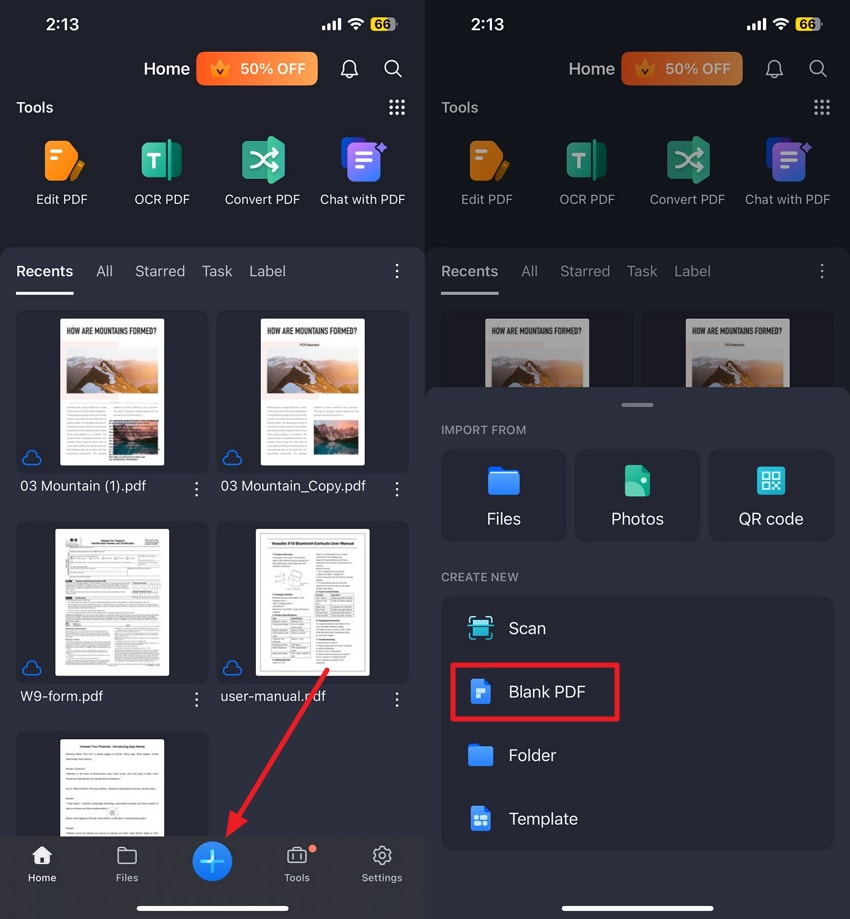
After launching the app, head to the bottom of the homepage and tap on the "+" icon. Next, choose the "Blank PDF" option to create a blank page.
Step 2Select Page Size and Other Attributes
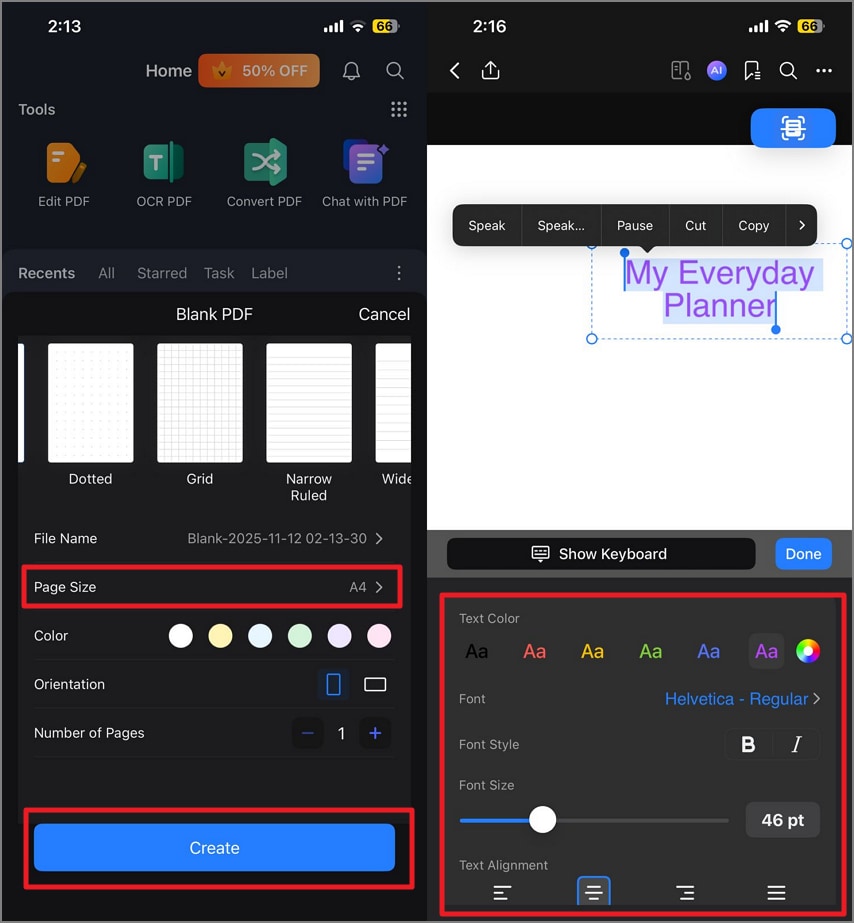
In the following interface, choose "Page Size" as A4 and make other configurations such as Color, Orientation, and Number of Pages. Once the selections are made, press the "Create" button to create. Now, access the "Edit" option and add text to your planner. Customize the text appearance according to your choice by choosing the options provided.
Step 3Add Margins to Page
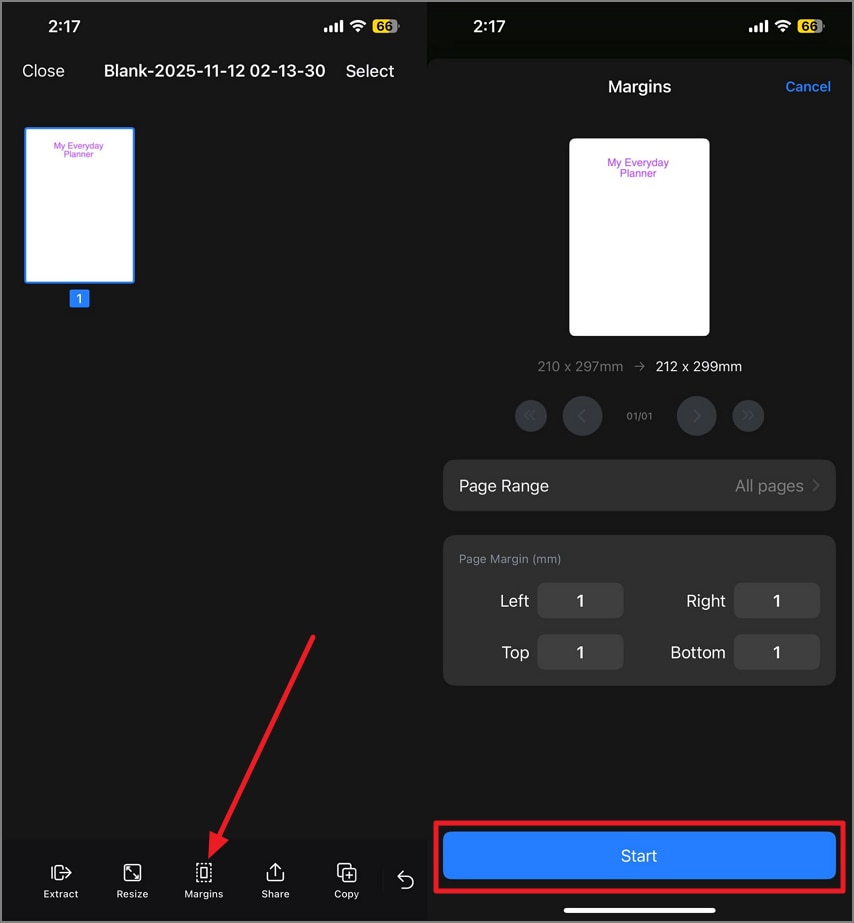
Next, access the "Margins" option and set up the margin to hit the "Start" button. Add elements to the planners, such as notes and stickers, to make the planner aesthetic.
Step 4Save as PDF
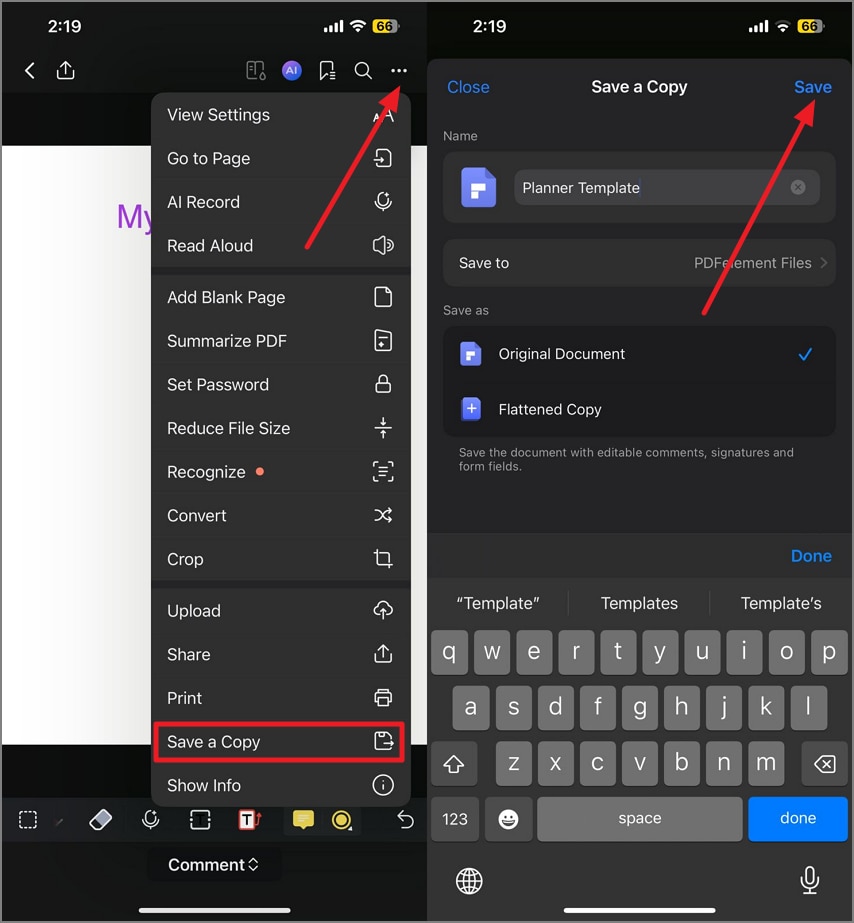
Once done, head to the top-right corner to tap on the "Three Dots" icon and choose to press the "Save a Copy" option. Now, name the template and hit the "Save" button to successfully save the template for future use.
Part 9. Troubleshooting Issues While Using GoodNotes Templates
As you have learned all the details about GoodNotes templates free, here are some key troubleshooting tips to keep your experience smooth and productive:
Blurry or Mis-sized Pages: Always export your templates at 300 DPI to ensure crisp visuals. Additionally, confirm the page size matches your GoodNotes notebook dimensions to avoid distortion or misalignment.
Heavy Files: Large PDFs or PNGs with oversized background images can slow down the app. Compress these files before import to improve performance and reduce lag.
Hard to Find Templates: Maintain a consistent naming system for your templates and use GoodNotes' Elements collections to categorize templates by type, making them easier to locate quickly.
App Crashes or Lag: If GoodNotes crashes or slows down, close unused documents and disable "Auto Backup" for PDF formats temporarily. Also, ensure your app and OS are updated to the latest versions.
People Also Ask
-
Where can I get free GoodNotes templates (PDF/PNG)?
You can find free GoodNotes templates on sites like Reddit, GoodNotes subreddit, onplanners.com, and various blogs dedicated to digital planning. These platforms offer a variety of stylish, functional templates, including planners, journals, and note pages in PDF and PNG formats. -
What's the easiest way to set up a GoodNotes notebook with multiple paper types?
Import a multi-paper PDF that includes all your desired paper styles (ruled, dot, grid, etc.) into GoodNotes. You can then create separate sections or notebooks, easily switching between paper types. -
How do I use a GoodNotes journal template effectively?
Use journal templates daily or weekly for reflection, habit tracking, and mood logging to build consistency. Customize text and notes to fit your goals, and leverage GoodNotes' digital tools. -
What's the difference between GoodNotes paper templates (dot/grid/ruled/blank/Cornell)?
Ruled paper is best for linear note-taking, dot paper offers flexible guidance for bullet journaling, and grid paper supports precise diagrams and math. The blank paper is for sketches, and Cornell notes divide the page to improve lecture note organization. -
Can I annotate PDF templates without importing PNGs?
Yes, you can use PDFelement to directly open PDF templates and annotate them with markup, notes, and stickers without the need to import PNG files. -
Are these templates printable?
Most GoodNotes templates in PDF format can be printed directly if you prefer physical copies. However, some digital planners are optimized for screen use and may not print perfectly, so check the template's details before printing.
Conclusion
To wrap it up, this article provided a complete guide on everything you need to know about GoodNotes templates. It suggested how you can grab the free GoodNotes Template Starter Pack (ZIP) and import it just once into your app. From there, you can effortlessly reuse your favorite pages and layouts anytime using GoodNotes' Elements tool.
For fast PDF planning and annotation, open your templates in PDFelement, layer on Markup, Notes, and Stickers, then export or print as needed. This combined workflow balances flexibility with speed, boosting your digital planning efficiency.

