

When you open your iPad on a busy morning, meetings, errands, and goals are scattered across your mind. With a few taps, colorful GoodNotes stickers bring order to the clutter. You can add a priority tag to mark urgent tasks and a deadline sticker to keep yourself on track. These aren't just decorations, they're visual anchors for focus and motivation.
In digital planning, GoodNotes stickers turn plain notes into engaging, organized, and goal-driven spaces. This article explores the top GoodNotes sticker packs and how they can be used.
In this article
- GoodNotes Stickers Explained: Definition, Free Pack, and Setup
- Free GoodNotes Sticker Packs (Download Now)
- How to Import & Organize Stickers in GoodNotes (Step-by-Step)
- Built-In Stickers (No Imports): The PDF Workflow with PDFelement
- Make Your Own Sticker Pack (Fast DIY)
- Troubleshooting & Best Practices
Part 1. GoodNotes Stickers Explained: Definition, Free Pack, and Setup
Before diving into design or productivity, it helps to understand what free GoodNotes stickers actually are and how they work. Below is a quick breakdown, from their core definition to practical workflows and a free starter pack to begin experimenting.
Definition and Purpose: GoodNotes stickers are PNG images with transparent backgrounds, often pre-cropped or arranged on themed sticker sheets. They add visual structure, motivation, and creativity to planner pages, making note-taking more engaging and organized.
Free Starter Pack: Download a ZIP file featuring six versatile styles, like study, minimal, pastel, meeting, icons, and labels. Such packs are perfect for both personal and professional planning.
Workflow in GoodNotes: Import PNG stickers into your library and organize them within Elements or Collections for quick access during note-taking or journaling.
Workflow in PDFelement: Open any PDF note or planner and use the built-in Stickers, Notes, and Markup tools, skipping manual imports for a faster, more integrated experience.


 G2 Rating: 4.5/5 |
 100% Secure
Part 2. Free GoodNotes Sticker Packs (Download Now)
From minimal neutrals to pastel icons, stickers for GoodNotes add clarity and personality to any digital planner. Each pack below highlights its unique style and contents to organize, decorate, or motivate your daily pages:
Minimal Neutrals: Labels & Tabs
- Style: Beige or gray, minimal aesthetic
- Contents: Tabs, section headers, neutral tags, weekly labels
- File type: PNG and GoodNotes Elements
- Best for: Planner organization / Clean aesthetic layouts
Pastel Study Icons: Subjects & Revision
- Style: Soft pastel flat icons
- Contents: Math, science, reading, exam icons, study reminders
- File type: PNG sheet and Elements
- Best for: Students or Study planning
Meeting & Project Set: Action/Owner/Due
- Style: Corporate flat icons
- Contents: Action labels, decision flags, due-date tags, risk markers
- File type: PNG and PDF sheet
- Best for: Work or Project management
Productivity Dots & Flags: Priority 1/2/3
- Style: Color-coded circles and banners
- Contents: Priority dots, task flags, "Urgent, Later, and Done" tags
- File type: PNG and Elements
- Best for: Task lists or Productivity tracking
Aesthetic Paper Scraps & Washi
- Style: Torn paper and tape collage
- Contents: Paper textures, washi strips, memo corners
- File type: PNG sheet
- Best for: Journaling or Creative spreads
Habit & Health Trackers
- Style: Minimal charts and icons
- Contents: Water tracker, steps, sleep, habit grid stickers
- File type: GoodNotes Elements and PNG
- Best for: Wellness and Daily tracking
Finance & Budget Tags
- Style: Ledger-inspired icons
- Contents: Expense, income, bills, savings, due-date tags
- File type: PNG and PDF sheet
- Best for: Budget planners and Finance logs
"OK, Noted" Acknowledgements
- Style: Handwritten stamps
- Contents: "Noted," "Done," "Pending," "Approved," "Important" badges
- File type: PNG and Elements
- Best for: Annotating notes or Meeting minutes
Seasonal & Holiday Mini Set
- Style: Cozy illustrated stickers
- Contents: Winter, autumn, holiday décor, small icons
- File type: PNG sheet
- Best for: Seasonal planners or Bullet journals
Monochrome Outline Icons
- Style: Line-based minimalist
- Contents: General productivity icons: mail, phone, coffee, calendar
- File type: GoodNotes Elements and PNG
- Best for: Modern planners or Monotone themes
Part 3. How to Import & Organize Stickers in GoodNotes (Step-by-Step)
Stickers GoodNotes let you add decorative or functional elements to your notes and planners, making them visually appealing and organized. They can be dragged, resized, and layered, allowing for creative customization and enhanced usability. This section provides instructions on multiple ways to use these stickers:
Method A — Drag-and-Drop PNGs
The simplest way to incorporate a sticker into a GoodNotes page is by using the drag-and-drop functionality. The following steps explain how this can be done on an iPad:
Step 1
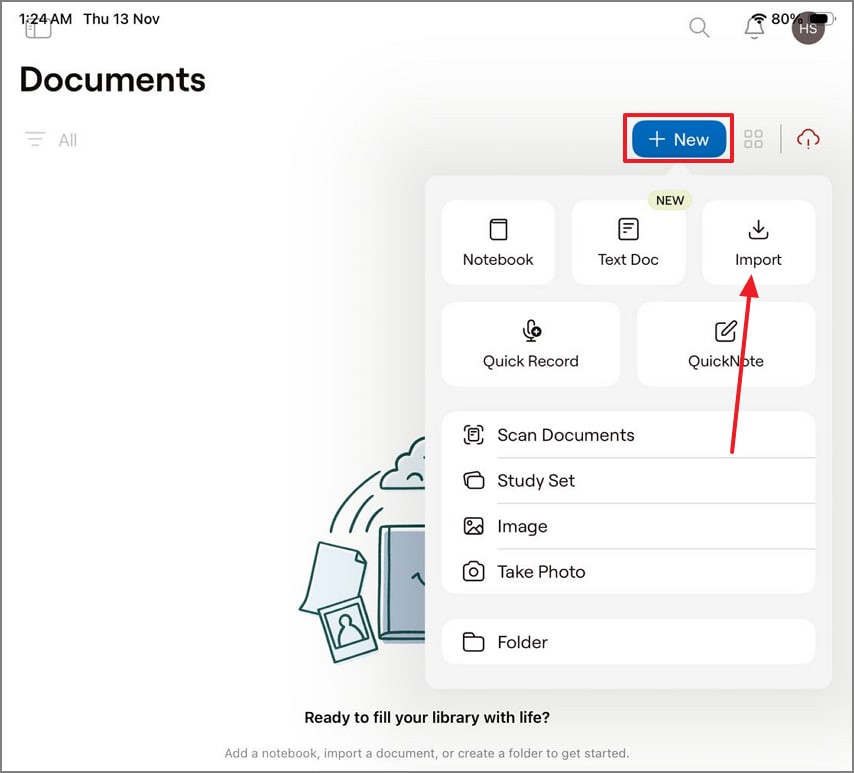
First, tap the "New" button on the main interface and select the "Import" option to fetch the PDF planner.
Step 2
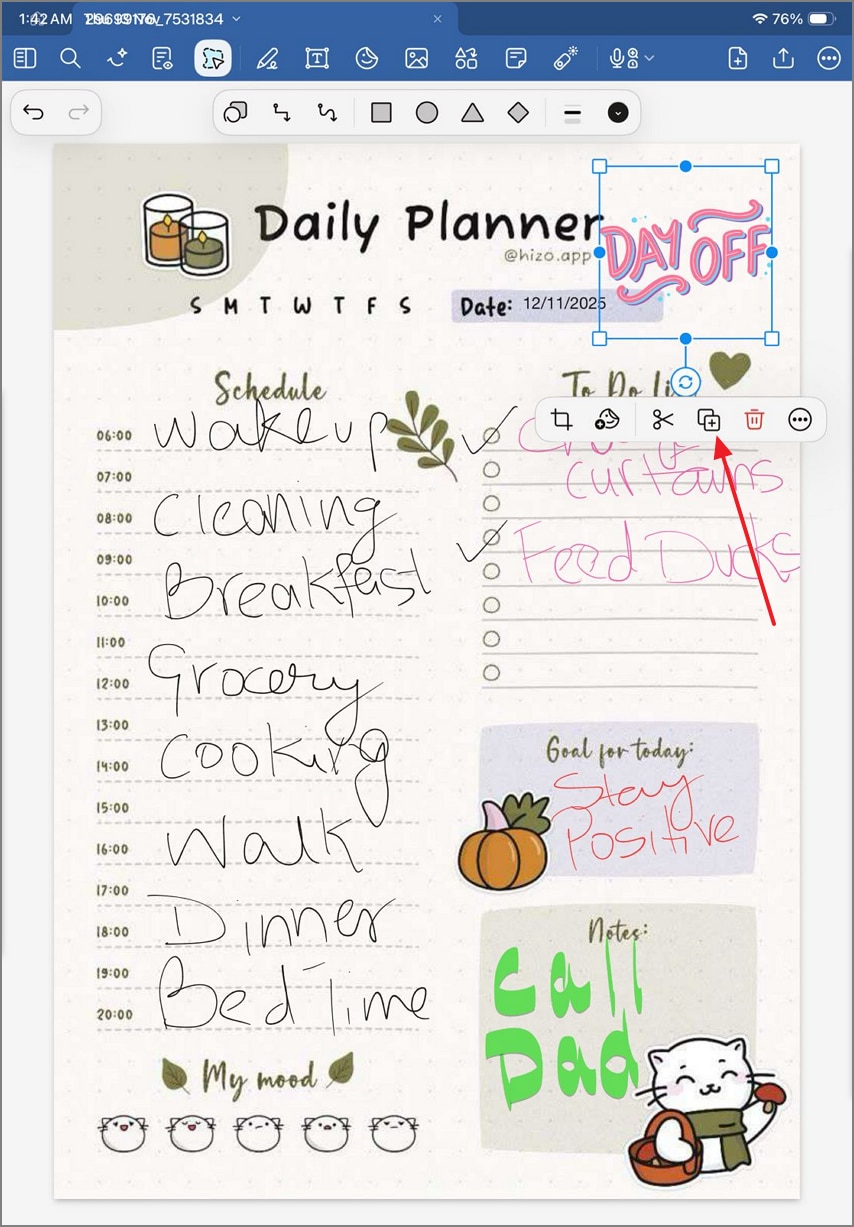
Access your "Files" app from the Dock and drop the desired sticker in the planner. Using the pop-up menu above the sticker, select the "Duplicate" icon to create copies of it.
Method B — Use GoodNotes Elements
Once the stickers for GoodNotes are pasted, they can be added to Elements, which is a collection of stickers. Using the Lasso tool, users can make cutouts of stickers in GoodNotes. The following section explains how this process can be executed:
Step 1
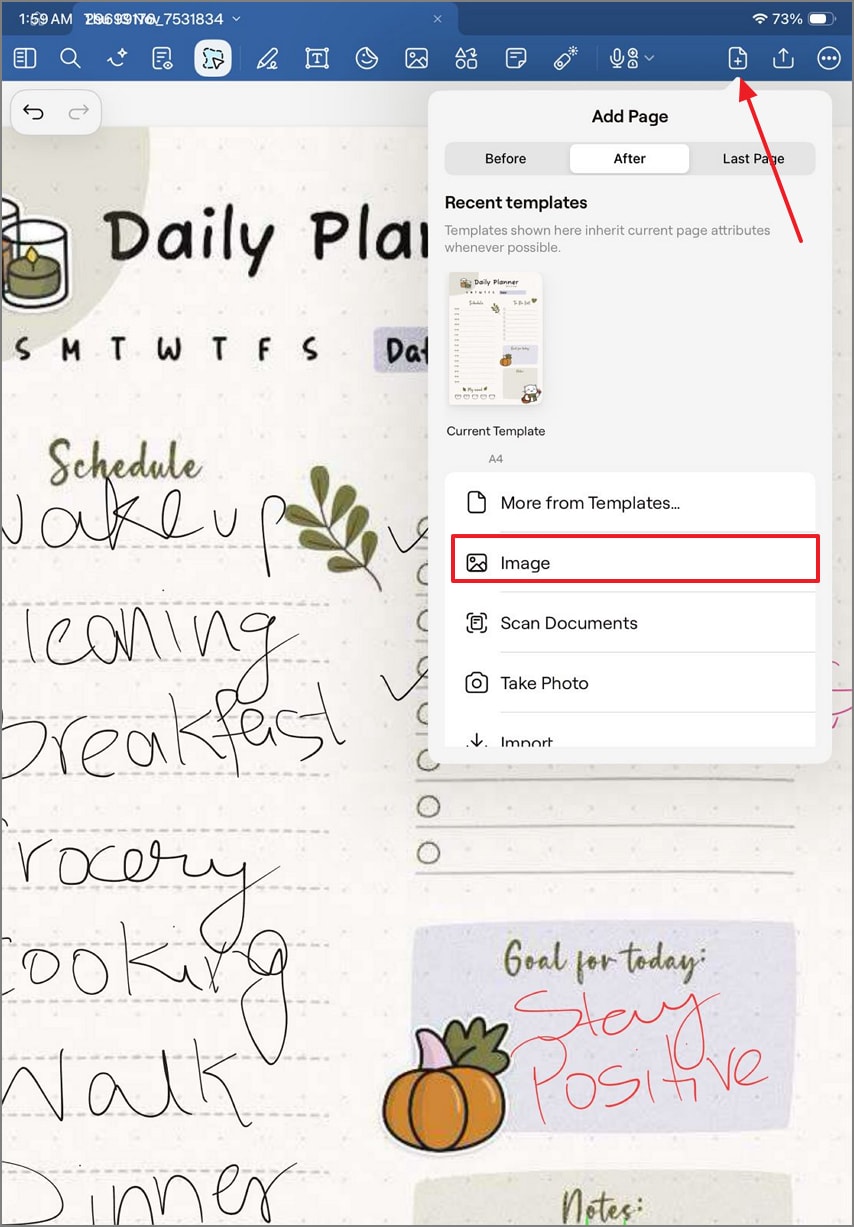
Using the top right of the screen, tap the "Add Page" icon and select the "Image" option from the menu. Now, select a sheet of PNG stickers and find your desired shape from it.
Step 2
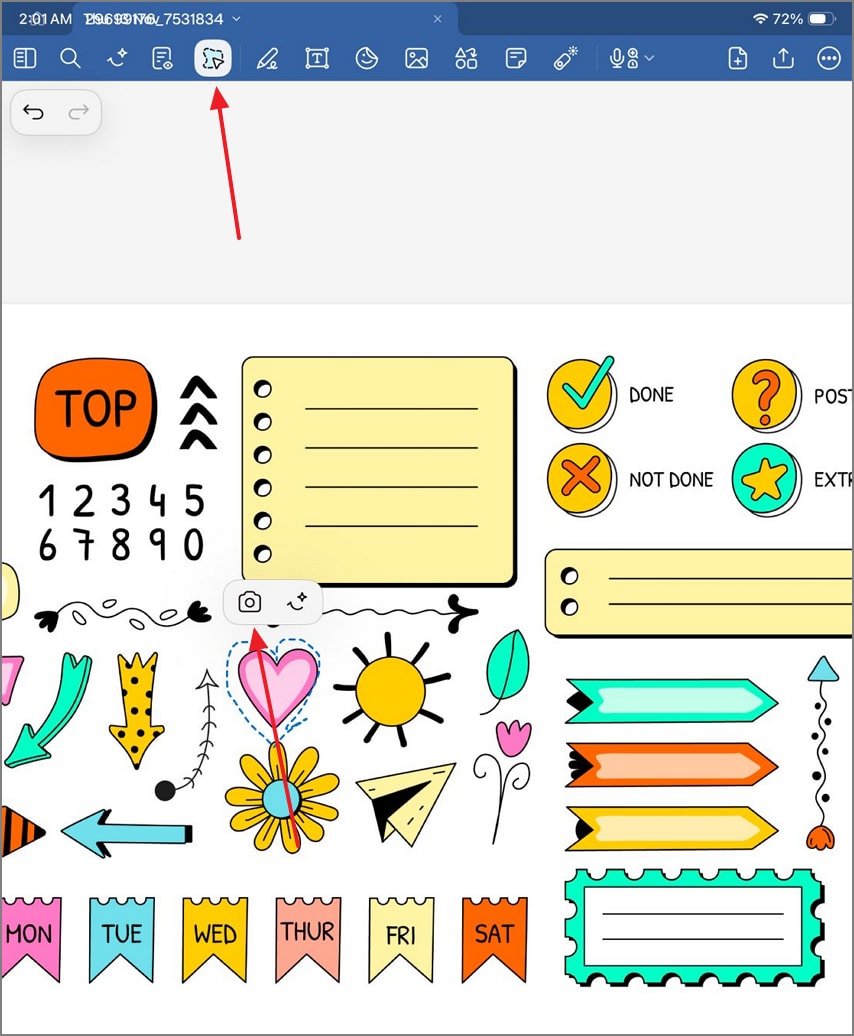
When the sheet appears on the screen, tap the "Lasso" tool and make a cutout of your desired sticker. Tap the "Camera" icon and "Copy" the shape using the "Share" window.
Step 3
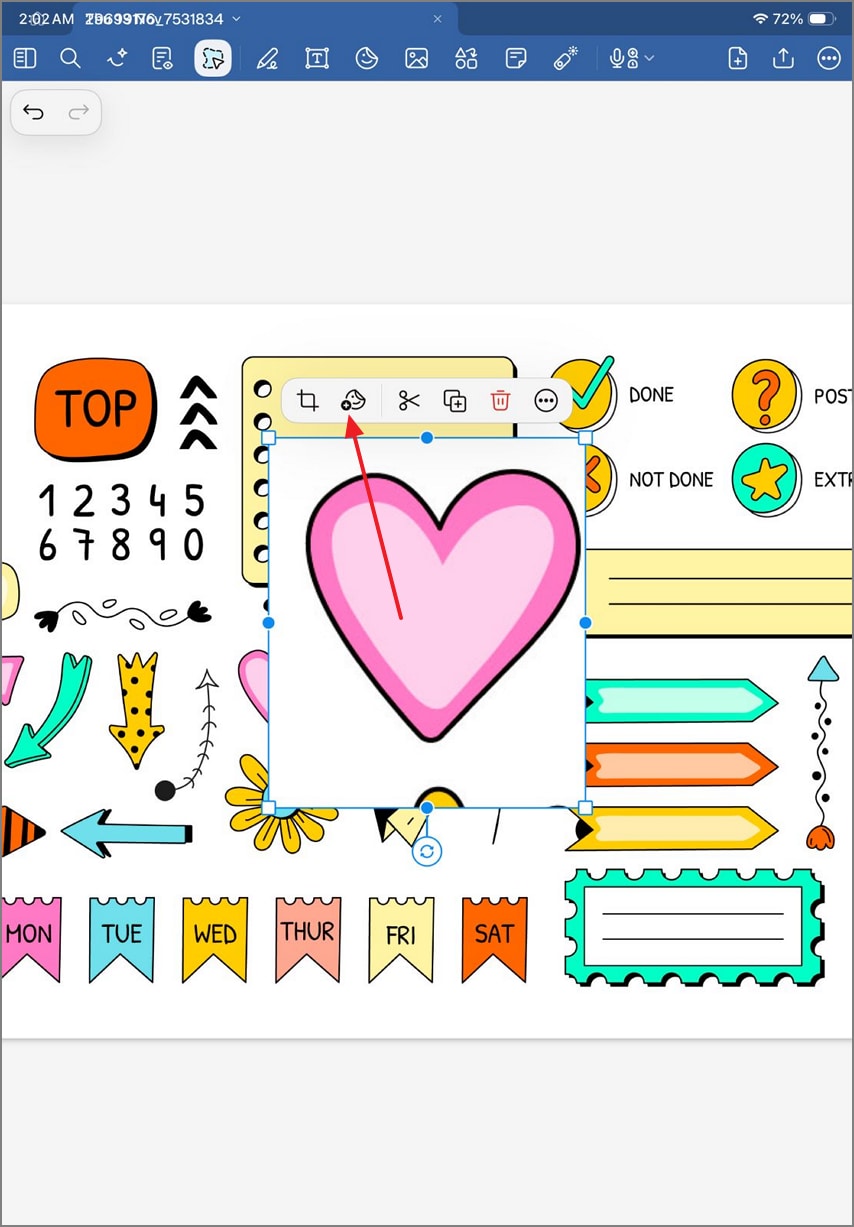
Head back to the main notes page and "Paste" the sticker. Now, tap the "Stickers" tab and wait for the next window to open.
Step 6
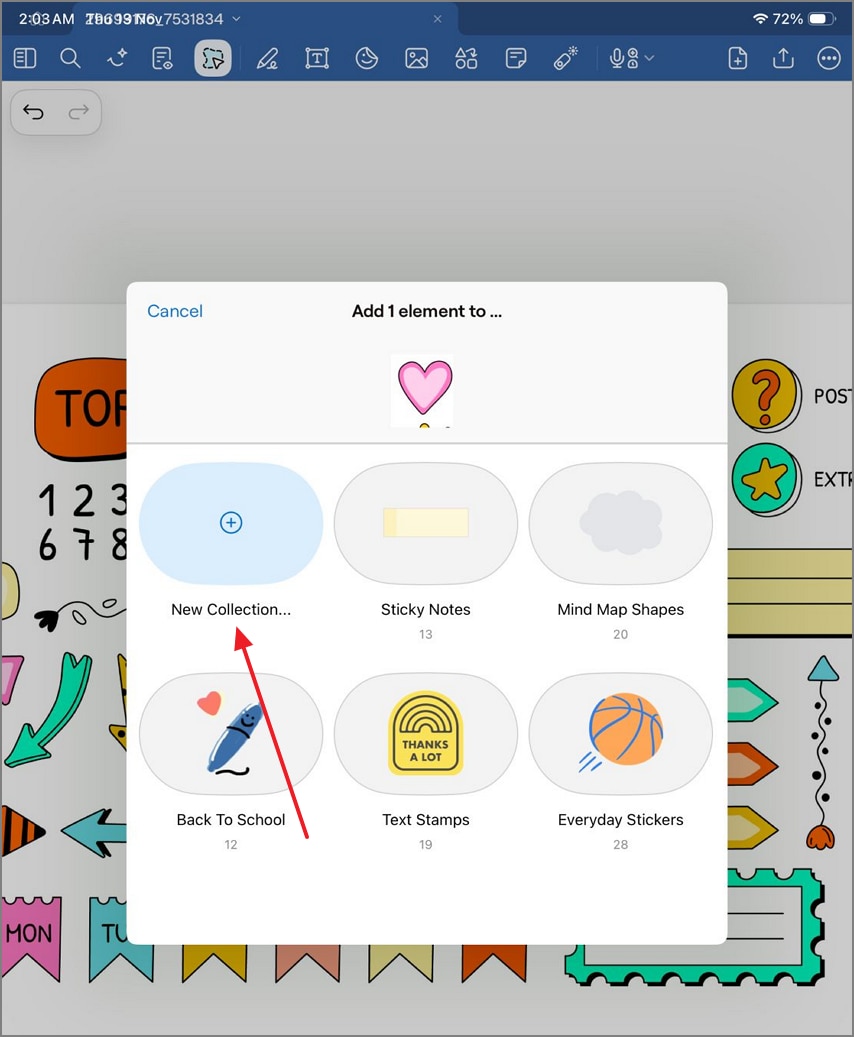
Using the following window, select the collection you want to add this shape to. You can also create another collection if needed.
Method C — From a Sticker Sheet (PDF/PNG)
If you like all the stickers GoodNotes free in a PNG sheet, you can make them your own. The saved collections can be used anytime you want. Follow the steps below to learn how to extract shapes from a sticker sheet:
Step 1
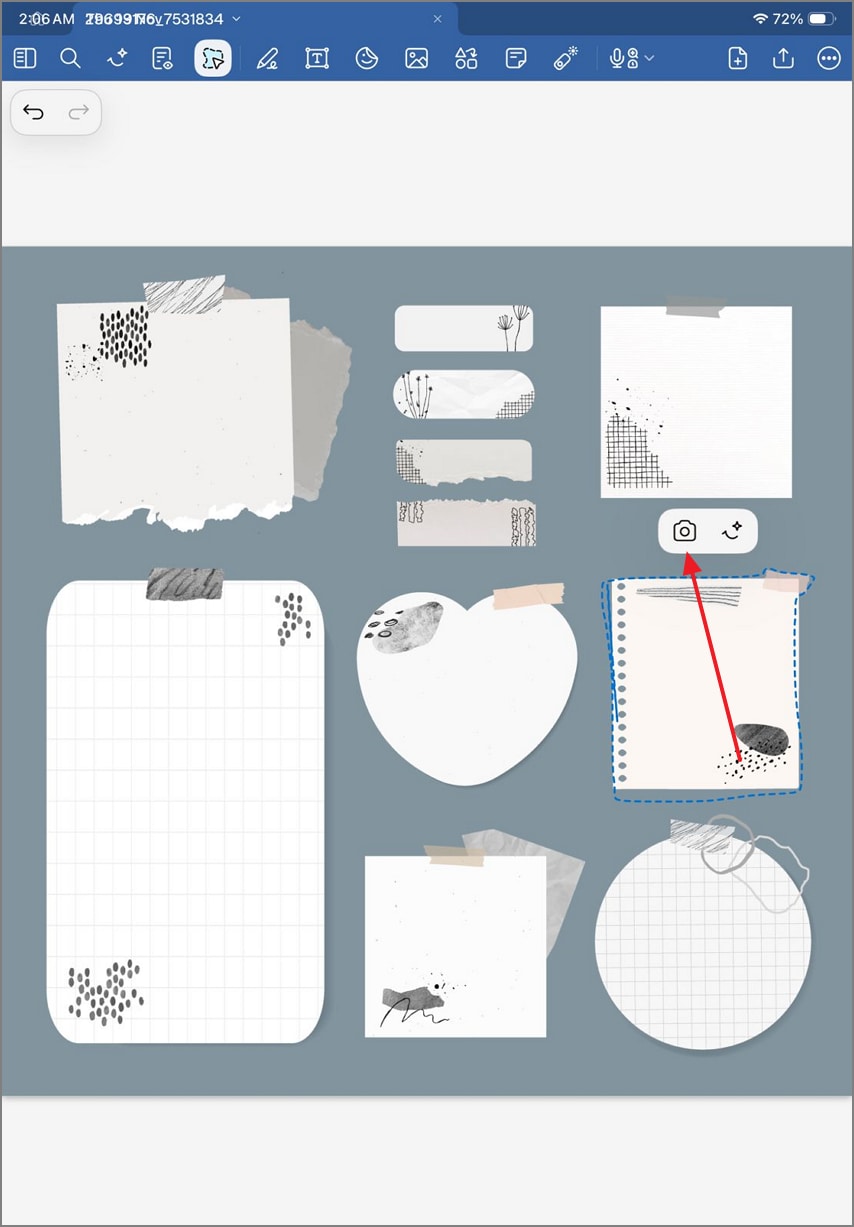
First, open a sheet of stickers on the app and use the Lasso tool to make multiple cutouts. After each cutout, select the "Camera" icon to save the sticker.
Step 2
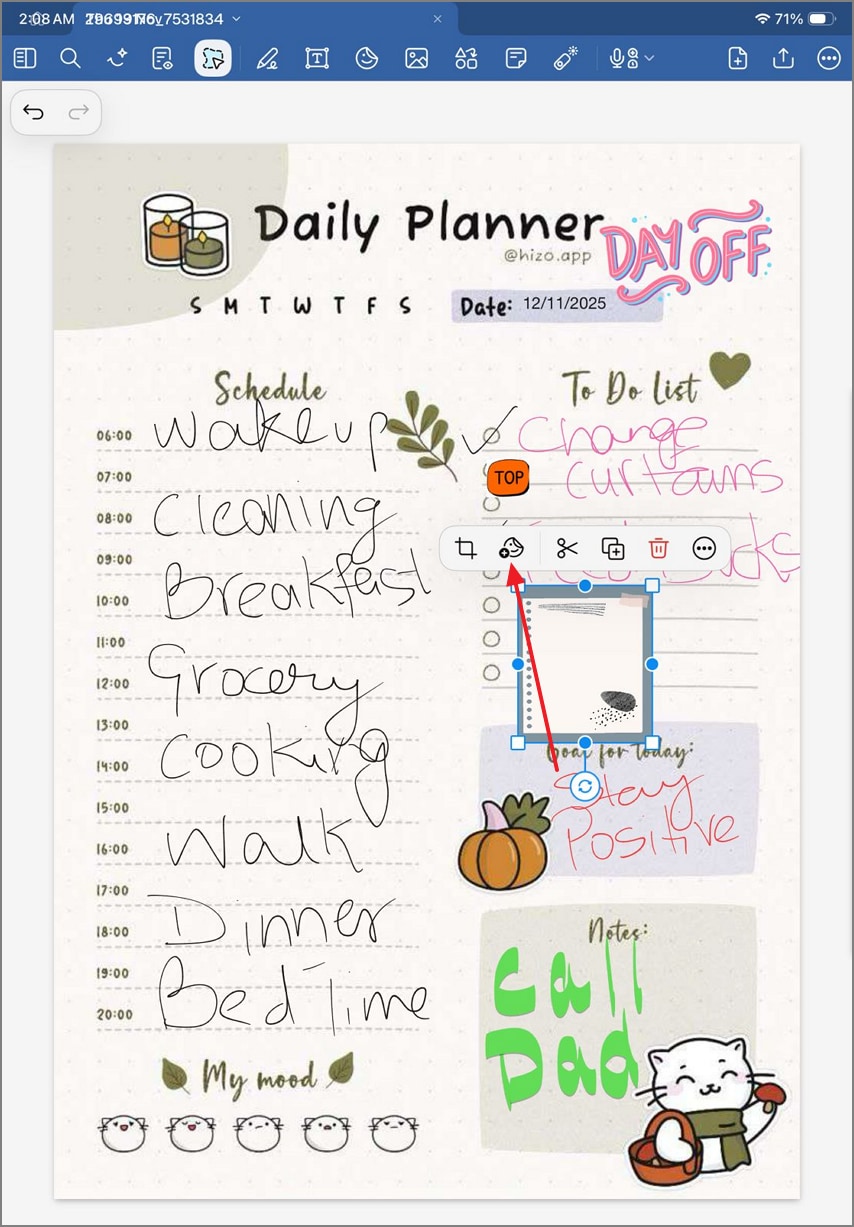
After pasting the sticker to the page, select the "Sticker" tab and add the shapes to the desired collection.
Once you've built your sticker collection, using them strategically can make your digital planner both efficient and visually cohesive. Follow these expert tips to organize, personalize, and reuse your stickers seamlessly:
- Consistent Naming: Use clear, short names for sticker files or collections so you can instantly locate icons or themes during planning sessions.
- Small Collections per Theme: Keep free stickers for GoodNotes grouped by theme, such as study, work, or personal, to prevent clutter and maintain planning focus.
- Color Systems: Assign specific color palettes to categories like work, school, and personal life for quick visual recognition and improved organization.
- Reusable Page Templates: Create weekly or monthly planner templates preloaded with your most-used stickers, saving time while keeping your layouts consistently styled.
Part 4. Built-In Stickers (No Imports): The PDF Workflow with PDFelement
Planner users often spend time importing PNG sticker sheets or resizing icons manually. PDFelement eliminates that by offering a built-in sticker and markup workflow. These traits make it fast, organized, and perfect for PDF-based planning or note review.
G2 Rating: 4.5/5 |100% Secure
Who It's For
- Designed for readers who want speed and simplicity in annotating PDFs.
- Ideal for those who prefer an all-in-one interface instead of managing external sticker files or folders.
What You Get
- Stickers: GoodNotes free stickers provide action, to-do, deadline, exam, and important markers for task tracking.
- Notes: You can add task details, owners, and due dates beside key points.
- Markup Tools: These resources let you highlight, underline, draw, or box text for emphasis. All of these can be built directly into the PDF editor.
Why It's Fast
- Using PDFelement, you just need to open any PDF planner without importing external assets.
- Users can insert stickers, notes, and highlights, and export the finished PDF.
- No cropping, image placement, or resizing is required, as everything is handled natively in PDFelement.
Best Use Cases
- PDF Planners: Mark deadlines and priorities without setup time.
- Lecture Slides: Annotate and color-code key concepts during review.
- Meeting Minutes: Add action items, owners, and decisions quickly.
- Reading Summaries: Highlight insights and tag key references effortlessly.
5-Step Quick Start (Copy-Ready)
If you want to learn how to add stickers GoodNotes to a PDF on PDFelement, follow this guide:
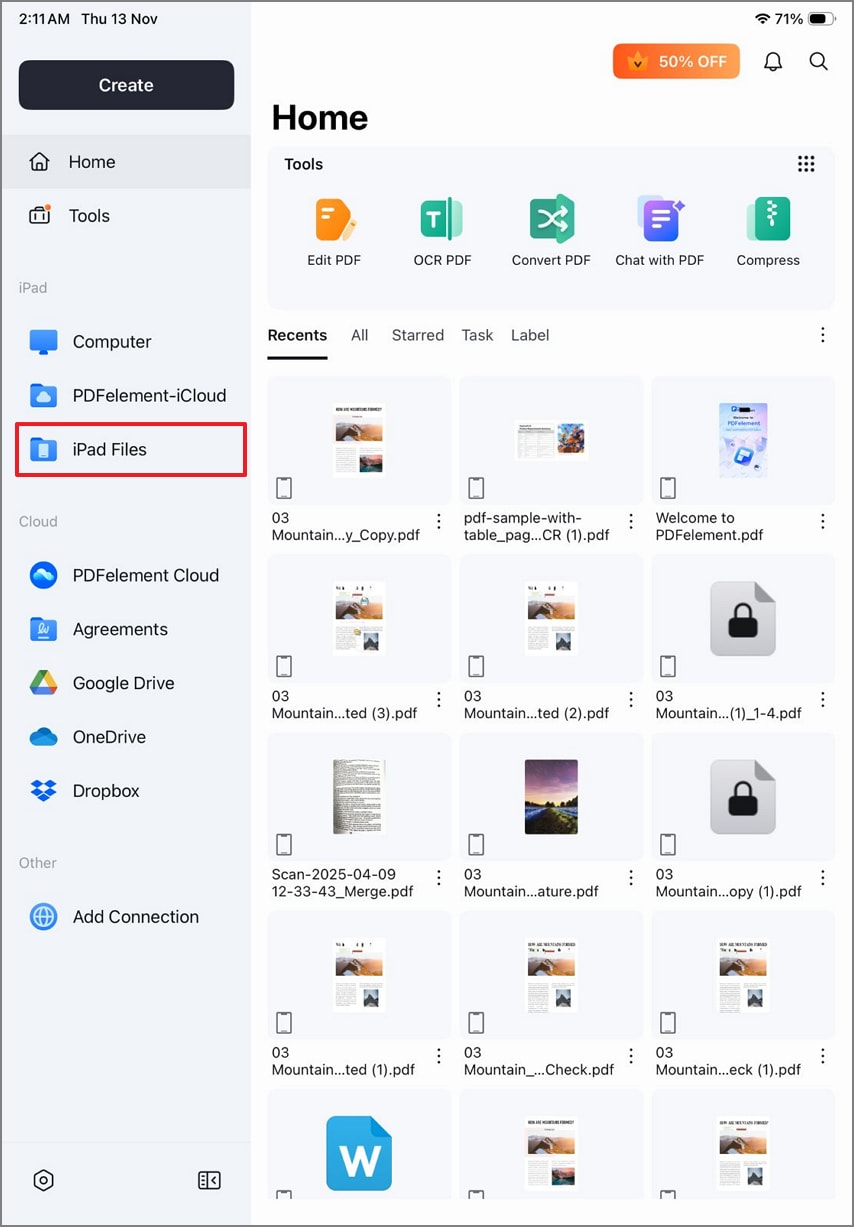
Step 1Import a PDF Planner
To begin with, tap the "iPad Files" option in the left panel to import a planner from the Files app.
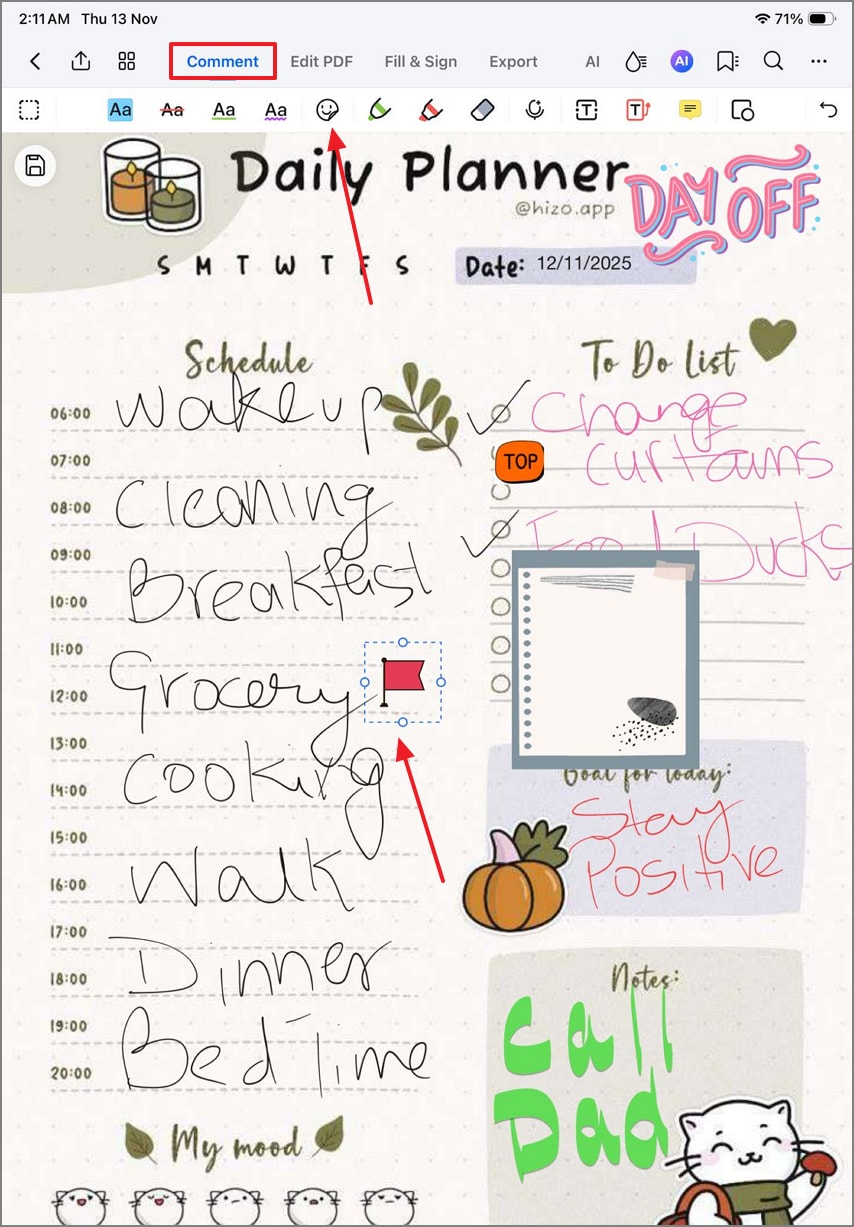
Step 2Add Stickers to the PDF
Using the "Comment" mode from the menu at the top, tap the "Stickers" tab. From the built-in collection, choose the desired asset and tap anywhere on the screen to add it. This sticker can be resized or repositioned as needed.
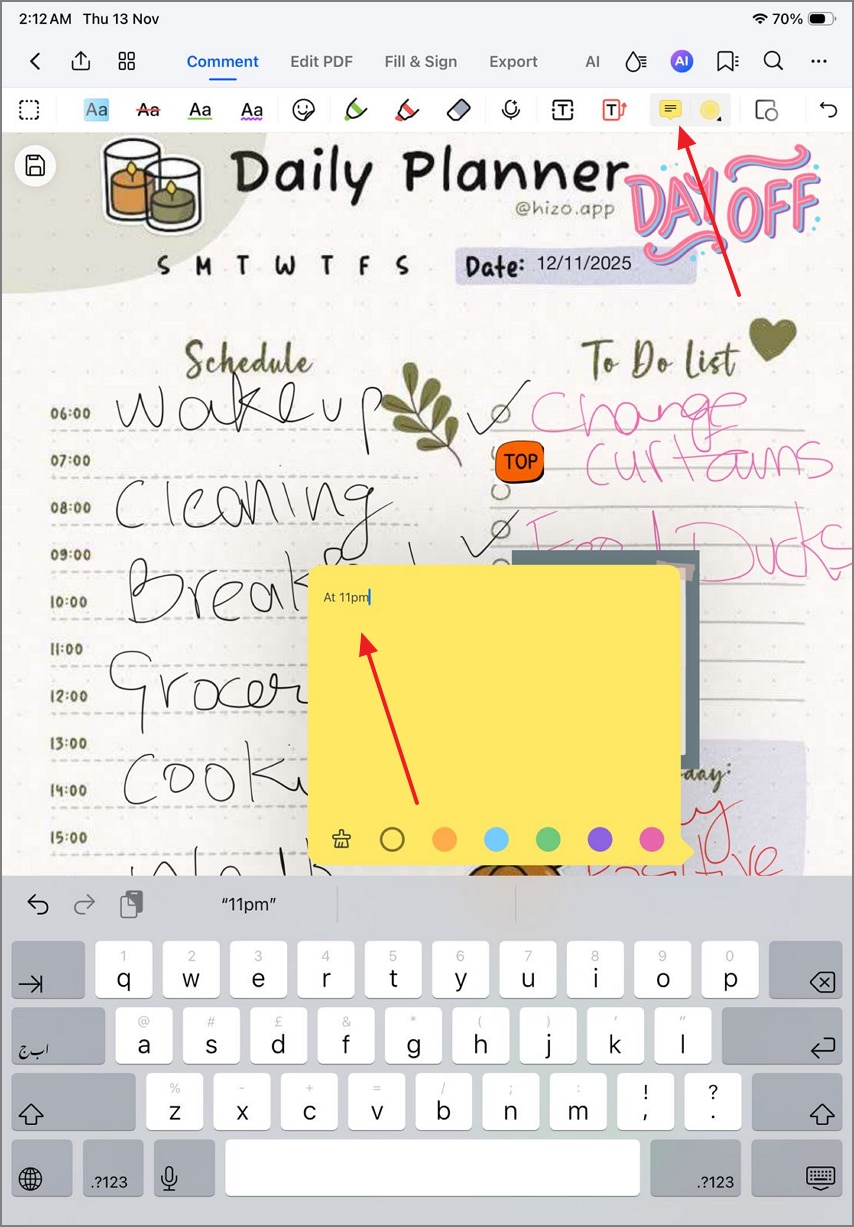
Step 3Attach Notes to Add Information
To elaborate on a point in the planner, stay in the "Comment" mode and select the "Notes" icon. Now, tap on the screen where you need the note. When the mini notepad appears from the bottom, choose the note's color and type the information.
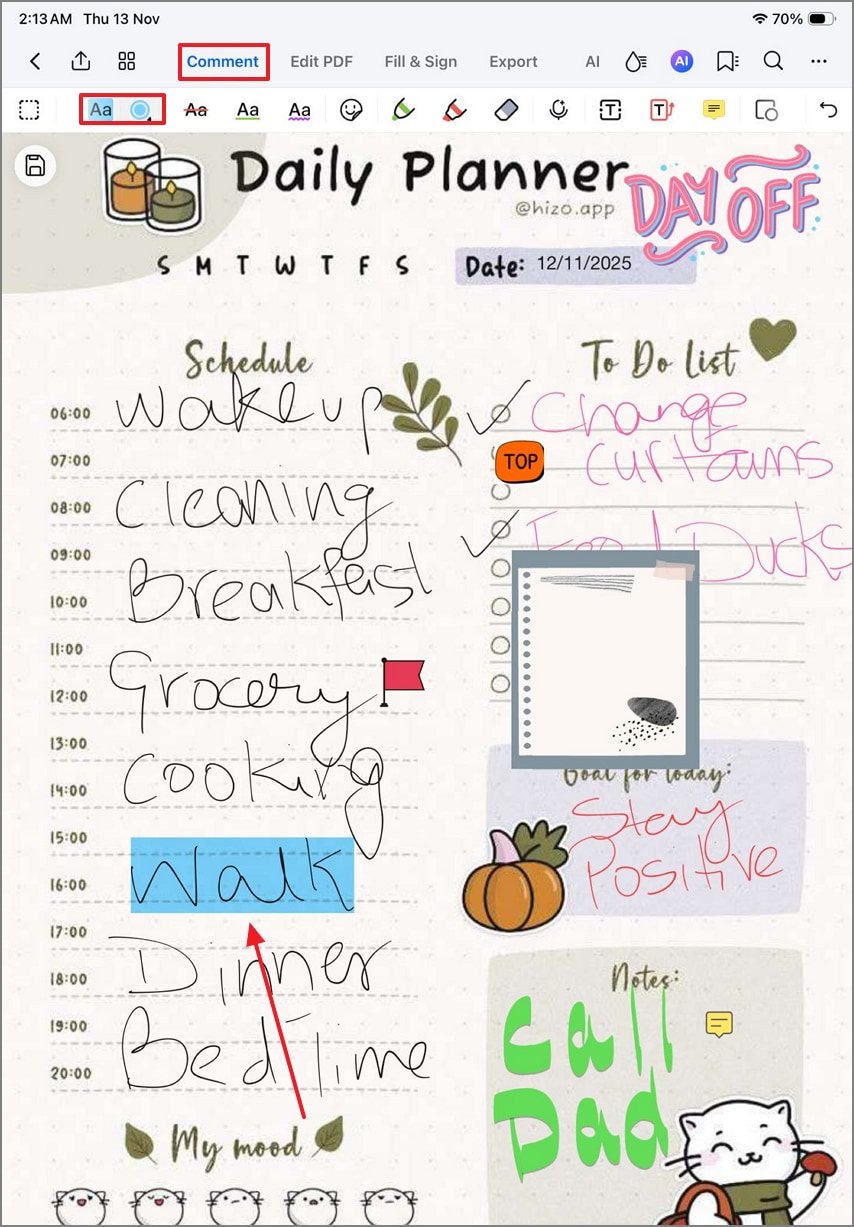
Step 4Use Highlight to Mark Critical Information
You can emphasize key points by selecting the "Text Highlight" option and picking the color you need. Now, use the Apple Pencil or your fingers to highlight the important text.
Part 5. Make Your Own Sticker Pack (Fast DIY)
Creating your own sticker pack is a quick way to add personality and consistency to your digital planner. Follow these simple steps to design, batch, and organize free digital stickers for GoodNotes efficiently.
- Design Format: Create stickers at 512–1024px resolution in PNG format with a transparent background for clean, crisp placement on planner pages.
- Consistent Padding: Maintain equal spacing or padding around each design so stickers look balanced when used across different layouts or page sizes.
- Batch Exporting: Export stickers in named sets to speed up organization and reuse later.
- Theme Folders: Store each sticker set in separate theme folders to simplify access and keep your planner clutter-free.
- In PDFelement: Combine all your PNGs into a sticker sheet PDF, perfect for printing or adding as a reusable page inside your digital planner.
Part 6. Troubleshooting & Best Practices
Even with the best GoodNotes sticker packs, issues can arise. Follow these tips to keep your digital planning smooth, organized, and visually consistent:
People Also Ask
-
Where can I get free GoodNotes stickers and freebie sticker packs?
You can find free GoodNotes sticker packs on sites like Etsy, Gumroad, and Pinterest, often offered as ZIP downloads. PDFelement also provides built-in stickers for instant use and application in notes and planners. -
What's the difference between PNG stickers and sticker sheets?
PNG stickers are individual images with transparent backgrounds, while sticker sheets group multiple designs on a single page for printing or quick selection. PDFelement offers sticker sheets rather than PNGs for easier handling. -
How do I import stickers into GoodNotes and save them as Elements?
Import PNGs via the Image tool, then tap and hold each sticker to add it to Elements, creating reusable collections for future notes. -
Can I use stickers in a PDF planner without importing PNGs?
Yes, in PDFelement, you can access built-in Stickers, Notes, and Markup tools, eliminating the need for manual PNG imports. -
Are these stickers printable?
To print these stickers, you just need to arrange them on sticker sheets and print them on matte sticker paper for physical planners or journals. -
How do I keep my stickers aesthetic and organized?
Use consistent naming, color systems, and themed collections while creating reusable templates to maintain a clean, visually appealing sticker workflow.
Conclusion
This article was a detailed guide on using the GoodNotes stickers on planners or notes. The stickers on this app are basically PNG images with objects drawn on them. This platform does not offer built-in resources, so you need to import PNGs. While visually appealing, these image-based stickers can be challenging to handle. To keep you from facing handling issues, Wondershare PDFelement brings a robust solution.
It has numerous built-in sticker sheets that save the trouble of importing and handling a PNG sticker. These stickers can be resized or repositioned when added to the document. If you want these images in hard form, you can have them printed in high-quality as well.

