

Measuring distances in a PDF file is difficult without accurate and reliable digital measuring tools. A PDF measure online tool lets users calculate distances and dimensions directly inside documents. It improves precision and saves time for designers and architects.
Features like scale calibration and annotation help reduce costly errors in the measurements. However, you will need a reliable measurement tool to get this job done. This article is a guide on online measurement tools and how they are a ground-breaking facility.
In this article


 G2 Rating: 4.5/5 |
 100% Secure
Part 1. What "Measure a PDF" Usually Means
Measuring a PDF usually refers to extracting precise dimensions from digital drawings or documents. Accuracy depends on file type calibration and proper measurement settings before any calculation begins. The following text spills more details about a PDF ruler:
Tasks: Common tasks include distance, perimeter, polygon area, and circle area measurements in PDFs. These functions help professionals evaluate layout scale and design accuracy efficiently during planning phases.
Files: Vector drawings provide the most accurate results while scans require careful calibration. Scanned documents can still work, but precision depends on correct scale adjustment.
Non-negotiables: Always set scale units and precision before starting any PDF measurement task. Use snap to endpoints and intersections for consistent and reliable measurement results.
Part 2. Choose Your Path: Quick Picker
There are different measurement tools for unique tasks in the market. The following table offers a quick way of picking the right ruler PFD for the corresponding task:
| Recommended Path | Use Case | Tool / Platform | Notes |
| Path A | Precise, shareable results | PDFelement Desktop (Primary) | Best for high accuracy and detailed measurements on desktop systems. Ideal for professional documentation and reporting. |
| Path B | Field checks on tablet or phone | PDFelement Mobile | Optimized for quick measurements and verification while working on-site with mobile devices. |
| Path C | Browser-based measuring | Cloud Viewers | No installation is required but does not support measuring. Suitable only for viewing and basic support tasks like annotations. |
G2 Rating: 4.5/5 |100% Secure
Part 3. Path A — Measure Accurately on Desktop
Being able to take measurements on a Desktop is a privilege but requires a good tool for it. PDFelement is an all-in-one platform that lets you measure distances, among other actions. Using this measuring tool in PDF, users can take dimensions of a polygon and a circle. It also lets you check the perimeter of your desired unit. If you change the unit, the value changes to the corresponding selection.
The measurements are mentioned in the file in the colors of your choice. From the color of the dimension lines to the arrow fills, anything can be customized. All the measurements taken are saved and displayed in the right panel for easy analysis. Besides being a calculator, PDFelement also serves as an annotation tool to add comments to the file.
Basic Setup
Before making any extensive customizations, the first step would be to start with the dimensions. The following guide explores how to take the measurements within a PDF file using PDF measuring tool:
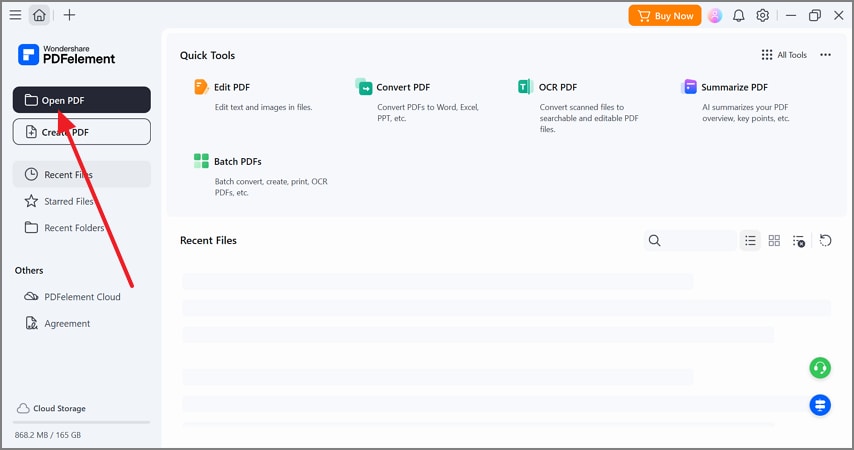
Step 1Open a PDF File to Start
To begin the process, select the "Open PDF" button to fetch a file into the main page of PDFelement.
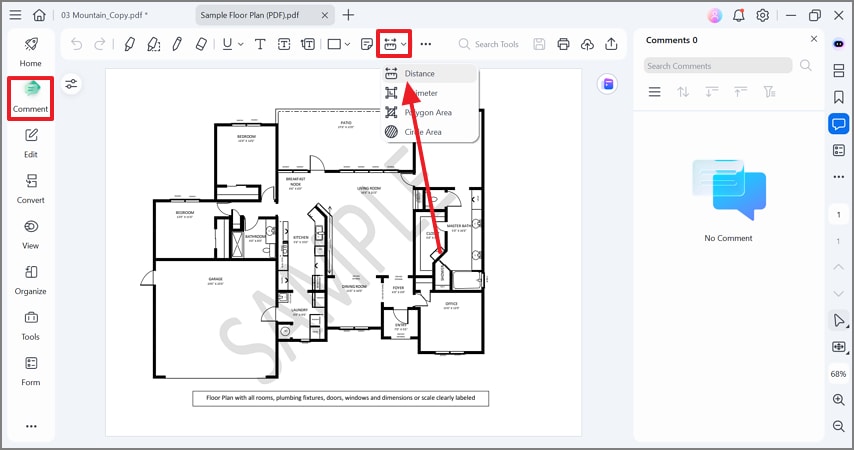
Step 2Measure the Distance Using the Comment Mode
From the "Comment" mode on the left sidebar, expand the "Measurement" drop-down menu. Using the extended menu, select the "Distance" option to start taking dimensions.
G2 Rating: 4.5/5 |100% Secure
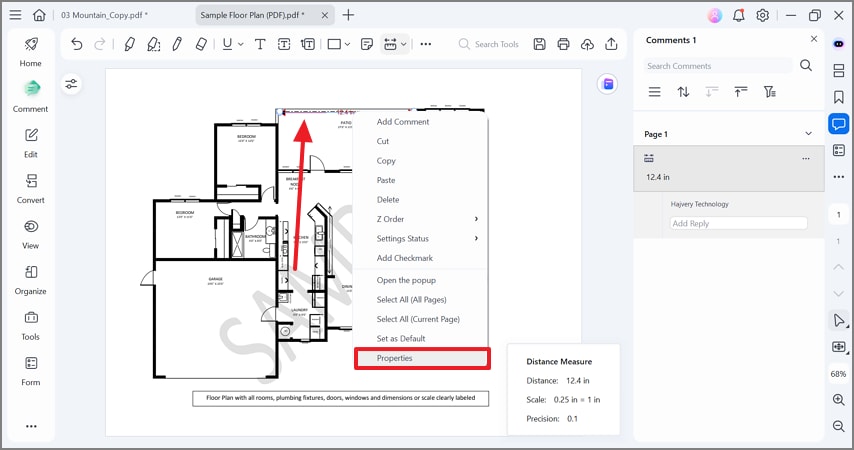
Step 3Take Measurements and Proceed
Now, locate the image with shapes or buildings and draw a line between the 2 objects to measure the dimensions. Once done, right-click on the measuring line and select the "Properties" option to continue.
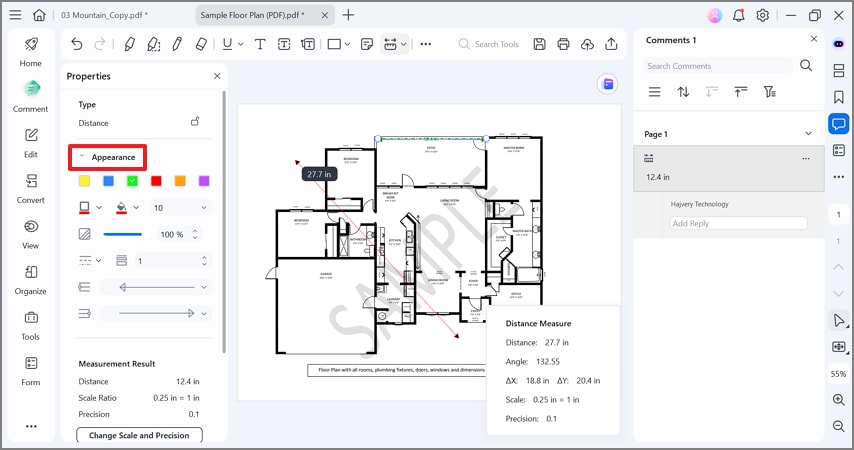
Step 4Set the Appearance of the Lines As Needed
When the left "Properties" panel opens, enter the "Appearance" section and set the line color as needed. You can also explore the relevant menus to customize the fill color and line appearance.
Calibrate First
Users who calculate dimensions understand the importance of calibration. Therefore, PDFelement provides a range of calibration capabilities to ensure precision. The steps below feature a detailed guide to calibration using this measure tool in PDF:
Step 1Access the Feature
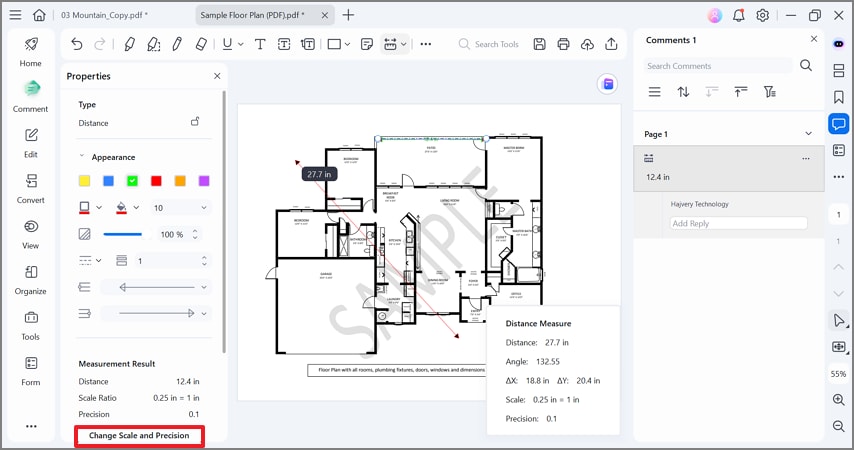
To start the process, open the "Properties" panel on the left and select the "Change Scale and Precision" button.
Step 2Set the Scale Ratio and Snap
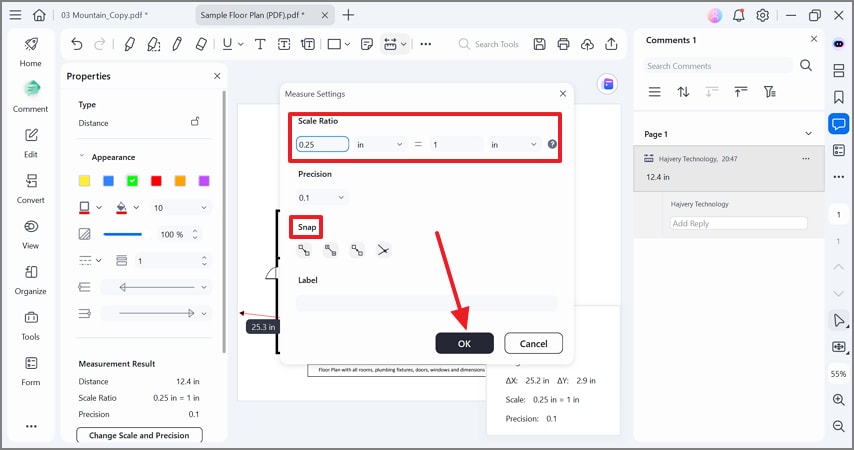
Using the "Scale Ratio" fields, enter values that reflect the on-ground distance. Now, turn on "Snap" so your measurement points automatically align with corners for precision. Finally, measure a part of the drawing with a known real-world length to ensure your scale and settings are correct.
G2 Rating: 4.5/5 |100% Secure
Measure What Matters
Now that the scale is calibrated, it is time to take some measurements through this PDF measuring tool scale. The following part explores how to take dimensions using PDFelement:
Step 1Select the Measurement Type
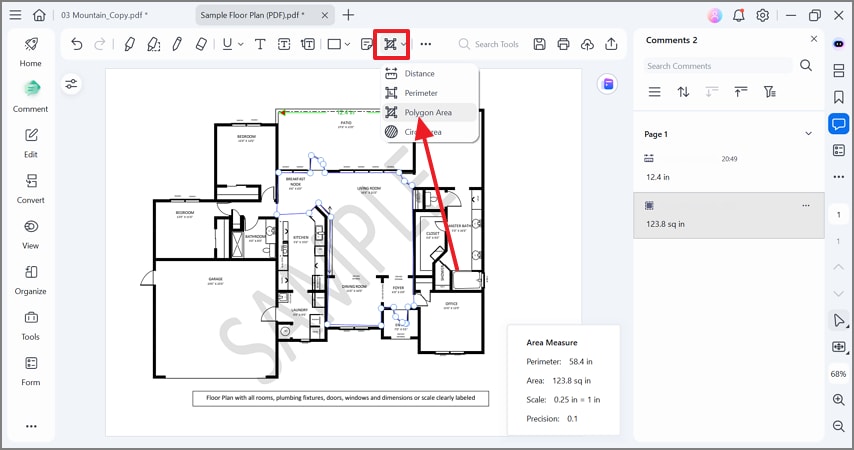
From the "Measurement" drop-down menu in the Comment mode, select "Polygon Area" and continue.
Step 2Draw the Area You Want to Measure for Real-Time Results
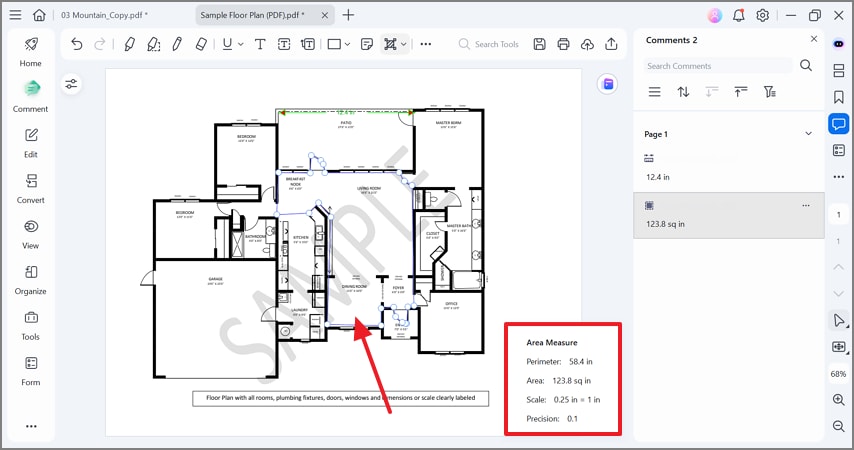
Locate a polygon area in the photos of the PDF file and draw over it. Take a look at the bottom right box for real-time results.
Tips: Always snap to endpoints or intersections, zoom in at corners, and match the precision level to your required tolerance.
Make Results Reviewer-Friendly
After calibration and taking dimensions, the next step is to make the display visually appealing through this PDF measurement software. The steps below are a detailed guide to using PDFelement to make results reviewer-friendly:
Step 1Enter the Measurement Properties to Adjust Appearance
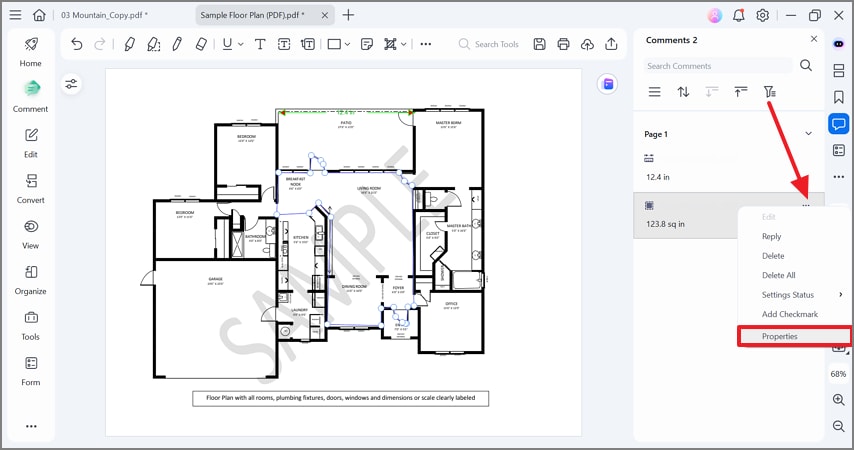
To start, access the dimension in the right panel and select the "Three Dots" menu. Using the extended menu, select the "Properties" option and continue to the next window.
Step 2Adjust the Colors for Visual Ease
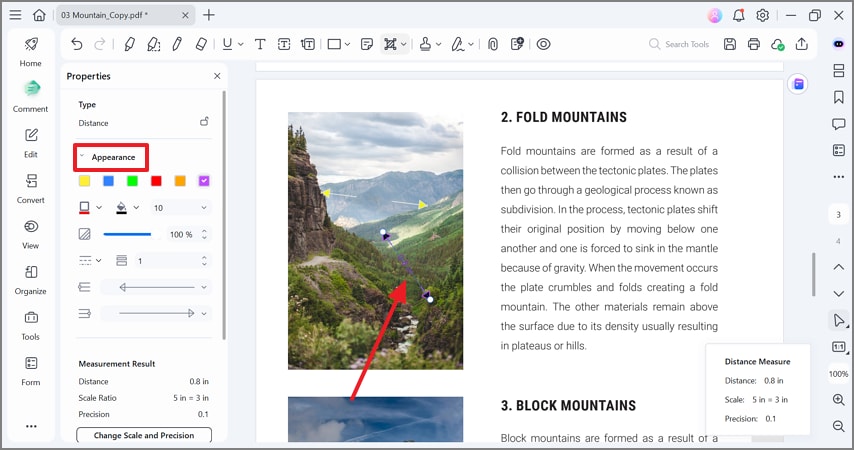
Under the "Appearance" section, change the line and fill colors as needed. You can also adjust the line borders to the desired appearance.
G2 Rating: 4.5/5 |100% Secure
Step 3Name the Dimension for Better Readability
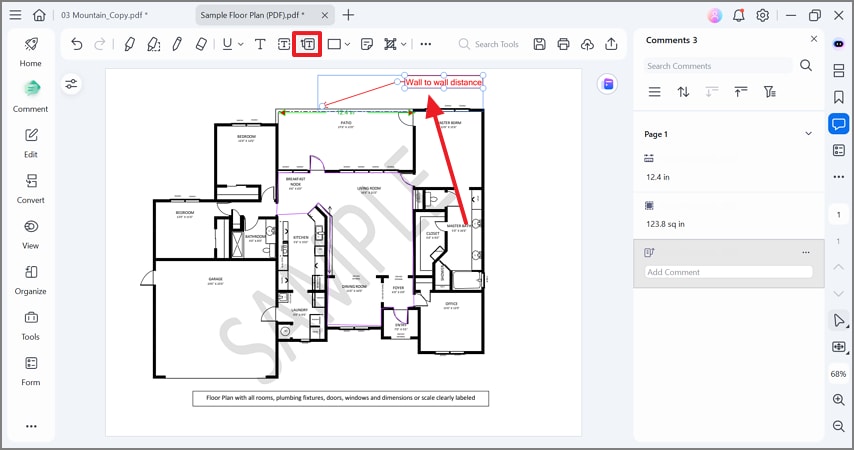
To make the plan easy to read, enter the "Text Callout" mode and draw a text box connected to the relevant measurement.
Step 4Apply Summation of the Measured Dimensions
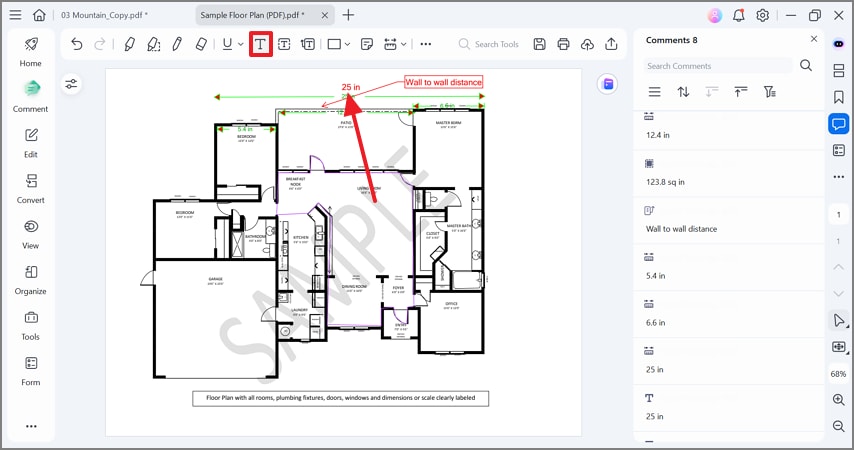
For a better understanding, sum up the total measurements calculated. This can be done using the "Text" tab at the top bar.
Step 5Flatten the PDF to Make the Plan Measurements Static
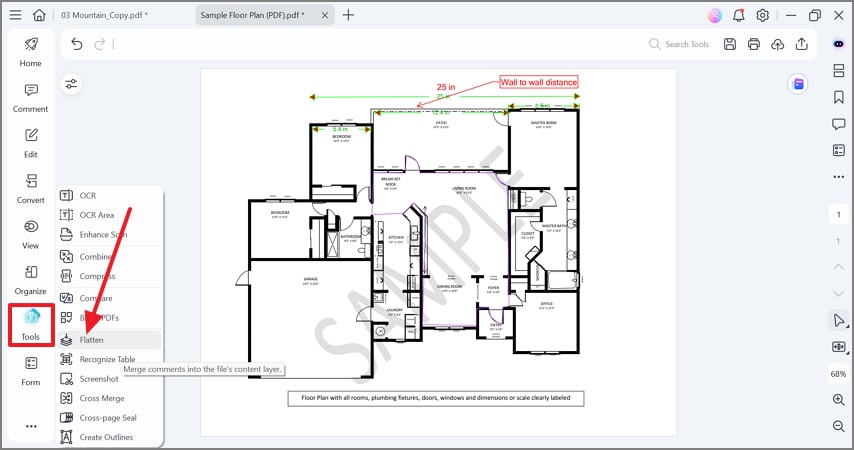
To make the floor plan easily printable and un-editable, access the "Tools" tab from the left sidebar. Here, select the "Flatten" option to merge the comments in the file.
Part 4. Path B — Mobile Field/On-Site Checks
When looking for quick field or on-site measurement checks, use PDFelement on the phone. It allows users to review dimensions, add notes, and confirm key details before finalizing precise measurements on the desktop version. The following guide lists the steps to verify a calibrated PDF document using this PDF ruler tool:
Step 1Open the PC-Calibrated PDF Floor Plan
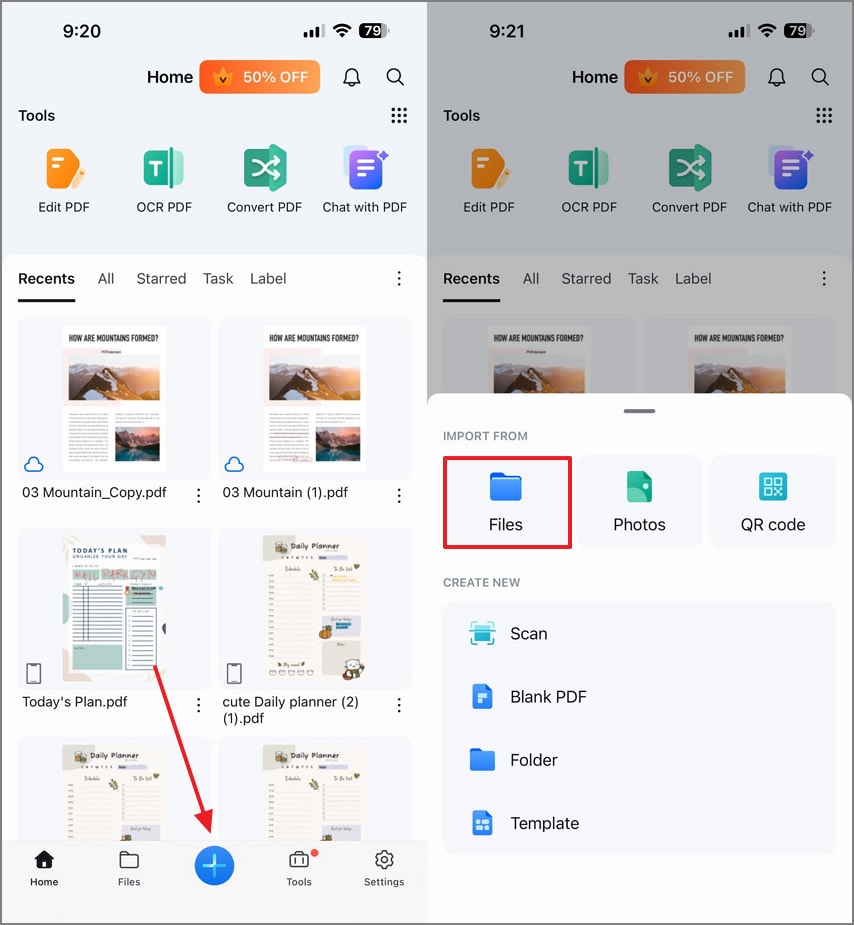
To start the process, press the "+" icon at the bottom to import the recently calibrated floor plan from the "Files" app.
Step 2Add a Sticker to Verify the Measurement
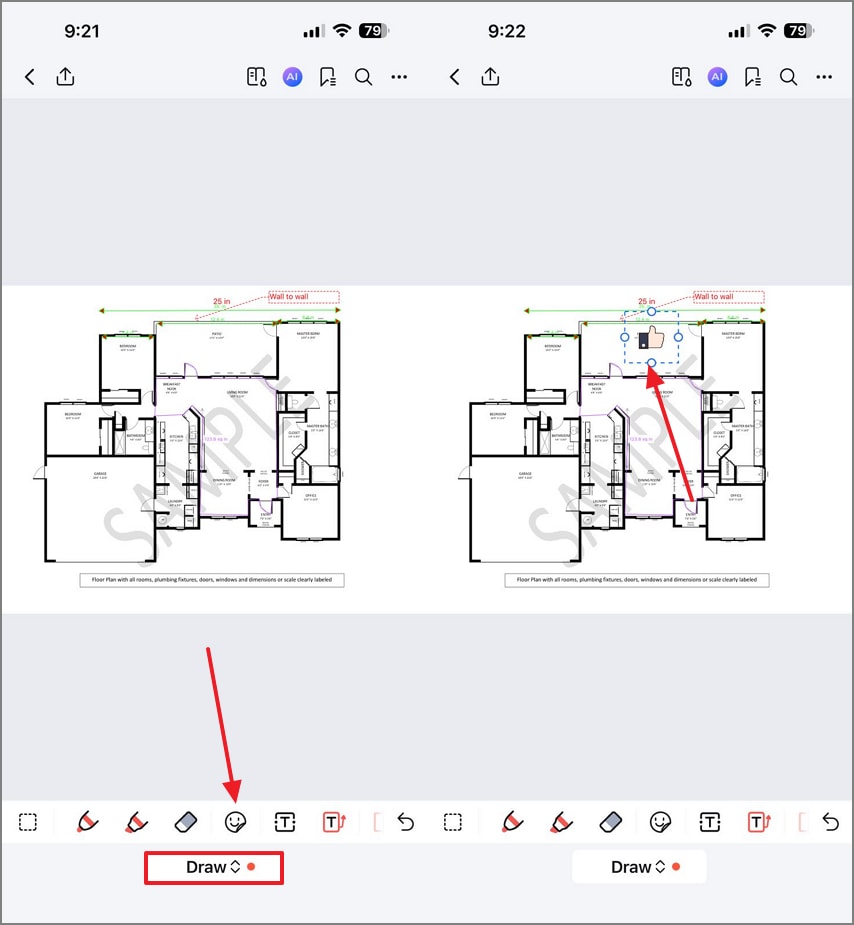
Using the "Comment" mode from the bottom menu, select the "Sticker" tab and add an image to verify the measurements. This sticker can be repositioned and resized to get the desired look.
Step 3Upload the Floor Plan Back to the PC App
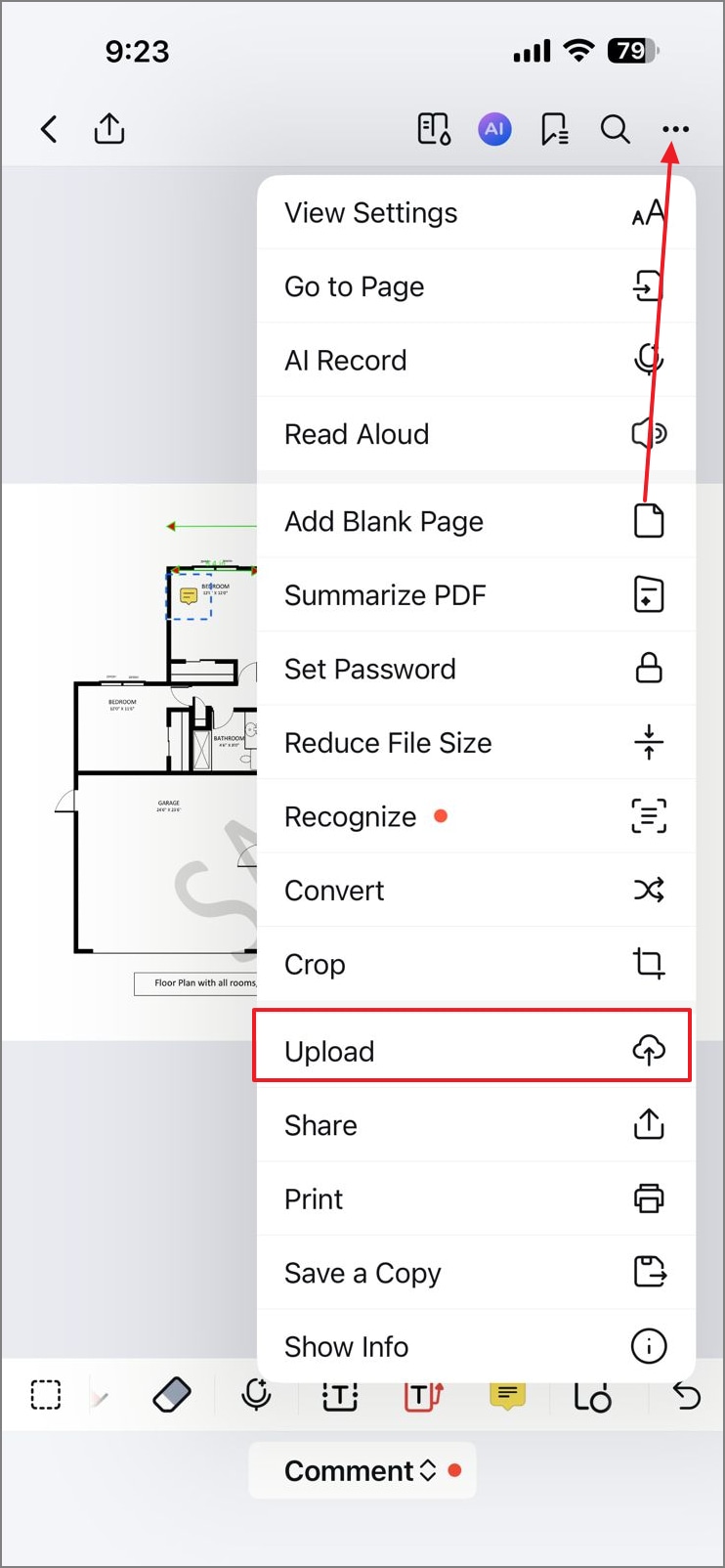
Once you have verified the file, select the "Menu" from the top right and tap "Upload." Now, upload the file to the cloud to be able to access it on the Desktop version of PDFelement as well.
G2 Rating: 4.5/5 |100% Secure
Part 5. Path C — Cloud: What You Can (and Can't) Do in a Browser
Cloud-based viewers allow users to upload drawings and perform calibrated measuring directly inside a browser. Features vary across platforms, including snapping unit selection, precision control, and limited exporting capabilities. HiPDF is a reliable browser-based PDF tool that offers handy document-related tools.
Although it is not a ruler for PDF, it supports helpful surrounding PDF workflow tasks. It helps users compress, convert, split, merge, perform quick edits, and apply AI enhancements easily. Use cloud viewers for light checks when installing software is not possible or practical. For labeled shareable and snap clean results, always finalize precise measurements on desktop software.
Part 6. "PDF Ruler" Queries: When a Ruler Is Enough
PDF ruler tools help users understand when simple visual measurements are acceptable and when precision tools are required. Explore the key differences below and follow the right approach to achieve accurate PDF measurements:
When a PDF Ruler is Enough
PDF ruler queries usually apply to quick visual checks or rough layout estimates. These are helpful for simple comparisons but not for technical or scaled measurements.
Screen Rulers Versus Calibrated Tools
Screen rulers are not calibrated and should only be used for approximate measurements. For accurate results, you must calibrate using a known reference or scale bar and use a reliable measure online tool.
Using Scale and Printable Rulers Correctly
If a plan includes a scale bar or labeled dimension, you can achieve true measurements after calibration. Printable metric or imperial rulers are useful but always recalibrate for reliable accuracy.
Part 7. Frequently Asked Questions
-
How do I set scale and units in a PDF measuring tool (desktop)?
Open the measurement tool and locate the scale or units settings in the toolbar. Enter the known reference distance and choose your preferred units to ensure accurate measurements. -
Can I sum multiple measurements and share them in the same PDF?
Yes, many desktop tools allow you to add multiple measurements automatically. You can then annotate or export the PDF with the summed values for sharing or reporting. -
Is there a free online PDF measuring tool that's accurate?
Free online tools work well for light measurements but require careful calibration first. For precise tasks like snapping, labeling, or exporting, finish the workflow on desktop software. -
Does HiPDF measure PDFs?
No, HiPDF does not provide measuring functions within PDFs. It is useful for supporting tasks like viewing, converting, or annotating before performing measurements on desktop software. -
How does PDF-XChange compare to PDFelement for measuring?
Both PDF-XChange and PDFelement can measure PDF dimensions and areas. PDFelement offers a more complete workflow with calibrated measurements, annotation, automatic summing, and flattening options.
Conclusion
For real accuracy, always calibrate once and measure using snap while keeping results as annotations until final delivery using a measure online tool. Desktop PDFelement provides complete, calibrated measuring with reliable labels, totals, and trusted export capabilities. Mobile tools support quick field checks that sync smoothly back to the desktop workflow.
Cloud viewers should be used for light checks, while HiPDF supports compression, conversion, organization, and AI tasks before returning to the desktop for precise measuring.

