If you have ever needed to split a PDF A3 to A4 while preparing documents for printing or sharing, you're not alone. Many users face oversized A3 pages that don't fit standard formats, making conversion essential for better readability and compatibility.
Whether you're handling architectural drawings, brochures, or large worksheets, dividing an A3 PDF into two clean A4 pages ensures clarity without losing important details. This guide walks you through the easiest online and offline methods, helping you create perfectly sized A4 pages in just a few steps. With the right tools, the process becomes quick, accurate, and hassle-free.
In this article
- Preflight: What "A3 → A4 Split" Actually Means
- One-Minute Decision Tree
- Tool Setup in PDFelement — Why It Fits This Job
- Step Card A — Vertical Split (Left/Right) for Two-Up Spreads
- Step Card B — Horizontal Split (Top/Bottom) for Posters/Stacked Content
- Step Card C — Mixed Layouts (Batch by Ranges)
- Postflight: Make It Truly A4 (Size, Margins, Order)
- Scenario Recipes (Copy & Adapt)
- Step Card D — Alternative via Adobe Acrobat "Poster" Print (Tiling Method)
Part 1. Preflight: What "A3 → A4 Split" Actually Means
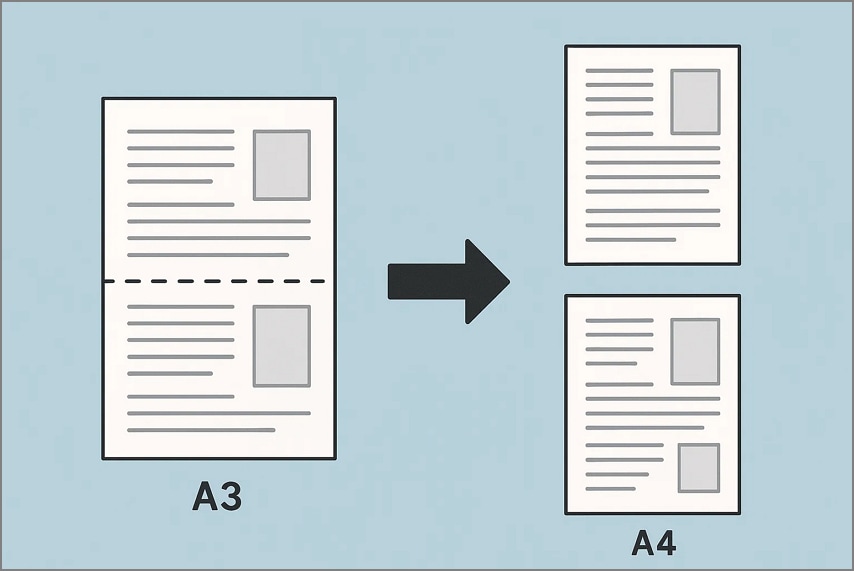
When you need to split A3 to A4, the goal stays simple. You want to turn one large A3 page into two clear and readable A4 pages. The content should stay sharp, easy to follow, and in the right order. This matters whether you're printing, sharing files, or storing documents for later use. With the right approach, you can avoid quality loss, clipped edges, and layout issues.
Conversion Goal
Convert One A3 Page Into Two A4 Pages: This process converts a single A3 sheet into two A4 pages. It ensures the document splits cleanly without losing layout or structure.
Maintain Correct Reading Order: Correct reading order keeps content easy to follow across divided pages. This prevents confusion and maintains natural flow for all document sections.
Keep Text Sharp, Margins Safe, and Overall Clarity Intact: Sharp text ensures readability when splitting large A3 layouts into A4. Safe margins protect important elements from clipping during the splitting process.
Typical Source Files
Two-Up Scanner Outputs: Two-up scanner outputs often combine two pages into one A3 sheet. Splitting them restores proper page dimensions and keeps the reading sequence intact.
A3 Landscape Spreads: A3 landscape spreads appear in brochures, book layouts, and many magazines. Splitting these spreads creates two balanced A4 pages without losing context.
Oversized Worksheets or Wide-Format Documents: Oversized worksheets usually exceed A4 limits and require an accurate PDF A3 to A4 split for proper handling. Dividing them helps improve readability and ensures information fits standard pages.
Expected Output
True A4-Sized Pages After the Split: This guarantees clean formatting and reduces errors when sharing final documents.
Correct Sequencing Without Reversed or Swapped Halves: It prevents mixed sections and keeps the document's flow perfectly understandable.
Clean Edges With No Gutter Clipping or Missing Content: This avoids clipping issues and produces neat, professional A4 output consistently.
Part 2. One-Minute Decision Tree
Sometimes choosing the right way to split a PDF A3 to A4 depends entirely on how the content is arranged on the page. Use this one-minute decision guide to pick the best approach:
Side-by-Side Content: If the content appears in two parallel columns, a vertical split works best. This preserves reading flow and keeps each half correctly aligned on separate A4 pages.
Stacked Content: When elements are arranged one above the other, choose a horizontal split. This keeps sections grouped naturally and avoids breaking important visuals or text blocks.
Mixed Layouts: For files with varying designs, apply different split rules to specific page ranges. This method ensures each page gets the most accurate treatment based on its layout.
Need Strict A4 Canvas or Breathing Room: If precise A4 dimensions or extra spacing are required, resize after splitting. Adding margins helps prevent edge clipping and improves print-safe formatting.
Part 3. Tool Setup in PDFelement — Why It Fits This Job
PDFelement offers a smooth and accurate way to split PDF A3 to A4, making it a reliable choice for users who need precise control over layout and page structure. Its visual tools, page-level controls, and post-processing options ensure every A3 page is divided cleanly without losing clarity or alignment. Here's why it fits this task perfectly:
Page-Level Splitting With Vertical/Horizontal Divider Lines
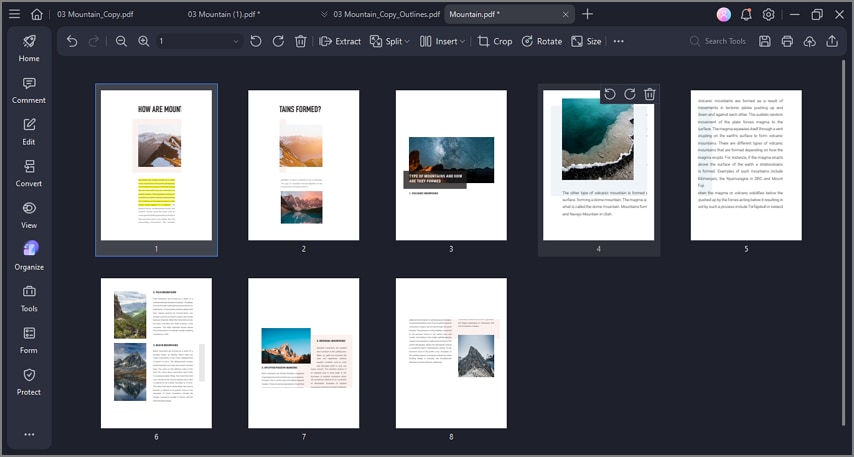
PDFelement lets you place exact divider lines for perfect left–right or top–bottom splits. This ensures each A3 page converts into two clean, properly aligned A4 pages.
Live Preview to Adjust Divider Line Precisely
A real-time preview helps you position the split line with pinpoint accuracy. You can instantly see how the split will appear before applying any changes.
Apply to Current/Range/All via Page Range
You can apply your chosen split method to a single page, specific ranges, or the entire file. This flexibility is ideal for documents with mixed A3 layouts.
Post Steps Available: Resize to A4 and Add Page Margins
After splitting, PDFelement allows resizing to strict A4 dimensions for perfect output. You can also add margins to prevent clipping and keep the final pages print-ready.


 G2 Rating: 4.5/5 |
 100% Secure
Part 4. Step Card A — Vertical Split (Left/Right) for Two-Up Spreads
When dealing with two-up spreads or side-by-side content, using a vertical split is the most efficient way to split A3 to A4. This method ensures that each half of the A3 page converts into a clean A4 page while maintaining the correct reading order. The following step-by-step guide walks you through how to use it in PDFelement:
Step 1Press Organize and Select Split
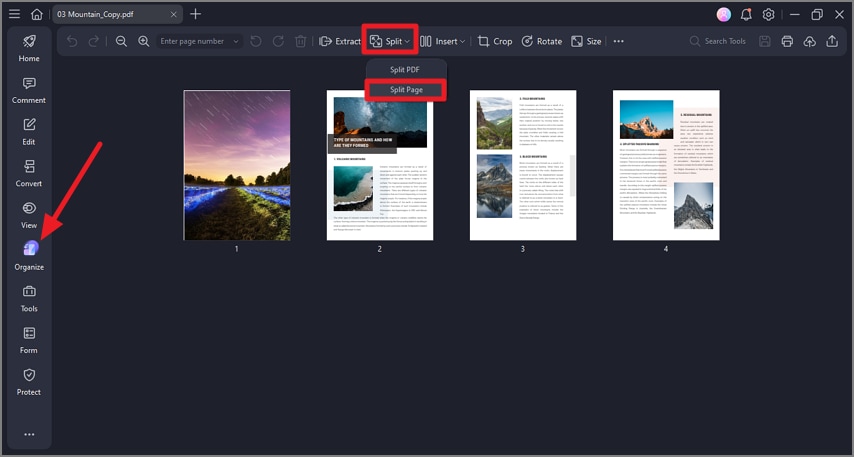
After opening a document in the tool's interface, head to the toolbar on the left and click on the "Organize" option. Next, head to the toolbar at the top and choose "Split" to press the "Split Page" option.
Step 2Add Vertical Split Line and Adjust Divider
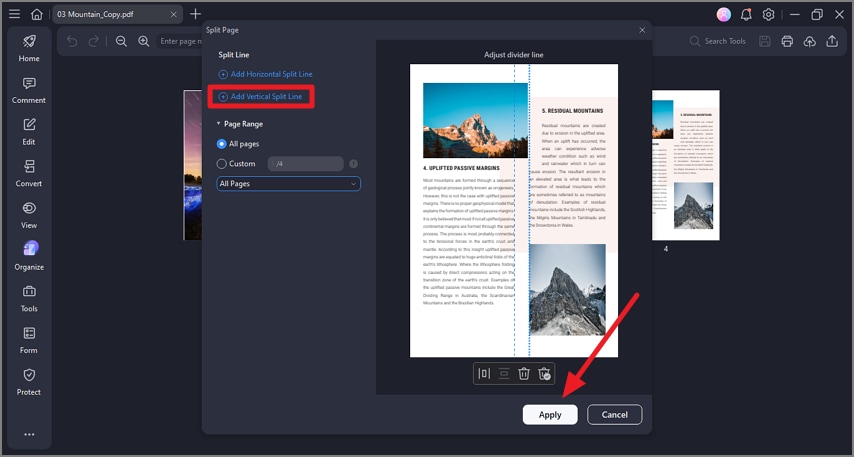
In the following window, click on the "Add Vertical Split Line" and adjust the divider on the page in preview. Next, select the "Page Range" from the left and press the "Apply" button.
G2 Rating: 4.5/5 |100% Secure
Step 3Each A3 Page Becomes Two A4 Pages
Once you hit apply, the pages will split vertically to be converted into A4 in the reading order.
Part 5. Step Card B — Horizontal Split (Top/Bottom) for Posters/Stacked Content
For stacked content such as posters, worksheets, or top-to-bottom layouts, a horizontal split works best when you perform an A3 to A4 split. This method ensures that the top and bottom sections stay in proper reading order and fit standard A4 pages. The following steps guide you through placing the horizontal divider in PDFelement:
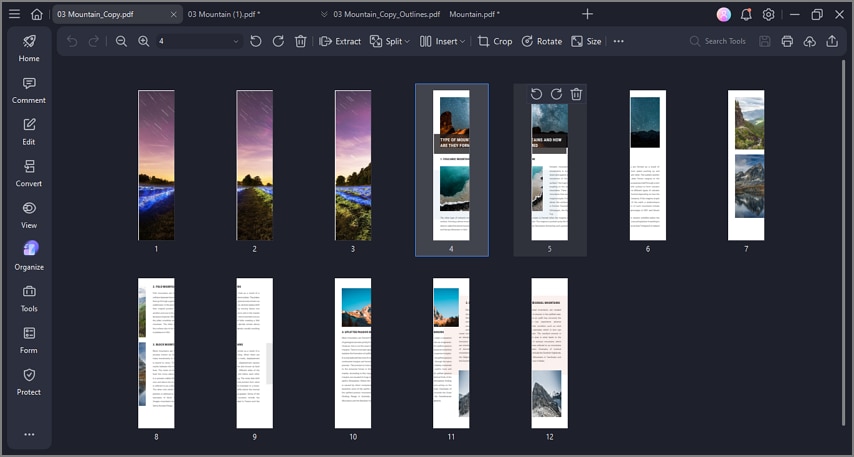
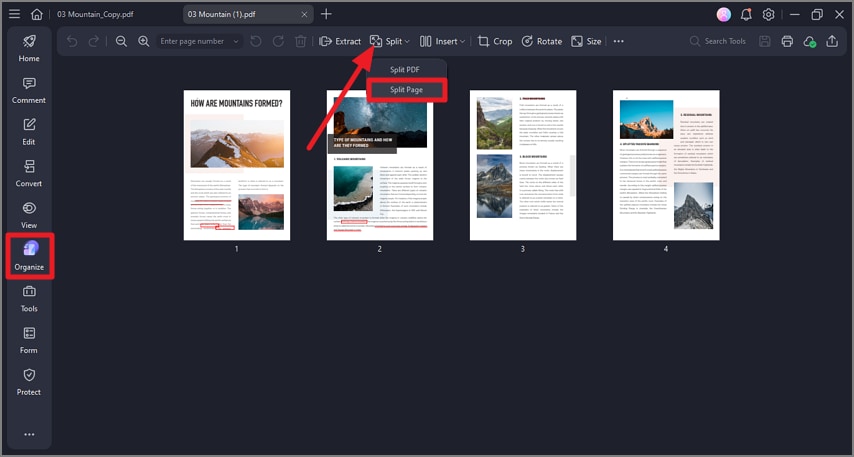
Step 1Press Split After Choosing Organize
After importing your document, click on the "Organize" option from the toolbar on the left. Now, expand the "Split" section from the toolbar at the top and choose the "Split Page" option.
G2 Rating: 4.5/5 |100% Secure
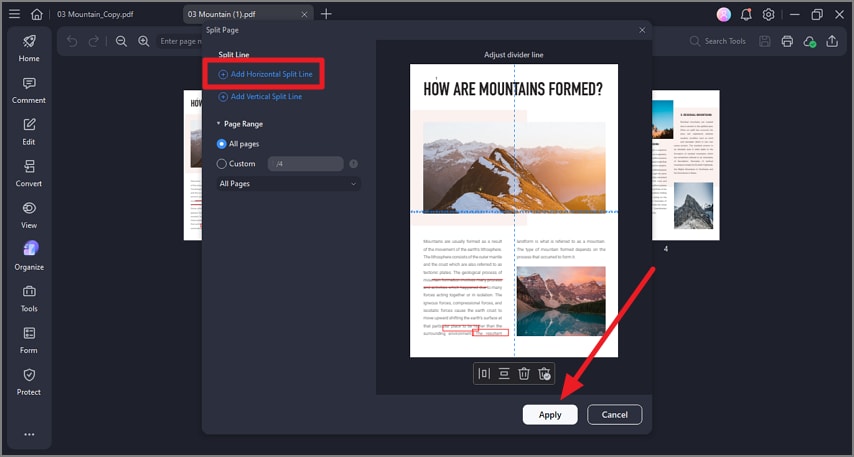
Step 2Add Horizontal Split Line
In the following interface, click on "Add Horizontal Split Line" and adjust the divider within the preview. Define the "Page Range" from the left and press "Apply" to execute the changes.
G2 Rating: 4.5/5 |100% Secure
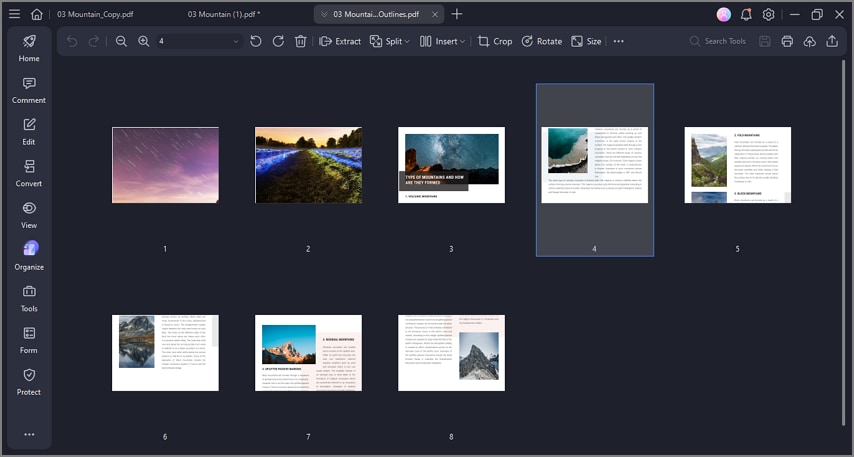
Step 3Preview Split Document
Preview the results as the top half of the pages is preceded by the bottom half.
Part 6. Step Card C — Mixed Layouts (Batch by Ranges)
When working with documents that contain mixed layouts for PDF A3 to A4 split, applying a single split method to the entire file can create errors or misaligned pages. This section helps manage these cases by splitting pages into batches according to their layout type. Follow the steps mentioned next to learn how to make a mixed layout selection:
Step 1Select Split Page
Once you have imported the document, click on "Organize" from the toolbar on the left. Now, press "Split" and choose the "Split Page" option.
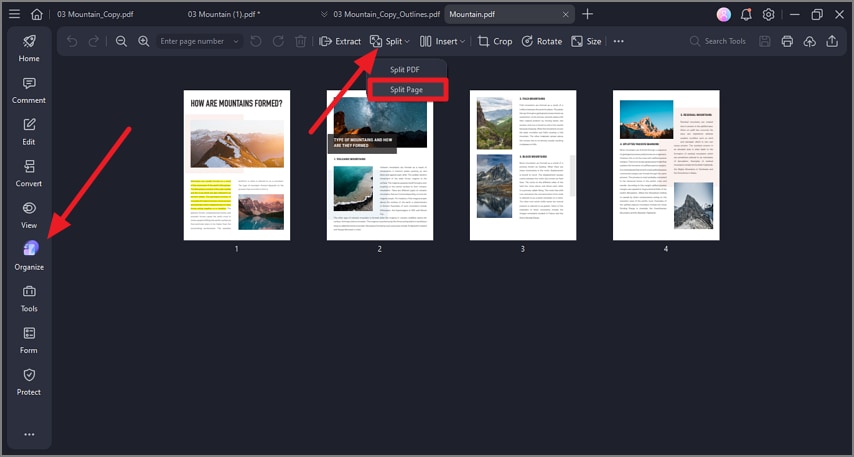
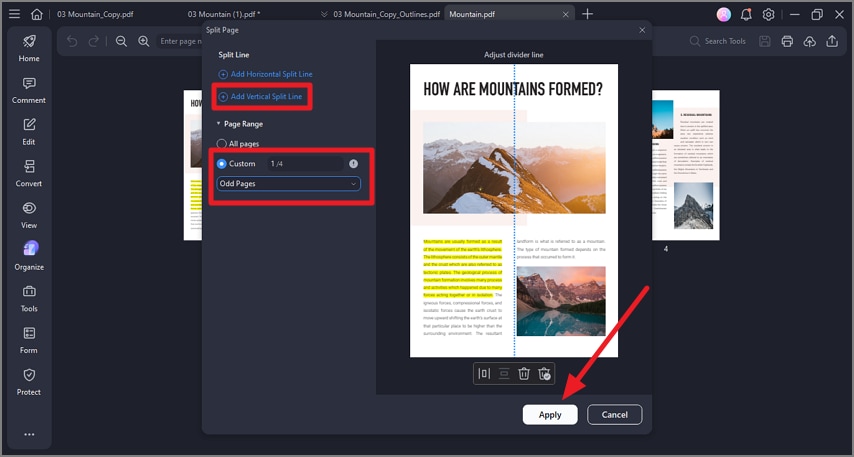
Step 2Add Vertical Split Select Pages
Next, press the "Add Vertical Split Line" and choose the page range as "Odd Pages." Now, input the page numbers on which you want to apply the split and adjust the divider within the preview. Once done, hit the "Apply" button to execute the process.
G2 Rating: 4.5/5 |100% Secure
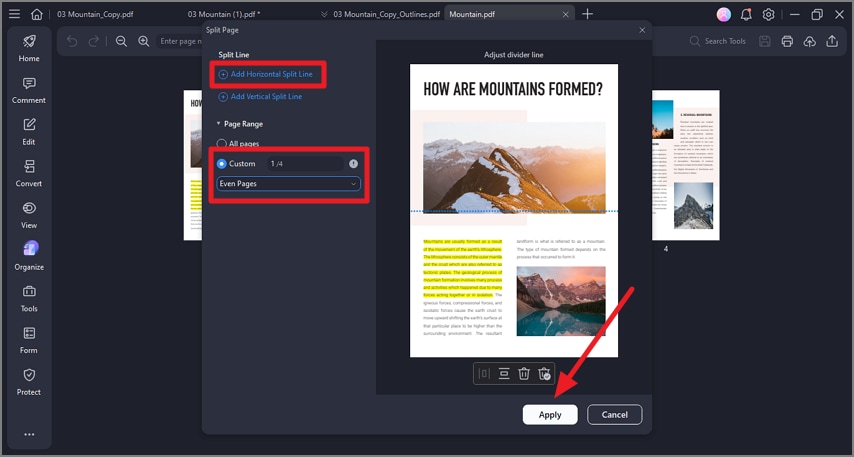
Step 3Add Horizontal Split Line
Now, select the "Add Horizontal Spit Line " and adjust the divider. Choose the page range as "Even Pages" and input the page number before hitting "Apply."
Part 7. Postflight: Make It Truly A4 (Size, Margins, Order)
After splitting your PDF from A3 to A4, it's important to finalize the pages to ensure they are truly print-ready. This postflight process guarantees the correct size, margins, and reading order so that your A4 pages look professional and maintain clarity. Follow these steps to complete the A3-to-A4 conversion:
Step 1Add Page Size
Once the pages are split, head to the top toolbar and press the "Size" option located on it.
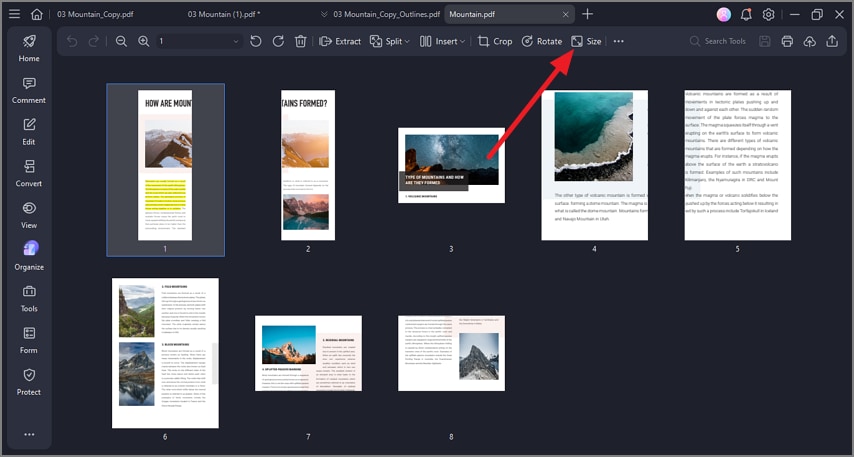
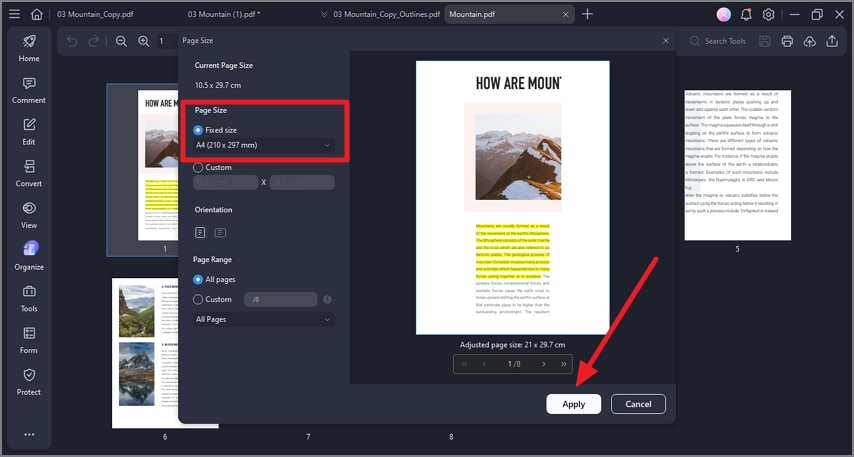
Step 2Select A4 and Apply
In the following window, select the "Page Size" as "Fixed Size" and choose "A4." Once done, hit the "Apply" button located at the bottom.
G2 Rating: 4.5/5 |100% Secure
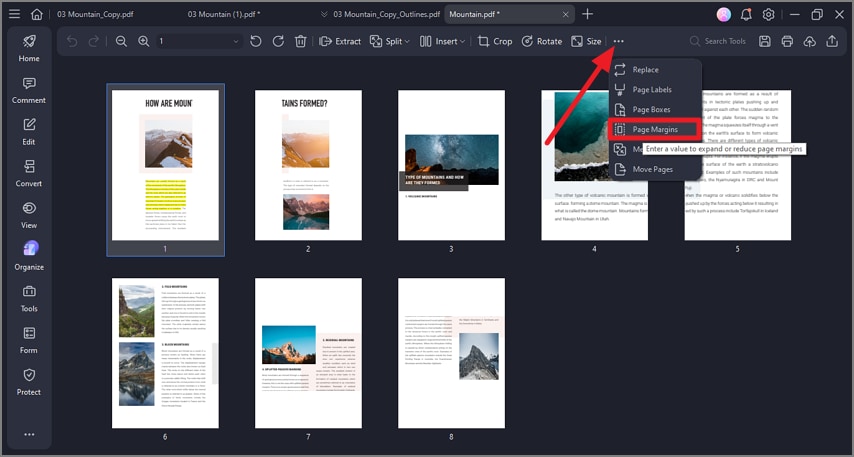
Step 3Choose Page Margins
Go to the top toolbar and press the "Three Dots" icon. Now, choose the "Page Margins" option from the expanded list by clicking on it.
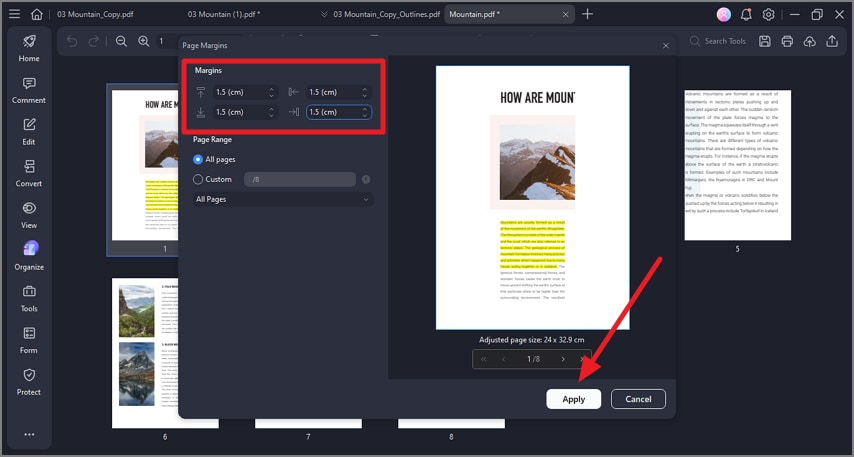
Step 4Add Page Margins
Set the page margins to "10 - 15 mm" or "1 - 1.5 cm" from the designated options on the following screen. Once done, press the "Apply" button to save the margin changes.
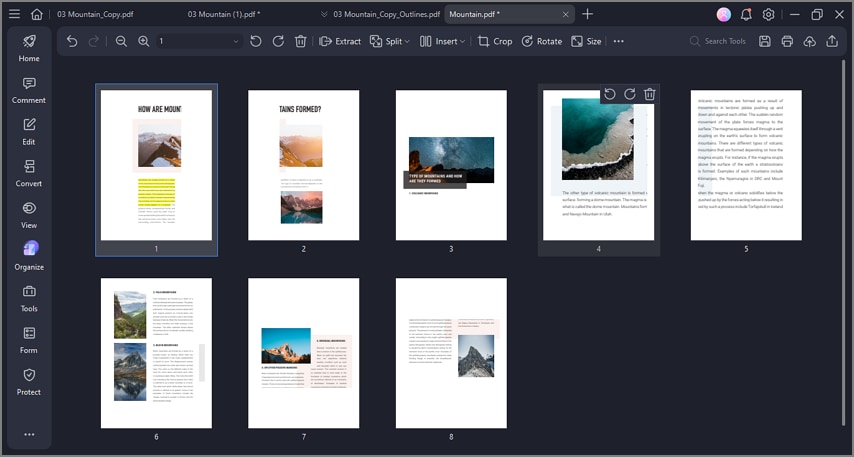
Step 5Confirm Orientation and Reading Order
Check that pages follow the correct flow, left to right or top to bottom. Proper orientation ensures readability and maintains the intended layout of your document.
Part 8. Scenario Recipes – Which Method Suits?
Different document types require different approaches when you split a PDF A3 to A4. By matching the layout scenario with the correct step card and post-processing adjustments, you can ensure clean, readable, and print-ready A4 pages every time. Below are practical examples for common scenarios:
Lecture Slides (Two-Up): Use Step Card A (Vertical Split) to separate side-by-side slides. Add margins afterward to preserve spacing and maintain clarity.
Workbook With Mixed Layouts: Apply Step Card C for pages with varying designs. Resize to A4, add margins, and save as a new edition for consistent formatting.
Stacked Poster Proofs: Use Step Card B (Horizontal Split) for top-to-bottom layouts. Set the pages to portrait orientation and add margins for notes or annotations.
Part 9. Step Card D — Alternative via Adobe Acrobat "Poster" Print (Tiling Method)
If you're already working in Adobe Acrobat and need a quick way to split an A3 to an A4 PDF, the Poster print (tiling) method is a convenient option. While it's less precise than PDFelement, it can rapidly convert a single A3 page into two A4 sheets without additional software. Follow these steps to use Acrobat's Poster method effectively:
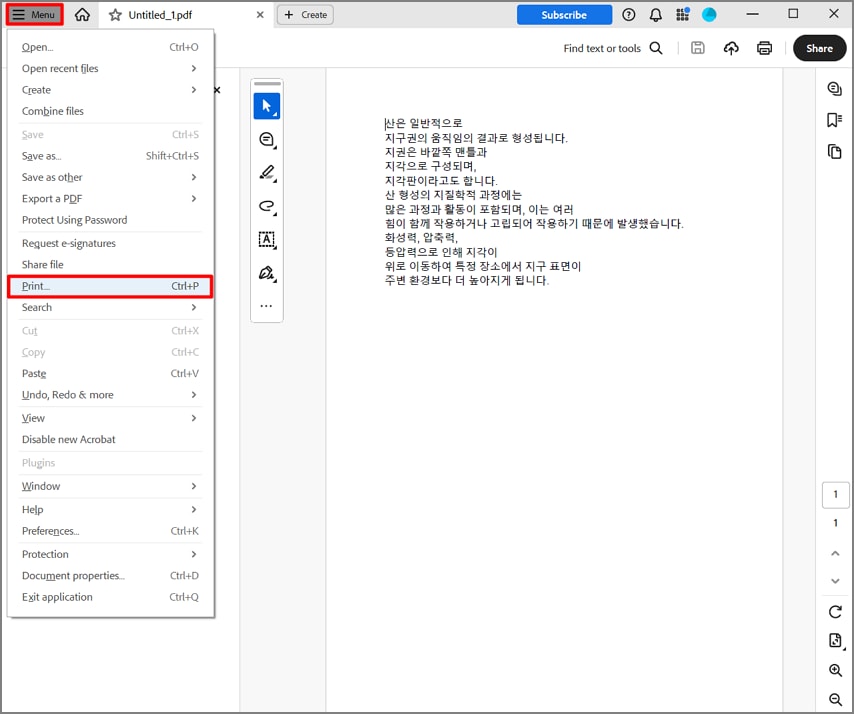
Step 1
After opening the document in the Acrobat's interface, head to the top-left corner and press "Menu." Now, locate the "Print" option in the list and click on it.
Step 2
Select "Adobe PDF" as the printer, then choose "Poster" under "Page Sizing & Handling." Adjust the "Tile Scale" so the preview divides the A3 page into exactly two A4 sheets. Click "Print" to create a new PDF containing the tiled A4 pages.
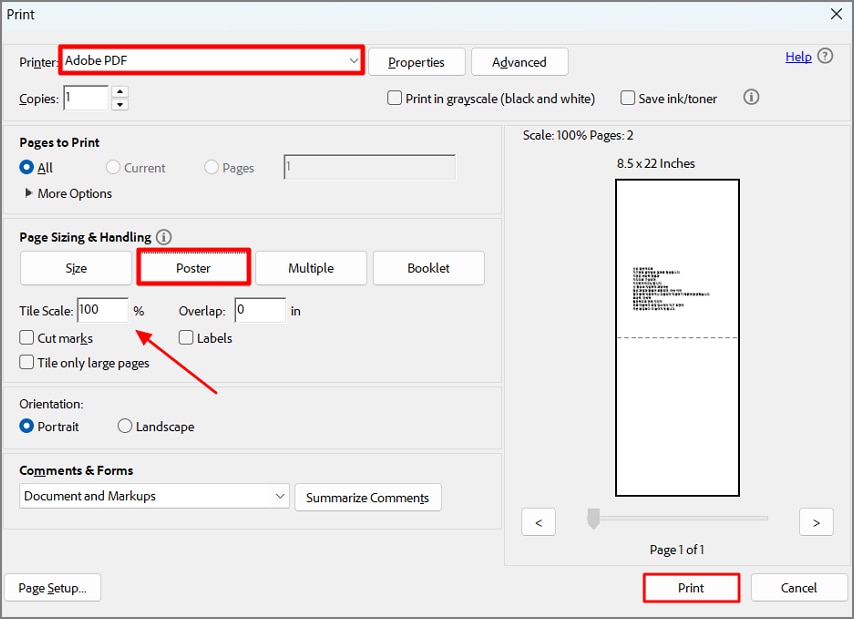
Note: Poster tiling is a quick workaround for single pages. However, for accurate left/right or top/bottom splits across multiple pages, Step Cards A–C in PDFelement offer better control, precise alignment, and batch processing.
Frequently Asked Questions
-
Can I split a PDF A3 to A4 across an entire document automatically?
Yes, PDFelement allows batch splitting by page ranges, applying vertical or horizontal dividers automatically. This saves time and ensures consistent results throughout the document. -
What if layouts alternate between vertical and horizontal splits?
Use Step Card C in PDFelement to handle mixed layouts by processing pages in separate ranges. This keeps the reading order intact and prevents misaligned splits. -
Do I always need to resize to A4 after splitting?
Resizing is recommended if strict A4 dimensions or print-safe margins are required. PDFelement lets you apply resizing after splitting for professional results. -
How do I preserve reading order during a PDF A3 to A4 split?
Place divider lines carefully on the center gutter and use live preview in PDFelement. This ensures left/right or top/bottom sections follow the natural reading flow. -
When is the Acrobat Poster method preferable?
The Poster method is useful for very large prints, but it may lose precision for text-heavy documents. For accurate A4 splits while preserving layout, PDFelement is a more reliable choice.
Conclusion
To wrap it up, this article provided a complete guide on how to split a PDF from A3 to A4 using different techniques. Using PDFelement, you can apply page-level splitting with vertical or horizontal dividers for accurate A3 to A4 results.
Batch by ranges for mixed layouts, then resize to A4 and add page margins for print-ready pages. If you're already in Acrobat, the Poster tiling method can also output two A4 pages per A3 sheet.
G2 Rating: 4.5/5 |100% Secure