

In the fast-paced world of digital transactions and logistics, managing invoices efficiently matters. Whether you're a freelancer juggling multiple clients or a retailer processing bulk orders, you need to keep your billing documents organized. That's where splitting invoice PDFs comes in handy, in which you convert a bulky document into multiple manageable files.
With the advancement in technology, you can easily split invoices using automated approaches. So, this article will cover efficient ways to split your invoices effortlessly, using their detailed guides.
In this article
- What "Split Invoice" Usually Means (Choosing The Right Scenario)
- Quick Preparation: A 30-Second Guide
- Method 1 — Split an Invoice Pack into Separate PDFs (Most Common "Invoice Splitter" Use)
- Method 2 — Split the Invoice into Two (One Invoice → Two PDFs)
- Method 3 — Separate Scanned Pages Cleanly (Fix 2-up or Mixed Scans)
- Method 4 — Online "Invoice Splitter" (Fast, No Install)
- Naming & Filing That Saves Hours
- Compliance & Integrity Tips (Before Sharing)
Part 1. What "Split Invoice" Usually Means (Choosing The Right Scenario)
"Split the Invoice" usually means splitting a single PDF into multiple PDFs as per your workflow. So here we have listed down some scenarios for understanding Split Invoice:
One PDF, Multiple Invoices
Sometimes, AP or AR teams receive a monthly pack containing dozens or hundreds of invoices bundled into a single PDF. In this case, "splitting" means converting a single bulk document into separate individual invoice PDFs, each containing only one customer's data.
One Invoicing, 2 Files
In other cases, there is only one invoice, but different people or budgets need different parts of it. Here, users can split a single invoice into two PDFs so no additional, unnecessary data is shared with irrelevant parties.
Scanned Batches and 2-up Scans
In a paper workflow, it is common to scan a pile of invoices at once or "2‑up" to save time and paper. In this scenario, splitting the invoice page means detecting the boundaries and issuing separate invoices in 1 page.
Email and Upload Size
Sometimes the invoice content is acceptable, but the file is too large to send or upload because many email systems impose a size limit. So, in this situation, a split invoice PDF means dividing it into smaller chunks so each file stays under the limit.
Part 2. Quick Preparation: A 30-Second Guide
Before you split the invoice, go through the following Prep to ensure smoother and better file organization:
- Decide the Split Rule: Start by choosing how the PDF will be split into fixed page ranges using logical markers, such as chapters or bookmarks.
- Plan Output Naming: Ensure you decide how the output files will be named and where they will be saved in your device folder.
- Enable OCR for Scans: If you are working with scannable files, make sure you perform OCR to make it easily editable for splitting.
- Check Privacy and Redaction: Before splitting, scan the PDF for pages containing sensitive information, such as account details, that should not be shared.
- Note Project Tags: In case your file contains specific codes or project IDs, always include them in the file name for later use.


 G2 Rating: 4.5/5 |
 100% Secure
Part 3. Method 1 — Split an Invoice Pack into Separate PDFs (Most Common "Invoice Splitter" Use)
Imagine a busy accounts team at a mid-sized wholesaler that receives a single "monthly pack" PDF. That one file might contain 120 pages covering 40 different customer invoices. Manually scrolling, printing to PDF, and renaming each invoice would take ages and increase the chances of misinformation. In this situation, we recommend using PDFelement, as it includes a built-in PDF splitting feature.
The key point is that, when dealing with a scanned document, you can perform advanced OCR to make it easily editable. Furthermore, after splitting the invoices, you can convert the file to multiple formats, including Word, PPT, and txt. Users can easily access this efficient tool both from their desktop and mobile applications, making it an ideal solution.
Extensive Guide to Use Invoice Splitter PDFelement
Here, we have provided a detailed step-by-step guide to use this efficient tool to split the invoice accurately:
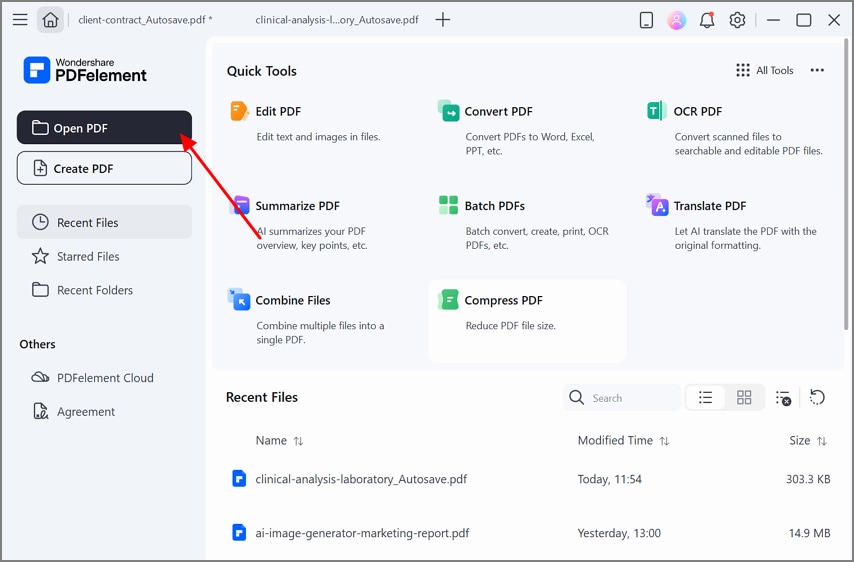
Step 1Choose the Open PDF Button to Insert the Desired PDF
With the tool running, choose "Open PDF" to add the required document from your folder.
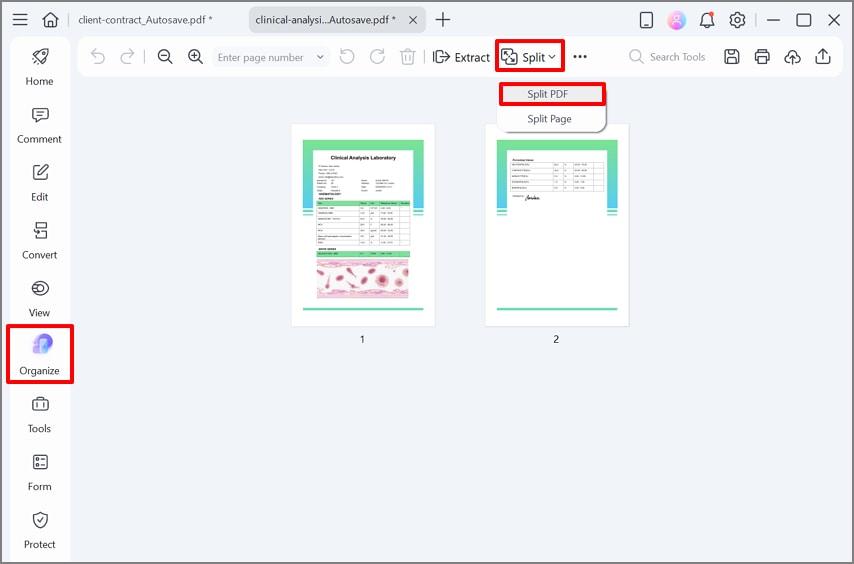
Step 2Select the Organize Menu and Choose the Split Option
As you insert the PDF, click on the "Organize" option from the left bar. Afterwards, click on the "Split" feature and select the "Split PDF" option from the drop-down menu.
G2 Rating: 4.5/5 |100% Secure
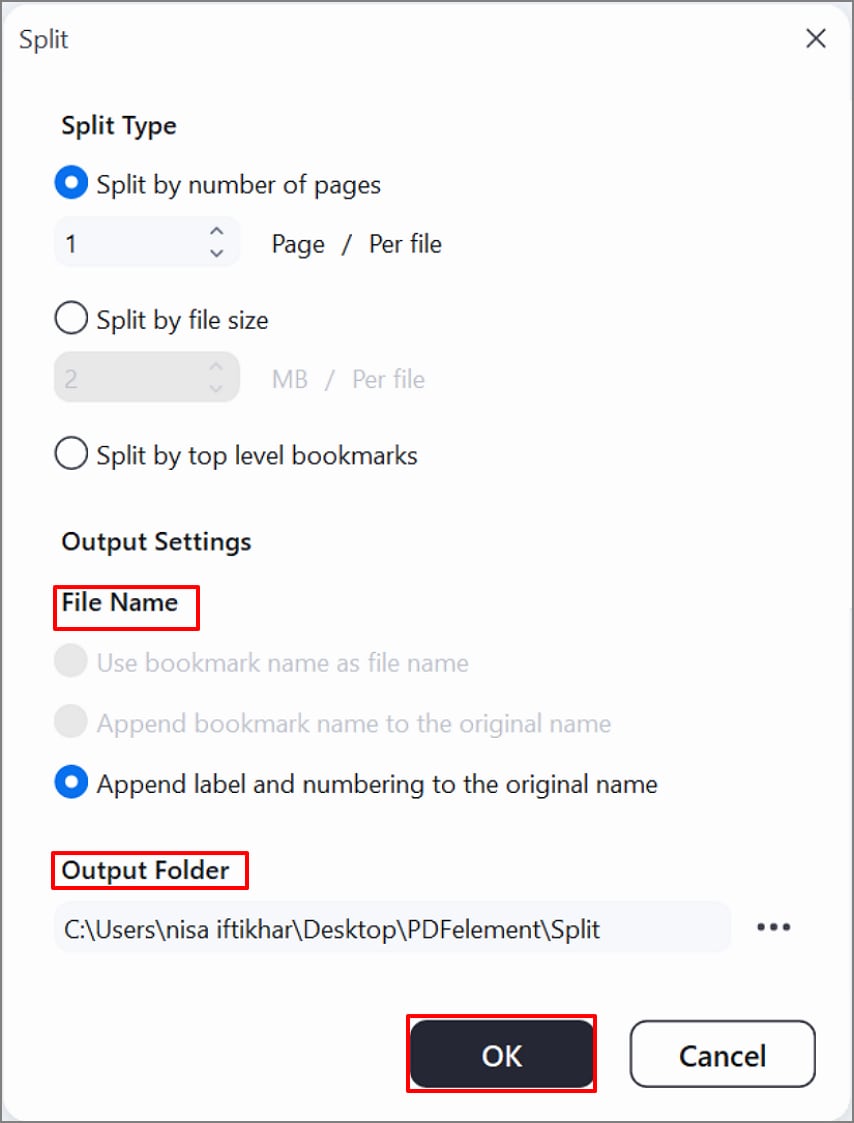
Step 3Choose the Desired Split Type for Your PDF
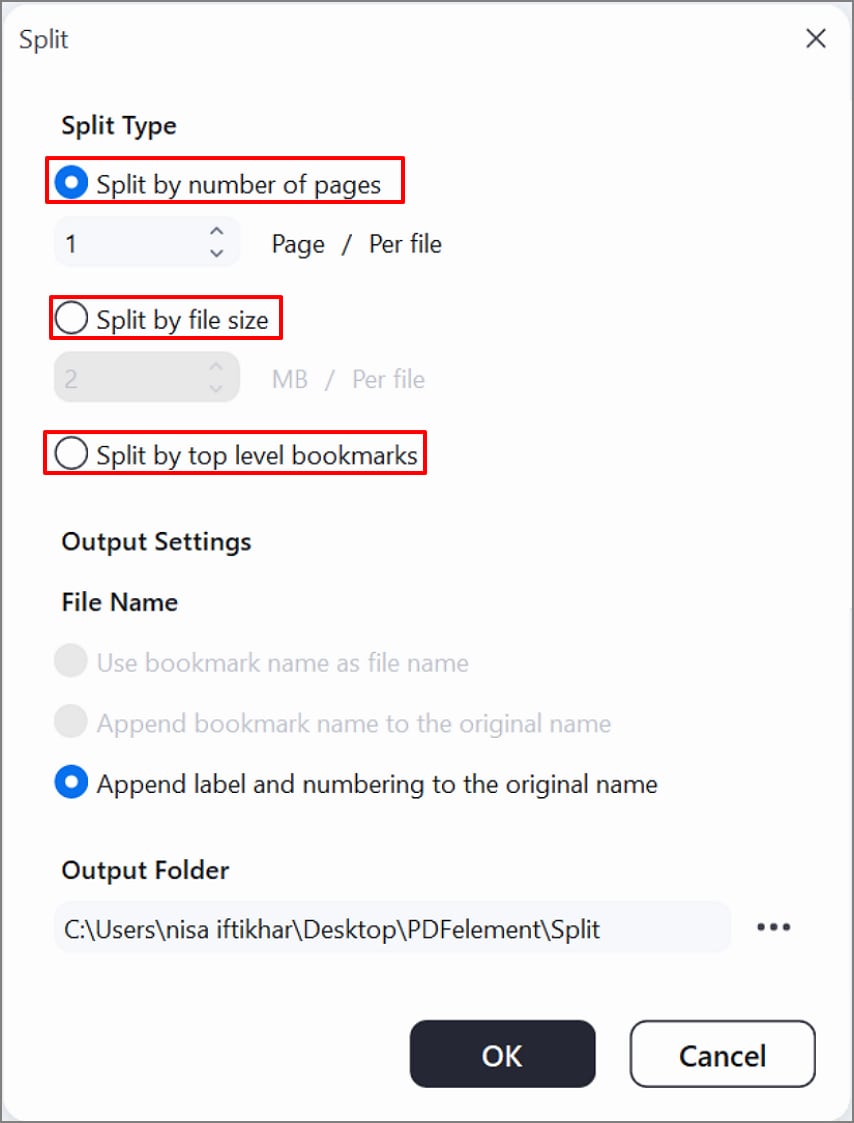
Here, if your invoice has uniform pages, enable "Split by Number of Pages" and set the required page count. Whereas, use "Split by top-level bookmarks" when the PDF contains bookmarks. Further, for upload size limits, choose "Split by file size" and set the maximum size.
Step 4Decide the Output Settings for Split Invoice PDF
Next, under the "File name" menu, enable the "Append Label and Numbering to Original Name." Following this, select the desired "Output Folder" and hit the "OK" button to apply the changes.
G2 Rating: 4.5/5 |100% Secure
Tip: While saving your file, ensure that you use a proper naming template like {filename}_inv_{index}) or {bookmark} if your file has it. This will keep all those new split files organized, searchable, and easy to match back to the original pack.
Part 4. Method 2 — Split the Invoice into Two (One Invoice → Two PDFs)
Best For: When the same invoice must be handled separately by two parties, such as different departments or cost centers.
If you have 1 invoice and want to split it into 2 PDFs and an extract, it provides a built-in Extract feature. Rather than saving the entire PDF, it lets you extract only the desired pages to a folder on your device. So, if you want to use this invoice splitter, then go ahead and read this guide:
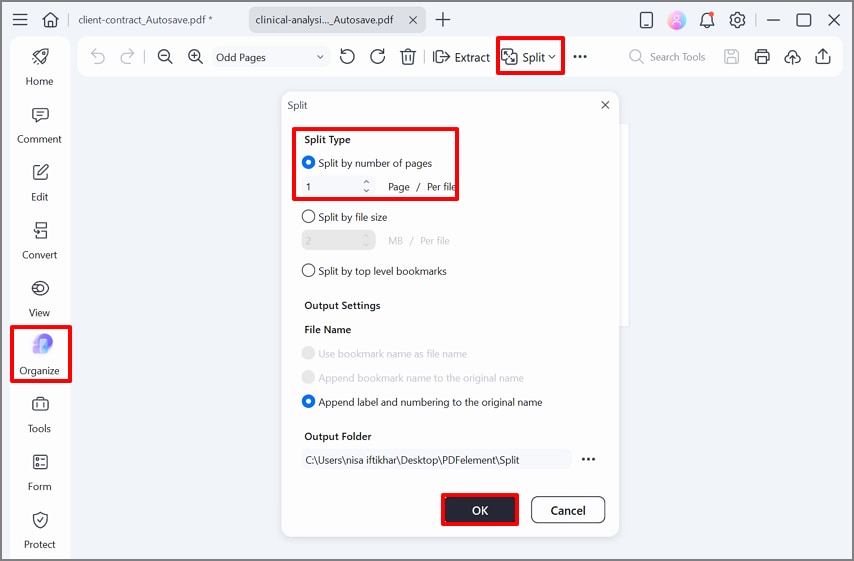
Step 1Insert PDF and Choose Split Type
First, navigate to the "Organize" option from the left toolbar. Here, click the "Split" option to later choose "Split PDF" and enter the number of pages under the "Split Type" section, and select the "OK" button.
Step 2
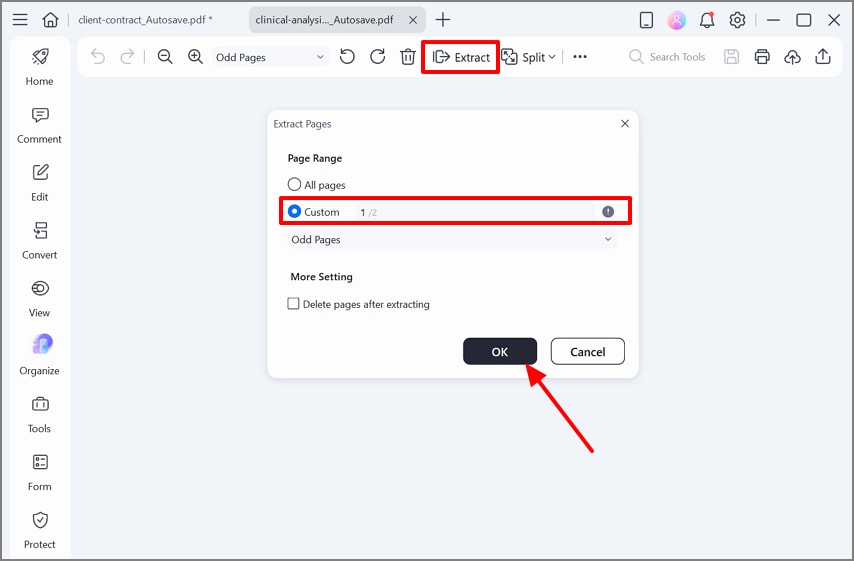
Afterwards, click on the "Extract" option, enable the "Custom" feature, and hit the "OK" button to save the selected PDF pages.
G2 Rating: 4.5/5 |100% Secure
Size-Based Split: Always remember that, if you are splitting the invoice for an email sharing, then always enable the "Split by file size" option within the "Split Type" section.
Part 5. Method 3 — Separate Scanned Pages Cleanly (Fix 2-up or Mixed Scans)
In addition to splitting PDFs, PDFelement lets you split pages in a single PDF file. This method helps split only some pages without affecting the rest of the PDF. Furthermore, you can even choose the desired Page range for the split invoice. To apply page range splitting effectively, review the guide below.
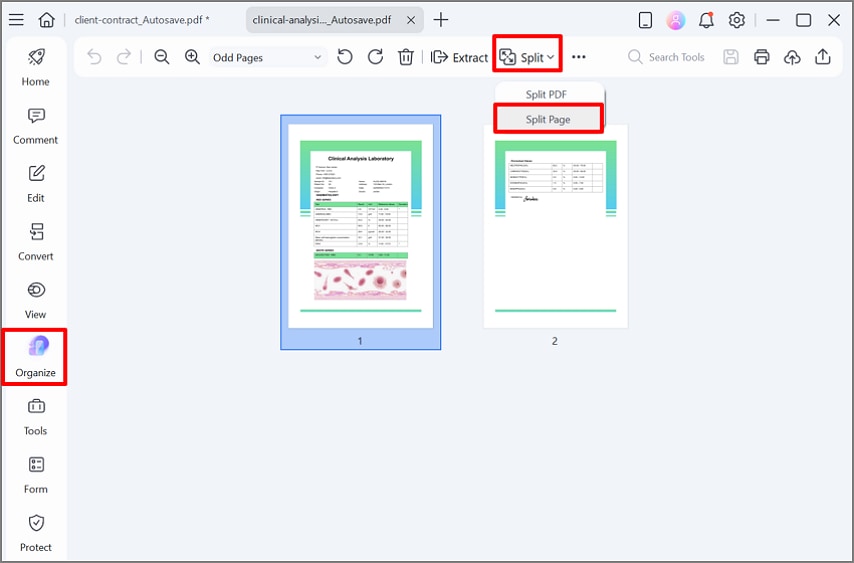
Step 1Select the Split Page Option in the Split Menu
To start locate the "Organize" option to further choose the "Split" menu from the top toolbar. Later, select the "Split Page" option to continue with the process.
Step 2Select Split Line and Enable the Page Range Options
Now, click on the "+Add Horizontal Split Line" and "+Add Vertical Split Line" options for a better preview. Afterwards, enable the "All Pages" range and hit the "Apply" button to save all changes.
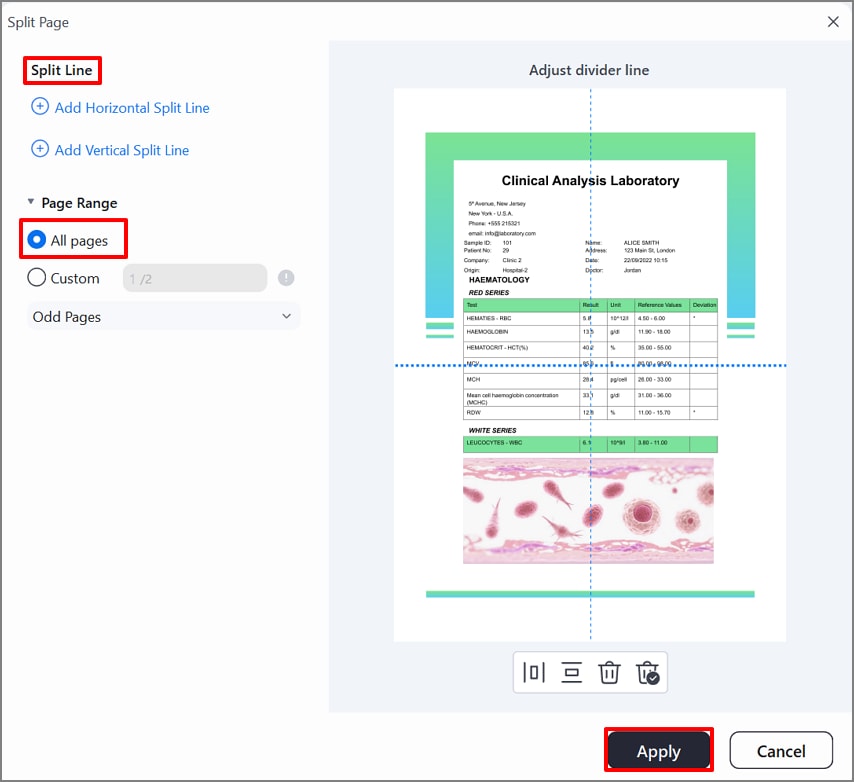
G2 Rating: 4.5/5 |100% Secure
Step 3Perform the Split and Extract Option on PDF
Later, choose the "Split" or "Extract" options to split the invoices separately for better file management.
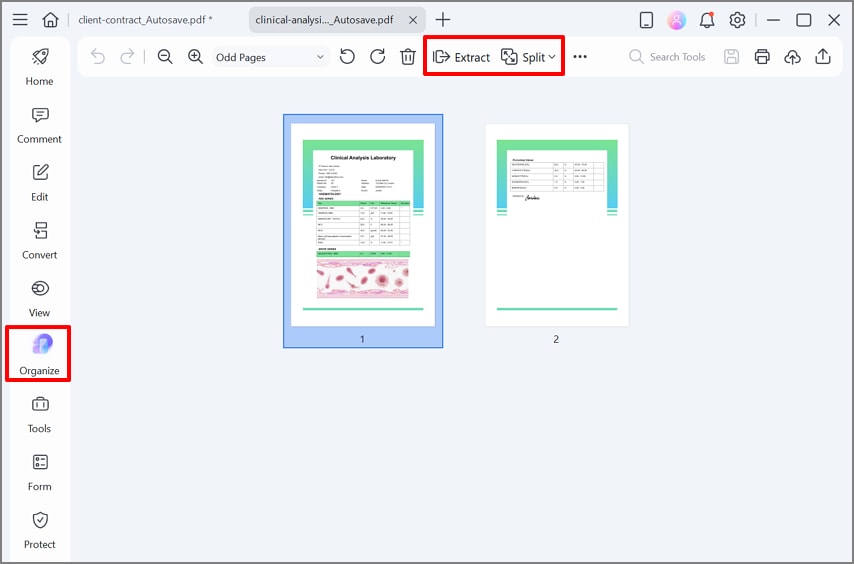
OCR First: Before using the "Split Page" feature, make sure you run OCR on the target file, as it will make the file searchable and editable. It will help the tools easily separate invoices by accessing each invoice's data, including the vendor name and invoice number.
Part 6. Method 4 — Online "Invoice Splitter" (Fast, No Install)
Suppose you are travelling and want a quick solution, then opt for an online solution like HiPDF. This tool lets you simply insert the PDF and choose the desired settings. Users can choose between the Custom Range and the Fix Range options. Furthermore, it also allows you to manually add the range of splitting, so explore the following detailed guide to use this invoice splitter.
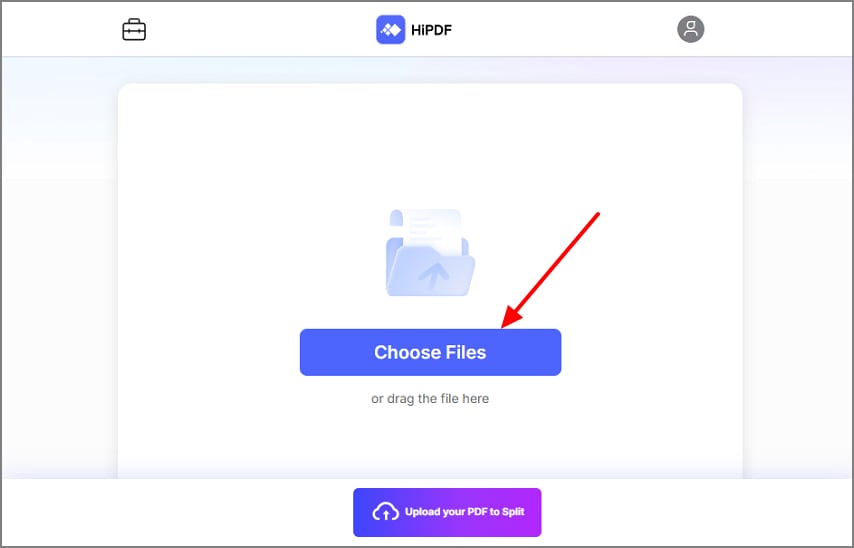
Step 1
Start by accessing the tool and clicking the "Choose Files" button to select the target PDFs.
Step 2
Next, choose the "Custom Range" option, enter the desired range manually, and select the "Split" button.
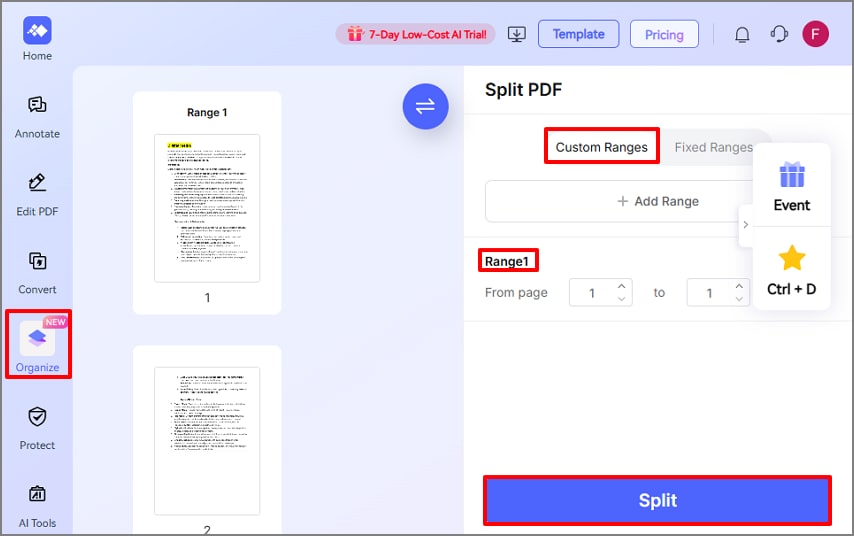
Step 3
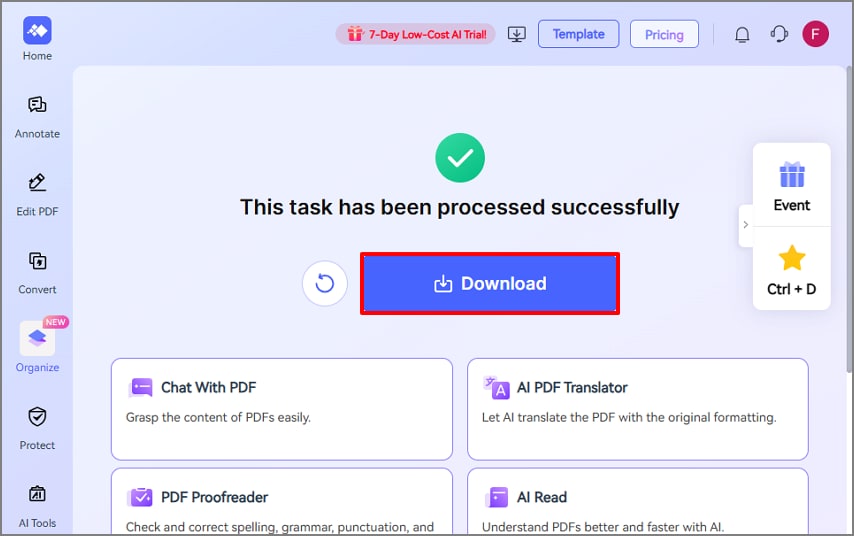
Finally, the PDF file is split, and choose the "Download" button to render the split file to the device folder.
Note: Before choosing the online tool, always review the privacy policy of the tool for file safety. Furthermore, check that the tool provides the desired file size limit for your targeted document. However, if you have any confidential invoices, then we recommend using a desktop tool like PDFelement, which processes files locally.
Part 7. Naming & Filing That Saves Hours
To avoid confusion and make the procedure smoother, let's move on to the efficient naming and filing strategies for split invoices:
Folder Pattern
While saving a file, always choose a clear file pattern like " /Finance/AP/Invoices/YYYY/MM/Separated/." By using this pattern, it will be easier for you to find the file as it will be saved in your own "Separated" folders.
Templates
When you use a template like {Vendor}_{InvoiceNo}_{Date} or {PO}_{InvoiceNo}_{Part1|Part2}, it makes it easier to distinguish the file at a glance. The foremost part is the file name, which easily tells you who the vendor is and which invoice you are selecting.
Add Meta Data
While saving the file, ensure you save the metadata of the file as the "File properties." When someone enters a vendor name or invoice number in the system's search box, the tagged field appears.
Part 8. Compliance & Integrity Tips (Before Sharing)
Before sharing or publishing documents using invoice splitter, take a moment to verify the following compliance and data integrity tips:
- Redact Information: Ensure you review the receipt and remove all personal information, like bank details, to avoid sensitive data leaks.
- Keep Clean Master Copy: Store the unedited PDF file in a saved cloud location and only share split, read-only copies to the clients.
- Check Totals and Footers: When splitting, verify that invoice totals, tax summaries, and footer notes are not accidentally cut while splitting into 2 files.
- Maintain a Split Log: Record a simple log showing the date, source file name, page ranges, and save it along with the master files so auditors can easily access them.
- Assign Simple Tag: Always assign simple and easy tags to files and shared invoices to restrict who can overwrite or edit them.
People Also Ask
-
What's the fastest way to split an invoice PDF into separate bills?
You can use a dedicated PDF splitter that can split by page ranges, bookmarks, or detected invoice headers in one go. Among the numerous tools, we recommend using PDFelement, which provides a built-in splitter and lets you perform OCR to make the file editable. -
Can I split the invoice into two without re-scanning?
Yes, you can open the existing PDF and split it digitally into two new PDFs without touching the scanner again. Furthermore, PDF editors let you choose specific page ranges or extract selected pages into a new file, so you can create two clean parts. -
How do I fix 2-up scanned invoices and make them searchable?
For this purpose, use a tool like PDFelement, which offers a page splitting feature to cut pages into 2 halves. Furthermore, you can also extract specific pages directly to your device without saving the whole PDF. -
Is there an invoice splitter that keeps bookmarks and filenames tidy?
Absolutely, there are numerous tools like PDFelement available that let you split the invoices by book names. Furthermore, it also automatically generates the file name by using its bookmarks. -
How do I handle portals with strict file-size caps?
At first, start by checking the portal's maximum file size and then split large invoice PDFs into smaller chunks. If it didn't work, you can even compress the file using an efficient compressor tool and then split the file.
Concluding it, the user can now easily split invoices using efficient methods with advanced splitting tools. This article has covered various methods for using both desktop and online tools. However, we recommend using PDFelement, which provides both "Split PDF" and "Split Page" features and even lets you extract selective pages. Whereas, you can opt for HiPDF if you want a quick online splitting for their PDFs.

