

Splitting one PDF page into multiple pages is a common need for editing, printing, or organizing documents more efficiently. Large PDFs with multiple sections often require separation into individual pages for clarity and usability. Whether you are preparing shipping labels, reports, or forms, knowing how to split PDF pages ensures manageable files. This guide covers step-by-step methods using popular tools to divide a single PDF page into multiple pages without losing quality.
In this article
- Why Splitting a Single PDF Page into Multiple Pages Is Useful
- Page-Level Splitting: Divide a Single PDF Page Without Losing Content
- Method 1: Visual Splitting with PDFelement for Maximum Accuracy
- Method 2: Simulate Multi-Page Output Using "Poster" Print in Adobe Acrobat
- Method 3: Manual Cropping Strategy for Precise Page Control
- Method 4: Online Tools to Split a Single Page into Multiple Pages For Non-Sensitive Files
- How to Choose Your Split Strategy
- Post-Split Adjustments for Professional Results
Part 1. Why Splitting a Single PDF Page into Multiple Pages Is Useful
Before we start splitting pages, we must understand the benefits. The following section explores why cutting PDF pages is useful:
Common Situations
- Scanned A3 or Poster-Size Pages: These need to become smaller sheets, such as A4, for easier printing and handling.
- PDFs with Multiple Slides, Tables, or Receipts: Large sheets containing multiple items can be split for clarity and usability.
- Digital Drawings or Maps: Must be shared in smaller, readable parts for accurate viewing.
Goal
Split one-page PDFs into multiple pages cleanly without losing detail or order.
Part 2. Page-Level Splitting: Divide a Single PDF Page Without Losing Content
Preserving the page quality is the most important thing to consider while splitting it. The following section explains how you can split a single-page PDF into multiple pages without losing contents:
- Regular PDF Splitting: Standard "split PDF" functions divide an entire document by page range. This method creates multiple files but does not separate content within a single page.
- Page-Level Splitting: This technique splits a single page into multiple smaller pages within the same PDF. It allows you to separate sections of a page without affecting the rest of the document.
- Content Preservation: Page-level splitting keeps visual content intact while dividing regions into several pages. Text, images, and diagrams remain clear and readable after the split.
- Precise Tools: Tools like PDFelement provide a visual editor with adjustable split lines. This ensures accurate and customizable division of the page for printing or sharing.


 G2 Rating: 4.5/5 |
 100% Secure
Part 3. Method 1: Visual Splitting with PDFelement for Maximum Accuracy
While splitting PDF pages into multiple pages, you must use a robust management tool. PDFelement is a file organization tool that cuts your pages and lets you treat them as individual parts. You can isolate elements by drawing custom horizontal and vertical lines on the page. Besides applying this split to the current page, you can do so for the entire document.
Users can also enter a custom page range and crop its pages. If you want to learn how to split a one-page PDF into multiple using PDFelement, follow this guide:
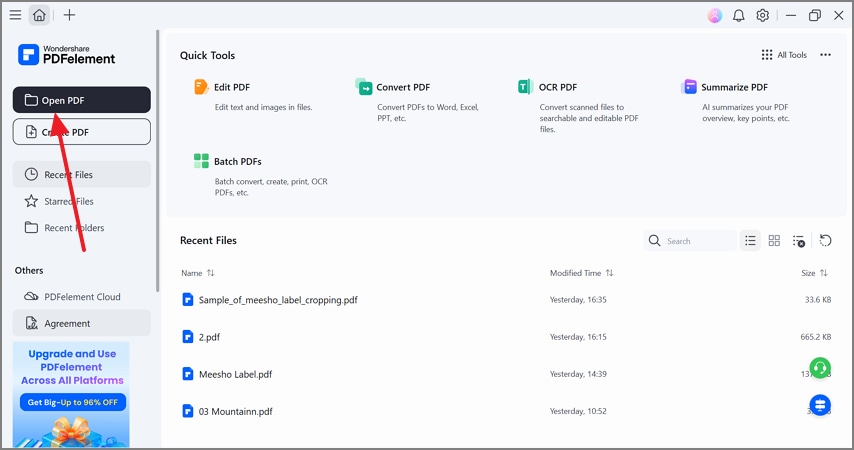
Step 1Open the PDF File on PDFelement
To start, select the "Open PDF" button on the top left to import the PDF file from your device.
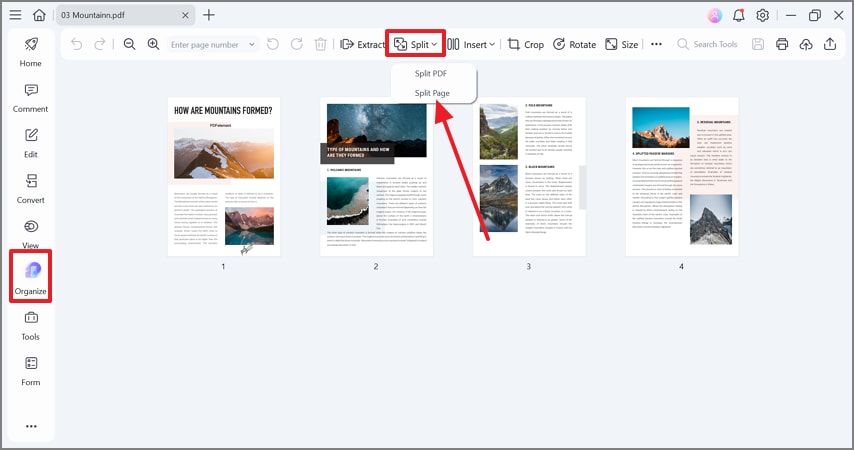
Step 2Split Page Using the Organize Tab
Select the "Organize" tab from the left sidebar and expand the "Split" menu to click "Split Page".
G2 Rating: 4.5/5 |100% Secure
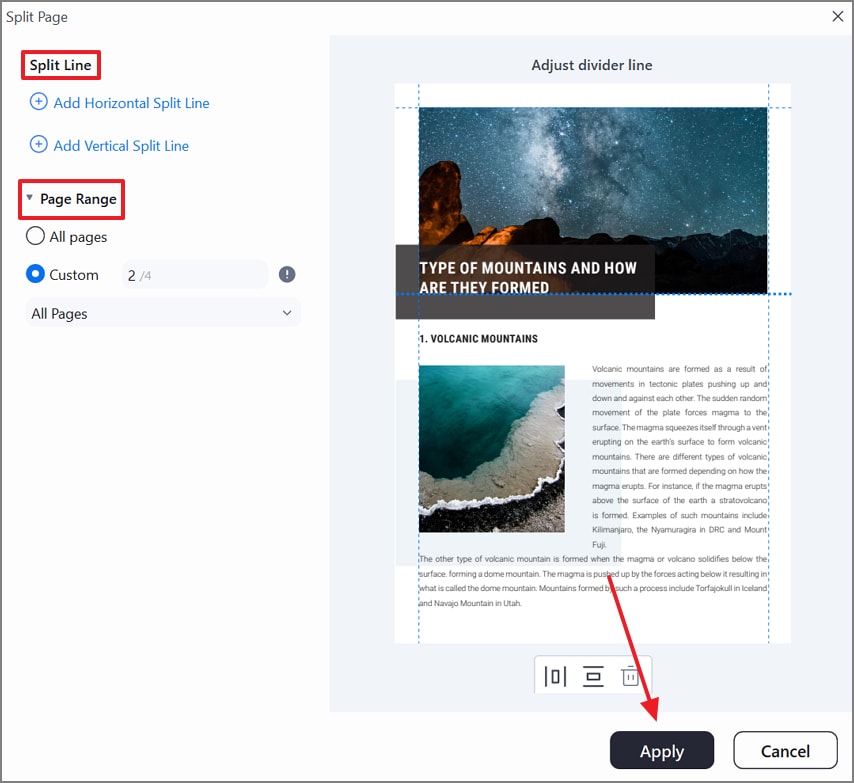
Step 3Add a Split Line and the Page Range
Using the next window, add horizontal and vertical divider lines from the "Split Line" section. Now, add a custom "Page Range" to crop from the selected pages. Once done, click "Apply" to implement these changes.
Use Cases
- Convert one wide A3 layout into two clean, standard A4 pages.
- Separate multi-slide PowerPoint export pages into single slides per page.
- Break one large infographic into scroll-friendly pages for easy mobile reading.
Part 4. Method 2: Simulate Multi-Page Output Using "Poster" Print in Adobe Acrobat
Another way to split pages into multiple pages is to use Adobe Acrobat. This tool offers a Poster printing feature that creates studio-quality results. It divides oversized documents into tiled pages for large-format printing.
It allows precise scaling, overlap adjustment, and alignment, making it ideal for creating banners, posters, or wall-sized graphics using standard printers. Follow the guide below and learn how to create a poster on Adobe Acrobat by splitting a one-page PDF into multiple pages:
Step 1
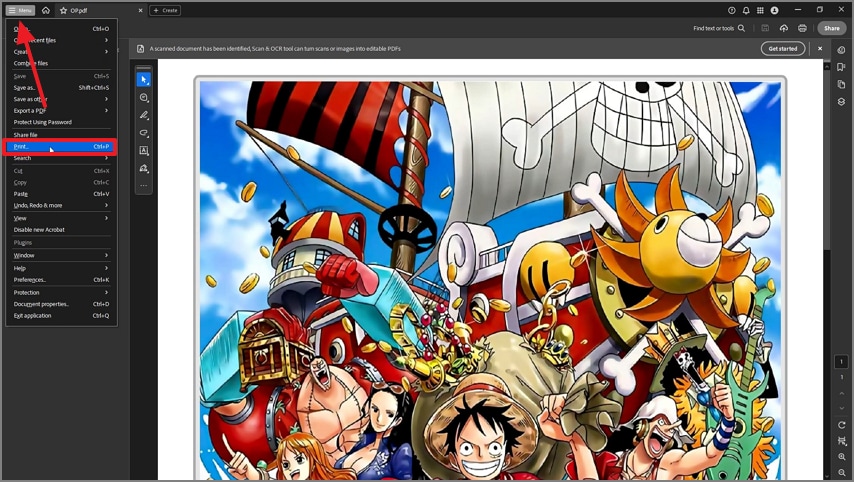
To start, expand the "Menu" at the top left and select the "Print" option to continue.
Step 2
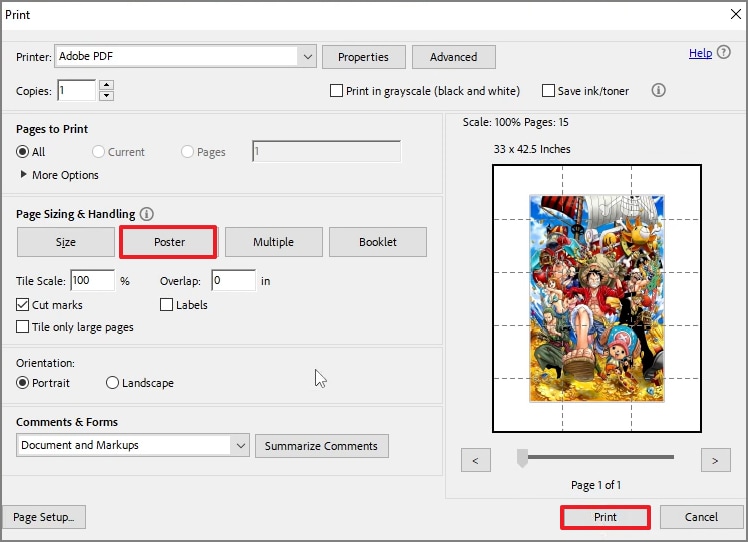
In the next window, select the "Poster" button and set the title scale to control how large the poster prints. Next, set an overlap value to decide the shared margin between tiles, making it easier to align and tape pages together accurately. Once done, select the "Print" button to create a hard copy of the poster.
G2 Rating: 4.5/5 |100% Secure
Part 5. Method 3: Manual Cropping Strategy for Precise Page Control
To get the maximum control over page splitting, you need tools like PDFelement. This platform enables you to organize the cropped page by setting neat crop margins. The page range feature is perfect for users looking to split multiple pages of the same document.
However, you can also import multiple files, crop their pages, and merge the PDFs to get an easy-to-handle PDF file. If you want to learn how to split a PDF page into multiple pages on PDFelement, follow this guide:
Step 1Select the Crop Option from the Organize Mode
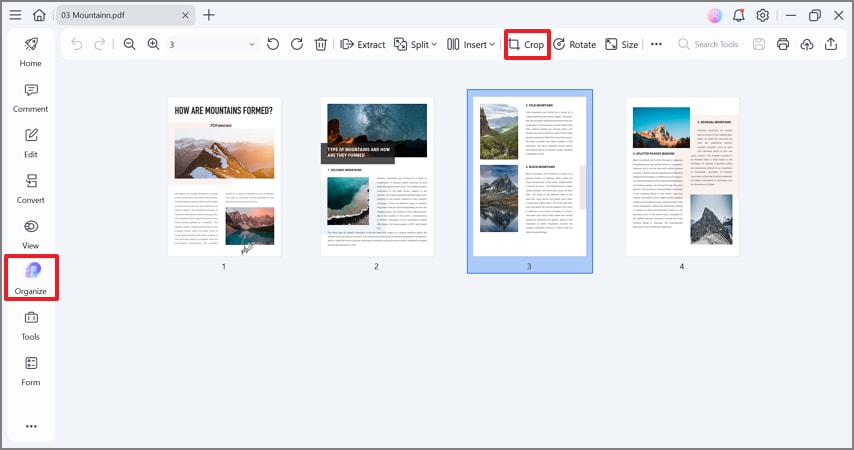
In the "Organize" tab, select the "Crop" option and open a new window.
Step 2Set Your Crop Margins
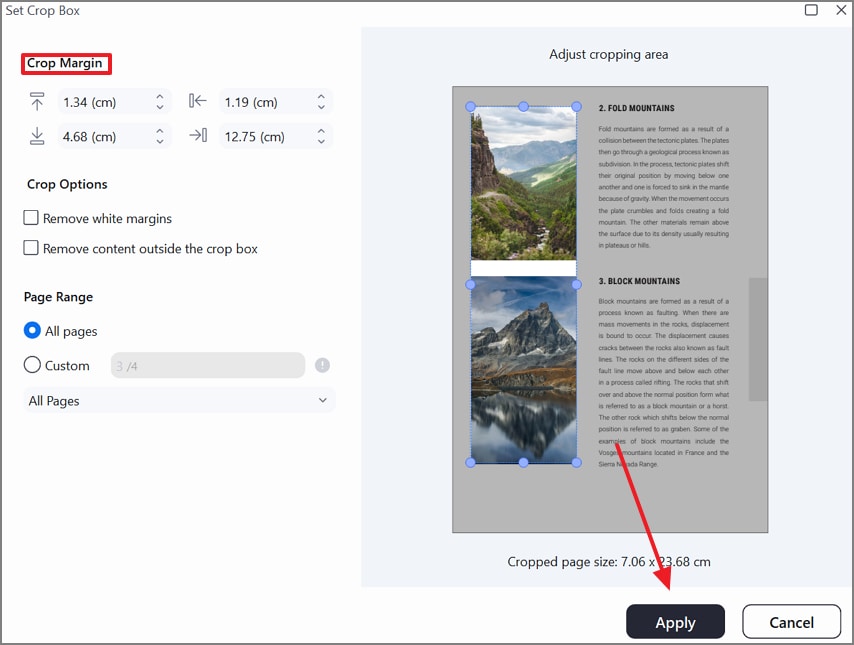
Using this window, set the "Crop Margins" from the relevant field and click "Apply" to implement changes. Now, import all PDF files and crop their pages in the same way.
G2 Rating: 4.5/5 |100% Secure
Step 3Save Each PDF File
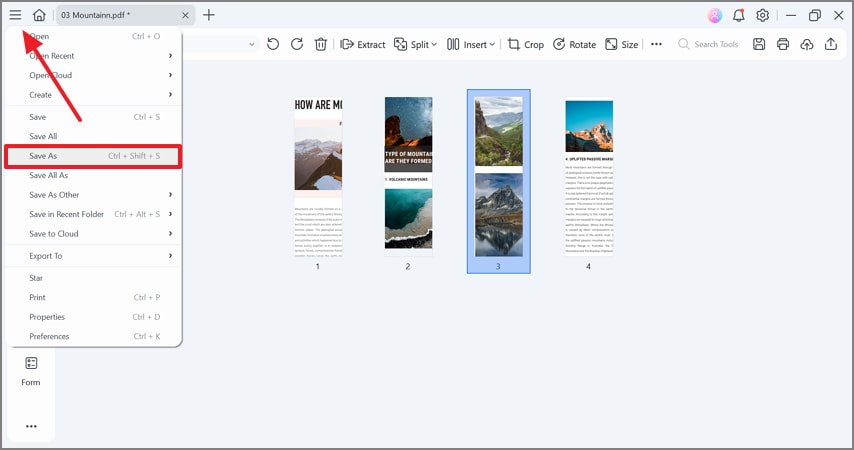
Once you have cropped all PDFs, expand the "Menu" from the top left and click "Save As" to download them.
Step 4Combine Files From All Tools
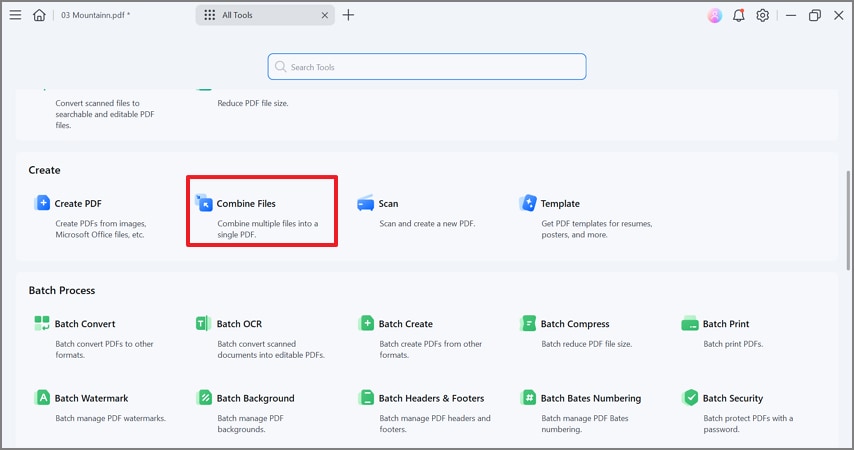
Now, head over to PDFelement's homepage and open the "All Tools" menu. In the next window, select the "Combine Files" option and import all of the recently saved cropped PDFs.
Step 5Apply the Merge to All Files
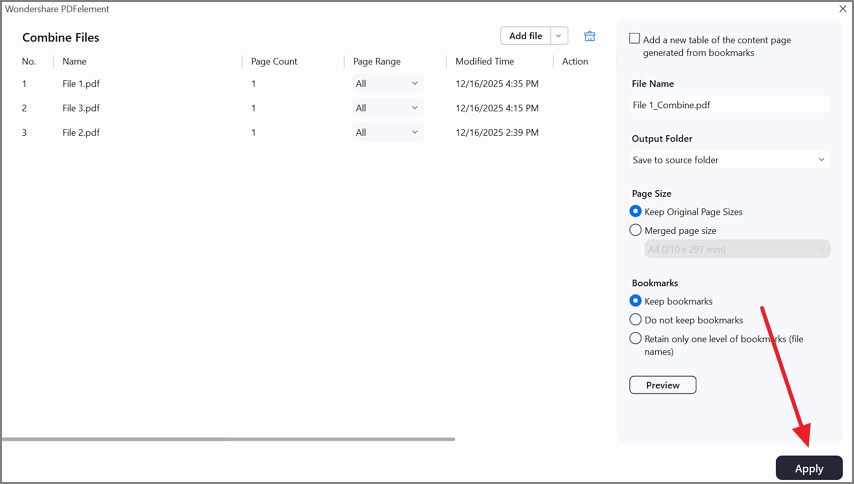
After importing all files, name the new document and click "Apply" to save it on your device.
G2 Rating: 4.5/5 |100% Secure
Best For
- Users who want total control over page composition and layout adjustments.
- Large diagrams or engineering drawings that require distinct, precisely defined cropping areas.
Part 6. Method 4: Online Tools to Split a Single Page into Multiple Pages For Non-Sensitive Files
Using an online tool for cropping PDF files is a quick way to deal with non-sensitive files. Smallpdf is a renowned PDF management website that enables you to perform basic file-related processes. You can trim your pages and treat each part of the page as an individual page.
Once you are done cropping, the files can be downloaded to your device with a single click. Follow the guide below and learn how to split a single-page PDF into multiple using Smallpdf:
Step 1
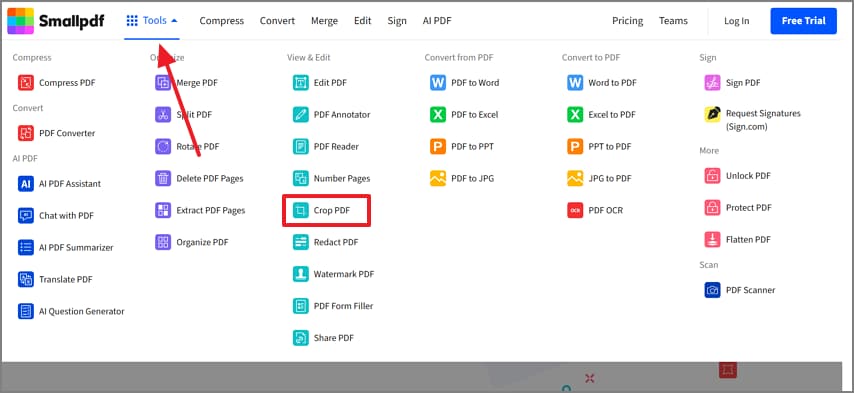
First, open the "Tools" menu and select the "Crop PDF" tab to upload the PDF file.
Step 2
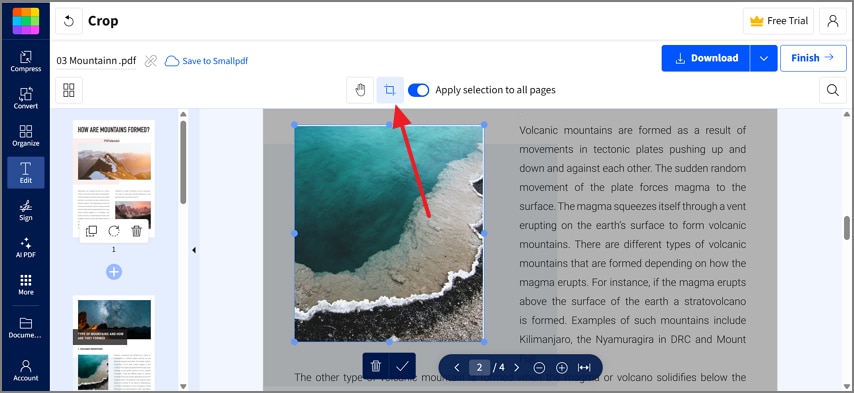
Locate the area that you need to crop and draw the crop box by pressing the designated button.
Step 3
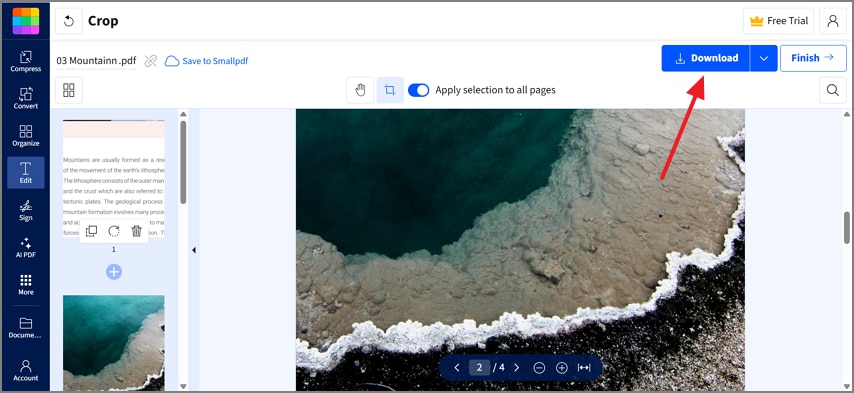
Once done, click the "Download" button to save the file to your device.
Important Tips
- Always check for file-size limits and avoid uploading confidential data.
- Works well for quick, free fixes or non-private projects.
Part 7. How to Choose Your Split Strategy
Choosing the right split one-page PDF into multiple pages method depends on your document type, precision needs, and workflow. This table helps you match common situations with the most effective splitting approach and provides helpful notes for each:
| Situation | Best Method | Notes |
| A3 or large sheets | PDFelement Split Page | Offers visual precision and supports batch processing across a page range. |
| Posters or maps | Acrobat Poster Print | Quick method, but provides lower accuracy compared to visual editors. |
| Technical diagrams | Crop & Merge | Manual approach gives full control over content placement and layout. |
| Simple splits online | Web Tools | Suitable for light, non-sensitive files; easy and fast for basic tasks. |
G2 Rating: 4.5/5 |100% Secure
Part 8. Post-Split Adjustments for Professional Results
Once you have split the pages, adjusting them later ensures a clean layout. Read the following section and learn how produce neat cutouts after splitting a one-page PDF into multiple pages:
- Forgetting to Resize: Leaving the halves at original A3 proportions can result in oversized pages after splitting. Always resize to the target format to ensure readability and print compatibility.
- Misaligned Divider Lines: Incorrectly placed split lines may cut off text or important visuals. Double-check alignment to keep all content intact and properly positioned.
- Ignoring Reading Order: Splitting without maintaining logical order can confuse readers. Follow left-to-right, top-to-bottom sequencing to preserve the document's flow.
- Over Compressing Before Splitting: Excessive compression can blur text and reduce image clarity. Maintain sufficient quality before dividing pages to ensure legible output.
People Also Ask
-
How do I split one page PDF into multiple pages without losing quality?
Use a page-level splitting tool like PDFelement to cut the pages. This tool preserves text, images, and diagrams while dividing the page accurately. -
Can I split a PDF page into multiple pages while keeping A4 dimensions?
PDFelement allows you to crop or tile sections to fit standard A4 sizes. Ensure you resize each section appropriately after splitting to maintain readability. -
Does the Poster print method create editable pages?
The Poster print method in Acrobat generates a new PDF layout for printing. The resulting pages are usually not editable unless converted back to a PDF editor. To edit them, you may use PDFelement on your Mac or Windows devices. -
Can I split a single-page PDF into multiple parts on mobile?
The PDFelement app provides splitting or cropping features for single pages. You can make divider lines manually to get the desired text and exclude the unwanted elements precisely. -
What's the most accurate way to control divider placement?
Using a visual split tool like PDFelement allows you to adjust split lines manually. This ensures precise placement and avoids cutting important text or images.
To split a PDF page into multiple pages, choose a method based on the level of precision and convenience you need. For accurate visual control, use PDFelement's "Split Page" tool to add and adjust vertical or horizontal dividers. For quick tiling, Acrobat's Poster Print is effective, while manual cropping or online splitters suit specialized cases. With proper checks for page size, margins, and order, you can produce a professional, print-ready document.

