

Managing large PDF files can be a hassle, especially when you need to share them via email or upload them. Splitting a PDF by size is a practical solution that divides a large document into smaller and more manageable files.
Unlike traditional split approaches that divide files by pages or sections, splitting by size lets you tailor PDFs to your specific needs. This article outlines efficient approaches to split PDFs by size for a smoother workflow.
In this article
- Why Split a PDF by Size (and When It Matters)
- 60-Second Preparation (Set Targets, Plan Naming)
- Method A — Local, Precise Split PDF by File Size (PDFelement)
- Method B — Shrink First, Then Split (Best for Scans & Image-Heavy PDFs)
- Method C — Hybrid Plan for Huge Files (Pages First, Then Size)
- Online Option — Split PDF by Size Online Free (When Appropriate)
- Output Hygiene (Folders, Names, Quick QA)
- Size-Limit Playbooks (Copy & Adapt)
- Performance & Reliability Tips
- Do's & Don'ts (To Ensure Clean Results)
Part 1. Why Split a PDF by Size (and When It Matters)
Splitting a PDF by size matters whenever the primary focus is on its MBs, not pages. Many web services, including emails, limit attachment sizes in the 10–25 MB range, which is why a single bulky PDF may be rejected. Splitting by size lets you keep the document content intact while compressing it to fit into the desired limit.
Typical Real-World Use Cases to Split a PDF by Size
Now that you understand the basics, let's explore how splitting PDFs by size works in real-world scenarios:
- Image-Heavy Scans: It stores large PDFs by storing every page as a high‑resolution image, so splitting lets you manage file size while preserving the original data.
- Proposals and Presentations: Splitting by size lets you create neatly sized "Part 1/Part 2" files that are easy to send to clients, reducing the risk of bounced email.
- Technical Manuals: Technical manuals can include hundreds of pages with diagrams and images, so splitting them makes them easier to upload to LMS portals.
- Large Research Packs: Splitting larger research packs into desired file sizes makes the file share ready for later sharing with other team members.
- On-Boarding Documents: The onboarding file consists of multiple files, training PDFs into a single large file, so splitting it lets HR send clearly labeled segments.
Goal For Resizing PDFs
In the scenarios above, the goal is to downsize the PDF without reducing the content. The main advantage of "split PDF by file size" is that you can easily customize the file size for the target platform. Furthermore, the outcome will be accurate by keeping the layout, fonts, and images intact while fitting into platforms such as email, LMS, and other portals.
Part 2. 60-Second Preparation (Set Targets, Plan Naming)
To avoid further issues after splitting the PDF by size, you should follow the points listed below:
- Decide Target Size: Start by specifying the exact file size for the target file to ensure a clear understanding.
- Do a Scan Check: If the PDF is primarily images, run a quick compression pass before splitting the file to maintain readability.
- Proper Naming Convention: Always use a consistent naming convention, such as "{filename}_part{index}", and store these files in a dedicated folder.
- Confirm Page Order: Before splitting the file, verify that the page order and structure are accurate to ensure more precise boundaries.
- Check Downstream Limits: Ensure you verify the target platform limit and select a size target that provides a safe buffer to avoid failed updates.
Part 3. Method A — Local, Precise Split PDF by File Size (PDFelement)
The sales team has just finalized a 65 MB, image-heavy proposal with charts, mockups, and pricing tables. However, the client's IT policy limits incoming attachments to 20 MB, and your email is rejected because it exceeds the limit. Instead of re-exporting the file at lower quality or using cloud links, consider using PDFelement, which lets you set the target file size with its "Split by Size" feature.
While splitting the file by size, you can also set the desired output settings. Moreover, you can edit the file by inserting text and images, and by highlighting text for a seamless workflow. If your file didn't shrink as required, then this tool provides a compressor to compress the files first.
Pathway To Split PDF by Size Using the PDFelement Tool
Now, if you are eager to split a PDF by file size using the efficient PDFelement tool, read the following guide below:
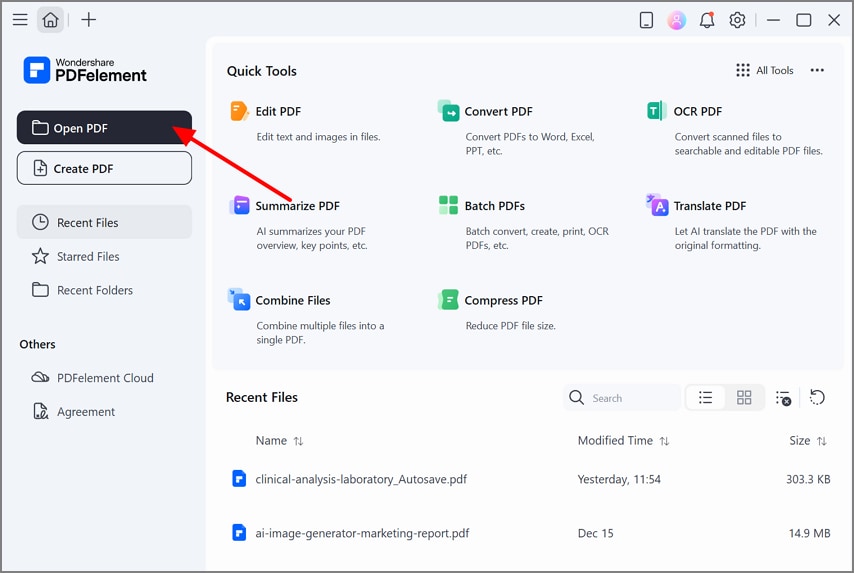
Step 1Choose the Open PDF Button to Import PDF
Once the tool is ready to use, click the "Open PDF" button in the top-left corner of the interface to open the desired PDF file.
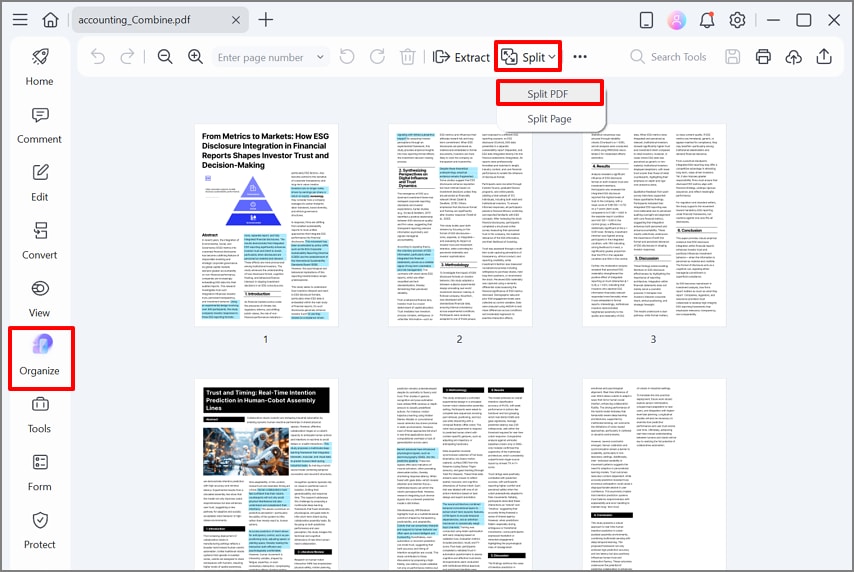
Step 2Select the Organize Menu and Choose the Split PDF Option
Here, click on the "Organize" option from the left sidebar, navigate towards the "Split" option, and hit the "Split PDF" from the drop-down menu.


 G2 Rating: 4.5/5 |
 100% Secure
Step 3Select Split File Size and decide Output Settings
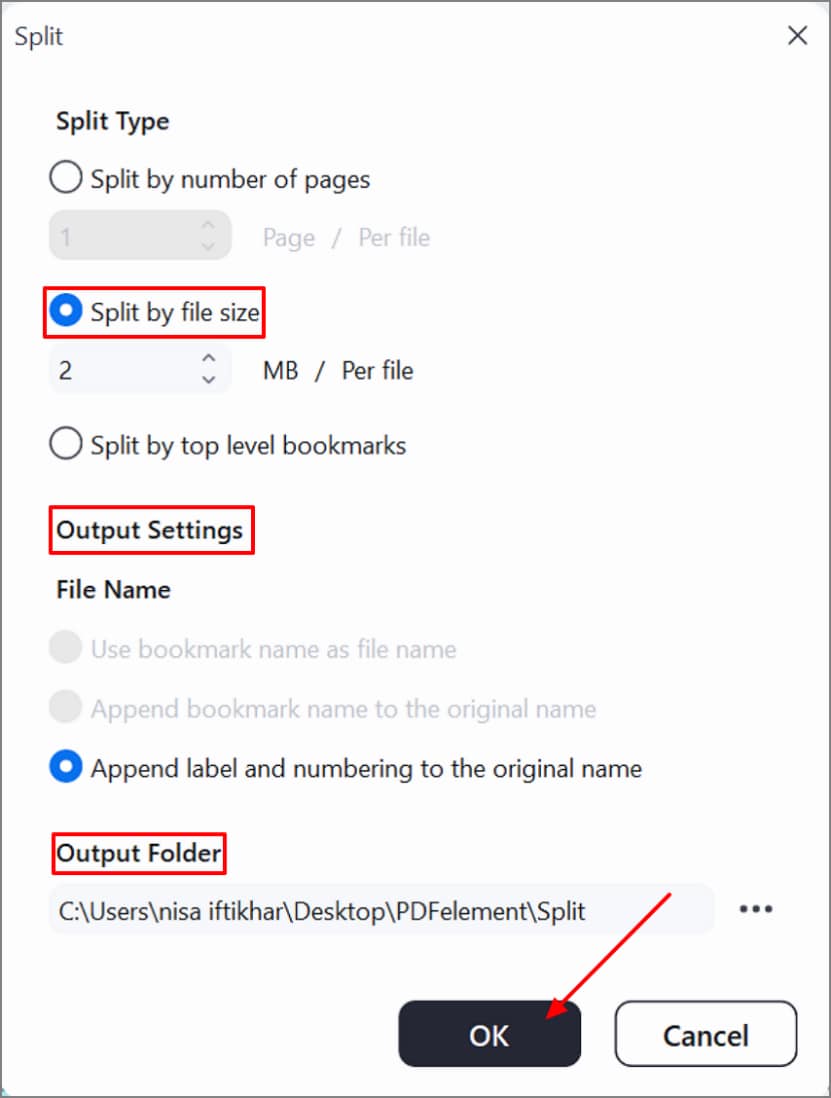
Lastly, enable the "Split by File Size" option and enter the size in MBs. Then, choose the desired "Output Settings" along with "Output Folder" and press the "OK" button.
Notes
If one or two parts of the PDF file still exceed the required file limit, reduce the target size or optimize the file, as discussed in Method B. This step will keep all parts consistent and prevent repeating the procedure.
However, if you are dealing with long documents, don't split by size, as it will ruin the formatting by cutting in the middle of chapters and sections. In this scenario, enable the "Opt for Top Level Bookmarks" which provides clear anchors for accurate alignment.
Part 4. Method B — Shrink First, Then Split (Best for Scans & Image-Heavy PDFs)
If you split a PDF file using Method A but find that the file still does not fall within the required size bracket. In this case, first compress the file to the desired size, then split the PDF file. This method is primarily beneficial for scanned contracts, brochures, manuals, and photo-rich reports that require accuracy. After exploring the features of this method, let's move on to its steps:
Step 1Use the Tools Menu to Compress a PDF File
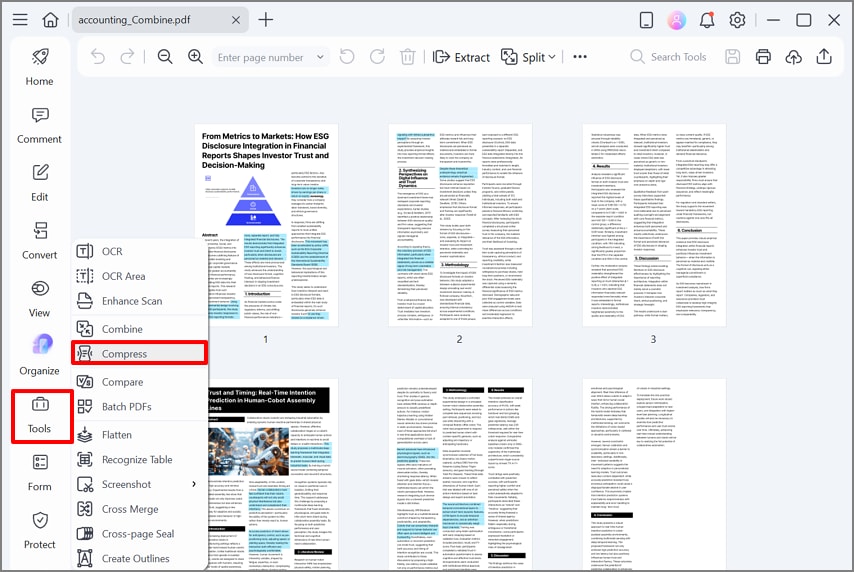
After inserting the file, select the "Tools" option in the left panel, and click the "Compress" option from the list.
G2 Rating: 4.5/5 |100% Secure
Step 2Recheck the File Size and Choose Split by File Size
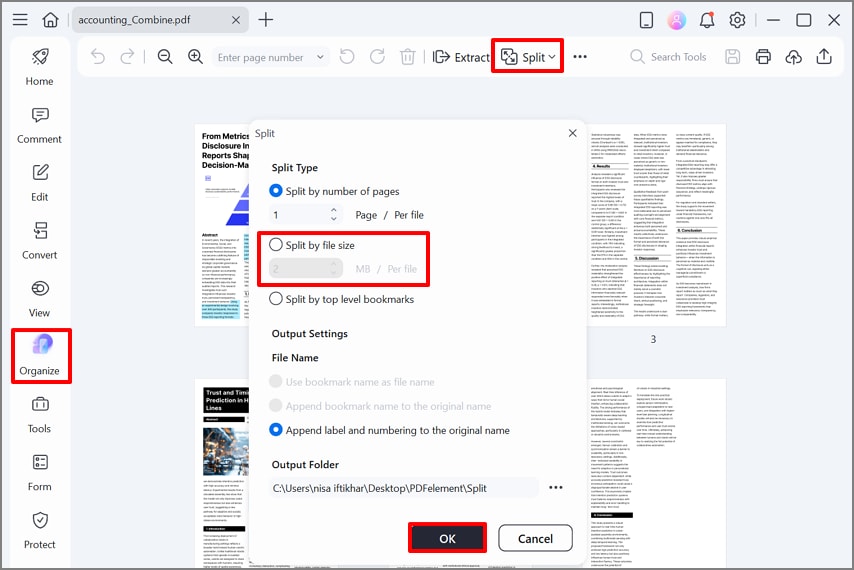
After compressing the file, review the file size and reinsert the PDF into the tool. Next, repeat Method A, which we discussed above, and zoom the file to ensure it is readable.
Why it Works: This method works by compressing the file first, making it exactly the size of your required limit. After applying this method, the chunks become cleaner and smaller, which leads to faster uploads on various platforms.
Part 5. Method C — Hybrid Plan for Huge Files (Pages First, Then Size)
To manage large files efficiently, first split the PDF pages separately and then split the entire PDF. This hybrid plan works best for huge reports, multi-volume manuals, e-discovery bundles, or archive dumps. Now that the functionality is clear, let's walk through its procedure to split a PDF by size:
Step 1Select the Split Page Option in the Organize Menu
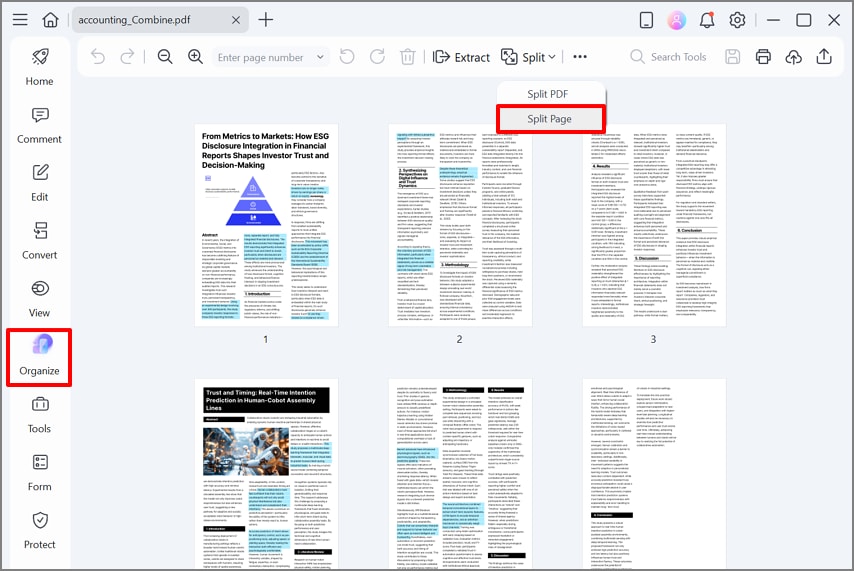
Within the "Organize" tab, access the "Split" feature in the toolbar and choose the "Split Page" option.
Step 2Enable Desired Page Range and Hit the Apply Button
Here, enable the "All Pages" option under the "Page Range" section and click on the "OK" button. Next, apply the PDF split by size method to set the exact MB size for uploading.
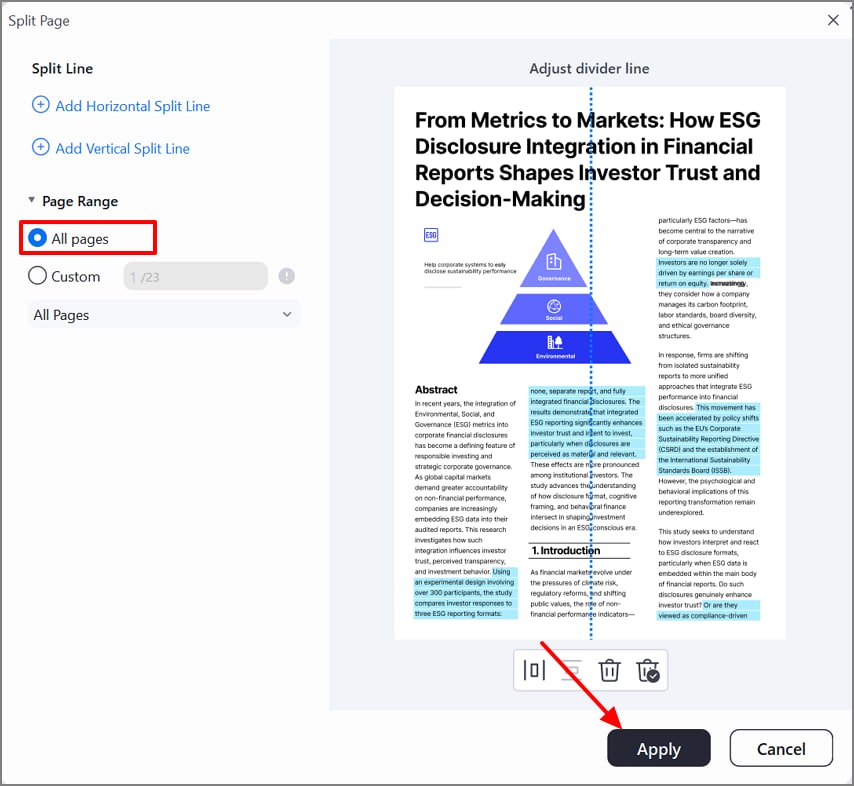
This hybrid approach reduces processing errors and timeouts on large files and avoids email bounce errors. Moreover, after accessing the outcome, users can even review it to ensure complete accuracy before saving it to the device folder.
G2 Rating: 4.5/5 |100% Secure
Part 6. Online Option — Split PDF by Size Online Free (When Appropriate)
If you don't have enough space on your desktop and want a quick, online solution, opt for online tools. There are numerous split PDF by size online free tools available that offer this specific feature. While choosing a reliable tool, ensure the maximum file size of our file and page caps. Furthermore, check for size-based splitting, and if it is not available, then opt for a custom or fixed range feature.
While using an online tool, make sure to check the outcome by processing smaller files as larger files may take time. Furthermore, never upload confidential files on any online tool as there is a risk of their leaking.
Part 7. Output Hygiene (Folders, Names, Quick QA)
After exploring the core guides, let's go through the following output hygiene to achieve an accurate split PDF file size:
Folder Pattern
Always use a clear folder structure, so all split parts live in one obvious place instead of getting mixed with drafts and source files. Users can use a format like "/Project/Deliverables/Split_By_Size/" to keep the master file and final file separated. Furthermore, it makes it easier for teammates to find the exact split outputs without hunting through all files.
Naming Template
While naming the file, ensure you use simple, consistent naming templates so anyone can tell at a glance what each file contains. Some common options are {filename}_part{index} for simple sequences, {filename}_{range} when page ranges. By assigning clear names, it reduces confusion in email threads and shared drives.
Quick Q/A Check
Before sending or uploading, do a 30–60 second QA review on your split PDFs. Start by opening them to confirm page continuity and ensure the headings still make sense. Moreover, always ensure that the file size is under the required file size limit. By doing this quick check, you will be able to catch the error at an early stage, so you can fix it once instead of dealing with revisions.
Part 8. Size-Limit Playbooks (Copy & Adapt)
Here we have listed some exact size-limit playbooks that you can pick to split PDFs by file size:
Email Gateway (≤20 Mb)
Pathway: Optimize → Split by file size to 19 MB → Save the file to use it
It keeps every attachment safely under typical email limits while minimizing the number of parts, so sending and downloading stay simple.
Strict Client Uploader (≤10 Mb)
Pathway: Method C (range first) → Method A (size) → verify each part <10 MB
This two-step approach is ideal when upload limits are tight and non-negotiable, as it preserves all logical sections.
Course Pack/Manual
Pathway: Add top-level bookmarks → split by size so breaks align near chapters
The following method keeps long, structured documents easy to navigate while still creating files within the desired file size limit.
Part 9. Performance & Reliability Tips
Now, go through the following performance and readability tips that can enhance your overall outcome:
- System Resources and Storage: Before processing the file, always close heavy apps or large browser sessions to give more room for PDF tools to process.
- Searchability for Scanned PDFs: For scanned PDFs, always run OCR to make the file editable and searchable for accurate splitting of PDF by size.
- Compression Strategy: Avoid repeatedly compressing the duplicate content through multiple cycles, as it can degrade the overall quality.
- Simple Run Logging: Always keep the method simple and keep the run log like a timestamp and target MB so your team member can easily repeat this workflow.
Part 10. Do's & Don'ts (To Ensure Clean Results)
As a final checkpoint, here are the essential dos and don'ts to ensure clean, share-ready results:
People Also Ask
-
How do I split a PDF by file size exactly to a target MB?
You can easily meet the target file size limit by enabling the "Split by File size" option in PDFelement. This tool lets you enter the exact MB size for your PDF to easily share on various LMS portals. -
Is PDF split by size reliable for image-heavy scans?
Yes, it can be used, but you need to compress the file and then apply the PDF split-by-size feature. This method ensures that each size-based chunk remains below the target while keeping scans legible. -
Can I safely split a large PDF online for free by size?
This level of safety varies by tool, as only some online tools offer stronger security features. So always opt for a reliable tool that offers maximum security, but it is recommended to upload large or confidential files. -
How do I keep search and bookmarks in each part after splitting?
To make the files easily editable and searchable, make sure to perform OCR on the scannable files. For this purpose, always opt for a tool like PDFelement, which provides efficient OCR along with a splitting feature. -
Why do some outputs end slightly above my target—and how do I correct that?
As PDFs are a bundle of fonts, images, and other resources, they might exceed the target limit. In this case, you can try lowering the target size or performing compression before splitting the file.
Wrap-up
Concluding it, users can easily split the file size by determining the exact size limit within the reliable tool. This article has covered efficient methods to split PDFs by size using an efficient desktop tool. So, we recommend using Wondershare PDFelement, which lets you insert the exact file size using its advanced splitting feature. Furthermore, always save files with proper naming and do a quick Q/A to avoid further re-editing.

